
When your Lenovo IdeaPad 5 15 won't show anything on an external monitor or TV, it's a real roadblock. The problem usually comes down to a setting that needs toggling, a driver that needs updating, or a simple connection hiccup. Let's get your second screen working.
Press the Windows + P Shortcut
This is the fastest thing to try. With your HDMI cable connected, press the Windows + P keys together. A menu will pop up on the right side of your screen. It's probably set to "PC screen only," which disables the external port. Click Duplicate or Extend to send the signal out. I'd try "Duplicate" first to see if you get any picture at all.
Check Your Cable and Connections
Unplug the HDMI cable from both your laptop and the monitor. Take a quick look at the ports for any obvious dust or debris. Then, plug everything back in firmly, making sure the cable is fully seated. If you have a spare HDMI cable, try it. Cables can fail internally without showing any outward damage.
Also, double-check that your monitor or TV is powered on and set to the correct input source. Use the remote or buttons on the monitor to cycle through inputs until you land on the HDMI port your laptop is plugged into (e.g., HDMI 1, HDMI 2).
Run a Detection in Windows Settings
Go to Settings > System > Display. On this page, you'll see a button labeled Detect. Click it. Windows will actively search for any connected displays. If your monitor appears, you can then arrange it and choose your display mode.
If the monitor shows up but the image is wrong, scroll down and click Advanced display settings. Try setting the external display's resolution to a common standard like 1920x1080 to see if that fixes a blank or garbled screen.
Update Your Graphics Drivers
Outdated or corrupted display drivers are a common culprit for HDMI issues. The best way to update them is directly from the chipmaker. You'll need to know if your IdeaPad 5 has an Intel Iris Xe, AMD Radeon, or NVIDIA GeForce GPU.
Visit the Intel, AMD, or NVIDIA website, use their auto-detect tool or manually find your driver, download it, and run the installer. Using Lenovo Vantage for updates is good, but for graphics, going straight to the source often gets you a newer, more stable driver that specifically addresses display output bugs.
Restart Your Laptop with the Monitor Connected
Sometimes, the graphics card needs a fresh start to properly initialize the external display port. Shut down your IdeaPad completely, not just sleep. Once it's off, ensure your HDMI monitor is turned on and connected. Then, power the laptop back on.
Watch the external screen during the boot process. If you see the Lenovo logo or Windows loading circle appear on it, you know the hardware connection is good and the issue is within Windows itself.
Disable and Re-enable the Display Adapter
This is a quick refresh for your graphics hardware. Right-click the Start button and select Device Manager. Expand the Display adapters section. Right-click on your graphics adapter (like "Intel(R) Iris(R) Xe Graphics") and choose Disable device.
Your screen will flicker. Wait about 10 seconds, then right-click the same adapter again and select Enable device. This forces the GPU to re-detect all its outputs, which can often kick the HDMI port back into action.
Try a Different Port or Adapter
Many IdeaPad 5 15 models come with a USB-C port that supports DisplayPort Alt Mode. If your monitor has a USB-C input, try connecting directly with a USB-C cable. If not, you can use a USB-C to HDMI adapter.
If the display works through the USB-C port but not the dedicated HDMI port, it points to a potential issue with the HDMI port itself. This helps narrow down where the problem lies.
Check for Power Saving Settings on the WiFi Adapter
This might seem unrelated, but it's a known quirk on some Lenovo laptops, including the IdeaPad series. A power-saving feature for the WiFi card can interfere with other system functions. Open Device Manager, expand Network adapters, and right-click your WiFi adapter (it will have "Wireless" or "WiFi" in the name).
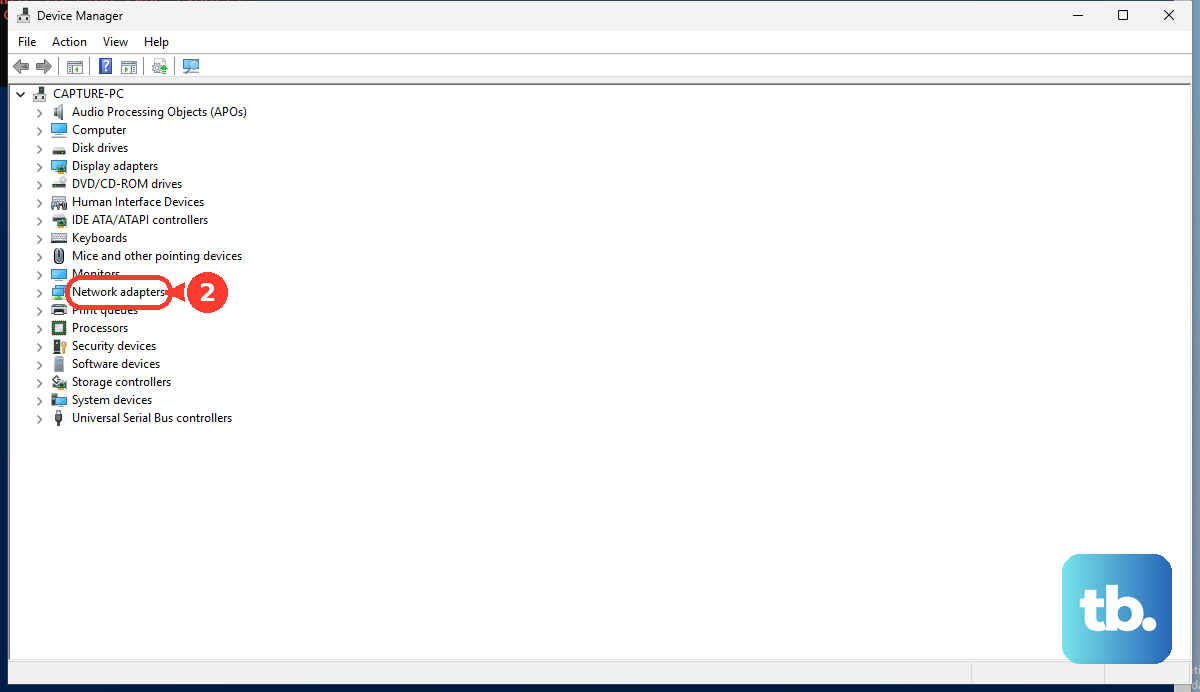
Select Properties, go to the Power Management tab, and uncheck the box that says Allow the computer to turn off this device to save power. Click OK and restart your laptop. I've seen this resolve odd peripheral detection issues.
Use the Novo Button to Access Display Recovery
Your IdeaPad has a small pinhole button, usually on the left side or next to the power port, called the Novo button. Shut down the laptop completely. Then, straighten a paperclip and gently press into the Novo button hole.
This will boot you to a special menu. Use the arrow keys to select Normal Startup and press Enter. This performs a very clean boot of the system hardware, which can clear a temporary glitch preventing display detection. It's a useful trick that doesn't affect your files or settings.