
Seeing a photo get stuck on "Not Delivered" on your iPhone SE 4 is a common annoyance. The fix is usually something simple, like toggling a setting or restarting your phone. Let's run through the most effective solutions to get your pictures sending again.
Check Your Internet Connection First
This is the most likely culprit. If you're on Wi-Fi, make sure the icon is in your status bar. You can try turning Wi-Fi off and back on in Control Center. For cellular, check that you have at least a couple of signal bars.
If you're in a spot with weak service, moving to a different room or near a window can help. Sometimes, the iPhone SE 4's cellular radio just needs a quick refresh, which a simple restart can handle.
Restart Your iPhone SE 4
A quick restart clears out temporary software glitches that can block messages. To restart your SE 4, press and hold the side button and either volume button, then slide to power off. Wait about 30 seconds before turning it back on.
For a more thorough refresh, you can perform a force restart. Press and quickly release the Volume Up button, then quickly press and release the Volume Down button. Finally, press and hold the Side button until you see the Apple logo appear.
Verify iMessage is Active and Working
If your messages are green, you're sending regular SMS/MMS, not iMessage. Go to Settings > Messages and make sure the iMessage toggle is on. If it's already on, try turning it off, waiting a few seconds, and turning it back on.
Also, check your send and receive addresses in the same menu. Tap Send & Receive and ensure your phone number is checked. Sometimes, iMessage can get confused if you're only registered with an email address.
Enable MMS Messaging for Text (SMS)
If you're texting someone who doesn't have an iPhone, or if iMessage is off, photos send via MMS. You need to make sure this is enabled. Head to Settings > Messages and scroll down.
Ensure both MMS Messaging and Send as SMS are toggled on. The "Send as SMS" option is a good backup, it will automatically send as a regular text if iMessage fails after a short while.
Check Your Cellular Data Settings
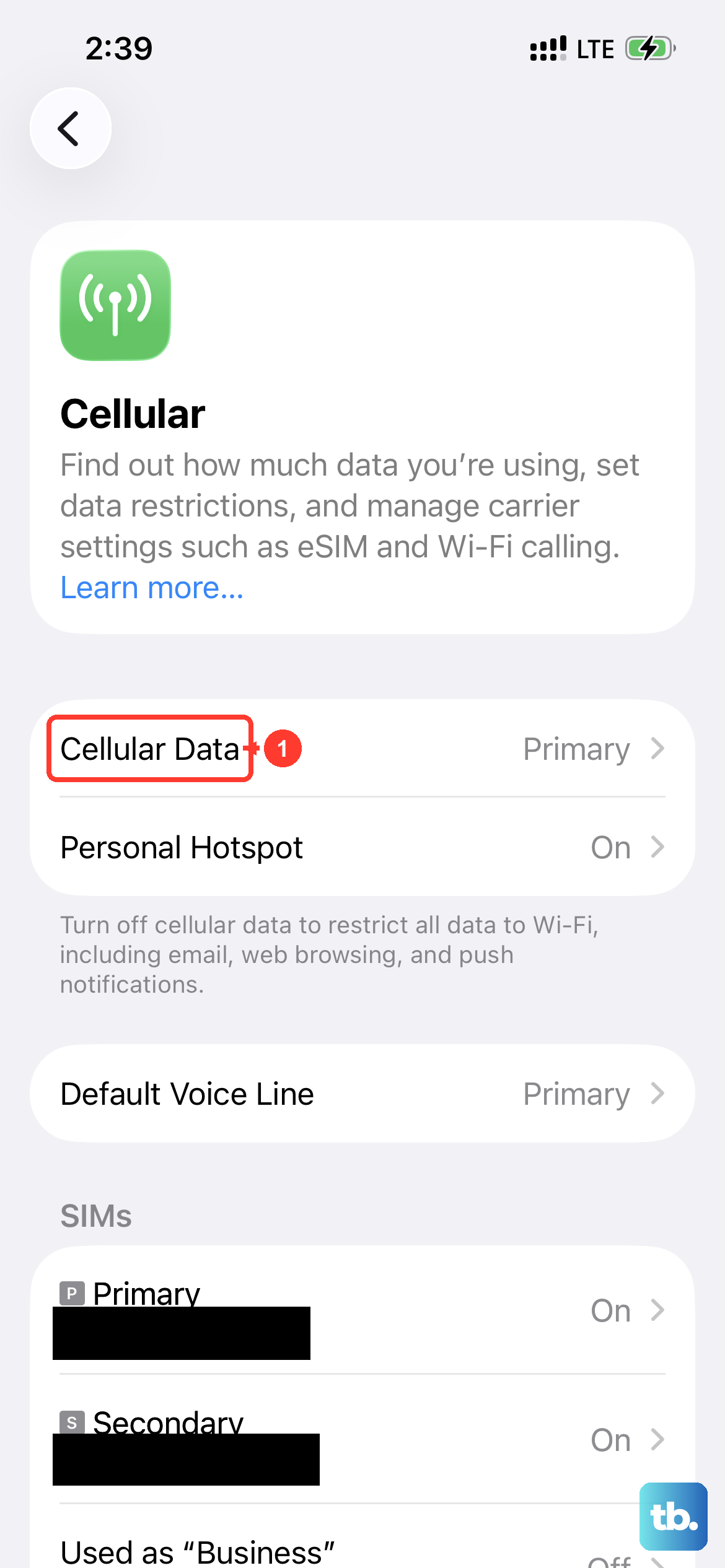
If you're not on Wi-Fi, your photos need cellular data to send. Open Settings > Cellular and confirm the main Cellular Data switch is green. While you're there, also check that Data Roaming is off unless you're traveling internationally.
It's also worth disabling Low Data Mode if it's on. Go to Settings > Cellular > Cellular Data Options and turn off Low Data Mode. This mode can restrict background data needed for sending larger files like photos.
Force Quit and Reopen the Messages App
The Messages app itself can sometimes freeze up. To close it fully, swipe up from the bottom of the screen and pause in the middle to enter the app switcher. Find the Messages app card and swipe it up and off the top of the screen to close it.
Then, just tap the Messages icon on your Home Screen to reopen it. Try sending the photo again. This clears the app's temporary memory and often resolves sending hangs.
Update Your Carrier Settings
Apple and your mobile carrier occasionally release small updates that improve network connectivity. To check for one, make sure you're connected to the internet, then go to Settings > General > About.
If a carrier update is available, a pop-up notification will appear on this screen. Just follow the prompts to install it. This can fix issues specific to your network and phone model.
Sign Out and Back Into Your Apple ID
Since iMessage is tied to your Apple ID, refreshing that connection can help. Go to Settings and tap your name at the top. Scroll all the way down and select Sign Out. You'll need your Apple ID password to turn off Find My.
After signing out, restart your iPhone SE 4. Then, go back to Settings and sign in with your Apple ID again. This process can clear up authentication errors that prevent iMessage from working properly.
Check Your Date and Time Settings
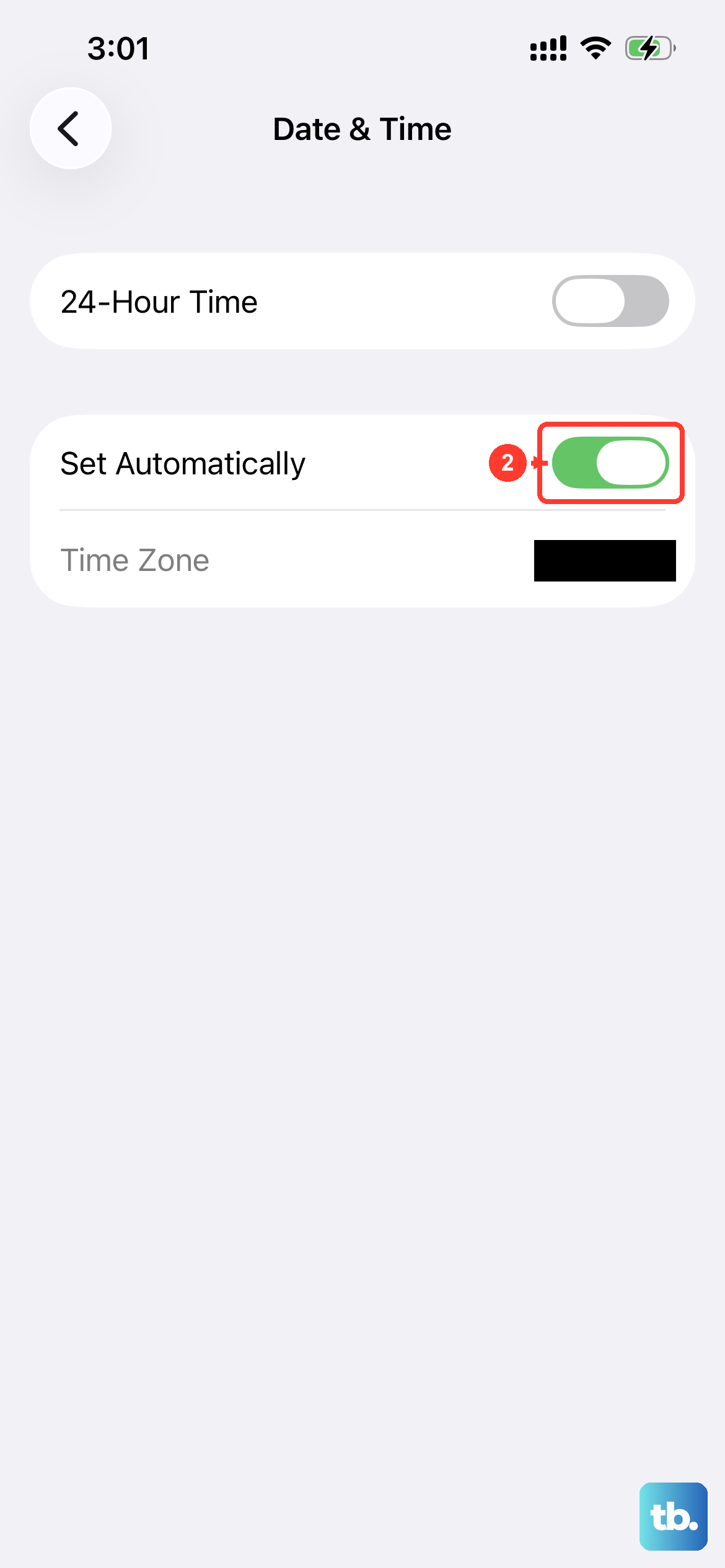
An incorrect date or time can surprisingly mess with message delivery. Your phone uses this for security certificates when connecting to Apple's servers. Go to Settings > General > Date & Time.
Make sure Set Automatically is turned on. If it's already on, try turning it off and then immediately back on. This forces your SE 4 to re-sync with the time server.
Update to the Latest Version of iOS
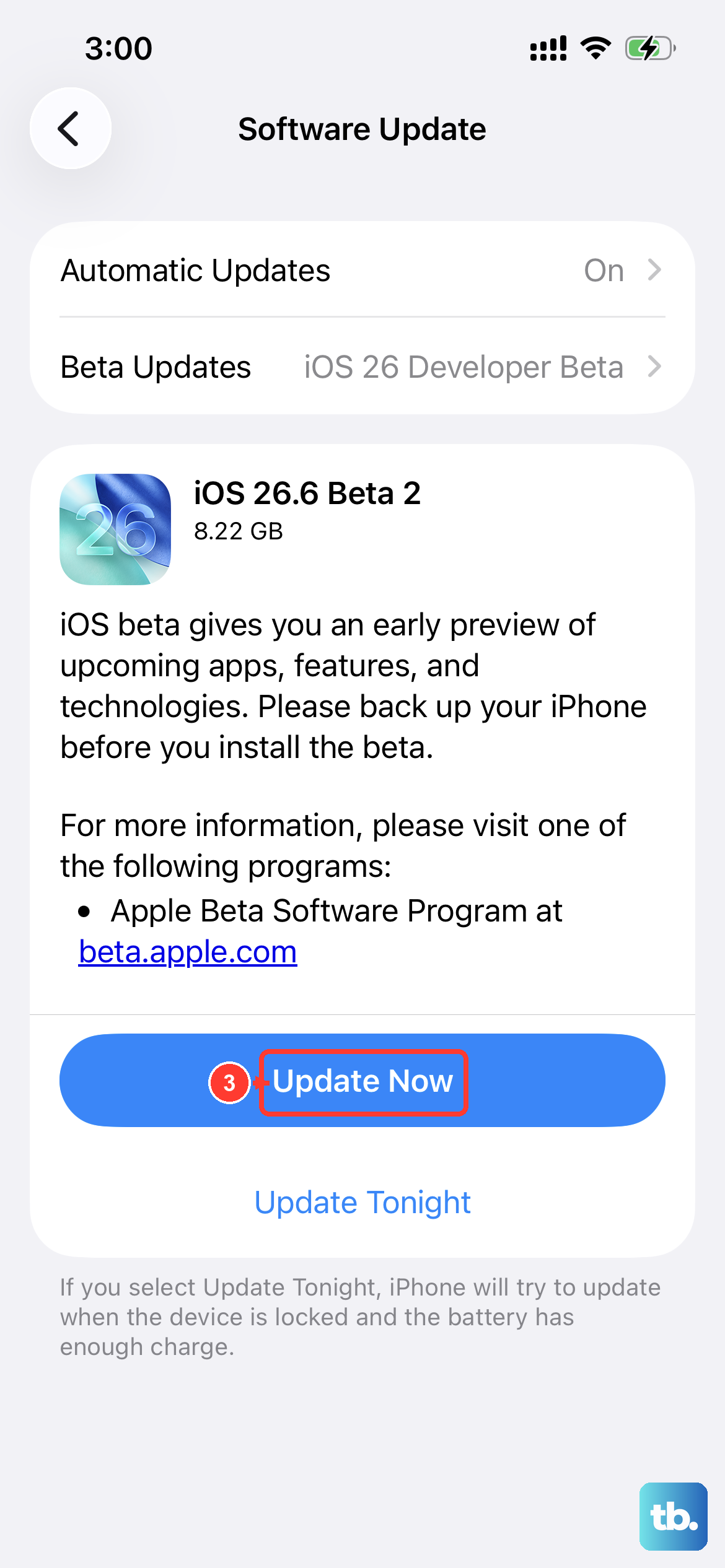
Software bugs are a common cause of messaging problems, and Apple fixes them in updates. Connect your iPhone SE 4 to Wi-Fi and plug it into power with its 20W USB-C charger. Then, open Settings > General > Software Update.
Download and install any available update. iOS 18 and later updates often include specific fixes for communication apps and network stability.
Reset Your Network Settings
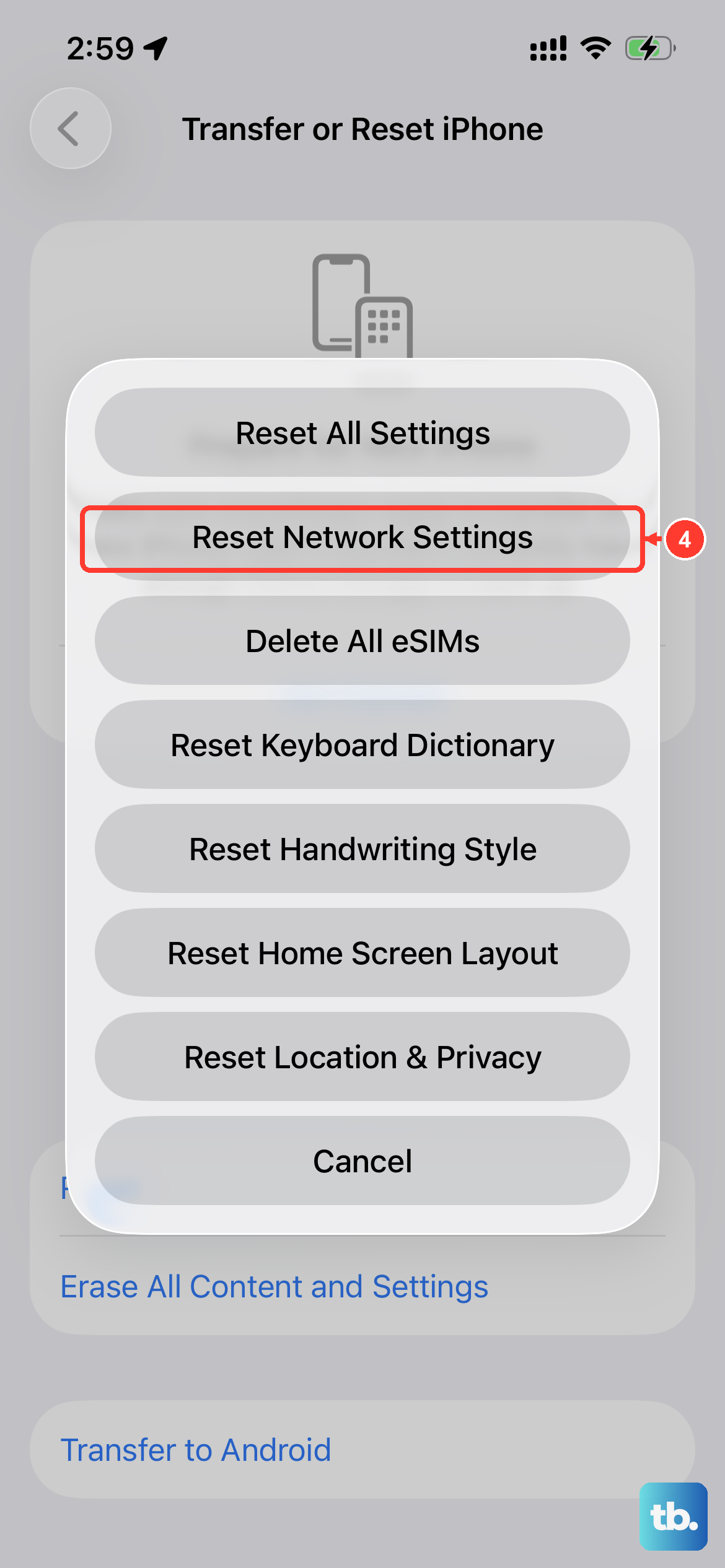
If you've tried everything and photos still won't send, this is a strong next step. It clears all network-related data, like Wi-Fi passwords and cellular preferences, and restores them to factory defaults.
Go to Settings > General > Transfer or Reset iPhone. Tap Reset and then choose Reset Network Settings. You'll need to enter your passcode. Afterwards, you'll have to rejoin your Wi-Fi networks.
Reset All Settings as a Last Resort
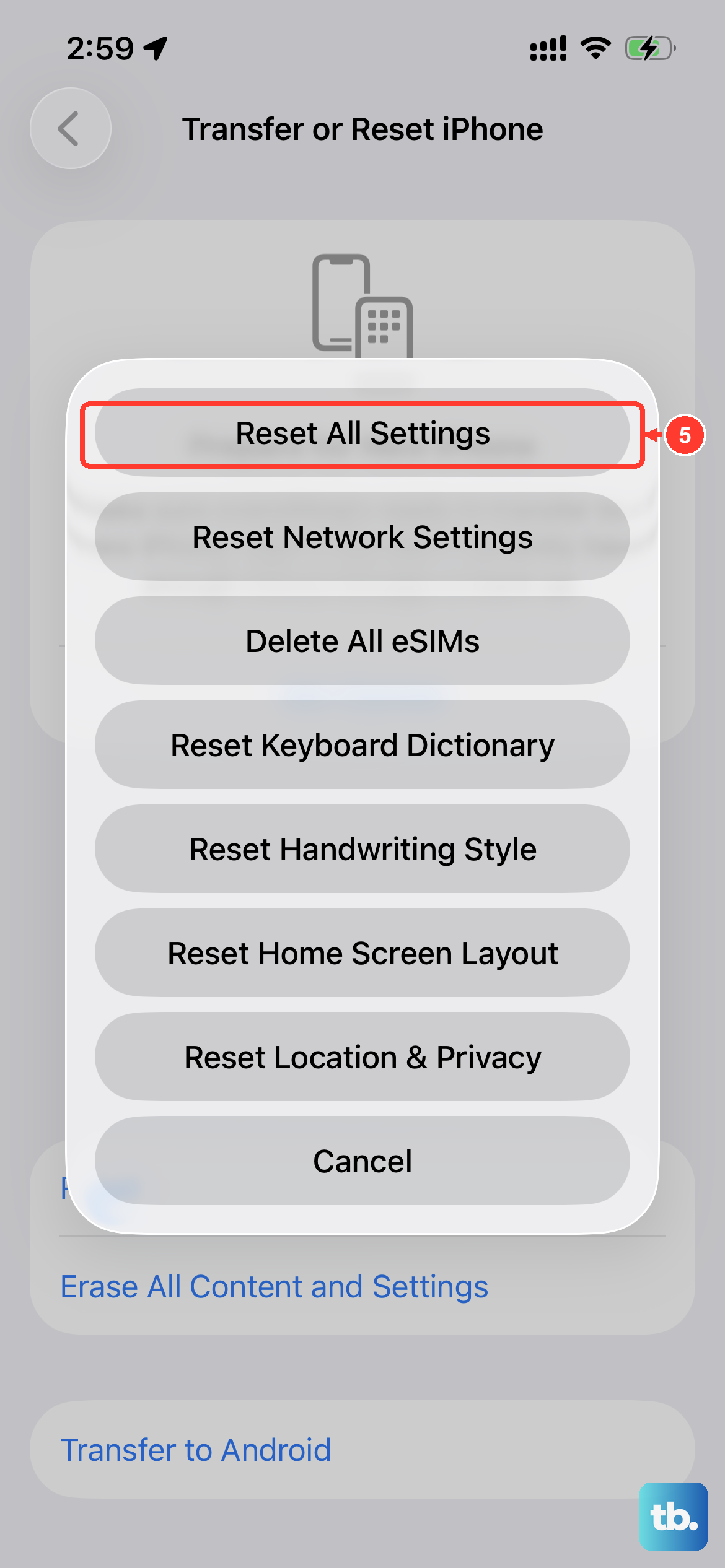
This is a broader fix that won't delete your personal data, but it will reset every setting on your phone to its default. That includes network, privacy, display, and sound settings.
Navigate to Settings > General > Transfer or Reset iPhone. Tap Reset and select Reset All Settings. After entering your passcode, your phone will restart. You'll need to reconfigure things like your wallpaper and notifications, but it can resolve deep-seated software conflicts.