
When your iPhone SE 4 videos start stuttering or freezing, it can really break the flow of whatever you're watching. The good news is this is usually a software hiccup, not a hardware problem with the phone itself.
Before assuming the panel is at fault, run a quick Hz test in your browser. It measures the refresh rate your screen is actually running at, which often is not what the spec sheet promises.
I'd start by checking your storage and doing a quick restart. Those two steps fix the majority of playback issues on iPhones running iOS 18.
Free Up Storage Space on Your iPhone SE 4
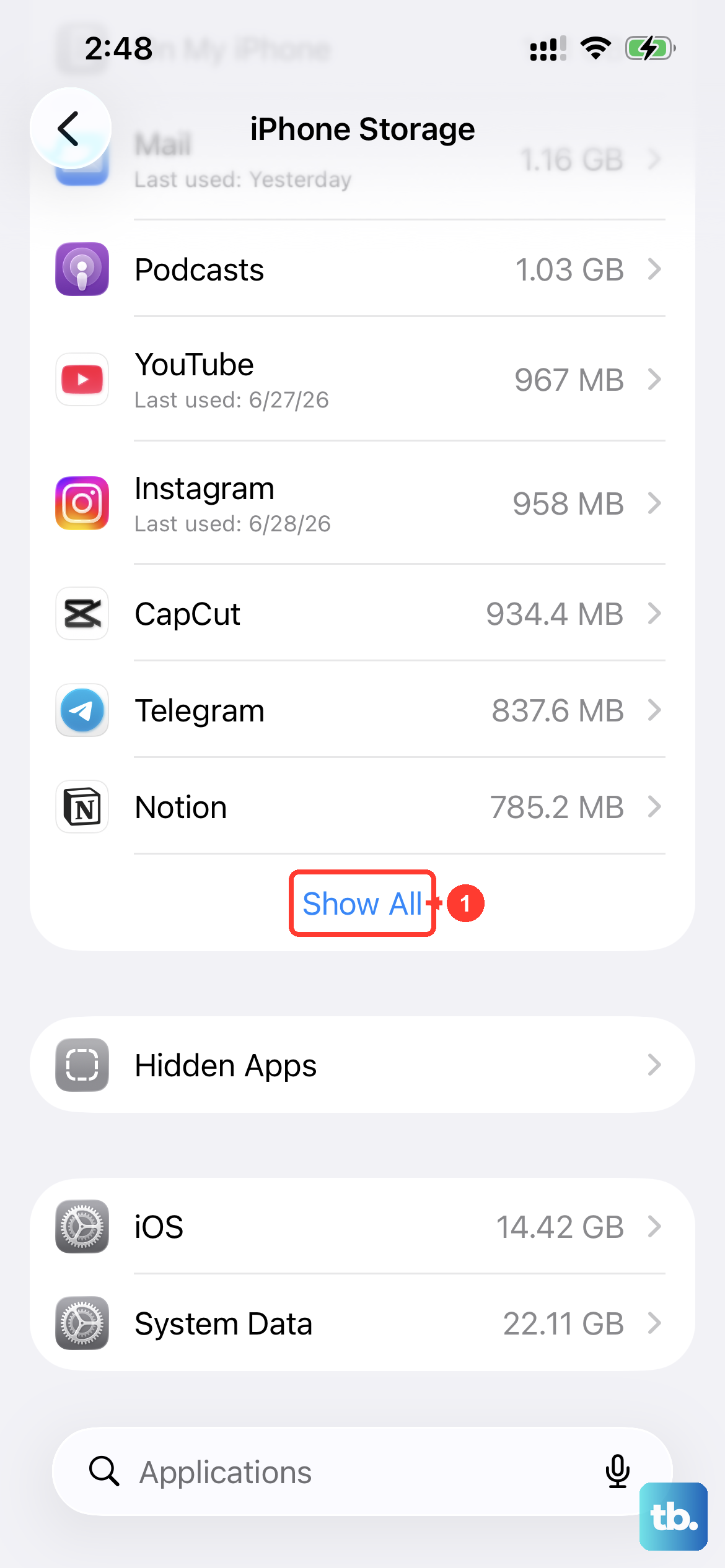
Your iPhone SE 4 needs breathing room to play videos smoothly, especially high-resolution files. When storage gets critically low, the system struggles to cache video data, leading to dropped frames and stutters.
Head to Settings > General > iPhone Storage to see how much space you have left. If you're below 2-3GB free, it's time for a cleanup. You can offload unused apps, clear your Safari cache, or review large video files in your Photos library.
Perform a Force Restart
A simple restart clears out temporary glitches in memory that can interfere with video playback. For the iPhone SE 4, you'll use the force restart sequence since it doesn't have a physical home button.
Quickly press and release the Volume Up button, then quickly press and release the Volume Down button. Finally, press and hold the Side button until you see the Apple logo appear on the screen. This is different from just turning it off and on, and it often resolves deeper software stalls.
Check Your Internet Connection for Streaming
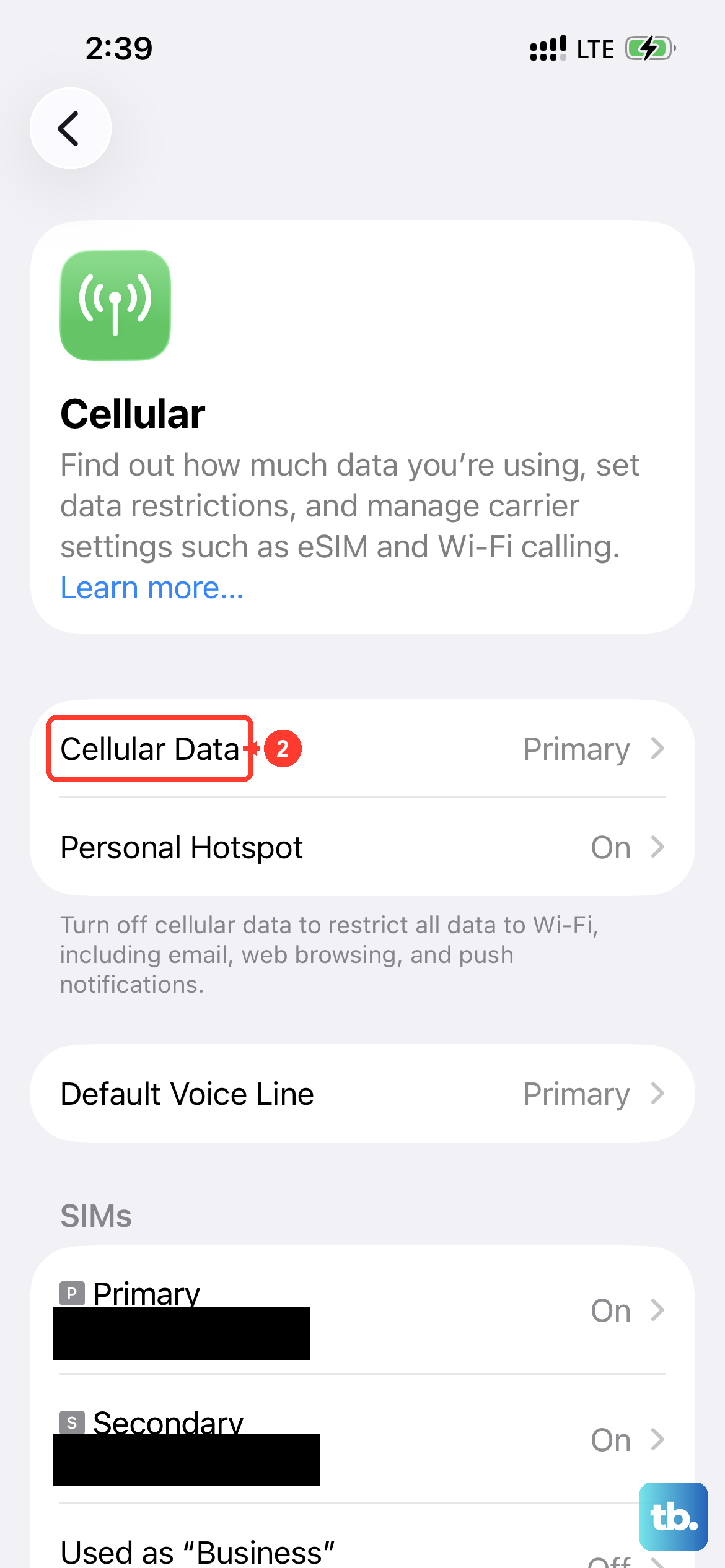
If you're streaming from YouTube, Netflix, or another service, a weak Wi-Fi or cellular signal is the most likely culprit. The iPhone SE 4 supports fast 5G, but network congestion can still cause buffering.
Try switching from Wi-Fi to cellular data, or vice versa, to see if the problem follows the connection. You can also run a quick speed test. For local videos stored on your phone, this step won't apply, but it's the first thing to check for any streaming lag.
Update to the Latest Version of iOS 18
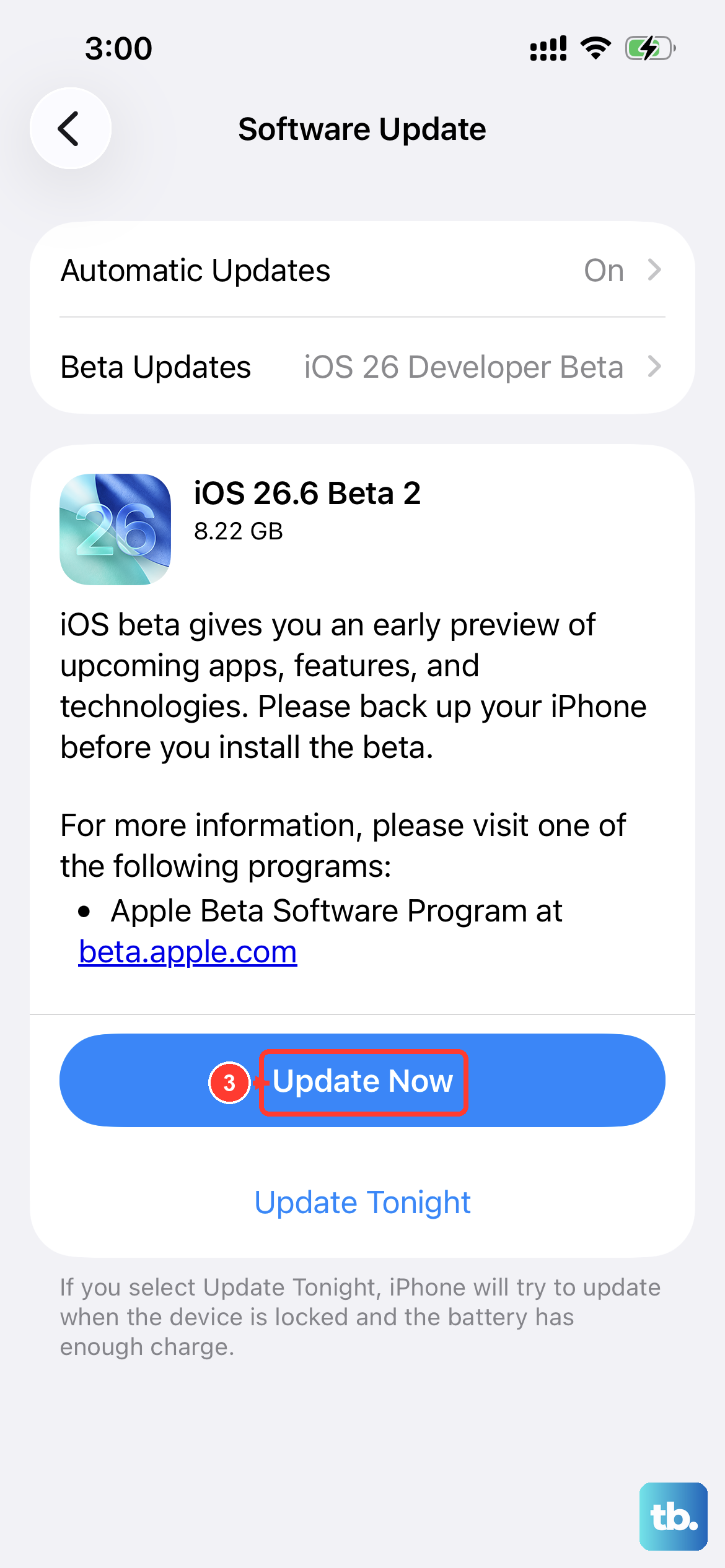
Apple frequently releases updates that include bug fixes for media playback. An outdated version of iOS 18 could have a known issue that's already been patched.
Go to Settings > General > Software Update and install any available update. Make sure your iPhone SE 4 is connected to Wi-Fi and has at least 50% battery or is plugged into a charger. I've seen minor point updates resolve video stuttering for many users.
Update the Problematic App
Sometimes the issue is isolated to a single app, like TikTok, Instagram Reels, or a specific streaming service. App developers push out updates to fix performance bugs all the time.
Open the App Store, tap your profile icon in the top right, and scroll down to see pending updates. If you notice stuttering only happens in one app, updating that specific app should be your priority.
Close Background Apps and Reduce Load
While iOS is good at managing resources, having many apps running in the background can sometimes impact performance. This is especially true if you're trying to play a high-bitrate 4K video.
Swipe up from the bottom of the screen and pause in the middle to enter the app switcher. Swipe up on the apps you're not using to close them. This gives your iPhone SE 4's processor more headroom to focus on smooth video decoding.
Check for Overheating
If your iPhone SE 4 gets too hot, it will automatically throttle performance to cool down, which can cause video stutter. This might happen if you're charging with a 20W USB-C PD charger while watching videos in a hot environment.
Take the case off if you're using one, move to a cooler spot, and stop charging for a few minutes. The phone should return to normal performance once its temperature drops.
Reset All Settings
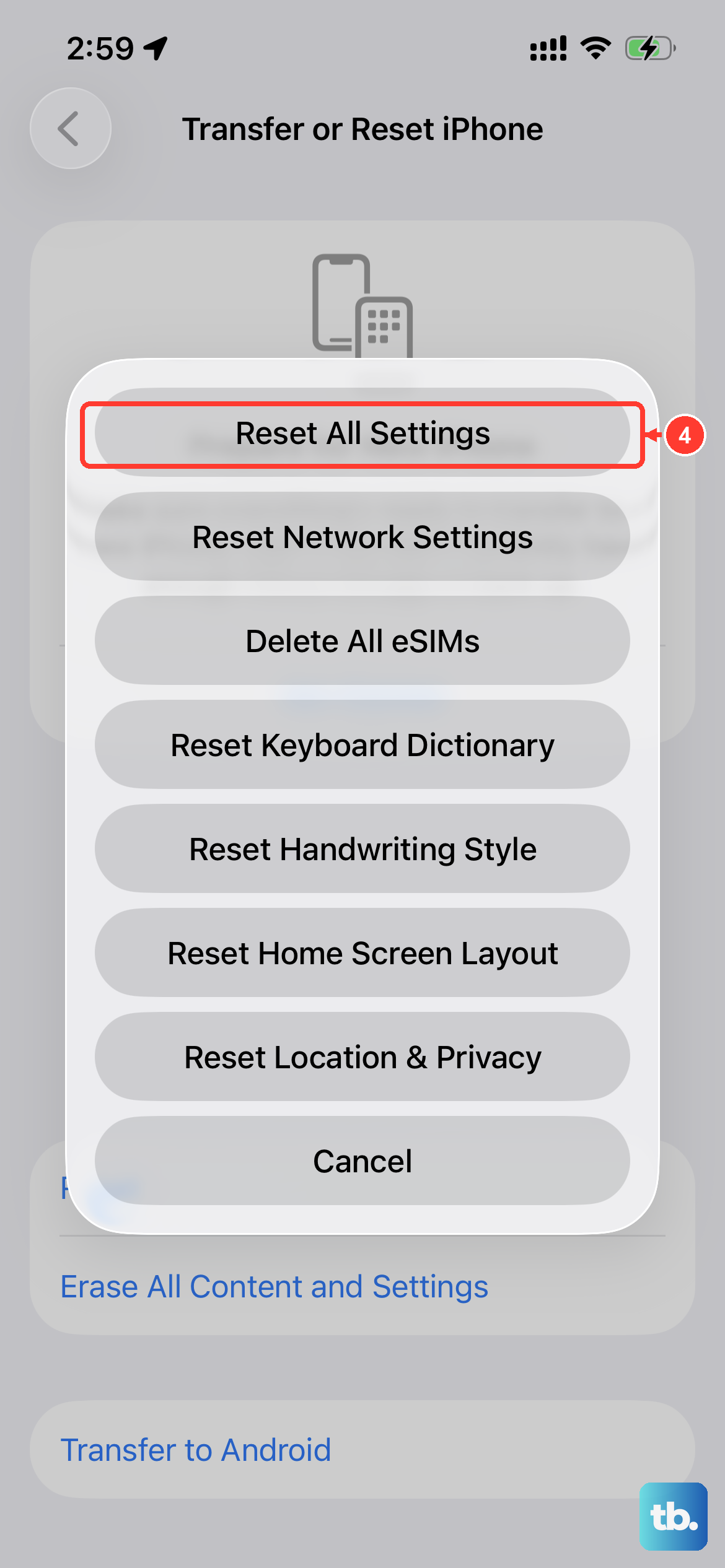
This is a more thorough step that won't delete your personal data, but it will reset all your system preferences to default. It can fix deeper software conflicts related to display, network, or accessibility settings that might be affecting playback.
Go to Settings > General > Transfer or Reset iPhone. Tap Reset and then choose Reset All Settings. You'll need to re-enter your Wi-Fi passwords and reconfigure things like display brightness, but your photos and apps will remain.
Disable Background App Refresh for Video Apps
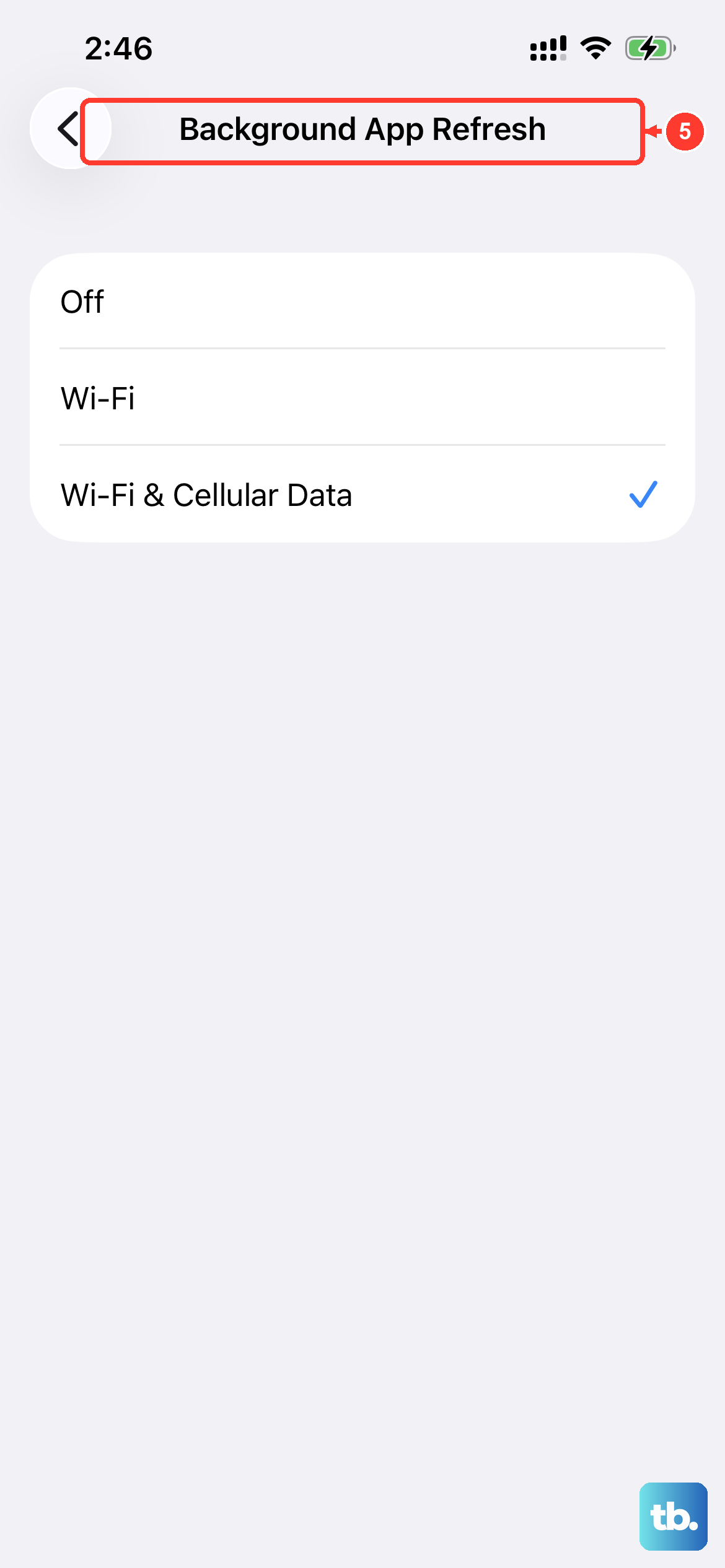
Background App Refresh allows apps to update content when you're not using them. For video apps, this can sometimes mean they're pre-fetching data in the background, which might interfere with active playback.
Go to Settings > General > Background App Refresh. You can turn it off entirely, or just for the specific app giving you trouble. This can free up network and system resources for the video you're actually trying to watch.
Try a Different Video File or Source
To rule out a problem with a specific video file, try playing a different video from another source. If a video from your Camera Roll stutters, try playing one from YouTube or Apple TV.
If the new video plays fine, the issue is with the original file. It might be corrupted or encoded in a format that your iPhone SE 4 struggles to decode efficiently. If all videos stutter, then you know the problem is with the phone's system or settings.