
When your iPhone SE 4's internet crawls, it can feel like you're stuck in the past. Websites take forever to load, videos buffer constantly, and apps just won't refresh. I'd start with the quickest fix first, which often solves the problem in about thirty seconds.
Try a force restart. This clears out any temporary software glitches that might be slowing down your network connections. On your iPhone SE 4, quickly press and release the Volume Up button, then quickly press and release the Volume Down button. Finally, press and hold the Side button until you see the Apple logo appear on the screen.
Check Your Cellular Data Mode
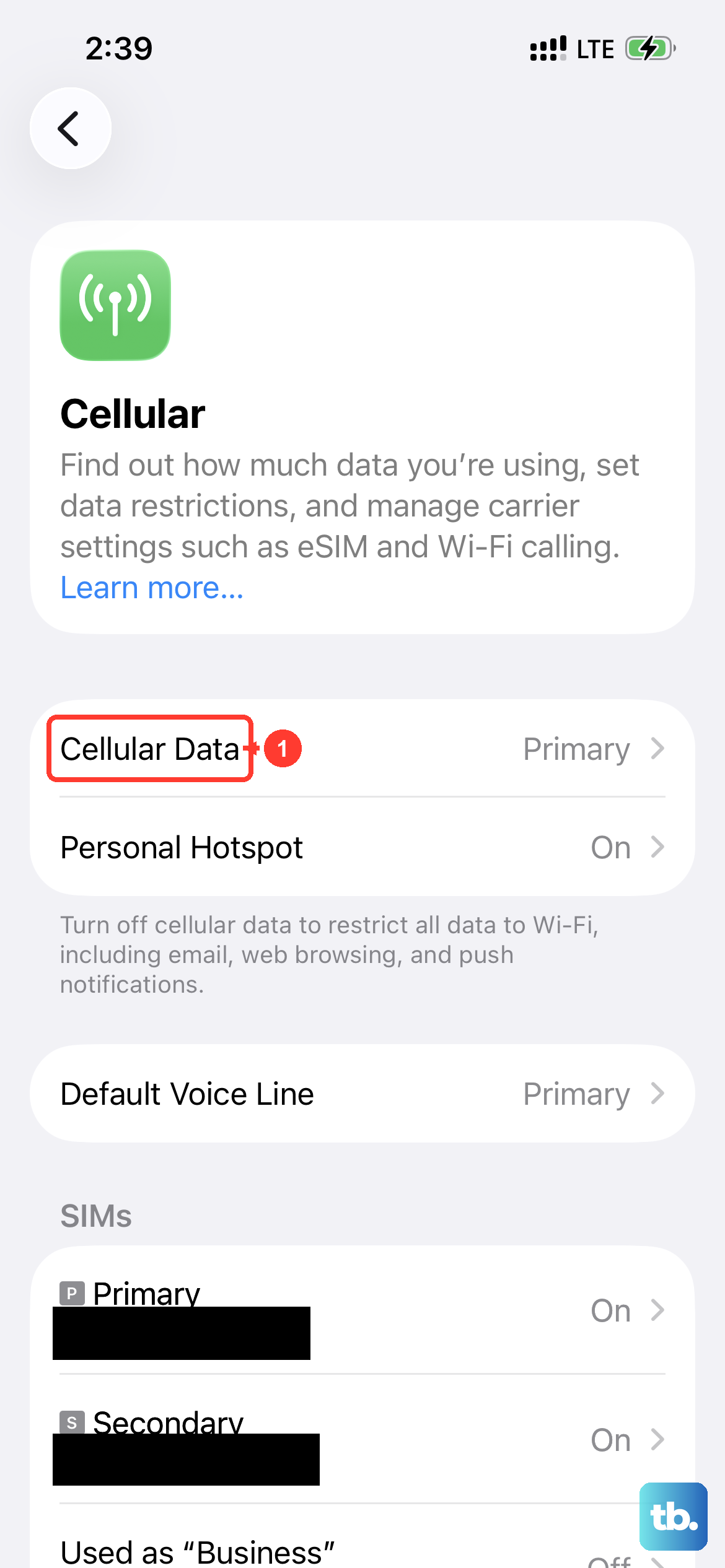
Your iPhone SE 4 running iOS 18 gives you control over your cellular data connection. If it's set to a slower mode like 4G, or if 5G Auto isn't working optimally, your speeds will suffer. Head into your settings to take a look.
Go to Settings > Cellular > Cellular Data Options > Voice & Data. For the fastest possible speeds, make sure 5G On is selected. If you're in an area with spotty 5G coverage, the 5G Auto setting is a good balance, as it saves battery when you don't need the top speed.
Toggle Airplane Mode
This is the digital equivalent of giving your phone's antenna a quick nap. Toggling Airplane Mode off and on forces your iPhone SE 4 to reconnect to the nearest cellular tower, which can often grab a stronger, faster signal.
Swipe down from the top-right corner of your screen to open Control Center. Tap the airplane icon to turn it on, wait about ten seconds, and then tap it again to turn it off. Watch the signal bars in the status bar to see if your connection improves.
Reset Your Network Settings
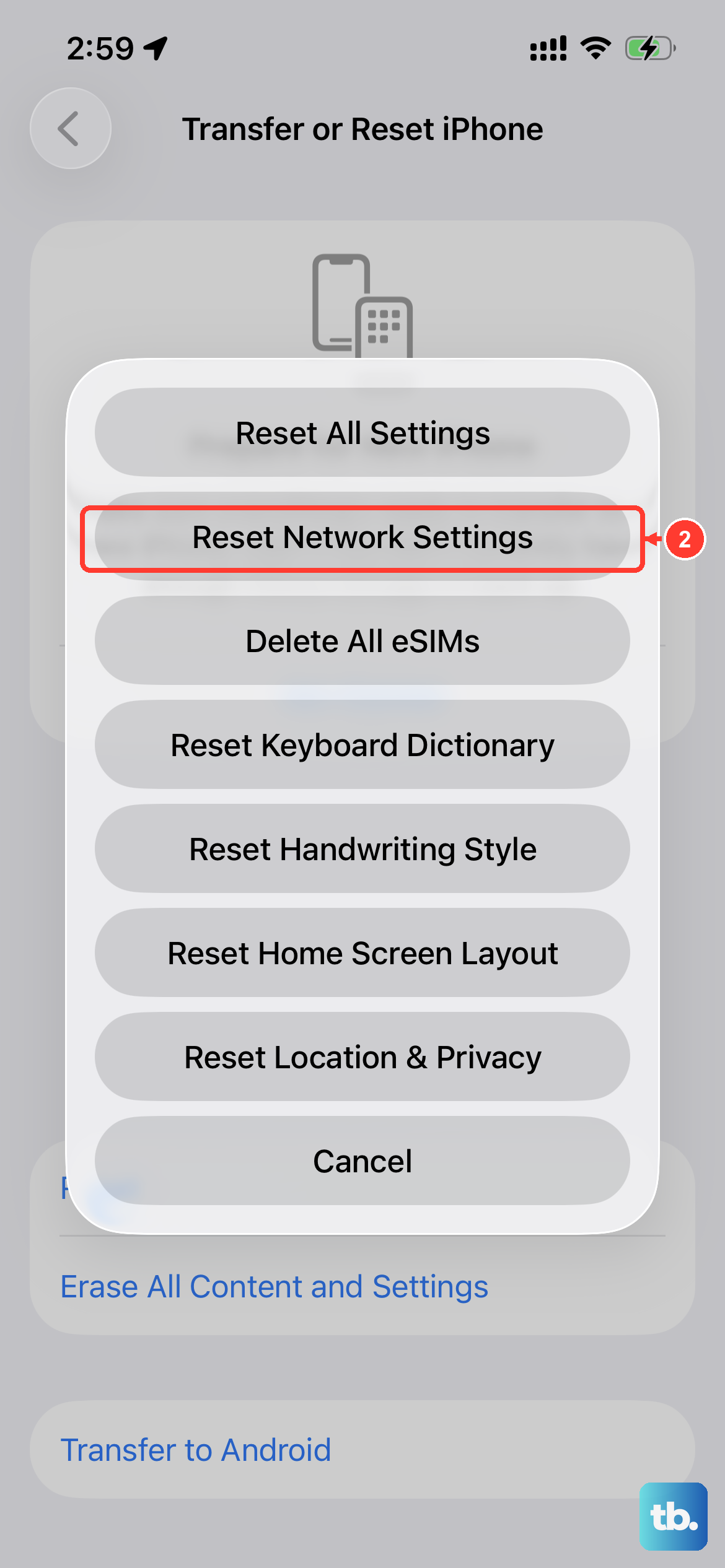
If the simpler steps haven't worked, a network reset is a powerful next move. This will erase all your saved WiFi networks and passwords, your cellular settings, and any VPN configurations, so you'll need to reconnect to WiFi networks afterward.
To do this, open Settings > General > Transfer or Reset iPhone. Tap Reset and then choose Reset Network Settings. Your phone will restart, and you can then test if your internet speed is back to normal.
Manage Background App Refresh
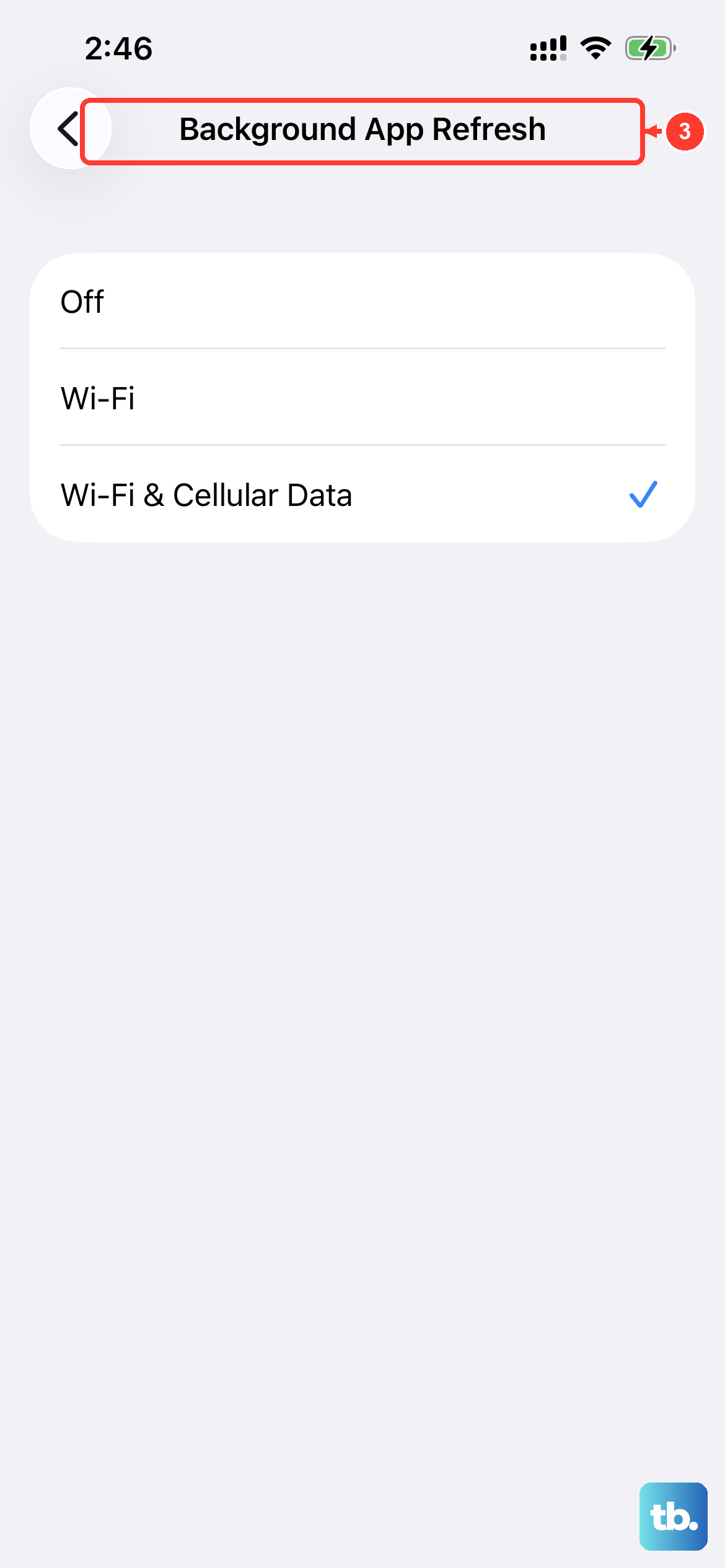
Apps refreshing in the background can eat up your bandwidth, slowing down the app you're actively trying to use. iOS 18 lets you control this on a per-app basis, which is great for conserving data and speed.
Go to Settings > General > Background App Refresh. You can turn the feature off entirely, or scroll through the list and disable it for specific apps that don't need to be constantly updated, like games or streaming services you only use on WiFi.
Clear Your Safari Cache
Over time, your browser stores website data to load pages faster, but this cache can become bloated or corrupted. Clearing it out can give Safari on your iPhone SE 4 a fresh start and improve loading times.
Open the Settings app and scroll down to Safari. Scroll down again and tap Clear History and Website Data. Confirm your choice. This will log you out of most websites, so have your passwords handy.
Disable VPN Services
While essential for privacy, a VPN routes your traffic through another server, which almost always adds some latency and can significantly reduce your internet speed. If you're using a VPN app and experiencing slowdowns, try turning it off temporarily to see if that's the culprit.
You can usually disable a VPN directly from within the app you used to activate it. Alternatively, go to Settings and look for VPN at the top; if it's connected, you can toggle the status switch off from there.
Update iOS to the Latest Version
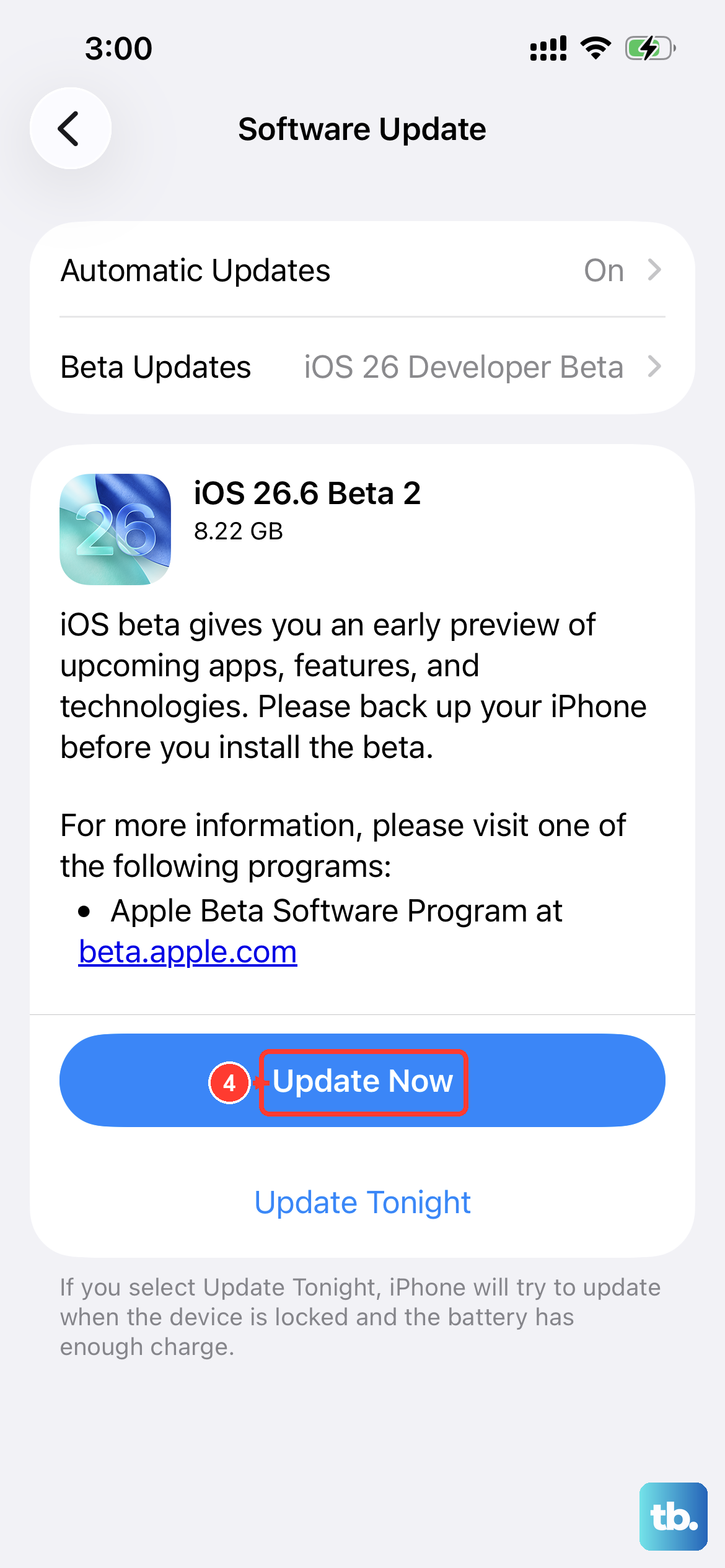
Apple frequently releases software updates that include bug fixes for connectivity and performance issues. Making sure your iPhone SE 4 is on the latest available version of iOS is a crucial step.
Connect to a WiFi network and go to Settings > General > Software Update. If an update is available, tap Download and Install. It's a good idea to plug your phone into power using a 20W USB-C PD charger during this process.
Check for WiFi Assist
WiFi Assist is a handy feature that automatically switches you to cellular data if your WiFi connection becomes poor. However, if you're on a limited data plan or your cellular signal is also weak, it can seem like your internet is slow when it's actually bouncing between two bad connections.
You can check if it's enabled by going to Settings > Cellular and scrolling all the way to the bottom. If WiFi Assist is on and you're concerned about data usage, you can toggle it off to keep your phone strictly on the network you selected.
Review Your Data Settings
iOS includes a Low Data Mode for both cellular and WiFi networks. When enabled, it pauses automatic updates and background tasks to conserve data, which can also help streamline your connection. You can enable it for your cellular plan or for specific WiFi networks.
For your cellular plan, go to Settings > Cellular > Cellular Data Options and toggle on Low Data Mode. For WiFi, go to Settings > WiFi, tap the info icon (i) next to your network, and toggle on Low Data Mode for that specific network.