
If your iPhone SE 4 feels unusually warm, it's often a temporary issue you can fix yourself. Modern phones generate heat, but the compact design of the SE 4 means it can feel that warmth more quickly. I'd start by checking what you're running in the background.
Close all your apps and see if the phone cools down after a few minutes. Swipe up from the bottom of the screen and hold, then swipe up on each app preview to close it. If the heat subsides, a background app was likely the culprit.
Check Your Charging Setup
Using the wrong charger can make your iPhone SE 4 hot, especially while charging. For the fastest and most efficient 20W wired charging, you need a USB-C Power Delivery (PD) charger. The phone also supports 15W MagSafe and standard Qi wireless charging.
Wireless charging, particularly with non-MagSafe pads, generates more heat. If your phone gets hot only when charging, try a different 20W USB-C PD cable and brick. Remove any thick cases while charging, as they can trap heat.
It's a good idea to enable Optimized Battery Charging. Go to Settings > Battery > Battery Health & Charging and make sure it's on. This helps manage heat by learning your routine and finishing charging past 80% just before you need it.
Manage Background Activity and Display
Some features work constantly in the background. Go to Settings > Privacy & Security > Location Services. Review which apps are using your location "Always" and consider changing them to "While Using" or "Ask Next Time."
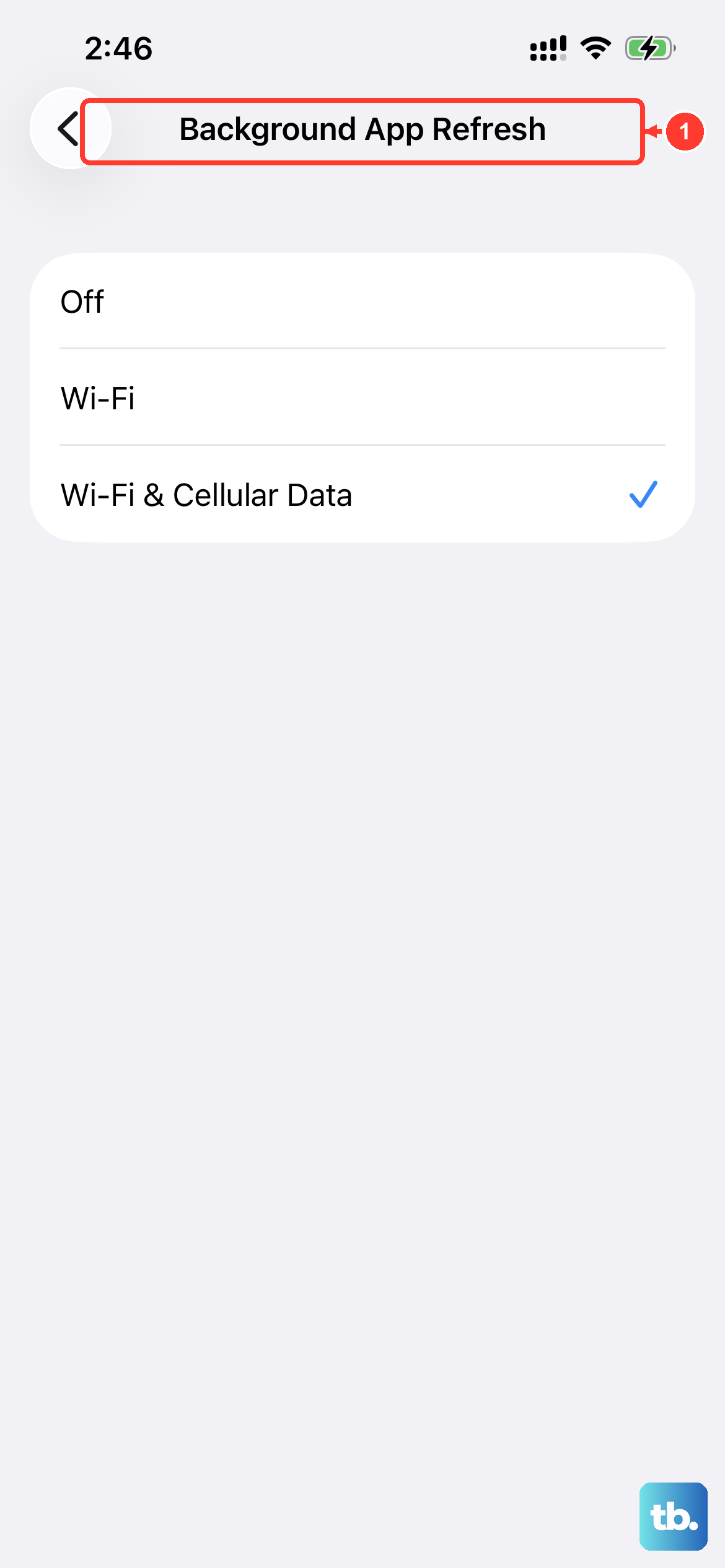
Background App Refresh can also contribute. You can turn it off globally in Settings > General > Background App Refresh, or just for specific, non-essential apps. The iPhone SE 4's 60Hz display is efficient, but keeping brightness at maximum all the time adds to the thermal load.
If you're in a bright environment, use auto-brightness. You can find it at Settings > Accessibility > Display & Text Size and ensure "Auto-Brightness" is toggled on. Lowering the brightness manually when you can will help too.
Update iOS and Force Restart
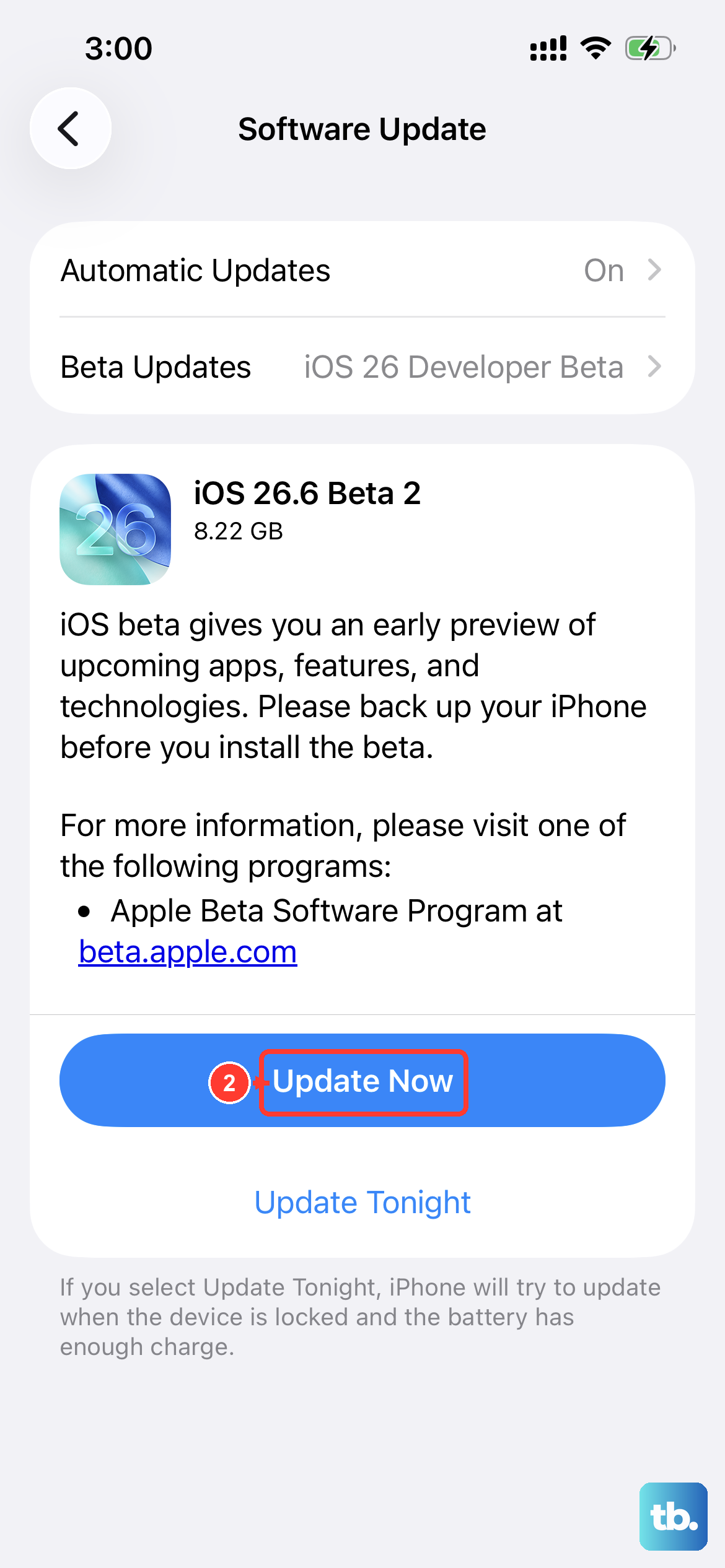
Software bugs in iOS 18 can sometimes cause processes to run wild, generating excess heat. Always make sure your iPhone SE 4 is updated. Go to Settings > General > Software Update to check for and install any available updates.
A force restart can clear out temporary glitches that might be causing overheating. On the iPhone SE 4, quickly press and release the Volume Up button, then quickly press and release the Volume Down button. Finally, press and hold the Side button until you see the Apple logo appear, then release.
This doesn't erase any data. It's just a deeper reboot that can stop errant processes. After it boots back up, give it a few minutes to see if the temperature normalizes.
Identify Intensive Tasks and Environmental Factors
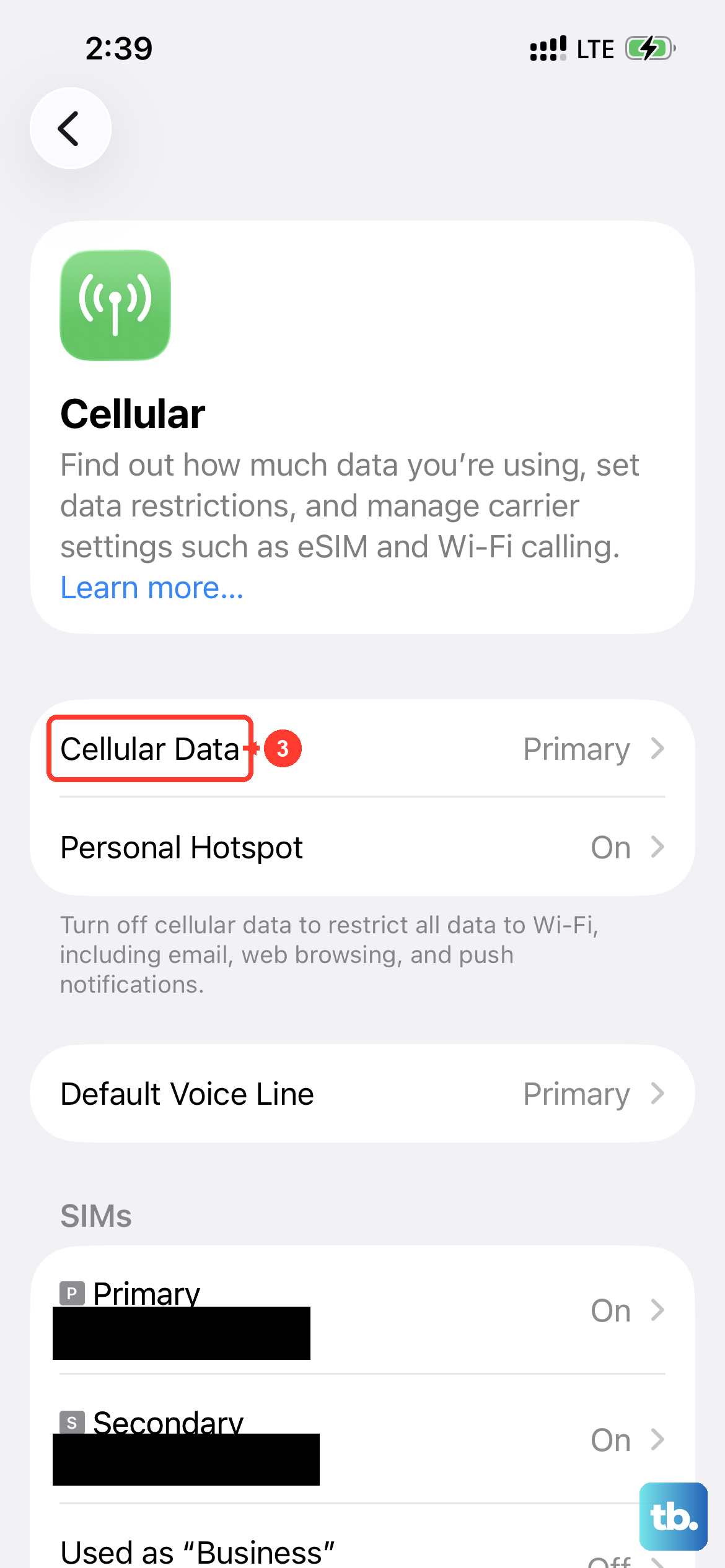
Certain activities will naturally make the phone warm. This includes long gaming sessions, recording extended 4K video with the rear camera, using GPS navigation, or streaming video over cellular data in a poor signal area. This heat is usually temporary and should dissipate when you stop the activity.
Your environment plays a big role. Never leave your phone in direct sunlight, like on a car dashboard. Avoid using it while it's charging under a pillow or blanket, as this traps all the heat. The aluminum frame of the SE 4 is great at dissipating heat, but only if the air around it is cooler.
If you're in a case, consider taking the phone out of it for a bit if it feels hot. Some cases, while protective, can act like a winter coat for your phone and prevent proper cooling.
When Heat is a Sign of a Problem
Most warmth is normal, but there are warning signs. If your iPhone SE 4 gets so hot it's uncomfortable to hold, if you see a temperature warning screen, or if the battery is draining extremely fast alongside the heat, you should stop using it.
Let it cool down in a shaded, well-ventilated area. Don't put it in the fridge or freezer, as the sudden temperature change can cause condensation inside. If the overheating happens frequently during normal, light use, there might be a deeper software issue or, less commonly, a hardware fault.
Before considering service, try backing up your phone and setting it up as new without restoring from a backup. If the overheating stops, something in your previous backup or data was causing the strain. This is a last resort, but it can pinpoint a software cause.