
Seeing "Not Registered on Network" on your iPhone SE 4 means it can't connect to your carrier's cellular service. You won't be able to make calls, send texts, or use mobile data. This is a common but frustrating error that can pop up after a software update, when you travel, or sometimes for no obvious reason at all.
Before you do anything else, try the quickest fix. Swipe down from the top-right corner to open Control Center and tap the airplane icon to turn on Airplane Mode. Wait about 15 seconds, then tap it again to turn it off. This forces your iPhone SE 4 to drop its current connection and re-register with the nearest cell tower, which often clears up the error immediately.
Restart Your iPhone SE 4
If toggling Airplane Mode didn't work, a full restart is the next logical step. A restart clears out temporary software glitches that can interfere with the cellular modem. Press and hold the Side button and either volume button, slide to power off, wait 30 seconds, then press the Side button again to turn it back on. Give it a minute after the home screen appears to see if the signal bars return.
Check for a Carrier Settings Update
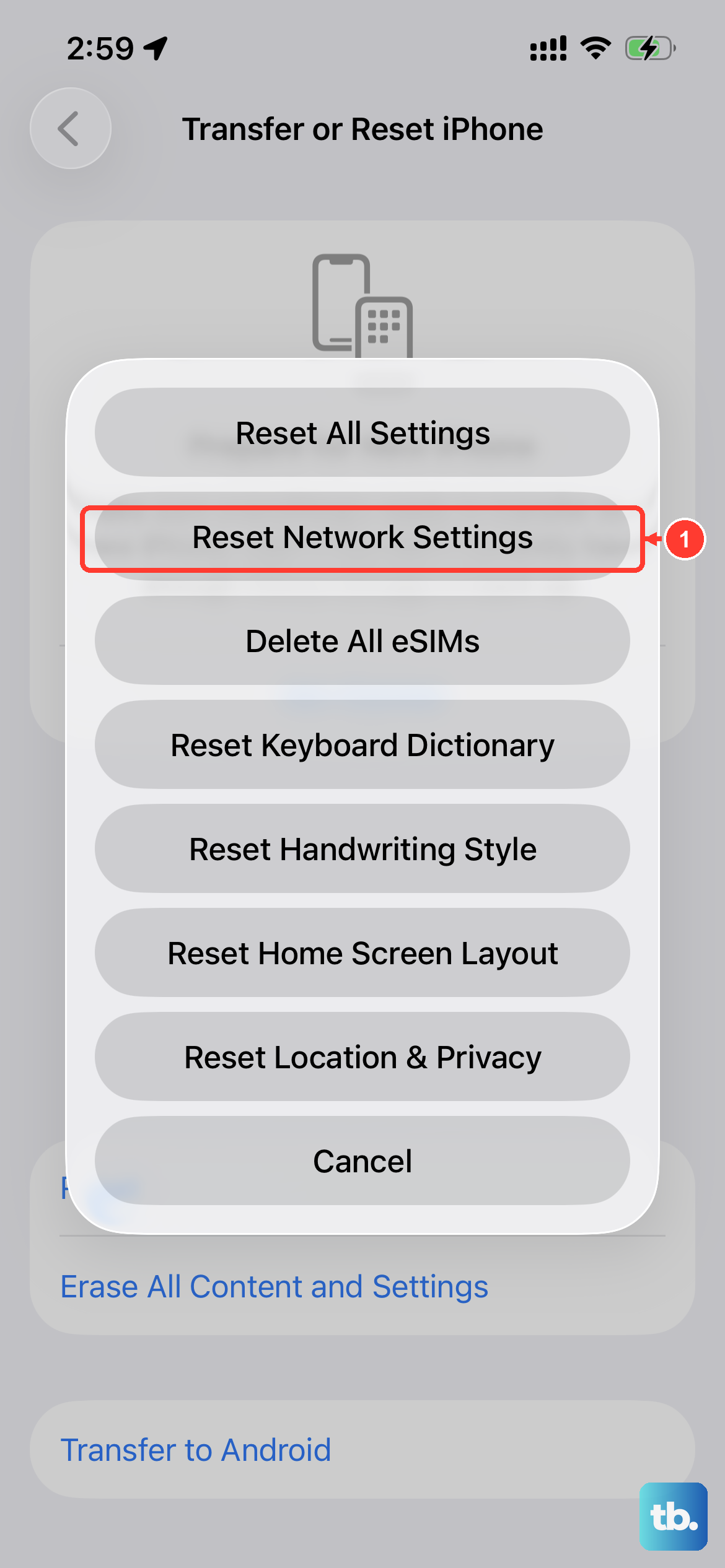
Your carrier periodically sends small configuration files to your phone. These carrier settings updates are crucial for network connectivity. Sometimes, if they're out of date or corrupted, you'll see the "Not Registered" error.
To check, go to Settings > General > About. If an update is available, a prompt will appear. If you don't see a prompt, you can try to trigger it. Make sure you're connected to Wi-Fi, then go to Settings > General > Transfer or Reset iPhone > Reset. Tap Reset Network Settings. This will erase all Wi-Fi passwords and Bluetooth pairings, but it often forces a fresh carrier settings download upon reboot.
Reinsert Your SIM Card
A loose or dirty SIM card is a classic culprit. The iPhone SE 4 uses a nano-SIM card, and even a tiny bit of pocket lint in the tray can break the connection. Grab the SIM eject tool (or a paperclip) and gently push into the small hole on the left side of the frame.
Pull out the tray, remove the SIM card, and give both the gold contacts on the SIM and the inside of the tray slot a quick wipe with a soft, dry cloth. Blow gently to dislodge any dust. Carefully reinsert the SIM, push the tray all the way in, and restart your phone. I've seen this simple step fix the issue more times than I can count.
Verify Your Account and Coverage
It's worth making sure the problem isn't on your carrier's end. An unpaid bill or a service outage in your area will give you the same error message. Try using your carrier's app on Wi-Fi to check your account status, or give them a call from another phone.
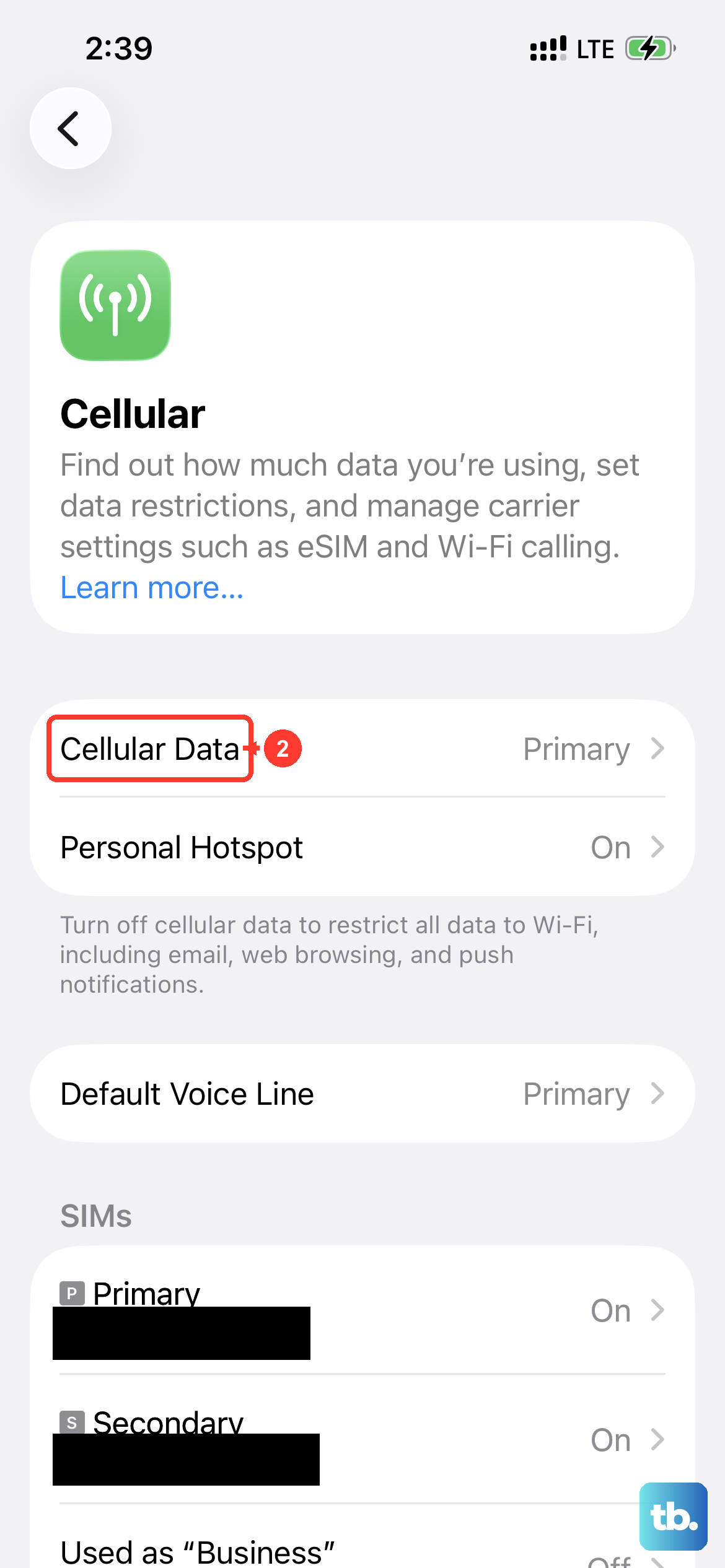
Also, consider your location. Are you in a basement, a large building, or a rural area? Try moving to a window or going outside. The iPhone SE 4 supports 5G, but if the signal is weak, it might struggle to register. You can try forcing it to use LTE. Go to Settings > Cellular > Cellular Data Options > Voice & Data and select LTE. This sometimes provides a more stable connection for registration.
Update iOS
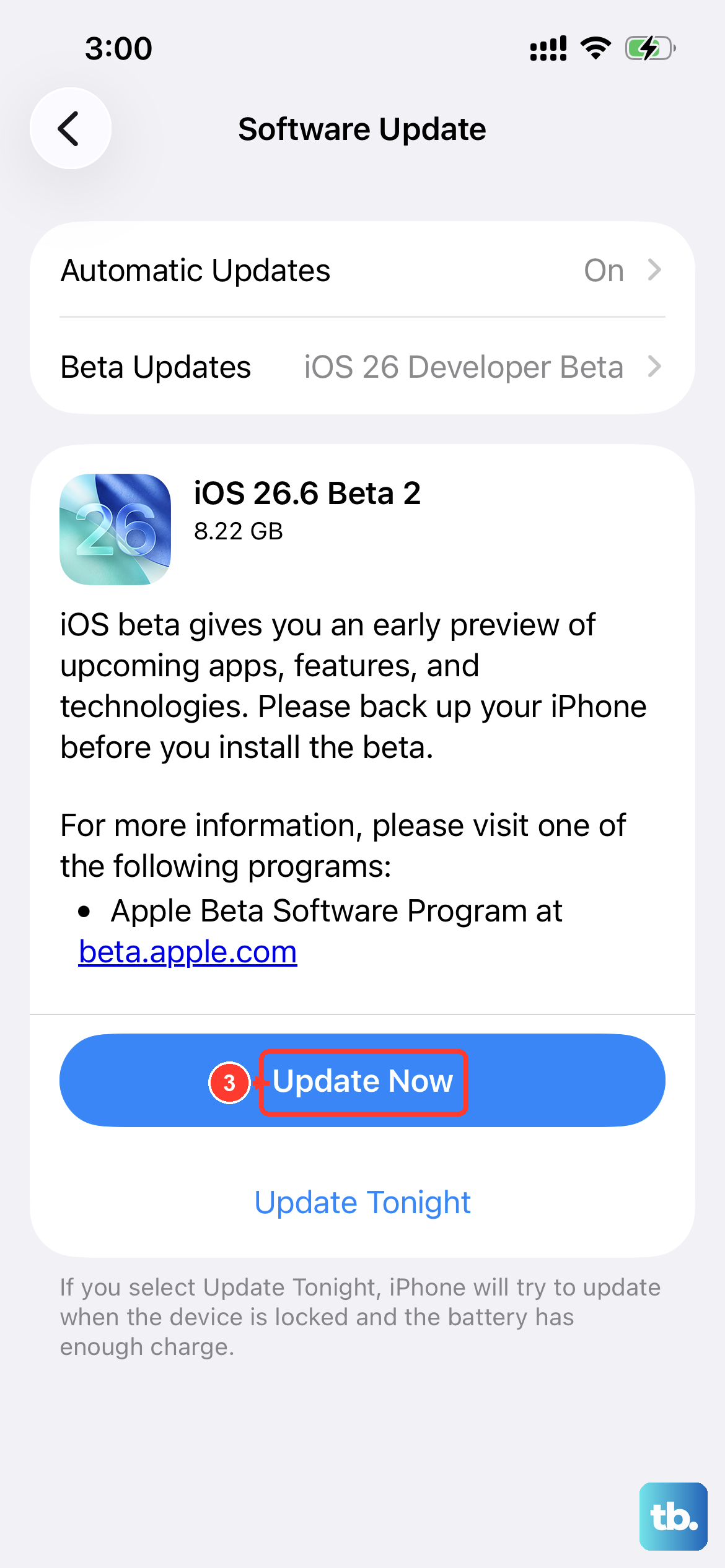
Apple releases iOS updates to fix bugs, including ones related to cellular connectivity. If you're running an older version of iOS 18, there might be a known network registration bug that's already been patched. Plug your phone into power and connect to Wi-Fi.
Then, go to Settings > General > Software Update. If an update is available, download and install it. These updates can take a while, especially on the iPhone SE 4 with its 20W USB-C charging, so make sure you have time to let it complete. After the update and restart, check your signal.
Try a Different SIM Card
This is a great way to figure out where the problem lies. If you can borrow a friend's SIM card from a different carrier (or even the same one), pop it into your iPhone SE 4. If their SIM card connects to the network without any issue, then your original SIM card is likely faulty or deactivated.
You'll need to contact your carrier for a replacement. If the borrowed SIM card also fails to register, then the problem is almost certainly with your iPhone's hardware or software configuration.
Reset All Settings
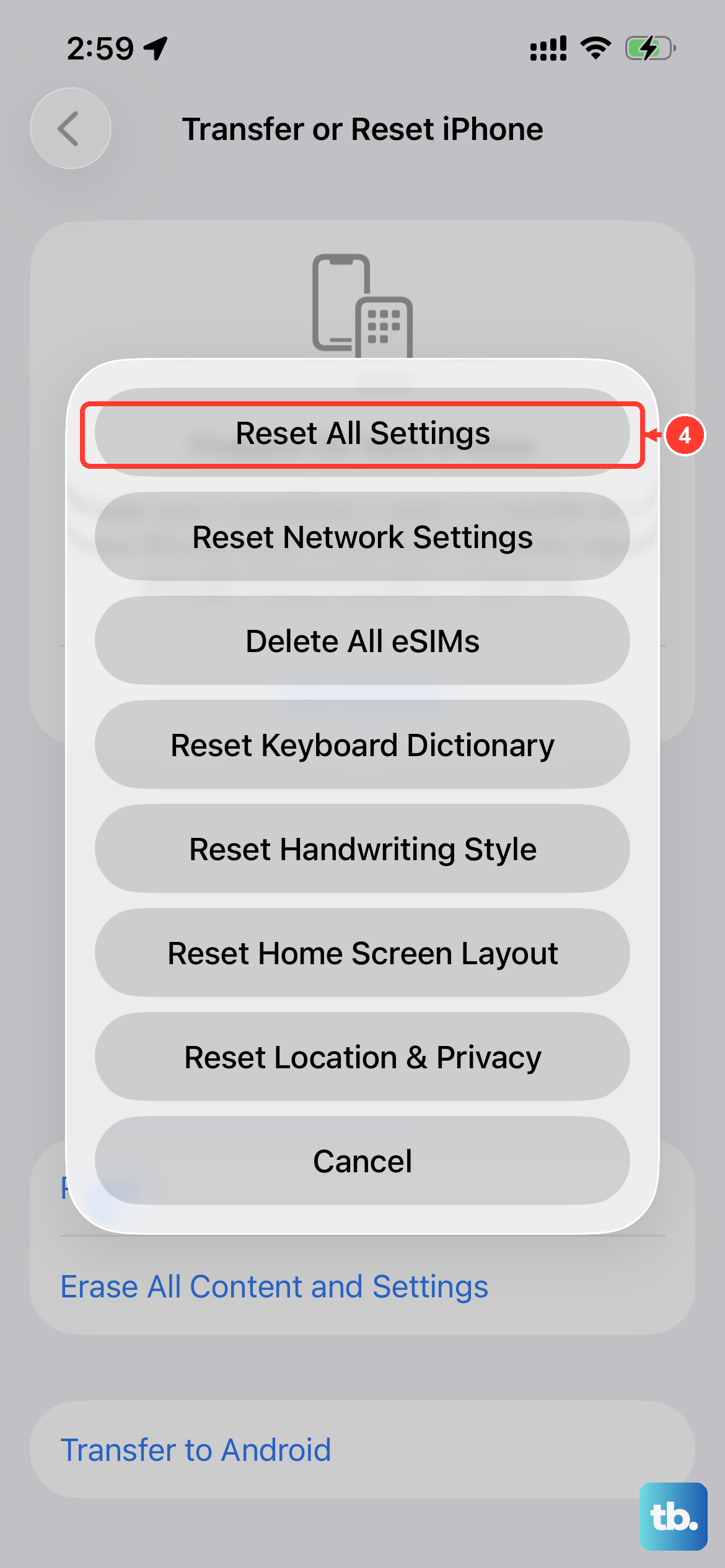
This is a more thorough step than resetting just network settings. It returns all your preferences, like wallpaper, privacy permissions, and keyboard settings, back to default without erasing your personal data. Corrupted settings anywhere in the system can sometimes cause cellular issues.
Go to Settings > General > Transfer or Reset iPhone > Reset. This time, tap Reset All Settings. You'll need to enter your passcode. After the phone restarts, you'll have to reconfigure things like Face ID and your wallpaper, but it's worth a shot before the final, more drastic step.
Restore Your iPhone via a Computer
If nothing else has worked, a full restore using a Mac or PC is the final software fix. This erases the device completely and installs a fresh, clean copy of iOS. It's essential to have a recent backup in iCloud or on your computer before you start.
Connect your iPhone SE 4 to your computer using a USB-C cable. Open Finder (on Mac) or iTunes (on Windows), select your device, and choose "Restore iPhone." This process will wipe the phone and install the latest iOS version. After it's done, you can set it up as new to test the network connection immediately. If the error is gone, you can then restore from your backup, though sometimes setting up as new is the cleanest solution for persistent glitches.