
When the microphone on your iPhone SE 4 stops picking up your voice, it can be incredibly frustrating. You might notice people on calls can't hear you, Siri stops responding, or your voice memos come out silent. Let's start by figuring out exactly which microphone is affected, as the SE 4 has a few in different spots.
To separate a hardware fault from a settings problem, try a quick mic test in your browser. Record a few seconds and play it back, and you will know exactly what you are dealing with.
Test Which Microphone Isn't Working
Open the Voice Memos app and record a short clip while speaking normally. Play it back. If the audio is muffled or missing, the primary bottom microphone (near the USB-C port) might be blocked.
Next, make a regular phone call and put it on speakerphone. If the other person hears you clearly on speaker but not when you hold the phone to your ear, the issue could be with the top earpiece microphone. Testing this way helps narrow down where to look.
You can also ask Siri a question by holding the Side button. If Siri doesn't activate or consistently mishears you, it points to a system-wide microphone problem rather than an issue with just one app.
Remove the Case and Check for Blockages
This is the most common fix I'd start with. Take off your iPhone SE 4's case. Some cases, especially thicker or poorly designed ones, can partially cover the microphone grilles.
Look closely at the microphone openings. You'll find the main one at the bottom, next to the USB-C port. There's another small grille at the top, within the earpiece speaker slit. Gently clean these areas with a soft, dry brush to remove any lint or pocket debris.
Avoid using compressed air or sharp objects, as you could push debris further in or damage the internal mesh. A clean, dry toothbrush works well for gentle brushing.
Disconnect Bluetooth Accessories
If you have AirPods or any other Bluetooth headphones paired, your iPhone might be routing all audio through them. Go to Settings > Bluetooth and tap the info icon (i) next to any connected audio device, then choose Disconnect.
You can also temporarily turn off Bluetooth entirely from the Control Center to test. Just swipe down from the top-right corner and tap the Bluetooth icon so it's no longer highlighted. Try a call or voice memo again.
Force Restart Your iPhone SE 4
A quick force restart can clear out temporary software glitches affecting the audio controller. On the iPhone SE 4, you press and quickly release the Volume Up button, then press and quickly release the Volume Down button.
Finally, press and hold the Side button. Keep holding it even when you see the power-off slider. Continue holding until you see the Apple logo appear, then let go. This process takes about 15 seconds.
Check App-Specific Microphone Permissions
If the problem is only happening in apps like Zoom, WhatsApp, or your camera, the app might have lost permission to use the mic. Open Settings and scroll down to find the app in question.
Tap on the app's name and look for the Microphone permission toggle. Make sure it's switched on. Alternatively, you can go to Settings > Privacy & Security > Microphone to see a list of all apps and their permissions.
Update to the Latest iOS Version
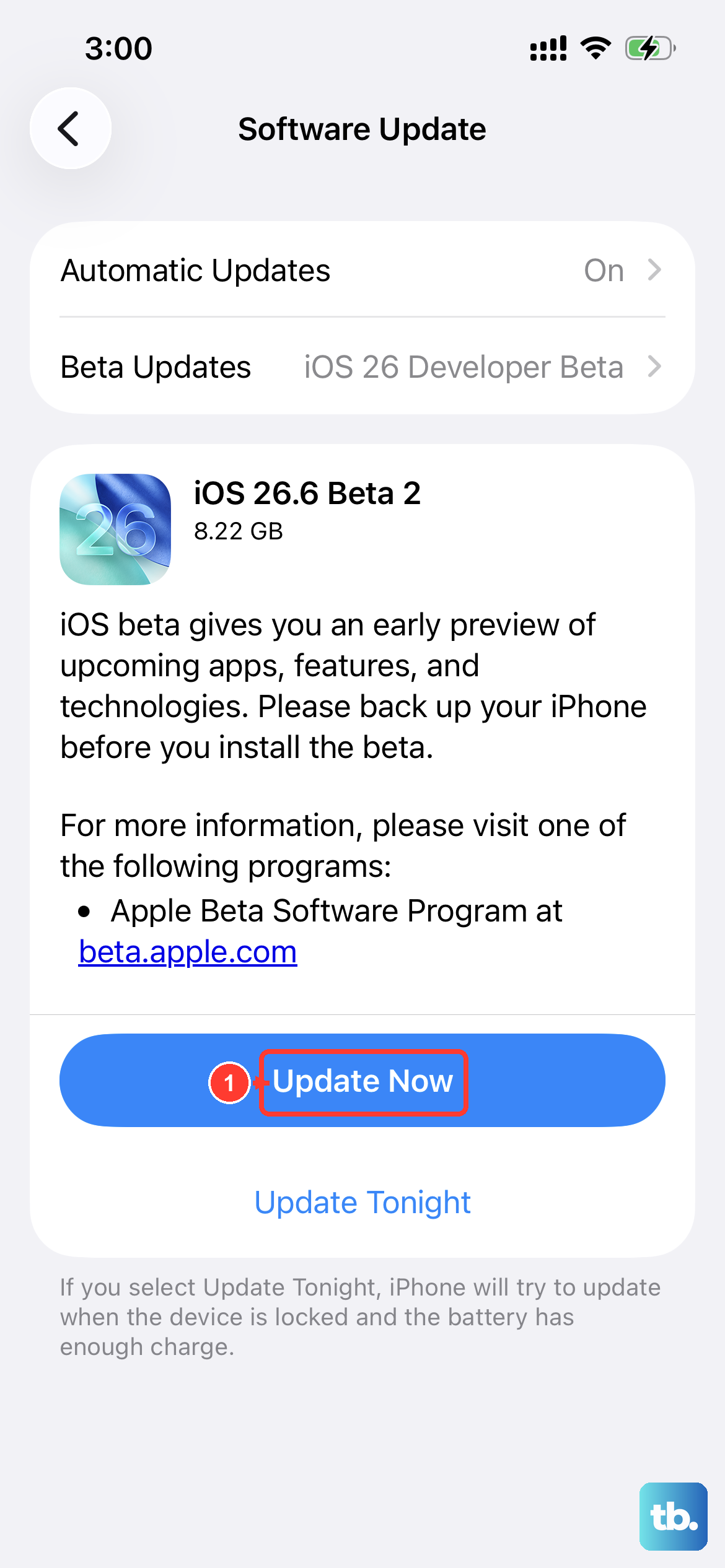
Since the iPhone SE 4 launched with iOS 18, Apple will release updates that fix bugs, including audio issues. Connect to Wi-Fi and plug in your phone with a 20W USB-C PD charger to ensure the update doesn't get interrupted.
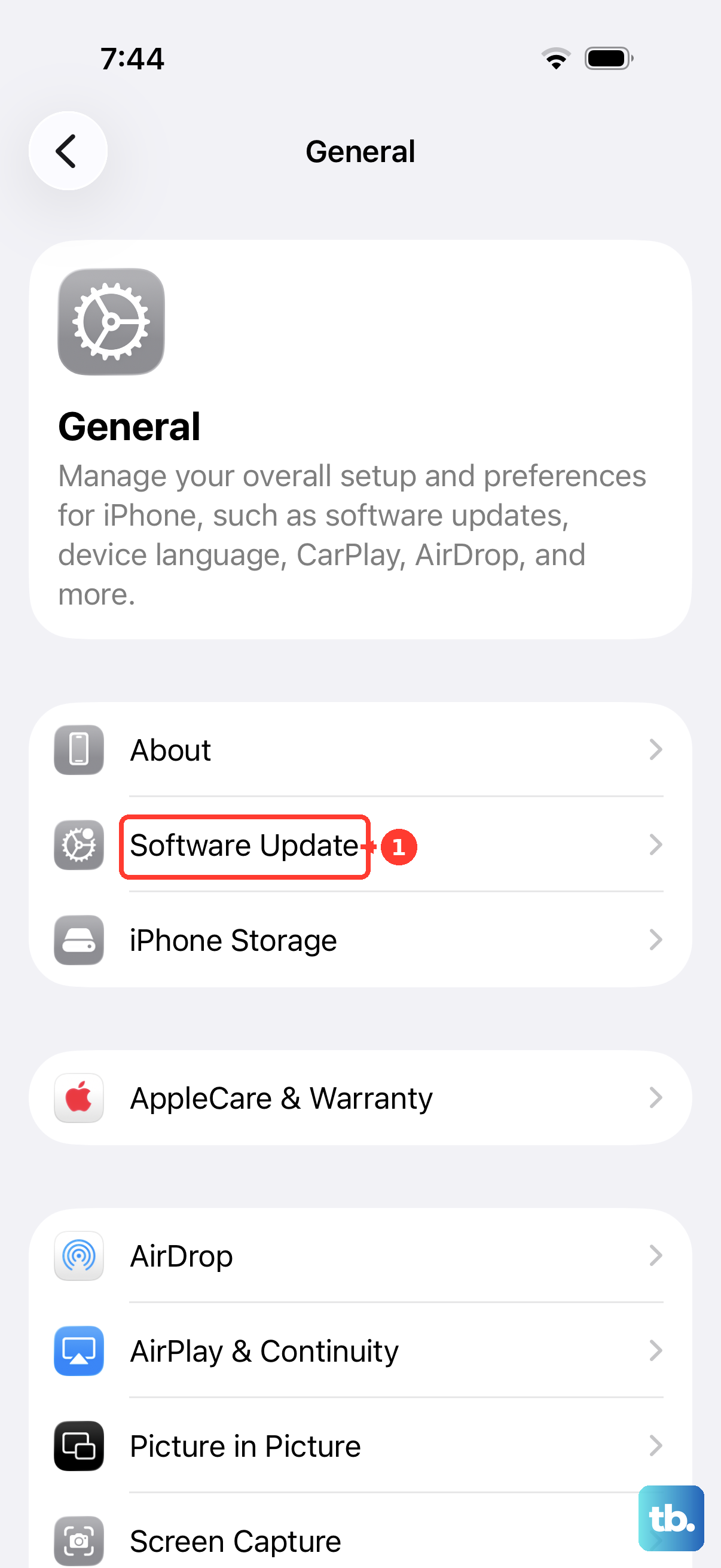
Go to Settings > General > Software Update. If an update is available, tap Download and Install. I've seen minor iOS point updates resolve microphone problems that a simple restart couldn't fix.
Reset All Settings
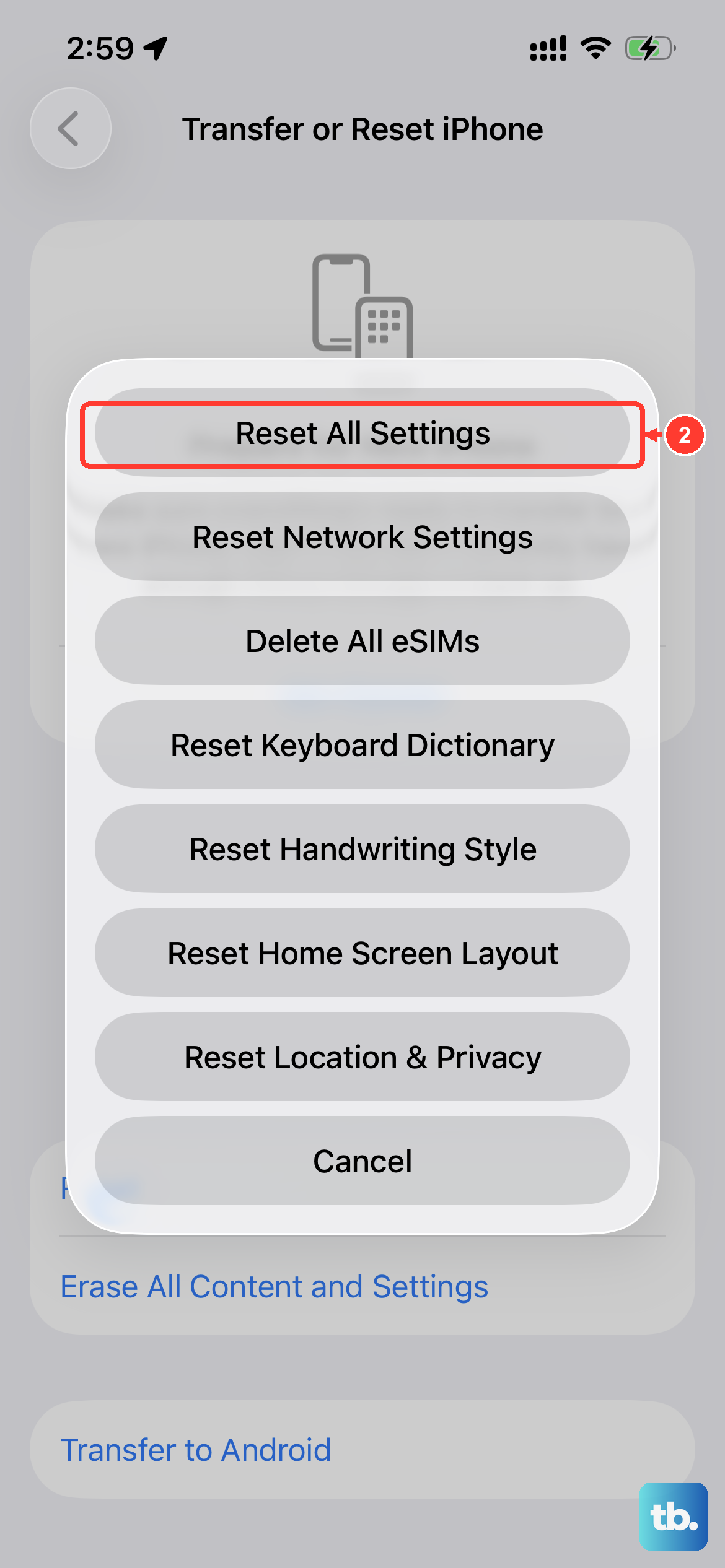
This is a stronger step that won't delete your photos or apps, but it will reset all your preferences. Your Wi-Fi passwords, wallpaper, and home screen layout will revert to defaults, so be prepared to set those up again.
To do this, go to Settings > General > Transfer or Reset iPhone. Tap Reset and then choose Reset All Settings. Enter your passcode and confirm. This can clear out any incorrect configuration that's interfering with the microphone hardware.
Check for Physical or Liquid Damage
The iPhone SE 4 is water-resistant, but not immune to damage. If the phone has been recently exposed to liquids, even just high humidity, moisture could be affecting the microphone connections.
Look for any signs of physical damage around the edges or corners of the device. A hard drop can sometimes dislodge internal connectors. Also, check the USB-C port for any debris, as a completely clogged port can affect the bottom microphone.
Restore Your iPhone Using a Computer
If you're still having issues, a full restore via a Mac or PC can address deeper software corruption. First, make sure you have a recent iCloud or computer backup.
Connect your iPhone SE 4 to your computer using a USB-C cable. On a Mac with macOS Catalina or later, open Finder. On a Windows PC or older Mac, open iTunes. Select your device, and choose the option to Restore iPhone. This will install a clean copy of iOS 18.