
A frozen iPhone SE 4 that won't respond to touch or button presses can be a real headache. The screen might be stuck on an app, the lock screen, or just a black screen. I've found that with the SE 4, most freezes are temporary software hiccups that you can fix yourself without losing any photos or messages.
Force Restart Your iPhone SE 4
This is almost always the first thing to try. The process is quick and doesn't erase your data. Press and quickly release the Volume Up button, then press and quickly release the Volume Down button. Finally, press and hold the Side button until you see the Apple logo appear, which usually takes about 15 seconds.
Keep holding even if the screen stays black for a moment. Once the logo shows up, you can let go and your phone will boot up normally. This clears the phone's temporary memory and fixes most unresponsive screens.
Give It a Moment and Check for Heat
Sometimes the iPhone SE 4 isn't truly frozen, it's just working hard on a background task. This could be indexing photos, applying a software update, or a processor-intensive app. If the back of the phone feels warm, that's a good sign it's still processing.
In that case, just set it down for five to ten minutes. The phone might sort itself out and become responsive again. This is a better first step than immediately force restarting if you suspect it's just busy.
Plug It Into a Charger
A completely drained battery can make the phone seem dead or frozen. Grab your USB-C cable and a 20W USB-C Power Delivery charger for the fastest results. Plug it in and leave it alone for at least 15 to 20 minutes.
If the battery was critically low, the phone needs to build up a small charge before it can even power on the screen or respond to a force restart. You might not see the charging icon right away, but give it time.
Close a Problem App
If your whole phone isn't frozen, but one specific app is, you can force close it. Swipe up from the very bottom of the screen and pause in the middle to bring up the App Switcher. Find the frozen app's preview and swipe it up and off the top of the screen to close it.
Then, tap the app icon again to reopen it. If the same app freezes repeatedly, head to the App Store to see if there's an update available. As a last resort, deleting and reinstalling the app can clear out corrupted data.
Free Up Storage Space
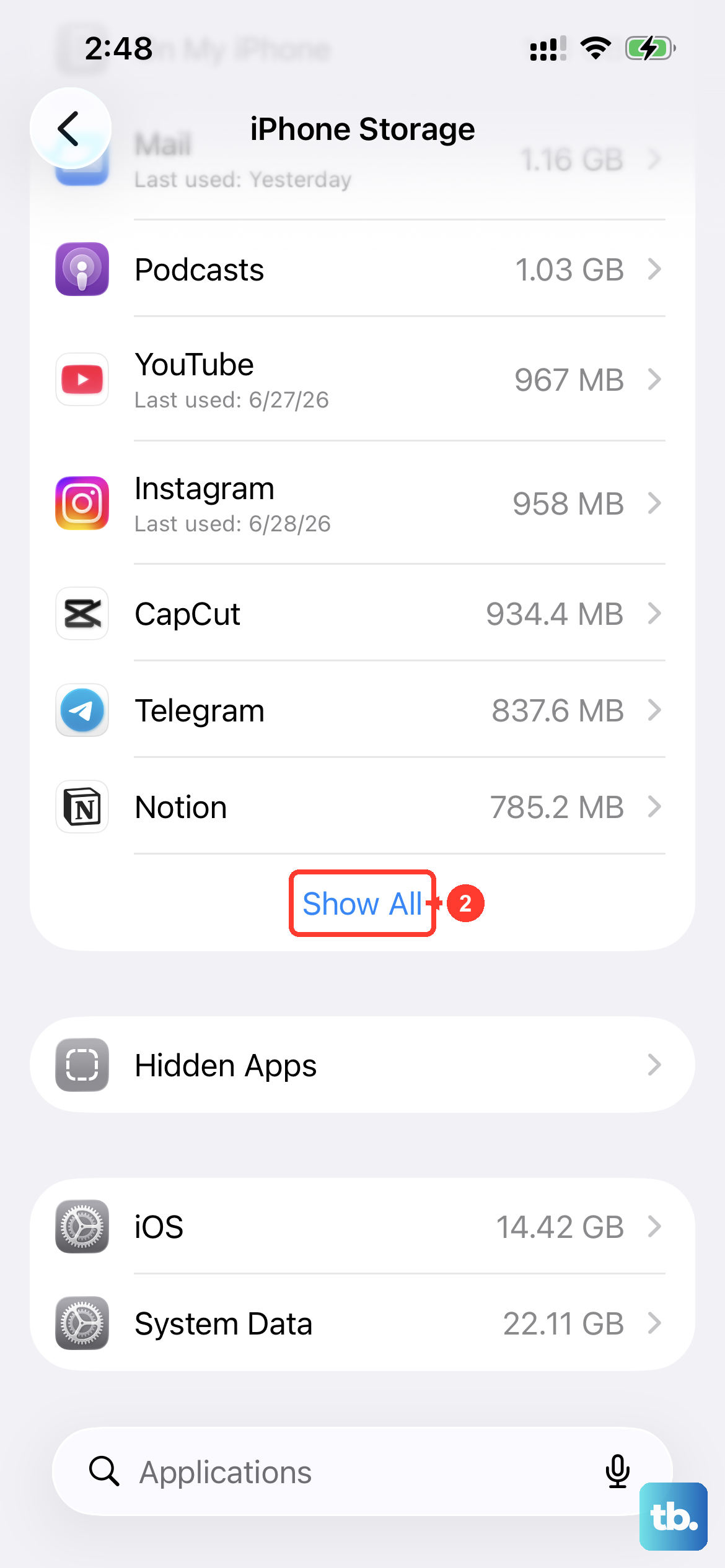
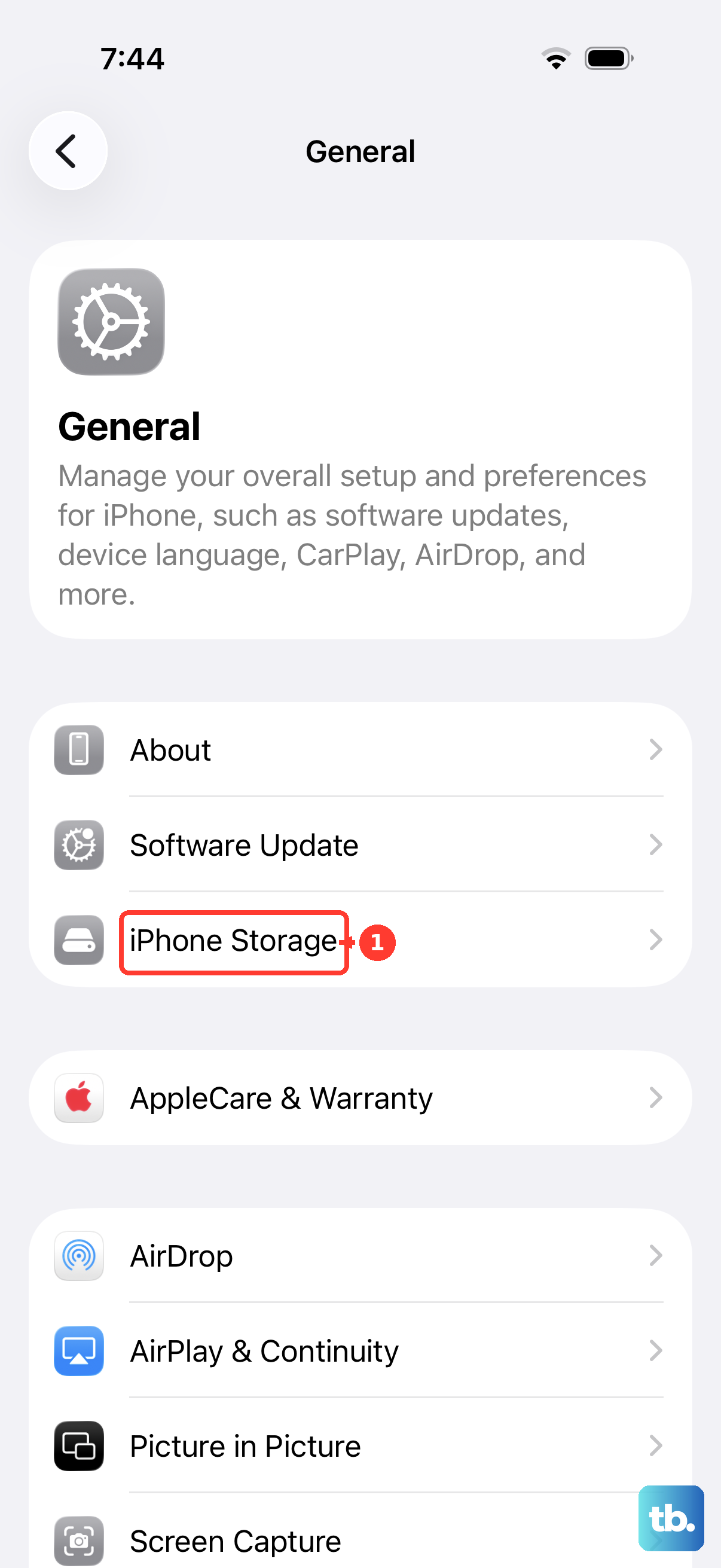
The iPhone SE 4 can start to act sluggish or freeze if its storage is completely full. The operating system needs free space to create temporary files and function properly. If you can get into Settings, go to Settings > General > iPhone Storage.
Take a look at the recommendations here. You might be able to offload unused apps, review large attachments in Messages, or clear your browser cache. I'd aim to keep at least 3-4 GB free to help prevent performance issues.
Install the Latest iOS Update
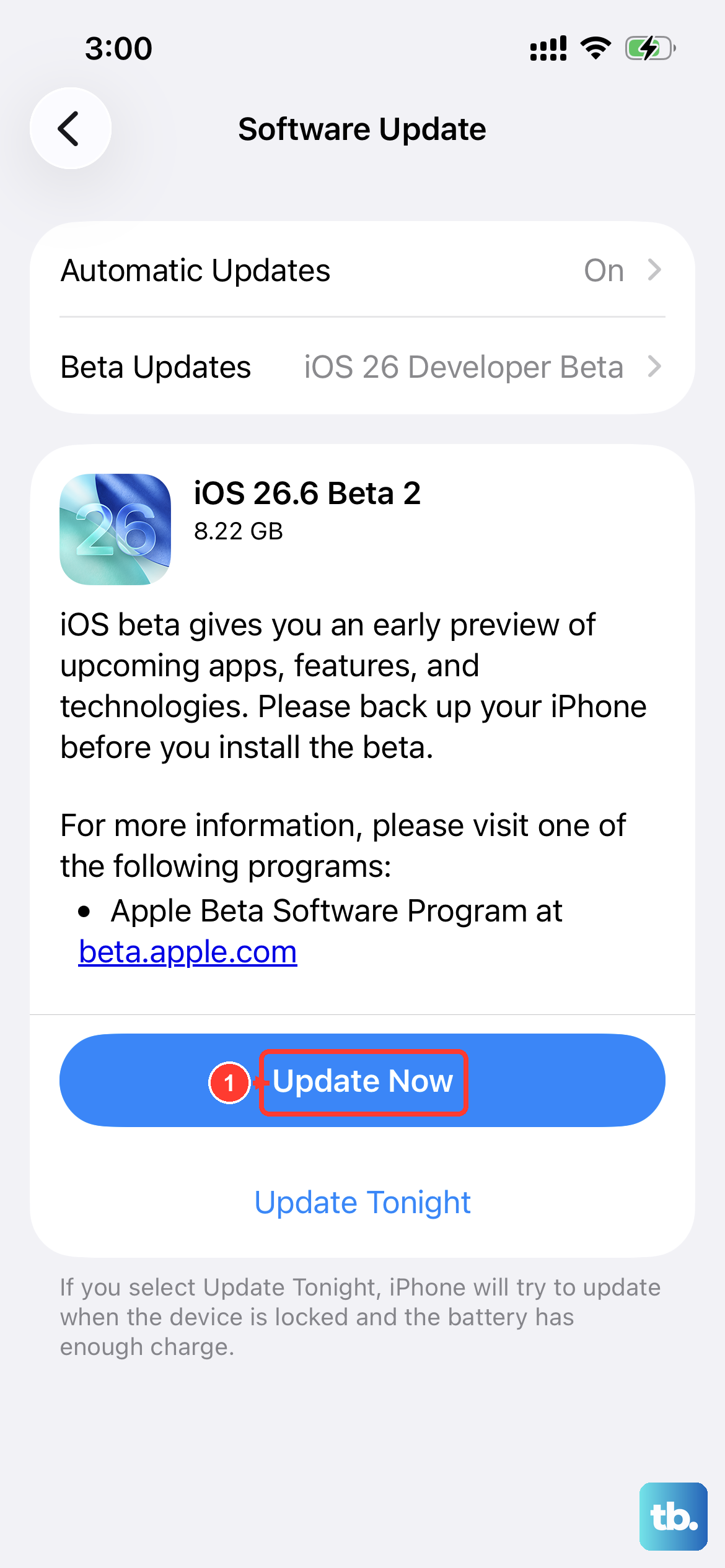
Apple frequently releases iOS updates that include bug fixes for stability and performance. An outdated version of iOS 18 could have a known glitch causing freezes. After you've restarted your phone, go to Settings > General > Software Update.
Download and install any available update. If your phone freezes during the update process itself, you'll need to use a computer to finish the update, which I'll cover next.
Reset All Settings
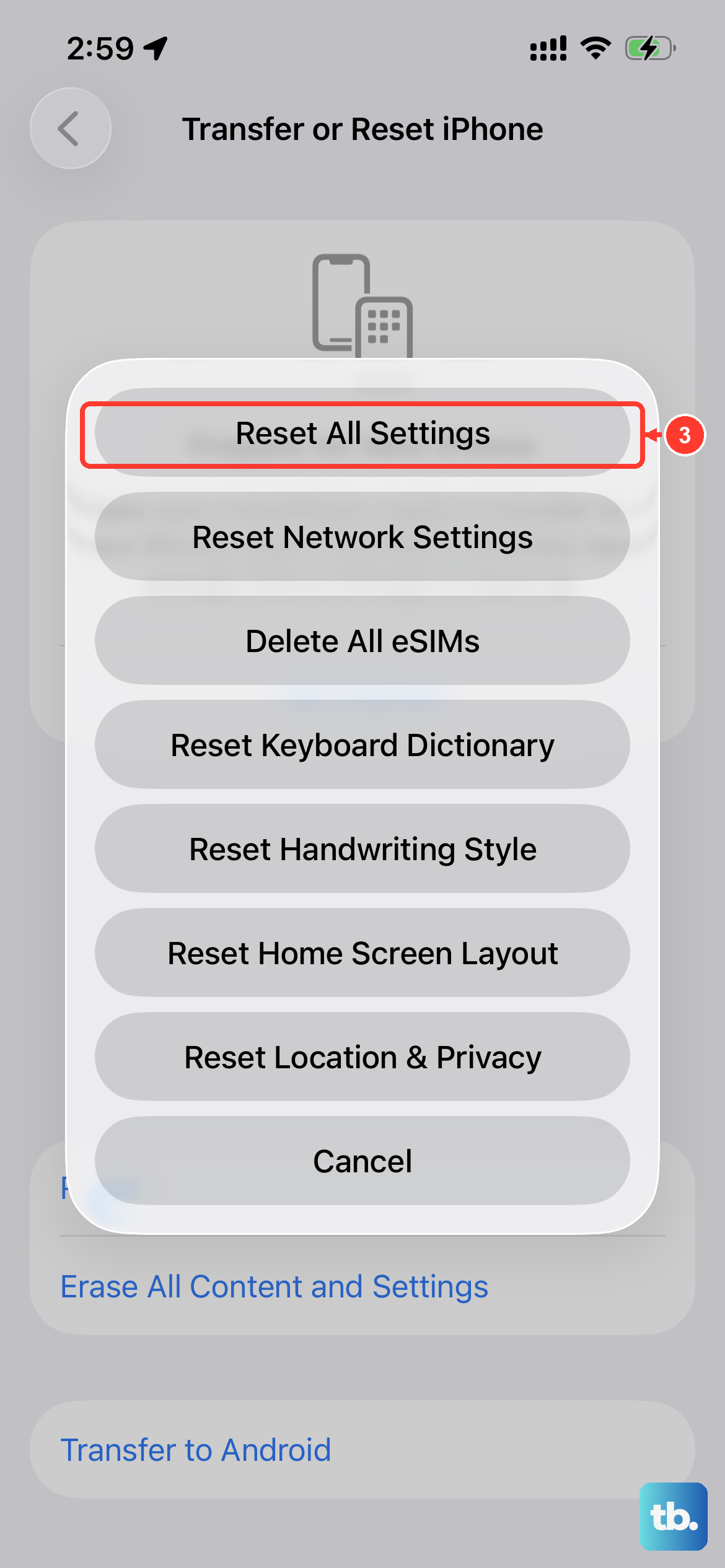
This is a useful step if freezes keep happening after restarting. It resets all your system preferences, like Wi-Fi passwords, wallpaper, and display settings, back to factory defaults without touching your personal data. Go to Settings > General > Transfer or Reset iPhone.
Tap Reset and then choose Reset All Settings. You'll need to enter your passcode. This can fix freezes caused by a corrupted system setting or configuration file.
Update or Restore Using a Computer
For a phone that won't exit a frozen state, even with a force restart, you'll need a Mac or PC. First, put your iPhone SE 4 into recovery mode. Connect it to the computer with a USB-C cable, then quickly press and release the Volume Up button, then the Volume Down button, then immediately press and hold the Side button.
Keep holding the Side button until you see the recovery mode screen on your iPhone. On your computer, you'll get an option to Update or Restore. Always choose Update first. This reinstalls iOS without erasing your data. If the update fails or isn't available, then you may need to choose Restore, which will erase the phone.
Let an Overheated Phone Cool Down
Like all iPhones, the SE 4 will throttle performance or even freeze up if it gets too hot to protect its internal components. This can happen if you're using it in direct sunlight, playing a demanding game for a long time, or charging with a thick case on.
If the phone feels hot, take it out of its case, move it to a cooler spot, and stop using or charging it for about 20 minutes. To help with battery health and prevent overheating in the future, make sure Optimized Battery Charging is turned on in your Battery settings.