
Seeing "Call Failed" on your iPhone SE 4 can stop you in your tracks. This usually means your phone is having trouble connecting to the cellular network. A weak signal, a minor software hiccup, or a single incorrect setting is often the culprit.
Let's start with the quickest fix you can try right now.
Toggle Airplane Mode On and Off
This is the fastest way to reset your cellular connection. Swipe down from the top-right corner of your screen to open Control Center. Tap the airplane icon to turn Airplane Mode on, wait about ten seconds, then tap it again to turn it off.
This forces your iPhone SE 4 to reconnect to the nearest cell tower, which can clear up temporary glitches.
Check Your Cellular Signal
Look at the signal bars in the top-right corner of your screen. If you only have one or two bars, you're in a weak coverage area. Move to a different room, go near a window, or step outside.
Sometimes, the compact design of the SE 4 can make it slightly more sensitive to signal obstructions than larger models. I'd check this before moving on to more involved fixes.
Perform a Force Restart
A simple restart clears out temporary software bugs that can interfere with calling. For your iPhone SE 4 running iOS 18, press and quickly release the Volume Up button. Then press and quickly release the Volume Down button.
Finally, press and hold the Side button until you see the Apple logo appear on the screen. This is a soft reset that won't delete any of your data.
Review Your Focus Modes
Focus modes like Do Not Disturb or Sleep can sometimes be configured to silence calls. Swipe down from the top-right to check Control Center for an active Focus icon.
You can also go to Settings > Focus to see which modes are on and adjust their settings to allow calls from your contacts.
Update Your Carrier Settings
Your carrier occasionally sends small updates to improve network performance. Make sure your iPhone SE 4 is connected to Wi-Fi, then go to Settings > General > About.
If an update is available, a prompt will appear on this screen. Just follow the instructions to install it. This can resolve calling issues specific to your network.
Check for a Blocked Number
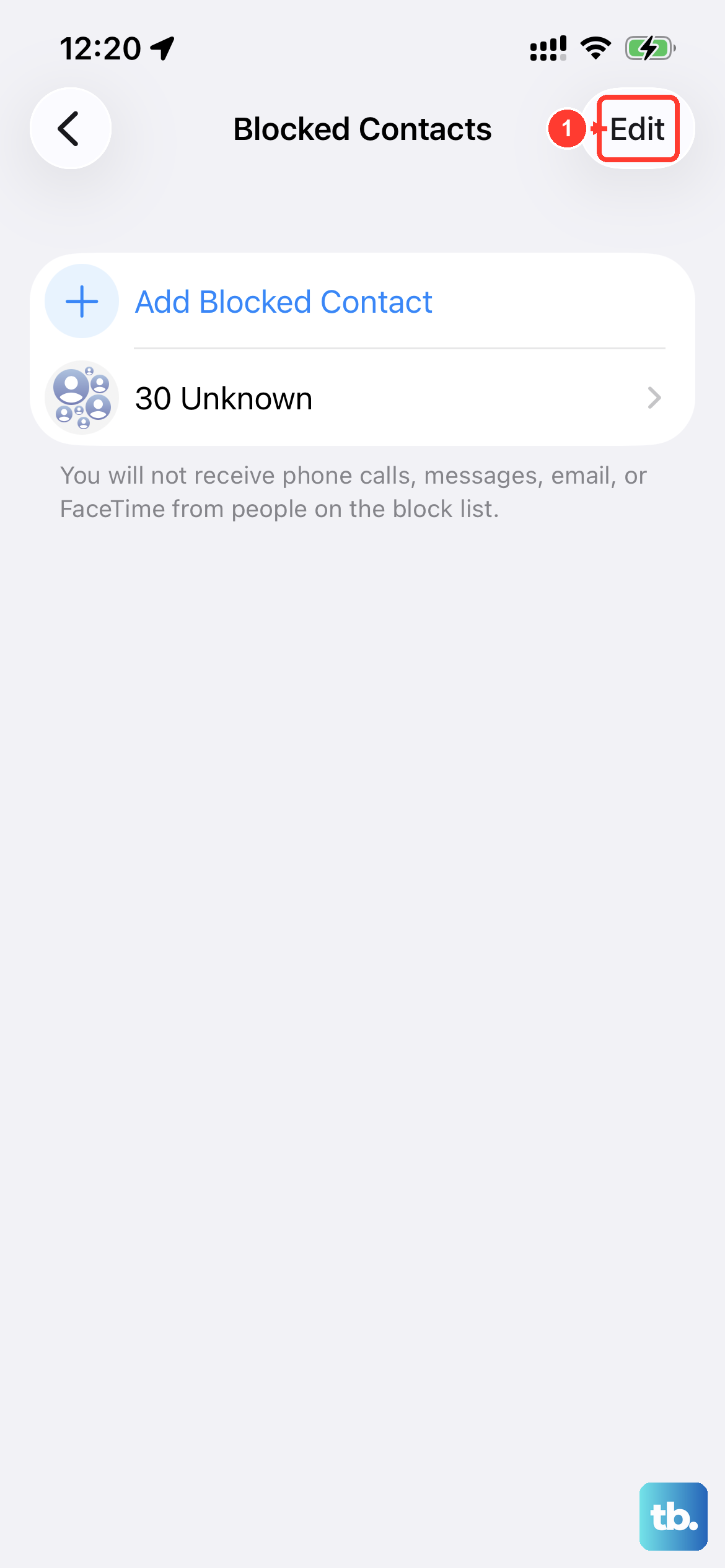
It's easy to accidentally block a number. Go to Settings > Phone > Blocked Contacts to see your list. If the number you're trying to call is there, swipe left on it and tap "Unblock."
This is a quick check that can save you a lot of confusion, especially if calls to one specific person keep failing.
Verify Cellular Data and Roaming
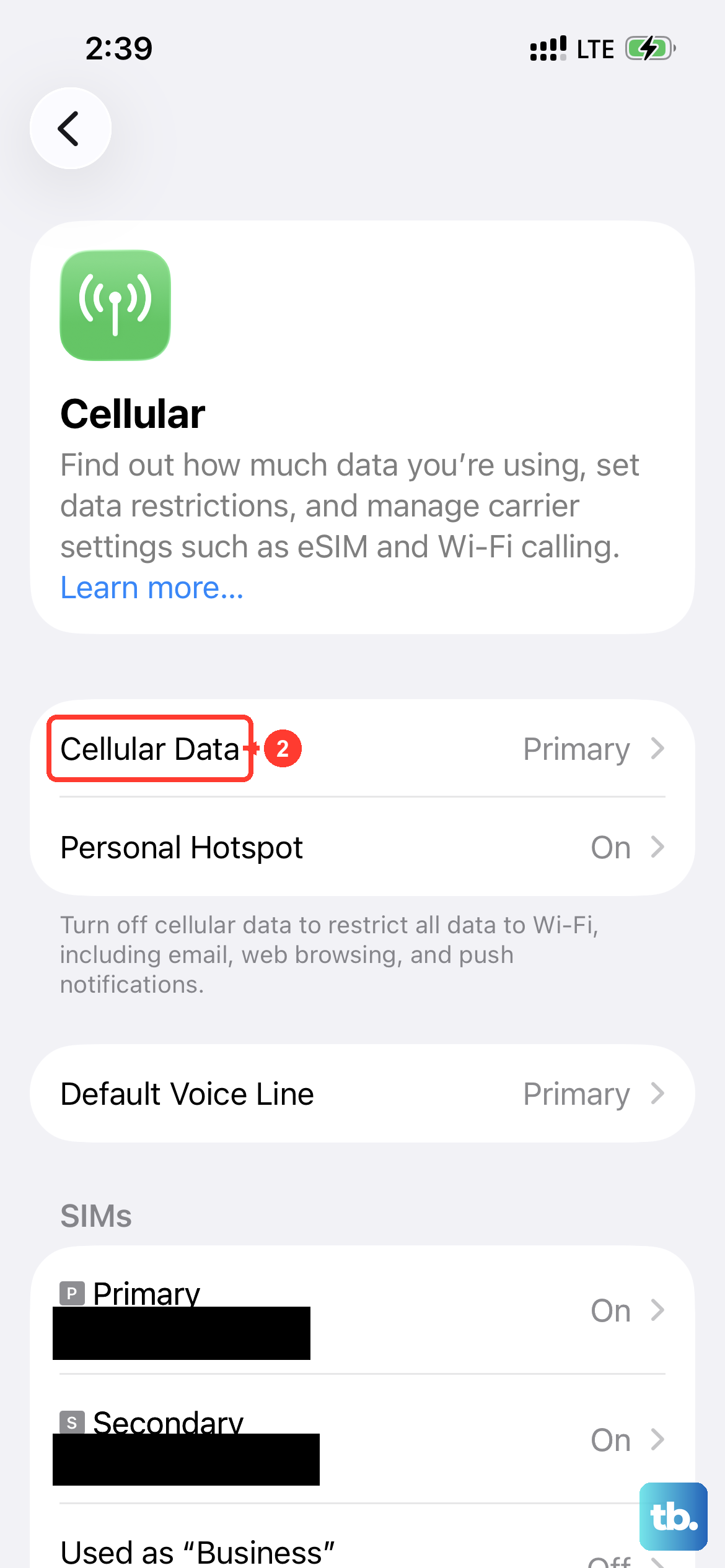
First, ensure Cellular Data is turned on. Go to Settings > Cellular and make sure the "Cellular Data" toggle is green. If you're traveling, you may also need to enable Data Roaming.
Tap Cellular Data Options and turn on "Data Roaming." Keep in mind roaming charges may apply, so check with your carrier first.
Ensure Date & Time Are Set Automatically
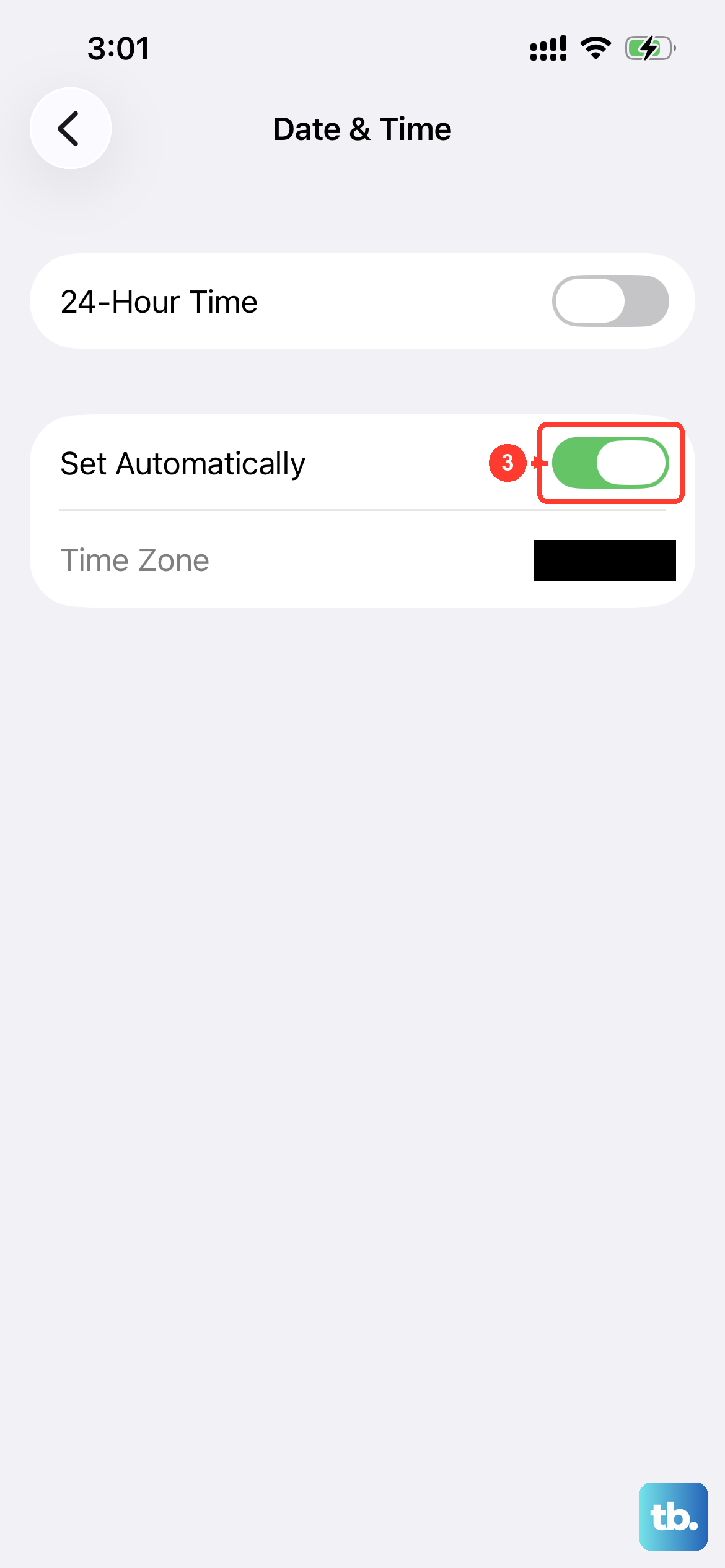
Incorrect time settings can sometimes cause authentication issues with the cellular network. Go to Settings > General > Date & Time.
Make sure the switch for "Set Automatically" is turned on. This small setting is often overlooked but can be key.
Try a Different Voice & Data Mode
In areas with spotty 5G coverage, switching to LTE can provide a more stable connection for calls. Go to Settings > Cellular > Cellular Data Options > Voice & Data.
Select "LTE" instead of "5G Auto" and try your call again. You can always switch it back later.
Inspect and Reinsert Your SIM Card
A loose, dirty, or faulty SIM card is a common physical cause. Use the SIM eject tool (or a paperclip) to pop open the SIM tray on the left side of your iPhone SE 4.
Carefully remove the SIM card, blow gently on the tray to remove any dust, and reinsert the card. Make sure it's seated properly before closing the tray.
Update to the Latest iOS Version
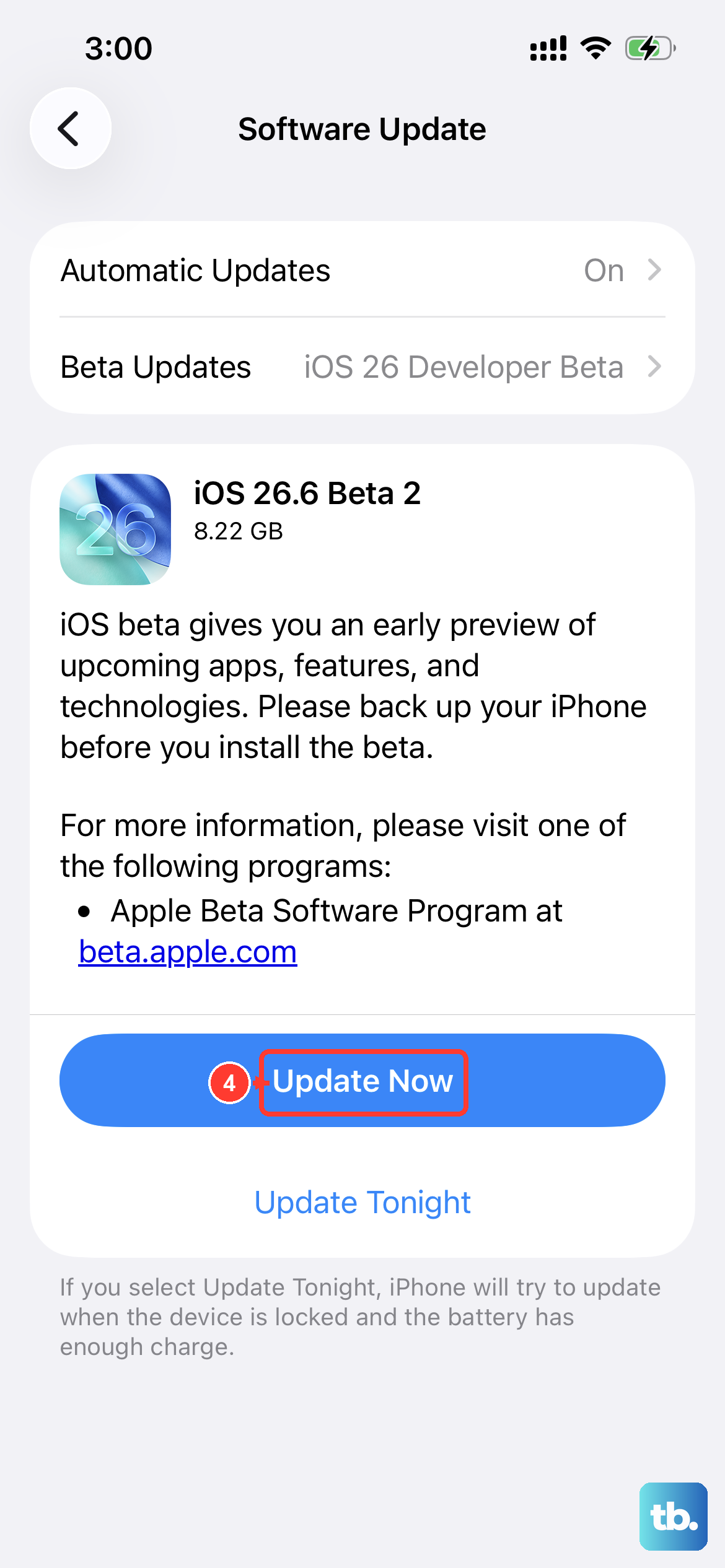
Apple releases iOS updates to fix bugs, including ones that can affect phone calls. Connect your iPhone SE 4 to Wi-Fi and plug it into power using a 20W USB-C PD charger to ensure the update completes.
Then go to Settings > General > Software Update to download and install any available updates for iOS 18.
Reset Your Network Settings
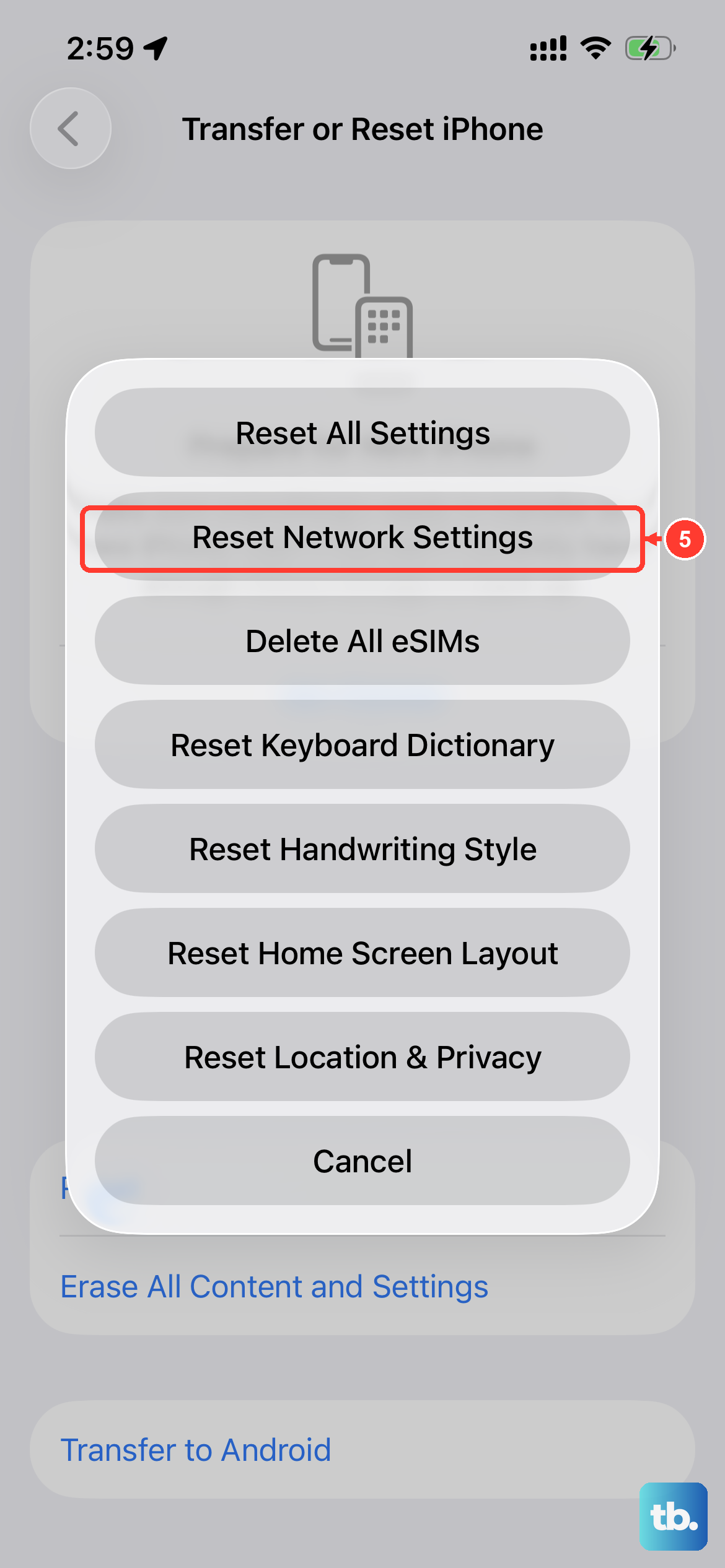
This will erase all saved Wi-Fi passwords, Bluetooth pairings, and cellular network preferences, but it's a powerful fix for persistent issues. Go to Settings > General > Transfer or Reset iPhone.
Tap "Reset," then choose "Reset Network Settings." Enter your passcode when prompted to confirm. Your iPhone SE 4 will restart and you'll need to reconnect to Wi-Fi networks.
Contact Your Wireless Carrier
If you've tried everything and calls still fail, the problem is likely on your carrier's end. There could be a network outage in your area, a problem with your account, or your SIM card may need to be replaced.
Call their customer support from another phone or visit a local store. They can run diagnostics on your line and issue a new SIM card if needed.