
When "Hey Siri" stops responding on your new iPhone 17e, it can feel like a step backward. The voice assistant that's supposed to be seamless suddenly isn't listening. Since this is a brand new model running iOS 26, there's a chance you're encountering an early software bug. Let's get it working again.
Verify Siri is Enabled on iOS 26
First, let's make sure the feature is actually turned on. Head into Settings > Siri & Search. You need to see that both "Listen for 'Hey Siri'" and "Press Side Button for Siri" are toggled on. If you just set up your phone, you might have skipped the voice training part.
Go ahead and toggle "Listen for 'Hey Siri'" off and then back on. Your iPhone 17e will walk you through the quick voice training process again. Speak the phrases clearly in your normal voice.
Check for Sound Recognition Interference
A common culprit in iOS is the Sound Recognition accessibility feature. When it's active, it can disable "Hey Siri" to avoid conflicts. To check, go to Settings > Accessibility > Sound & Name Recognition > Sound Recognition.
Make sure this switch is turned off. If you use this feature for alerts, you'll have to choose between it and a hands-free Siri. I've seen this fix the issue more often than not on recent iOS versions.
Inspect Your Audio and Focus Settings
If Siri can hear you but you can't hear her responses, check Silent mode. The iPhone 17e uses the Action button instead of a Ring/Silent switch, so use the Action button or Control Center to make sure Silent mode is not blocking audible responses.
Go back to Settings > Siri & Search and tap Siri Responses. You can set it to "Always" so Siri speaks even when your iPhone 17e is silenced. Also, ensure your volume is turned up using the side buttons.
Disconnect Bluetooth Accessories
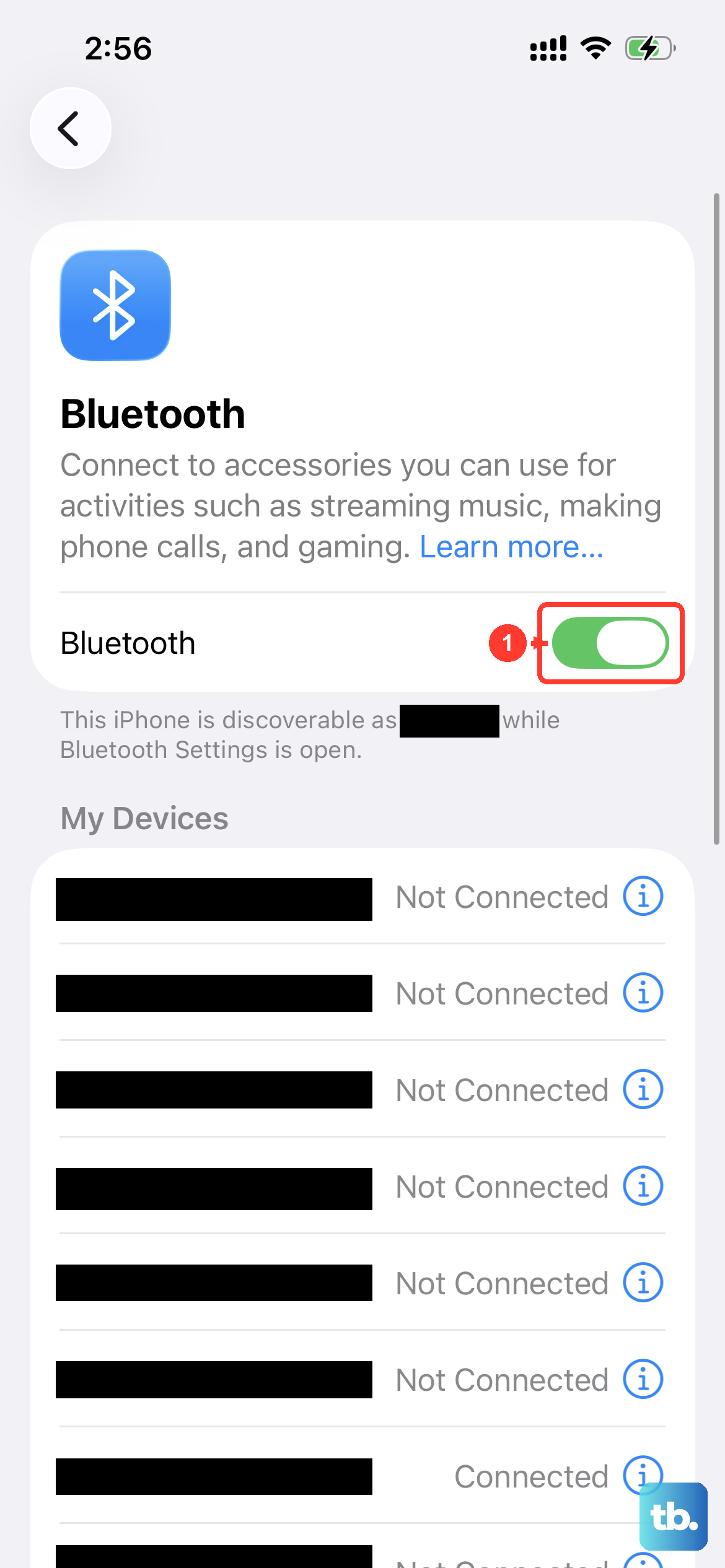
Your iPhone 17e might be trying to route Siri's audio through a connected device, like AirPods or a car stereo, that isn't currently available. This can cause a conflict where Siri seems unresponsive.
Go to Settings > Bluetooth and temporarily turn Bluetooth off, or disconnect any audio devices listed. Then, try "Hey Siri" again directly on the phone's speaker. If it works, you know the issue is with the accessory connection.
Check the Microphones for Obstructions
The iPhone 17e has multiple microphones. If they're blocked, Siri can't hear you. Check the microphone ports along the bottom edge and near the rear camera for any lint or debris from your pocket.
Gently clean the openings with a soft, dry brush. Also, if you're using a case, particularly a rugged one, make sure it isn't covering any of these small holes. A quick test without the case can rule this out.
Ensure Siri Can Work When Covered
By default, Siri won't listen if your phone is face down or in a dark bag. There's a setting to change that. Navigate to Settings > Accessibility > Siri.
Look for the "Always Listen for 'Hey Siri'" option and toggle it on. This tells your iPhone 17e to ignore the ambient light sensor and listen for the command regardless of its position.
Restart Your iPhone 17e
A simple restart clears out temporary glitches that can affect system processes like Siri. To restart, press and quickly release the Volume Up button, then press and quickly release the Volume Down button.
Finally, press and hold the Side button until you see the Apple logo appear, then release. This is the standard force restart procedure for your model. Once it boots up, test Siri immediately.
Update to the Latest iOS 26 Version
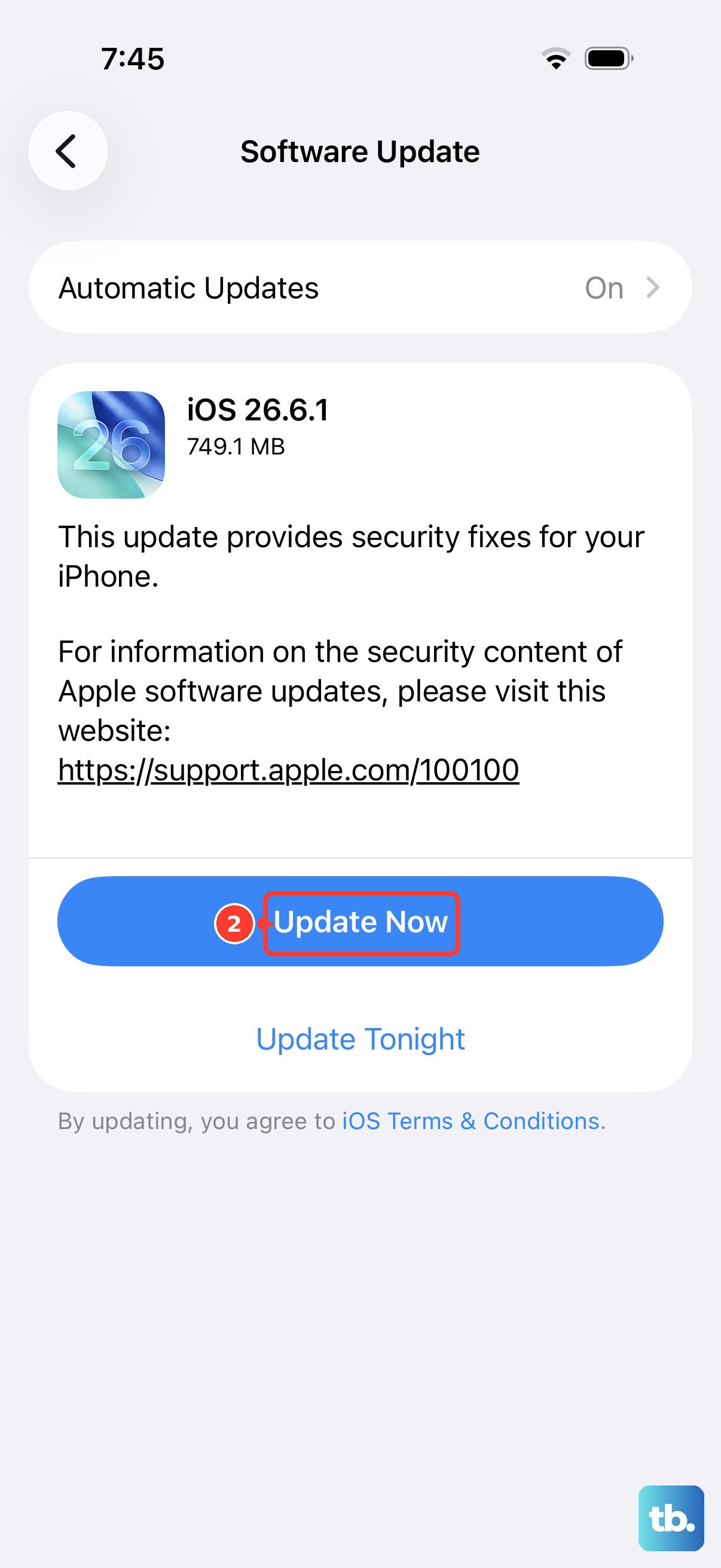
Given the iPhone 17e launched in March 2026, Apple is likely releasing frequent iOS 26 updates to squash early bugs. A Siri audio processing issue would be a prime candidate for a patch.
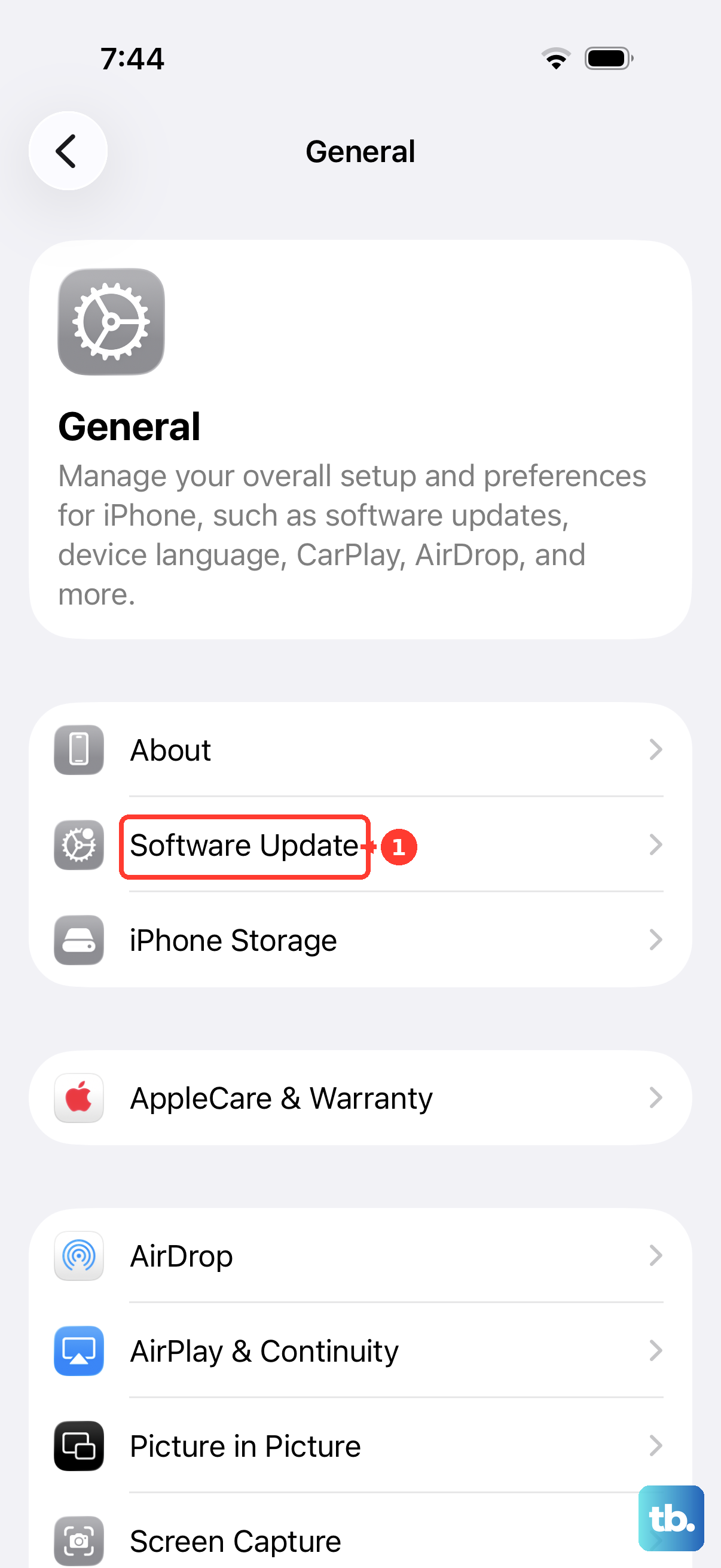
Open Settings > General > Software Update. If an update is available, download and install it. Make sure your phone is connected to Wi-Fi and has sufficient battery, or plug it into its 20W USB-C charger first.
Reset All Settings
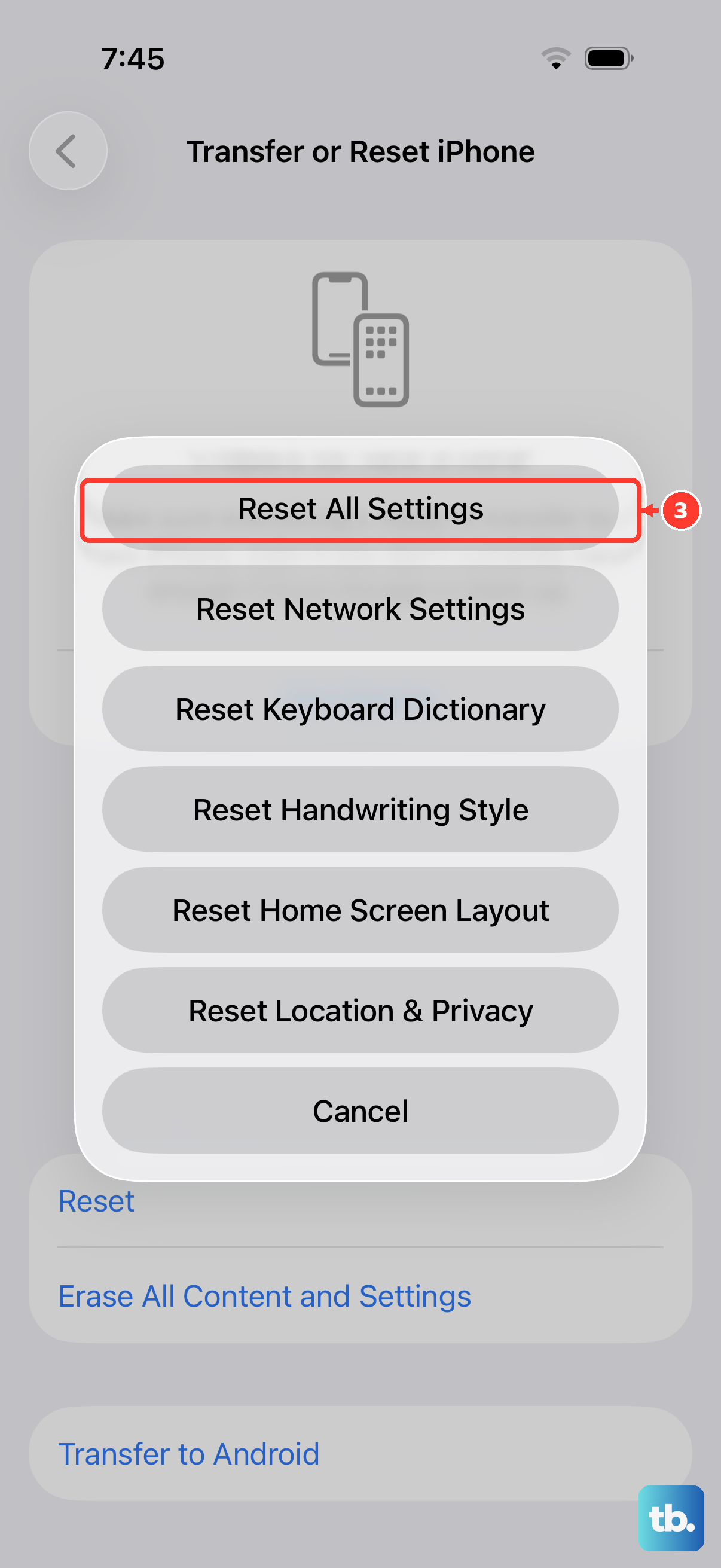
If a deeper configuration file has become corrupted, this step can fix it without erasing your personal data like photos and messages. It will reset network settings, wallpaper, and privacy permissions, so you'll have to re-join Wi-Fi networks.
To do this, go to Settings > General > Transfer or Reset iPhone. Tap Reset and then choose Reset All Settings. Enter your passcode and confirm. After the phone reboots, you'll need to re-enable "Hey Siri" in Settings.
Check Your Internet Connection
While many Siri commands are processed directly on the A19 chip in your iPhone 17e, some requests still require data. Things like web searches, sports scores, or detailed navigation need an active Wi-Fi or cellular connection.
Try asking Siri something that doesn't need the internet, like "Set a timer for 5 minutes." If that works but "What's the weather?" does not, you've found the issue. Toggle Airplane mode on and off or check your C1X cellular modem connection.