You went to grab your iPhone 17e and the screen is stuck on the Apple logo, frozen there no matter how long you wait. The boot never finishes, the Home Screen never appears, and tapping or pressing buttons seems to do nothing. It is a worrying sight on a phone you rely on, but a logo that hangs partway through startup is almost always a software hiccup rather than a dead device.
The good news is that most stuck-on-logo situations on the iPhone 17e clear up with a few minutes of effort and without touching your data. Below are the fixes laid out from the easiest and safest first, working toward the recovery-mode and reset options, with the official service path saved for last. Try them in order and stop as soon as your phone boots normally.
Start With a Full Hour on the Charger
Before you assume anything is broken, rule out a flat or poorly charged battery. A deeply drained iPhone 17e can sit at the logo or refuse to boot simply because it does not have enough power to complete startup. This is one of the simplest causes of a phone that hangs at the logo or will not boot at all.
Connect the iPhone 17e to a known-good charger and cable, then leave it alone. Charge your iPhone for one hour and then try again to power it on.
If you see a low-charge battery icon on the screen, that is a sign your charging setup may be the issue. Check your iPhone hardware (the cable, the adapter, and the port) and then charge your iPhone for 30 minutes or until it starts.
Force Restart to Break the Freeze
If the iPhone 17e is frozen or stuck on the Apple logo, a force restart is the next move. Because this is a Face ID model with no Home button, it uses a three-button sequence in a specific order. This forces a restart without erasing any of your data.
- 1.Press and quickly release the volume up button.
- 2.Press and quickly release the volume down button.
- 3.Press and hold the side button until you see the Apple logo.
Keep holding the side button even past 10 seconds if needed. The screen may go dark before the logo reappears, which is normal. Once the phone restarts and reaches the Home Screen, the problem may be solved.
Install Any Pending iOS 26 Update
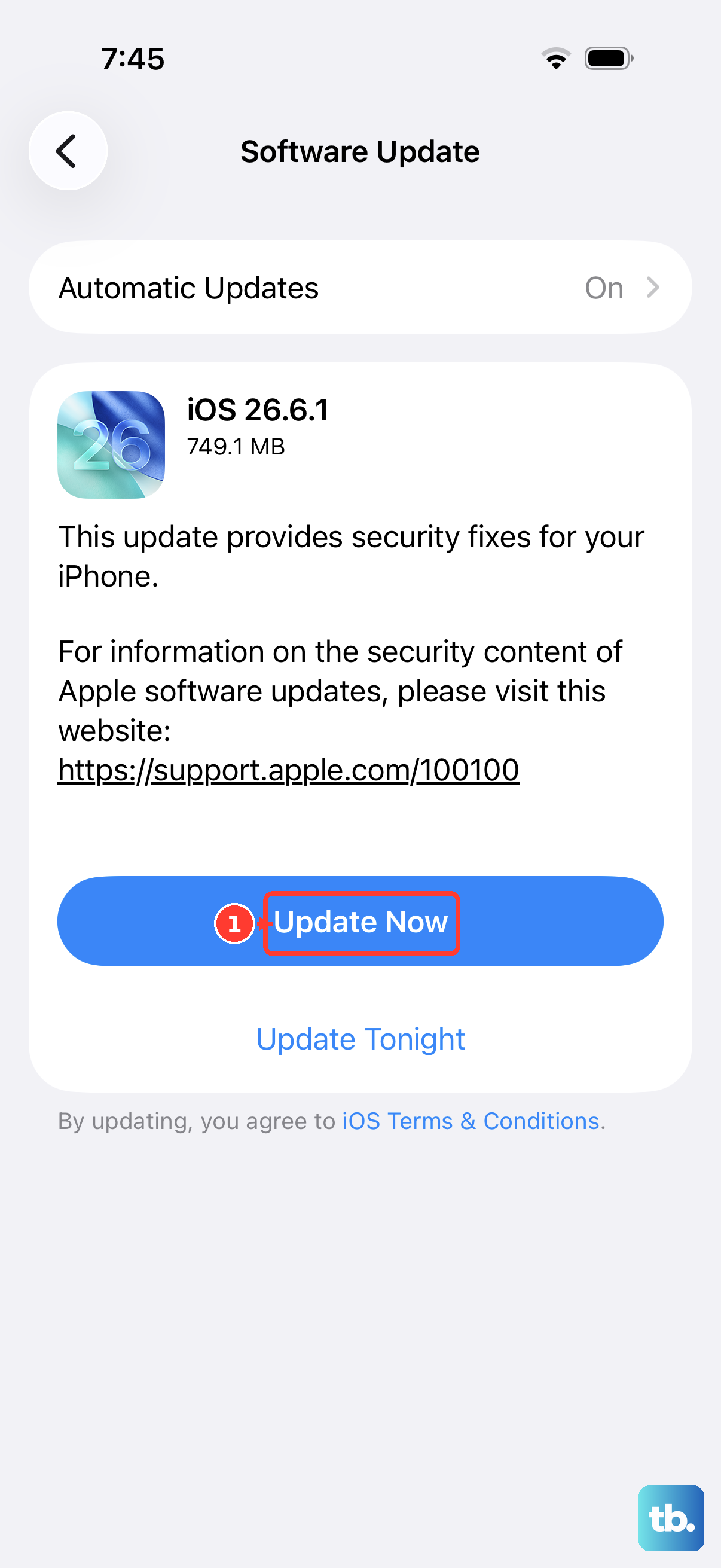
Sometimes a force restart gets the iPhone 17e to boot, but the underlying software bug is still there waiting to cause another freeze. If your phone makes it to the Home Screen, installing the latest version of iOS 26 can clear software bugs that cause boot problems.
To check for and install an update, go to Settings, tap General, then tap Software Update. If an update is available, tap Download and Install and follow the onscreen instructions.
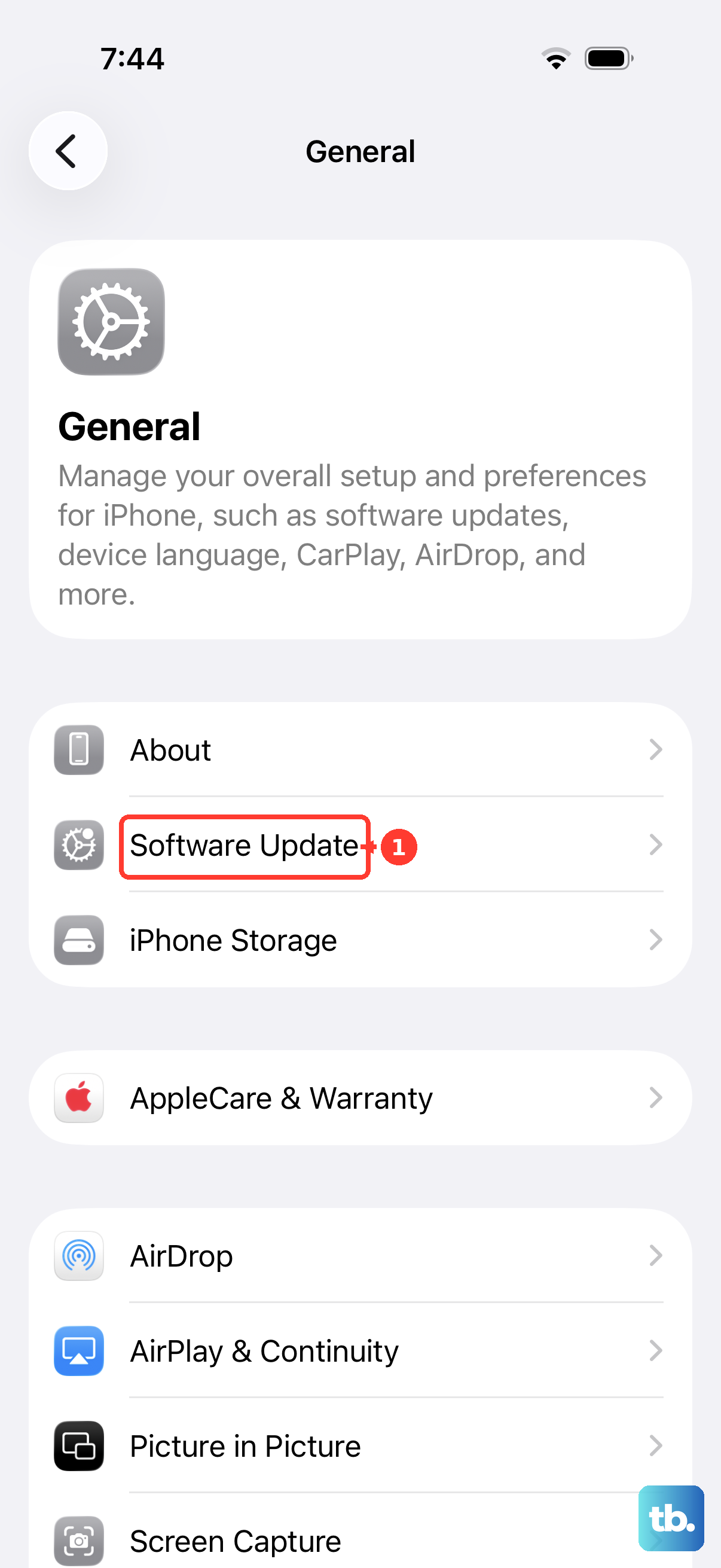
Let the update finish completely without disconnecting from power. After it installs, the phone restarts on its own, which often resolves boot-related glitches for good.
Reinstall iOS in Recovery Mode and Choose Update
If a force restart does not help and the phone never reaches Settings, recovery mode lets you reinstall iOS using a computer. The important part here is choosing Update rather than Restore, because Update reinstalls iOS while keeping your data intact. You will need a computer and a cable.
On a Mac running macOS Catalina or later, open Finder. On a Windows PC, open the Apple Devices app (use iTunes on older macOS or where the Apple Devices app is unavailable). Connect the iPhone 17e to the computer, then put it into recovery mode with this sequence:
- 1.Press and quickly release the volume up button.
- 2.Press and quickly release the volume down button.
- 3.Press and hold the side button until you see the Connect to computer screen.
On the computer, select the device, and when prompted, choose Update (not Restore). The computer will try to reinstall iOS without wiping your content. If the download takes too long and the phone exits recovery mode, repeat the steps and let it finish.
Restore in Recovery Mode When Update Will Not Fix It
If choosing Update does not resolve the stuck logo, the next option in recovery mode is Restore. This is a more drastic software fix, so treat it as a step beyond Update rather than a first choice. Apple warns that Restore reinstalls iOS and erases all your data, so use it only after Update has failed and ideally when you have a backup.
Only use Restore if the Update option failed to bring the phone back. To do it, put the iPhone 17e back into recovery mode using the same volume up, volume down, and side button sequence, connect it to Finder or the Apple Devices app, select the device, and choose Restore.
Because this erases everything on the phone, you will set it up fresh afterward. If you have a backup, you can restore from a backup once the phone starts up normally, which brings your apps and content back.
Erase All Content and Settings as a Last Software Reset
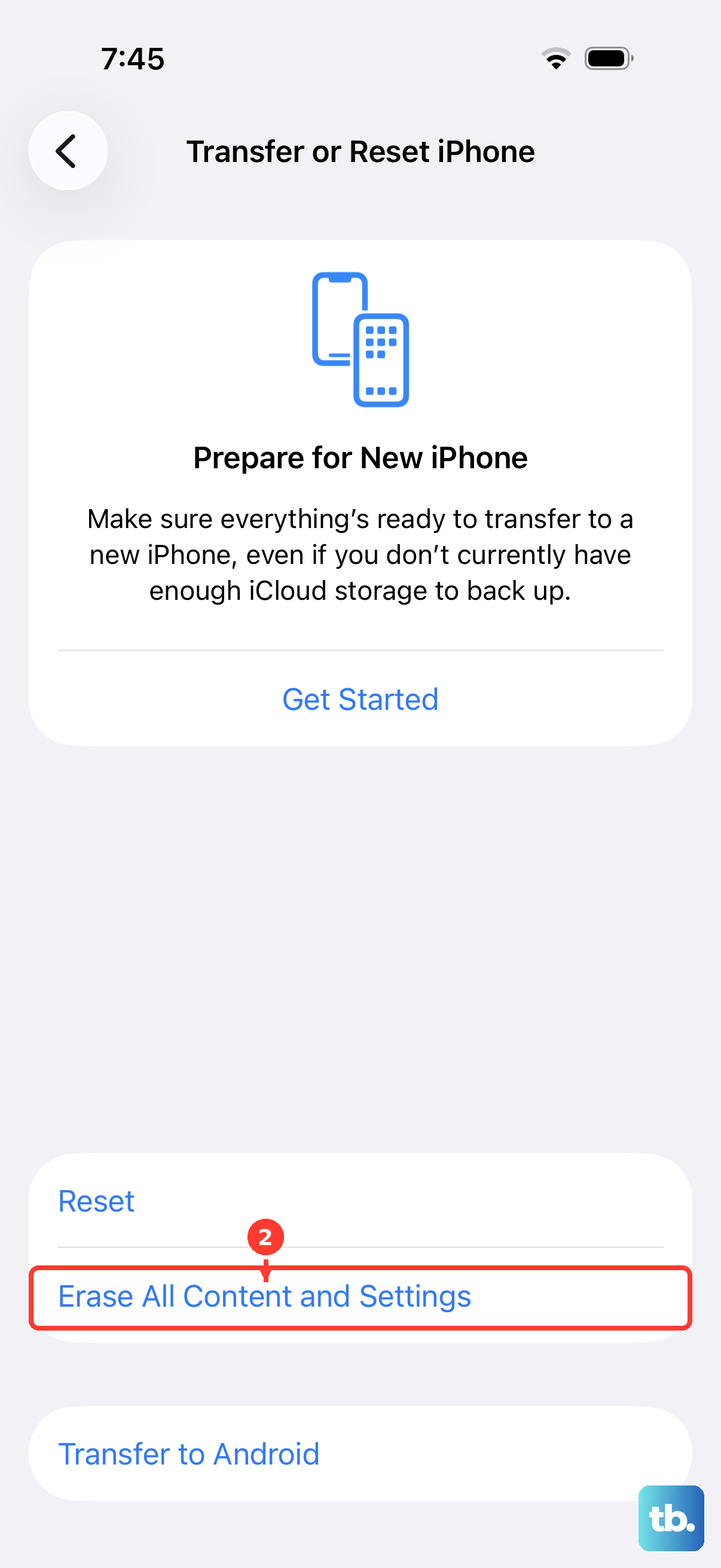
If the iPhone 17e is usable enough to reach Settings but a persistent software fault keeps returning, a full reset can clear it. This is a factory reset that permanently erases all your content and settings and returns the phone to factory settings, so back up first if you possibly can.
When you are ready, follow this path. Go to Settings, tap General, tap Transfer or Reset iPhone, then Erase All Content and Settings, then tap Continue. Because the iPhone 17e is eSIM-only with no physical SIM tray, you will be asked to choose to keep or delete your eSIM during the process.
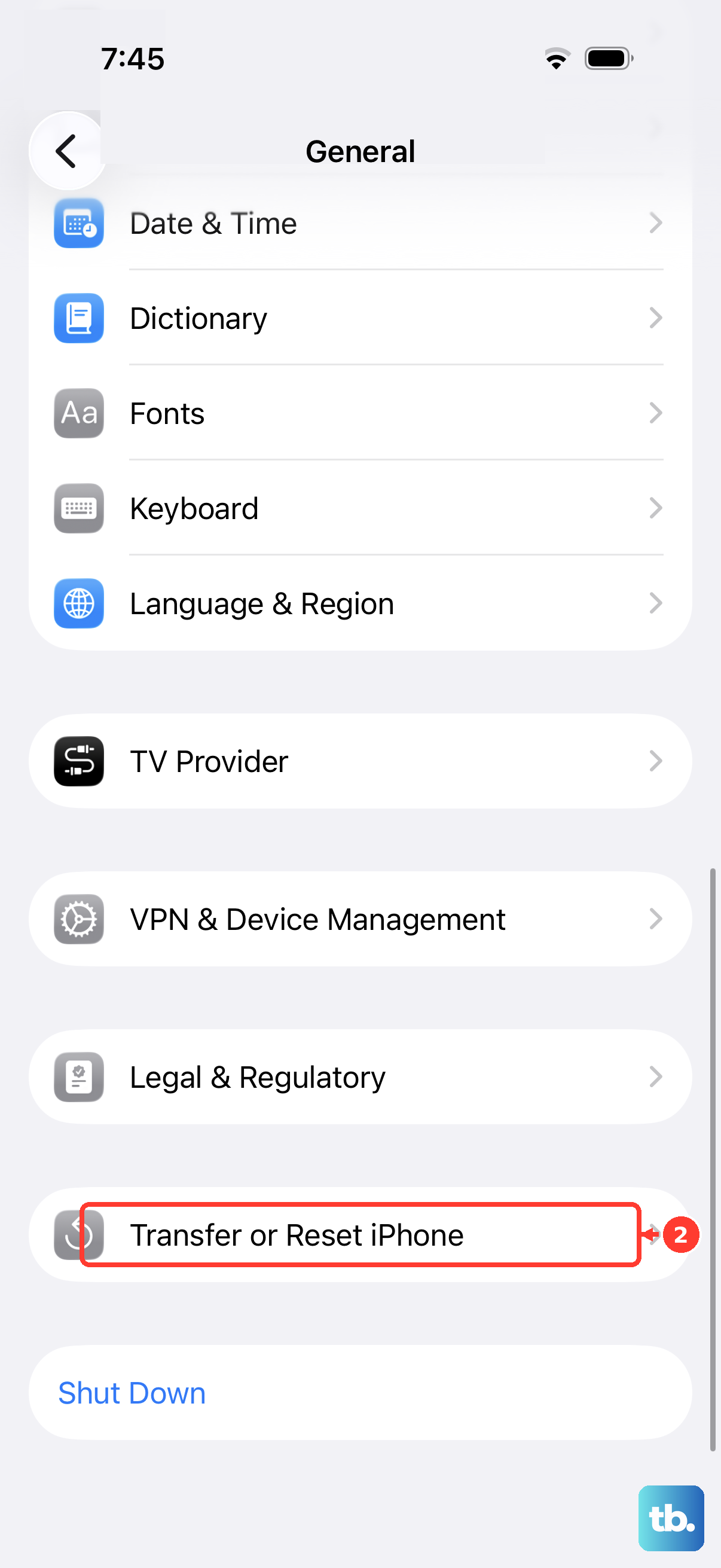
- 1.Go to Settings, tap General, then tap Transfer or Reset iPhone.
- 2.Tap Erase All Content and Settings, then tap Continue.
- 3.At the confirmation prompt, "Are you sure you want to erase all data?", choose either "Keep eSIM and Erase Data" or "Delete eSIM and Erase Data."
- 4.Enter your device passcode, then enter your Apple Account password.
- 5.Wait for the device to erase and return to factory settings.
Keeping the eSIM is usually the right choice unless you are giving the phone away, since it preserves your cellular line. After the erase finishes, you can set the phone up and bring your data back from a backup.
When to Get Service From Apple
If the iPhone 17e still will not start after charging, a force restart, and a recovery-mode update or restore, the problem may go beyond software. At that point, the official guidance is to get service rather than keep retrying the same steps. A logo that survives a clean reinstall can point to a hardware issue that needs a closer look.
Start a support request online at support.apple.com so Apple can connect you with an expert or arrange a repair. Have your device details ready, and be prepared to describe exactly what you have already tried so the process moves faster.
Frequently Asked Questions
Does force restarting the iPhone 17e delete my data?
No. The force restart sequence (press and quickly release volume up, press and quickly release volume down, then press and hold the side button until you see the Apple logo) forces a restart without erasing any of your data. It only interrupts the frozen state and reboots the phone.
What is the difference between Update and Restore in recovery mode?
Update reinstalls iOS while keeping your data, which is why you should choose it first. Restore reinstalls iOS and erases all your data, so use it only if Update fails. After a Restore, you can set up the phone and bring your content back from a backup.
Why does the iPhone 17e ask about my eSIM during a factory reset?
The iPhone 17e is eSIM-only and has no physical SIM tray, so the Erase All Content and Settings flow includes a choice to keep or delete your eSIM. You will pick either "Keep eSIM and Erase Data" or "Delete eSIM and Erase Data" before the erase begins.
How long should I charge the phone before deciding it is broken?
Charge your iPhone for one hour and then try again. If you see a low-charge battery icon, check your iPhone hardware and then charge for 30 minutes or until it starts. A drained battery or a faulty cable is a common reason a phone hangs at the logo.
What should I do if none of these steps work?
If the iPhone 17e still will not start after charging, a force restart, and a recovery-mode update or restore, start a support request online at support.apple.com. Apple can connect you with an expert or arrange a repair for what may be a hardware problem.