You go to fire off a quick text from your iPhone 17e and nothing happens, or the message just sits there with a red exclamation point next to it. It is frustrating when a phone this new will not do something as basic as send a message, especially since the 17e ships with full cellular and messaging support over its Apple C1X modem. The good news is that most texting problems on this model come down to a connection hiccup, an iMessage setting, or a small software glitch, and you can usually clear them up in a few minutes.
The fixes below are ordered so you start with the quickest, safest checks and only move to the bigger steps, like a full erase or contacting support, if everything else fails. Work through them in order and test a message after each one.
Start With Your Signal and Network
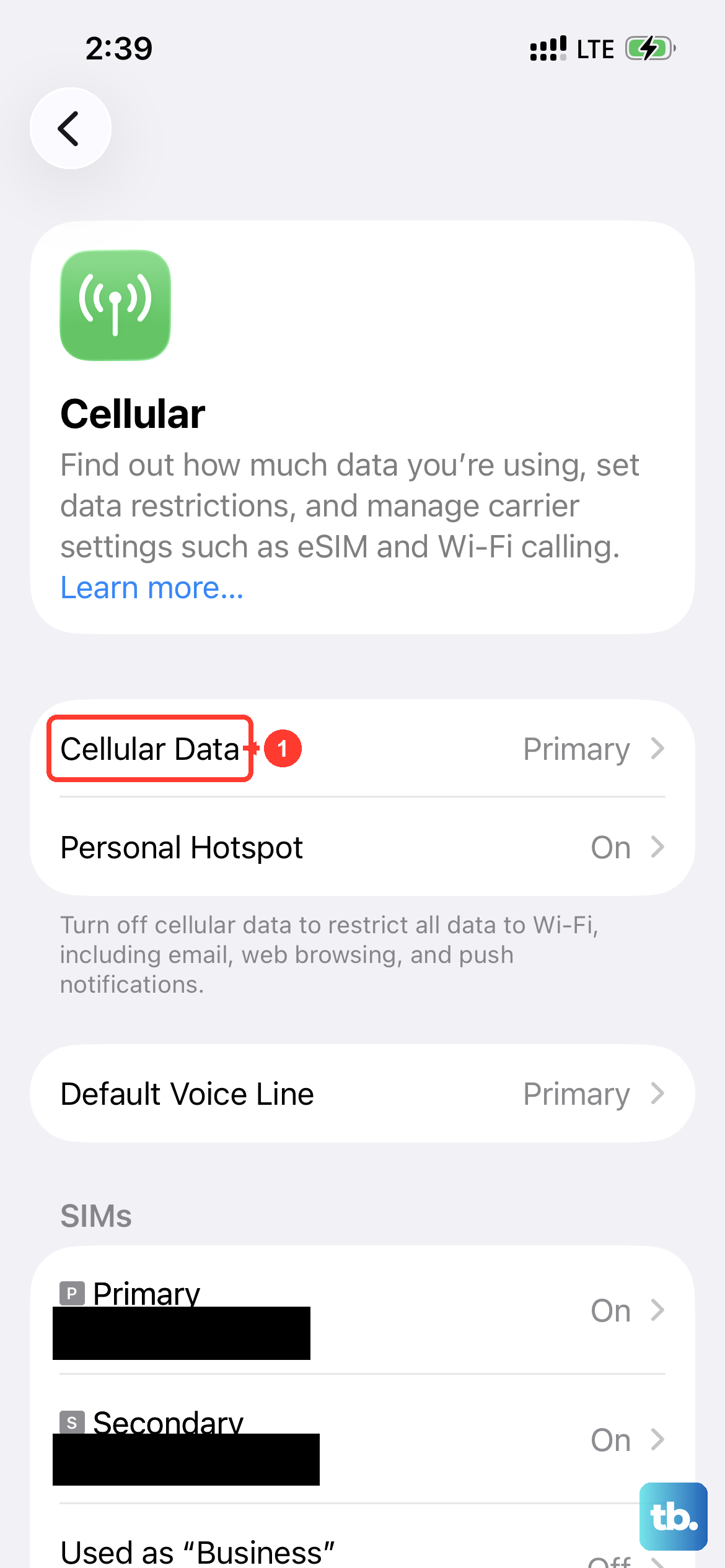
Different kinds of texts need different connections, so the first thing to confirm is that your iPhone 17e actually has the connection it needs. An iMessage, RCS, or MMS message needs cellular data or Wi-Fi, while a plain SMS text needs a cellular network connection. If you have no bars and no Wi-Fi, nothing is going to send.
Check the signal indicator at the top of the screen, then make sure your cellular line is actually turned on. Go to Settings then Cellular and verify your phone line is on and that the correct number is selected. If the line is off or the wrong number is chosen, your texts have nowhere to go.
Airplane Mode is also easy to leave on by accident, and while it is active your cellular radio is disabled, so SMS and MMS simply cannot send. Open Control Center by swiping down from the top-right corner on the iPhone 17e and look for the Airplane Mode button. If it is highlighted, tap it to turn it off. Even if Airplane Mode is already off, flipping it on for a few seconds and then back off forces the phone to drop and reconnect to the network, which often clears a stale connection that was quietly blocking your texts. You can also toggle Airplane Mode from Settings if you prefer.
Push a Stuck Message Through
If a specific message is hanging with a red exclamation point and a Not Delivered label, you can usually resend it directly. The trick is to first retry it, and then fall back to plain SMS if iMessage still will not cooperate.
- 1.Tap the red exclamation point next to the message.
- 2.Tap Try Again.
- 3.If it still fails, tap the red exclamation point again and select Send as Text Message so it goes out as SMS instead of iMessage.
Sending as a text routes the message over the carrier network, which is helpful when iMessage data delivery is the part that is failing.
Confirm You Have the Right Recipient
It is an easy thing to overlook, but a wrong or mistyped phone number or email address is one of the most common reasons a message never lands. Open the conversation and double-check the contact details at the top.
Make sure you entered the correct phone number or email address for the person you are texting. If the contact has multiple numbers or an old email saved, try the one you know is current before assuming something is broken on your end.
Give Your iPhone 17e a Restart
Apple's first general troubleshooting step for most issues is to restart the device, and it clears a surprising number of temporary glitches in Messages. A normal restart is gentle and will not delete anything.
- 1.Press and hold either volume button and the side button until the power-off slider appears.
- 2.Drag the slider to turn the phone off.
- 3.Wait 30 seconds.
- 4.Press and hold the side button, on the right side of your iPhone, until you see the Apple logo.
If the phone is completely unresponsive, you can force restart instead. Press and quickly release the volume up button, press and quickly release the volume down button, then press and hold the side button until you see the Apple logo. This might take longer than 10 seconds.
Make Sure Your Number Is Selected for Messaging
iMessage needs to know which number to send and receive from, and if your phone number is not selected, your messages can go sideways. This is a quick setting to verify.
Go to Settings then Apps then Messages then Send and Receive and confirm your phone number is selected. If your number is not selected in the list, tap it so messages send and receive from the right line.
Turn iMessage Off and Back On
Toggling iMessage off and on forces it to re-register with Apple, which often resolves activation and delivery problems. It is a low-risk reset for the service itself.
Go to Settings then Apps then Messages, turn iMessage off, then turn it back on. After you switch it on, it might take up to 24 hours for your carrier to verify your phone number with Apple, so do not panic if it is not instant.
If a prompt warns that your carrier may charge for the SMS used to activate iMessage and FaceTime, tap Turn On. Keep in mind you need SMS messaging available in the first place to activate iMessage with your phone number.
Fix a Stuck iMessage Activation on iOS 26
The iPhone 17e ships with iOS 26, and on that version iMessage can fail to activate with your phone number if the system sees a duplicate number, often from an inactive SIM still hanging around. Clearing the unused line gives iMessage a single number to lock onto.
- 1.Go to Settings then Cellular and remove the inactive physical SIM, or tap Delete eSIM to remove the inactive eSIM.
- 2.Go to Settings then Apps then Messages then Send and Receive.
- 3.Tap the displayed phone number to activate iMessage.
If you would rather not touch your SIM setup, updating to iOS 26.1 or later also addresses this activation issue.
Send Texts Over Wi-Fi When Signal Is Weak
If your iPhone 17e is stuck in a low-signal spot, Wi-Fi Calling lets you send SMS texts over a Wi-Fi network instead of relying on a weak cellular connection. This is especially useful indoors or anywhere coverage is spotty.
Go to Settings then Cellular then Wi-Fi Calling and turn it on. You may need to enter or confirm your address for emergency services before the feature finishes setting up.
Install the Latest iOS Update
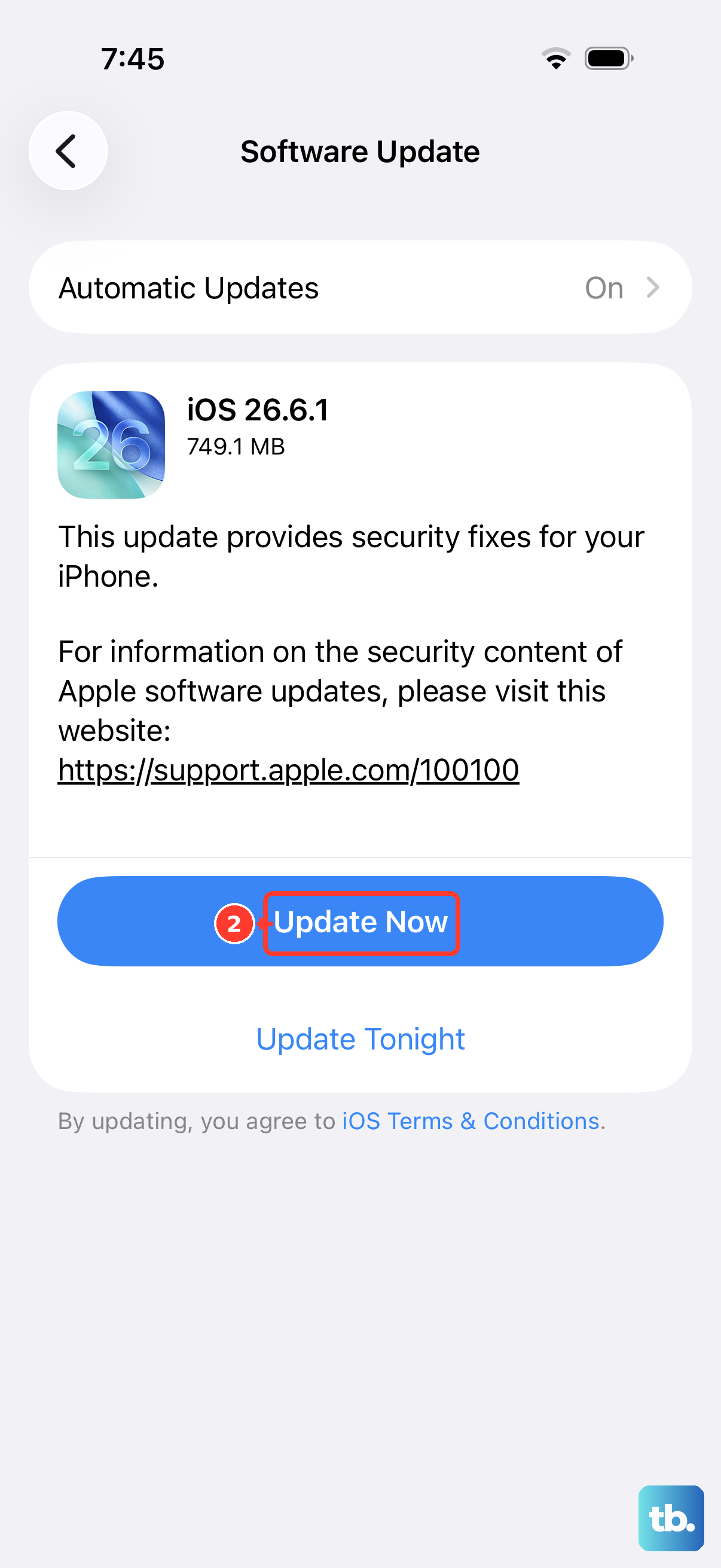
Software bugs can quietly break Messages, and Apple regularly ships fixes through iOS updates. Installing the newest version is one of the more reliable ways to clear an issue you cannot otherwise pin down.
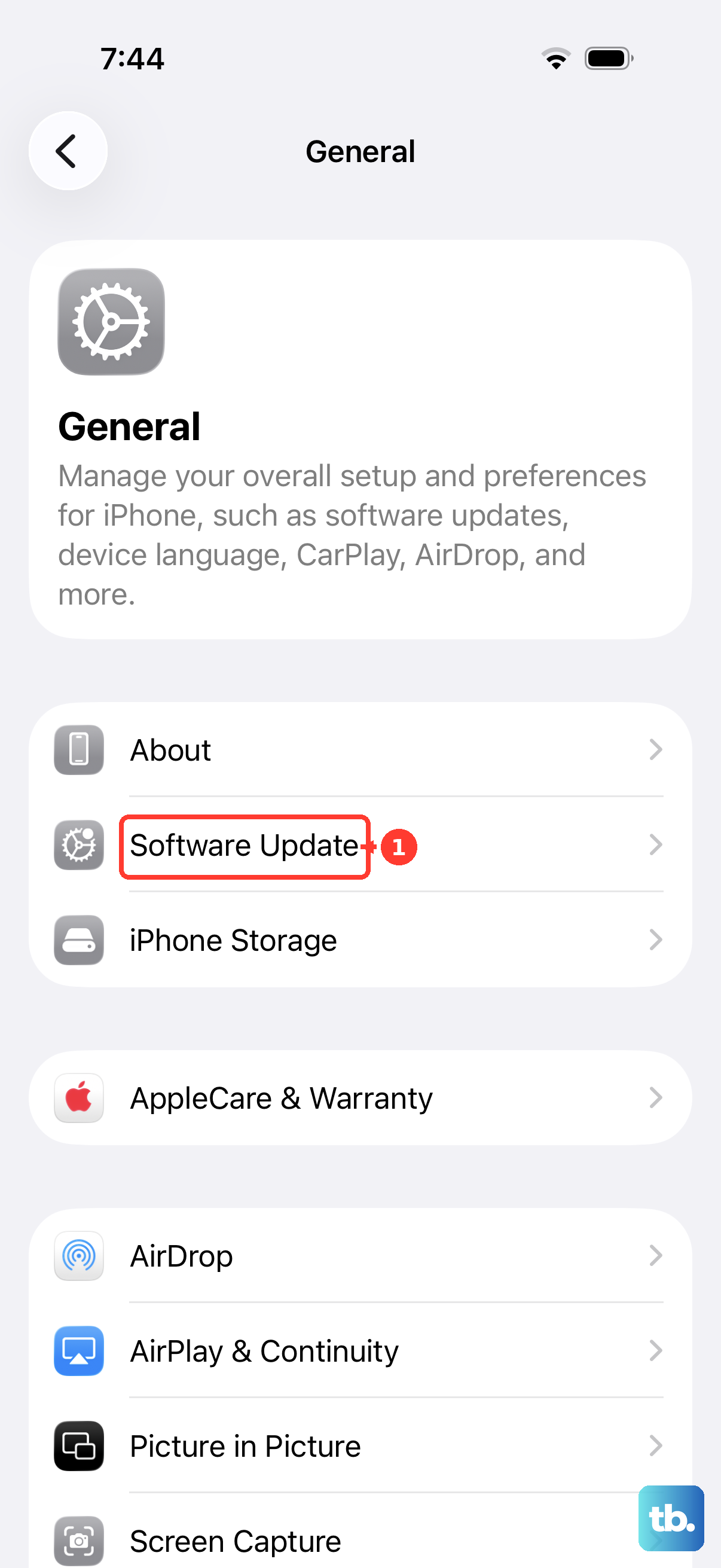
Back up your phone first, then connect it to power and Wi-Fi. Go to Settings then General then Software Update, and if an update is available, tap Download and Install, then follow the onscreen instructions.
When Nothing Else Works, Erase and Reach Out
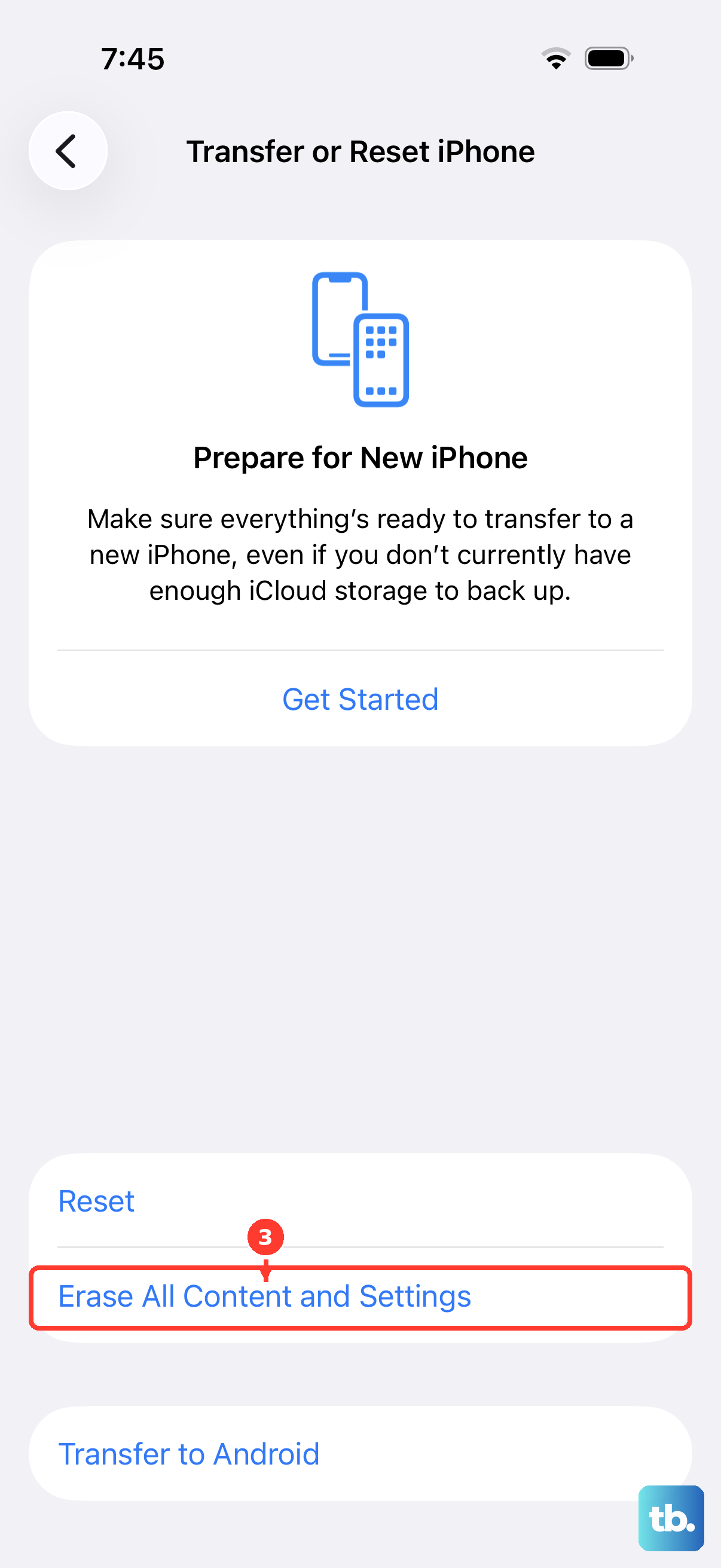
If you have worked through every step above and your iPhone 17e still will not text, a full erase is the last self-service option. This is a destructive step that restores the phone to factory settings, so make a backup first or you will lose your data.
Go to Settings then General then Transfer or Reset iPhone then Erase All Content and Settings. During the process you can choose to keep or delete your eSIM. If you delete it, you will need to contact your carrier to reactivate the plan.
After that, the problem is likely on the service side. If you still cannot send or receive iMessages, contact Apple Support. If you still cannot send or receive SMS, MMS, or RCS, contact your carrier, since those message types depend on carrier support.
Frequently Asked Questions
Why does my iPhone 17e say Not Delivered with a red exclamation point?
That label usually means the message could not go out over its intended path. Tap the red exclamation point and tap Try Again, and if it still fails, tap it again and choose Send as Text Message to send it as SMS instead of iMessage.
How long does iMessage take to activate after I turn it on?
After you turn iMessage on, it might take up to 24 hours for your carrier to verify your phone number with Apple. You also need SMS messaging available to complete activation with your phone number.
Can I send texts on my iPhone 17e without a cellular signal?
You can send SMS texts over a Wi-Fi network if your cellular signal is weak by turning on Wi-Fi Calling in Settings then Cellular then Wi-Fi Calling. Keep in mind that iMessage, RCS, and MMS need cellular data or Wi-Fi, while plain SMS otherwise needs a cellular network connection.
Will erasing my iPhone 17e delete my eSIM?
When you go to Settings then General then Transfer or Reset iPhone then Erase All Content and Settings, you can choose to keep or delete your eSIM. If you delete it, you will need to contact your carrier to reactivate the plan, so back up your phone before you start.
Who should I contact if texting still does not work after a reset?
It depends on the message type. If you still cannot send or receive iMessages, contact Apple Support. If you still cannot send or receive SMS, MMS, or RCS, contact your carrier, since those rely on carrier support.