You reach for the flashlight on your iPhone 17e, tap the button in Control Center, and nothing happens. The LED stays dark, or the toggle refuses to light up at all, right when you need it in a dim room or a parking garage. The good news is that the flashlight on the iPhone 17e runs off the same True Tone flash hardware as the rear camera, so most failures come down to a software conflict, heat, or something physically covering the lens rather than a broken part. Work through the fixes below in order, starting with the quickest checks and saving the reset and repair steps for last.
Start With the Control Center Toggle
On the iPhone 17e, the flashlight lives in Control Center, so the first thing to confirm is that you are actually triggering it and that it is not already switched on. Swipe down from the upper-right corner to open Control Center, then tap the Flashlight button. Tap it again to turn the flashlight off, which rules out the simple case where it was already running and you were toggling it back off without realizing.
If you do not see a Flashlight button at all, the control may have been removed from your layout. You can add it back through Settings > Control Center, then tap Flashlight in the list of available controls. Once it is in place, test it again from Control Center.
While you are there, check the brightness level. Press and hold the Flashlight button, then drag the slider up or down. If the brightness was set to its lowest point, the light can be on yet so faint that it looks like nothing happened.
Close the Camera So the Flash Is Free
The flashlight and the camera flash on the iPhone 17e share the same LED, which means only one of them can use it at a time. While the camera is actively using the flash, the flashlight is unavailable, so the Control Center button can appear unresponsive or grayed out.
If the flashlight will not turn on, fully close the Camera app along with any other apps that use the flash, then try the Flashlight button again. To confirm the LED itself is healthy, open the Camera app and tap the flash button to choose a different setting, which lets you verify that the flash fires when the camera calls for it.
Let the iPhone 17e Cool Down
Heat is one of the most common reasons a working flashlight suddenly stops. If the iPhone 17e gets too hot, the camera flash or other camera features might be temporarily disabled, and the flashlight can quit working until the phone cools off. Other warning signs that your phone is running hot include charging slowing or stopping, the display dimming or going black, and reduced overall performance.
To bring the temperature back down, turn off your device, move it to a cooler environment away from direct sunlight, and allow it to cool. Apple designs the iPhone for use where the ambient temperature is between 0 and 35 degrees C (32 to 95 degrees F), so getting it back into that range usually restores the flash function on its own.
Clear Anything Covering the Flash
Because the flashlight fires through the same opening as the camera flash, a physical obstruction can make it look broken even when the hardware is fine. Remove any case, film, or accessory that might block the camera or flash, including a polarizer, extender, or magnifier, and anything that places a magnet near the camera.
Also take off any lens converter, metallic case, or magnetic lens mount, since these can interfere with the camera and flash system. After clearing the area around the lens, test the flashlight again from Control Center to see whether the light now shines freely.
Restart the Phone to Clear Software Glitches
A standard restart clears temporary software hiccups that can leave the flashlight stuck. To restart the iPhone 17e, follow these steps.
- 1.Press and hold either volume button and the side button until the power-off slider appears.
- 2.Drag the slider, then wait 30 seconds for your device to turn off.
- 3.To turn it back on, press and hold the side button (on the right side of your iPhone) until you see the Apple logo.
Once the phone is back up, open Control Center and test the flashlight again. A clean restart often resolves a flashlight that was unresponsive for no obvious reason.
Force Restart a Frozen iPhone 17e
If the flashlight is frozen on or off, or the phone has become unresponsive and will not let you restart it normally, a force restart is the next step. This is a button sequence, not a wipe, so it does not erase your data. Follow the sequence exactly.
- 1.Press and quickly release the volume up button.
- 2.Press and quickly release the volume down button.
- 3.Press and hold the side button until you see the Apple logo. This might take longer than 10 seconds, so keep holding.
When the Apple logo appears, release the side button and let the phone finish starting up, then check the flashlight once more.
Install the Latest iOS Update
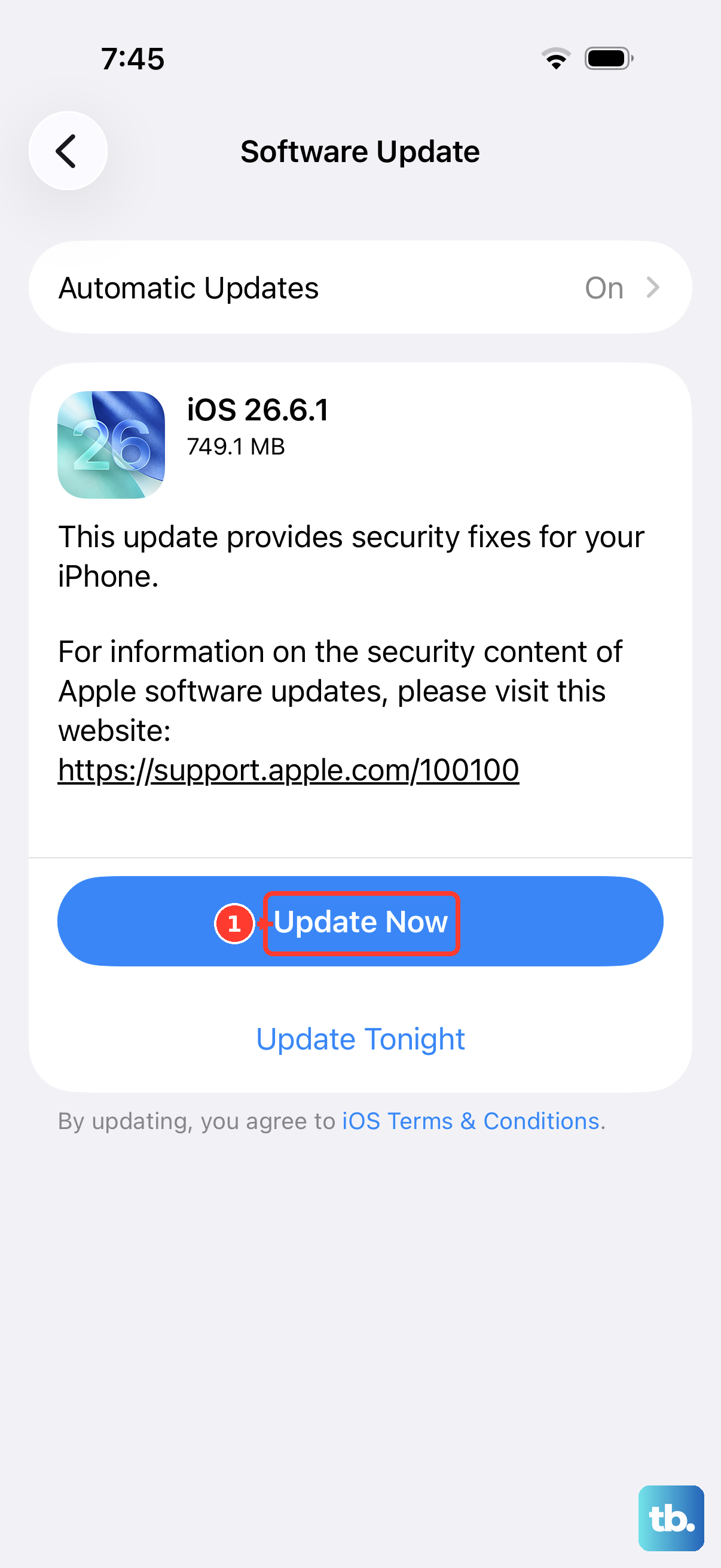
Keeping the iPhone 17e on the latest version of iOS can fix bugs that affect the camera and flash system. Go to Settings > General > Software Update, then download and install any available update.
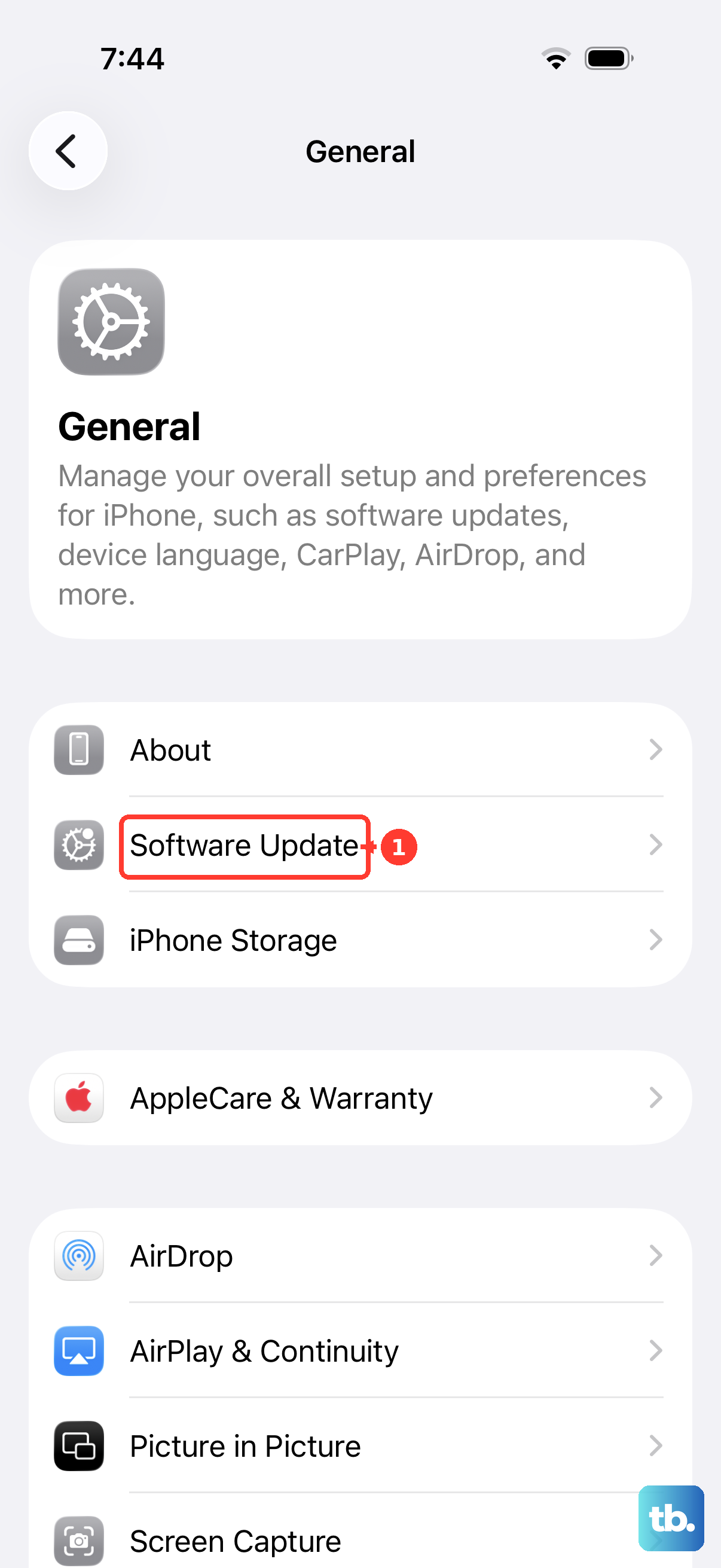
Back up your device first, and keep it connected to power and Wi-Fi during the update so the process finishes without interruption. If you would like the phone to handle this on its own going forward, you can review the options under Settings > General > Software Update > Automatic Updates.
Erase All Content and Settings as a Last Software Step
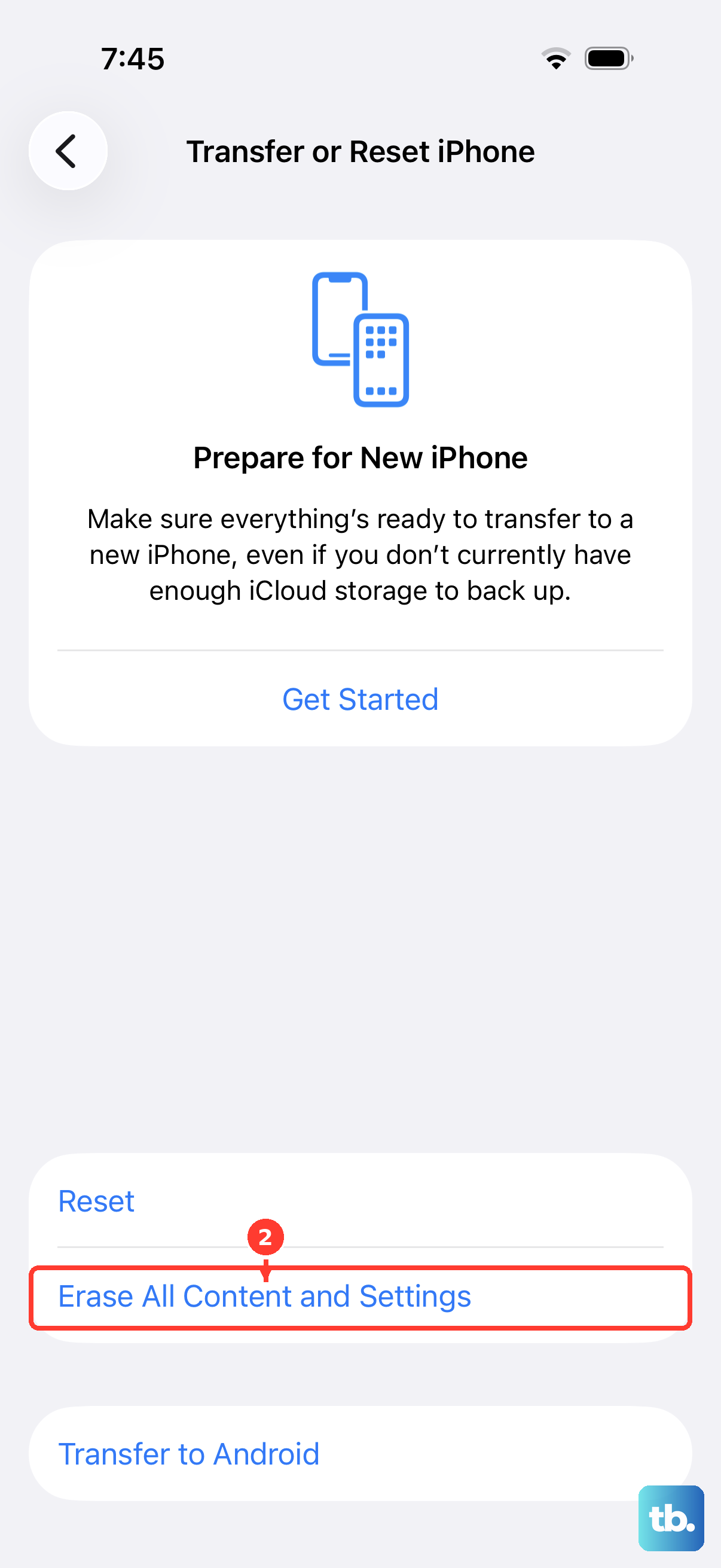
If the flashlight still will not work after everything above, a full reset is the final software measure before service. This step erases your personal information, content, and settings and restores the iPhone to factory settings, so it is essential to make a backup beforehand and restore from it afterward.
Once you have a current backup, go to Settings > General > Transfer or Reset iPhone > Erase All Content and Settings, then enter your device passcode and Apple Account password to confirm. After the phone returns to factory settings, set it up, restore your backup, and test the flashlight again to see whether the reset cleared the fault.
When to Get Your iPhone Serviced
If the camera or flash still is not working properly after you have gone through all the software steps, you may be dealing with a hardware problem rather than a setting. A non-working flash can point to a fault in the LED or related components that you cannot fix at home.
At that point, contact Apple Support to start a repair. You can reach the official support guidance through support.apple.com or the Apple Support app, where you can describe the flashlight issue and arrange service for your iPhone 17e.
Frequently Asked Questions
Why is my iPhone 17e flashlight button grayed out?
The most common cause is that the camera flash is in use, since the flashlight and the flash share the same LED and cannot both run at once. Fully close the Camera app and any apps using the flash, then try the Flashlight button again. Overheating can also disable the flash temporarily, so let the phone cool if it feels warm.
Does the iPhone 17e have a flashlight?
Yes. The iPhone 17e has a True Tone flash on the rear camera that doubles as the flashlight, and you control it from Control Center and the Lock Screen. Swipe down from the upper-right corner to open Control Center, then tap the Flashlight button to turn it on or off.
How do I adjust the flashlight brightness on the iPhone 17e?
Open Control Center, then press and hold the Flashlight button and drag the slider up or down to set the brightness. If the slider was set near its lowest point, the light can be on but very dim, which can make it seem like the flashlight is not working.
Will a factory reset fix my flashlight, and will I lose data?
Erase All Content and Settings can clear stubborn software faults, but it erases your personal information, content, and settings and restores the phone to factory settings. Back up your iPhone first so you can restore everything afterward. Go to Settings > General > Transfer or Reset iPhone > Erase All Content and Settings and enter your device passcode and Apple Account password to begin.
What temperature is safe for using the iPhone 17e?
Apple designs the iPhone for use where the ambient temperature is between 0 and 35 degrees C (32 to 95 degrees F). Outside that range, especially when the phone is too hot, the camera flash and other features can be temporarily disabled until it cools down.