
When your iPhone 17's volume buttons stop responding, it's a real nuisance. You press them and nothing happens: no volume change, no response. The good news is this is often a software hiccup or a simple obstruction, not a broken phone. Start with the quick fixes below.
Before you consider a trip for service, work through these steps.
Remove Your Case First
This is the easiest thing to check. Take your iPhone 17 out of its case. Some cases, especially thicker or misaligned ones, can press against the buttons or restrict their movement just enough to make them feel unresponsive.
Once the case is off, press the volume up and down buttons a few times. You should feel a distinct, crisp click. If they work now, you've found the issue.
Perform a Force Restart
A force restart clears out temporary software glitches that can cause all sorts of odd behavior, including unresponsive buttons. This won't delete any of your data or settings.
For the iPhone 17, the process is quick. Press and quickly release the Volume Up button, then press and quickly release the Volume Down button. Finally, press and hold the Side button until you see the Apple logo appear on the screen.
After the phone reboots, test the volume buttons immediately in an app like Music or a video.
Check the Volume Button Setting
There's a software setting that could be the culprit. Open the Settings app and go to Sounds & Haptics. Scroll down and make sure the switch for "Change with Buttons" is turned on (green).
If this was off, your physical buttons wouldn't control ringer and alert volume, though they still control media volume. Toggle it on and test your buttons again.
Clean Around the Buttons
Dust, lint, and pocket debris are incredibly common culprits. The iPhone 17's buttons are precisely engineered, and even a small particle can interfere with the mechanism.
Gently wipe around the edges of the volume rocker with a soft, lint-free cloth. Apple says not to use compressed air. For any sticky residue, you can use a 70 percent isopropyl alcohol wipe and carefully clean around the button, not pushing liquid into the device.
Let it dry for a minute before testing.
Test Across Different Apps
Open a few different apps to see if the problem is universal or app-specific. Try adjusting volume in the Music app, the YouTube app, and while playing a video from your Camera Roll.
If the buttons work in some apps but not others, the issue is likely with that specific app. Try force-closing the problematic app and reopening it, or check the App Store for an update.
Toggle the Action Button
The iPhone 17 has an Action button in place of the classic ring/silent switch, and by default it turns Silent mode on and off. In Silent mode, calls and alerts stay quiet even when you raise the volume, which can make the buttons seem broken.
Press and hold the Action button to turn Silent mode off, or open Settings > Action Button to see what the button is set to. Then test your volume buttons again.
Use AssistiveTouch as a Workaround
AssistiveTouch adds an on-screen menu with volume controls, so you can still change the volume while the buttons aren't working. Go to Settings > Accessibility > Touch > AssistiveTouch and turn it on.
A small gray circle will appear on your screen. Tap it, go to Device > Volume Up (or Down), to change the volume without the physical buttons.
Update to the Latest iOS Version
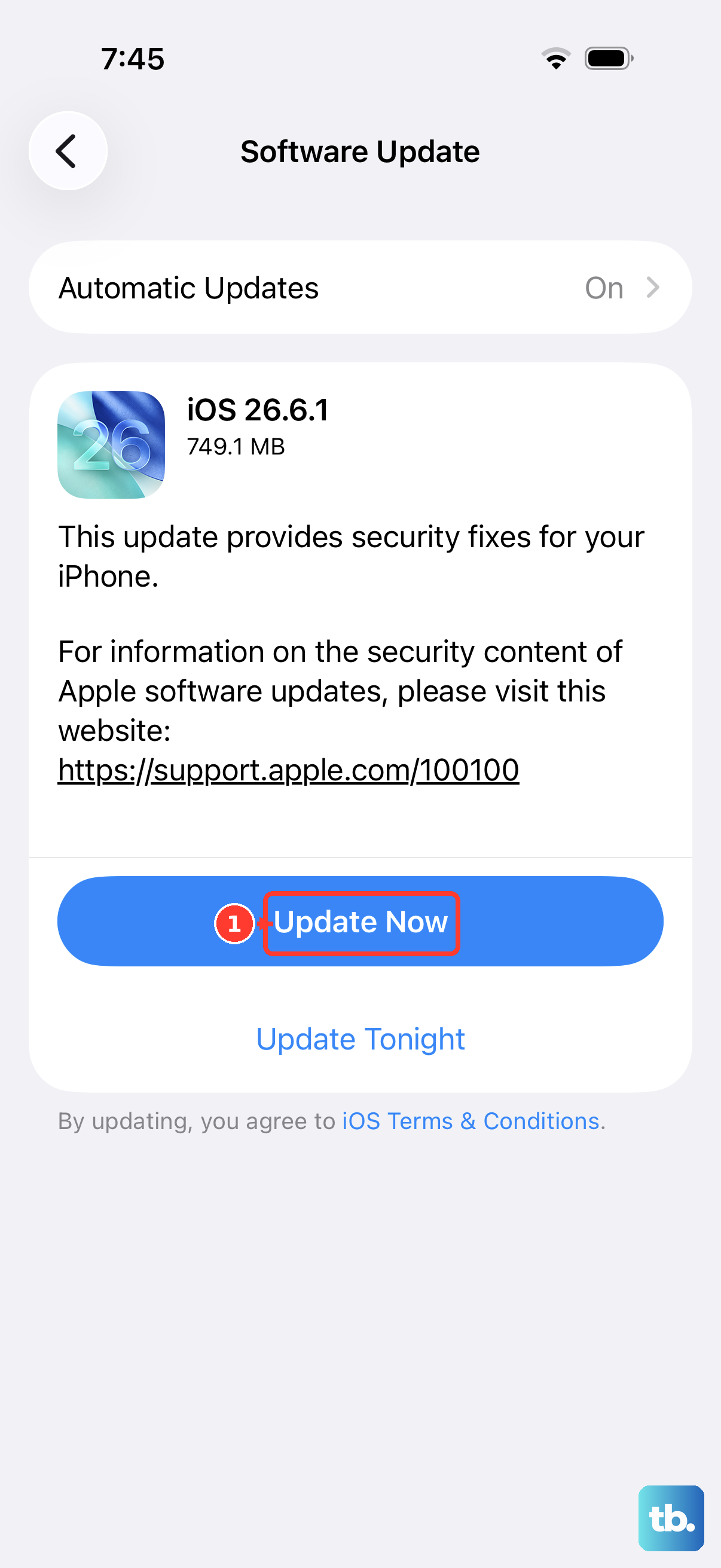
Software bugs can occasionally cause hardware controls to act up. Apple releases updates that often include fixes for such issues. Connect your iPhone 17 to Wi-Fi and plug it into power.
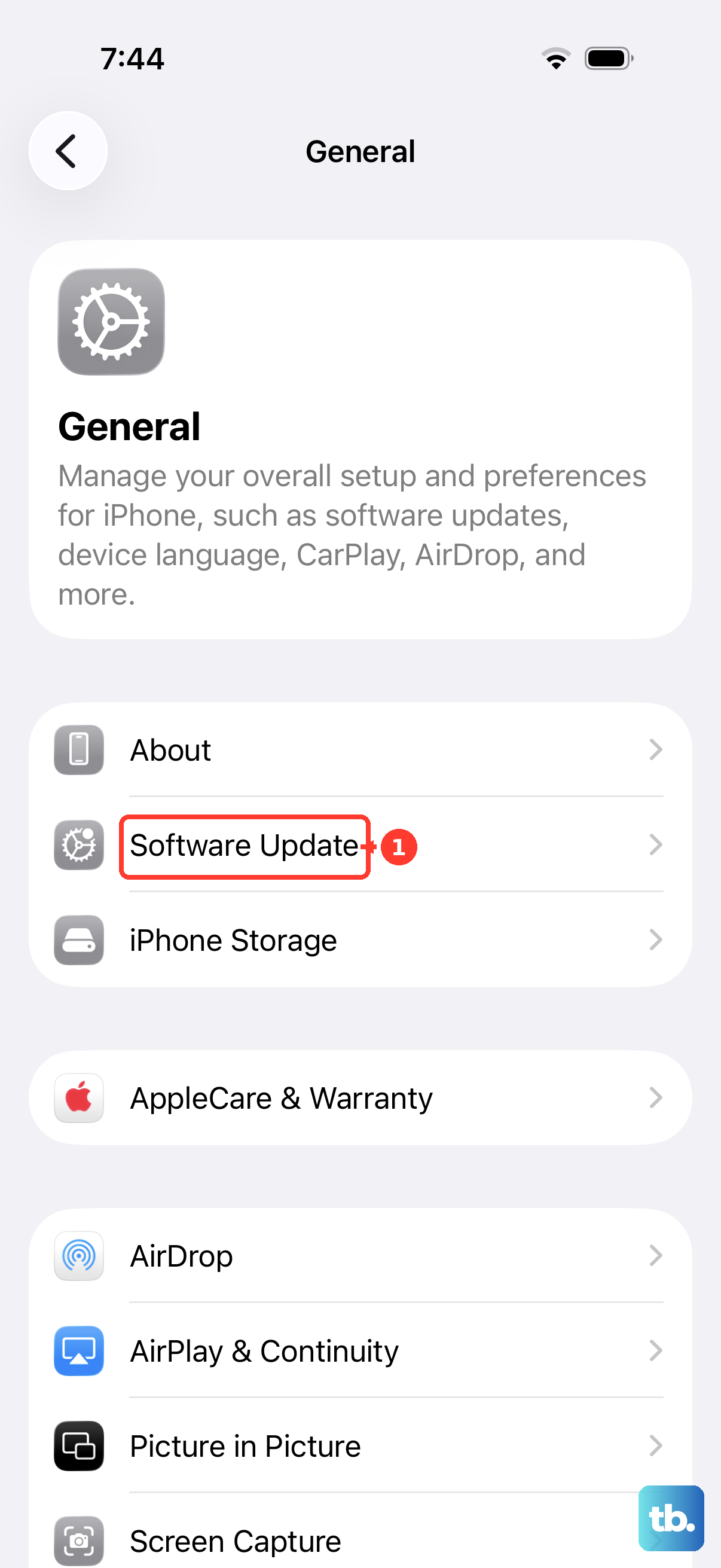
Then, go to Settings > General > Software Update. If an update is available, download and install it. After the update completes, check if your volume buttons are working properly.
Check for Focus Mode Conflicts
Focus modes can silence calls and notifications, which can make it seem like your volume controls aren't working. Swipe down from the top-right corner to open Control Center and see which Focus (like Work, Sleep, or Personal) is active.
Tap the active Focus icon to turn it off, then test your volume buttons again.
Reset All Settings
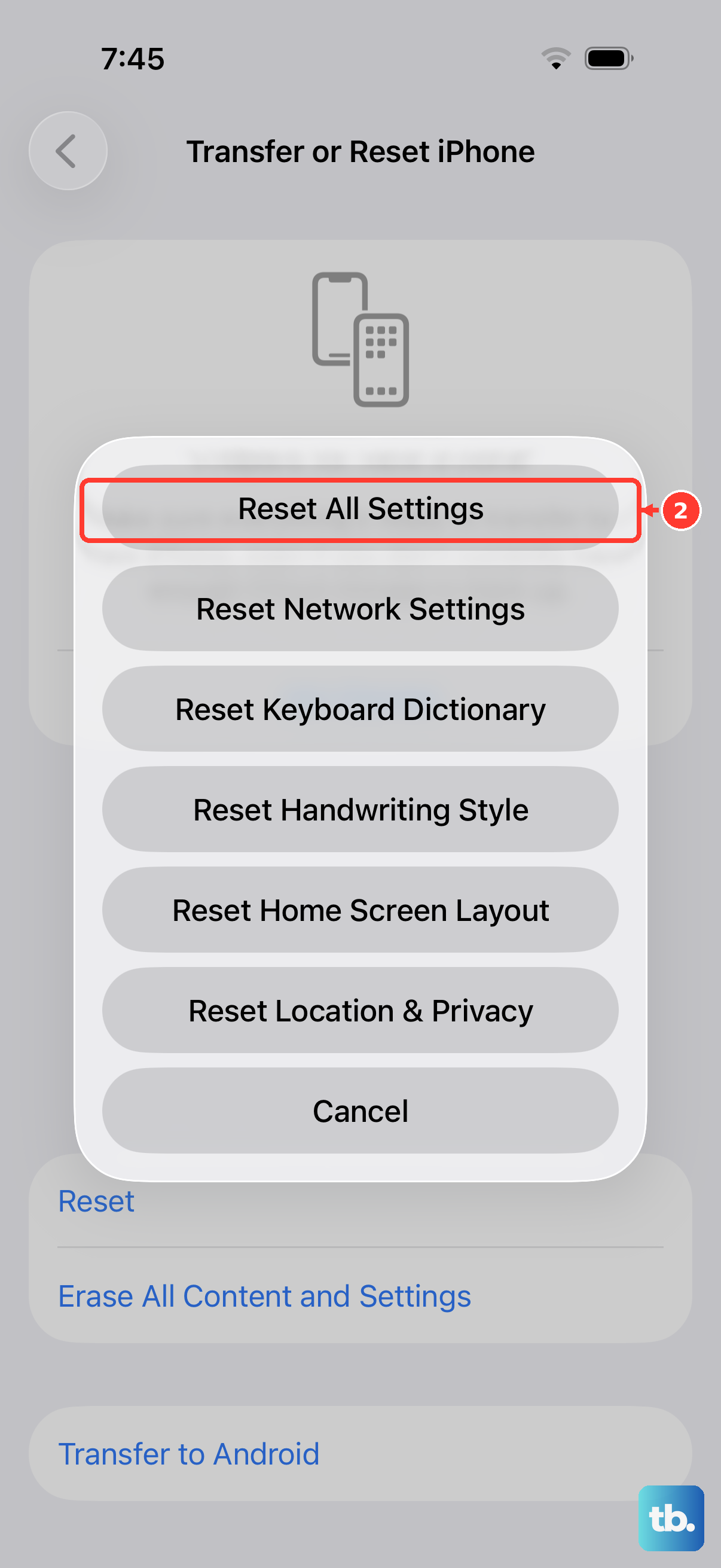
If you've reached this point, a deeper software reset might be needed. This will revert all your system settings (like Wi-Fi passwords, wallpaper, and privacy permissions) back to default, but it won't erase your personal data like photos or messages.
Go to Settings > General > Transfer or Reset iPhone > Reset. Then, choose Reset All Settings. Enter your passcode and confirm. Your phone will restart. After it boots up, you'll need to reconfigure your preferences, but it often clears persistent glitches.