
Seeing a picture stuck on "Not Delivered" or just spinning forever on your iPhone 17 Pro is a common headache. A connection or messaging setting may be keeping your picture from sending. Try these steps to get your photos sending again.
Check Your Connection First
A connection problem may be the cause. If you're on Wi-Fi, make sure the icon is in your status bar. Once you've checked your connection, tap the red exclamation point beside the failed message, then tap Try Again.
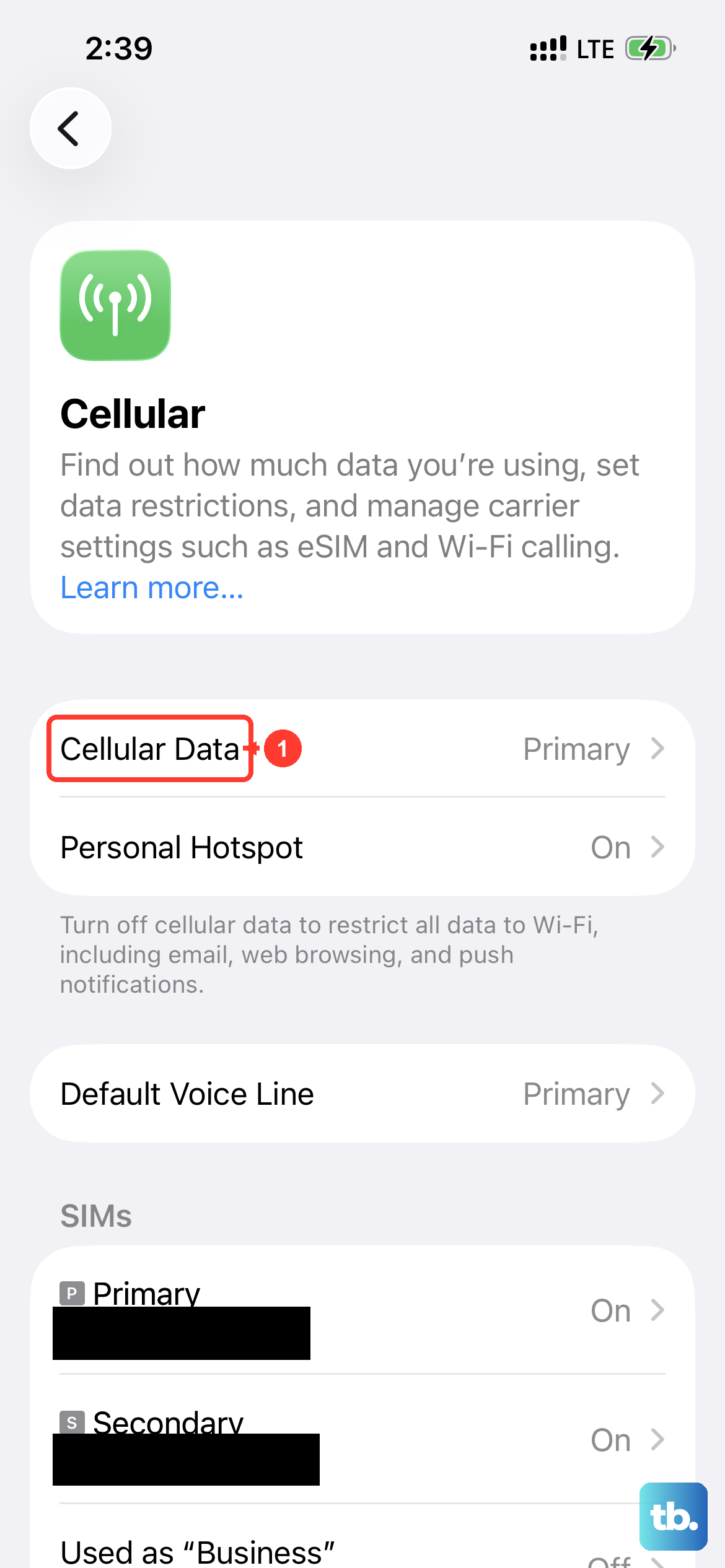
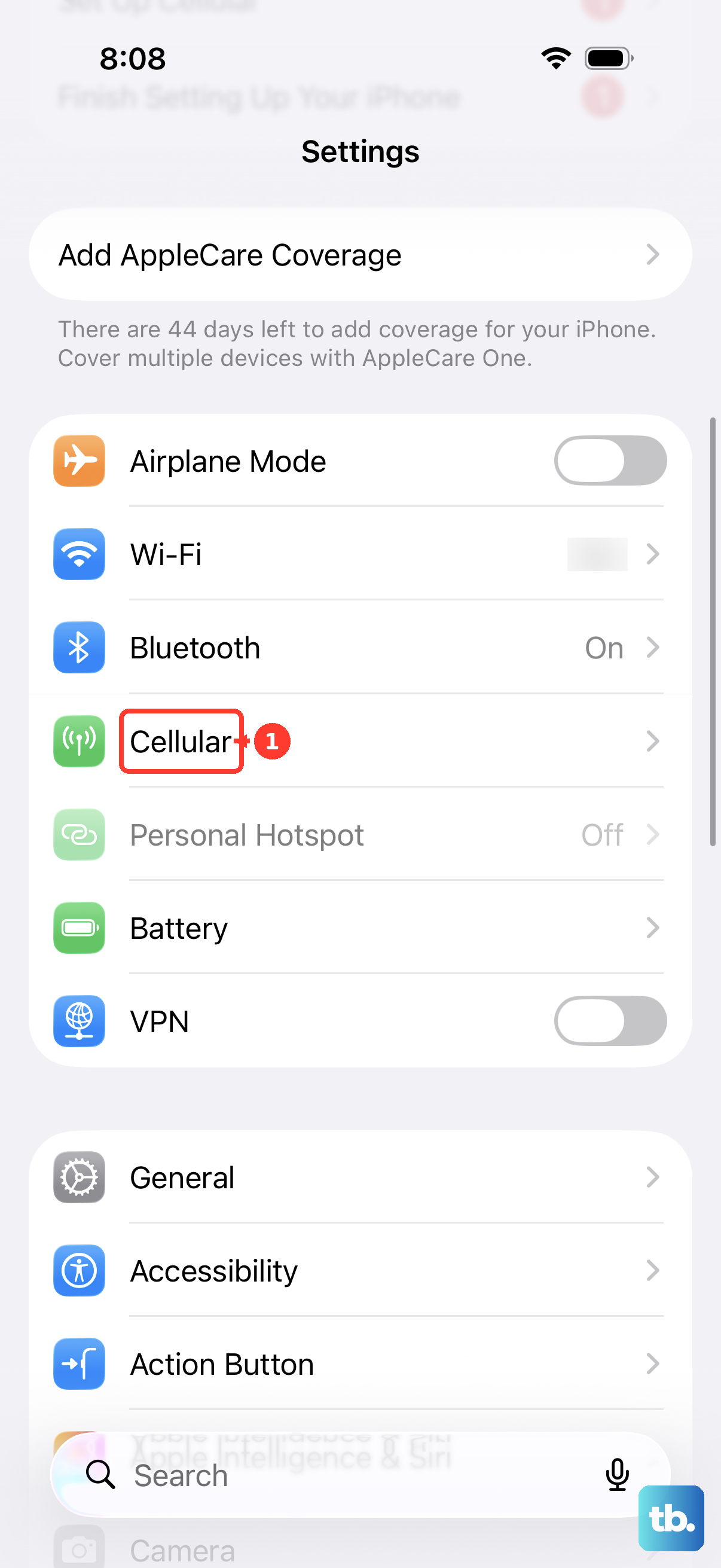
For cellular, check your signal strength. If it's low, moving to a different spot or even stepping outside can make a big difference. Also, ensure Cellular Data is enabled in Settings > Cellular and that the phone line you want to use is turned on.
Toggle iMessage Off and On
Turning iMessage off and back on can clear up messaging issues, especially after setting up a new device. Head to Settings > Apps > Messages and tap the iMessage toggle to turn it off.
Turn iMessage back on, then tap Send & Receive and select the phone number you want to use. Try sending your picture again once the activation is complete.
Force Quit and Reopen Messages
A temporary app hang can block sending. To force quit on your iPhone 17 Pro, swipe up from the very bottom of the screen and hold in the middle.
Find the Messages app card and swipe it all the way up to close it. Then, just tap the Messages icon again to reopen it and attempt your send.
Verify the Send & Receive Address
Your iMessage settings may use an email address instead of your phone number. Go to Settings > Apps > Messages > Send & Receive.
Under "You can be reached by iMessage at," make sure your phone number is checked. If you're trying to send from an email address, ensure that's selected here too.
Check MMS and SMS Settings
Green bubbles can use RCS, SMS, or MMS. Photo messages can use RCS or MMS, depending on carrier support. Go to Settings > Apps > Messages.
Make sure "MMS Messaging" is turned on if your carrier supports it. Turn on "Send as Text Message" to let Messages try SMS when iMessage isn't available. If a photo still won't send, turn on Send Photo Previews or Low Quality Image Mode to send smaller images.
Perform a Force Restart
A restart can help with messaging problems without deleting your data. On the iPhone 17 Pro, press and quickly release the Volume Up button, then quickly press and release the Volume Down button.
Immediately after, press and hold the Side button. Keep holding it until you see the Apple logo appear, then let go. Try sending your picture again after the phone restarts.
Update Your Carrier Settings
Your carrier occasionally pushes small updates that improve network connectivity. Make sure you're connected to Wi-Fi, then go to Settings > General > About.
If an update is available, a prompt will appear on this screen. Just follow the instructions to install it.
Sign Out and Back Into Your Apple Account
As a later step, sign out of your Apple Account and sign back in. Go to the top of Settings and tap your name. Scroll all the way down and select Sign Out.
You'll need your Apple Account password. After signing out, restart your phone, then go back to sign in again.
Check for a Software Update
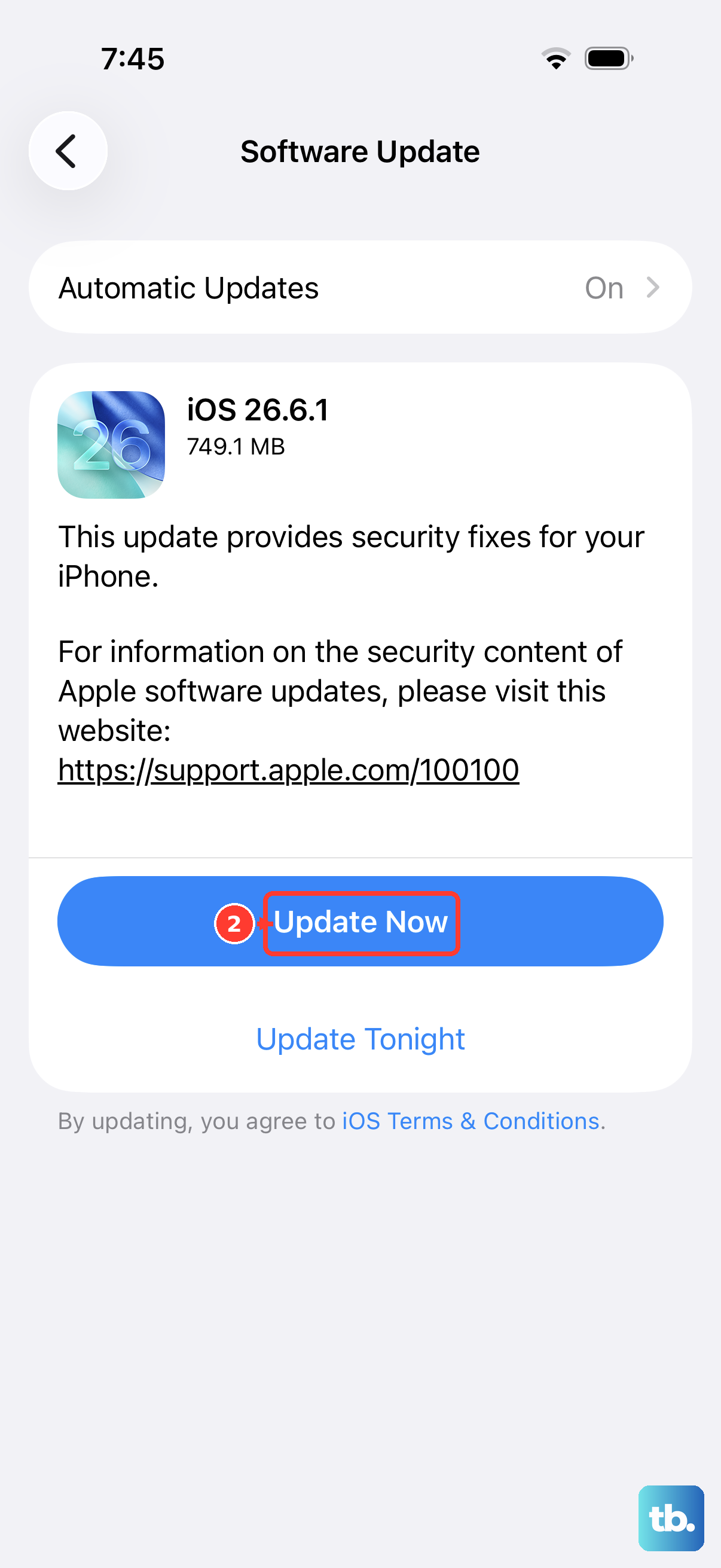
Apple releases iOS updates that fix bugs, including ones related to messaging. Plug your phone in and connect to Wi-Fi, then go to Settings > General > Software Update.
If an update is available, tap Download and Install to get the latest version of iOS. After the update finishes, try sending your picture again.
Reset Network Settings
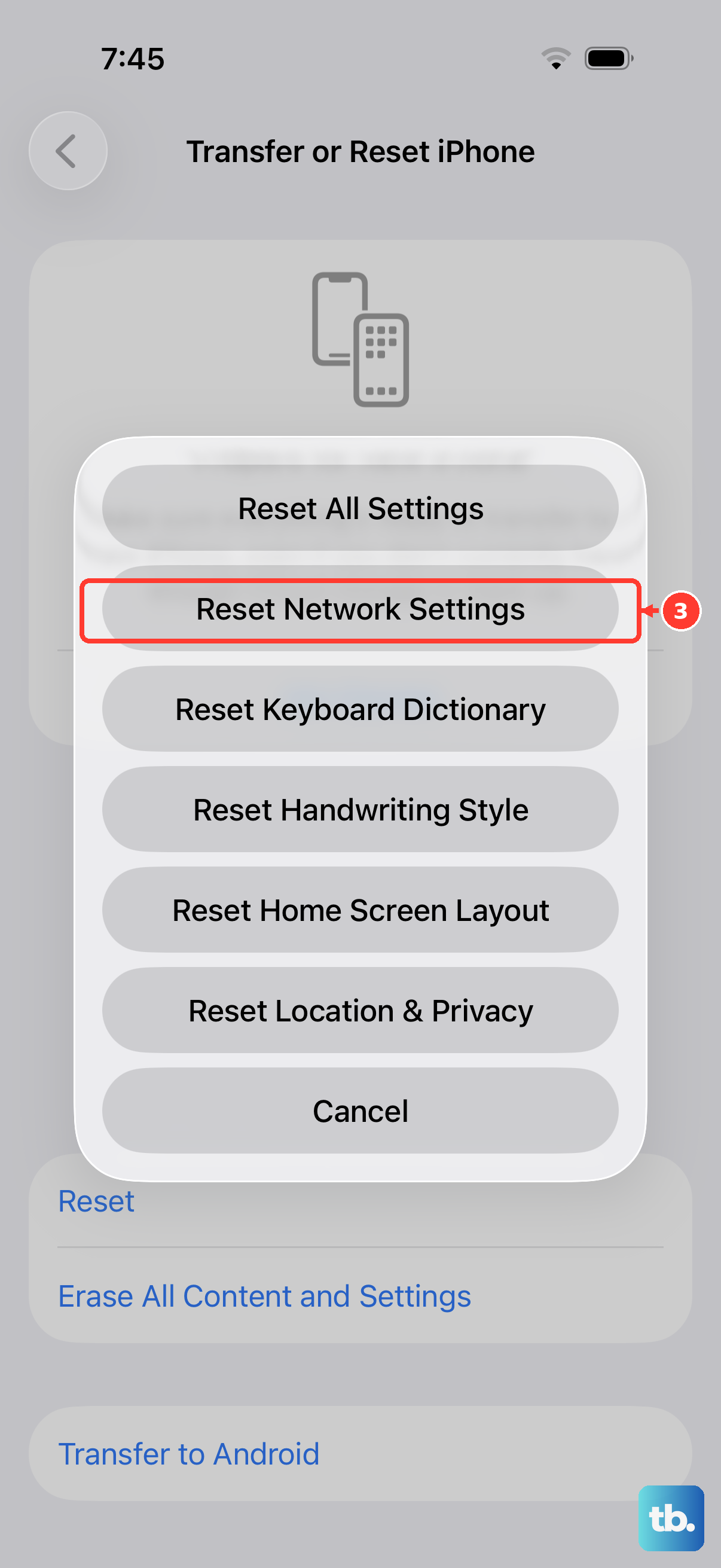
If you've tried everything and pictures still won't send, this is a strong next step. It resets Wi-Fi networks and passwords, cellular settings, and VPN and APN settings. Go to Settings > General > Transfer or Reset iPhone > Reset.
Tap Reset Network Settings and enter your passcode. Be aware this will erase saved Wi-Fi networks and passwords, so you'll need to reconnect to your networks afterward.