
Missing calls on your iPhone 17 Pro can be a real headache, especially when you're expecting something important. This issue usually comes down to a setting that got toggled by accident or a temporary software hiccup. I'd start with the quick fixes below, as one of them often does the trick right away.
The most common culprit is having your phone set to forward calls elsewhere without realizing it. Open the Phone app, tap your profile picture in the top right, and select Carrier Services. Look for Call Forwarding and make sure it's turned off. If it was on, turning it off should immediately restore your incoming calls.
Check Your Focus Modes
Focus modes in iOS 26 are powerful, but they can silently block calls if not configured properly. Swipe down from the top-right corner to open Control Center and look at the Focus icon. If any Focus (like Do Not Disturb, Work, or Sleep) is active, tap it to turn it off.
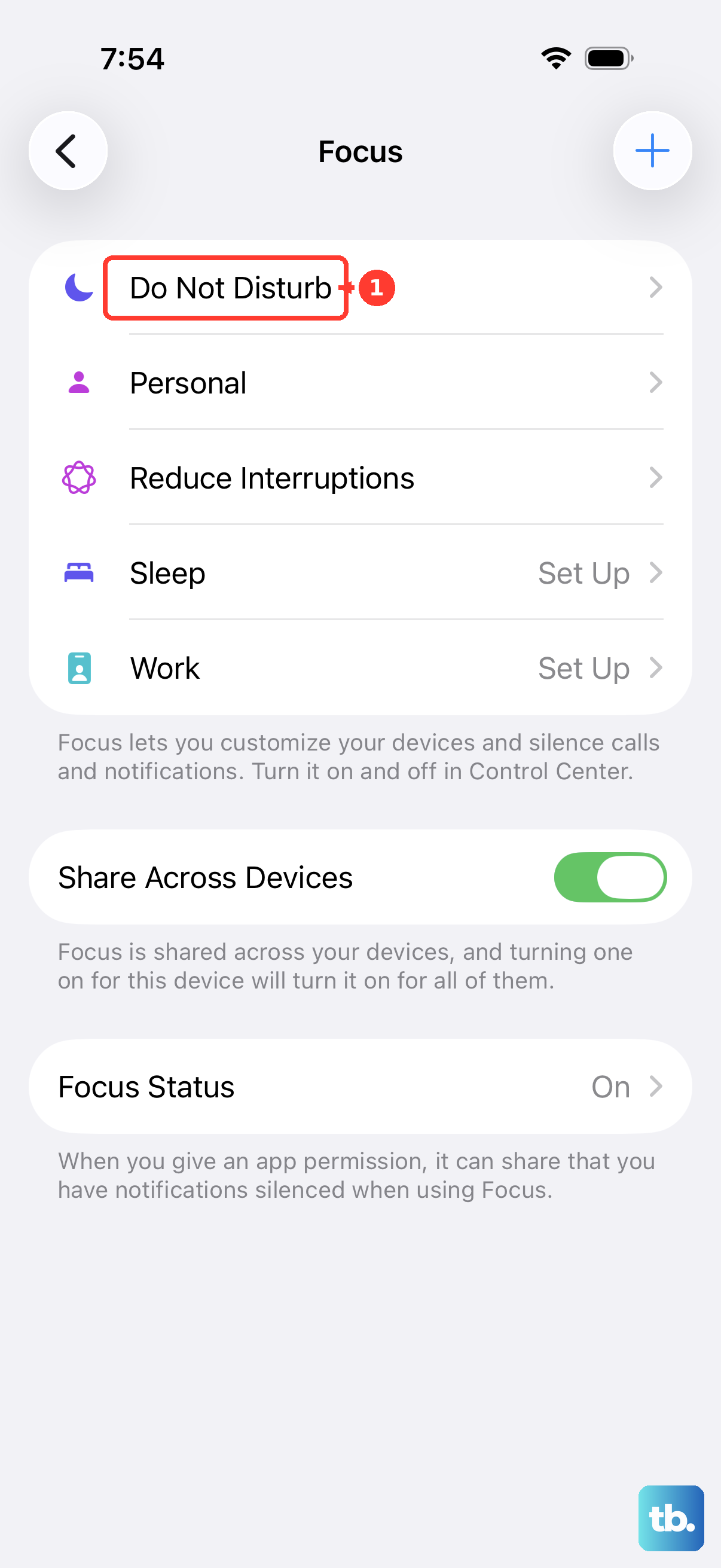
For more control, go to Settings > Focus. Select the active Focus and tap People. Make sure Allow Calls From is set to Everyone or at least your important contacts. Sometimes a software update can reset these permissions.
Restart Your iPhone 17 Pro
A simple restart clears out temporary glitches that can affect the cellular radio. For the iPhone 17 Pro, press and quickly release the Volume Up button, press and quickly release the Volume Down button, then press and hold the Side button until you see the Apple logo appear.
Let the phone reboot completely. Once it's back on, have someone try calling you. This basic step resolves more issues than you might think.
Verify Your Carrier Settings and Network
Sometimes the problem is with your carrier's network, not your phone. First, check if you have service by looking at the signal bars in the status bar. If you see "No Service" or "SOS Only," you're in an area with poor coverage.
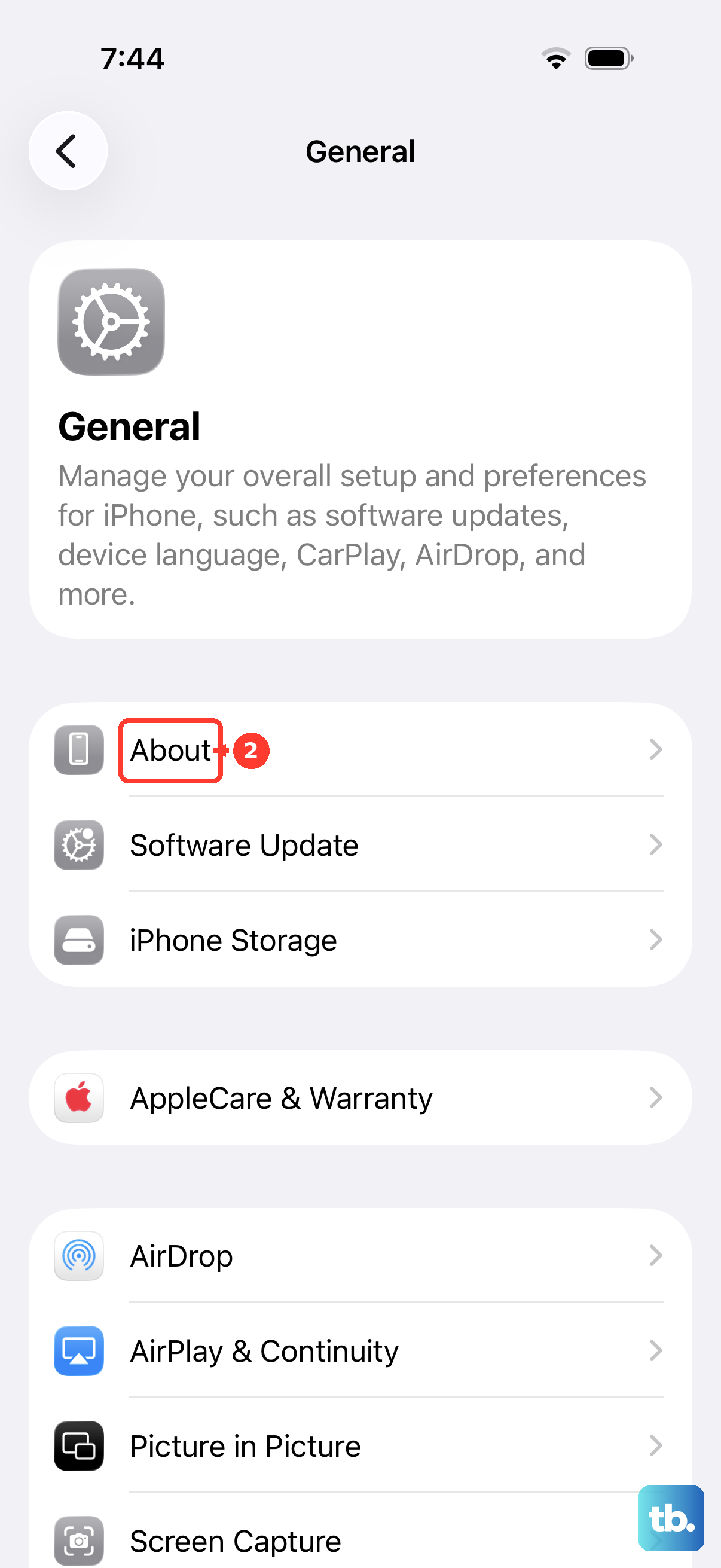
You should also check for a carrier settings update. Go to Settings > General > About. If an update is available, a prompt will appear. Installing it ensures your phone has the latest network configuration from your provider.
Review Call Blocking & Identification
iOS has built-in features to silence unknown and spam callers, which can sometimes be too aggressive. Open Settings and scroll down to Phone. Tap Silence Unknown Callers and make sure this switch is off if you want all calls to come through.
Next, in the same menu, tap Call Blocking & Identification. Review the list of apps (like your carrier's scam shield) that can block calls. You can temporarily disable them here to test if one is causing the issue.
Reset Your Network Settings
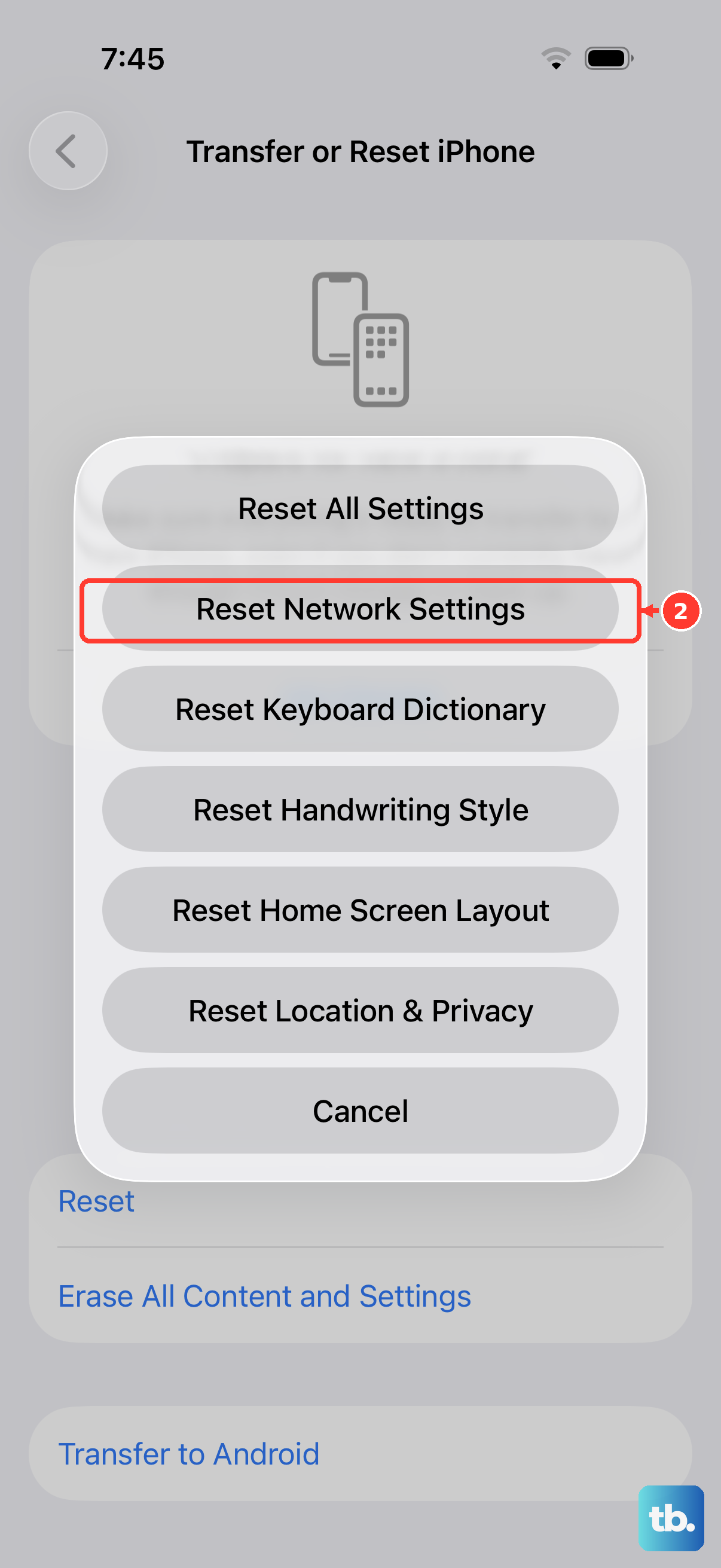
This step clears all network-related configurations, which can fix persistent calling problems. Go to Settings > General > Transfer or Reset iPhone. Tap Reset and then choose Reset Network Settings.
You'll need to enter your passcode to confirm. Be aware this will erase all saved Wi-Fi passwords, Bluetooth pairings, and VPN settings, so you'll have to reconnect to your networks afterward.
Update iOS to the Latest Version
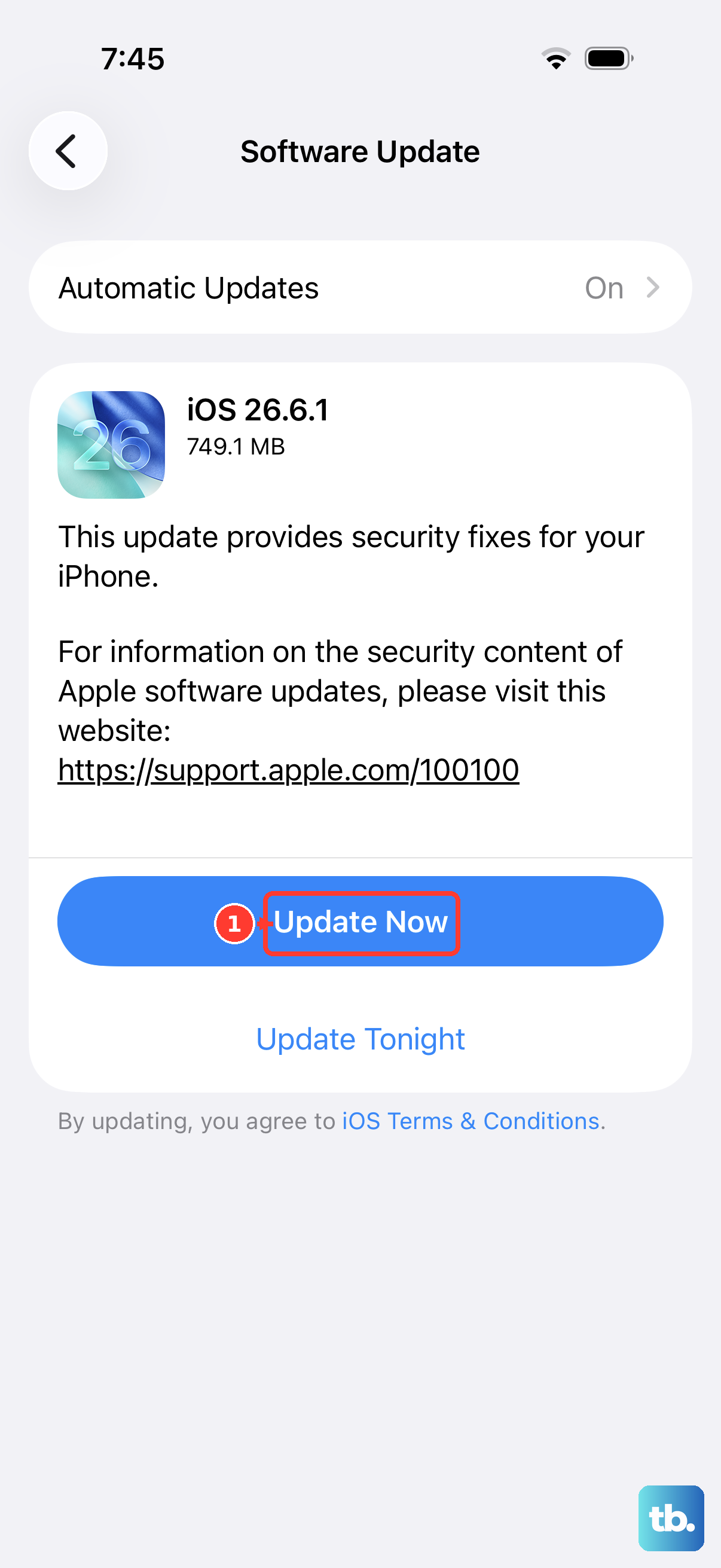
Software bugs in iOS 26 can occasionally affect cellular performance. Apple releases patches to fix these issues. Open Settings > General > Software Update to see if a newer version of iOS is available.
If an update is listed, tap Update Now. It's best to do this while connected to Wi-Fi and with your iPhone 17 Pro plugged into power, especially if you're using the 60W fast charging.
Check for a Physical SIM or eSIM Issue
If you're using a physical SIM card, try removing it. Use the SIM eject tool to open the tray on the left side of your iPhone 17 Pro, take the SIM out, and then reinsert it firmly. A loose connection can cause intermittent service loss.
For an eSIM, you may need to re-download it. Go to Settings > Cellular, tap your line, and see if there's an option to reinstall the eSIM. If problems persist, contacting your carrier to reprovision your line is the next step.
Disable Wi-Fi Calling Temporarily
While Wi-Fi Calling is a great feature, it can sometimes create conflicts that prevent calls from coming over the cellular network. To test this, go to Settings > Cellular.
If you see Wi-Fi Calling on this screen, tap it and toggle the switch off. Now try having someone call you again over the standard cellular network to see if that makes a difference.
Contact Your Wireless Carrier
If you've tried everything and calls are still not coming through, it's time to call your carrier. There might be an outage in your area, a problem with your specific account, or a feature like call forwarding still active on their network side.
Use another phone to call their customer support. They can run diagnostics on your line, check for network tickets, and ensure all services are provisioned correctly for your iPhone 17 Pro.