
When a photo or video someone sends you in a text message just won't download on your iPhone 17 Pro, it's usually a quick glitch to fix. MMS messages rely on your cellular data connection, and sometimes a setting gets out of sync or the network needs a nudge.
Let's get those pictures and videos loading again. I'd start with the first couple of steps, as they resolve the issue most of the time.
Restart Your iPhone 17 Pro
A simple restart clears out temporary software bugs that can block MMS downloads. It's the fastest thing to try. Just press and hold the Side button with either volume button, then slide the power off slider.
Wait about 30 seconds, then press and hold the Side button again until you see the Apple logo. Once it boots back up, check if the stuck message downloads.
Check Your Cellular Data Connection
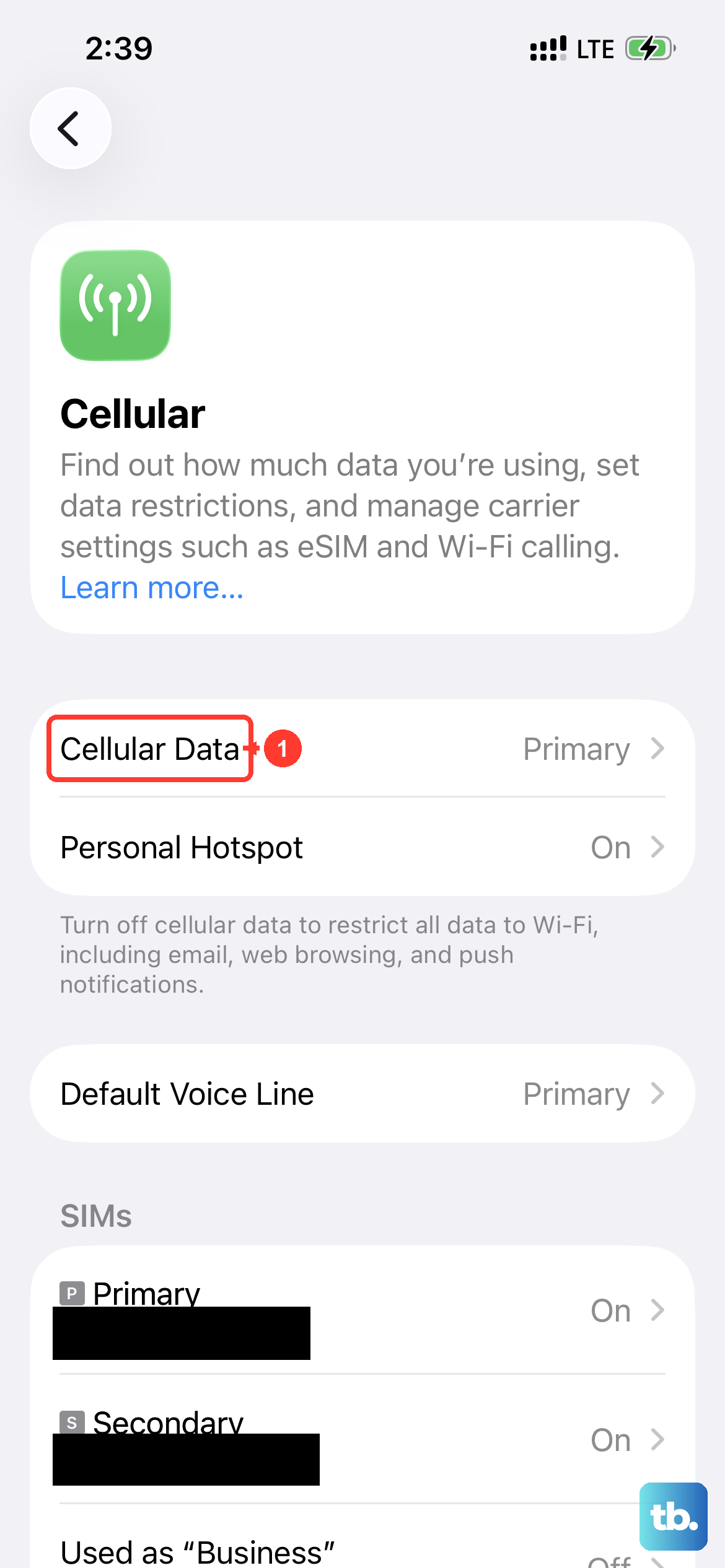
MMS requires mobile data, not just Wi-Fi. First, make sure Cellular Data is turned on. Go to Settings > Cellular and ensure the main Cellular Data switch is green.
Next, check if you have a strong signal. If you're seeing only one or two bars, try moving to a different location. Being inside a large building or in a basement can sometimes interfere.
Toggle iMessage Off and On
This is a classic fix that refreshes your connection to Apple's messaging service, which can help unstick MMS deliveries. Open Settings and tap Messages.
Tap the switch next to iMessage to turn it off (it will turn white). Wait about 15 seconds, then tap it again to turn it back on. Give it a minute to reactivate, then check your messages.
Enable MMS Messaging
There's a specific setting that allows MMS to work, and it might have gotten switched off. In Settings, go to Messages and scroll down.
Look for the MMS Messaging option and make sure it's toggled on. Right below it, also ensure Send as SMS is enabled as a backup.
Reset Your Network Settings
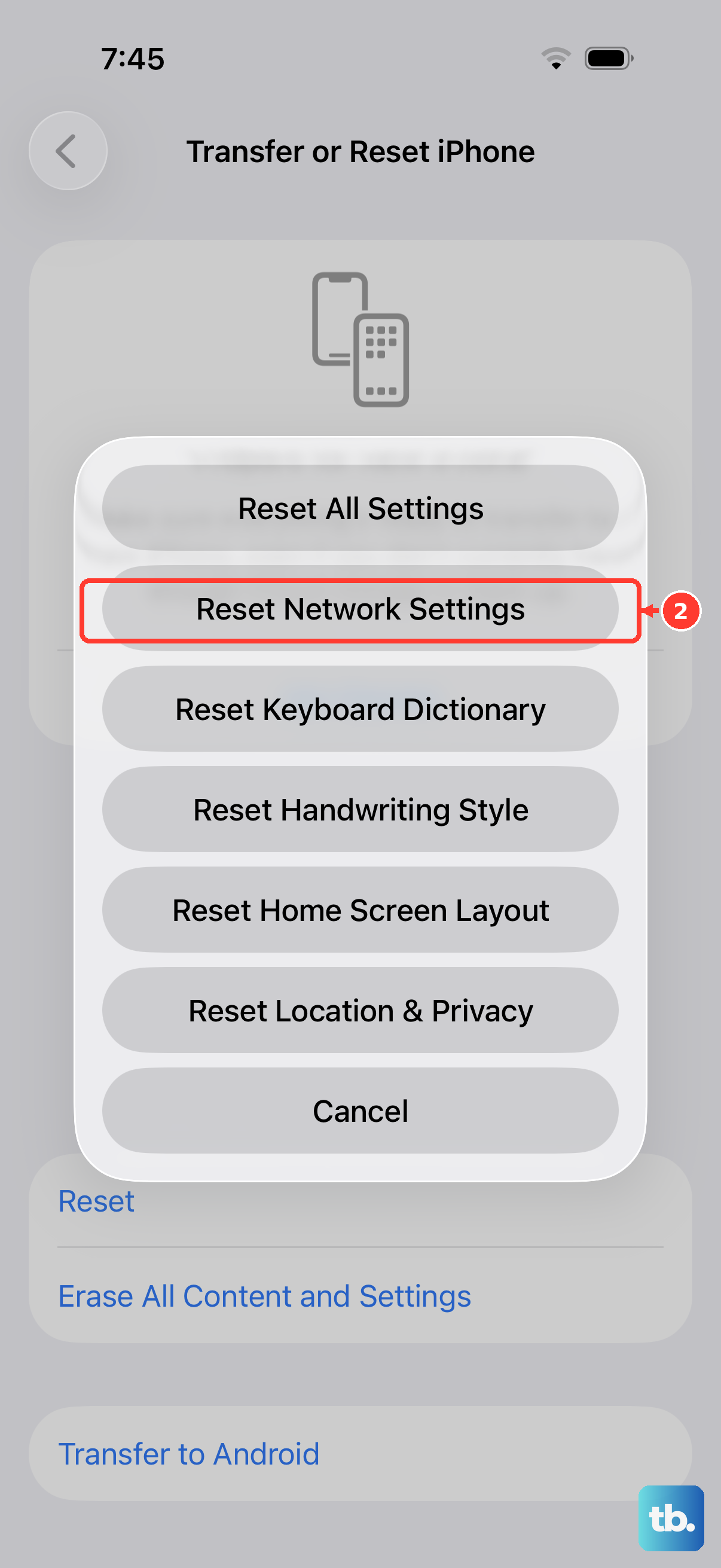
This clears all your saved Wi-Fi passwords, cellular settings, and VPN configurations, so you'll need to rejoin Wi-Fi networks afterward. It often fixes persistent MMS issues.
Go to Settings > General > Transfer or Reset iPhone. Tap Reset and choose Reset Network Settings. Enter your passcode if prompted and confirm.
Your iPhone 17 Pro will restart. After it reboots, reconnect to Wi-Fi and try downloading the MMS again.
Check for a Carrier Settings Update
Your carrier occasionally sends small updates that fine-tune network features like MMS. To check, make sure you're connected to Wi-Fi or have a strong cellular signal.
Then, go to Settings > General > About. If an update is available, a prompt will appear on this screen. Just follow the instructions to install it.
Update to the Latest iOS
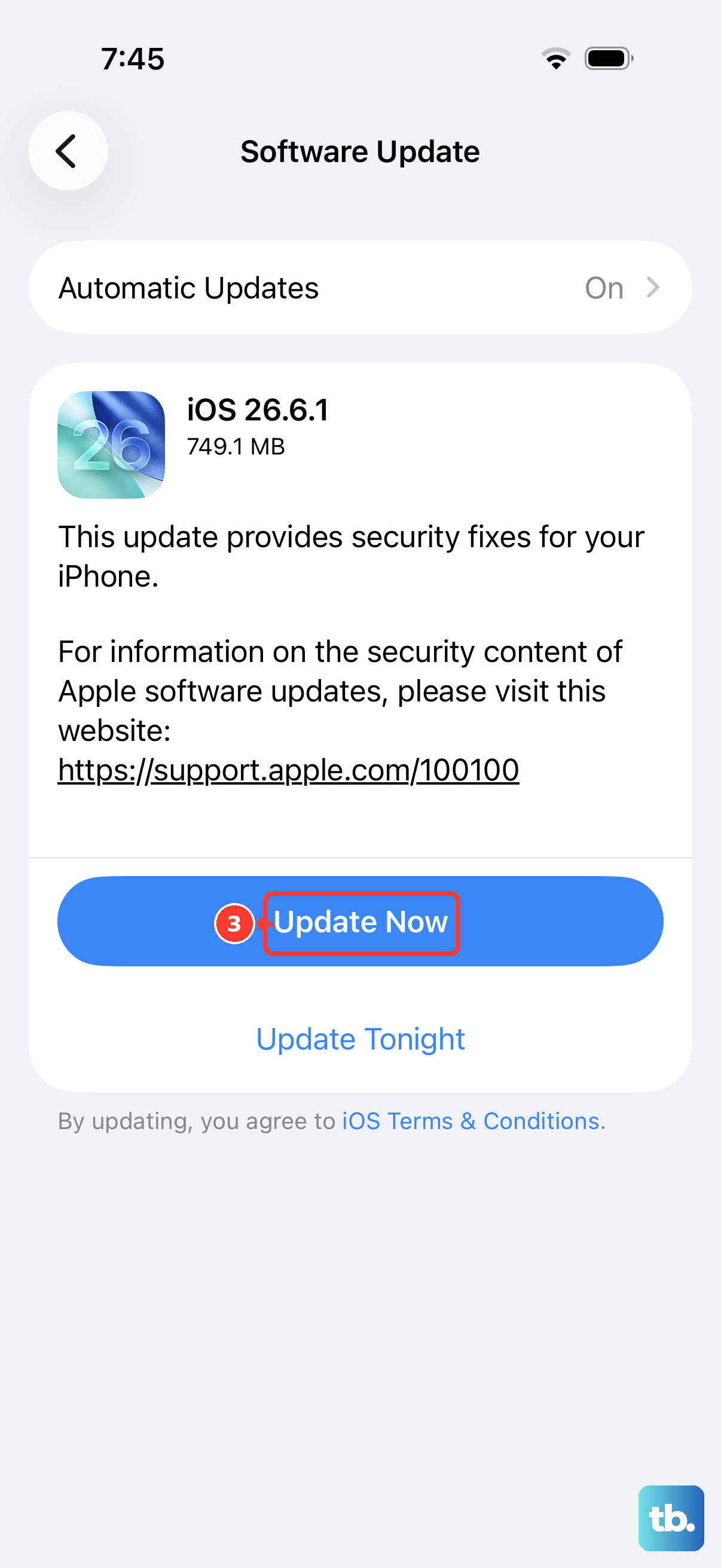
Apple fixes messaging bugs in software updates. With your iPhone 17 Pro running iOS 26, make sure you have the latest version installed.
Open Settings, tap General, and then select Software Update. If an update is listed, tap Download and Install. It's a good idea to plug your phone into power using your USB-C cable or a MagSafe charger first.
Delete a Large Message Thread
If a particular conversation has thousands of messages or lots of videos, it can sometimes cause the Messages app to struggle. Try deleting an old, large thread.
Open the Messages app, swipe left on a conversation you don't need anymore, and tap the red trash icon. After clearing some space, see if the new MMS comes through.
Check Your Date and Time Settings
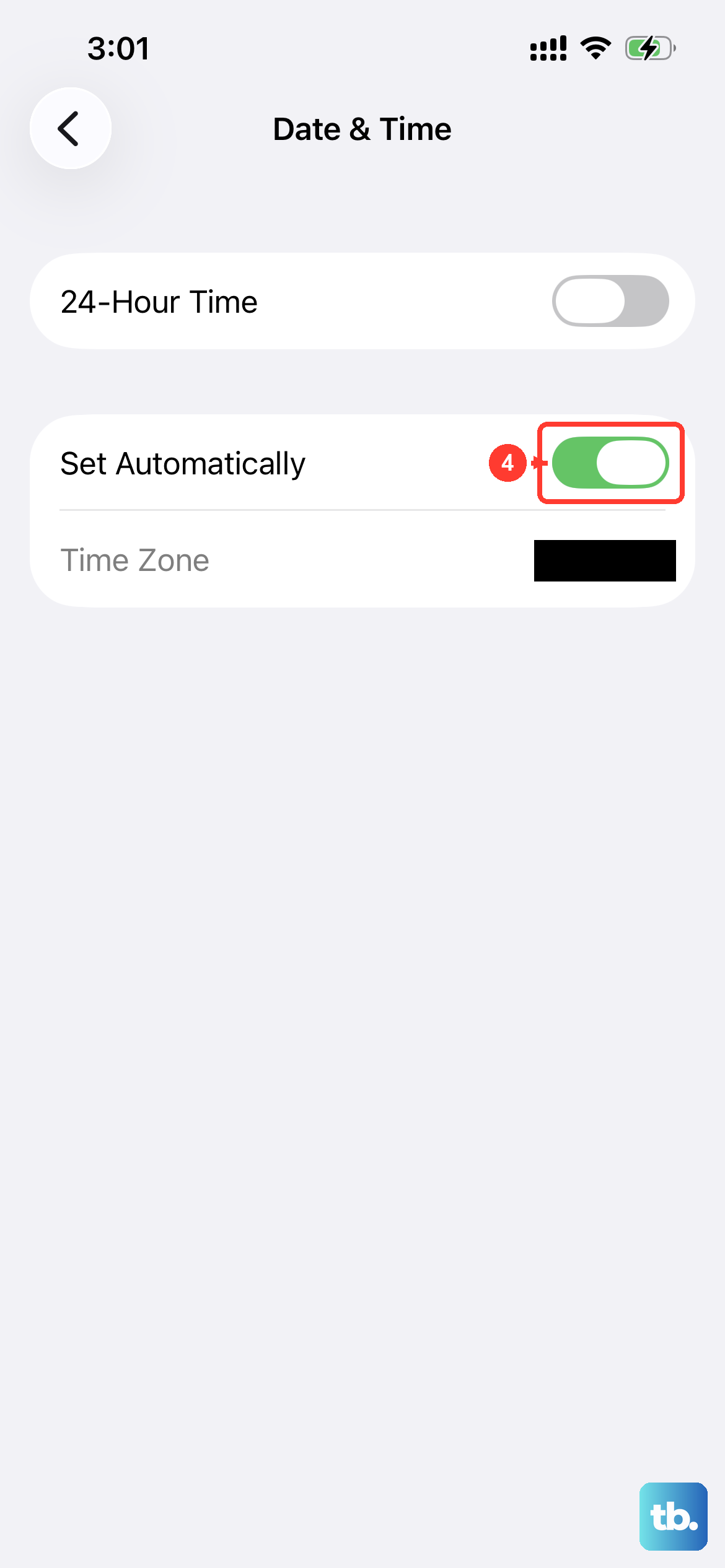
Incorrect date and time settings can surprisingly mess with network services. Go to Settings > General > Date & Time.
Make sure Set Automatically is turned on. This allows your iPhone to set the time based on your cellular network, which keeps everything in sync.
Contact Your Carrier
If you've worked through all these steps and MMS still won't download, the issue might be on your carrier's end. They can check if there's a service outage in your area or if your line has any specific blocks.
They can also resend the carrier settings to your iPhone 17 Pro, which is a deeper refresh than the update you can do yourself. Just give them a quick call or use their online support chat.