
If your iPhone 17 Pro Max is crawling when you try to load a webpage or stream a video, it's a real drag. The good news is that the fix is often just a few taps away in your settings. Try the checks below first, and reset network settings only if the other fixes fail; this keeps your personal files but removes saved network settings.
When you get to that point, head to Settings > General > Transfer or Reset iPhone > Reset. Tap on "Reset Network Settings" and enter your passcode. This removes saved Wi-Fi networks and passwords, cellular settings, and VPN and APN settings, so you'll need to reconnect to Wi-Fi. If work or school manages your network settings, check with the administrator first.
Check Your Cellular Data Mode
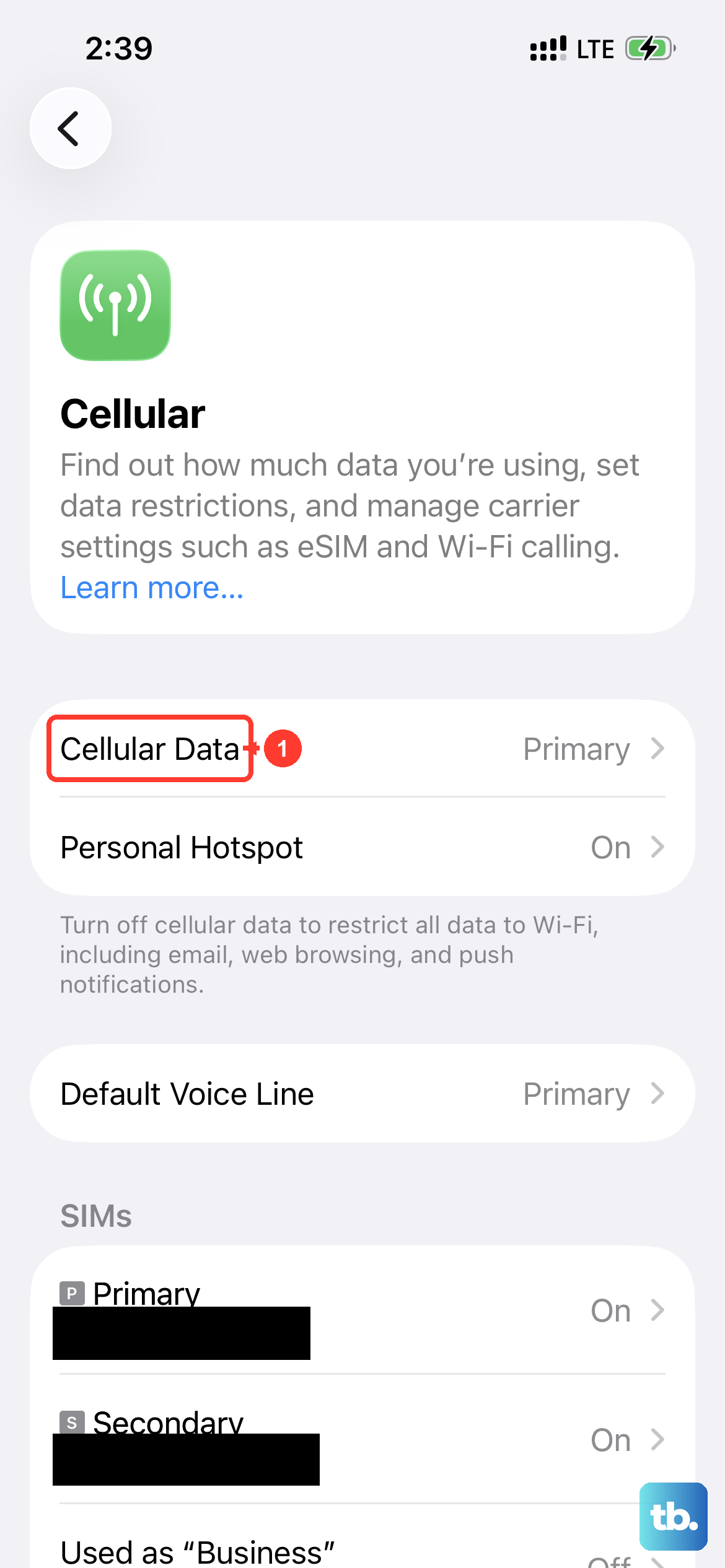
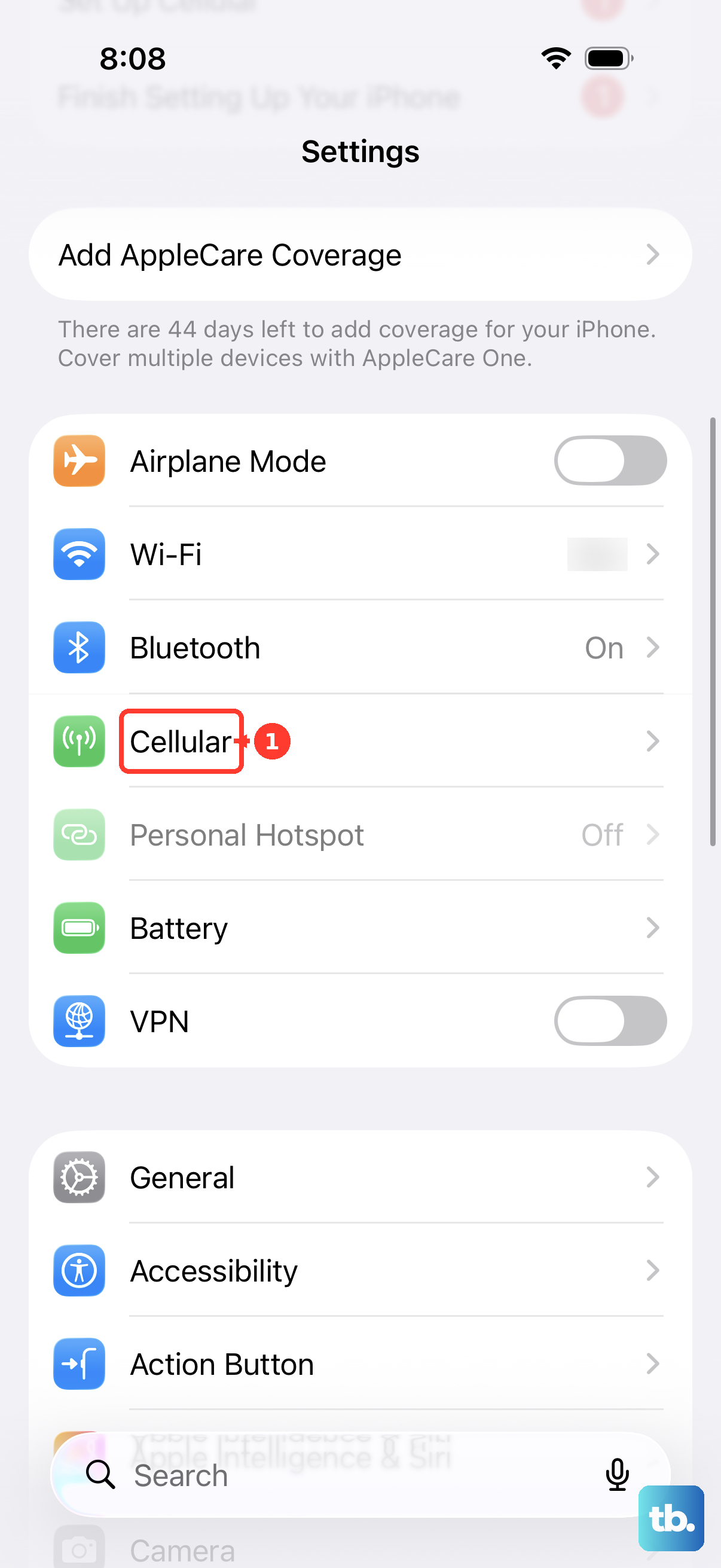
Your iPhone 17 Pro Max supports 5G, but cellular speeds depend on coverage and your carrier's network. Go to Settings > Cellular and make sure Cellular Data is on. If you use two lines, tap the line you want to check and make sure it's enabled.
Next, tap Cellular Data Options > Voice & Data. 5G Auto switches to LTE when 5G would not be noticeably faster, which saves battery. 5G On always uses 5G when it is available, at some cost to battery life. LTE uses only LTE, which is worth trying if the 5G signal in your area is weak. If speeds stay poor, your carrier can check coverage, local outages and whether your plan includes the data you need.
Manage Your Wi-Fi Connection
A poor Wi-Fi signal is a common culprit. First, try turning Wi-Fi off and back on in Settings > Wi-Fi. If that doesn't help, Connectivity Assist can use cellular data alongside Wi-Fi to improve an unreliable connection. Using it might increase your cellular data usage.
To enable it, go to Settings > Wi-Fi, make sure Wi-Fi is on, then scroll down and turn on Connectivity Assist. If you're troubleshooting a Wi-Fi connection that won't get online, turn it off while testing that network.
Clear Out Safari's Cache
Over months of use, Safari stores a lot of website data to load pages faster. Sometimes this cached data can get corrupted or outdated and actually slow things down. Clearing it gives Safari a fresh start.
Open the Settings app and tap Apps > Safari. Tap "Clear History and Website Data," choose a timeframe, then tap "Clear History." This will log you out of most websites, so you'll need to sign back in, but it can make a noticeable difference in browsing speed.
Restrict Background Activity
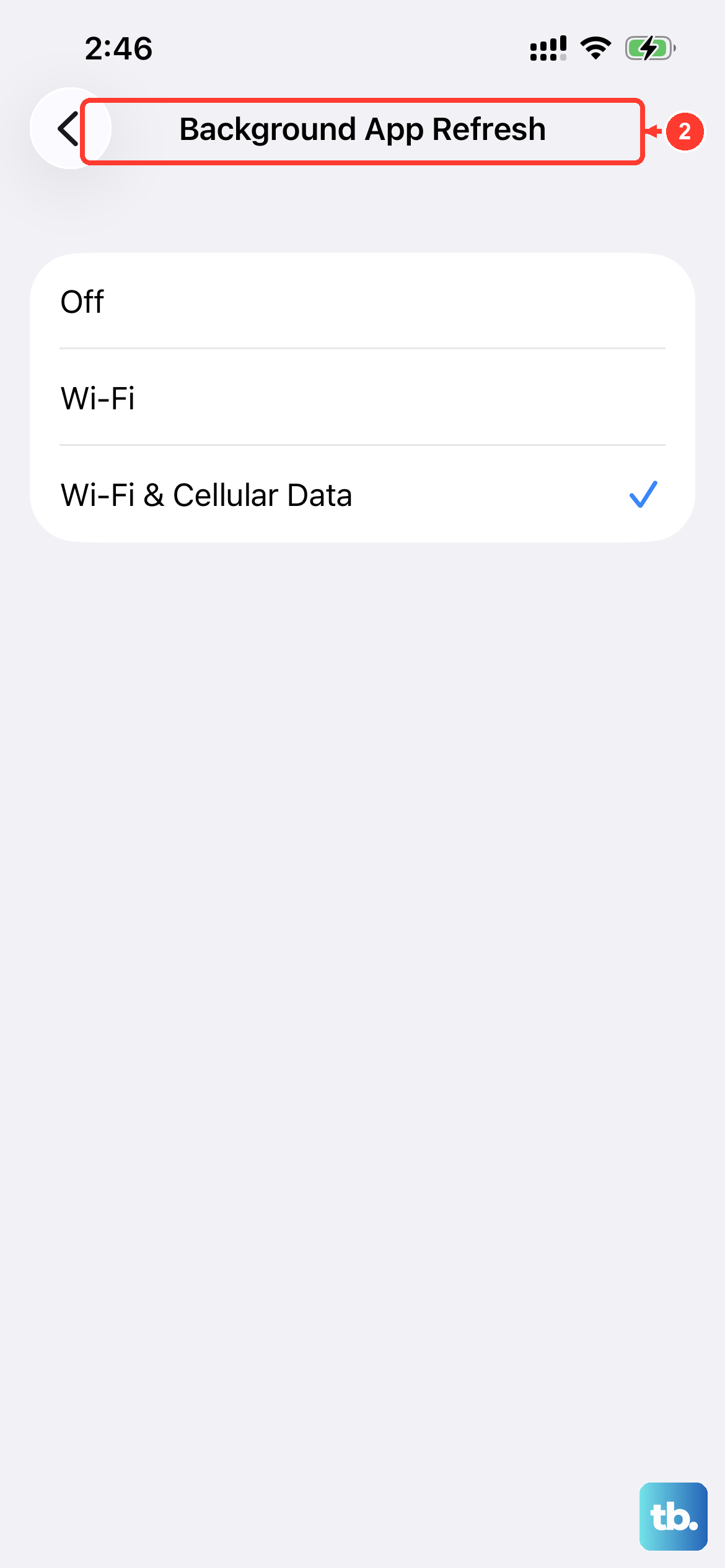
Apps refreshing in the background can use up your bandwidth and processing power, making your current task feel slow. You can control this in Settings. Go to Settings > General > Background App Refresh.
Tap "Background App Refresh" again and choose "Off" or "Wi-Fi." This stops apps from using your cellular data to update when you're not actively using them. You can also scroll through the list and turn it off for specific apps you know you don't need updating constantly.
Disable Any Active VPN
If you're using a VPN for privacy or work, it could affect your connection. VPN and other security software can block some network connections. To see if the software is involved, turn off its features temporarily, unless your organization manages or requires them; in that case, check with the administrator first.
Use your VPN app to turn off its features, then test your connection again. You can also open Settings, swipe down and search for "VPN" to find related settings. After making changes, restart your iPhone and test again. If the connection improves, contact the provider for help if you need to keep using the software.
Force Restart Your iPhone
Try a normal restart for connection trouble; if your iPhone isn't responding, use a force restart. For the iPhone 17 Pro Max, press and quickly release the Volume Up button, then press and quickly release the Volume Down button.
Immediately after, press and hold the Side button. Keep holding it until you see the Apple logo appear, then let go. This won't delete any data; once the phone restarts, test your connection again.
Update Your iOS Software
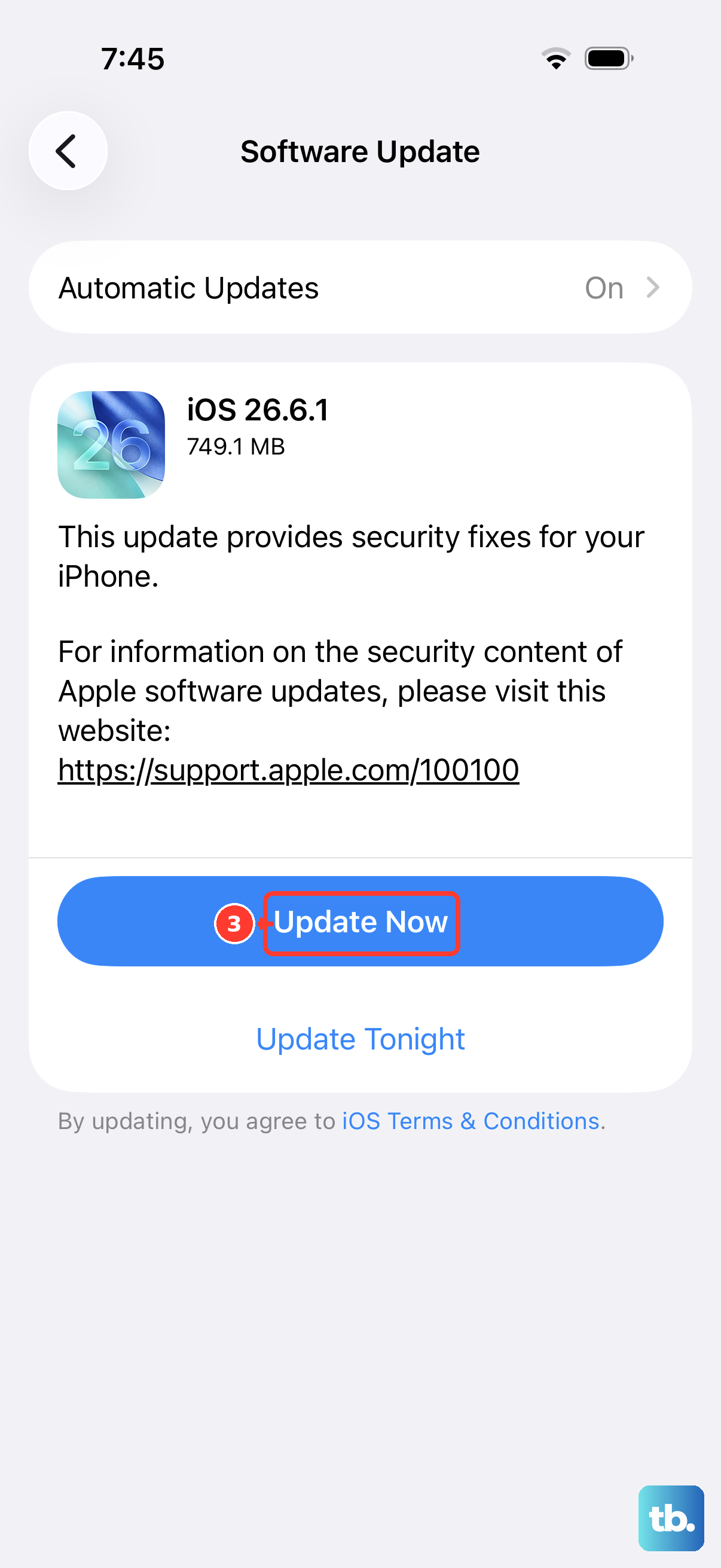
Apple frequently releases updates that include performance improvements and fixes for connectivity bugs. Making sure you're on the latest version of iOS is important. Go to Settings > General > Software Update.
If an update is available, tap "Download and Install." Back up your iPhone first, and keep it connected to Wi-Fi and a power source during the update.
Check for a Carrier Settings Update
Sometimes your mobile carrier pushes out small updates that improve network performance on your specific phone. You can check if one is pending. Connect to Wi-Fi, then go to Settings > General > About.
If a carrier settings update is available, a pop-up notification will appear on this screen. Just follow the prompts to install it. After installing it, check whether your cellular connection has improved.