
Seeing "Call Failed" on your iPhone 17 Pro Max is a real headache, especially when you're trying to connect. This usually means your phone is having trouble talking to the cellular network. A weak signal, a small software hiccup, or a setting that's slightly off are the most common culprits.
Let's run through the fixes, starting with the quickest ones you can try right now.
Toggle Airplane Mode
The fastest way to clear a temporary network glitch is to toggle Airplane Mode. This resets your iPhone 17 Pro Max's connection to the cell towers in seconds.
Swipe down from the top-right corner of your screen to open Control Center. Tap the airplane icon to turn it on, wait about 15 seconds, then tap it again to turn it off. Check your signal bars to see if they come back stronger.
Check Your Signal Strength
Weak signal is the number one reason calls fail. Look at the top-right corner of your screen. If you only have one or two bars, try moving to a different room or near a window.
Sometimes, even in a familiar spot, network congestion can cause issues. Taking a few steps can make a big difference on your iPhone 17 Pro Max.
Force Restart Your iPhone
A simple force restart can clear out minor software bugs that affect calling. On the iPhone 17 Pro Max, you press and quickly release the Volume Up button, then quickly press and release the Volume Down button.
Finally, press and hold the Side button. Keep holding it until you see the Apple logo appear, then let go. This doesn't erase any data, it just gives the system a fresh start.
Review Your Focus Modes
Focus modes in iOS 26 are powerful, but they can sometimes be too good at their job. If you have a Focus like Work or Sleep active, it might be silencing calls from people not on your allowed list.
Swipe down into Control Center and look for the active Focus icon. Tap it to see which one is on and turn it off temporarily to test your calls.
Update Date and Time Settings
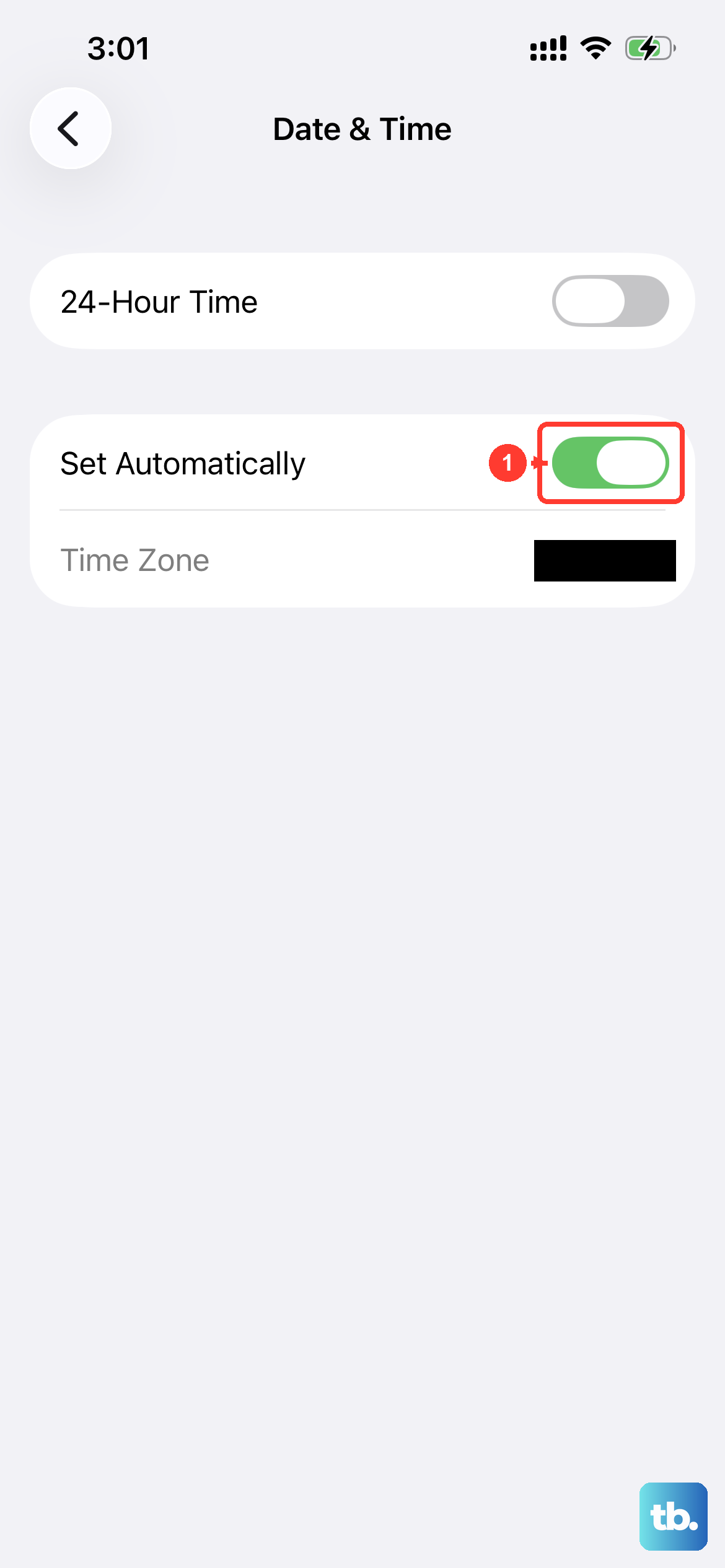
It sounds odd, but if your phone's clock is off, it can mess with secure network connections. The fix is to let your iPhone 17 Pro Max set the time automatically.
Go to Settings > General > Date & Time. Make sure the switch for "Set Automatically" is turned on. This syncs your phone with network time.
Check for Blocked Numbers
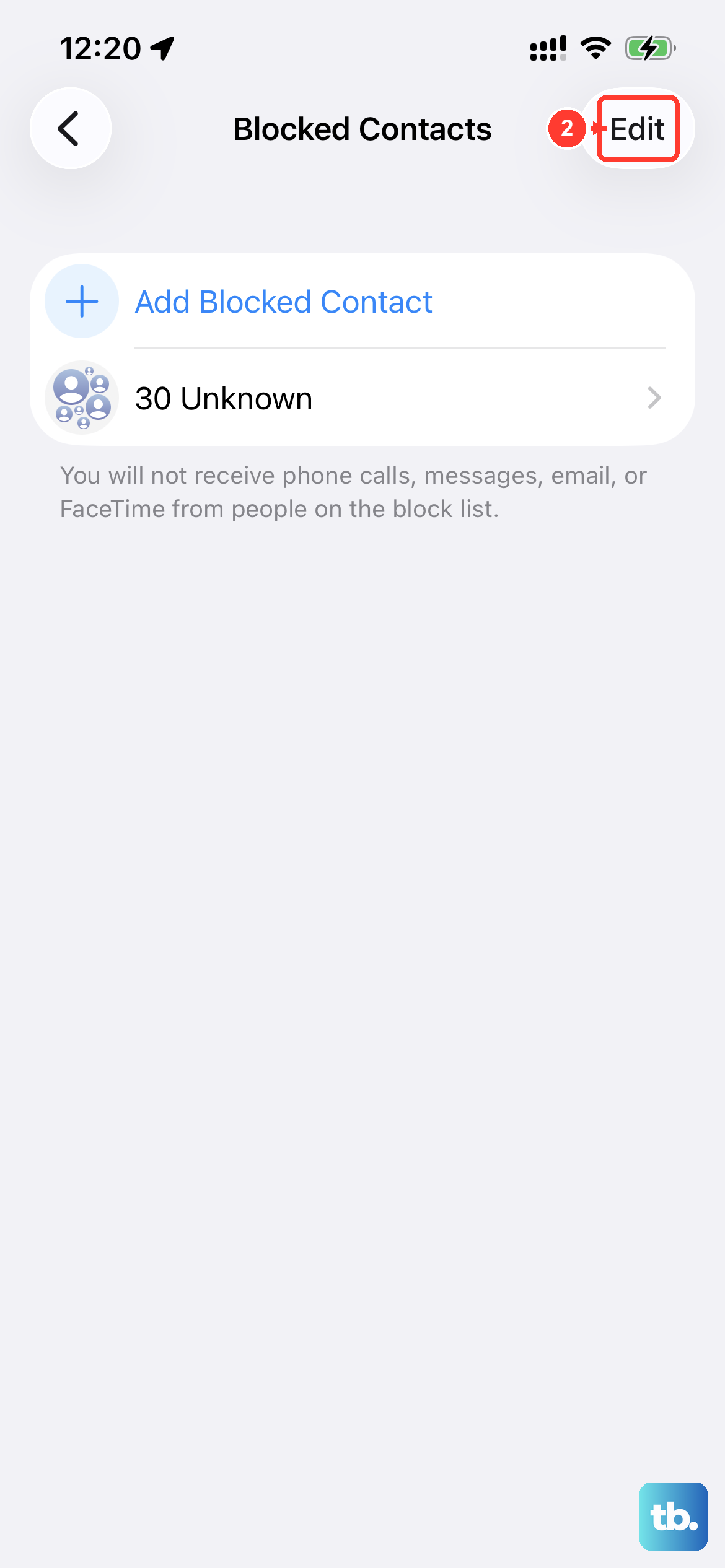
It's worth a quick look to make sure you haven't accidentally blocked the number you're trying to reach. This is an easy one to overlook.
Head to Settings > Apps > Phone > Blocked Contacts. Scroll through the list. If you find the number there, swipe left on it and tap "Unblock."
Verify Cellular and Roaming Settings
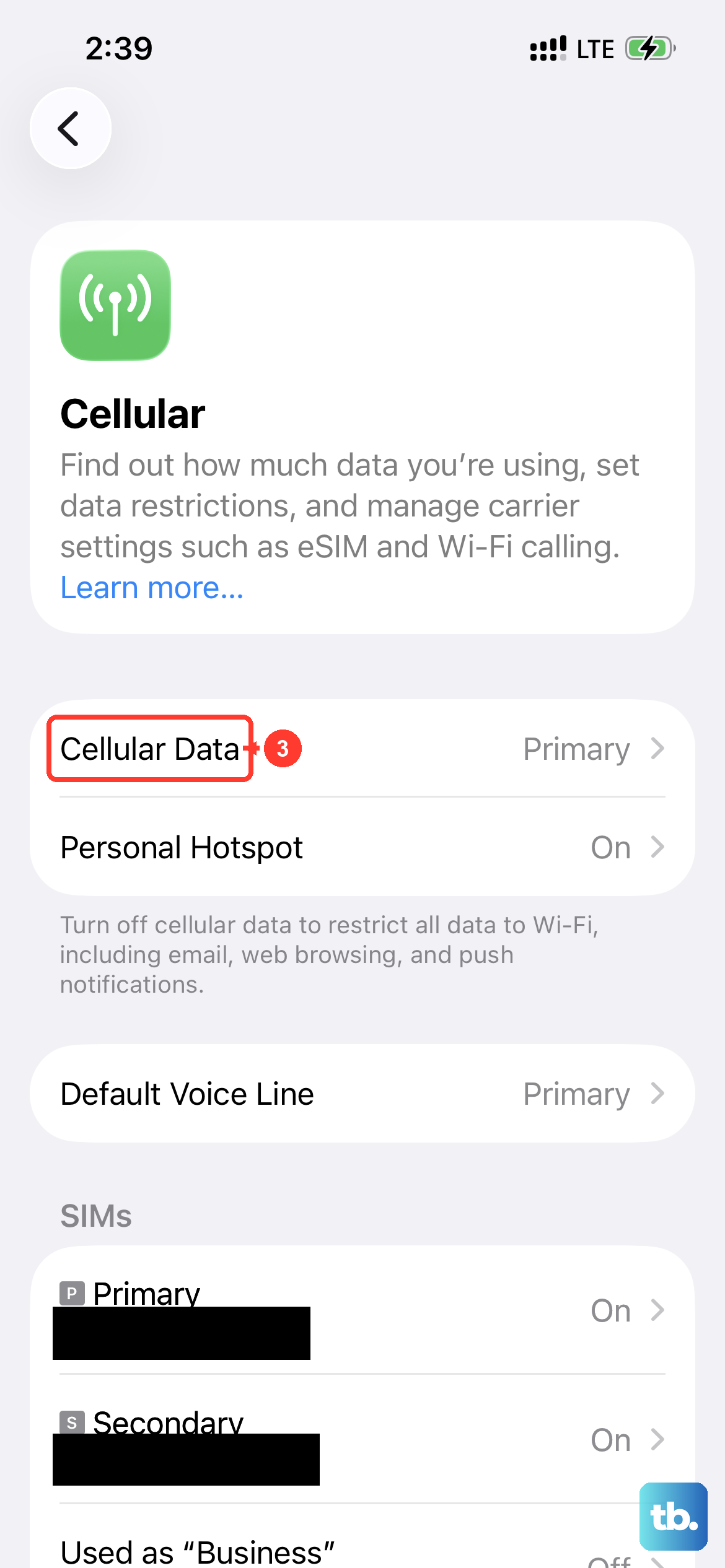
First, ensure Cellular Data is simply turned on. Go to Settings > Cellular and check the main toggle. If you're traveling, you might need to enable data roaming.
For that, tap Cellular Data Options and then turn on Data Roaming. Just remember roaming can incur charges, so check with your carrier.
Update Your Carrier Settings
Apple and your carrier occasionally release small updates that improve network performance. These install silently sometimes, but it's good to check.
Make sure you're connected to Wi-Fi, then go to Settings > General > About. If a carrier settings update is available, a prompt will appear on this screen asking you to update.
Check Your Physical SIM or eSIM
For a physical SIM, a loose connection can cause problems. Grab a SIM ejector tool or a paperclip, pop open the tray on the left side of your iPhone 17 Pro Max, and take the SIM out.
Give the gold contacts a gentle wipe with a soft, dry cloth and reseat the card. If you're using an eSIM, you may need to contact your carrier to ensure it's properly provisioned on their network.
Update to the Latest iOS
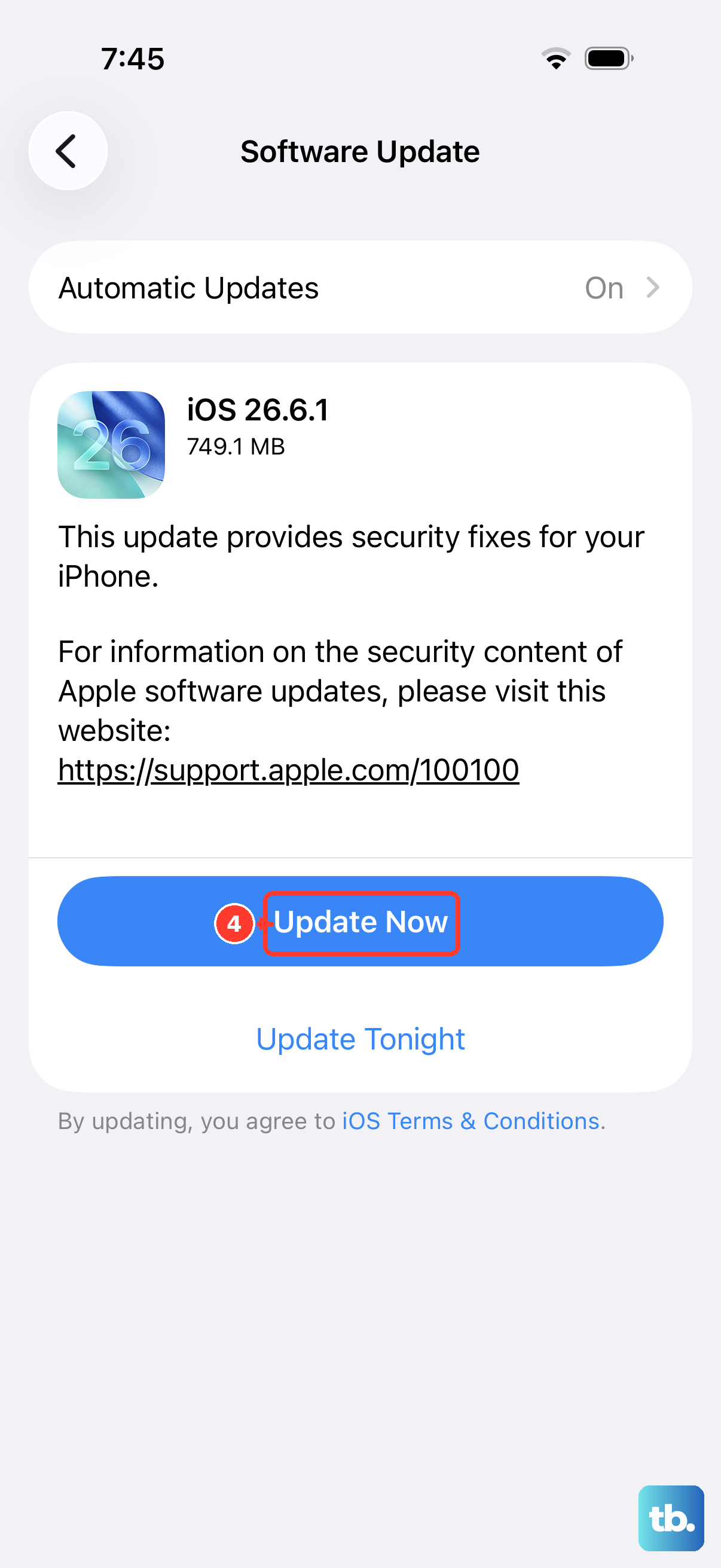
Software updates for iOS 26 often include fixes for connectivity bugs. It's one of the most reliable ways to solve persistent calling issues.
Plug your phone in or make sure you have a good charge, connect to Wi-Fi, and go to Settings > General > Software Update. Download and install any available update.
Reset Network Settings
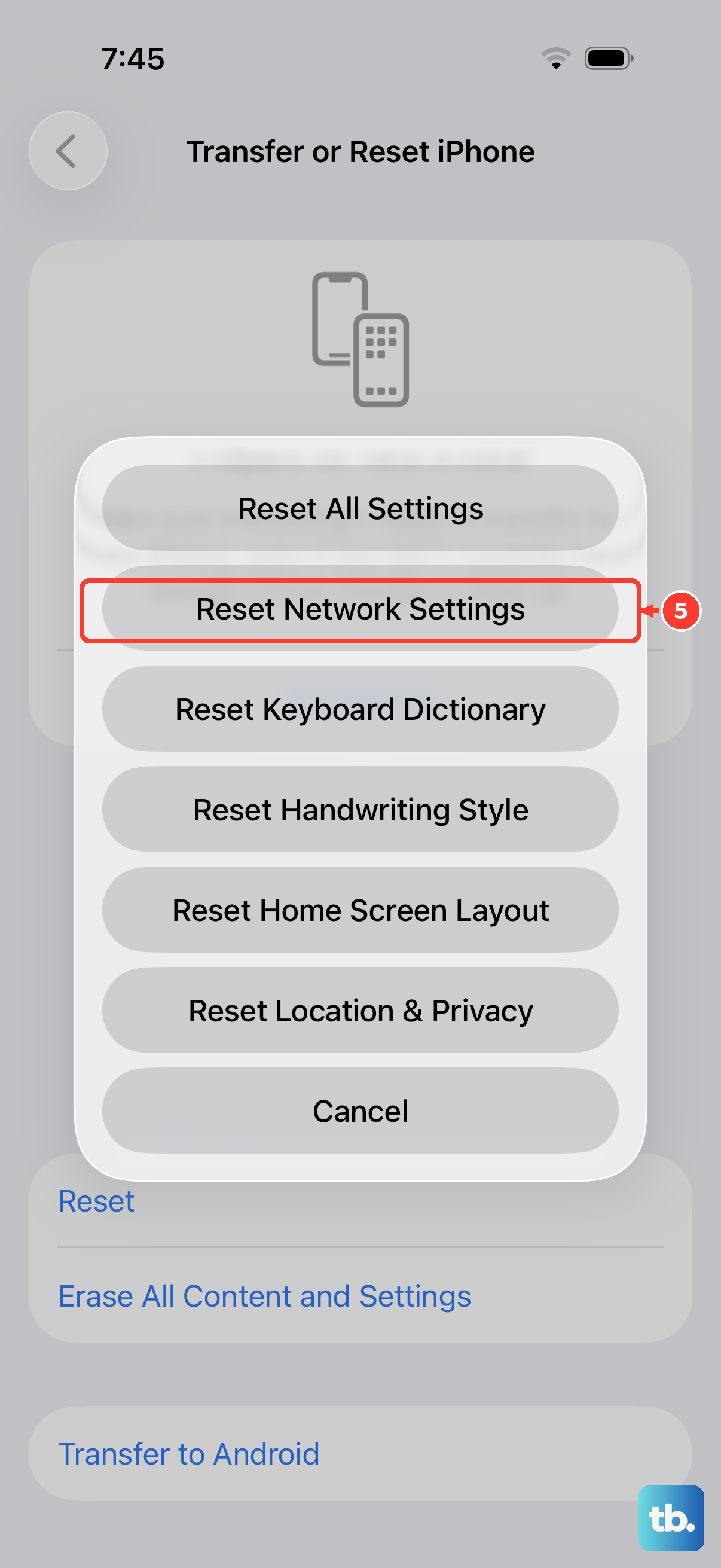
This is a more thorough step that clears all your saved Wi-Fi passwords, Bluetooth pairings, and cellular network preferences. It often resolves deep-seated network glitches.
Go to Settings > General > Transfer or Reset iPhone. Tap Reset, then choose Reset Network Settings. You'll need to enter your passcode to confirm.
Contact Your Wireless Carrier
If you've tried everything here and calls are still failing, the issue might be on your carrier's end. There could be a local tower outage, maintenance, or a problem with your specific account.
Give their customer support a call. They can check for outages, reprovision your line, or send you a new SIM card if needed. They have tools to see exactly how your iPhone 17 Pro Max is connecting to their network.