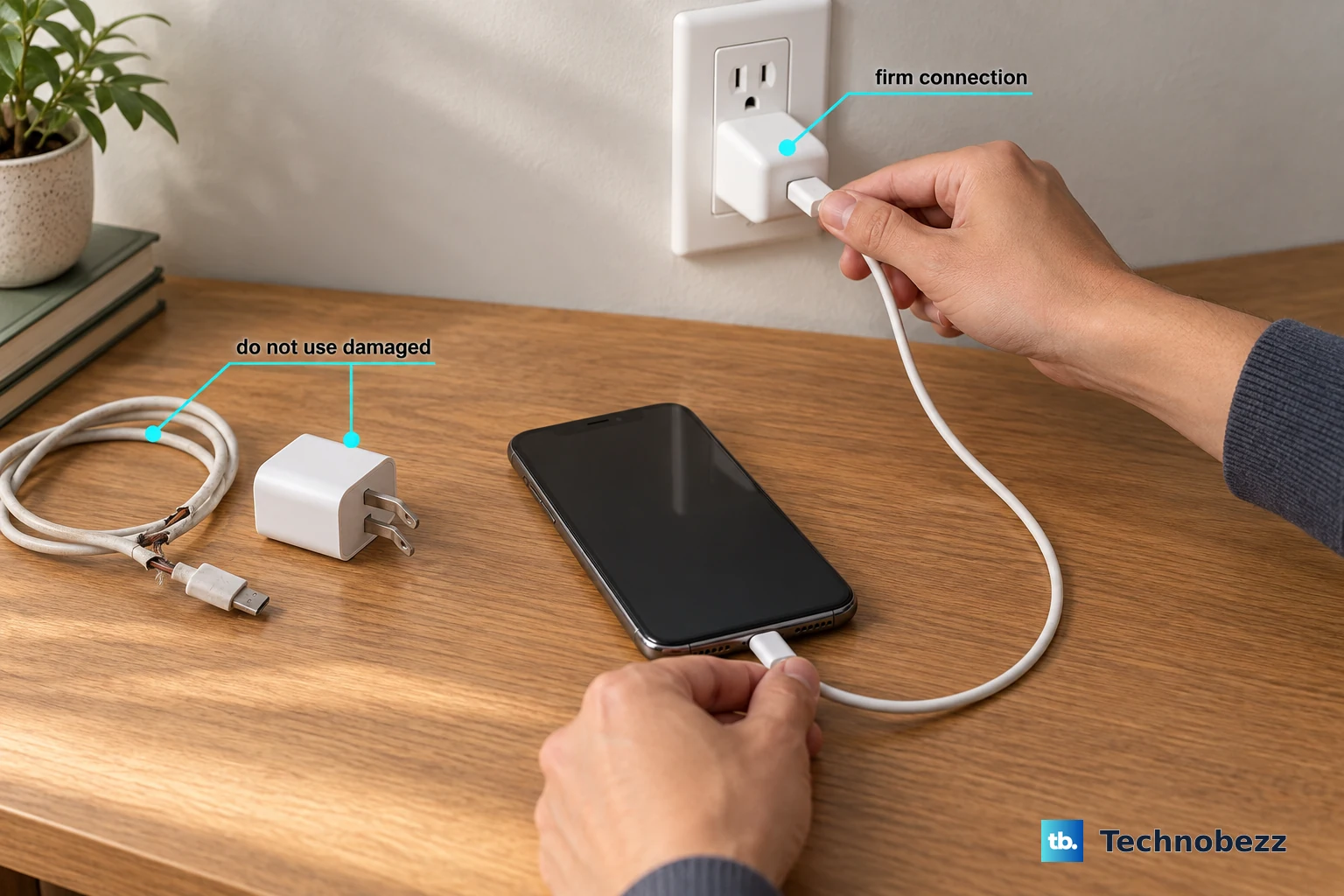
If your iPhone 17 Pro is taking forever to charge, you're likely missing out on its 60W fast charging capability. The phone should be able to hit 50% in under 20 minutes with the right setup, but a few common issues can slow it to a trickle.
Use the Apple 40W Dynamic Power Adapter
To get the full 60W fast charging speed, you need Apple's specific 40W Dynamic Power Adapter (Model A3351). This adapter is designed to work with the iPhone 17 Pro's power management system. While standard USB-C PD chargers will work, they're typically limited to around 30W, which is half the potential speed.
I'd start by checking the adapter you're using. If it's not the 40W model, that's the most likely reason you're not seeing the fastest possible charge. Third-party chargers can work, but for the absolute peak performance, the official adapter is key.
Make Sure You're Using a High-Wattage USB-C Cable
The cable matters just as much as the adapter. You need a robust USB-C to USB-C cable that can handle up to 60W of power delivery. The cable that came in the box is rated for it. Older, thinner, or worn-out USB-C cables might only support 30W or less, creating a bottleneck.
Inspect your cable for any fraying or damage near the connectors. A loose connection or internal break can severely limit the power that reaches your phone, forcing it to charge at a much slower, standard rate.
Check Your Charging Settings in iOS 26
Go to Settings > Battery > Charging. Here, you'll find the Optimized Battery Charging feature. By default, it learns your routine and will hold your charge at 80% overnight to preserve battery health.
If your phone is stuck at 80% and you need a full charge quickly, you can temporarily turn this off. Just remember to re-enable it later. This setting is a common reason people think their fast charging has stopped working when it's actually just pausing.
Let the Phone Cool Down
The iPhone 17 Pro can get noticeably warm during a 60W fast charge, which is normal. However, if it gets too hot, the system will automatically throttle the charging speed to protect the battery. Using the phone intensively while charging, like gaming or video editing, will generate extra heat and slow things down.
For the fastest charge, place it on a cool, hard surface and avoid using it. If you're in a hot environment or in direct sunlight, move it to a cooler spot. Removing your case can also help dissipate heat more effectively.
Clean the USB-C Port
Lint and pocket debris can easily compact in the USB-C port, preventing the cable from seating fully. A poor physical connection will prevent fast charging from engaging. Power off your phone and use a wooden toothpick or a soft, clean brush to gently clear out any debris.
Avoid using metal objects like paperclips, as they can damage the sensitive contacts inside the port. A clean port is essential for that high-power connection.
Restart Your iPhone 17 Pro
A simple software glitch can sometimes interfere with the power management system. To force restart, quickly press and release the Volume Up button, then quickly press and release the Volume Down button. Finally, press and hold the Side button until you see the Apple logo appear.
This is different from a standard shutdown and can clear up minor bugs that might be capping your charge speed. It takes about 30 seconds and is always a good first troubleshooting step.
Check Your MagSafe Setup
If you're using MagSafe or a Qi2 wireless charger, the maximum speed is 30W. Ensure you're using a compatible 30W MagSafe charger. Alignment is also crucial, especially with third-party cases.
If the charger isn't perfectly centered on the back of the phone, it will charge at a slower speed and generate more heat. Try charging without a case to see if that improves the wireless charging rate.
Update to the Latest iOS Version
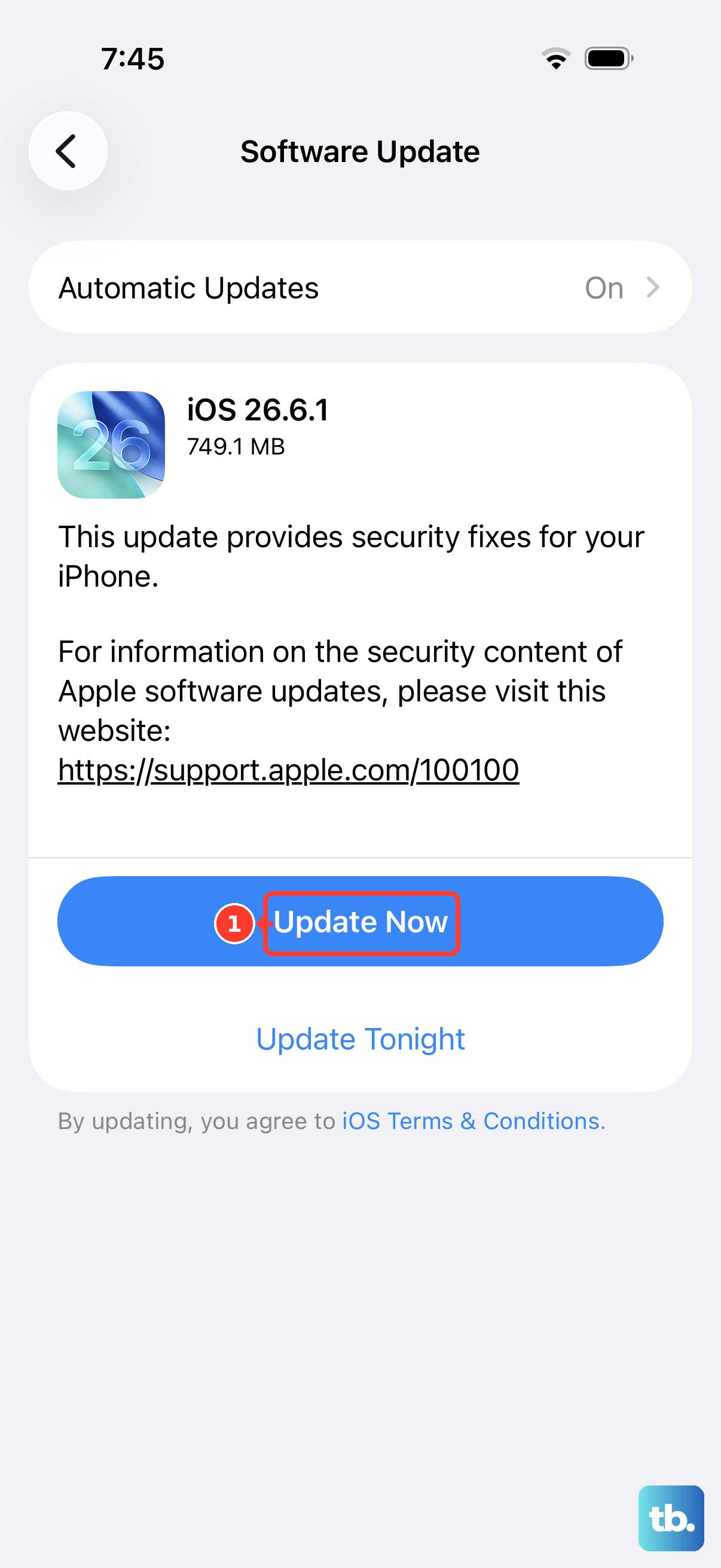
Head to Settings > General > Software Update. Apple releases updates that can include improvements to battery management and charging algorithms. Running an outdated version of iOS 26 could be the cause of suboptimal charging performance.
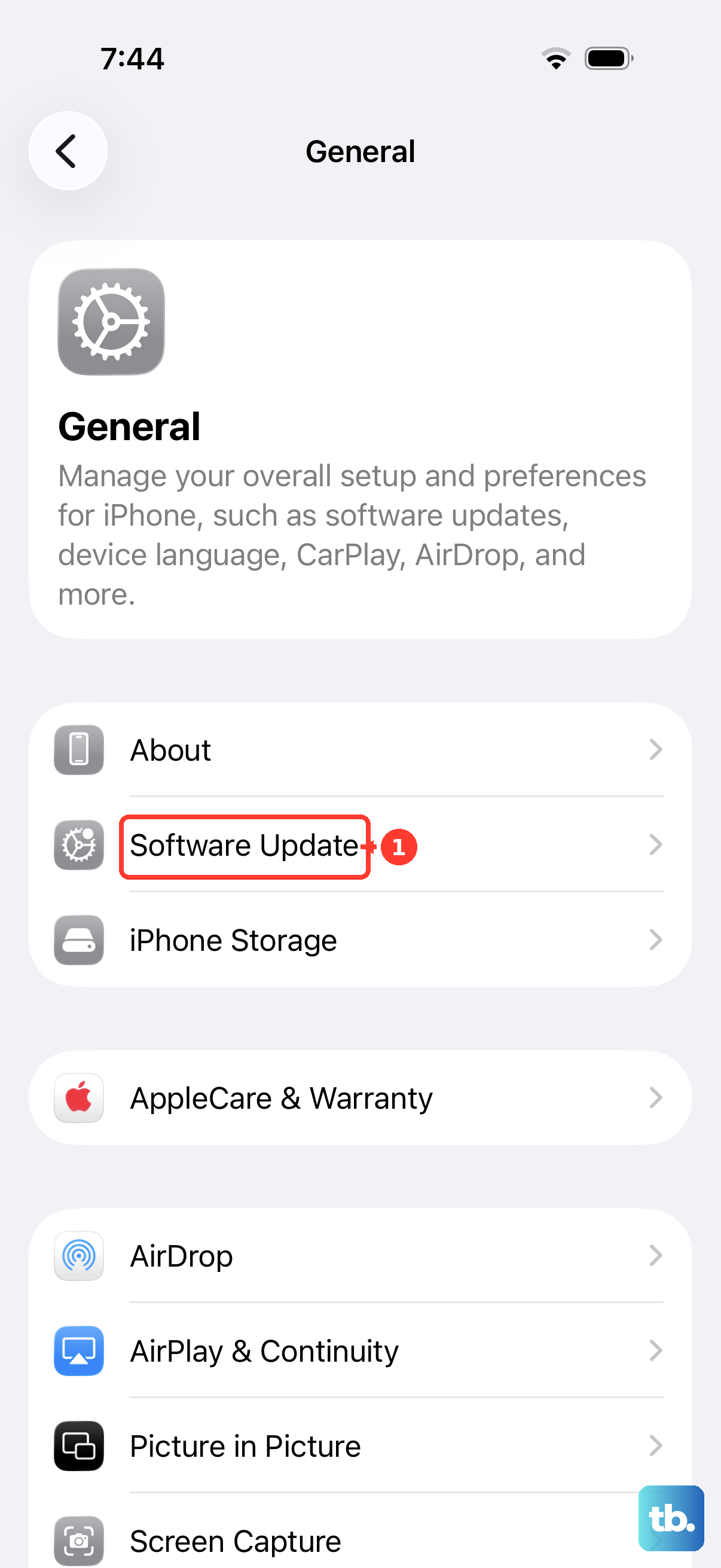
Installing the latest update ensures your phone has all the current optimizations for battery health and charging speed.
Test with Another Cable and Adapter
The best way to isolate the problem is to swap components. Try your phone with a known-good, high-wattage USB-C cable and the 40W Apple adapter. If it fast charges normally, then your original cable or adapter is the culprit.
Similarly, try your cable and adapter with another device that supports fast charging. If they work fine elsewhere, the issue might be with your iPhone's port or software, pointing you back to the cleaning or restart steps.