
Your iPhone 17 Pro, iPhone 17, or iPhone Air went completely dead. Now it refuses to charge over USB-C.
You're running into a recurring bug that Apple has not officially acknowledged but has been widely documented since iOS 26.3. The good news is there's a reliable workaround using MagSafe. The bad news is the issue is not fixed in iOS 26.4.1 or iOS 26.4.2 either.
Until Apple ships a patch, you'll need to keep the workaround handy. Here is exactly what to do, why it happens, and how to make sure it doesn't strand you next time.
What the Bug Actually Does
The issue is specific to one scenario. Your iPhone drains to zero percent, shuts off completely, and then refuses to respond when you plug in a USB-C cable.
You can leave it on the cable for hours and the screen stays black. The phone appears to be either dead or broken. It's neither; the phone fails to start charging over USB-C in this exact cold-boot state, while inductive charging still works.
The bug affects iPhone 17, iPhone 17 Pro, iPhone 17 Pro Max, and iPhone Air, with the Air more often cited because of its smaller battery. The bug appeared with iOS 26.3 and persists through iOS 26.4.2 as of mid-May 2026.
The MagSafe Workaround That Works
The reliable fix is to use MagSafe to revive the phone, then switch to USB-C once it has some charge.
Place the dead iPhone on a MagSafe charger (official Apple, Anker, or any MFi-certified MagSafe puck or stand) and leave it for 10 to 15 minutes. If you don't have a wall-powered MagSafe charger, a MagSafe battery pack works just as well; just snap it to the back of the phone.
After 10 to 15 minutes, the screen should briefly flash a charging indicator. Don't unplug yet.
Wait another 5 minutes, then unplug from MagSafe and plug in your USB-C cable. The phone should now charge normally over USB-C.
The reason MagSafe revives the phone when USB-C does not is not fully explained by Apple. User reports and Apple Store technicians describe the same pattern: once the battery falls below the minimum voltage needed for a successful reboot, USB-C fails to bring it back, but the MagSafe path still delivers enough trickle charge to wake the phone. Once you have a few percent of charge, both protocols work normally again.
If You Don't Have a MagSafe Charger
If MagSafe isn't an option, two other things have worked for some users.
First, try a different USB-C cable and a different wall adapter. The Apple 40W Dynamic Power Adapter or another higher-wattage USB-PD charger (30W or more) is more likely to wake the phone than a low-wattage adapter. Plug in, wait 30 minutes without touching the phone, and check.
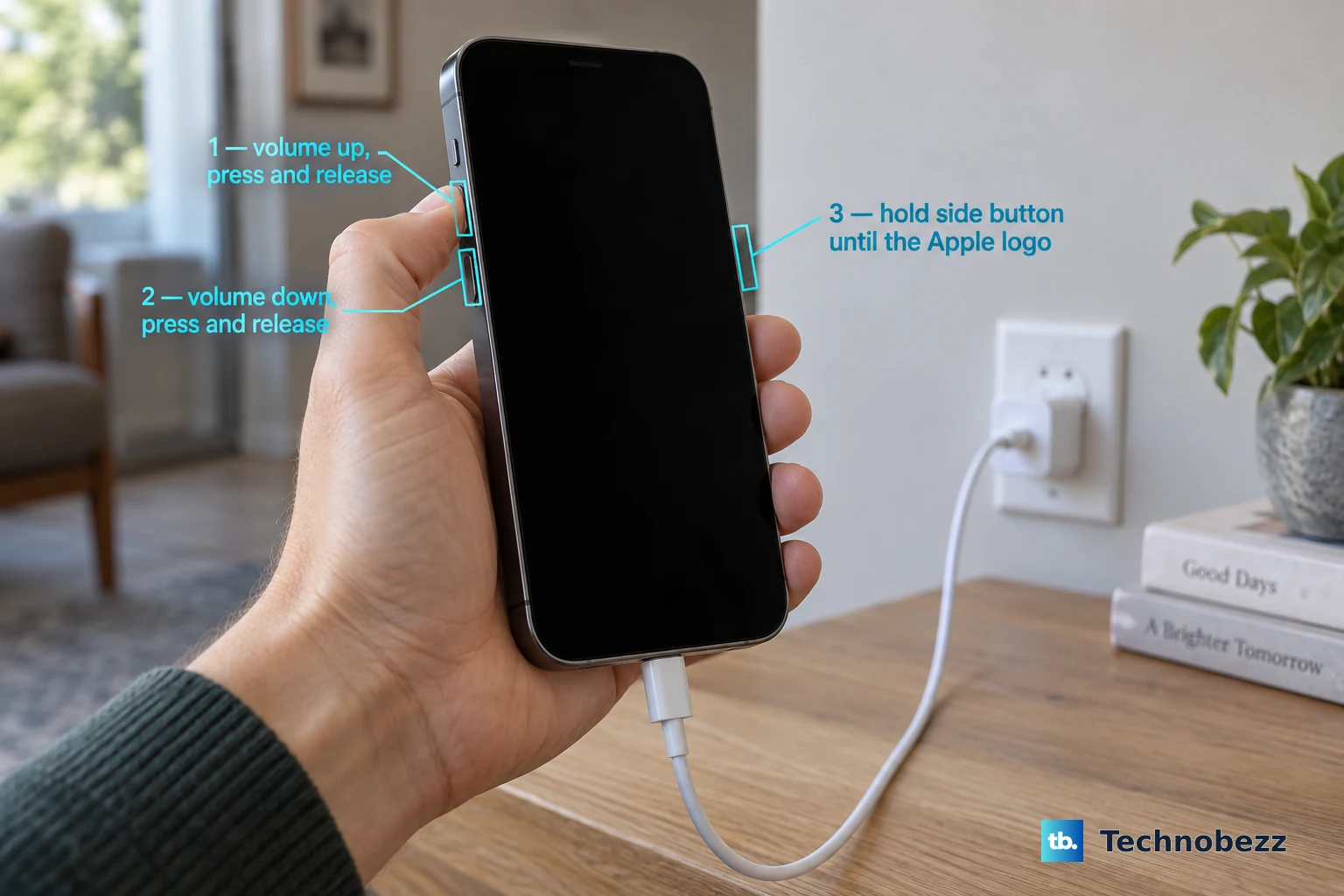
Second, try a force restart while plugged in. Quickly press and release Volume Up, then quickly press and release Volume Down, then press and hold the Side button until the Apple logo appears. Some users report this resets the USB-C power-negotiation state. If it works, the phone will start charging immediately.
If neither path works after 30 to 45 minutes, the MagSafe approach is essentially mandatory. Borrow one from a friend, an Apple Store, or order an inexpensive third-party MagSafe charger and wait.
How to Prevent This in the First Place
The simplest prevention is to not let the iPhone hit zero percent. Apple's Optimized Battery Charging already tries to slow the last 20 percent of charge to preserve long-term battery health, but it doesn't stop you from running the phone to dead.
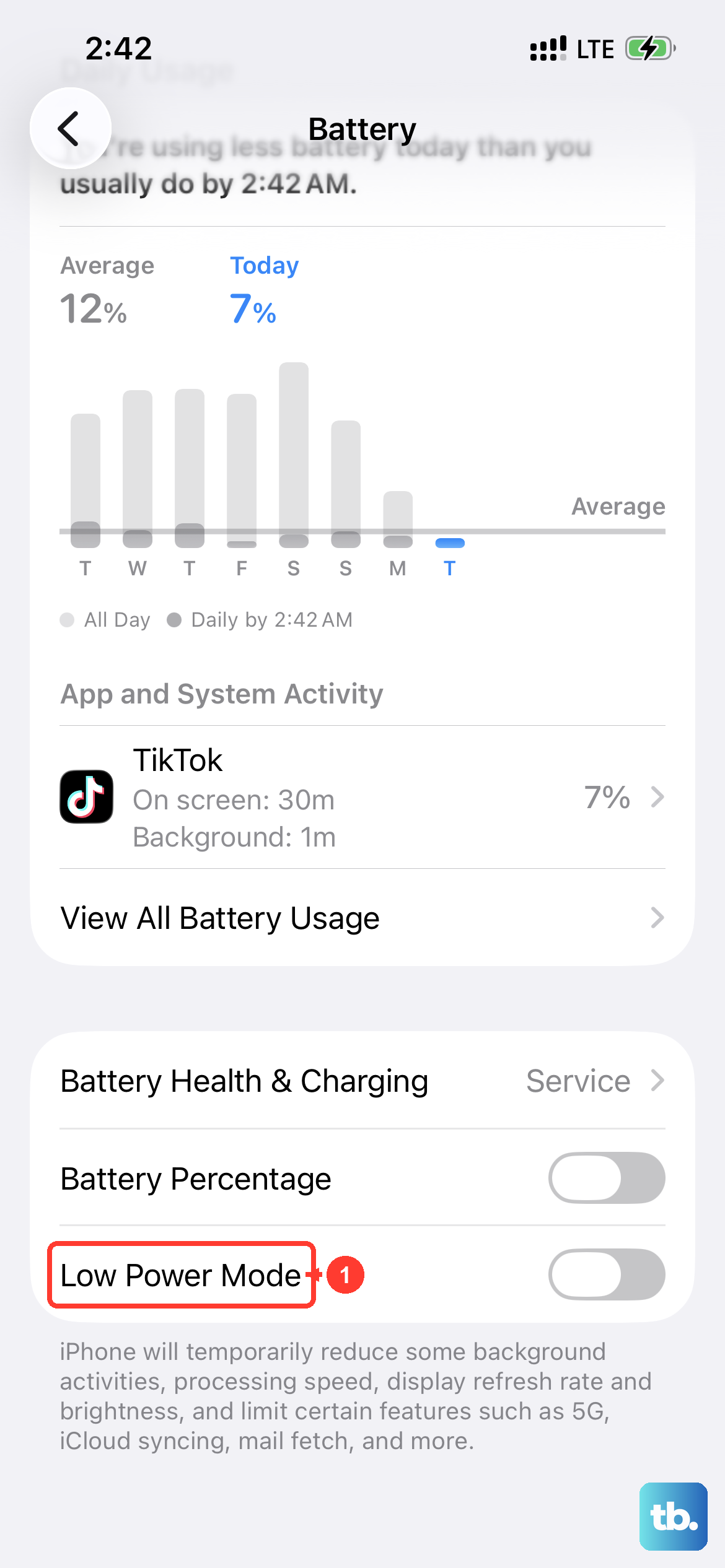
Turn on Low Power Mode earlier than the 20 percent default. Settings > Battery > Low Power Mode lets you toggle it manually any time. Some users keep it on permanently with no noticeable downside.
Set a battery percentage indicator if you haven't already. Settings > Battery > Battery Percentage gives you a number rather than just the icon, so you notice you're at 5 percent before the phone abruptly shuts off.
If you regularly let the phone drain to zero (you forget to charge overnight, for example), keep a small MagSafe puck in your bag or by your bed as insurance against this exact bug.
Why Apple Hasn't Fixed This Yet
The bug has been reproduced reliably across multiple iPhone 17 family devices and OS versions. Apple typically rolls fixes for issues like this into a point release rather than an emergency patch.
The next iOS 26.x update is the most likely place to look for an official fix. Until that ships, the MagSafe workaround is your best option.
If your phone is unresponsive after trying both USB-C and MagSafe for over an hour, take it to an Apple Store. The Genius Bar has diagnostic tools that can revive iPhones even when standard charging fails, and appointments are free under warranty.
What This Doesn't Affect
The bug only triggers after a complete battery drain. If you keep your iPhone above zero percent, normal USB-C charging works exactly as it should at the full 40W with the Dynamic Power Adapter, and wireless charging tops out at 25W over MagSafe or Qi2.2 with a compatible charger.
The bug also doesn't affect your battery health, which you can verify in Settings > Battery > Battery Health. A one-time hit at zero percent doesn't damage the cell.