You reach for your iPhone 17 in a dark room, swipe down, tap the flashlight, and nothing happens. Maybe the beam refuses to switch on, maybe it is stuck glowing and won't turn off, or maybe the button has vanished from Control Center entirely. The good news is that the iPhone 17 definitely has a flashlight (it is driven by the same rear True Tone flash LED Apple lists in the tech specs), so this is almost always a fixable software hiccup, a stray accessory, or heat, rather than a missing feature. Work through the fixes below in order, starting with the quickest taps and saving the heavier resets for last.
Start With the Control Center Toggle
The fastest fix is also the one people skip, which is to turn the flashlight off and back on. On the iPhone 17, swipe down from the upper-right corner to open Control Center, then tap the Flashlight button to toggle it. If the light seems stuck on or refuses to come on, tap it a couple of times in a row to clear the state.
While you are here, it is worth confirming the brightness isn't set so low you can barely see it. Press and hold the Flashlight button, then drag the slider up or down to adjust the brightness. You can do the same thing without unlocking by pressing and holding the Flashlight button in the bottom-left corner of the Lock Screen.
Bring Back a Missing Flashlight Button
If there is no Flashlight button to tap, the control may simply have been removed from your layout rather than broken. Go to Settings > Control Center, then tap Flashlight in the list of available controls to add it back. Once it is in place, open Control Center again and the button will be ready.
You also have backup ways to fire the flashlight that don't depend on Control Center at all. Ask Siri (for example, "turn on my flashlight"), or set the Action button to Flashlight so you can trigger it physically. To do that, open Settings > Action Button, swipe to the Flashlight icon, then press and hold the Action button to turn the flashlight on or off.
Free the LED From the Camera
The flashlight and the camera flash use the same rear LED, so it is worth ruling out the camera before you suspect a fault. Close the Camera app, then test the flashlight from Control Center while no camera is running. If you have other apps open that use the flash, close those too and try again.
The flash setting inside the Camera app is also worth a look. If the flash works only sometimes, open the Camera app and tap the flash button to choose a different setting. After adjusting it, close the Camera app and try the flashlight again from Control Center.
Check What's Sitting Over the Flash
Something physically covering or interfering with the rear camera area can stop the flash from doing its job. Remove any case, film, or accessory (such as a polarizer, extender, or magnifier) that might block the camera or flash, or that places a magnet near the camera.
With everything cleared away from the back of the phone, swipe down from the upper-right corner and tap the Flashlight button to test it. A thick case lip or a stick-on lens accessory is an easy thing to overlook, so check carefully before assuming the hardware has failed.
Let an Overheating iPhone Cool Off
If your iPhone gets too hot, some features can be limited until it cools down, and you may see a temperature warning on the screen. A hot car or direct summer sun is enough to push the phone past its comfortable range, and the flashlight may not behave normally while that is happening.
To cool it down, turn off your device, move it to a cooler environment away from direct sunlight, and allow it to cool down. Once the phone is back to a comfortable temperature, turn it on and try the flashlight again.
Restart the Phone to Clear Software Glitches
A normal restart clears temporary software issues that can leave the flashlight stuck or unresponsive. Press and hold either volume button and the side button until the power-off slider appears, then drag the slider and wait 30 seconds for the phone to turn off completely.
To turn it back on, press and hold the side button (on the right side of your iPhone) until you see the Apple logo. After it finishes booting, open Control Center and tap the Flashlight button to confirm whether the restart resolved it.
Force Restart When the Screen Is Frozen
If the screen is frozen or the flashlight simply won't respond to taps, a force restart is the next step. Press and quickly release the volume up button, press and quickly release the volume down button, then press and hold the side button, and when the Apple logo appears, release the side button.
This is a harder reset than the standard restart and does not erase any of your data. Once the phone finishes restarting, test the flashlight from Control Center to see if the unresponsive behavior is gone.
Install the Latest iOS Update
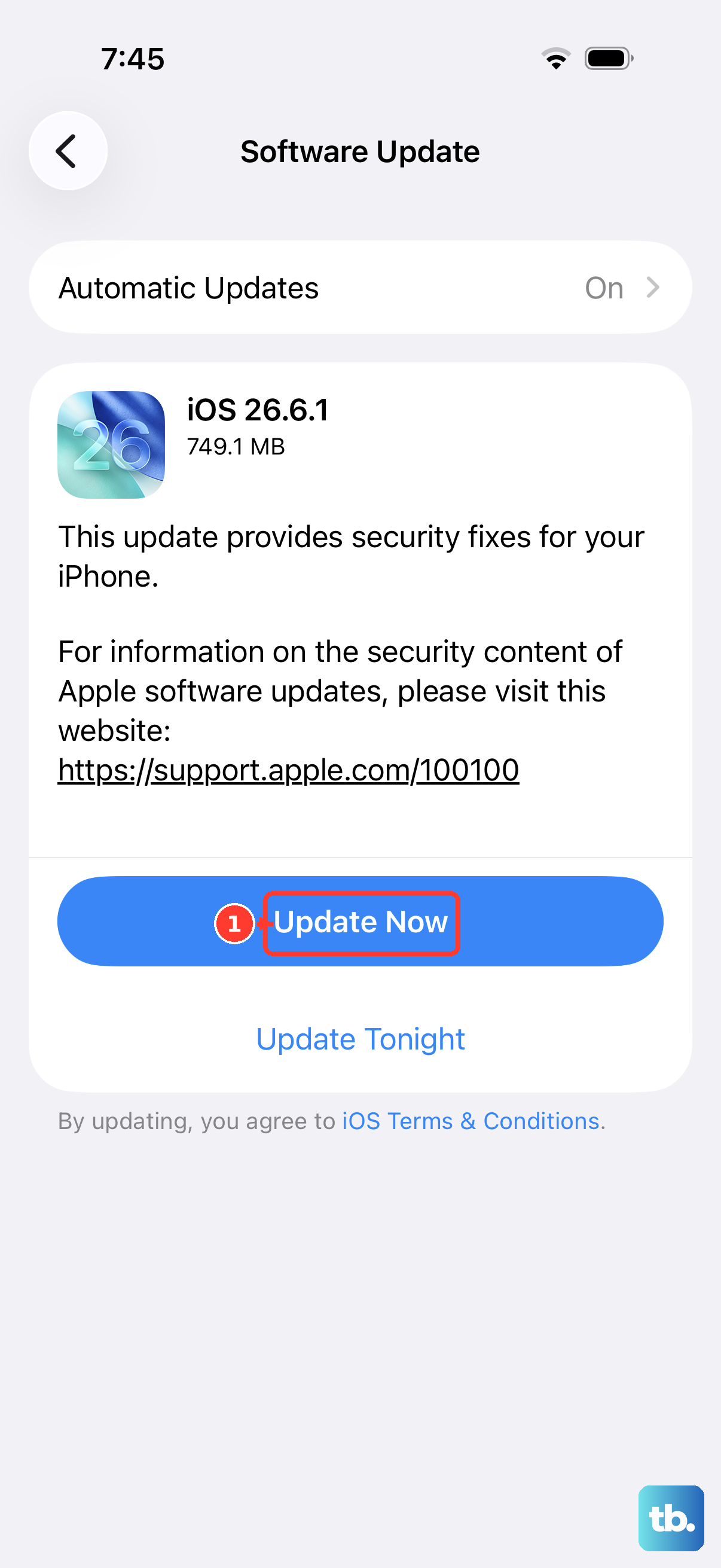
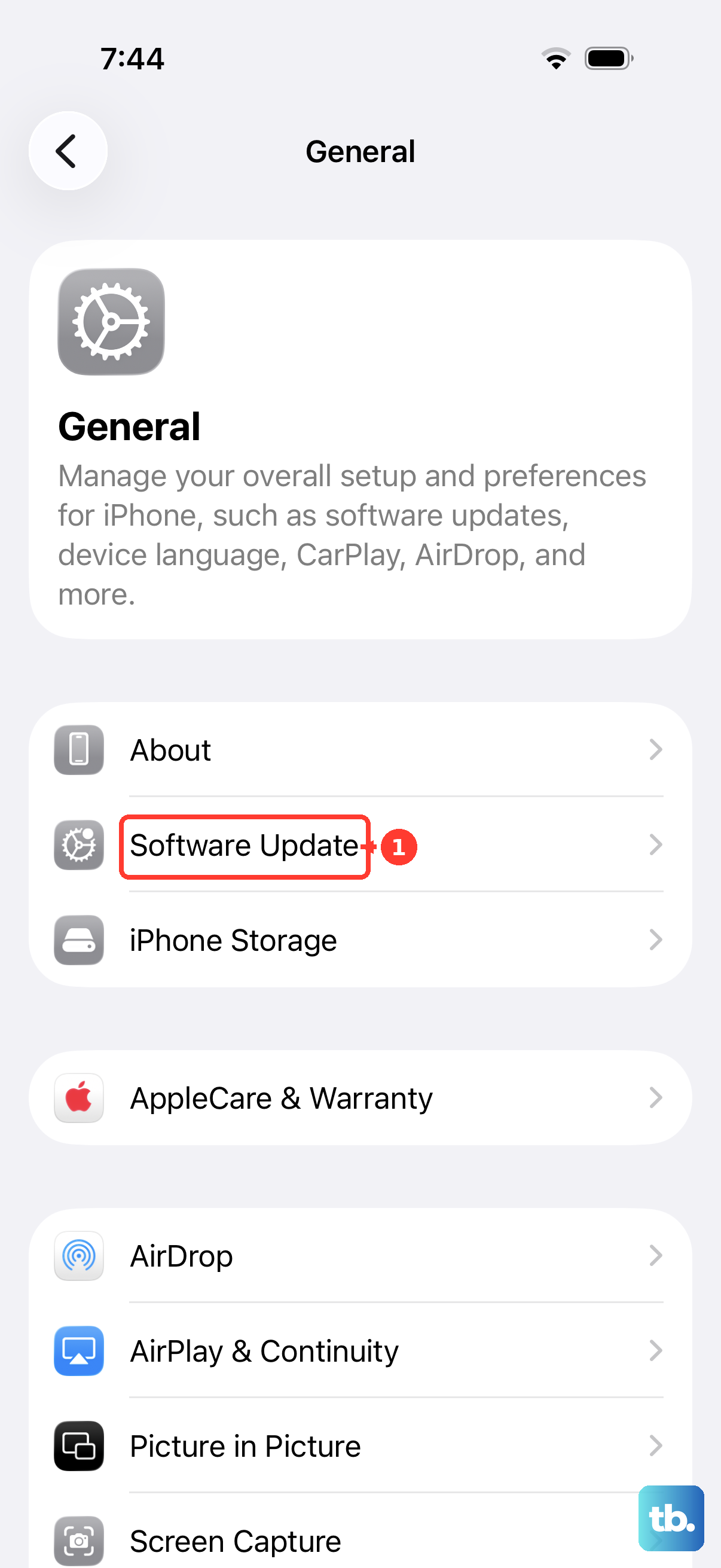
Software bugs that affect the flash are often resolved in an iOS update, and keeping your iPhone current is one of the safer fixes here. Go to Settings > General > Software Update, and if an update is available, tap Download and Install and follow the onscreen instructions.
Updating to the latest iOS keeps your data and settings unchanged, so there is no downside to staying current. Apple also lists updating to the latest iOS among the steps to take when the camera or flash isn't working, which makes it worth doing before moving on to anything drastic.
Erase the iPhone or Get It Serviced
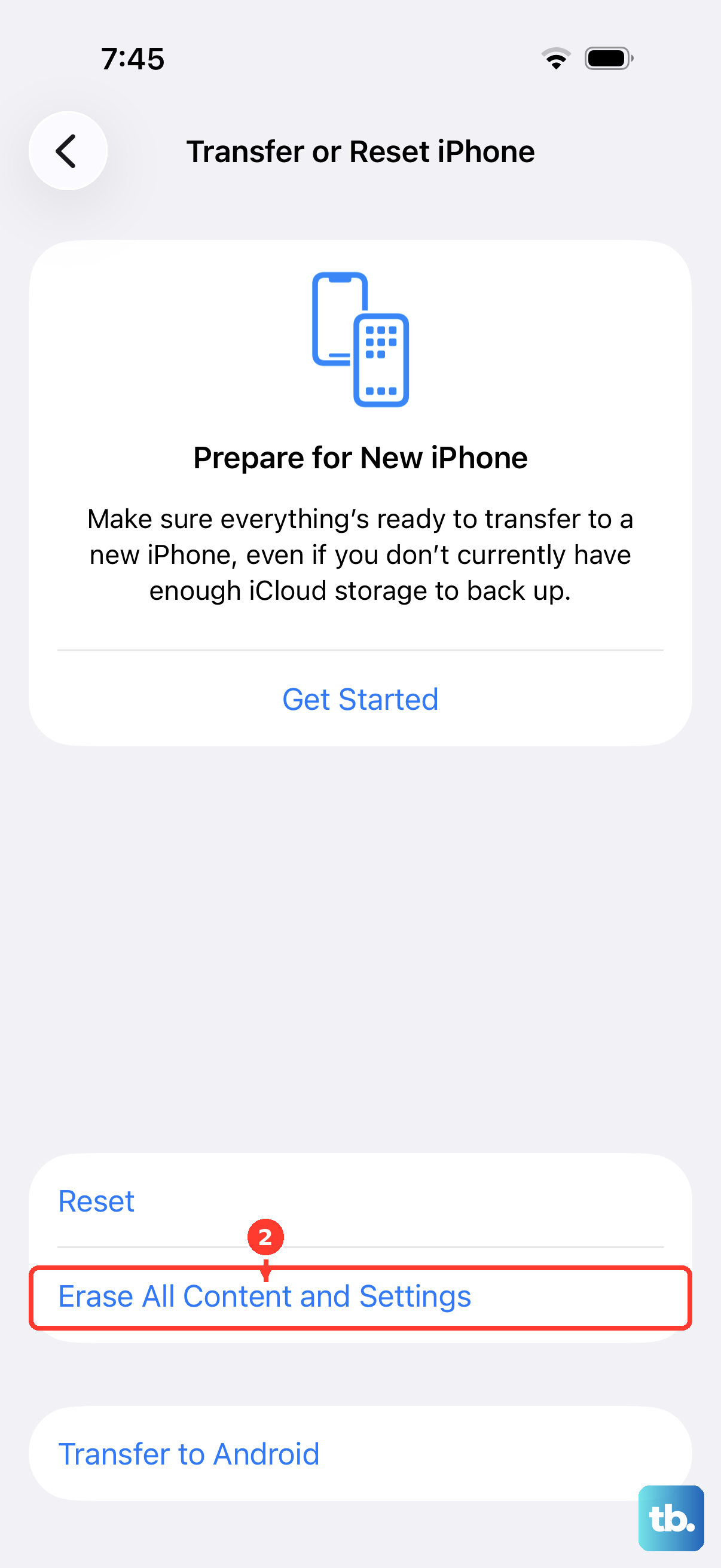
If nothing above has worked, a full reset is the last software option, but treat it as a genuine last resort. Back up your iPhone first, because this step permanently removes all data and settings from the device.
- 1.Make sure you have a current backup of your iPhone.
- 2.Go to Settings > General > Transfer or Reset iPhone > Erase All Content and Settings.
- 3.If asked, enter your iPhone passcode or Apple Account password.
- 4.Tap Continue and follow the onscreen instructions.
After the phone is set up again, test the flashlight from Control Center one more time. If the camera or flash still isn't working properly, the issue is likely hardware, and your iPhone might need service through Apple Support.
Frequently Asked Questions
Why is my iPhone 17 flashlight greyed out or missing in Control Center?
If the Flashlight button is missing, the control may have been removed from your layout. Go to Settings > Control Center, then tap Flashlight in the list of available controls to add it back. You can also turn the flashlight on with Siri or by assigning it to the Action button.
Does the iPhone 17 flashlight use the same light as the camera flash?
Yes. The flashlight and the camera flash use the same LED, which is the rear True Tone flash. Because they share that single light, it helps to close the Camera app and make sure no other app is using the flash when you test the flashlight.
What happens to the iPhone 17 flashlight if the phone gets too hot?
If your iPhone gets too hot, some features can be limited until it cools down, and you may see a temperature warning. Turn off the device, move it somewhere cooler away from direct sunlight, and let it cool down before trying the flashlight again.
Will a force restart erase my data?
No. A force restart (volume up, then volume down, then press and hold the side button until the Apple logo appears) only reboots the phone and leaves your data intact. The only step here that erases data is Erase All Content and Settings, which is why you should back up first.
What should I do if the flashlight still won't work after a reset?
If the flashlight still fails after erasing all content and settings, the problem is most likely hardware. At that point your iPhone might need service, so contact Apple Support to arrange a repair.