
When your iPhone 16 Pro's voice assistant stops responding, it feels like you've lost a helpful sidekick. The good news is that most of the time, it's a quick setting or a temporary glitch that you can fix yourself. Let's walk through the steps to get Siri listening and talking again.
Start With the Quick Fix
Before you dive deep, try a force restart. This clears the phone's temporary memory and can fix a surprising number of minor software hiccups, including Siri issues. On your iPhone 16 Pro, quickly press and release the Volume Up button, then quickly press and release the Volume Down button. Finally, press and hold the Side button until you see the Apple logo appear on the screen.
Confirm Siri is Actually Enabled
It sounds obvious, but sometimes settings get changed accidentally. Open the Settings app and tap on Siri & Search. Make sure the toggle for Listen for "Hey Siri" is switched on. Also, check that Allow Siri When Locked is enabled if you want to use it without unlocking your phone.
While you're there, tap on Siri Responses. If your phone is often in silent mode, you might want to set this to Always so you can still hear Siri's replies even when the ring switch is flipped.
Check for Features That Block "Hey Siri"
iOS has a few features that, when active, will automatically disable the "Hey Siri" trigger. The main one to look for is Sound Recognition in the Accessibility settings. This helpful feature listens for things like smoke alarms or doorbells, but it takes priority over Siri.
Go to Settings > Accessibility > Sound Recognition and make sure it's turned off. Also, if you're using a Focus mode like Do Not Disturb or Sleep, Siri might be configured to stay quiet. Try temporarily disabling your active Focus from the Control Center to test.
Retrain Siri to Your Voice
If Siri seems to hear you but doesn't activate, or if other people's voices trigger it, your voice model might need a refresh. This is especially true if you've had a significant change in your voice or environment. Go back to Settings > Siri & Search and turn off Listen for "Hey Siri".
Wait a moment, then turn it back on. You'll be guided through the setup process again. Speak the phrases clearly in your normal voice. This gives iOS 26 a fresh sample to work with and can dramatically improve accuracy.
Inspect Your Microphones
Your iPhone 16 Pro has multiple microphones for noise cancellation and beamforming. If they're blocked, Siri will struggle to hear you. Check the microphone ports, typically at the bottom, top, and near the rear cameras, for any lint, dust, or case obstruction.
A soft, dry brush or a can of compressed air can gently clear any debris. Be careful not to poke anything into the holes, as you could damage the sensitive components inside.
Review Connected Audio Devices
Siri is designed to work through connected Bluetooth headphones or speakers, but sometimes these connections can cause confusion. If you have AirPods or another audio device paired, try disconnecting it.
You can do this quickly by going to Settings > Bluetooth, tapping the info icon next to the device, and selecting Disconnect. Then, test "Hey Siri" directly on your iPhone's speaker. If it works, the issue might be with the accessory or its connection.
Ensure You Have a Working Internet Connection
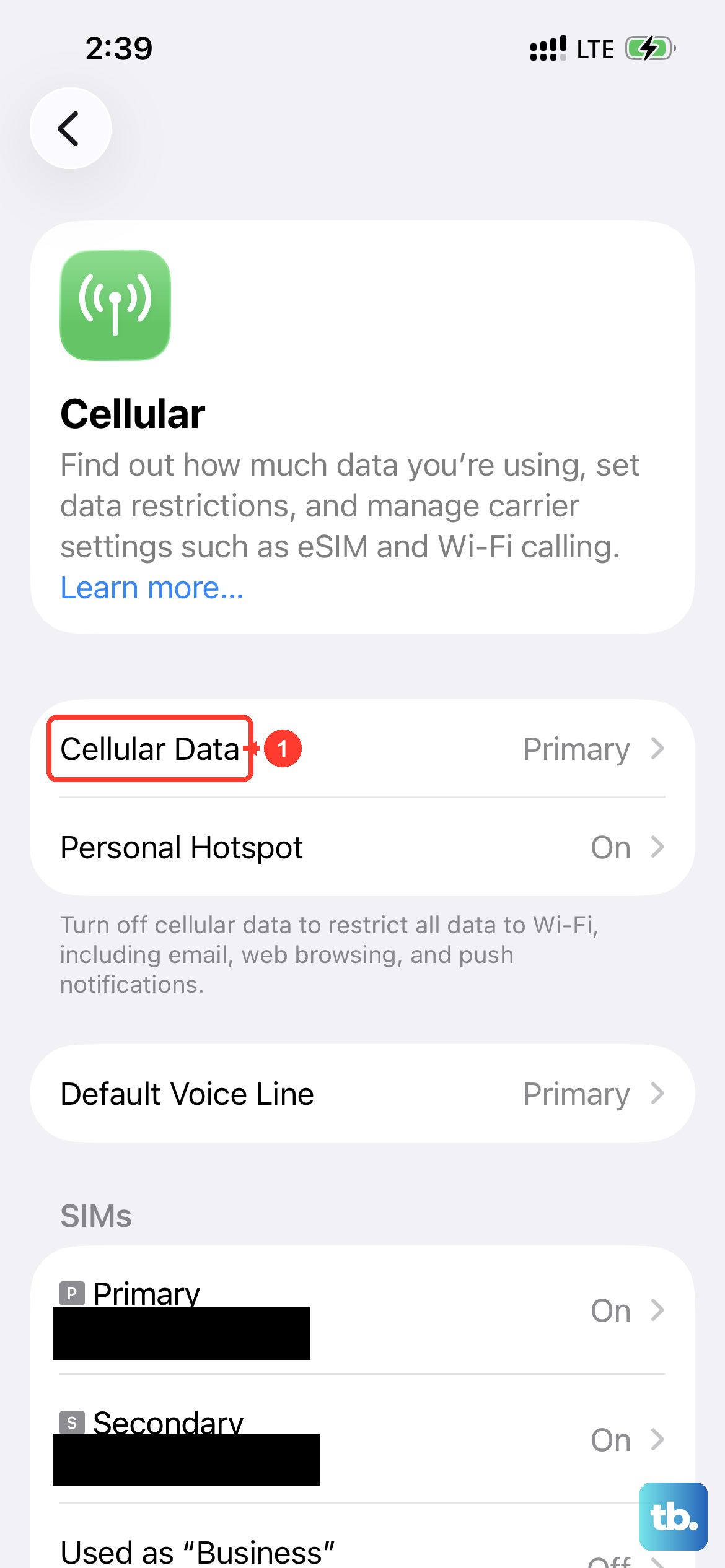
While many basic Siri commands are processed directly on your iPhone 16 Pro, anything that requires looking up information, like weather, sports scores, or web searches, needs an internet connection. Siri may fail silently if it can't reach Apple's servers.
Try loading a webpage in Safari to confirm your cellular data or Wi-Fi is active. If you're on a restricted network, like a public hotspot that requires a login page, Siri might not have the network access it needs.
Update to the Latest iOS Version
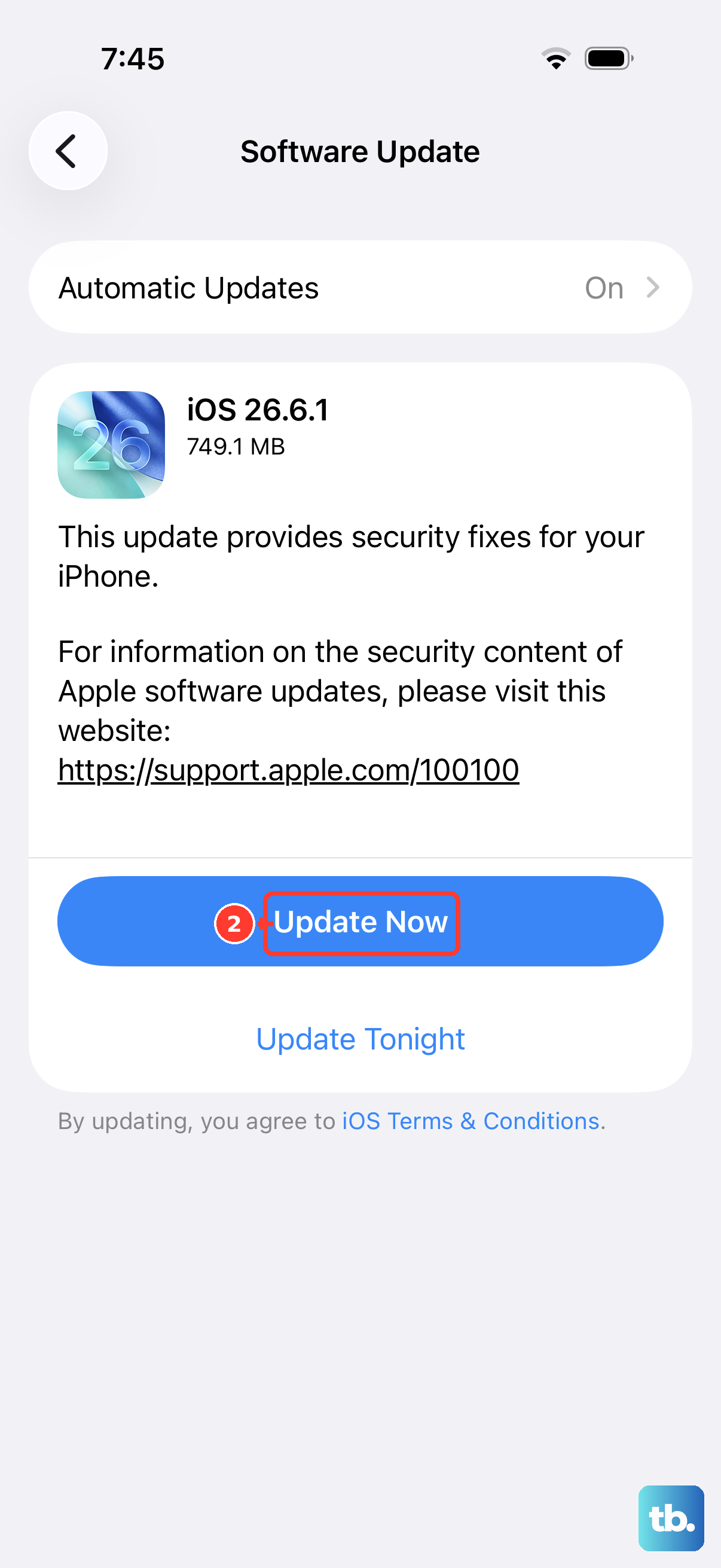
Apple regularly releases iOS updates that include bug fixes and improvements for system features like Siri. A bug in your current version of iOS 26 could be the culprit. Go to Settings > General > Software Update.
If an update is available, I'd recommend installing it. It's a good practice to plug your phone into power and connect to Wi-Fi before starting the update process to ensure it completes smoothly.
Reset All Settings
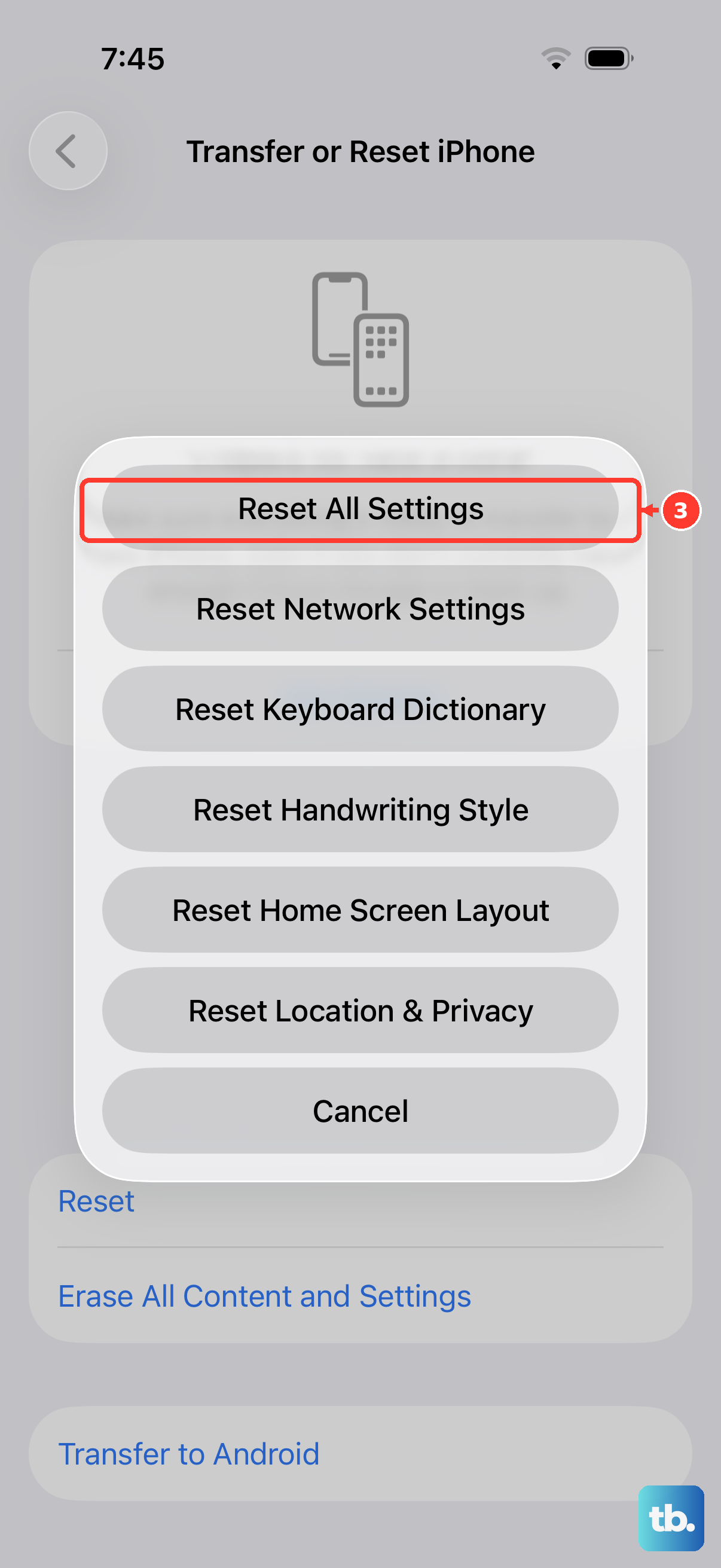
If Siri is still unresponsive, a deeper configuration reset might be necessary. This will revert all your system settings, like Wi-Fi passwords, wallpaper, and privacy permissions, back to their defaults without touching your personal data, photos, or apps.
Go to Settings > General > Transfer or Reset iPhone. Tap Reset, and then choose Reset All Settings. You'll need to enter your passcode. After the phone reboots, you'll need to re-enable "Hey Siri" and reconnect to Wi-Fi networks, but it often clears up persistent software conflicts.
Check for Physical or Audio Issues
As a last step before considering more serious hardware problems, test the basic audio functions. Make a regular phone call and see if the other person can hear you clearly. Try using the Voice Memos app to record a quick note.
If people consistently can't hear you on calls or your recordings are silent, there might be an issue with the primary microphone. Also, ensure nothing is covering the screen or proximity sensor when you say "Hey Siri," as the phone is designed to ignore the command if it thinks it's in a pocket or bag.