
Seeing your iPhone 16 Pro frozen on the Apple logo is a stressful moment. The screen just sits there, sometimes with a progress bar that never fills. This boot loop typically happens after a software update gets interrupted, an app causes a critical crash, or the system files become corrupted. The good news is you can almost always fix it yourself.
Give It Time to Finish
Before you panic, just wait. After a major iOS 26 update, your iPhone 16 Pro can spend a surprisingly long time on the logo screen while it finalizes the installation and optimizes performance. If you see any progress bar at all, the phone is still working. Plug it into power using a certified USB-C cable and leave it completely alone for at least 20 to 30 minutes.
Perform a Force Restart
If the logo is completely static with no progress after a long wait, a force restart is your first real fix. On the iPhone 16 Pro, quickly press and release the Volume Up button, then quickly press and release the Volume Down button. Immediately after, press and hold the Side button. Keep holding it until you see the Apple logo appear and then disappear, then reappear. This interrupts the faulty boot cycle and often gets you right back to your home screen.
Enter Recovery Mode
When a force restart just brings you back to the same stuck logo, you need to use recovery mode. Grab a known-good USB-C cable and connect your iPhone 16 Pro to a Mac or a Windows PC with iTunes installed. On a Mac with macOS Catalina or later, open a Finder window. On a Windows PC or older Mac, open iTunes.
With the phone connected, quickly press Volume Up, then Volume Down, then immediately press and hold the Side button. Don't let go when you see the Apple logo. Keep holding until you see the recovery mode screen, which shows a USB cable pointing at a computer icon. Your computer will then pop up with a message.
You'll be given two choices: Update or Restore. Always choose Update first. This tries to reinstall iOS 26 over your existing software without touching your personal data. The process takes about 15 to 20 minutes and requires a stable internet connection. If the Update option fails or isn't available, you'll have to choose Restore, which erases the phone completely.
Try DFU Mode for Deep Repair
If recovery mode doesn't work or the computer can't see your phone, DFU (Device Firmware Update) mode is the next, more intensive step. This is the deepest restore level and can fix severe software corruption. Connect your iPhone 16 Pro to the computer with a USB-C cable. Quickly press and release Volume Up, then Volume Down. Now, press and hold the Side button for 10 seconds.
After 10 seconds, without letting go of the Side button, also press and hold the Volume Down button. Hold both for 5 seconds. Then, release only the Side button, but keep holding the Volume Down button for another 10 seconds. If done correctly, the screen will remain completely black. Your computer should detect a device in recovery mode and prompt you to restore it. This performs a clean firmware install.
Free Up Storage Space First
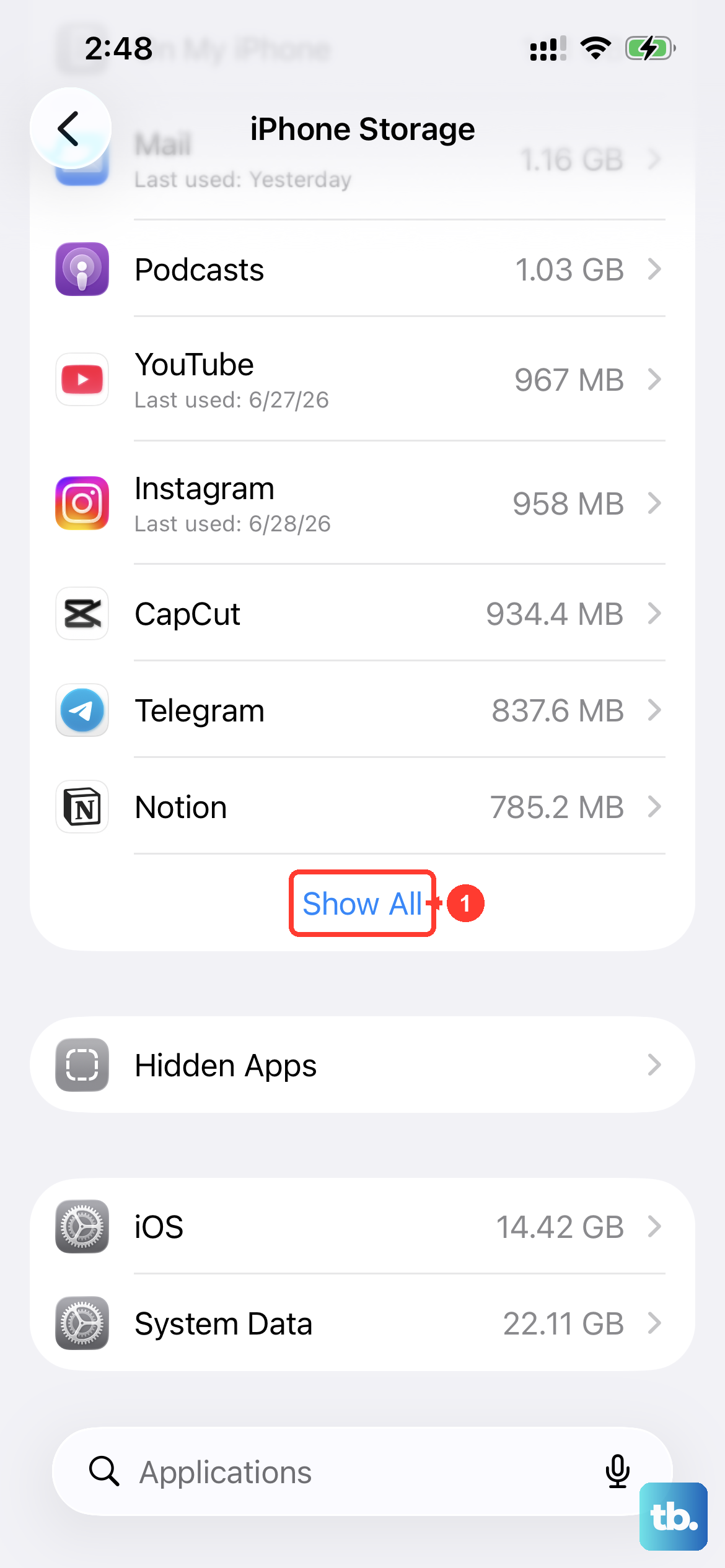
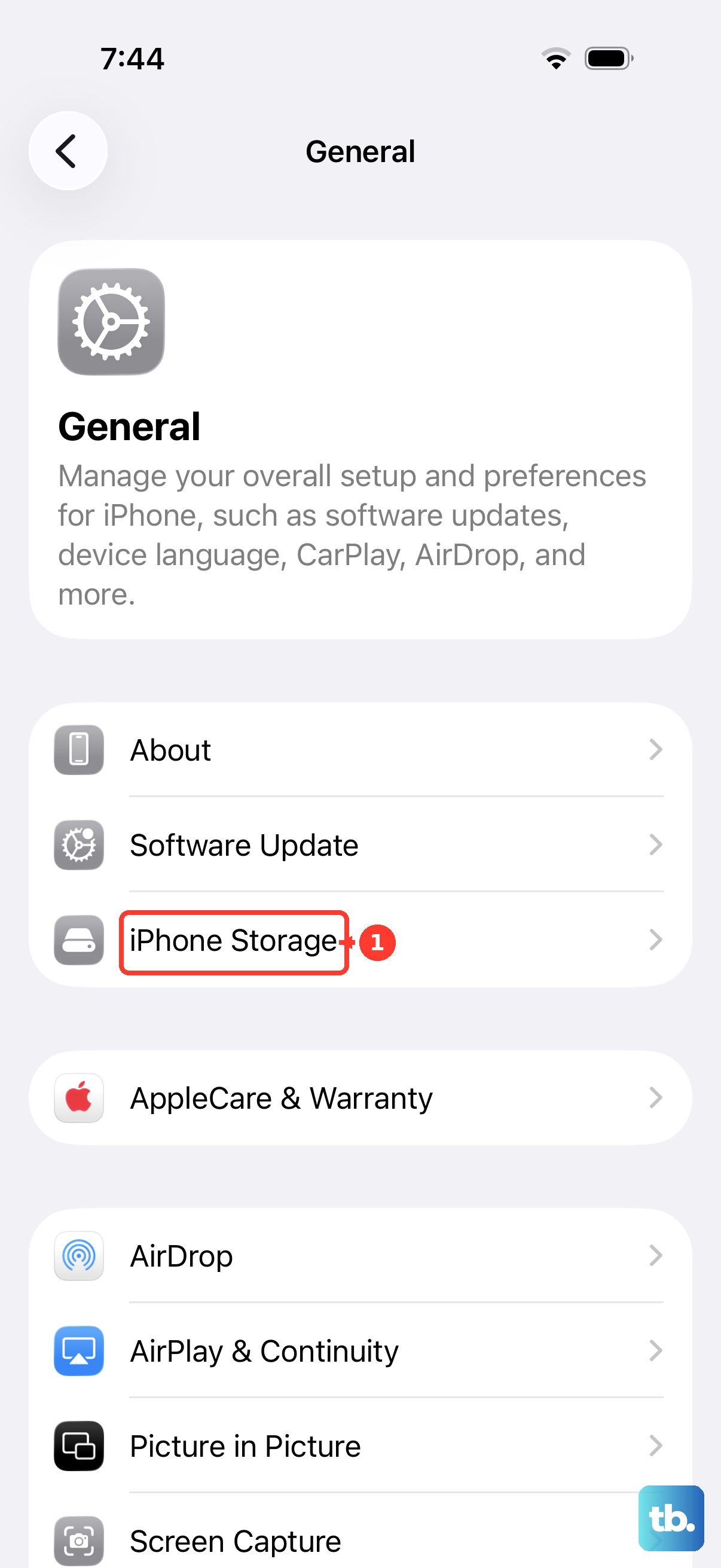
A common trigger for a failed update is running out of storage. The installation process needs several gigabytes of free space to unpack and install new system files. If you manage to get your phone booting after a force restart, immediately go to Settings > General > iPhone Storage. I'd recommend freeing up at least 6-8 GB before attempting any system update on your iPhone 16 Pro, as iOS and app sizes continue to grow.
Check Your Connection to the Computer
If your Mac or PC isn't recognizing the phone in recovery or DFU mode, the cable or port is often the culprit. Try a different USB-C cable, preferably an Apple-certified one. Also, try plugging into a different USB port on your computer, ideally one directly on the machine rather than on a hub. A faulty connection here can block the entire restoration process.
Restore Your Data from a Backup
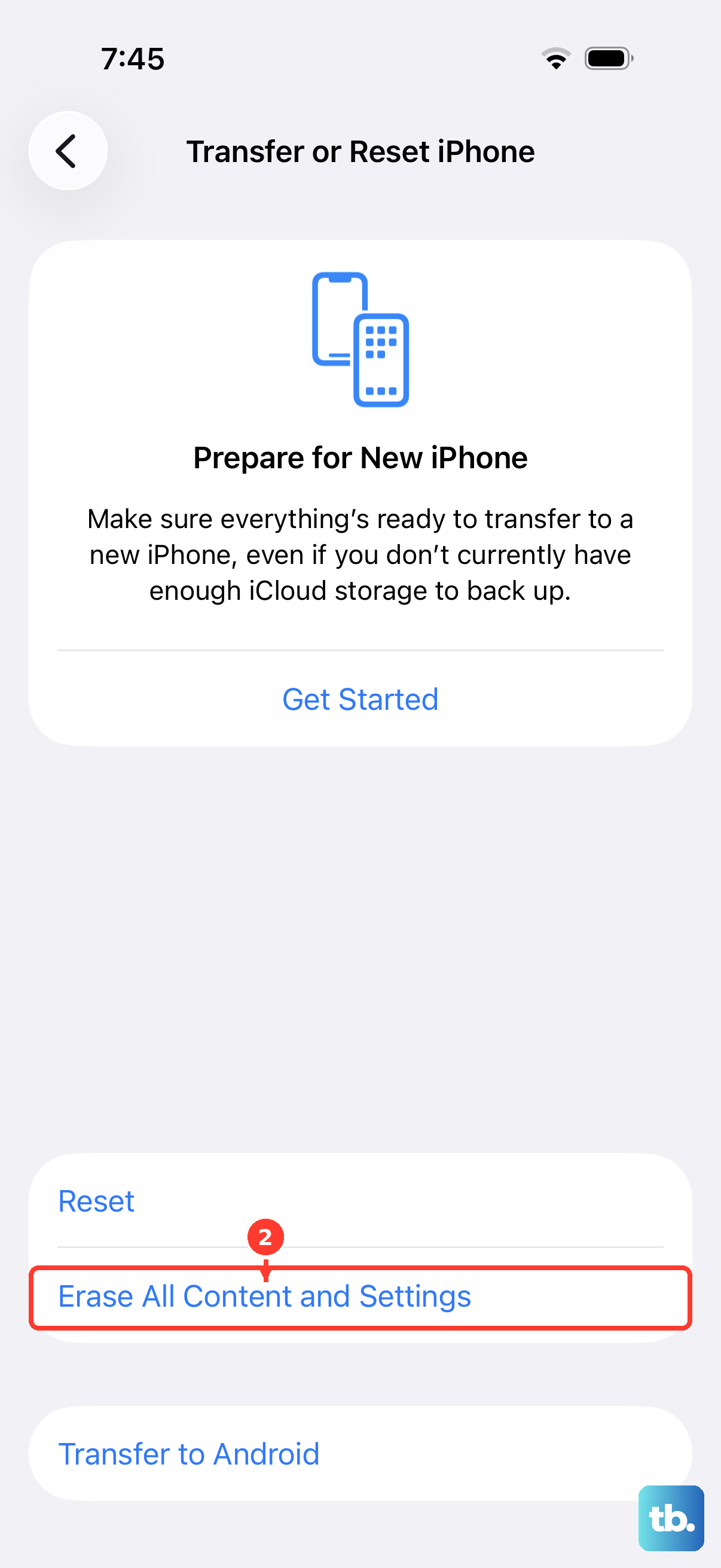
If you had to use the Restore option and erase your iPhone, you can get your data back. After the phone restarts and you begin the setup process, you'll reach the Apps & Data screen. Choose Restore from iCloud Backup or Restore from Mac/PC. This is why maintaining recent backups, either via iCloud or your computer, is so important. It turns a potential disaster into a minor inconvenience.