
If your iPhone 16 Pro's Settings app won't open, it's usually a temporary software hiccup. The app might freeze on a grey screen, crash back to the Home Screen, or simply not respond when you tap it. I'd start with a quick restart, as that clears the phone's memory and often gets things moving again.
Force Restart Your iPhone 16 Pro
This is different from a normal restart and is the most reliable first step. It forces the system to reboot without affecting your data. For the iPhone 16 Pro, quickly press and release the Volume Up button, then quickly press and release the Volume Down button. Finally, press and hold the Side button until you see the Apple logo appear on the screen.
Wait for your phone to fully restart, then try opening the Settings app again. If it's still stuck, the issue might be a bit deeper.
Check for a Software Update
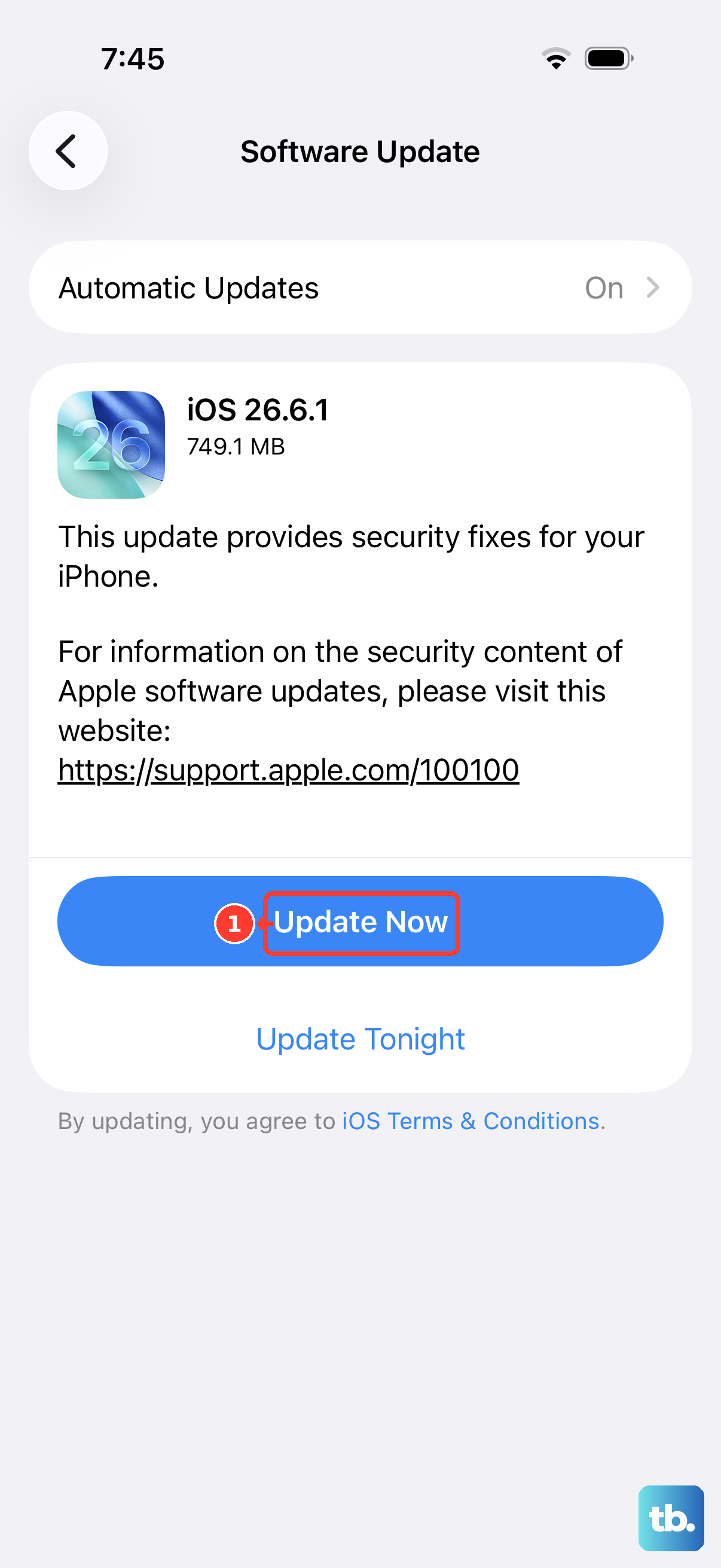
Apple frequently releases iOS updates that include bug fixes for system apps like Settings. Since you can't open Settings normally, you'll need to use a different method. Connect your iPhone to a charger and make sure it's on Wi-Fi.
Open the App Store app and tap your profile icon in the top right. Scroll down to see if any pending updates are listed. If an update for iOS or a critical system component is available, install it. After the update completes, try Settings again.
Free Up Storage Space
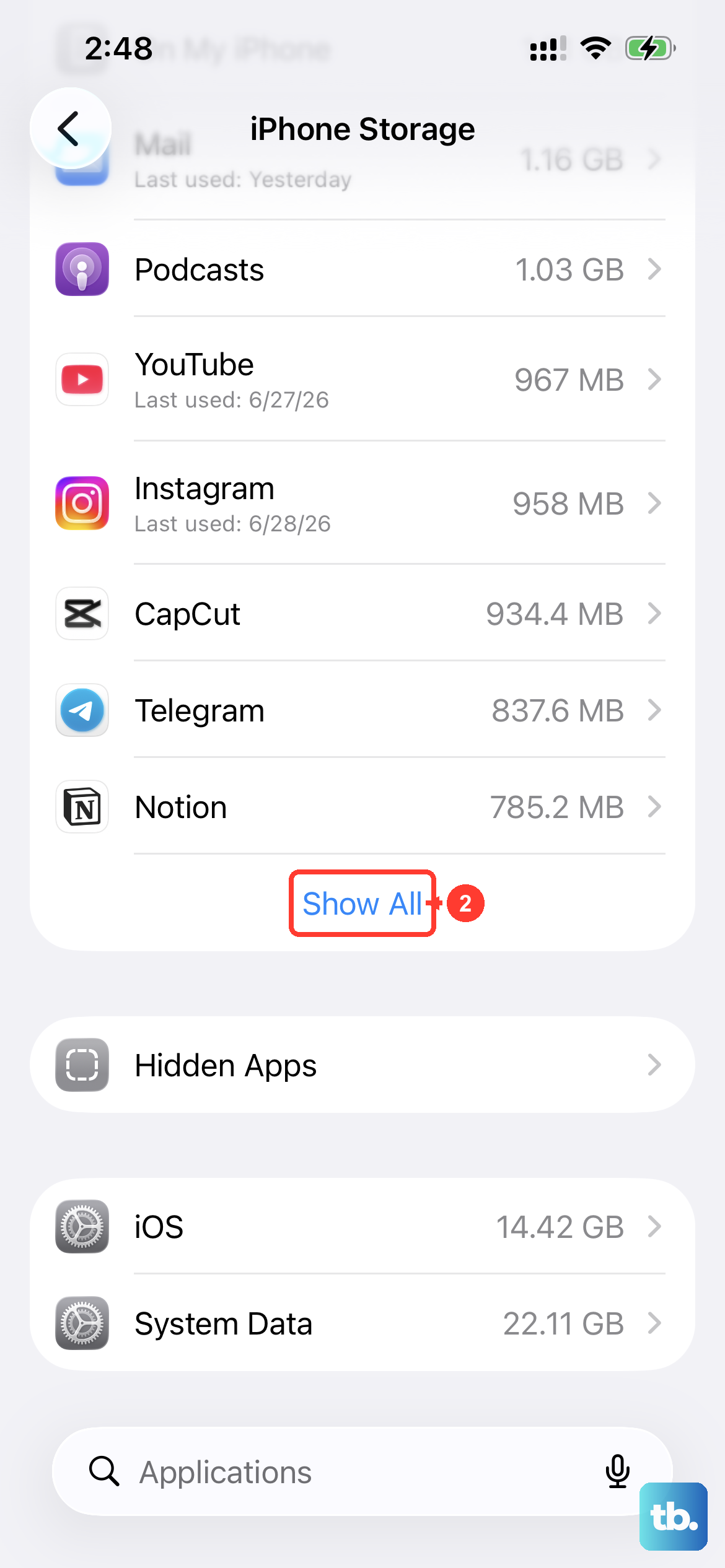
When your iPhone's storage is completely full, system apps can behave unpredictably. You can check storage without opening the main Settings app. Press and hold on the Settings app icon on your Home Screen until a menu pops up.
Tap "Show App Info" or the (i) icon. On the next screen, look at the "Storage" section. If it's showing as nearly full, you'll need to delete some large files like videos, old message threads, or unused apps directly from their respective apps to free up space.
Reset All Settings
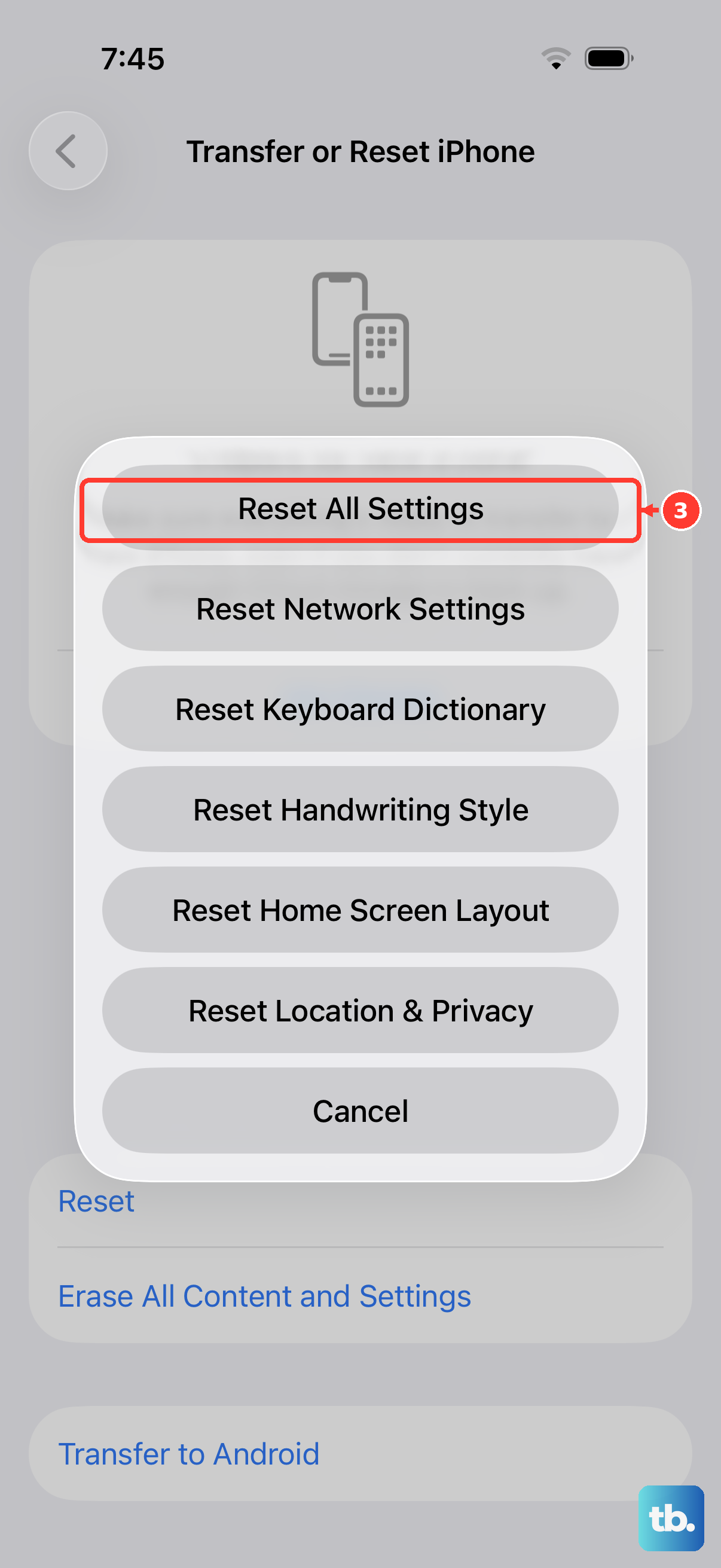
This is a more thorough step that resets all your preferences, like Wi-Fi passwords, wallpaper, and privacy settings, back to factory defaults. It doesn't delete your personal data like photos or messages. Since you can't access Settings, you'll use the Accessibility shortcut.
Quickly press the Side button three times in a row. This should activate the Accessibility shortcut. If you haven't set it up before, you may need to quickly tap the screen when the menu appears. Look for an option labeled "Reset All Settings" and confirm your choice.
Your phone will restart. After it boots up, you'll need to reconnect to Wi-Fi and redo some preferences, but the Settings app should be accessible again.
Restore via Finder or iTunes
If the app is still broken, the last software step is to restore the iOS software. This will reinstall a fresh copy of iOS 26 on your iPhone 16 Pro. You have two options: a standard restore, which erases your phone, or a "Restore" that updates the software without erasing data, though a backup is still strongly recommended.
Connect your iPhone to your computer using a certified USB-C cable. On a Mac with macOS Catalina or later, open Finder. On a Windows PC or older Mac, open iTunes. Select your iPhone when it appears.
In the main screen, you'll see a button that says "Restore iPhone." Clicking this will download and install the latest version of iOS. Make sure your computer stays connected to the internet and your phone stays connected throughout the entire process, which can take some time.