
If your iPhone 16 Pro is refusing to send photos or videos in the Messages app, it's almost always a quick fix. The most common culprit is a setting that got switched off, so let's start there.
Open Settings and tap Messages. Make sure the switch for MMS Messaging is turned on. If it's off, your phone will only send iMessages for media when available, and fail completely when texting Android users. Also, check that Send as SMS is enabled below it as a backup.
Check Your Cellular Data Connection
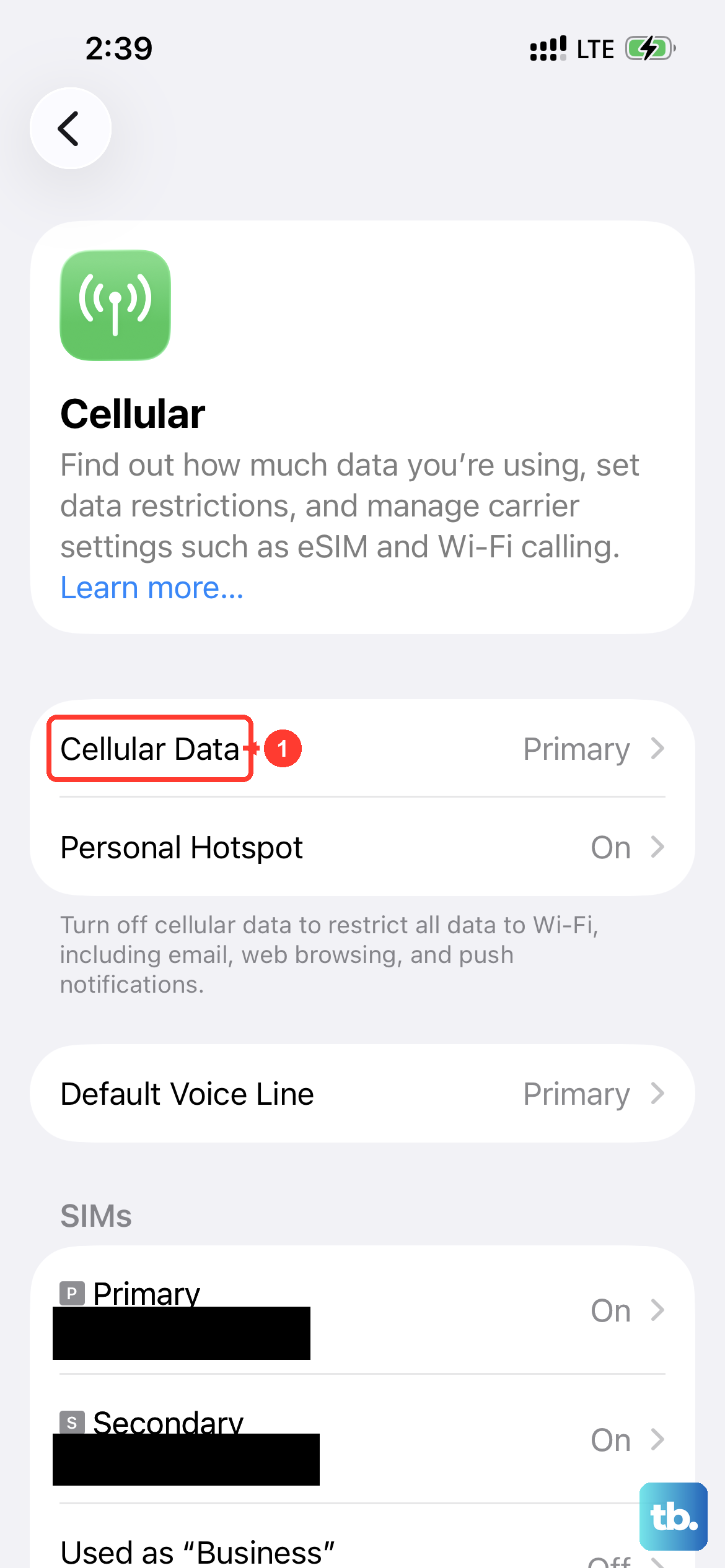
Unlike iMessage, MMS requires a cellular data connection to send. If you're on Wi-Fi but have a weak cellular signal, or if cellular data is off for Messages, your photo will just sit there. Swipe down from the top-right corner to open Control Center and make sure the cellular data icon is active.
You can also check if Messages has permission to use data. Go to Settings > Cellular and scroll down to see if Messages is listed and toggled on. If you're using iOS 26's more granular controls, you might find this under Settings > Apps > Messages > Cellular Data.
Force Restart Your iPhone 16 Pro
A simple software glitch can sometimes hang up the messaging service. A force restart clears this without affecting your data. On the iPhone 16 Pro, you do this by quickly pressing and releasing the Volume Up button, then quickly pressing and releasing the Volume Down button. Finally, press and hold the Side button until you see the Apple logo appear, then let go.
Wait for the phone to reboot completely, then try sending the MMS again. I've found this resolves the issue more often than you'd think, especially after a recent iOS update.
Review Your Carrier Settings Update
Your carrier occasionally sends small updates that configure network features like MMS. If one failed to install properly, it could break sending. To check, go to Settings > General > About.
If a carrier settings update is available, a prompt will appear on this screen. Just follow the instructions to install it. You'll need a good Wi-Fi or cellular connection for this to download.
Reset Your Network Settings
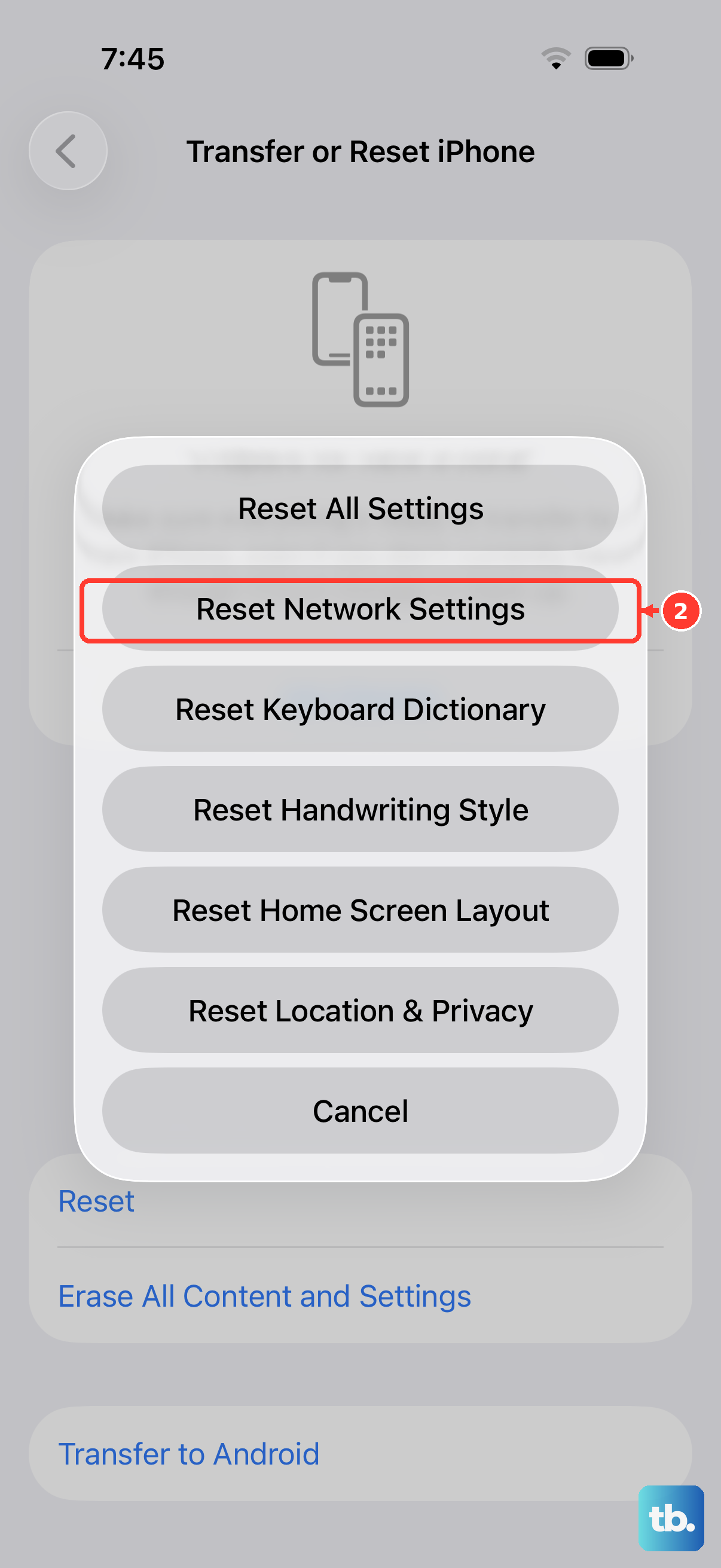
This is a more thorough step if the basic checks don't work. Resetting network settings clears all your Wi-Fi passwords, VPN configurations, and cellular network preferences, then reinstalls them fresh. It often fixes persistent MMS and data issues.
Go to Settings > General > Transfer or Reset iPhone. Tap Reset and choose Reset Network Settings. You'll need to enter your passcode and confirm. Your iPhone will restart, and you'll have to reconnect to Wi-Fi networks afterward.
Check for an iOS 26 Update
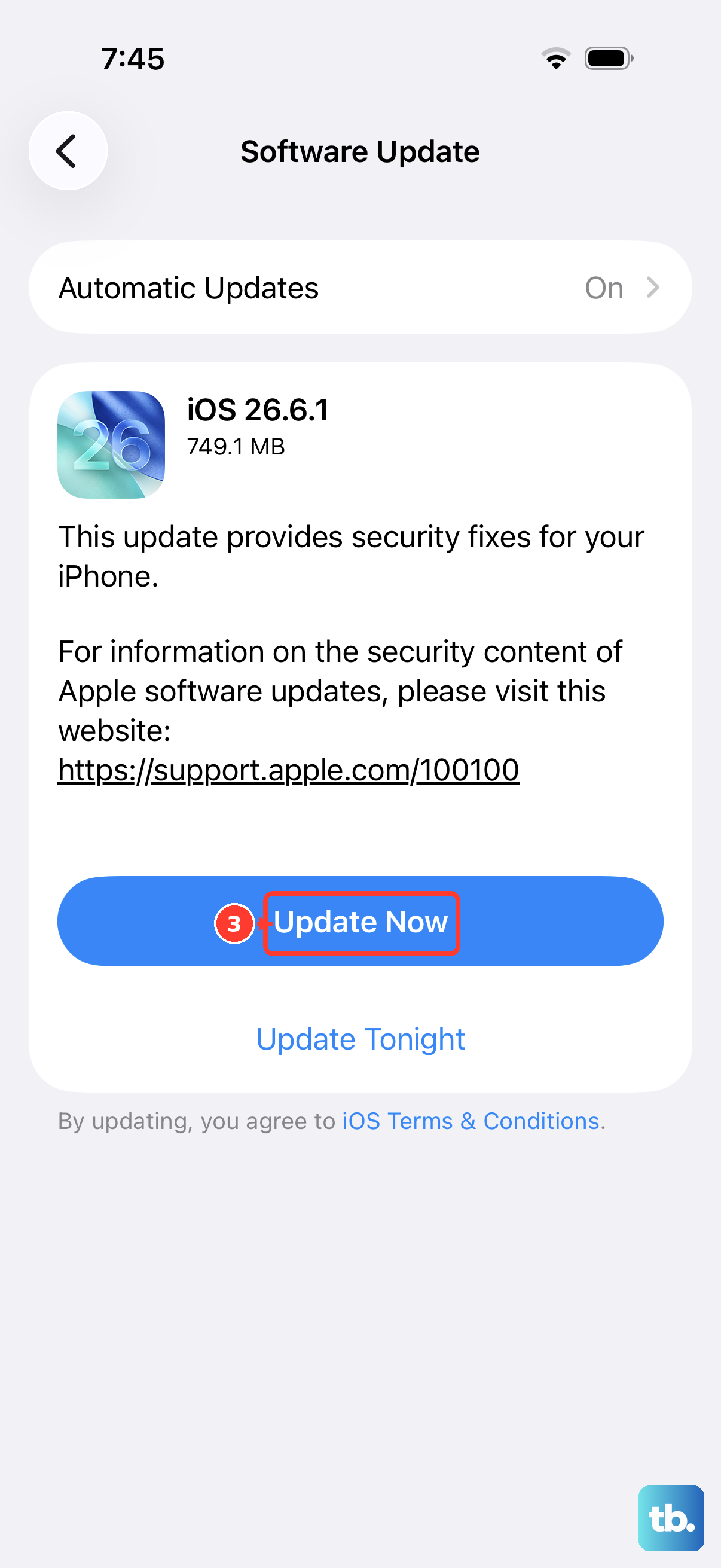
Apple is constantly patching bugs with iOS updates. A problem with the Messages app or cellular modem firmware in an early version of iOS 26 could be the root cause. Updating is a good step.
Open Settings > General > Software Update. If an update is available, tap Download and Install. I'd recommend doing this over Wi-Fi and ensuring your iPhone 16 Pro is connected to its USB-C charger, as the process can take a while.
Verify the Message Size and Your Storage
Carriers have strict size limits for MMS, usually around 1 MB. If you're trying to send a very high-resolution video directly from your iPhone 16 Pro's camera, it may be too large. The Messages app should compress it, but if it fails, try sending a shorter clip or a still photo first.
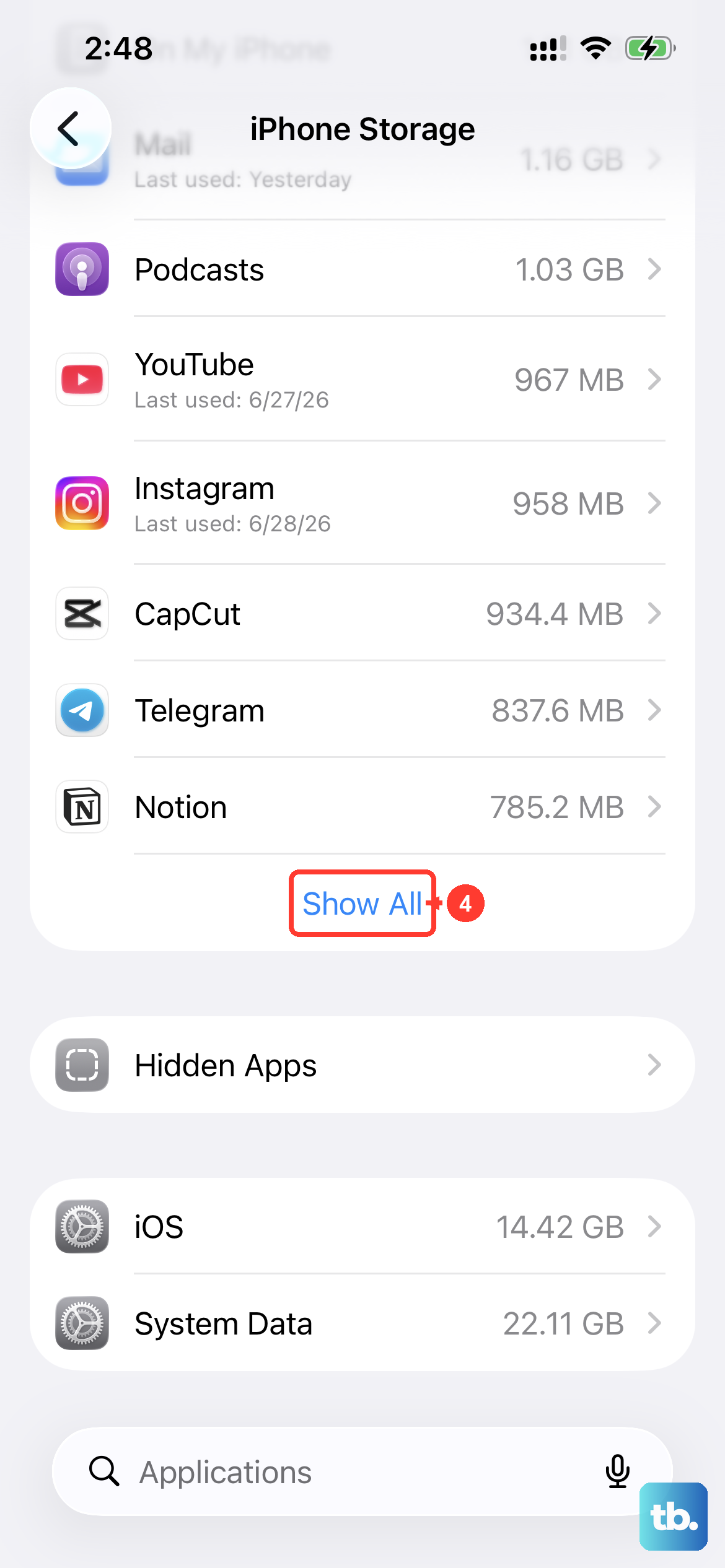
Also, if your phone's storage is completely full, the system may not have space to process the outgoing message. Check your storage in Settings > General > iPhone Storage and free up some space if you're critically low.
Contact Your Carrier
If you've tried everything here, the issue might be on your carrier's end. They can check if MMS is provisioned correctly on your account and if there are any network outages in your area. Tell them you've already verified MMS is enabled on the device and that you've reset network settings.
They can sometimes reprovision your service or check for account-level blocks that would prevent multimedia messaging. This is a rare fix, but it's the final step before considering a hardware issue with your iPhone 16 Pro's cellular antenna.