Your iPhone 16 Pro should hit 50 percent in around 30 minutes, but lately the battery is creeping up far slower than that, or the charge seems to stop short. Fast charging on this model depends on three things lining up: the right adapter, a clean undamaged connection, and software that is behaving normally. Most slow-charging complaints on the iPhone 16 Pro trace back to an accessory or a setting rather than a broken phone. Work through the checks below in order, starting with the easiest and safest, and you will usually have full-speed charging back without a service visit.
Why your iPhone 16 Pro might not be fast charging
The iPhone 16 Pro is officially fast-charge capable. Apple's tech specs list "Up to 50% charge in around 30 minutes" over its USB-C connector. The catch is that the phone ships with only a USB-C Charge Cable and no power adapter in the box. That single detail is behind a large share of "fast charging not working" reports, because the cable alone cannot deliver fast-charge power without a suitable adapter.
For wired fast charging, Apple specifies an 18W or greater USB-C power adapter paired with a USB-C cable. The model also supports MagSafe wireless charging up to 25W, peaking at up to 22.5W on the iPhone 16 Pro, along with Qi2 up to 15W and Qi up to 7.5W. Knowing which path you are using matters, because the requirements differ between wired and wireless charging.
Use a fast-charge-capable adapter and the right cable
Since the iPhone 16 Pro does not include a power adapter, a low-wattage adapter or a computer's USB port will charge slowly and will not reach fast-charge speeds. For wired fast charging, Apple says to use an 18W or greater USB-C power adapter together with a USB-C cable. With that combination, the iPhone 16 Pro can reach up to 50 percent charge in around 30 minutes.
If you are charging wirelessly with MagSafe, make sure your MagSafe charger is connected to an adapter that can supply enough power for it. Plugging a MagSafe charger into an underpowered adapter is a common reason wireless charging feels sluggish.
Check the cable, adapter, and outlet for damage and firm connections
A loose or damaged connection is one of the most common causes of slow or no charging. Apple advises you to "Check your charging cable and USB adapter for signs of damage, like breakage or bent prongs."
Then confirm the power source itself. Apple says to "Use a wall power outlet and check for firm connections between your charging cable, USB wall adapter, and wall outlet." Reseat each connection so the cable sits firmly in the adapter and the adapter sits firmly in the outlet.
Clean the USB-C charging port
Lint, dust, and pocket debris build up inside the USB-C port over time and stop the cable from seating fully, which interrupts or weakens charging. Apple's instruction is direct: "Remove any debris from the charging port on the bottom of your device, then firmly plug your charging cable into your device."
After clearing the port, push the cable in until it sits securely. If the charge speed jumps back up once the connection is solid, debris was your problem.
Try a different USB-C cable or charger
If the connection looks clean but charging is still slow, isolate the accessory. Apple advises you to try a different USB-C cable or charger.
Use a known-good, fast-charge-capable USB-C cable and an 18W or greater USB-C adapter for this test. If the phone charges quickly with the substitute gear, the original cable or adapter is the culprit and should be retired.
Clear the Accessory may not be supported alert
If you see an "Accessory may not be supported" message, your iPhone may be refusing to charge at full speed. Apple's guidance is to first make sure you have the latest version of iOS, then "Disconnect and reconnect the accessory to clear the alert."
Next, inspect the hardware. Apple says to check "the connectors on the accessory and your device for damage or debris. If necessary, gently remove the debris and clean the connectors on your device." This alert can mean the port is dirty or damaged, the accessory is defective, or the accessory simply was not designed or certified to charge the device.
Let the phone cool down or warm up
Temperature has a direct effect on charging speed. Fast charging might not work well when the iPhone is too cold or too hot, and if the phone gets warm the software can limit charging until it cools.
If the iPhone is hot, move it to a normal-temperature spot, take it out of direct sunlight or off a heat source, and remove a thick case if it is trapping heat while you charge. Once the temperature returns to normal, charging usually resumes at full speed.
Know that charging can pause near 80 percent on purpose
If charging seems to slow or stop around 80 percent, that is often expected behavior rather than a fault. Optimized Battery Charging is a built-in feature that helps slow battery aging by reducing the time your iPhone spends fully charged.
With this feature active, your iPhone can hold near 80 percent and finish charging closer to when you usually need it. So a pause near 80 percent, especially overnight, is the phone protecting battery health, not failing to fast charge.
Position a MagSafe charger correctly and remove obstructions
MagSafe charging needs a clean, aligned setup. Remember the iPhone 16 Pro peaks at up to 22.5W on MagSafe. Apple says to "Place your MagSafe Charger face up, as shown, on a flat surface, clear of any metal objects or other foreign material."
Just as important, do not leave credit cards, badges, passports, or key fobs between the iPhone and the charger. If you use a wallet case or hold cards behind the phone, remove those items before charging so the magnetic alignment and power transfer are not blocked.
Update to the latest iOS
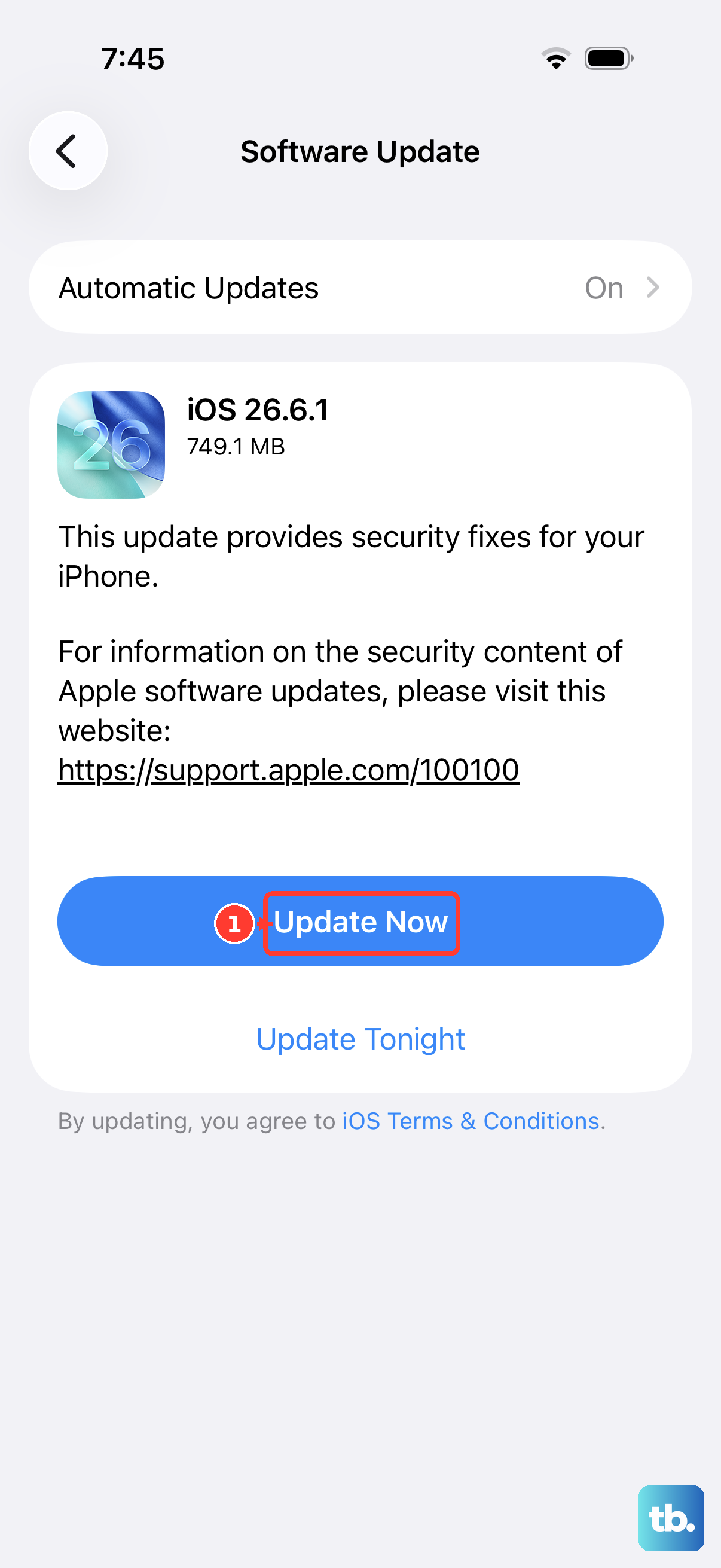
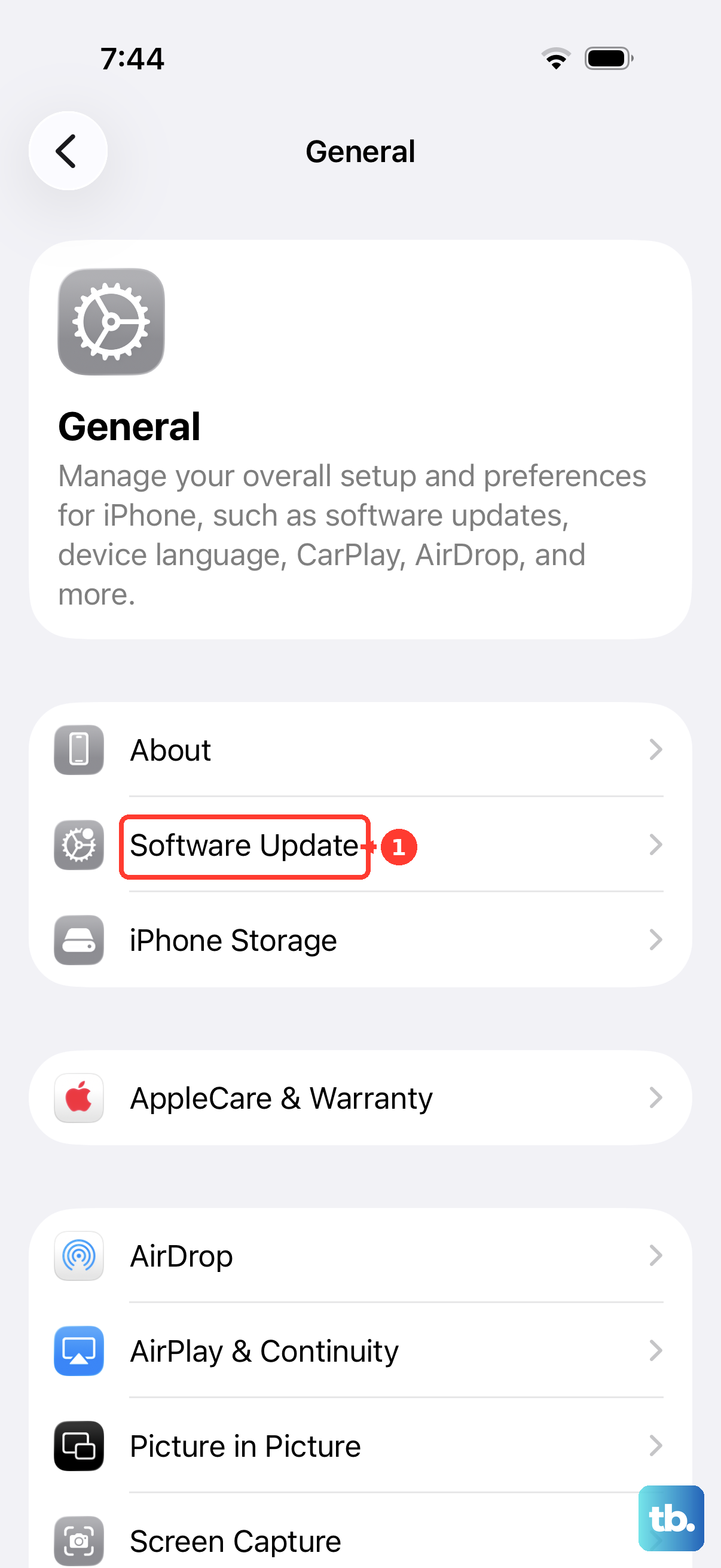
Apple recommends making sure you have the latest version of iOS, since software issues can affect charging. On your iPhone 16 Pro, go to Settings, tap General, then tap Software Update. If an update is available, tap Download and Install.
During the update, keep the phone plugged into power and connected to the internet with Wi-Fi so the process completes cleanly.
Force restart the iPhone 16 Pro
If charging behaves erratically, a force restart can clear a temporary software glitch without erasing anything. On this Face ID model, the sequence is precise. Press and quickly release the volume up button. Press and quickly release the volume down button. Then press and hold the side button until you see the Apple logo, which might take longer than 10 seconds.
If the phone is completely dead and will not respond, charge it for up to one hour first, then perform the force restart.
Erase all content and settings as a last software step
If nothing above restores fast charging and you suspect a deeper software problem, a full reset is the final software measure. This completely erases the device, so back up first so you can restore your data afterward.
- 1.Go to Settings.
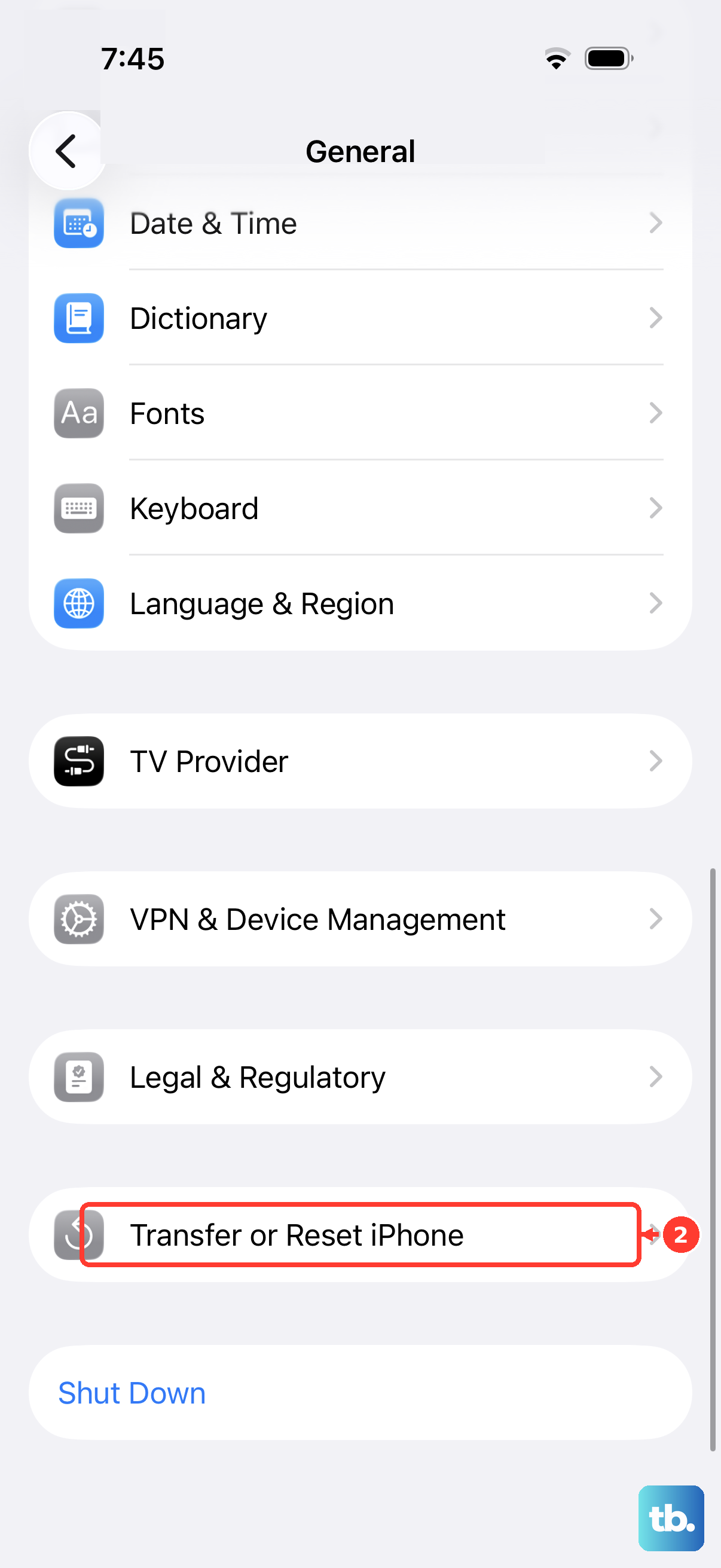
- 2.Tap General.
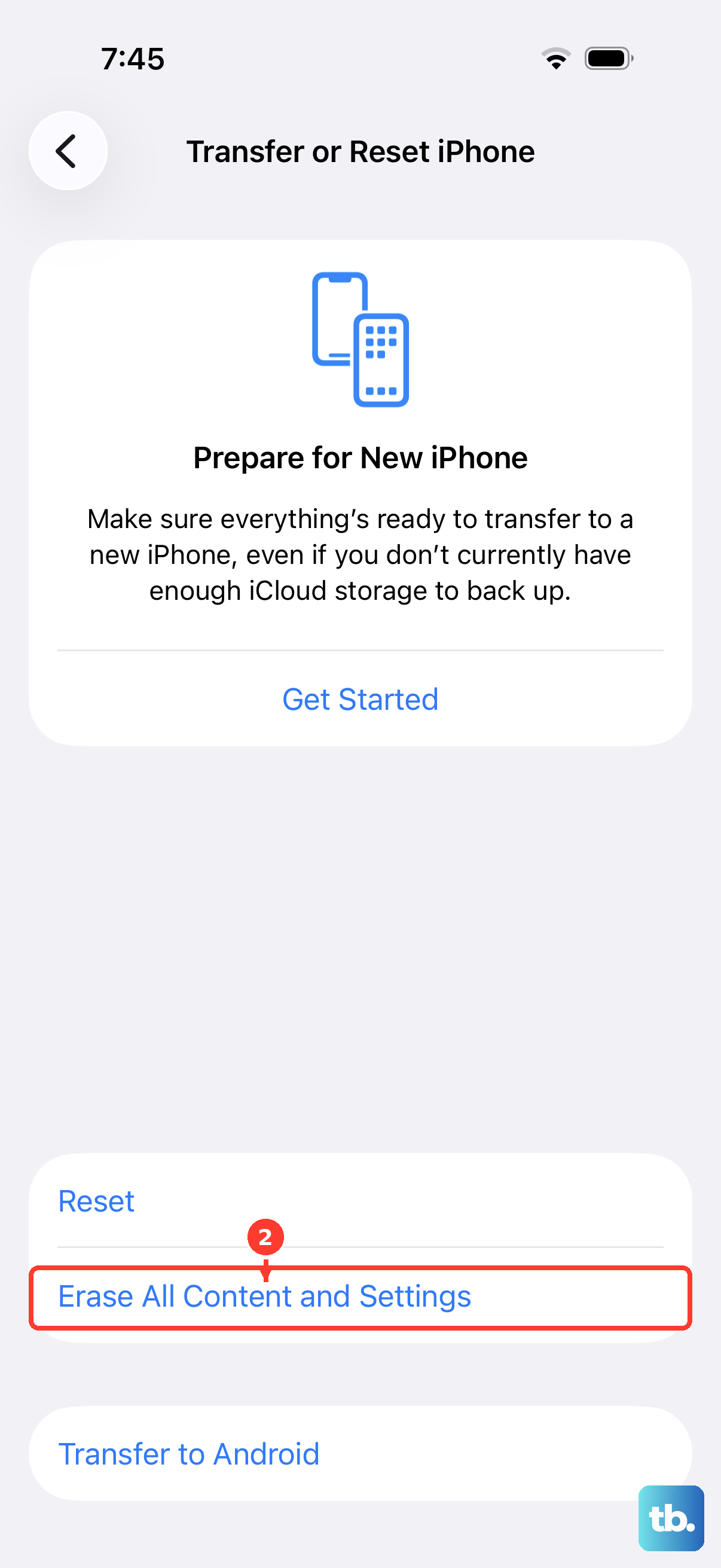
- 3.Tap Transfer or Reset iPhone.
- 4.Tap Erase All Content and Settings.
- 5.Tap Continue.
- 6.Choose to keep or delete your eSIM.
- 7.Enter your device passcode and your Apple Account password, then wait for the device to erase.
Once the phone restarts, set it up and restore from your backup, then test charging again.
When to contact Apple Support or book service
If fast charging still fails after every step above, the cause may be hardware, such as the port, the battery, or the accessory itself. You can reach help through the Apple Support app or the official Apple support website, or visit an Apple Store or an Apple Authorized Service Provider.
One specific sign to watch for is an accessory alert that keeps appearing when nothing is connected. If that happens, you should get the device serviced.
Frequently Asked Questions
Why doesn't my iPhone 16 Pro fast charge with the cable that came in the box?
The iPhone 16 Pro ships with only a USB-C Charge Cable and no power adapter. To fast charge, you need to add a separate 18W or greater USB-C power adapter for wired charging, or use a MagSafe charger connected to an adapter that can supply enough power for wireless charging.
How fast should the iPhone 16 Pro charge?
Apple's tech specs state the iPhone 16 Pro can reach up to 50 percent charge in around 30 minutes when fast charging with a suitable adapter and cable.
Is it normal for charging to slow down around 80 percent?
Yes. Optimized Battery Charging helps slow battery aging by reducing the time your iPhone spends fully charged, and it can wait until closer to when you need the phone to finish charging past 80 percent. A pause near 80 percent is usually expected, not a defect.
Can temperature stop my iPhone from fast charging?
It can. Fast charging might not work well when the iPhone is too cold or too hot, and if the phone is warm the software can limit charging until the temperature drops back to normal.
What should I do if I keep seeing Accessory may not be supported?
Update to the latest iOS, disconnect and reconnect the accessory to clear the alert, and check the connectors on both the accessory and your iPhone for damage or debris, cleaning gently if needed. If the alert keeps appearing when nothing is connected, contact Apple Support and get the device serviced.