You plug your iPhone 16 into the same wall outlet you have always used, expecting to see the battery jump up, and 30 minutes later it has barely moved. Maybe the charging icon shows but the percentage crawls, or maybe nothing happens at all. The frustrating part is that fast charging on the iPhone 16 depends on more than just a working cable, and the device no longer comes with a power adapter in the box, so the culprit is often something simple that you can fix in a few minutes. The fixes below are ordered from the easiest and safest to the more involved, so start at the top and work your way down only as far as you need to.
Make Sure Your Charger Can Actually Deliver Fast-Charge Power
This is the single most common reason the iPhone 16 refuses to fast charge. The phone ships with only a USB-C Charge Cable (1 m) and documentation in the box, with no power adapter included, so if you are reusing an old, low-wattage brick, the higher charging speed simply will not engage.
Apple states the iPhone 16 reaches up to 50% charge in around 30 minutes with a 20W adapter or higher (available separately) paired with a USB-C charging cable, or a 30W adapter or higher paired with a MagSafe Charger. For wired fast charging you need a 20W or higher power adapter, and you must use a USB-C cable like the one that came in the box.
If your current adapter is below 20W, that alone explains the slow speed. Swap in a 20W or higher USB-C power adapter and the fast-charge behavior should return.
Inspect the Cable, Adapter, and Every Connection
Even the right wattage will not help if a component is damaged or loose. The official guidance is to check your charging cable and USB adapter for signs of damage, like breakage or bent prongs, and to use a wall power outlet rather than another power source.
You should also check for firm connections between your charging cable, USB wall adapter, and wall outlet. A cable that looks fine but sits loosely in the adapter can drop the connection enough to stop fast charging.
If you have a spare cable or charger that meets the wattage requirement, try them. Substituting a known-good cable or adapter is the fastest way to rule out a faulty accessory.
Clear Out the USB-C Charging Port
Pocket lint and debris collect in the USB-C port at the bottom of the iPhone 16 and quietly block a solid connection. The official advice is to remove any debris from the charging port on the bottom of your device, then firmly plug your charging cable into your device.
Look into the port in good light first. Clearing it gently and then pushing the cable in until it seats fully can restore the firm contact that fast charging needs.
Give It 30 Minutes, Then Restart
Sometimes a deeply drained or briefly confused iPhone needs a moment before it responds. Apple says to let your device charge for half an hour, then restart the iPhone.
To restart an iPhone with Face ID, which includes the iPhone 16, follow these steps.
- 1.Press and hold either volume button and the side button until the power-off slider appears.
- 2.Drag the slider, then wait 30 seconds for the device to turn off.
- 3.Press and hold the side button until the Apple logo appears.
Once it powers back up, plug it in again and watch whether the charging speed has recovered.
Force Restart When the Screen Is Unresponsive
If the iPhone is frozen or will not respond at all, a force restart clears the state without erasing your data. For an iPhone with Face ID, the official force-restart sequence is below.
- 1.Press and quickly release the volume up button.
- 2.Press and quickly release the volume down button.
- 3.Press and hold the side button until you see the Apple logo.
After the Apple logo appears and the phone restarts, let it charge for another half hour and check again.
Cool the iPhone Down if Charging Pauses
Heat is a built-in reason your iPhone 16 may slow or pause charging on purpose. If the battery gets too warm, software can throttle the charge and you may see the message "Charging On Hold. Charging will resume when iPhone returns to normal temperature."
The official remedy is to move the phone to a cooler place away from direct sunlight, or to a warmer place if it is too cold, and to lock the screen so it generates less heat. If the iPhone tends to get warm while charging, removing the case can help it cool faster.
Once the phone returns to a normal temperature, charging should resume at full speed on its own.
Check Whether Charging Is Pausing Near 80% by Design
If your iPhone 16 reliably stops or slows around 80%, it may be working exactly as intended rather than failing. On iPhone 15 and later, which includes the iPhone 16, you control this in Settings.
Go to Settings > Battery > Charging. There you can set a charge limit between 80% and 100% in 5% increments, and Optimized Battery Charging becomes available when the limit is set to 100%.
Optimized Battery Charging can delay charging past 80% in certain situations, so if you need a full charge right away, adjusting the limit here resolves what looked like a charging problem.
Connect Directly to the Charger and Update iOS
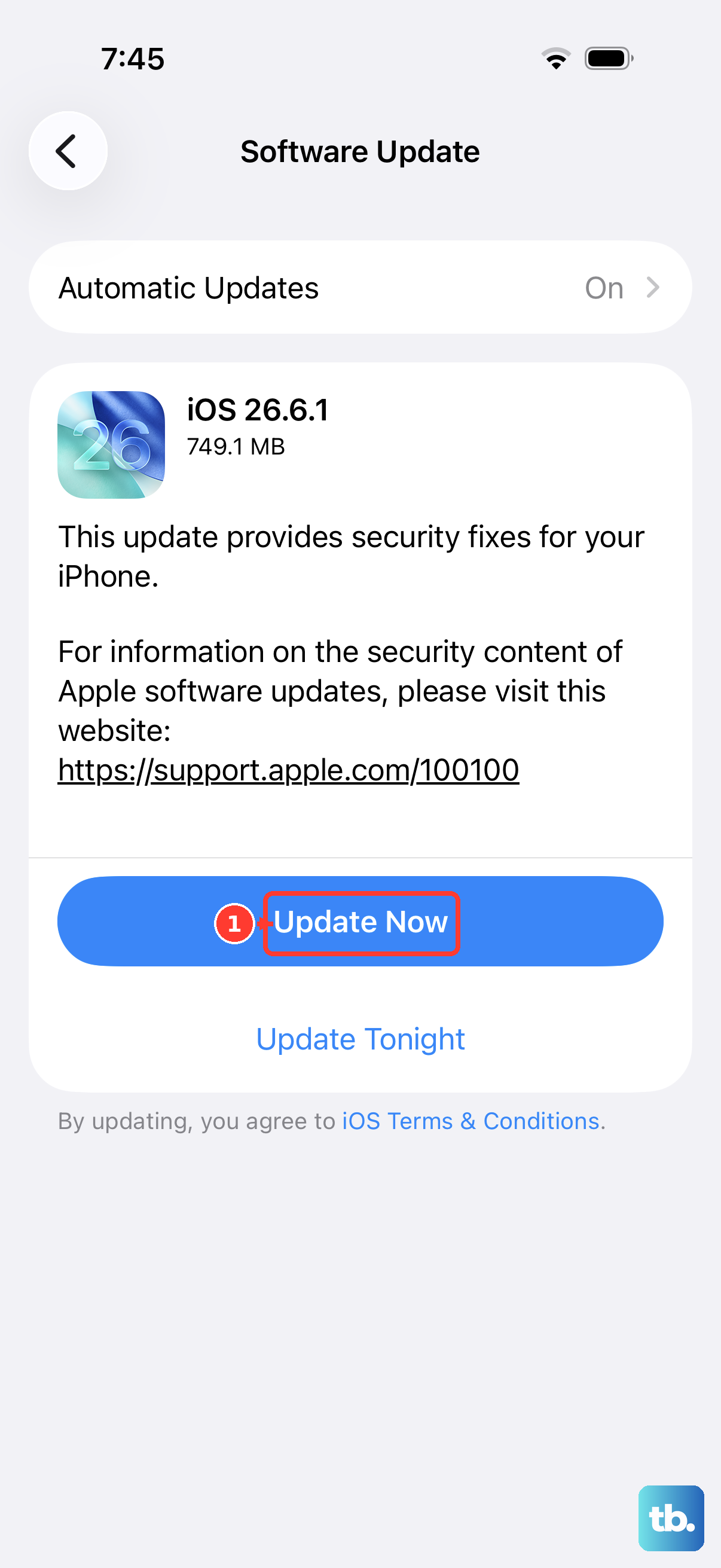
Adapters, hubs, and other gear in the middle of the chain can trigger unsupported-accessory or "not charging" alerts. The official guidance is to connect your device directly to the charger, without any adapters or other equipment between your device and the charging accessory.
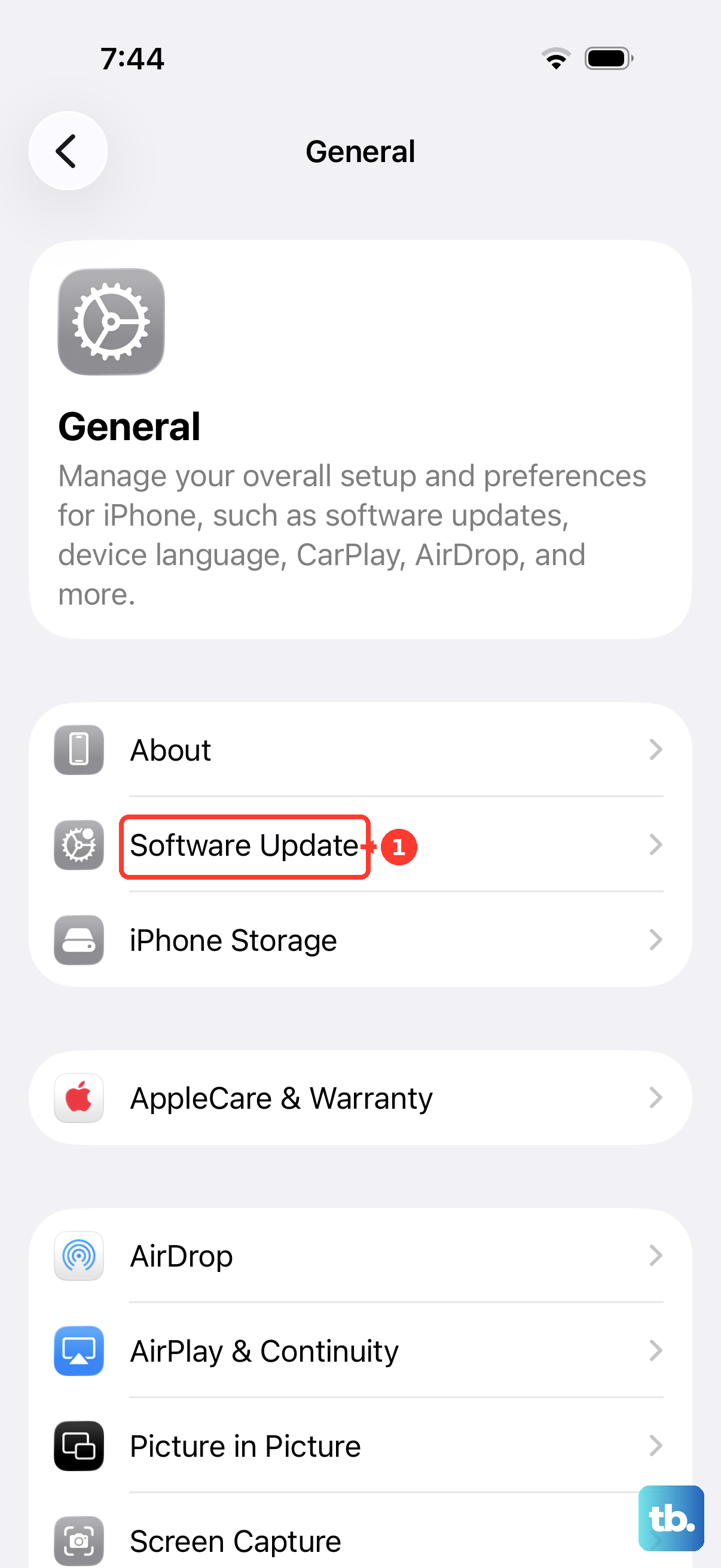
You should also make sure that you have the latest version of iOS. Go to Settings > General > Software Update, then tap Download and Install if an update is available. The iPhone 16 runs iOS 26 (specifically iOS 26.5 as of mid-2026), and staying current keeps charging behavior working as intended.
Fix MagSafe Alignment for Wireless Fast Charging
If the trouble is with wireless rather than wired charging, the setup details matter. The iPhone 16 supports MagSafe wireless charging up to 25W and Qi2 wireless charging up to 25W, but MagSafe will only reach its fastest speeds when it is aligned and powered correctly.
Place the MagSafe Charger face up on a flat surface, clear of any metal objects or other foreign material, and connect it to a 30W or greater Apple USB-C power adapter or compatible third-party USB-C adapter. Do not put credit cards, badges, or key fobs between the iPhone and the charger.
If you happened to set the iPhone on the charger before plugging the charger in, remove the iPhone, wait a few seconds, and put it back on to resume maximum power delivery.
Erase All Content and Settings, Then Contact Apple if Needed
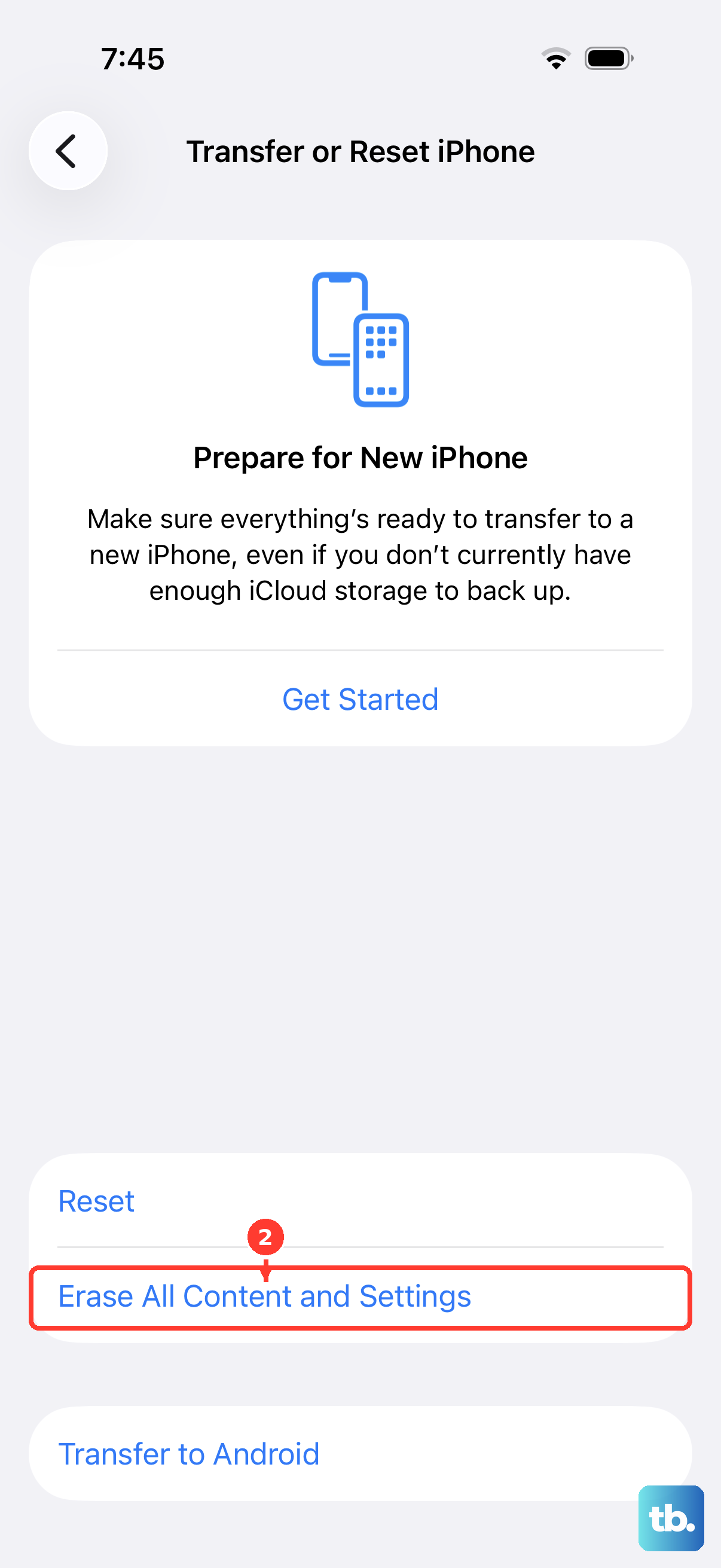
If none of the above restores fast charging, a clean software reset is the last step you can take yourself, but it removes everything. Back up your iPhone first, because erasing restores factory settings and any data you have not backed up will be permanently lost.
Once you have a backup, follow the official path.
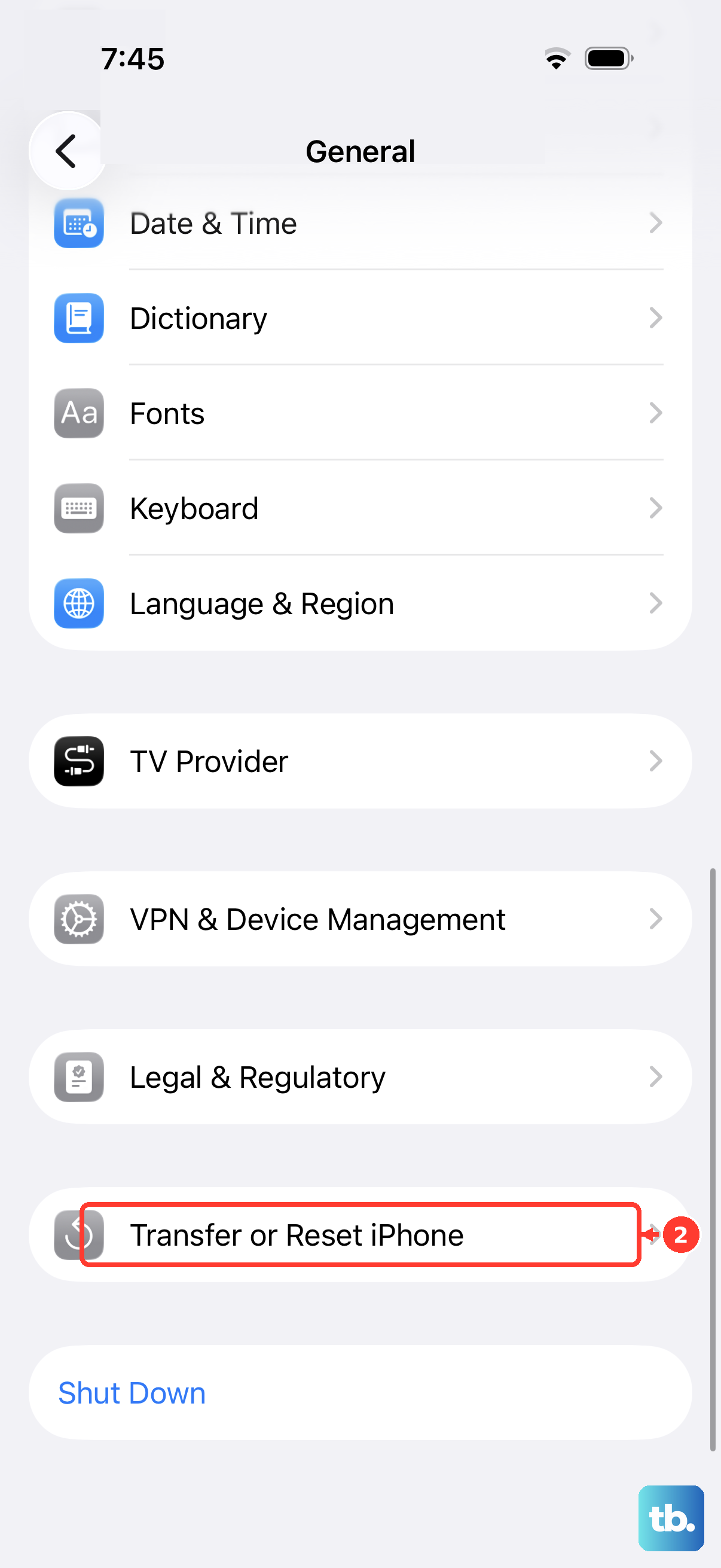
- 1.Go to Settings > General > Transfer or Reset iPhone > Erase All Content and Settings.
- 2.Enter your iPhone passcode or Apple Account password.
- 3.Tap Continue to remove all your content and restore factory settings.
If the device still will not power on or charge after this, Apple states that you might need service, and you should contact Apple Support to arrange it.
Frequently Asked Questions
Why does the iPhone 16 charge slowly with my old charger?
The iPhone 16 ships with only a USB-C cable and no power adapter, so a low-wattage brick will not trigger fast charging. You need a 20W or higher power adapter paired with a USB-C cable for wired fast charging, or a 30W or higher adapter for fast MagSafe charging.
Why does my iPhone 16 stop charging around 80%?
That is usually by design. Optimized Battery Charging can delay charging past 80% in certain situations. You can review or change this under Settings > Battery > Charging, where you can set a charge limit between 80% and 100% in 5% increments.
What does "Charging On Hold" mean on my iPhone 16?
It means the battery has gotten too warm, so charging is paused to protect it. The full message reads "Charging On Hold. Charging will resume when iPhone returns to normal temperature." Move the phone somewhere cooler, away from direct sunlight, and lock the screen until it cools down.
How do I force restart an iPhone 16 that will not charge?
Press and quickly release the volume up button, press and quickly release the volume down button, then press and hold the side button until you see the Apple logo. After it restarts, let it charge for another half hour.
What should I do if my iPhone 16 still will not charge after every fix?
Back up your data, then go to Settings > General > Transfer or Reset iPhone > Erase All Content and Settings, enter your passcode or Apple Account password, and tap Continue. If it still will not power on or charge after that, you might need service, so contact Apple Support.