
When your iPhone 16's email stops syncing or sending, it can throw a real wrench in your day. You might be missing important messages or find your outbox stuck. The fixes are usually pretty straightforward, so start with the network checks first.
Before you dive deep, run through these quick basics. Make sure you have a solid internet connection, either on Wi-Fi or 5G. It's also worth a quick check on your email provider's status page, as outages with services like iCloud, Gmail, or Outlook do happen.
Restart the Mail App and Your iPhone 16
Start with the simplest software refresh. To close the Mail app on your iPhone 16, swipe up from the bottom of the screen and pause in the middle to enter the app switcher. Find the Mail app preview and swipe it all the way up to close it, then reopen it.
If that doesn't help, a full phone restart can clear out temporary glitches. Press and hold the Side button and either volume button, slide to power off, wait 30 seconds, then press the Side button again to turn it back on.
Check Your Mail Fetch and Push Settings
Your iPhone's fetch settings control how often it checks for new mail. Go to Settings > Apps > Mail and tap Fetch New Data. If you don't see it there, look under Mail Accounts. Here, you can see if Push is available and enabled for your accounts.
If Push isn't available for your account type, it will use Fetch. With "Automatically" selected, background fetching happens only when your phone is charging and connected to Wi-Fi. You can also choose a schedule for how often Mail checks for new messages.
Reset Your Network Connection
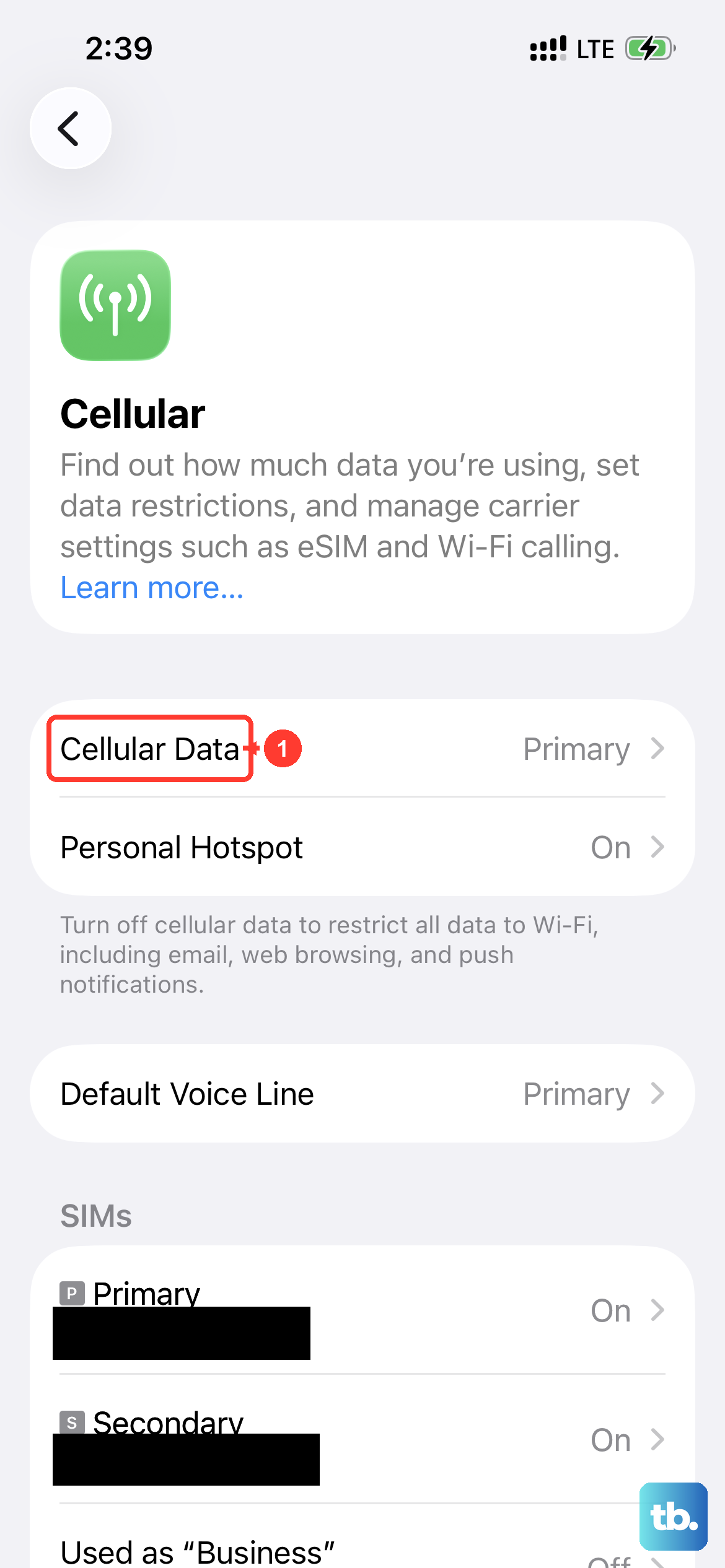
Email problems can come from a connection issue. Open Settings > Cellular and confirm Cellular Data is on for your line. You can also try turning Airplane Mode on and then off: swipe down from the top-right corner to open Control Center and tap the airplane icon, then tap it again.
Also try switching between Wi-Fi and cellular data. Sometimes a router issue can block mail ports. Turn off Wi-Fi briefly and see if your mail loads over 5G, or vice versa.
Verify Your Account Password and Login
Passwords expire, especially for work or school accounts. If your iPhone keeps asking for a password or mail stops syncing, the credentials might be wrong. Try logging into your email account through a web browser on a computer.
If you can't log in there, you'll need to reset your password with your email provider. After that, update the password on your iPhone by going to Settings > Apps > Mail > Mail Accounts, tapping the problem account, and then tapping "Re-enter Password" if that prompt appears.
Check Background Mail Fetch
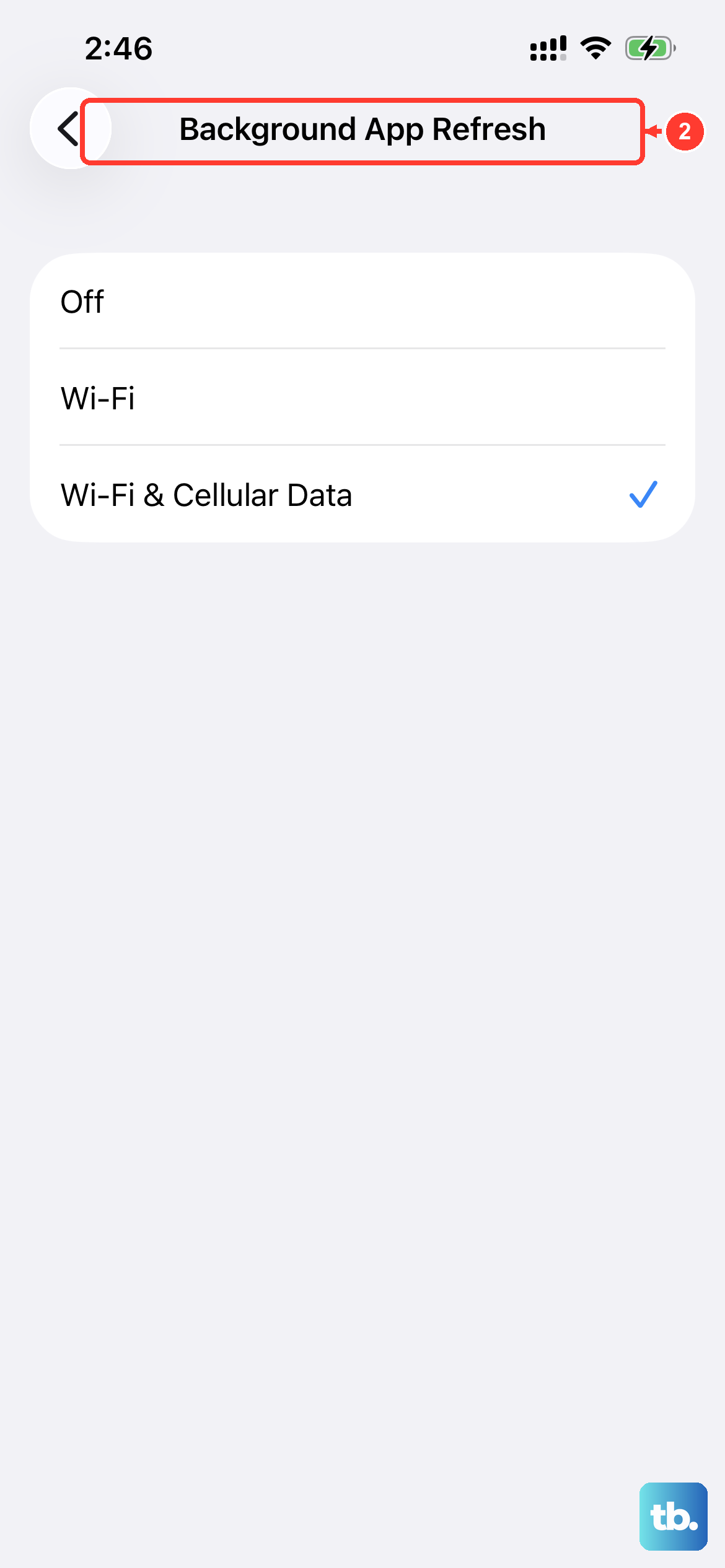
For apps that use Background App Refresh, go to Settings > General > Background App Refresh, tap Background App Refresh again, and choose Wi-Fi & Cellular Data.
For Mail, go to Settings > Apps > Mail and tap Fetch New Data; if needed, look under Mail Accounts. Choose a fetch schedule, or select "Automatically" for background fetching while your phone is charging and connected to Wi-Fi.
Check Cellular Data and VPN Settings
If you're solely on cellular, ensure Mail is allowed to use that data. Go to Settings > Cellular, scroll down, and make sure the toggle next to Mail is green. Also, if you use a VPN, it can sometimes interfere with mail servers.
Try temporarily disabling any active VPN connection. You can usually do this from the VPN app itself or in Settings > General > VPN & Device Management. See if your mail starts working without it.
Ensure Your Date and Time Are Correct
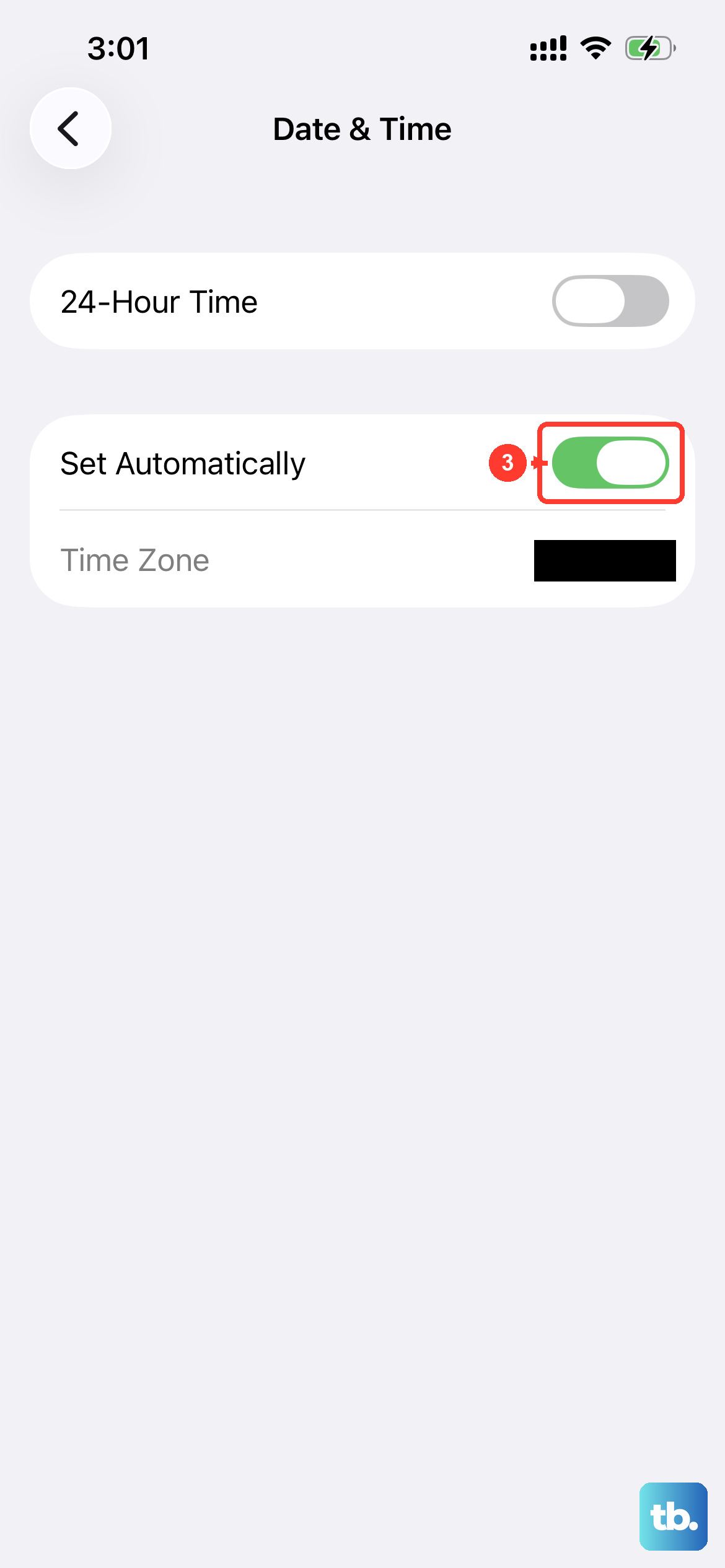
Incorrect date and time settings can break secure connections to email servers. The fix is easy. Go to Settings > General > Date & Time and make sure "Set Automatically" is switched on.
This allows your iPhone 16 to set the time based on your network, which is essential for the security certificates that email services use.
Review Your Notification Settings
If emails are arriving but you're not getting alerts, the notification settings might be off. Go to Settings > Apps > Mail > Notifications, and make sure "Allow Notifications" is enabled. Tap Customize Notifications, then tap the specific email account you're having trouble with. You can turn on alerts or badges for that account and customize sounds from this menu.
Delete and Re-add Your Email Account
This is a more thorough step that can help with stubborn sync issues. First, sign in to your provider's website on a computer and make sure all your email is there or saved somewhere other than your iPhone. Removing the account can remove previously downloaded emails from your device.
Go to Settings > Apps > Mail > Mail Accounts, tap the problematic account, and then tap "Delete Account." After deleting, tap "Add Account," enter your email address, and follow the setup prompts. You'll need your current password.
Update to the Latest iOS Version
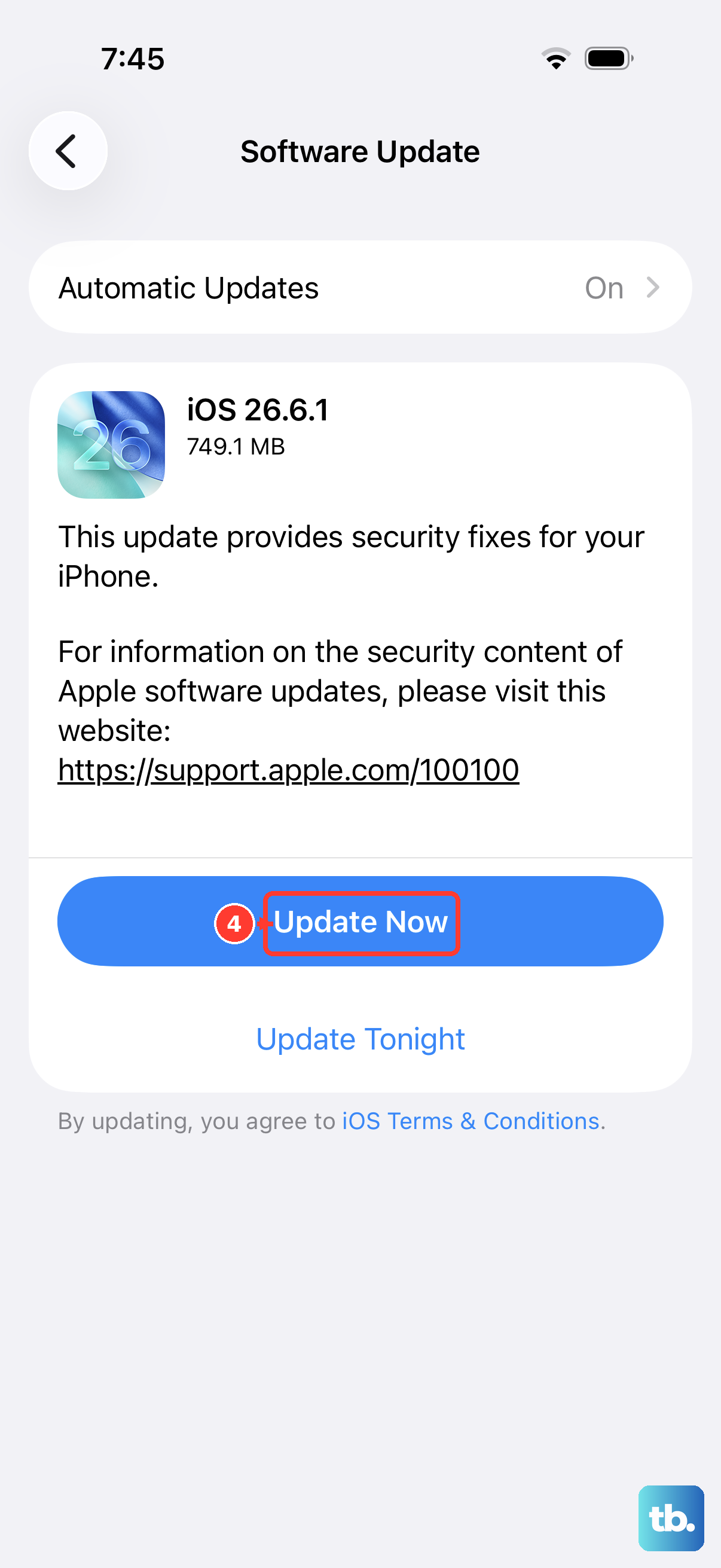
Software updates can include bug fixes. It's always a good idea to make sure you're running the latest software. Go to Settings > General > Software Update.
If an update is available, tap "Download and Install." It's best to do this while connected to Wi-Fi and with your phone plugged into power.
Check for iOS Focus Modes
Focus modes can silence notifications, including email alerts. Swipe down from the top-right to open Control Center and look at the Focus button. If a Focus is active (like a moon or work icon), tap it to turn it off.
You can also check which apps are allowed to notify you during a Focus by going to Settings > Focus, selecting the active Focus, and ensuring Mail is listed under "Allowed Notifications."
Reset All Network Settings
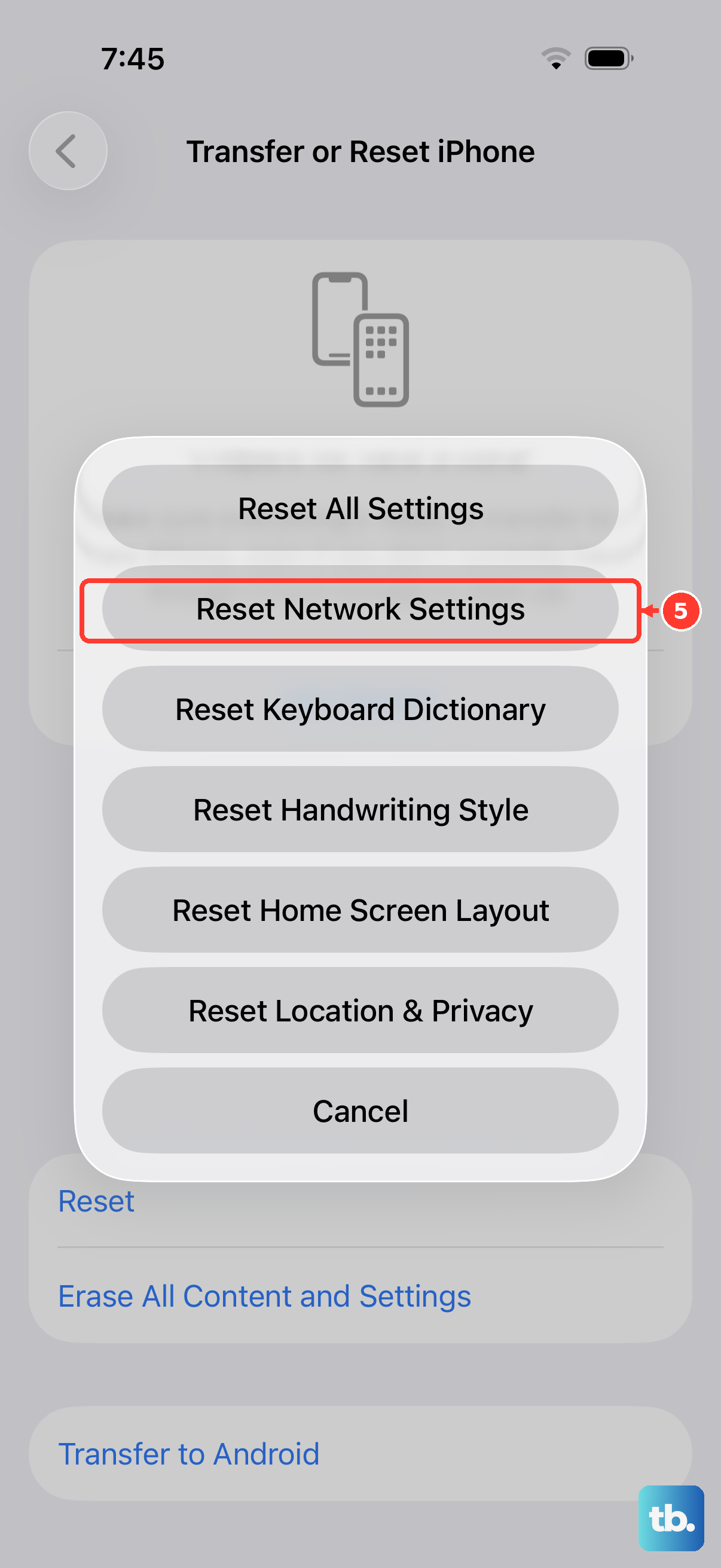
This step clears all your Wi-Fi networks, passwords, cellular settings, and VPN configurations. It's a stronger network reset that can fix deeper issues. Go to Settings > General > Transfer or Reset iPhone > Reset.
Tap "Reset Network Settings." You'll need to re-enter Wi-Fi passwords afterward, but it won't erase any of your personal data or emails.
Reset All Settings
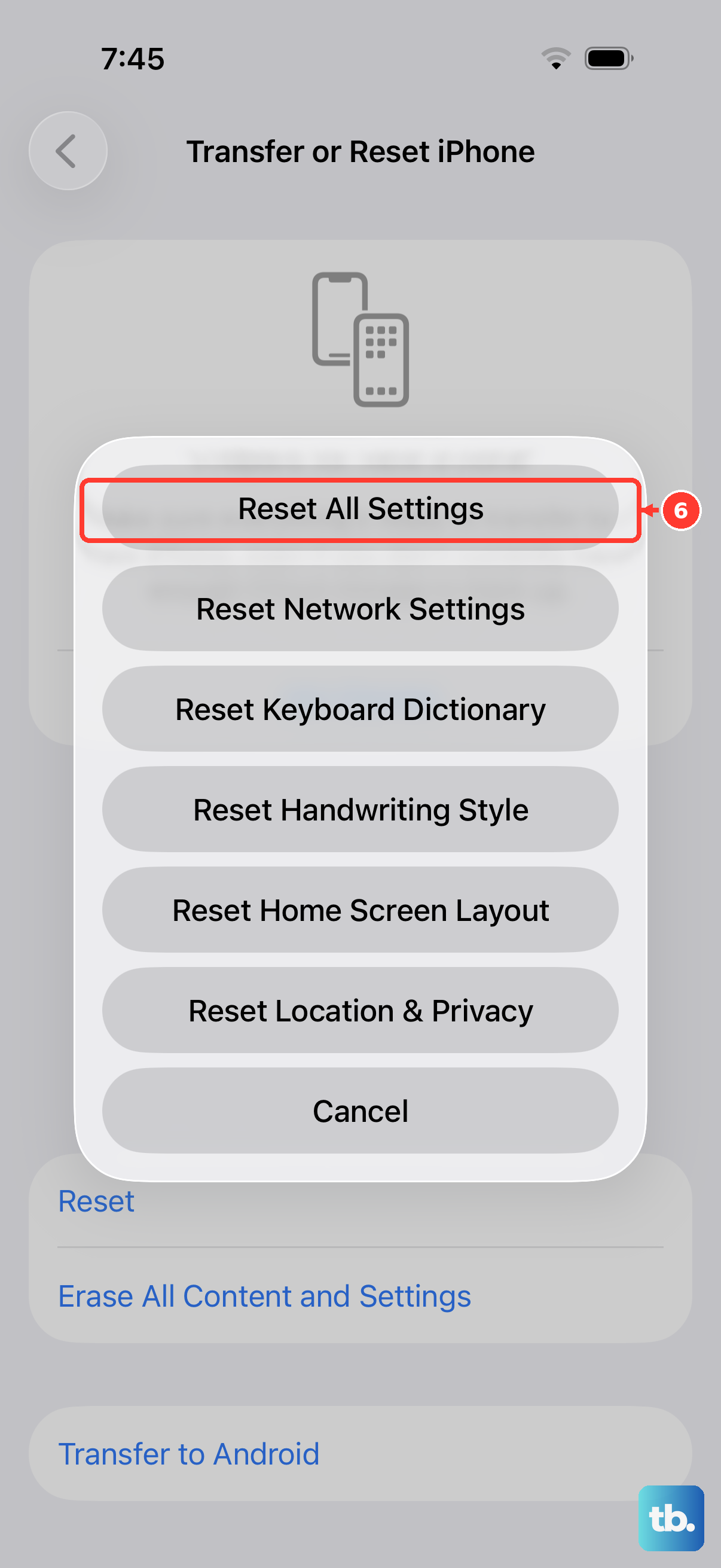
If you've tried everything else and mail is still broken, this is your last major step before contacting support. It resets settings such as wallpaper, sounds, privacy permissions, and network settings without deleting your apps or data. It also removes Apple Pay cards and Bluetooth and Apple Watch pairings.
Go to Settings > General > Transfer or Reset iPhone > Reset, and choose "Reset All Settings." Your iPhone 16 will restart, and you'll need to reconfigure preferences like Face ID and display brightness, but your emails and messages will remain.