You type out a message on your iPhone 15, hit send, and nothing happens. Maybe a red exclamation point appears next to the bubble, maybe the message just sits there, or maybe iMessage refuses to switch over to a regular text. It is a frustrating spot to be in, especially when you are trying to reach someone quickly. The good news is that most texting problems on the iPhone 15 trace back to a small handful of fixable causes, and you can work through them yourself in a few minutes.
The iPhone 15 fully supports iMessage, SMS, MMS, and RCS, so every type of text you might be trying to send is something this phone can handle (RCS requires iOS 18 and a carrier that supports RCS on iPhone). That means a message that will not send is almost always a settings, network, or activation hiccup rather than a missing feature. Below are the fixes to try, ordered from the quickest and safest to the more involved last resorts, so start at the top and stop as soon as your texts go through.
Confirm You Actually Have a Connection
Texting depends on a working connection, and the type of message decides which one you need. To send an iMessage, an RCS message, or an MMS, you need cellular data or Wi-Fi; to send a plain SMS, you need a cellular network connection. Before you change a single setting, glance at the top of your screen and make sure you have signal or an active Wi-Fi connection.
If you are in a weak-signal area or your Wi-Fi has dropped, that alone can stop a message from leaving. Step somewhere with better reception or reconnect to a reliable network, then try sending again before moving on.
Resend the Failed Message and Use SMS Fallback
When a message shows a red exclamation point with the words "Not Delivered," it has not given up permanently. First check your network connection as described above, then resend it directly from the conversation.
- 1.Tap the red exclamation point next to the message that did not send.
- 2.Tap Try Again to attempt sending it once more.
- 3.If it still will not go through, tap the red exclamation point again, then tap Send as Text Message to push it out as a standard SMS instead.
Sending as a text message routes around iMessage entirely, which is useful when the other person's service or your iMessage connection is the problem. To make this automatic for future messages, go to Settings > Apps > Messages and turn on Send as Text Message, so the phone falls back to SMS whenever iMessage cannot connect. Keep in mind that messaging rates may apply when a message falls back to SMS.
Restart the iPhone 15
A plain restart clears the kind of temporary glitch that often jams up messaging, and it is completely safe for your data. On a Face ID iPhone like the iPhone 15, the sequence is specific, so follow it exactly.
- 1.Press and hold either volume button and the side button until the power-off slider appears.
- 2.Drag the slider, then wait 30 seconds for the phone to turn off completely.
- 3.Press and hold the side button until the Apple logo appears.
Once the phone finishes booting, open Messages and try sending again. A surprising number of texting hangups disappear after a clean restart. If Messages or the whole phone becomes unresponsive and a normal restart is not possible, you can force restart instead by pressing and quickly releasing the volume up button, then pressing and quickly releasing the volume down button, then pressing and holding the side button until the Apple logo appears. A force restart reboots a stuck phone without erasing any of your data.
Make Sure Your Cellular Line Is Switched On
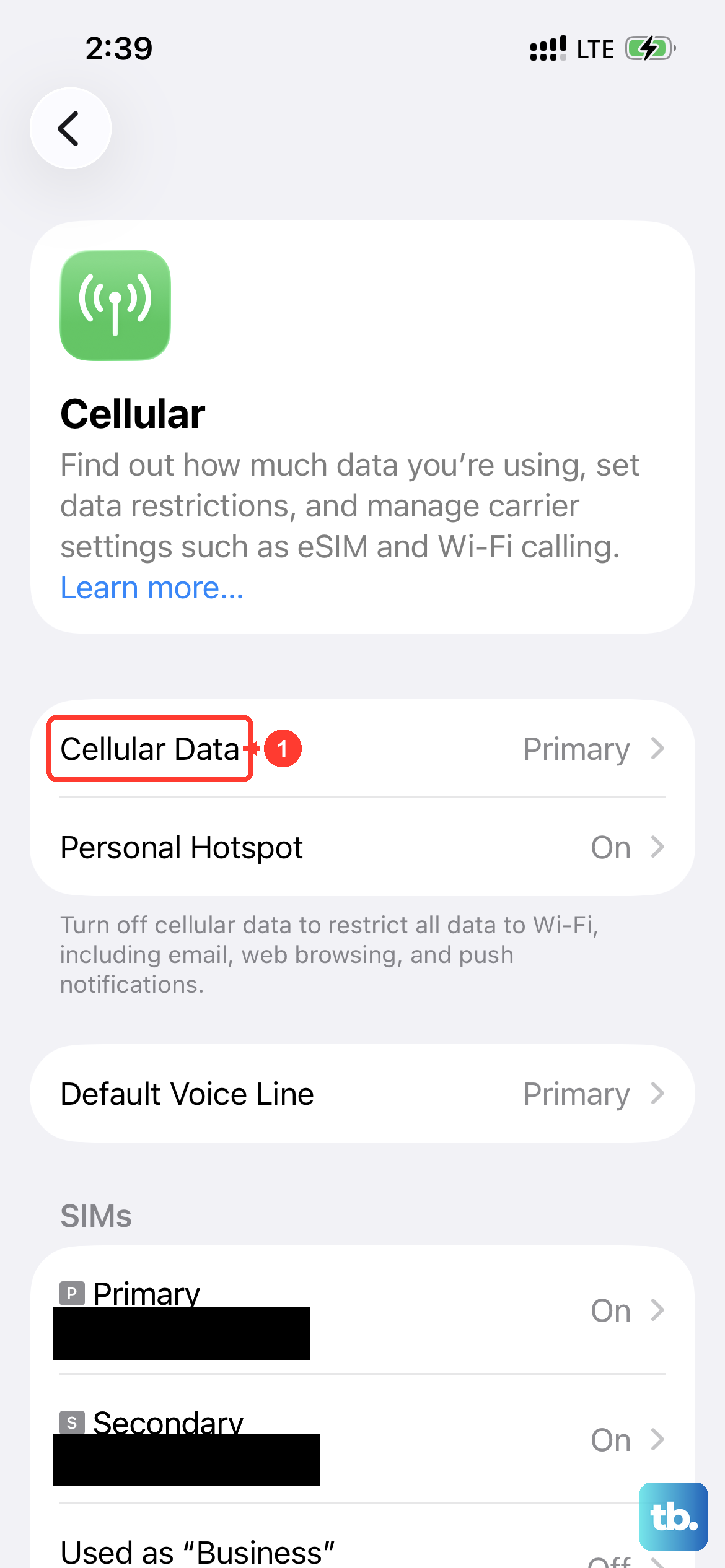
If your phone line is turned off, you cannot send SMS or MMS texts at all, even with everything else working. Check it under Settings > Cellular and make sure your phone line is turned on.
This is easy to overlook, especially on a phone that has had multiple lines or eSIMs set up. Confirm the correct line is active before you assume something more serious is wrong.
Toggle iMessage Off and Confirm Activation
If iMessage specifically is the trouble, switching it off and on again reconnects the service and often clears stuck activation states. Go to Settings > Apps > Messages, turn iMessage off, and then turn it back on. While you are in there, tap Send & Receive and make sure your phone number is selected for sending and receiving messages.
iMessage also needs accurate date and time information to activate, so make sure your date and time are correct under Settings > General > Date & Time. For activation to complete, you need to be signed in to your Apple Account and connected to cellular data or Wi-Fi. Activation can take up to 24 hours, so give it time, and avoid repeatedly toggling iMessage off and on while it still shows a spinning gear, as that can interrupt the process rather than speed it up.
Verify Your Carrier Supports the Message Type
Some texting problems are not on your phone at all but tied to what your plan and carrier allow. Confirm with your carrier that the type of message you are sending (RCS, MMS, or SMS) is actually supported on your account.
RCS is the most particular of the three. On the iPhone 15 it requires iOS 18 and a text-messaging plan from a carrier that supports RCS on iPhone, so if RCS messages specifically are failing, this is the detail to check.
Install the Latest iOS Update
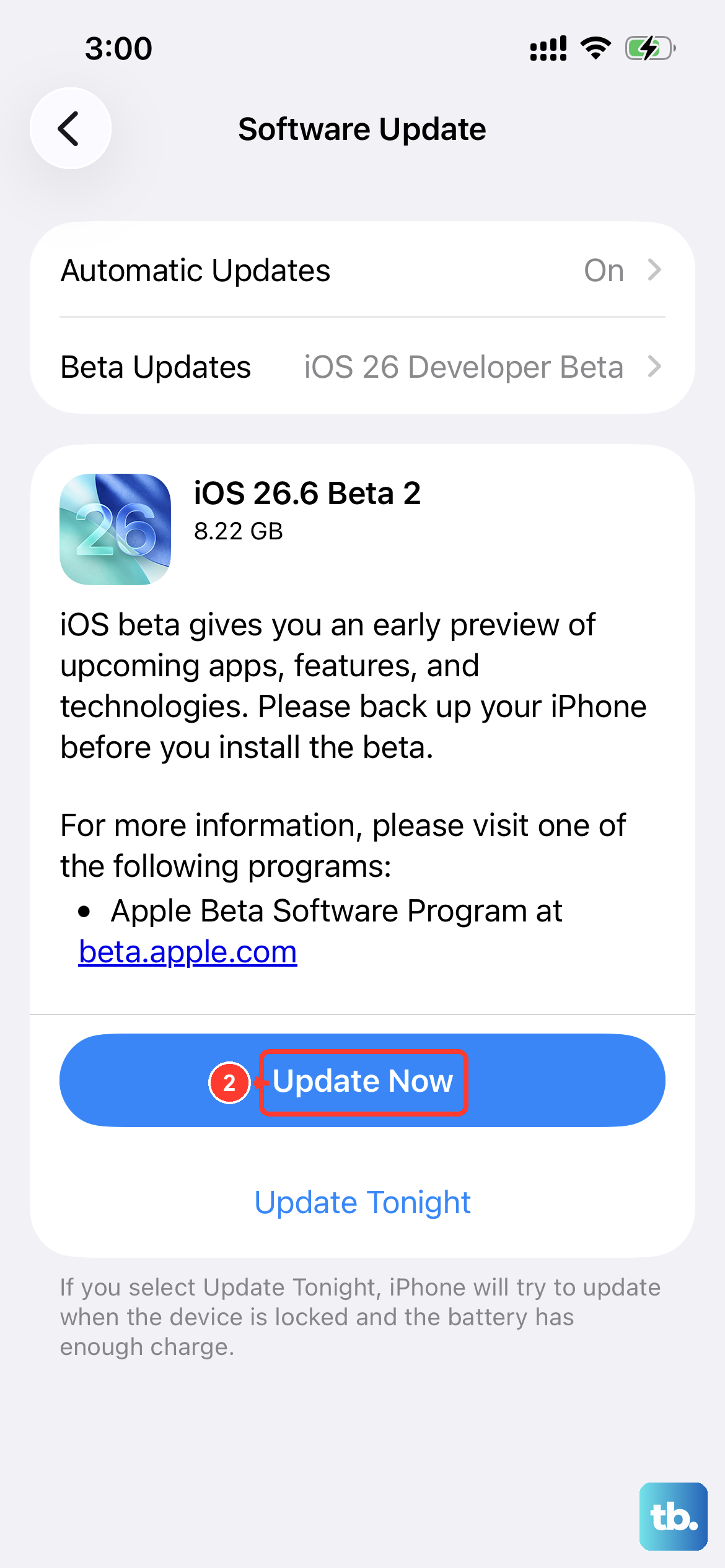
Software updates frequently resolve messaging and activation bugs, so running the current version of iOS is worth doing. Go to Settings > General > Software Update, and if an update is available, tap Download and Install.
Keep the phone connected to Wi-Fi and power while it updates. Once it finishes and restarts, test your messages again to see whether the fix was simply an outdated build.
Double-Check the Recipient and Group Details
Sometimes the message is fine and the problem is who or how you are sending it. Double-check that you entered the correct phone number or email address for the contact, since a single wrong digit or a mistyped address will quietly stop delivery.
Group conversations have their own quirk. If you stopped getting messages in a group thread, you may have left the conversation or been removed from it, and you can only rejoin if a current member adds you back. That is expected behavior, not a malfunction with your phone.
Reset Network Settings
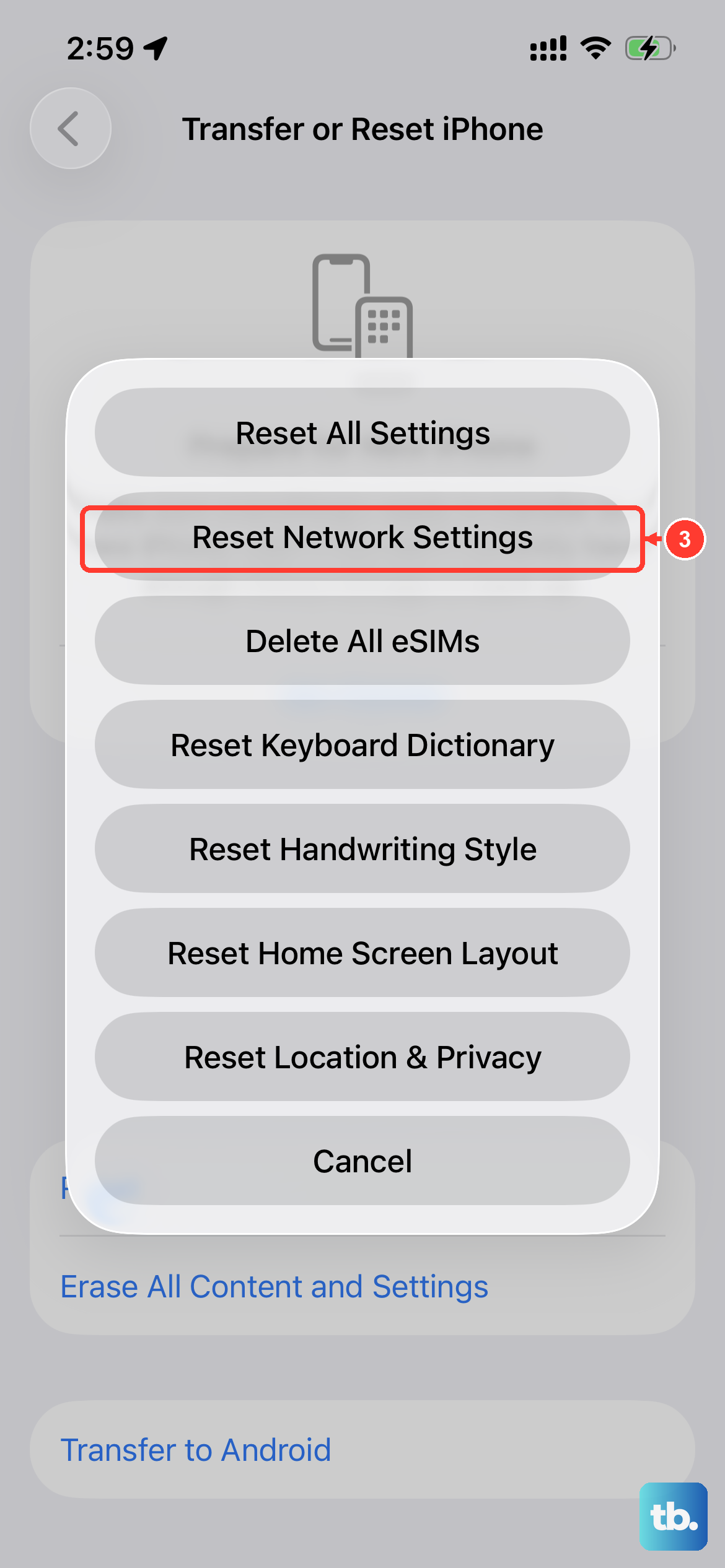
If texting still fails after everything above, resetting your network settings clears out network configurations that may be corrupted. Be aware that this removes all saved Wi-Fi passwords, cellular settings, and VPN settings, so use it only after the earlier steps have not worked.
- 1.Go to Settings > General > Transfer or Reset iPhone.
- 2.Tap Reset, then tap Reset Network Settings.
If your network is managed by a school or business, check with your IT department before doing this, since you may need their help to reconnect afterward.
Erase and Set Up Again as a Last Resort
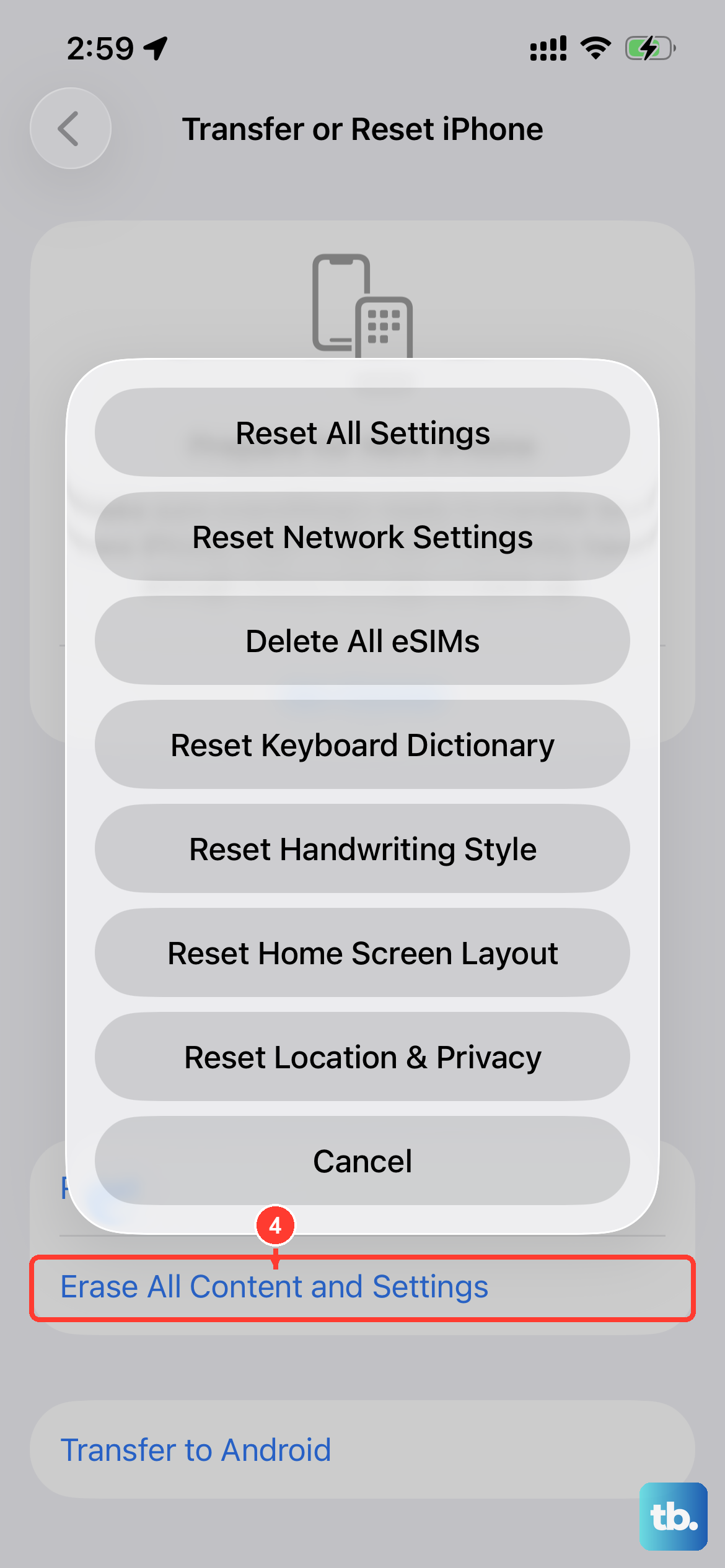
If nothing else has restored your texting, a full erase is the final option to try before involving support. This step erases all of your data, so a backup is essential before you begin. Back up your iPhone first, then go to Settings > General > Transfer or Reset iPhone > Erase All Content and Settings.
Because this wipes the phone completely, treat it as a genuine last resort and only proceed once you have confirmed your backup is in place.
When to Bring In Apple or Your Carrier
If you have worked through these fixes and still cannot get texts out, it is time to hand it off to the experts. If you still cannot send iMessages, contact Apple Support. You can book service or a Genius Bar appointment through the Apple Support app or by getting support at support.apple.com.
If the problem is with SMS, MMS, or RCS messages, contact your carrier instead, since those are carrier-provided services rather than something Apple controls. Sorting out which type of message is failing tells you exactly who to call.
Frequently Asked Questions
Why do my iPhone 15 messages send as SMS instead of iMessage?
That usually means iMessage is unavailable for that message, so the phone falls back to SMS, which is the intended behavior when Send as Text Message is turned on under Settings > Apps > Messages. Check that you have cellular data or Wi-Fi and that iMessage is activated, since iMessage needs a data connection while SMS only needs a cellular network.
How long does iMessage take to activate on the iPhone 15?
Activation can take up to 24 hours. Make sure your date and time are correct under Settings > General > Date & Time, that you are signed in to your Apple Account, and that you are connected to cellular data or Wi-Fi, and avoid repeatedly toggling iMessage while it shows a spinning gear.
Will resetting network settings delete my texts or photos?
No. Reset Network Settings removes all saved Wi-Fi, cellular, and VPN settings, but it does not erase your messages or photos. Only Erase All Content and Settings wipes your data, which is why you should back up your iPhone before using that last-resort option.
Does the iPhone 15 support RCS messaging?
Yes, the iPhone 15 supports RCS, but it requires iOS 18 and a text-messaging plan from a carrier that supports RCS on iPhone. If RCS messages will not send, confirm both that your iPhone is updated and that your carrier supports RCS on your account.
What is the correct way to force restart an iPhone 15?
Press and quickly release the volume up button, then press and quickly release the volume down button, then press and hold the side button until the Apple logo appears. This recovers a frozen or unresponsive phone without erasing any of your data.