Your iPhone 14 stopped dead mid-tap, the screen is stuck on one image, and swipes and presses do nothing. A frozen iPhone 14 is usually a temporary software stall rather than a broken phone, and most cases clear within a few minutes once you run the right steps in order. The fixes below start with the gentlest, no-data-loss options and only move toward erasing or servicing the phone at the very end.
Because the iPhone 14 uses Face ID and has no Home button, the force-restart sequence is specific to this model, so it matters that you follow it exactly. Work through these in order and stop as soon as the screen responds again.
Start With a Clean Screen and No Attached Accessories
A stuck screen is sometimes just a brief stall, so give it a moment before assuming the worst. Make sure the screen is clean and free of any debris or water, since a smudged or wet display can register or block touches in odd ways.
Remove any case or screen protector and disconnect any Lightning accessories that are plugged in. If the screen starts responding again after you unplug an accessory, the accessory or its connection may be the culprit, so try a different outlet, cable, or charger before reconnecting anything. Once everything extra is removed, try a normal restart.
Force Restart the iPhone 14 the Right Way
This is the primary fix for a frozen or unresponsive iPhone 14, and it does not erase any of your content. Because this model has Face ID and no Home button, you must use the button sequence below exactly. The older Home-button method will not work on this phone.
- 1.Press and quickly release the Volume Up button.
- 2.Press and quickly release the Volume Down button.
- 3.Press and hold the Side button until you see the Apple logo (this might take longer than 10 seconds).
Keep holding the Side button through that wait, because releasing too early is the most common reason a force restart seems to fail. When the Apple logo appears, let go and allow the phone to finish booting.
Plug It In if the Screen Stays Black
If the iPhone 14 still won't turn on or is frozen after a force restart, a flat battery may be the real issue. Connect it to power using a known-good cable plugged into a wall outlet, and let it charge for up to one hour.
If a low-battery (charge-needed) screen appears, leave it charging for at least 30 minutes or until it starts on its own. Once it has some charge, you can try the force-restart sequence again if needed.
Dry the Connector if You See a Liquid Alert
If your iPhone 14 froze while charging or shows a "Charging not available" or liquid-detection alert, stop charging over the Lightning connector right away. Disconnect the cable immediately and do not charge over the Lightning connector while it is wet, because the pins can corrode.
Tap the iPhone gently against your hand with the connector facing down to help liquid escape, then leave it in a dry area with airflow for at least 30 minutes. Full drying can take up to 24 hours, so be patient. Do not use external heat, do not use compressed air, and do not insert cotton swabs or paper towels into the port. If you need power in the meantime, the iPhone 14 supports MagSafe wireless charging, so you can use a MagSafe or other wireless charger while the connector dries.
Tackle a Single App That Keeps Locking Up
If the freeze only happens inside one specific app rather than across the whole phone, the app itself is likely the problem. Force that app to close and then reopen it to clear a temporary glitch.
If it keeps misbehaving, restart the iPhone, then check the App Store for an update by tapping your profile icon and looking under available app updates. Updating the app often resolves crashes and freezes outright. If the app still stops responding, closes unexpectedly, or won't open, delete and redownload it. If problems persist across multiple apps, move on to updating iOS.
Inspect Your Charging Gear if It Only Freezes While Plugged In
When the iPhone 14 freezes or refuses to charge only while it is plugged in, the cable, adapter, or port is worth a close look. Check the cable and USB adapter for damage and do not use any accessory that looks frayed, bent, or burnt.
Remove any debris from the charging port, then firmly seat the cable and use a wall outlet rather than a hub or computer port. Let it charge for at least 30 minutes, and if nothing changes, try a different cable, adapter, or outlet. Make sure you also have the latest version of iOS installed, since that can resolve charging-related behavior.
Install the Latest Version of iOS
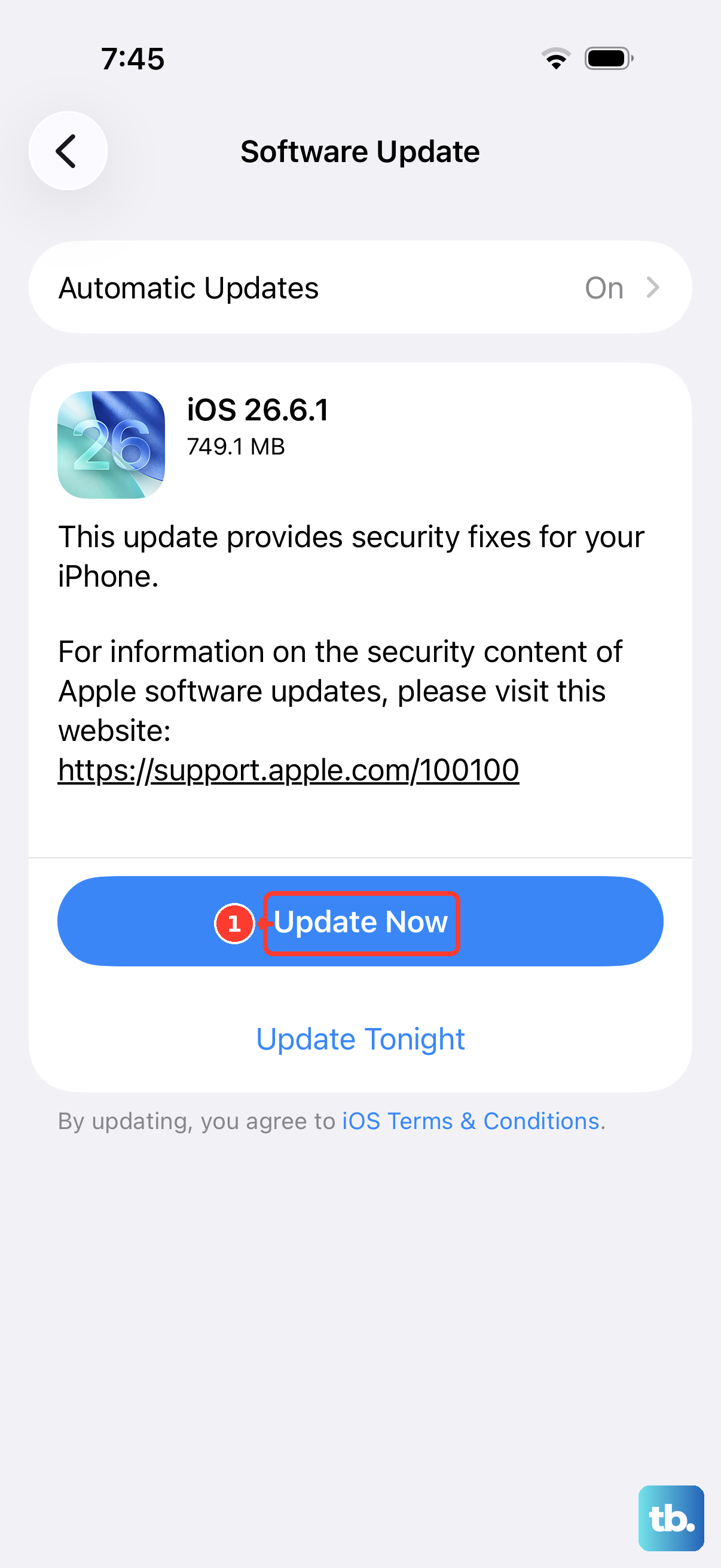
Keeping iOS current can clear software bugs that cause freezing, and the iPhone 14 is supported on iOS 26, Apple's current release. Updating to the latest iOS keeps your data and settings unchanged, so this is a safe step.
Back up first, then connect to Wi-Fi and power. Go to Settings > General > Software Update and tap Download and Install. The currently installed version of iOS is shown there, along with whether an update is available.
Erase All Content and Settings as a Last Self-Service Step
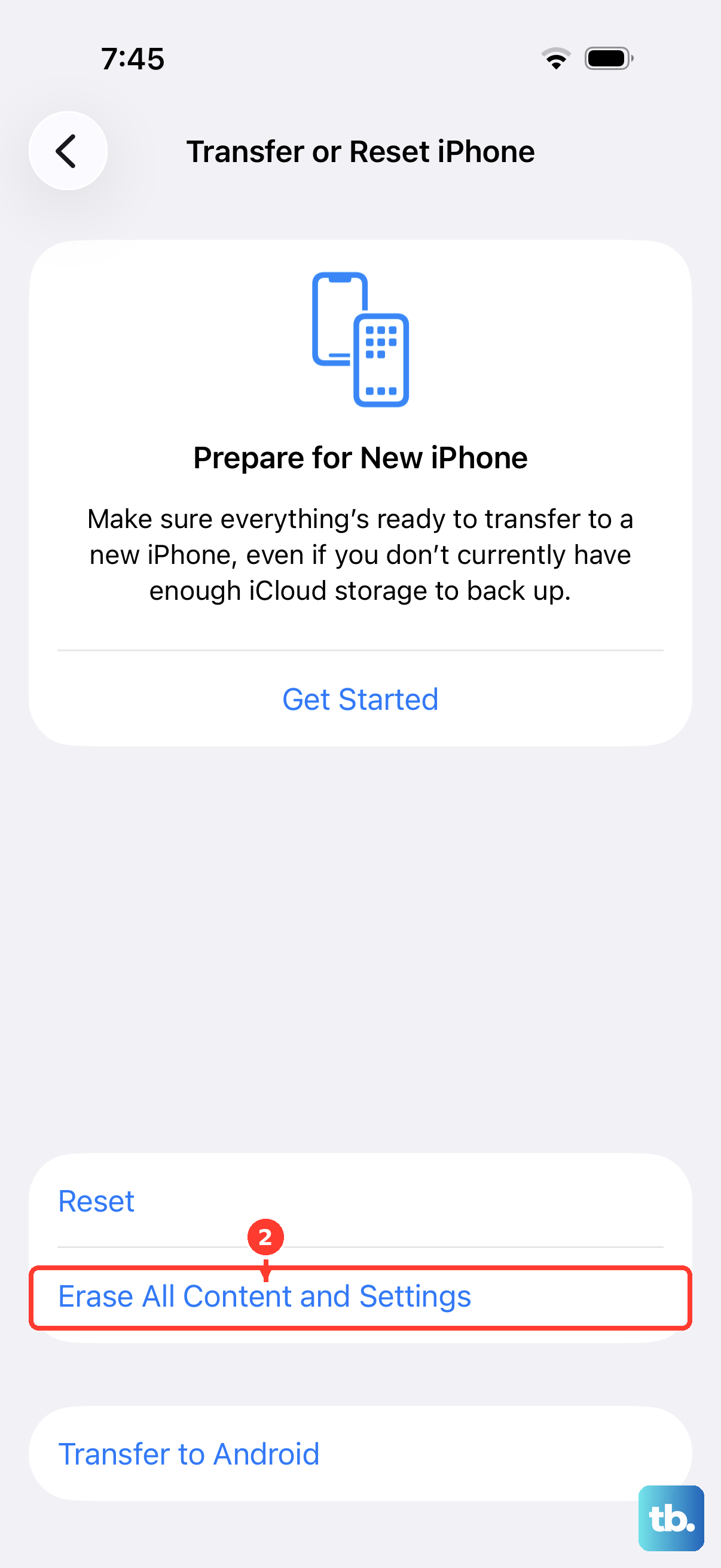
If the freezing continues after everything above, a clean wipe is the final fix you can do yourself before involving Apple. This restores the iPhone to factory settings and erases all of your content, so a current backup is essential before you start. Without one, your data cannot be recovered.
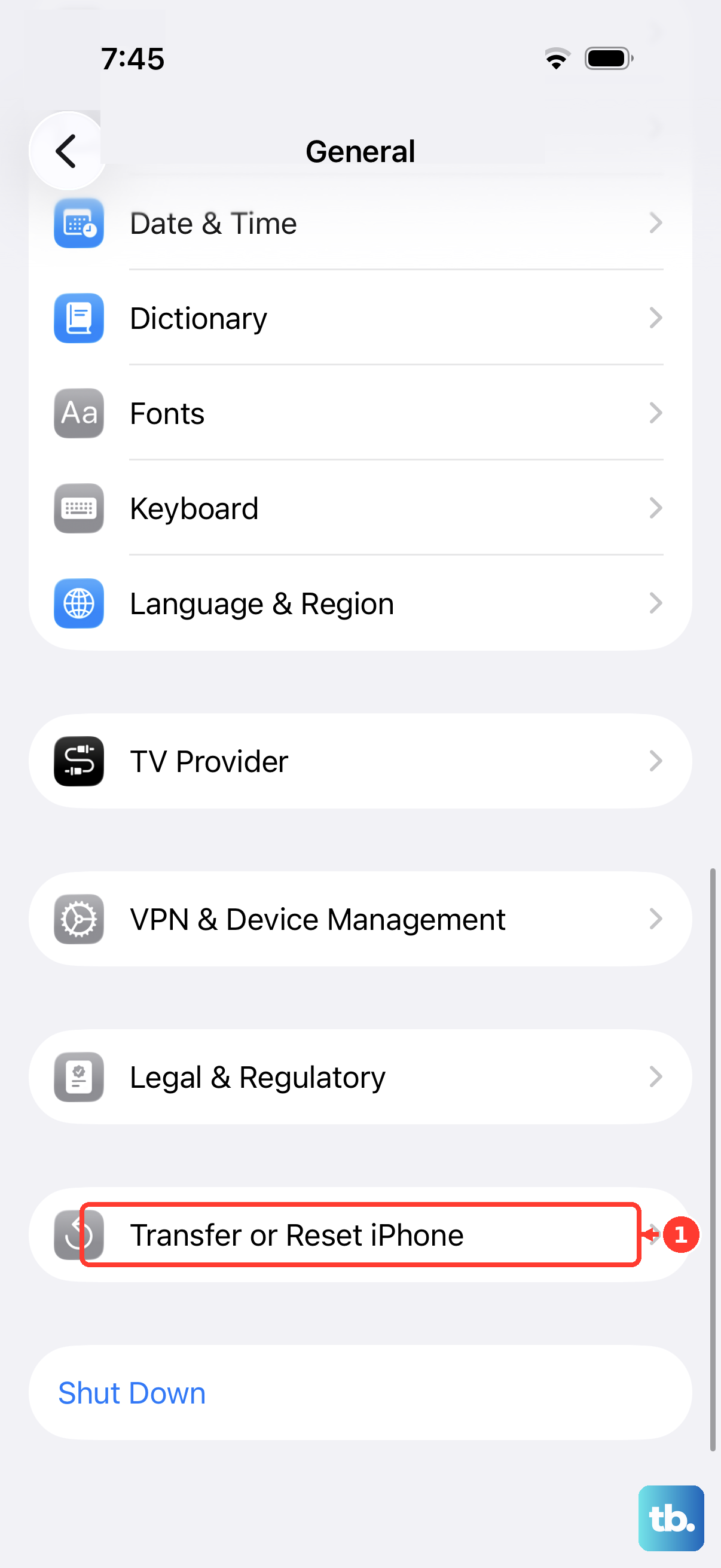
Once you have backed up, go to Settings > General > Transfer or Reset iPhone > Erase All Content and Settings, then tap Continue and enter your device passcode and Apple Account password. If the screen is too frozen to navigate these menus, you can instead erase or restore the iPhone using a computer with Finder or the Apple Devices app.
Reach Apple Support or Book Service
If the iPhone 14 still won't respond after all of these steps, it may need professional service. You can get online support at support.apple.com through Get Support, or chat with Apple in the Messages app.
You can also call your country's Apple Support line. In the US that number is 1-800-275-2273. For hands-on help, book a Genius Bar appointment or visit an Apple Authorized Service Provider so a technician can examine the phone directly.
Frequently Asked Questions
Does force restarting my iPhone 14 delete my photos or data?
No. A force restart does not erase your content; it simply forces the phone to power off and back on. Only the Erase All Content and Settings step (the factory reset) removes your data, which is why you should back up before doing that one.
Why doesn't the old Home-button reset trick work on my iPhone 14?
The iPhone 14 has Face ID and no physical Home button, so it uses a different sequence. You press and quickly release Volume Up, then press and quickly release Volume Down, then press and hold the Side button until the Apple logo appears, which can take longer than 10 seconds.
My iPhone 14 froze and now shows a "Charging not available" alert. What should I do?
Disconnect the cable immediately and do not charge over the Lightning connector while it is wet, since the pins can corrode. Tap the phone gently against your hand with the connector facing down, then leave it in a dry area with airflow for at least 30 minutes (up to 24 hours), and use a MagSafe or other wireless charger in the meantime if you need power.
The screen is completely black and won't react at all. Is the phone dead?
Not necessarily. Connect it to a known-good cable and a wall outlet and let it charge for up to one hour. If a low-battery screen appears, leave it charging for at least 30 minutes or until it starts. After it has some charge, try the force-restart sequence again before assuming the worst.
How do I know if my iPhone 14 needs the latest iOS?
Go to Settings > General > Software Update, where the currently installed version of iOS is shown along with whether an update is available. The iPhone 14 is supported on iOS 26, and installing the latest version keeps your data and settings unchanged.