You typed out a reply on your iPhone 13, hit send, and the message just sat there with a red exclamation point and a "Not Delivered" warning. Whether it is a quick text to a coworker or a photo to family, a message that refuses to go through is frustrating, especially when you are not sure if the problem is your phone, your carrier, or the person on the other end. The good news is that most send failures on the iPhone 13 trace back to a handful of fixable causes, and you can work through them on the device itself without any extra app.
The fixes below are ordered from the quickest and safest to the most involved, so start at the top and stop as soon as your text goes through. The iPhone 13 sends standard SMS and MMS texts over a cellular network and uses iMessage and RCS over cellular data or Wi-Fi, so it is worth knowing which type of message is failing as you troubleshoot. All paths and button sequences here match Apple's current iOS support guidance.
Start by Checking Your Signal and Retrying the Failed Text
Before changing any settings, look at your connection. SMS texts need a cellular network connection, while iMessage, RCS, and MMS need cellular data or Wi-Fi, so a weak or dropped signal is the most common reason a message stalls.
If a message shows a red exclamation point with a "Not Delivered" alert, first check your network connection. Then tap the red exclamation point and tap Try Again. In many cases the message goes through on the second attempt once your signal has recovered.
Force the Stuck Message to Go Out as a Standard Text
If the message still will not send, the problem may be specific to iMessage rather than your phone overall. You can push that one message out over the regular SMS network instead.
Tap the red exclamation point next to the failed message, then tap Send as Text Message. This delivers it as an SMS rather than as an iMessage, which is useful when iMessage is having trouble but your cellular texting still works.
Let Messages Fall Back to SMS Automatically
Rather than tapping each failed iMessage one at a time, you can tell your iPhone 13 to switch to SMS on its own whenever iMessage is not available. This setting saves you from repeating the manual step above for every message.
Go to Settings > Apps > Messages and turn on Send as Text Message. With this on, Messages tries to send as SMS when iMessage isn't available, so a fading data connection is far less likely to leave a message stranded.
Confirm Your Phone Line Is Switched On
The iPhone 13 supports Dual SIM with a nano-SIM tray and eSIM, so it is possible for a line to be turned off without you realizing it. If your phone line is off, the device cannot send SMS or MMS over the cellular network at all.
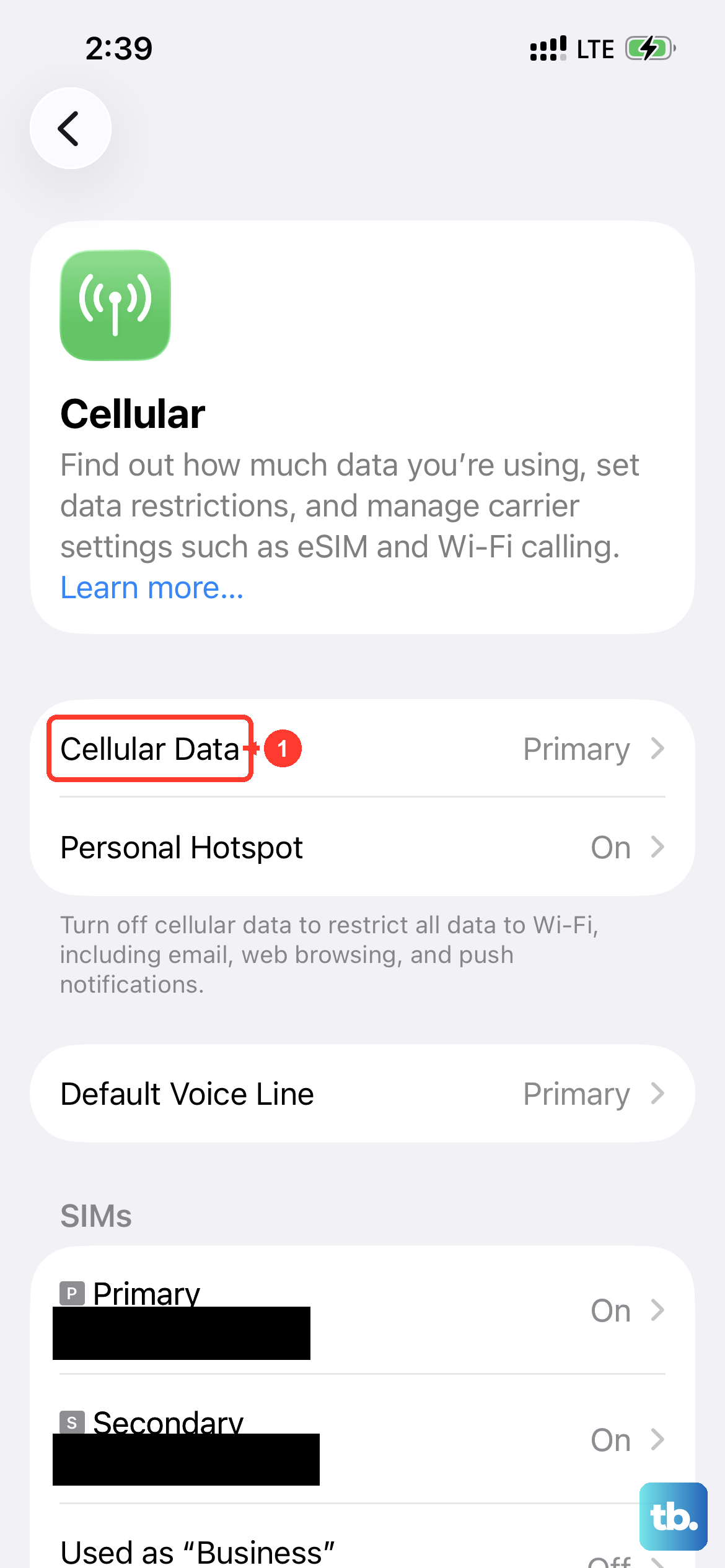
Open the Settings app, tap Cellular, and make sure your phone line is turned on. Once the line is active again, try sending your text to see whether that alone clears the failure.
Refresh the Cellular Connection With Airplane Mode
Sometimes your iPhone holds on to a stale connection to your carrier, and the quickest way to force a fresh one is a brief trip through Airplane Mode. This drops and re-establishes your cellular link in a few seconds.
Open Settings and turn on Airplane Mode. Leave it on for at least 15 seconds, then turn off Airplane Mode. Give the signal a moment to come back, then resend the text.
Restart the iPhone 13 the Right Way
If a stale software state is to blame, a force restart clears it without touching any of your data. It is important to use the exact sequence for this model, because the wrong combination will not trigger a proper restart.
- 1.Press and quickly release the volume up button.
- 2.Press and quickly release the volume down button.
- 3.Press and hold the side button until you see the Apple logo (this might take longer than 10 seconds).
Once the device has booted back up, open Messages and try sending again. A restart often resolves issues that no single setting seems to fix.
Reset iMessage and Verify the Number You Send From
If iMessages in particular are failing, toggling the feature off and on forces it to re-register, and checking your number makes sure messages are leaving from the right line. This is a common fix when blue-bubble messages will not deliver.
Go to Settings > Apps > Messages and turn iMessage off and back on. Then go to Settings > Apps > Messages > Send & Receive and tap the phone number you want to use with Messages. Confirming the correct number here is especially worth doing if you recently changed your SIM, switched carriers, or set up a new line.
Install a Pending Carrier Settings Update
Carriers occasionally push small configuration updates that affect how your iPhone 13 connects for texting. Installing a waiting update can restore messaging without any further effort on your part.
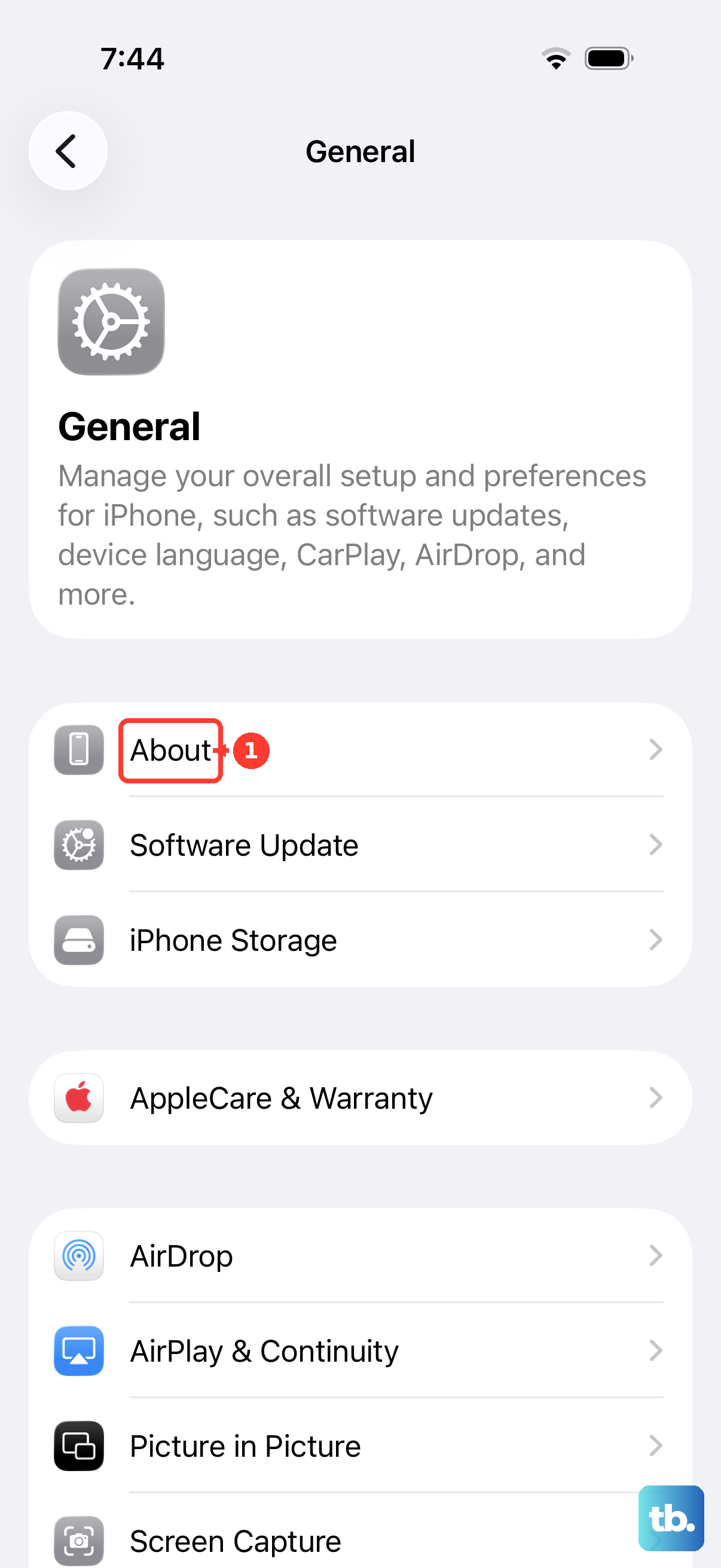
Make sure the device is connected to Wi-Fi, then open Settings > General > About. If a carrier settings update is available, you'll see an option to update your carrier settings. Apply it, then test your messages again.
Update to the Latest Version of iOS
Running an outdated version of iOS can leave messaging bugs unpatched, and Apple's guidance is simply to update to the latest version of iOS rather than any specific release. Because an update touches the whole system, take a couple of precautions first.
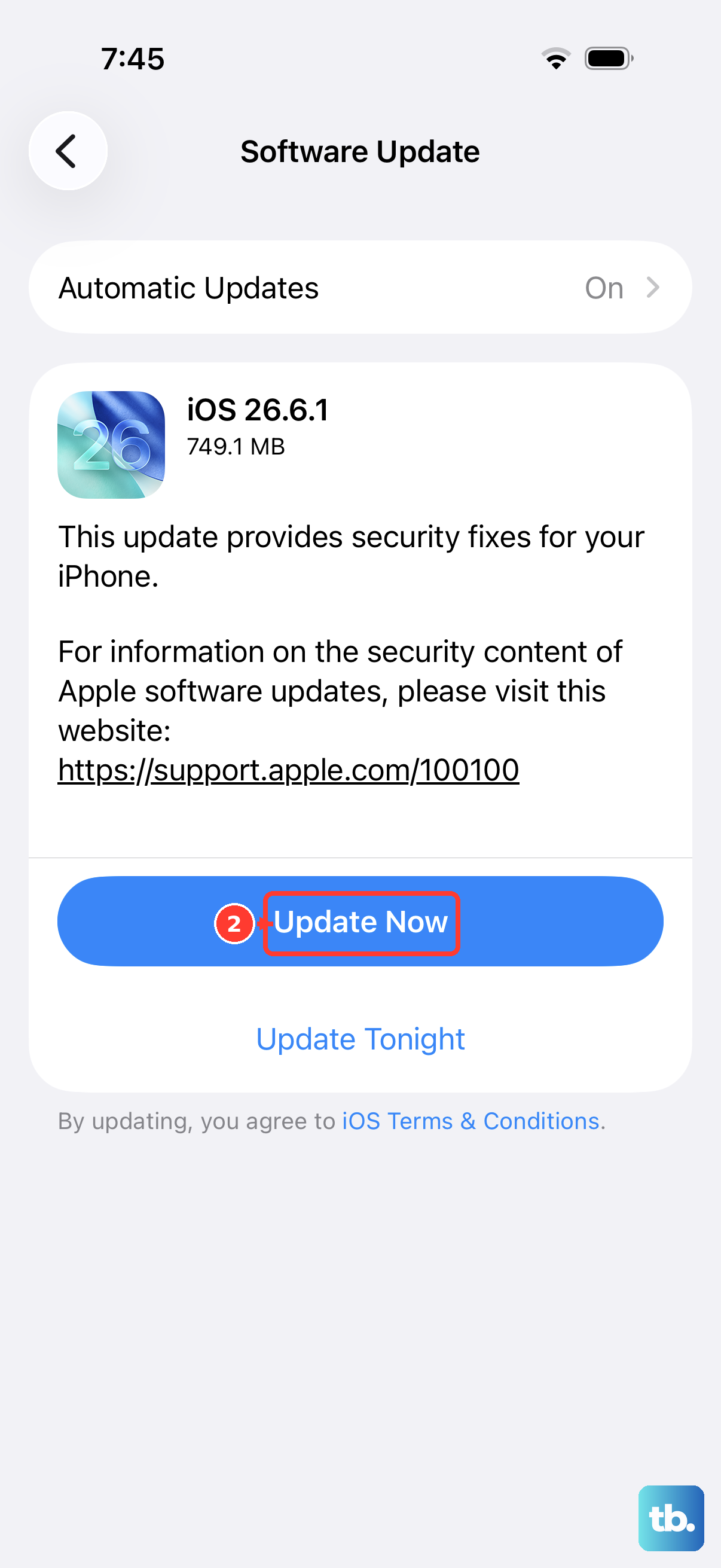
Back up your iPhone first, then connect to power and Wi-Fi. Go to Settings > General > Software Update and tap Download and Install to install the latest iOS. After the update completes and your phone restarts, send a test message to confirm the issue is resolved.
Erase Everything as a Last Resort, Then Reach Out for Help
If you have worked through every step above and your texts still will not send, a full reset is the final on-device option. This is a destructive step, so treat it carefully and only use it when nothing else has worked.
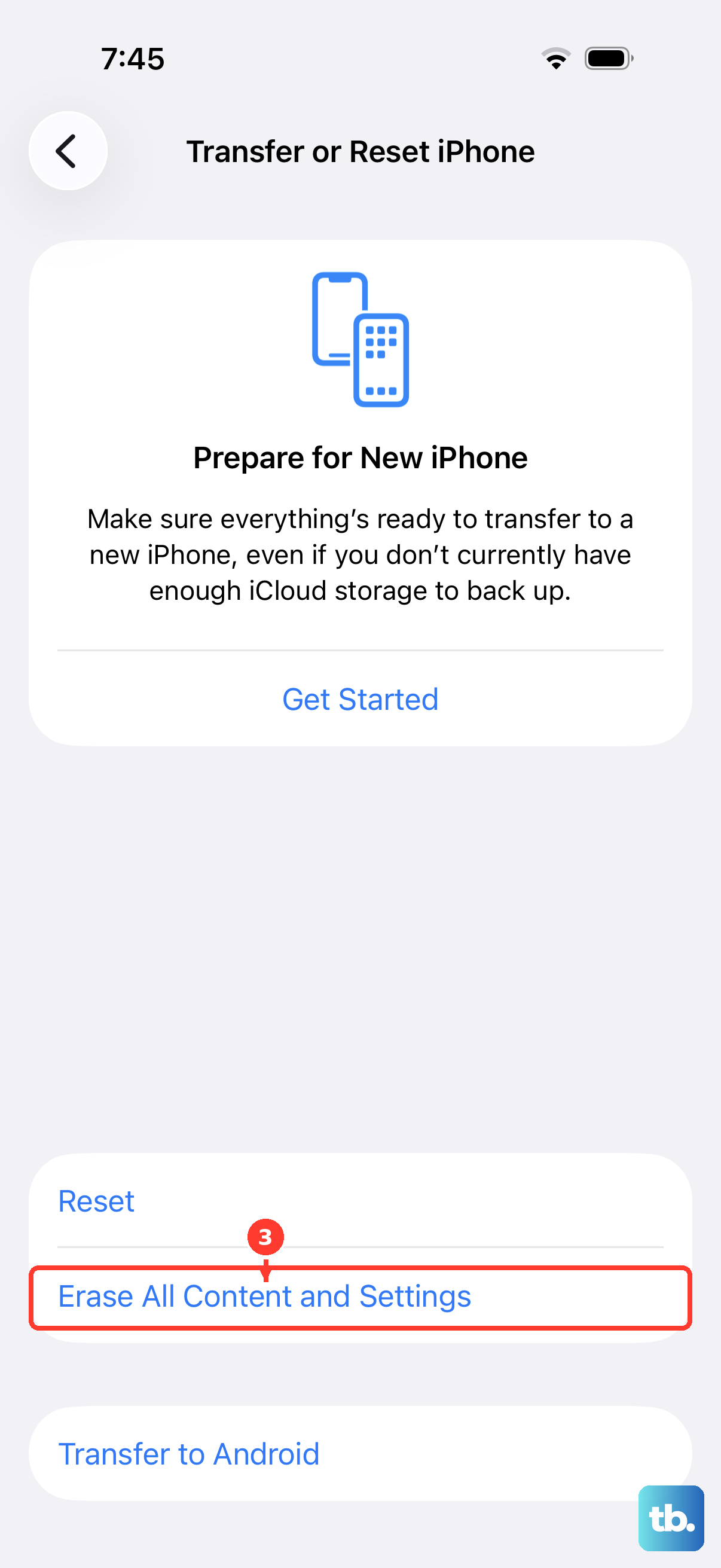
Back up the iPhone first, because erasing it restores the device to factory settings and removes your content, including Apple Pay cards, photos, contacts, music, and apps. To proceed, go to Settings > General > Transfer or Reset iPhone > Erase All Content and Settings > Continue, choose whether to keep or erase your eSIM, then enter your passcode and Apple Account password.
If you have done this and still cannot send iMessages, contact Apple Support through the Apple Support app or support.apple.com. If you still cannot send SMS, MMS, or RCS messages, the problem is most likely on the network side, so contact your carrier instead.
Frequently Asked Questions
Why does my iPhone 13 say "Not Delivered" with a red exclamation point?
That alert means the message failed to send, most often because of a network problem. Check your connection, then tap the red exclamation point and tap Try Again, or tap Send as Text Message to send it over SMS instead of iMessage.
What is the difference between a text not sending as iMessage and not sending as SMS?
iMessage, RCS, and MMS need cellular data or Wi-Fi, while standard SMS texts need a cellular network connection. If iMessages fail but SMS works, focus on iMessage steps like toggling iMessage off and on; if SMS also fails, check that your phone line is on and refresh the cellular connection.
Will updating iOS or my carrier settings delete my messages?
No. A software update or a carrier settings update does not erase your content, though Apple recommends backing up before any iOS update as a precaution. Only Erase All Content and Settings removes your data, so reserve that step for last and back up first.
Who should I contact if none of these fixes work?
If you still cannot send iMessages after trying everything, contact Apple Support through the Apple Support app or support.apple.com. If you still cannot send SMS, MMS, or RCS messages, contact your carrier, since those travel over the cellular network they manage.