You grabbed your iPhone 13 to share its connection with a laptop or tablet, only to find the hotspot won't switch on, keeps disappearing, or refuses to let anything connect. Personal Hotspot on the iPhone 13 turns your cellular data into a private network over Wi-Fi, Bluetooth, or USB, so when it fails you lose internet everywhere else at once. The good news is that most hotspot problems trace back to a handful of settings and quick resets you can work through yourself. Start at the top of the list, since the first checks are the safest and most common culprits, and save the reset and support steps for the end.
One thing worth knowing before you start is that the iPhone 13 has the hardware for hotspot built in, including 5G, Gigabit LTE, Wi-Fi 6, and Bluetooth 5.0, so the feature is fully supported. What it still depends on is your wireless carrier and plan actually permitting tethering, which Apple states is required. Keep that in mind, because a few of these fixes point back to your carrier rather than the phone.
Confirm the hotspot is actually switched on and your plan allows it
Before anything else, make sure Personal Hotspot is turned on. Open the Settings app, tap Personal Hotspot (or go to Settings > Cellular > Personal Hotspot), then turn on Allow Others to Join. That single toggle is what brings the hotspot to life, and it is easy to miss.
If you can't find Personal Hotspot or can't turn it on at all, the issue may be on your carrier's side. Personal Hotspot requires a wireless carrier that supports it, and additional fees may apply. Check that your carrier has enabled tethering and that your wireless plan includes it before chasing other fixes.
Make sure Cellular Data is turned on
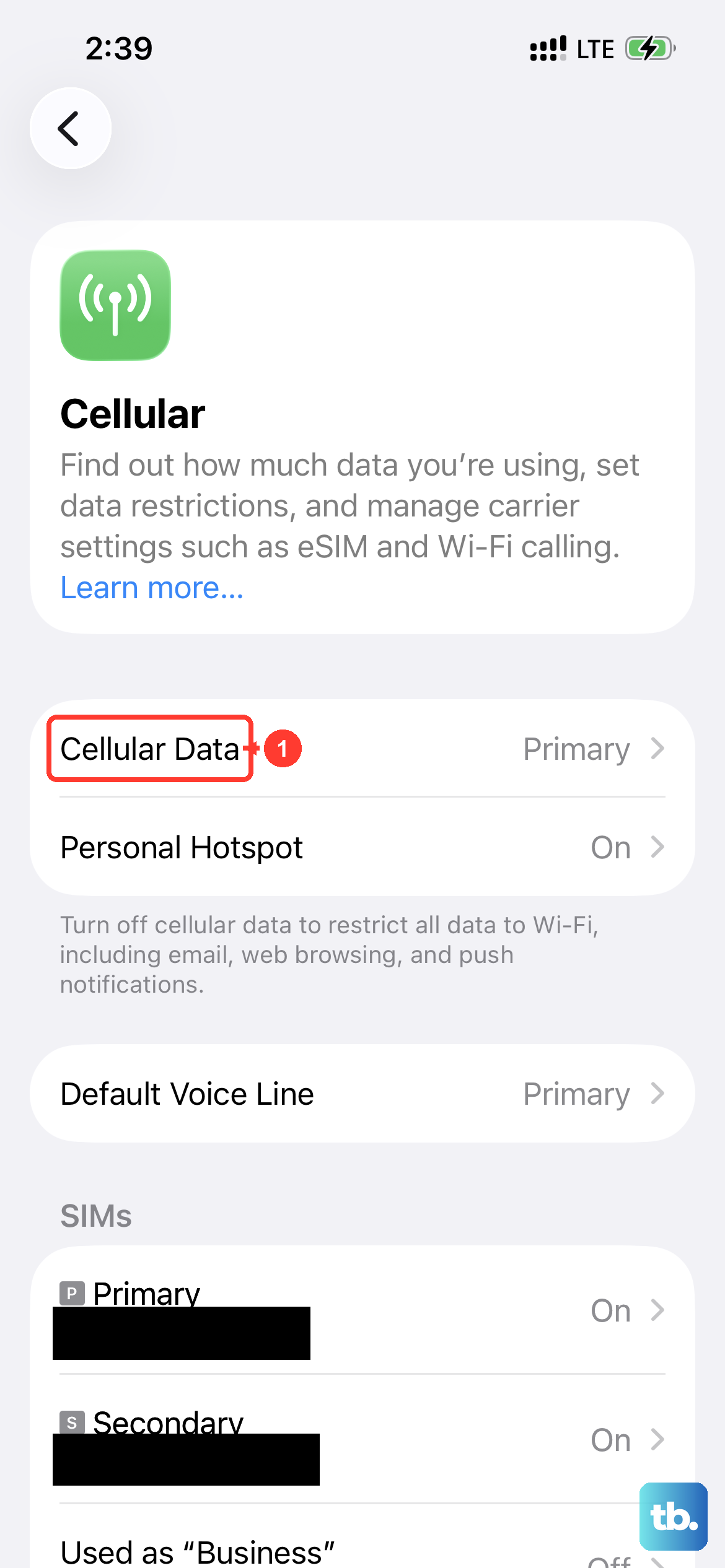
A Personal Hotspot shares your cellular connection, so if cellular data is off, there is nothing to share. If the Personal Hotspot option looks dimmed or unavailable, this is usually why.
Open Settings, tap Cellular, and make sure that Cellular Data is turned on. With cellular data active again, return to Personal Hotspot and check whether the option is now selectable.
Set or double-check the Wi-Fi password
You need a Wi-Fi password to set up a Personal Hotspot, and a password that the connecting device rejects can look like a broken hotspot when it isn't. On the iPhone providing the connection, go to Settings > Personal Hotspot (or Settings > Cellular > Personal Hotspot) and tap the Wi-Fi password.
Choose a password that is at least eight characters long and uses only ASCII characters, meaning uppercase and lowercase English letters, numbers 0 to 9, and some punctuation. If you saw a password error on the device trying to connect, verify the exact password here, then enter it again carefully on the other device.
Turn on Maximize Compatibility
The iPhone 13 offers a setting built specifically to help stubborn devices connect, and it is one of the most reliable fixes when one gadget joins fine but another won't. Because the iPhone 13 is an iPhone 12 model or later, it includes this toggle.
Open the Settings app, tap Personal Hotspot, and turn on Maximize Compatibility. This helps older or third-party devices connect to the hotspot. If everything was failing to connect, flip this on and try again.
Fix the connection from the other device's side
Sometimes the iPhone is broadcasting perfectly and the problem lives on the device trying to join. A quick Wi-Fi cycle on that device clears most of these snags.
On the device that needs to connect, turn Wi-Fi off and back on, then make sure you connect to the correct Wi-Fi network. The right one matches your iPhone's name. Keep the Personal Hotspot screen open on the iPhone until the other device finishes connecting.
Restart both devices
If the settings all look right and connections still fail, a clean restart of both the host iPhone and the device joining it often clears whatever got stuck. Restart the iPhone 13 that provides Personal Hotspot first, then the other device.
To restart the iPhone 13, press and hold either volume button and the side button until the power-off slider appears, drag the slider, wait 30 seconds, then press and hold the side button until the Apple logo appears. Once it is back up, reopen Personal Hotspot and try connecting again.
Force restart an unresponsive iPhone 13
If the iPhone itself has frozen and won't respond to the normal restart, a force restart will reboot it without erasing your data. The button sequence on the iPhone 13 matters, so follow it exactly.
- 1.Press and quickly release the volume up button.
- 2.Press and quickly release the volume down button.
- 3.Press and hold the side button until you see the Apple logo. This might take longer than 10 seconds, so keep holding.
When the Apple logo appears, let go and let the phone start up normally, then test the hotspot.
Update to the latest version of iOS
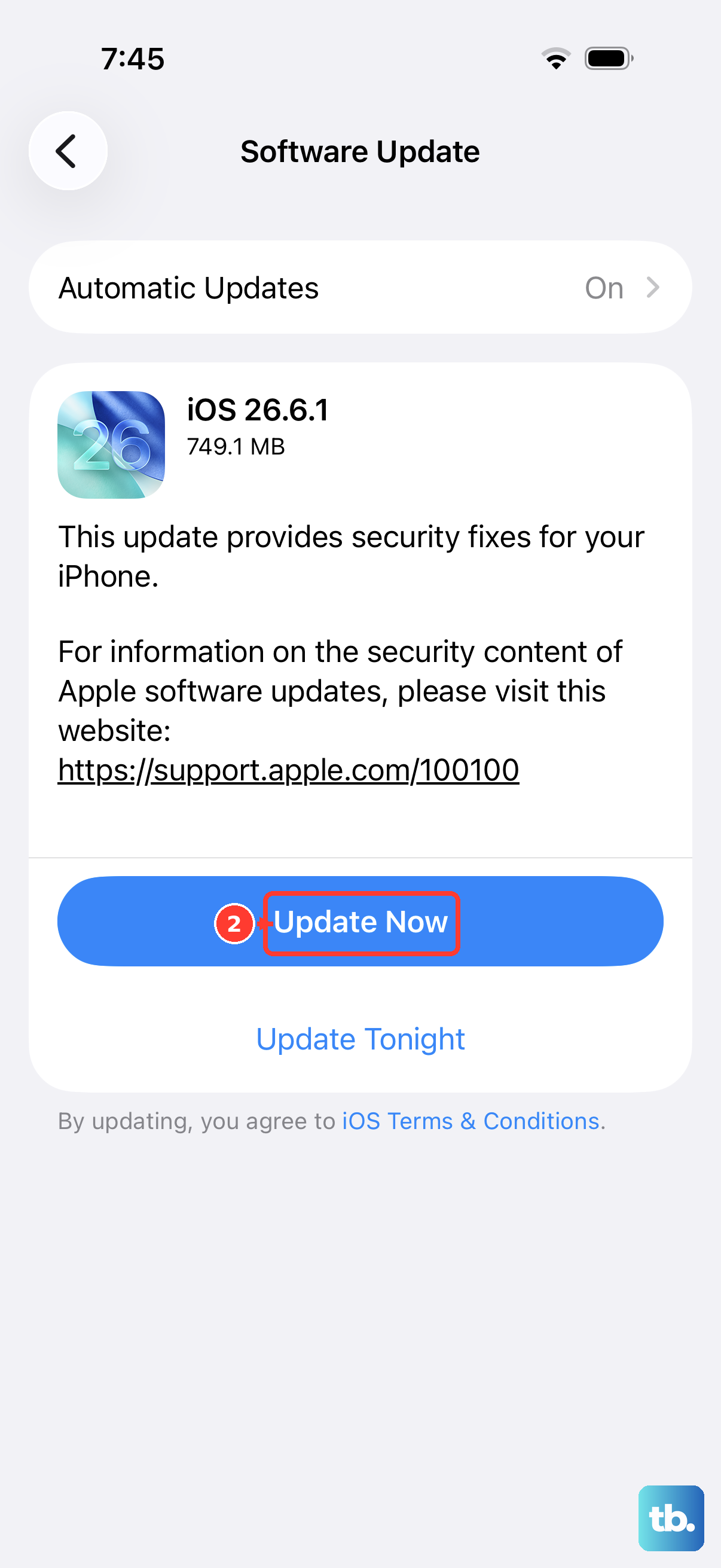
Running an outdated version of iOS can introduce networking bugs that an update has already fixed. The iPhone 13 is supported all the way through iOS 26, so there is no reason to stay behind.
Go to Settings > General > Software Update, then tap Download and Install if an update is available and follow the onscreen instructions. After the update finishes and the phone restarts, check whether the hotspot behaves.
Reset Network Settings
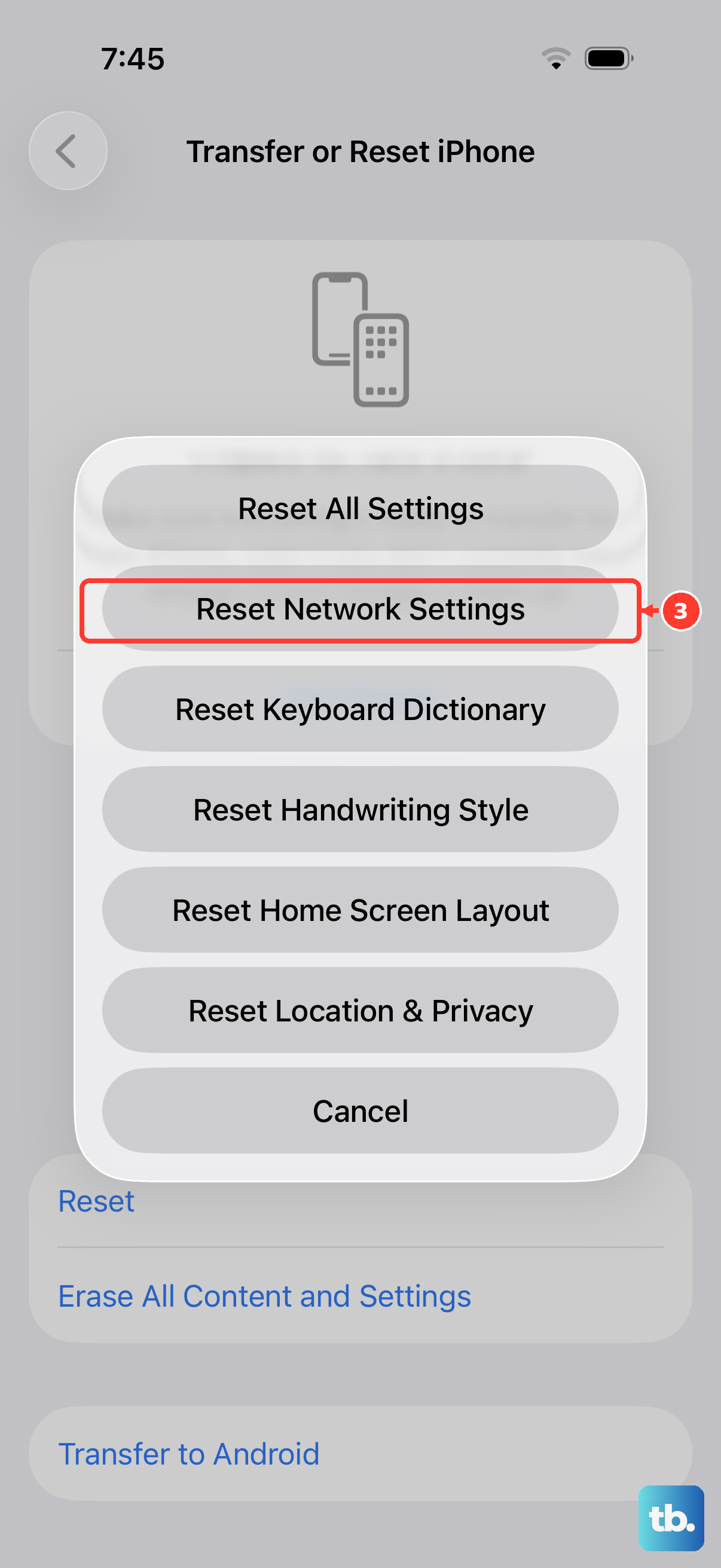
When saved network configuration gets corrupted, it can quietly block hotspot connections, and clearing it is an Apple-recommended hotspot fix. On the iPhone that provides Personal Hotspot, work through the reset path carefully.
- 1.Open Settings and tap General.
- 2.Tap Transfer or Reset iPhone.
- 3.Tap Reset.
- 4.Tap Reset Network Settings.
This clears the saved network configuration that can interfere with the hotspot. Afterward, you may need to set your Wi-Fi password again on the Personal Hotspot screen and reconnect your devices.
Try USB or Bluetooth, then escalate as a last resort
Personal Hotspot does not only work over Wi-Fi. If Wi-Fi tethering keeps failing, you can connect the iPhone to a computer with a USB cable and trust the device, or pair the two devices over Bluetooth and share the connection that way. Switching methods often gets you online while you sort out the Wi-Fi issue.
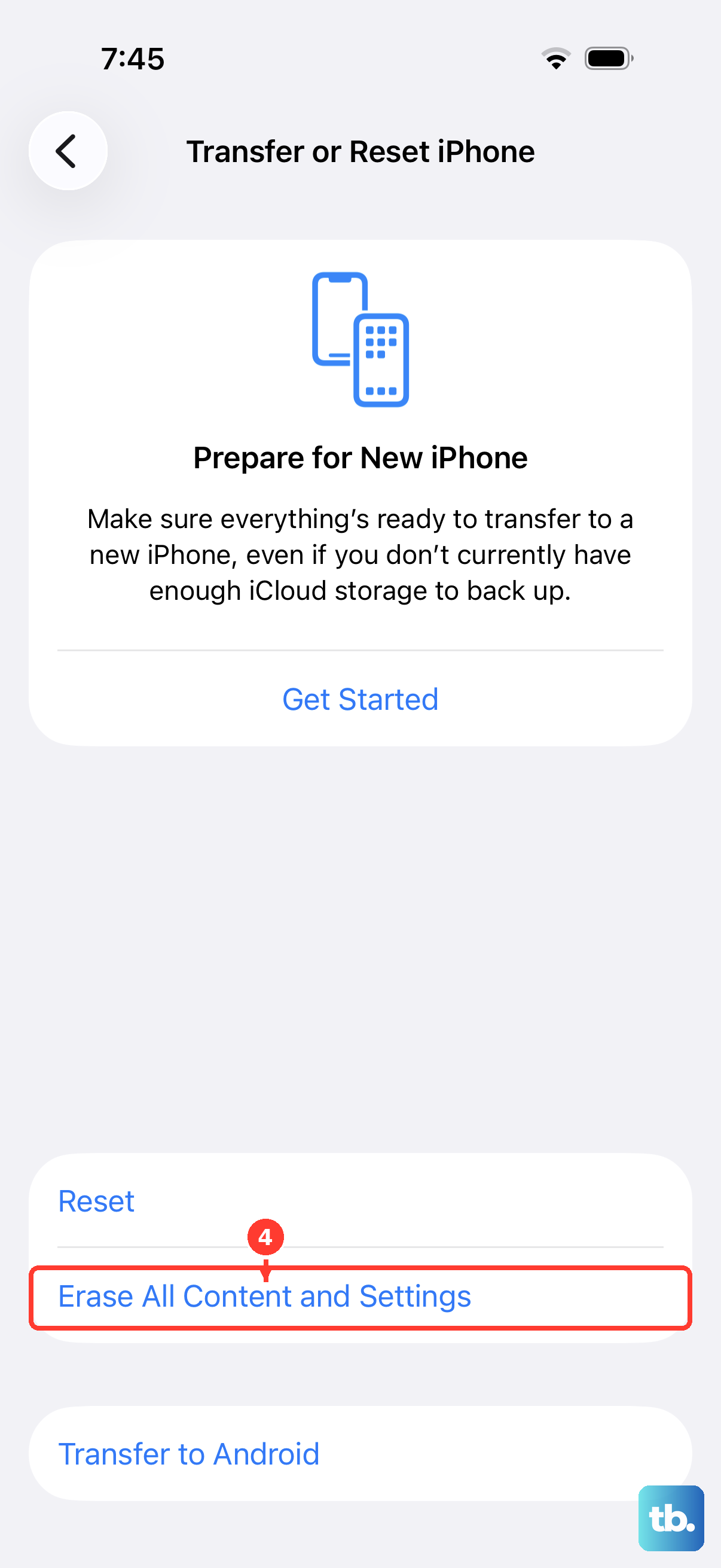
If nothing above works, the final on-device option is to back up the iPhone and erase it. Go to Settings > General > Transfer or Reset iPhone > Erase All Content and Settings. This restores the iPhone to factory settings and erases all content and settings, so back up first. If you have an eSIM, erasing it means you must contact your carrier to reactivate your cellular plan, so weigh this carefully.
For plan or tethering problems, contact your wireless carrier, since they are the ones who must permit tethering in the first place. If you suspect a hardware fault, contact Apple Support.
Frequently Asked Questions
Why is Personal Hotspot greyed out on my iPhone 13?
The most common reason is that Cellular Data is turned off, because the hotspot shares your cellular connection. Open Settings > Cellular and make sure Cellular Data is on. If it is still unavailable, your carrier may not have enabled tethering on your plan, so contact your wireless carrier to confirm it is supported.
Does the iPhone 13 support Personal Hotspot at all?
Yes. The iPhone 13 has cellular data, Wi-Fi 6, and Bluetooth 5.0, so it fully supports Personal Hotspot over Wi-Fi, Bluetooth, or USB. The only catch is that your wireless carrier and plan must permit tethering, which Apple states is required.
My device says the hotspot password is wrong. What should I do?
Check the exact password on the host iPhone under Settings > Personal Hotspot by tapping the Wi-Fi password. It must be at least eight characters and use only ASCII characters, meaning uppercase and lowercase English letters, numbers 0 to 9, and some punctuation. Re-enter it carefully on the connecting device.
Will resetting network settings delete my photos or apps?
No. Reset Network Settings only clears your saved network configuration, not your personal content like photos or apps. The step that erases everything is Erase All Content and Settings, which is a full factory reset and requires a backup first.
What does Maximize Compatibility actually do?
On an iPhone 12 model or later, including the iPhone 13, turning on Maximize Compatibility under Settings > Personal Hotspot helps older or third-party devices connect to your hotspot. Switch it on if some devices can join but others can't.