You reach for the flashlight on your iPhone 13 in a dark room, tap the button, and nothing happens. The light stays off, the button looks unresponsive, or the flash refuses to fire even though everything else on the phone seems fine. It is a frustrating moment, especially when you actually need light right now, but the good news is that the flashlight on the iPhone 13 is the rear True Tone flash controlled by software, so most failures come down to a setting, a temporary glitch, or something physically covering the LED rather than a broken part.
The fixes below are ordered from the quickest and safest to the most involved. Start at the top and work your way down. Most people get their flashlight working again within the first few steps, long before anything drastic is needed.
Start With Control Center, Where the Flashlight Actually Lives
On the iPhone 13, the flashlight is not a separate app. It is a control inside Control Center, and the first thing to confirm is that you are opening it correctly. If you have been swiping up from the bottom, that gesture belongs to older iPhones, not your Face ID model.
Swipe down from the upper-right corner of the screen to open Control Center.
Tap the Flashlight button to turn it on or off.
To change how bright the light is, press and hold the Flashlight button, then drag the slider up or down. If the slider is sitting at the very bottom, the flashlight may technically be on but at minimum brightness, which can look like it is not working at all.
You can also trigger the light without unlocking the phone. Press and hold the Flashlight button in the bottom-left corner of the Lock Screen, and the flash should fire immediately. Testing it from both Control Center and the Lock Screen helps you tell whether the problem is the light itself or just one way of reaching it.
Add the Flashlight Control If the Button Is Missing
If you swipe into Control Center and there is no Flashlight button at all, the control may simply have been removed from your layout. You can add it back in a few taps.
Go to Settings > Control Center.
Tap Flashlight in the list of available controls.
Once it has been added, reopen Control Center and try the button again. This is one of the most common reasons the flashlight seems to vanish entirely, and it is an easy thing to overlook because the rest of Control Center keeps working normally.
Clear Anything Physically Covering the Flash
The LED that acts as your flashlight sits next to the rear camera, and anything resting over that area can block or dim the light. This is purely a physical check, so it takes only a moment.
Remove any case, film, or accessory that might cover the camera or flash.
That includes add-ons such as a polarizer, extender, or magnifier, as well as anything that places a magnet near the camera.
After you have cleared the area, test the flashlight again from Control Center to see whether the light now shines freely.
Let an Overheated iPhone Cool Down
Temperature is one of the few causes Apple specifically documents for the flash going dark. If your iPhone got too hot, the camera flash or other camera features might be temporarily disabled, and you may see a message telling you that the iPhone needs to cool down.
When that happens, turn off your device, move it to a cooler environment away from direct sunlight, and allow it to cool down.
The iPhone is designed for use where the ambient temperature is between 0 and 35 C (32 to 95 F).
Once the device returns to a normal temperature, the flash works again on its own, so this is a matter of patience rather than repair.
Double-Check the Flash Setting Inside the Camera App
If the flashlight works but the flash refuses to fire when you take photos, the issue may be the Camera app's own flash setting rather than the flashlight control. These are two different controls, and the Camera app has its own on, off, and automatic modes.
Open the Camera app.
Tap the Flash button.
Tap again to switch between Flash On, Flash Off, and Flash Auto so the flash is not turned off.
This setting controls the camera flash specifically. If you have been chasing a flash problem that only shows up while shooting photos, make sure this is not simply set to Flash Off.
Restart the iPhone to Clear a Temporary Glitch
A normal restart clears short-lived software hiccups that can leave the flashlight stuck, and it does not touch any of your data. This is the gentlest reset available.
Press and hold either volume button and the side button until the power-off slider appears.
Drag the slider, then wait 30 seconds for the device to turn off.
To turn it back on, press and hold the side button (on the right side of your iPhone) until you see the Apple logo.
Give the flashlight a try as soon as the phone is back up. A clean restart resolves a surprising number of unresponsive-button problems.
Force Restart When the Flashlight Is Frozen
If the phone is unresponsive or the flashlight button does nothing even after a normal restart, a force restart is the next step. It uses a precise button sequence, so follow each press exactly as written.
- 1.Press and quickly release the volume up button.
- 2.Press and quickly release the volume down button.
- 3.Press and hold the side button until you see the Apple logo (this might take longer than 10 seconds), then release the button.
The force restart does not erase anything; it simply forces the iPhone to power-cycle when a normal restart will not do the job. Once the Apple logo appears and the phone finishes starting, test the flashlight again.
Update iOS to Fix Software Bugs Affecting the Flash
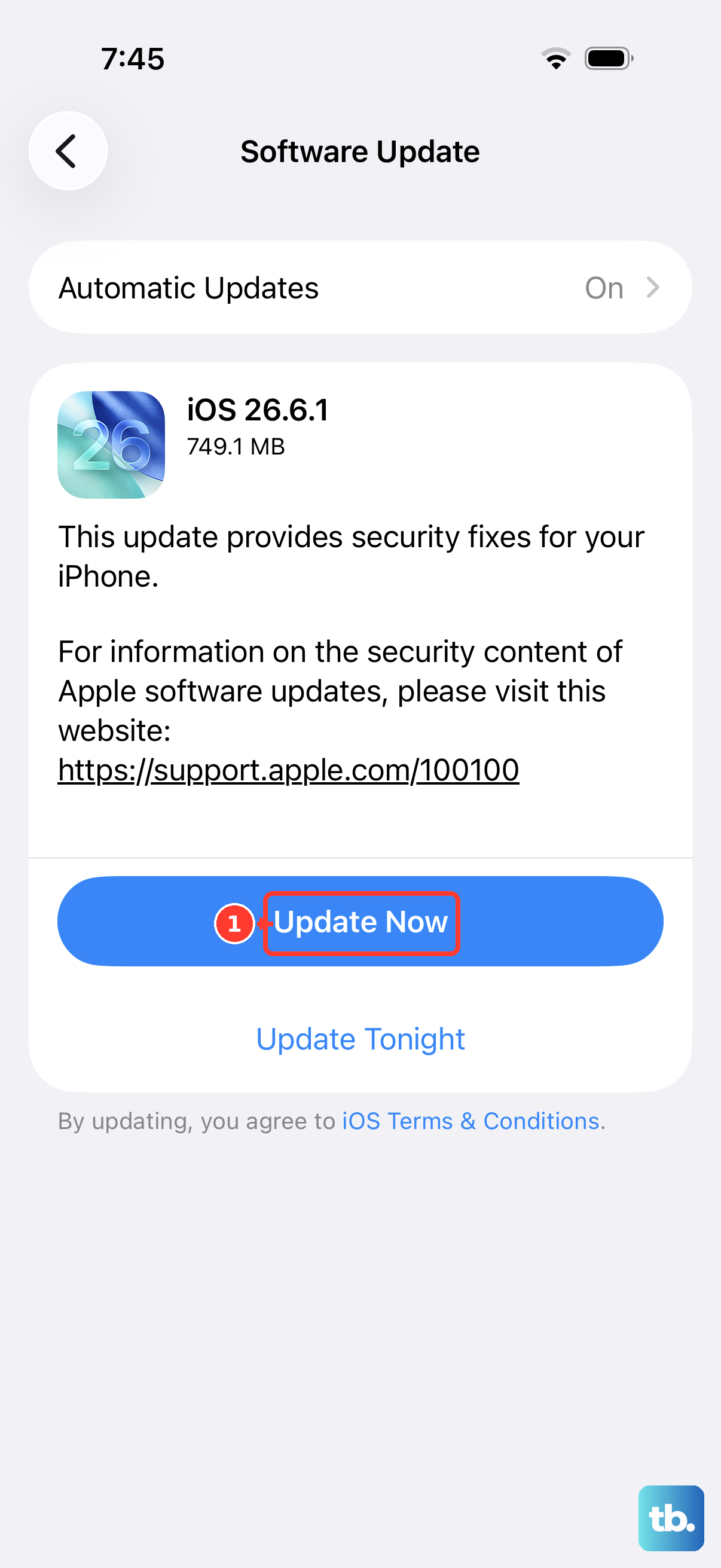
Software problems that affect the camera and flash are sometimes resolved in an iOS update, and installing the latest version does not change your data or settings.
Go to Settings > General > Software Update.
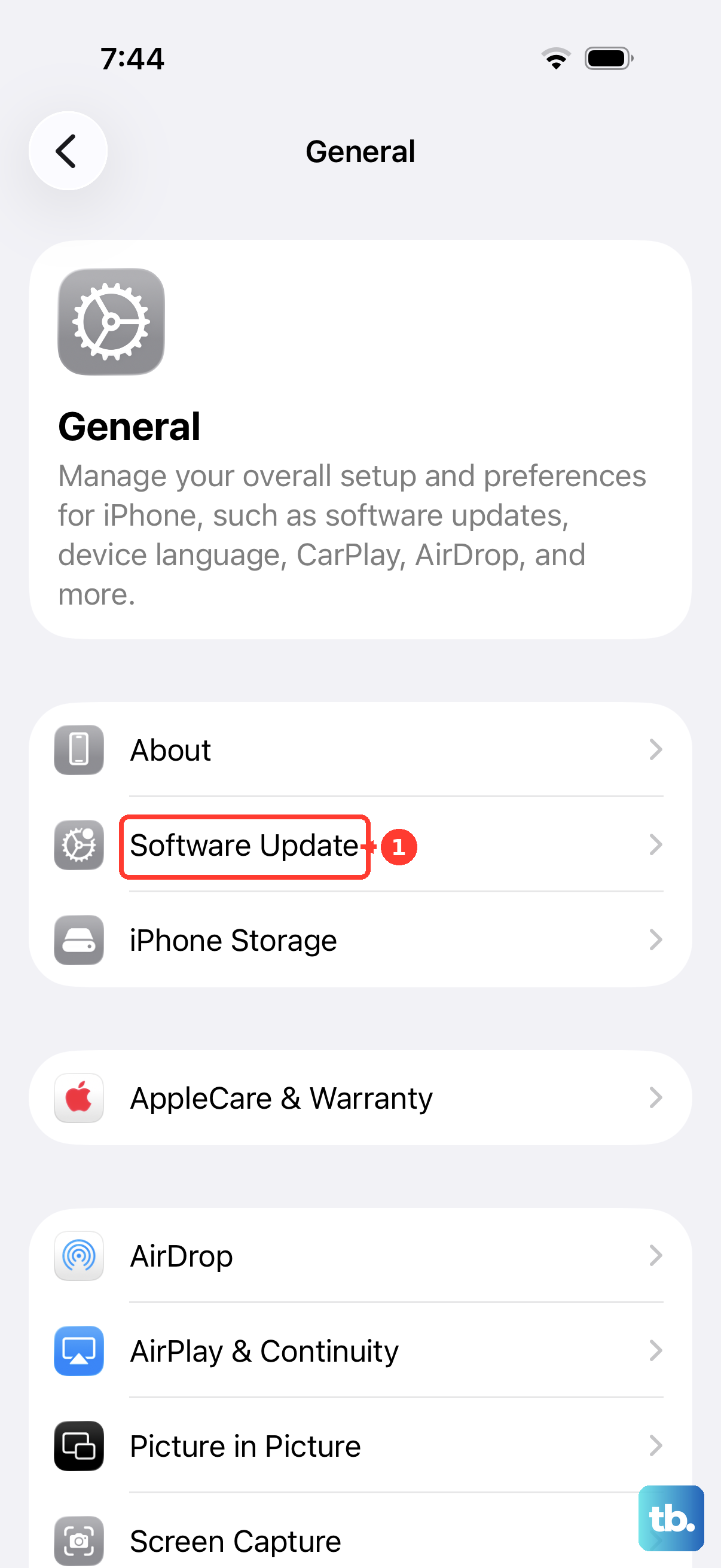
If an update is available, tap Download and Install.
Follow the onscreen instructions.
Let the update finish completely, then check the flashlight once the phone restarts on the new version. Keeping iOS current is also good general maintenance for the camera system the flash belongs to.
Erase All Content and Settings as a Last Resort
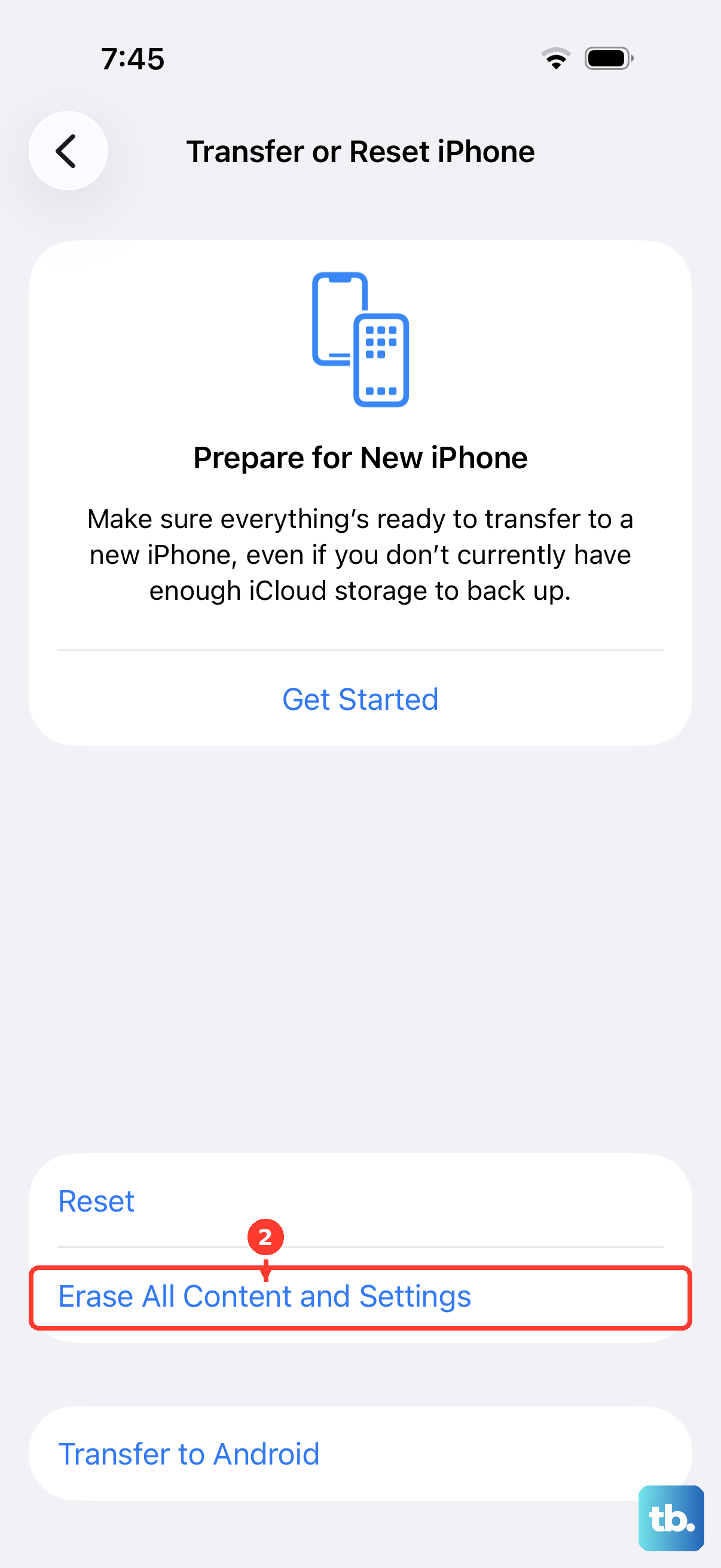
If nothing above has worked, you can return the iPhone to its factory state to rule out a deep software problem. This step is destructive, so read carefully before you begin.
Back up your iPhone first, because this restores the device to factory settings and removes all your content and data.
There is no way to undo it without a backup, so confirm your backup is complete before continuing.
Go to Settings > General > Transfer or Reset iPhone > Erase All Content and Settings.
Follow the onscreen prompts and enter your passcode when asked to confirm.
After the erase finishes, you can set the phone up and restore from your backup. If the flashlight works on a freshly erased device, the cause was software; if it still fails, the problem is almost certainly hardware.
When It Is Time to Arrange Service
If the camera or flash still is not working properly after all of these steps, the iPhone might need service. At that point the issue is likely physical, and continuing to tinker will not bring the light back.
Contact Apple Support to arrange a repair. Having already worked through the restart, update, and erase steps tells the support team that you have ruled out the common software causes, which can make the service conversation faster.
Frequently Asked Questions
Why is the Flashlight button missing from my iPhone 13 Control Center?
The control may have been removed from your layout. Go to Settings > Control Center, tap Flashlight in the list of available controls, then reopen Control Center and the button will be there again.
Why does my flash work for photos but the flashlight does not turn on?
The flashlight is toggled from Control Center or the Lock Screen, while the photo flash has its own setting inside the Camera app. Open Control Center by swiping down from the upper-right corner and tap the Flashlight button; if it still fails there, try a restart or force restart.
My iPhone says it needs to cool down and the flash stopped working. What now?
When the iPhone gets too hot, the camera flash and other camera features can be temporarily disabled. Turn off the device, move it somewhere cooler and out of direct sunlight, and let it cool; the flash works again once the phone returns to a normal temperature within the 0 to 35 C (32 to 95 F) operating range.
Will updating iOS or erasing my iPhone fix the flashlight?
Updating iOS through Settings > General > Software Update can resolve software bugs affecting the camera and flash without changing your data. Erasing all content and settings is a stronger last resort that wipes the device, so back up first; if the flashlight still fails after a clean erase, the phone likely needs service.
How do I adjust the brightness of the iPhone 13 flashlight?
Open Control Center, press and hold the Flashlight button, then drag the slider up or down. If the slider is set near the bottom, the light can appear off even when it is technically on, so raise it and test again.