
You’ve got your iPad Pro M5 in hand, but the notifications aren’t showing up — no banners, no sounds, no badges. It’s a common frustration, especially after an iPadOS update or when a Focus mode gets turned on accidentally. Let’s walk through the fixes that actually work on the 11-inch and 13-inch models.
Check if Do Not Disturb or a Focus Is On
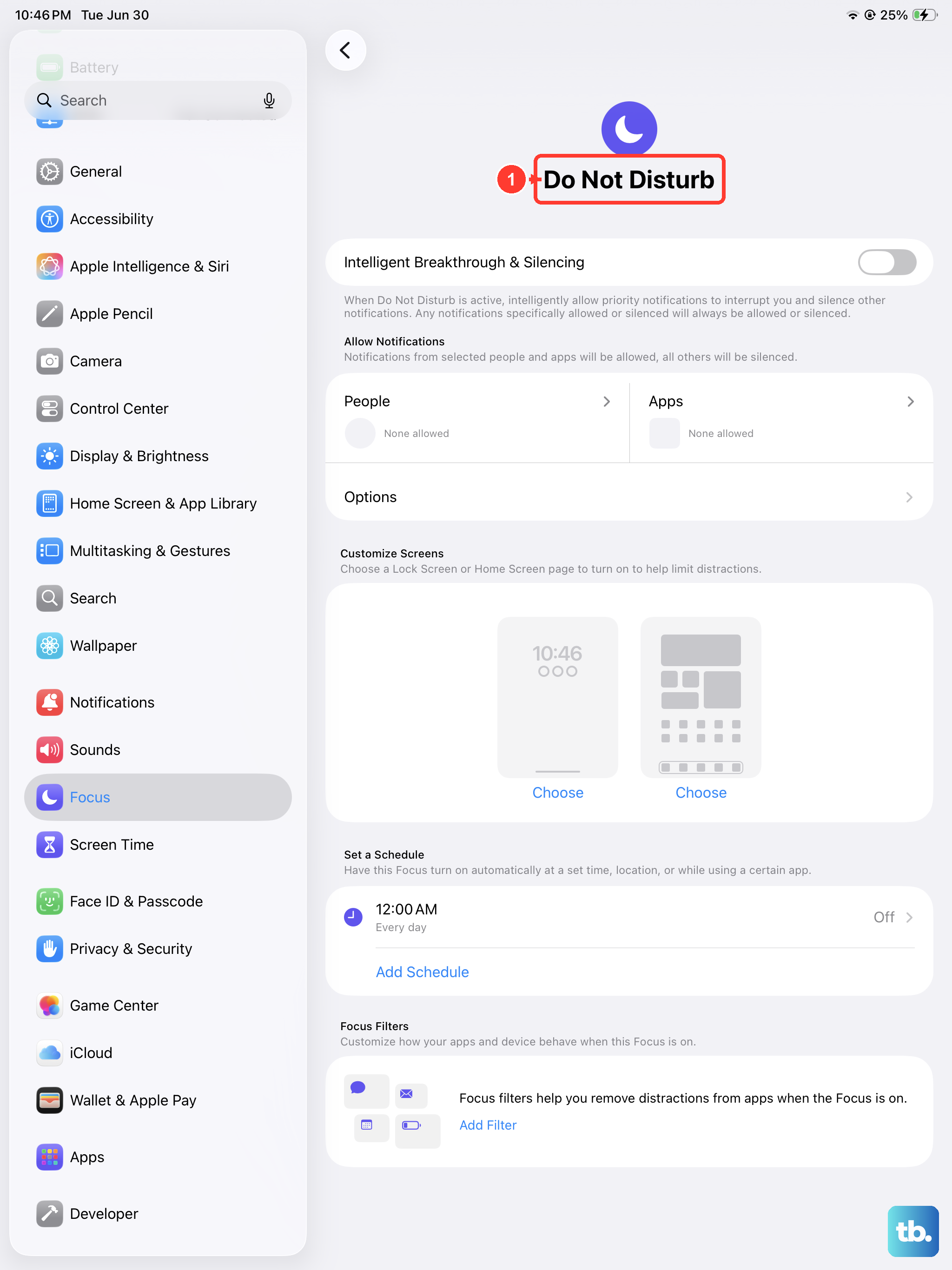
This is the most common reason notifications go silent. Swipe down from the top-right corner to open Control Center and look at the Focus tile. If it’s highlighted (usually with a moon icon), tap it to turn it off. Also check if you’ve set up a scheduled Focus in Settings > Focus.
Review Notification Settings for Each App
Open Settings > Notifications and scroll through the list. Tap on any app that isn’t alerting you. Make sure Allow Notifications is toggled on, and then check the alert styles: you’ll want at least one of Lock Screen, Notification Center, or Banners enabled. If you want sound, make sure Sounds is turned on under that app’s notification options.
Toggle Notifications Off and Back On
Sometimes a quick reset of the app’s notification permission clears a stuck state. In Settings > Notifications > [App], turn off Allow Notifications, wait a few seconds, then turn it back on. This forces the system to re-register the app for notifications.
Restart Your iPad Pro M5
A basic restart clears temporary glitches. Press and hold the Top button and either volume button until you see the power-off slider. Slide to power off, wait 30 seconds, then press and hold the Top button until the Apple logo appears. On these 2025 models, that’s all you need.
Force Restart If It’s Unresponsive
If your iPad isn’t responding at all or notifications are completely broken, do a force restart. Press and quickly release the Volume Up button, then press and quickly release the Volume Down button, then press and hold the Top button until the Apple logo shows up. This doesn’t erase any data.
Update to the Latest iPadOS
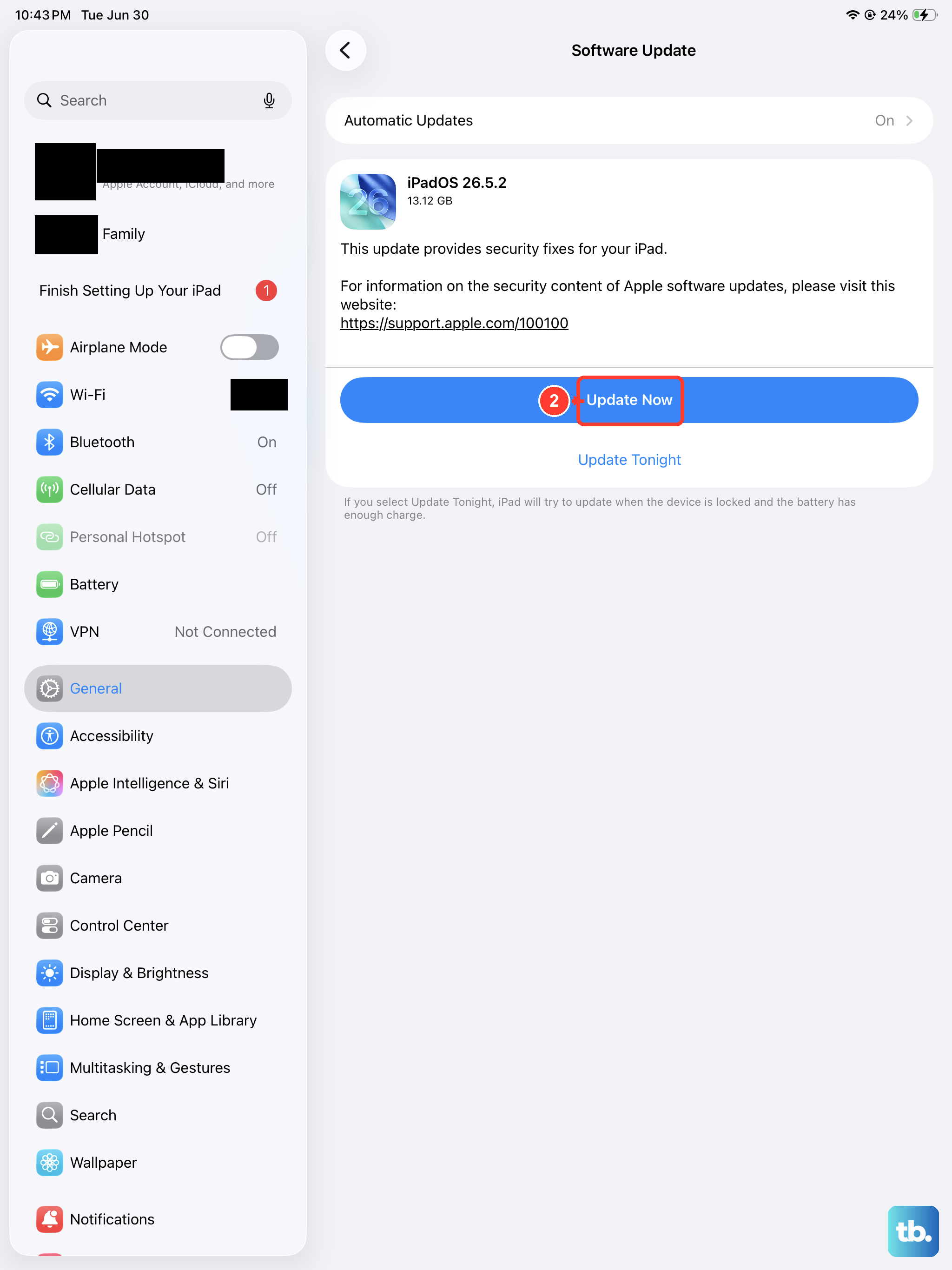
Apple regularly pushes fixes for notification bugs in iPadOS updates. Go to Settings > General &strong>Software Update. If a new version is available, download and install it. The iPad Pro M5 ships with iPadOS 18, so make sure you’re on the latest minor release.
Check Background App Refresh
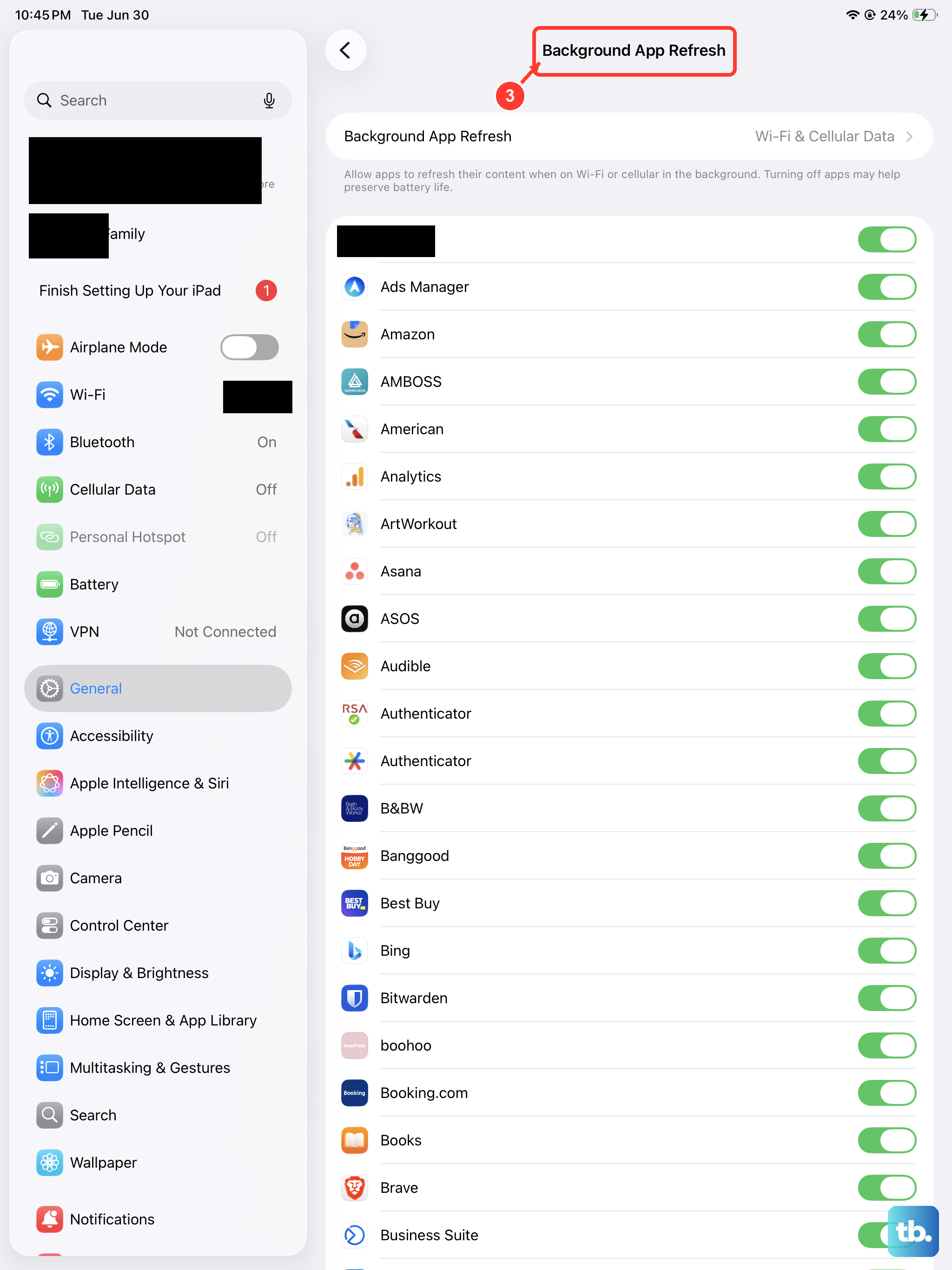
Apps need to fetch new data in the background to deliver timely notifications. Go to Settings > General > Background App Refresh. Make sure it’s enabled for the apps you care about. If you’ve turned it off globally, notifications that rely on background fetching may be delayed or missing.
Disable Low Power Mode
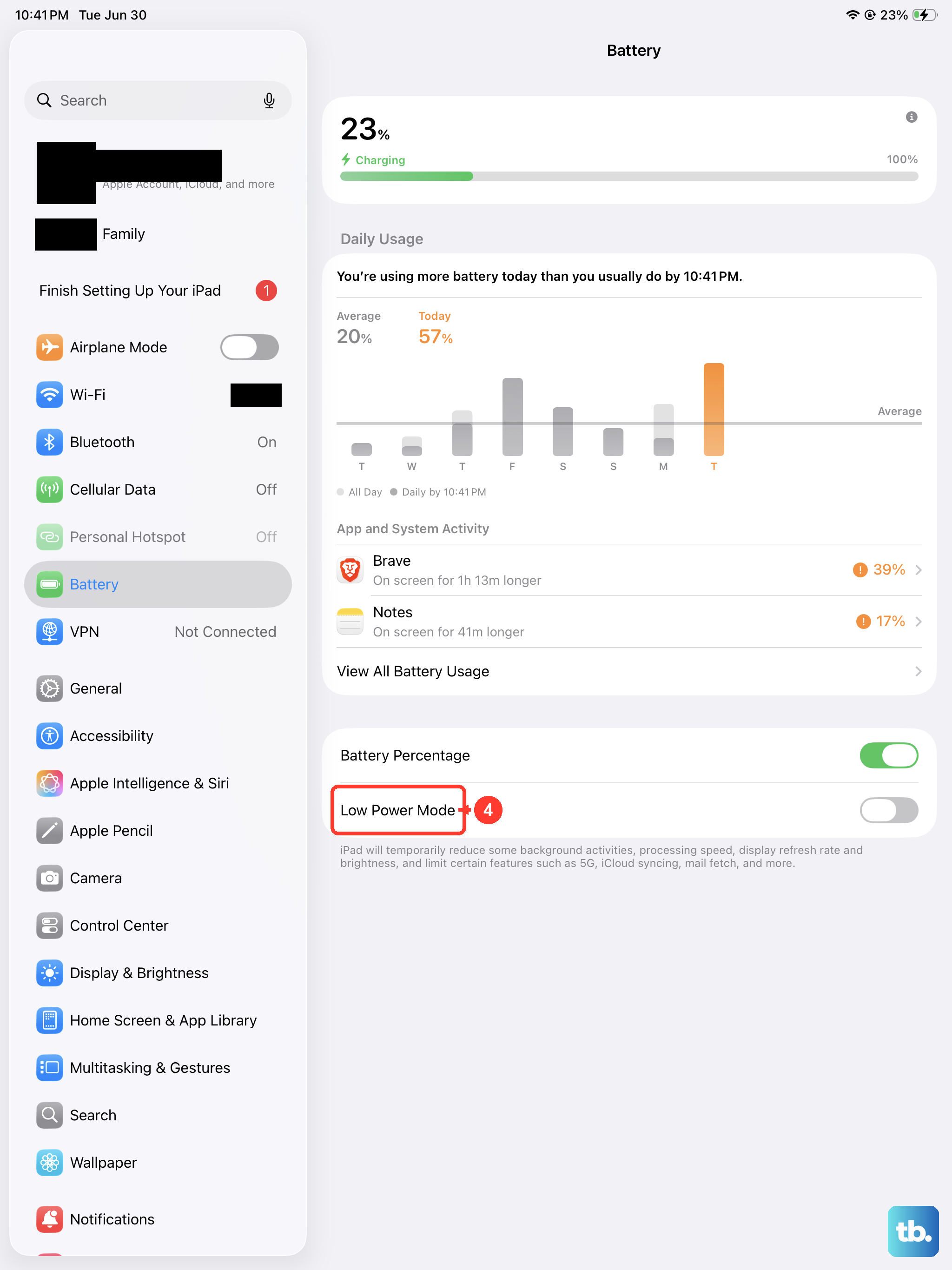
Low Power Mode pauses background activity and can delay or suppress notifications. If your battery is low and Low Power Mode is on, notifications might not come through until you charge the iPad. Turn it off in Settings > Battery > Low Power Mode, or let the battery charge above 80% so it automatically turns off.
Review Notification Summary and Scheduled Delivery
iPadOS has a feature called Scheduled Summary that bundles non-time-sensitive notifications and delivers them at set times. If you’ve enabled it, some alerts might be held back. Go to Settings > Notifications > Scheduled Summary. You can turn it off entirely or adjust which apps are included.
Reset All Settings
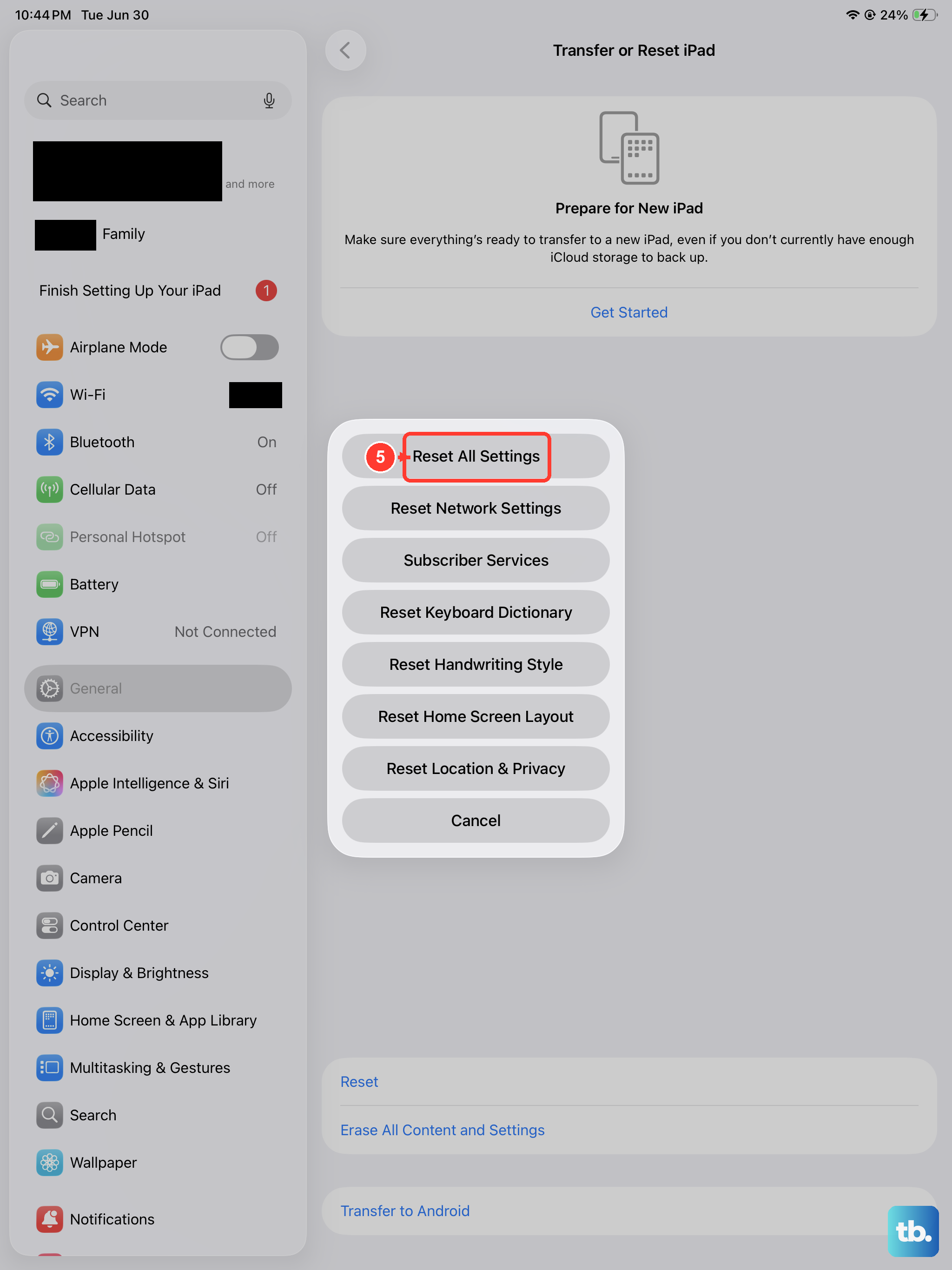
This is a more thorough step that resets system preferences like Wi-Fi passwords, wallpapers, and notification settings back to defaults — but it doesn’t delete your data. Go to Settings > General > Transfer or Reset iPad > Reset > Reset All Settings. After the process finishes, you’ll need to re-enable notification permissions for your apps.
Check Notification Center and Grouping Options
If you see alerts in Notification Center but they’re not showing up as banners, check the lock screen and banner settings per app. Also look at Settings > Notifications > Notification Grouping. If notifications are grouped by app and you’ve collapsed a group, you may miss a new alert. You can change grouping to “Off” for individual apps to see each alert separately.