
MMS on the iPad Pro M5 works differently than it does on most phones. If you have a cellular model with its own data plan, MMS goes directly through that. If you have a Wi‑Fi model, it relies on an iPhone connected to your Apple ID. Either way, the fix usually comes down to just a few settings.
Make Sure MMS Is Actually Turned On
This is the most common reason MMS fails on a cellular iPad. Apple hides the MMS toggle away by default on iPadOS 18.
Open Settings > Messages. Scroll down and look for the MMS Messaging toggle. If it's off (which it often is), turn it on. You'll also want to make sure iMessage is on, since both can affect how the device handles media messages.
Does Your Cellular Plan Support MMS?
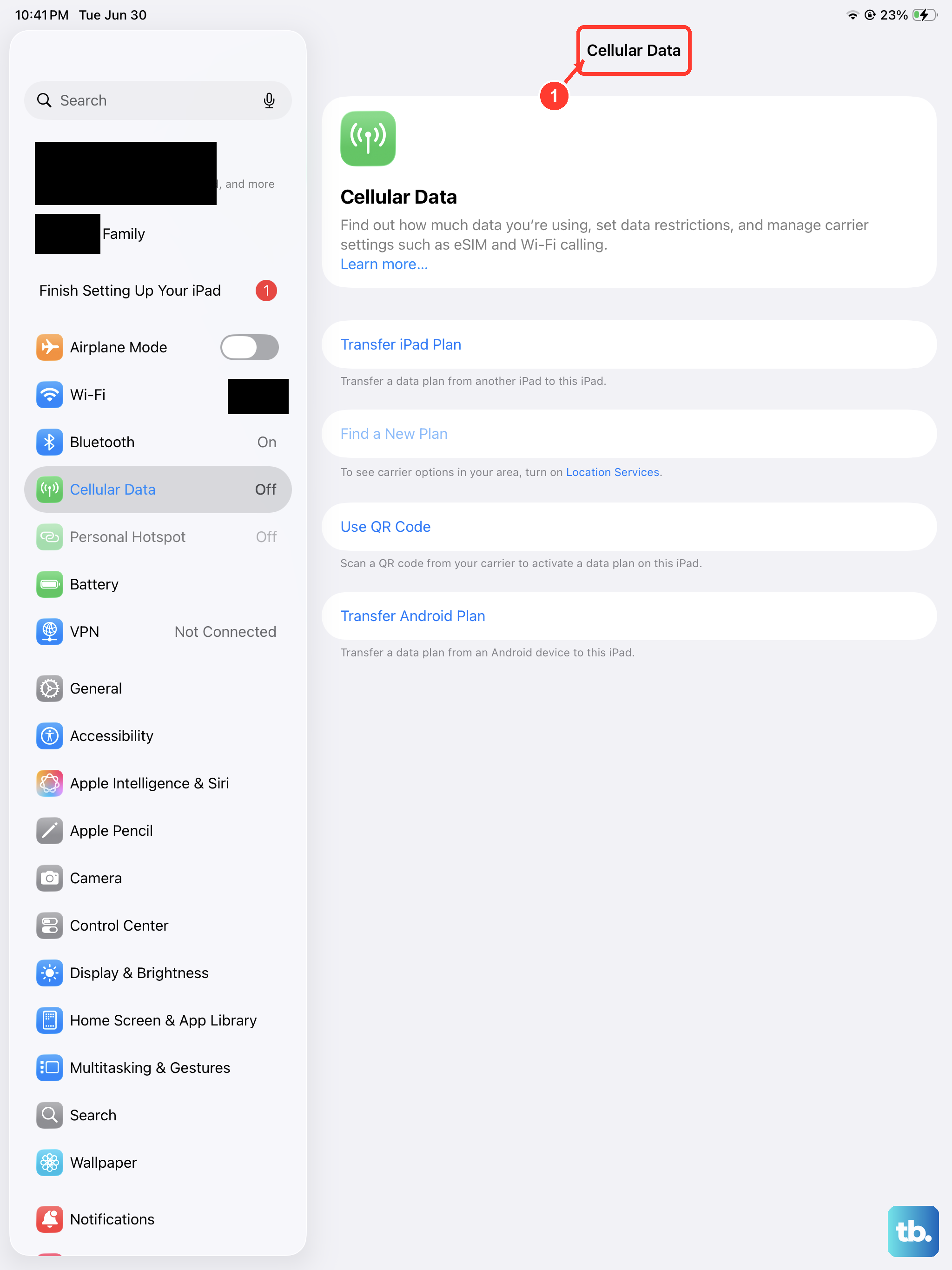
MMS requires an active cellular data connection. Even if you can make calls or send SMS, missing data will stop photos and videos cold.
Go to Settings > Cellular. Make sure Cellular Data is enabled for your primary line. If you see "No Service" or "SOS Only," the problem is signal, not the iPad itself. Move near a window or try toggling Airplane Mode on and off to force a reconnect.
Set Up Text Message Forwarding (Wi‑Fi + iPhone Users)
If your iPad Pro M5 doesn't have a SIM card, it can't send MMS on its own. It needs to borrow your iPhone's connection.
On your iPhone, go to Settings > Messages > Text Message Forwarding. You'll see a list of your Apple devices. Make sure your iPad Pro M5 is turned on. If it isn't there, sign out of iMessage on both devices, restart them, and sign back in. This fix alone clears up most relay‑related MMS problems.
Force Restart the iPad Pro M5
A force restart clears temporary software hangups without erasing anything. It's safe to do as often as needed.
Press and quickly release the Volume Up button, then press and quickly release the Volume Down button. Then press and hold the Top button until the Apple logo appears. Let go. Your iPad will reboot and you can test MMS again.
Carrier Settings Up to Date?
Carriers push small configuration updates to keep your iPad connected to their MMS servers. If you're behind, messages may not go through.
Open Settings > General > About. If an update is available, a pop‑up will appear asking you to tap Update. You don't need to do anything else it takes about five seconds.
Check Date & Time Settings
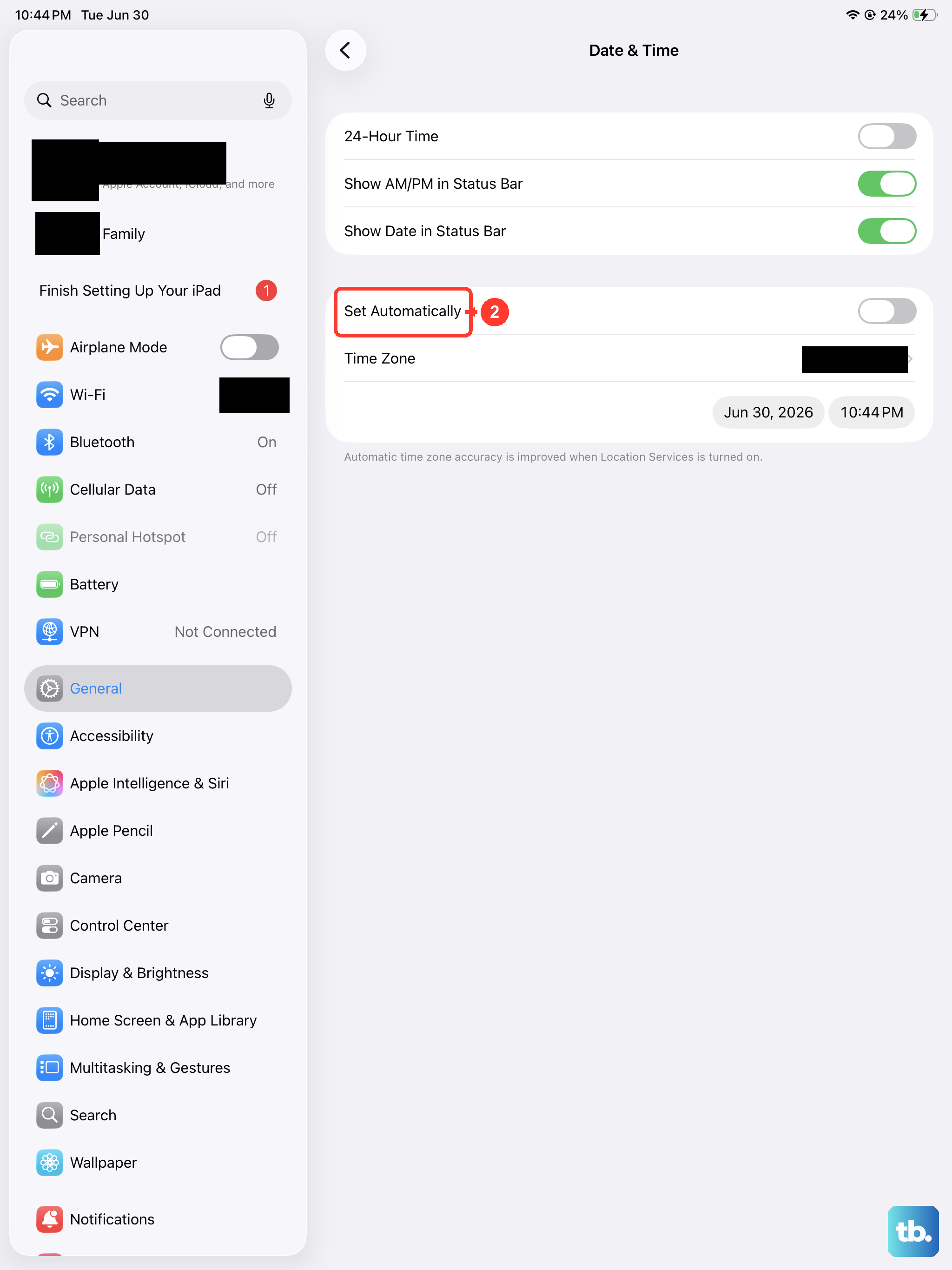
Security protocols used by MMS servers rely on accurate timestamps. If your iPad's clock is off, the server may reject your messages.
Go to Settings > General > Date & Time. Make sure Set Automatically is toggled on. If it's already on, toggle it off, wait a few seconds, then toggle it back on. This forces the iPad to re‑sync with Apple's time servers.
Reset Network Settings
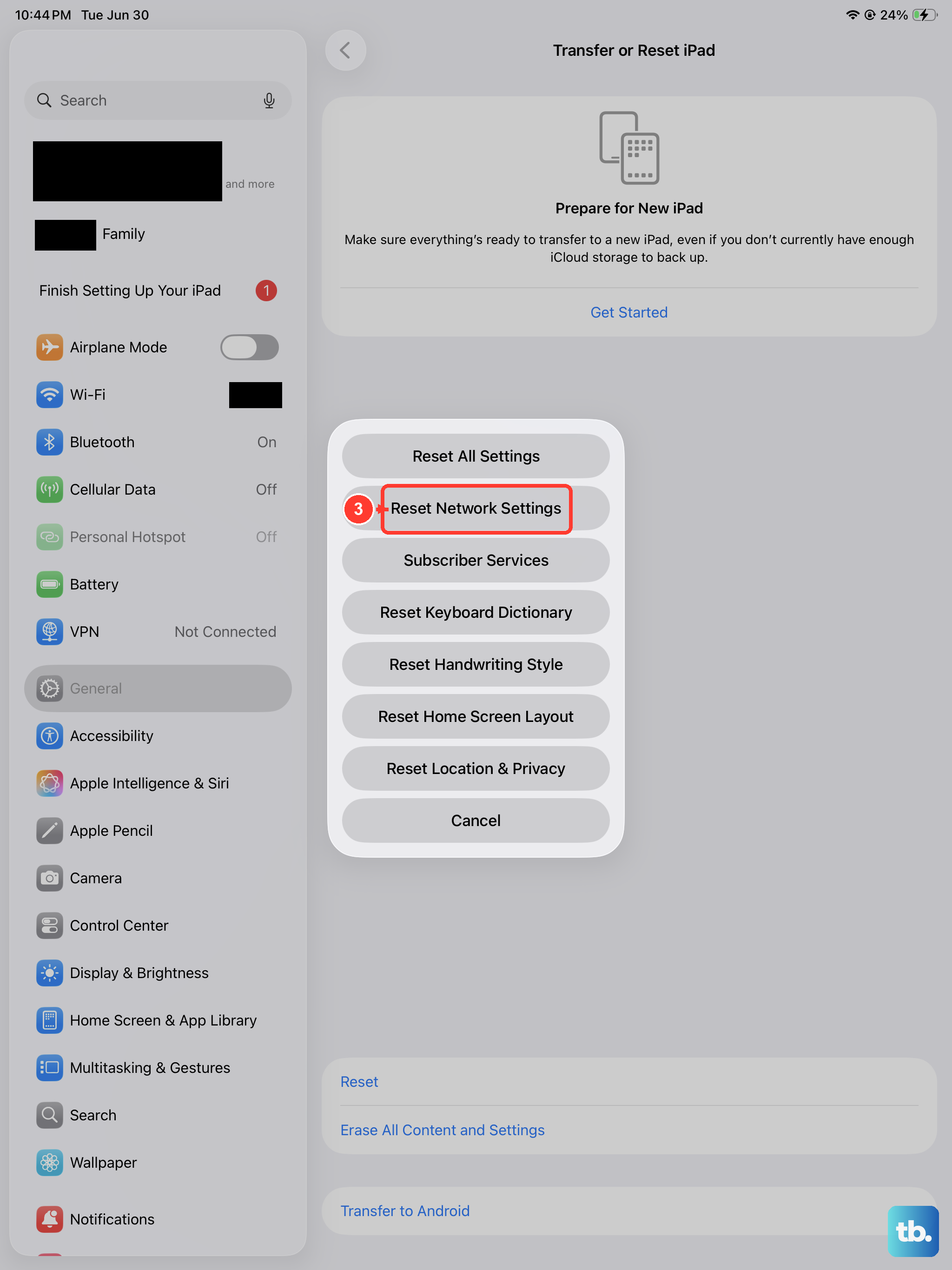
This is a bigger step. It wipes saved Wi‑Fi networks, Bluetooth pairings, and VPN configurations. But it often fixes stubborn MMS issues that nothing else will touch.
Open Settings > General > Transfer or Reset iPad > Reset > Reset Network Settings. The iPad will restart. You'll need to reconnect to Wi‑Fi, but your MMS settings will be back to default.
Update to iPadOS 18
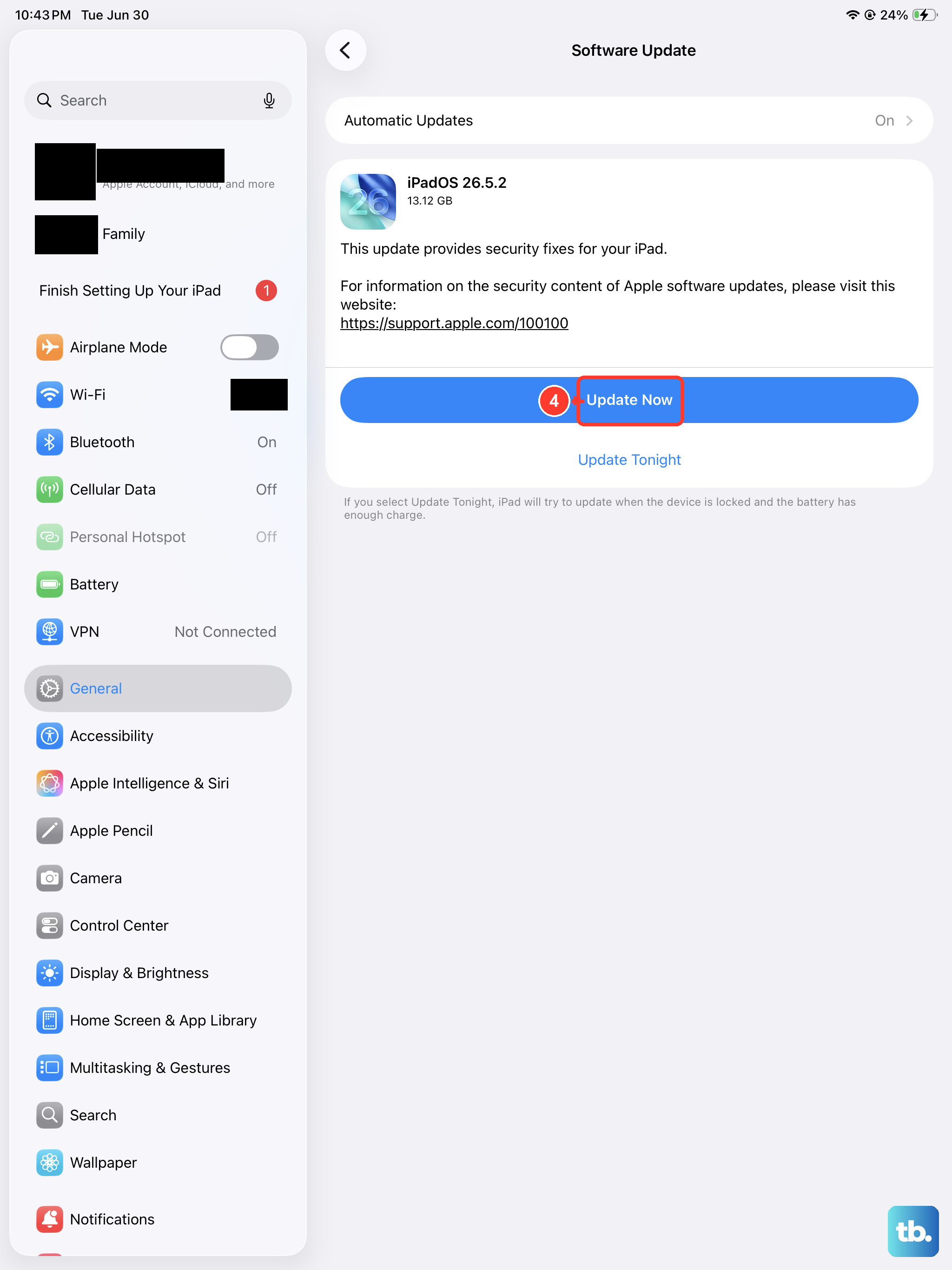
iPadOS 18 has seen a few point releases that patched messaging bugs. If you're still on the original release, you might be hitting a known software glitch.
Go to Settings > General > Software Update. If a newer build is available, download and install it. After the update, test a quick photo message before digging into anything else.
Free Up Storage Space
MMS needs a little room to work. If your iPad is completely full, the system may refuse to download or send media attachments.
Open Settings > General > iPad Storage. Delete old message threads with large videos or photos. Anything under 1 2 GB of free space can start causing issues, so aim for more breathing room.