
Blurry photos from a device as powerful as the iPad Pro M5 can be frustrating. The camera system on the 11-inch and 13-inch models is capable of stunning shots, so when the images come out soft or hazy, something is definitely off. Let's run through the fixes that usually clear things up.
Clean the Camera Lens
A smudged lens is the number one cause of soft, hazy photos on any tablet. The iPad Pro M5 has a sophisticated camera system, but it's just as susceptible to fingerprints and dust as anything else. Grab a soft, lint-free microfiber cloth and give the camera bump a gentle wipe.
Don't use your sleeve, a paper towel, or any rough fabric. Those can scratch the lens coating over time. If you see stubborn grime, a tiny drop of water on the cloth is fine. Just make sure the lens is completely dry before snapping another picture.
Take Off the Case
Some cases, especially folio-style ones or off-brand models, can overlap the camera bump just enough to cause issues. Remove the case entirely and take a test photo. If the image sharpens up, the case is blocking or fogging the lens in some way.
Also check for any screen protector or camera lens protector film. Those cheap stick-on lens protectors are notorious for degrading image quality on the iPad Pro. If you have one on, take it off and see if the blur disappears.
Is the Focus Point Correct?
Open the Camera app and tap directly on the subject you're trying to capture. A yellow square appears, showing you where the camera is locking focus. If you're shooting something close up, the camera might be focusing on the background instead.
Tap firmly on your main subject to force the focus to shift. For even more control, press and hold on the screen until you see AE/AF Lock. This keeps the focus and exposure locked exactly where you want them, which is really handy for avoiding that soft, out-of-focus look.
Swap Between Camera Lenses
The iPad Pro M5 features both a 12MP Wide and a 10MP Ultra Wide lens. In the Camera app, try switching between 0.5x (Ultra Wide) and 1x (Wide). If one lens produces sharp images but the other is consistently blurry, the problem is isolated to that specific hardware.
If one lens is physically damaged or has internal dust, you'll notice the blur is consistent across every shot with that lens. In that case, an appointment with Apple might be the only fix. But if both lenses are blurry, the issue is almost certainly software or a dirty lens.
Close and Reopen the Camera App
Sometimes the Camera app just gets stuck in a weird state. The autofocus system might stop responding, or the image processing pipeline could glitch out. Swipe up from the bottom of the screen and pause to open the App Switcher. Swipe the Camera app card away to force close it.
Wait a second or two, then tap the Camera icon again. This clears out any temporary software hangups and gives the camera a fresh start. You'd be surprised how often this alone fixes the problem.
Perform a Force Restart
If closing the app doesn't work, the next step is a proper restart. A standard restart can help, but if the camera is completely unresponsive or the image quality is persistently bad, a force restart is a better bet. It doesn't erase any data, but it does a deeper reset of the system processes.
Here's how to do it on the iPad Pro M5: Press and quickly release the Volume Up button, then press and quickly release the Volume Down button, then press and hold the Top button until the Apple logo appears. Once the iPad boots back up, test the camera.
Disable Auto Macro Mode
The iPad Pro M5 can automatically switch to the Ultra Wide lens for close-up shots using Macro mode. It's a great feature, but it can sometimes kick in when you don't want it to, leading to unexpected blur or a shift in perspective. You can take manual control of this.
Go to Settings > Camera and toggle on Macro Control. Once enabled, you'll see a flower icon appear in the Camera app when you get close to a subject. Tap it to turn Macro mode on or off manually. This prevents the camera from switching lenses automatically and giving you a blurry result.
Check for Condensation
Condensation inside the camera lens causes a foggy, hazy look that no amount of wiping on the outside will fix. This usually happens when you move the iPad Pro from a cold environment to a warm, humid one. The moisture inside the device condenses on the cool glass of the camera lens.
The fix is simple: just give it time. Leave the iPad in a dry, room-temperature environment for 30 to 45 minutes. Resist the urge to blow on the lens or use a hair dryer, as that can push more moisture into the device or damage the seals. Let the internal temperature equalize naturally.
Update iPadOS
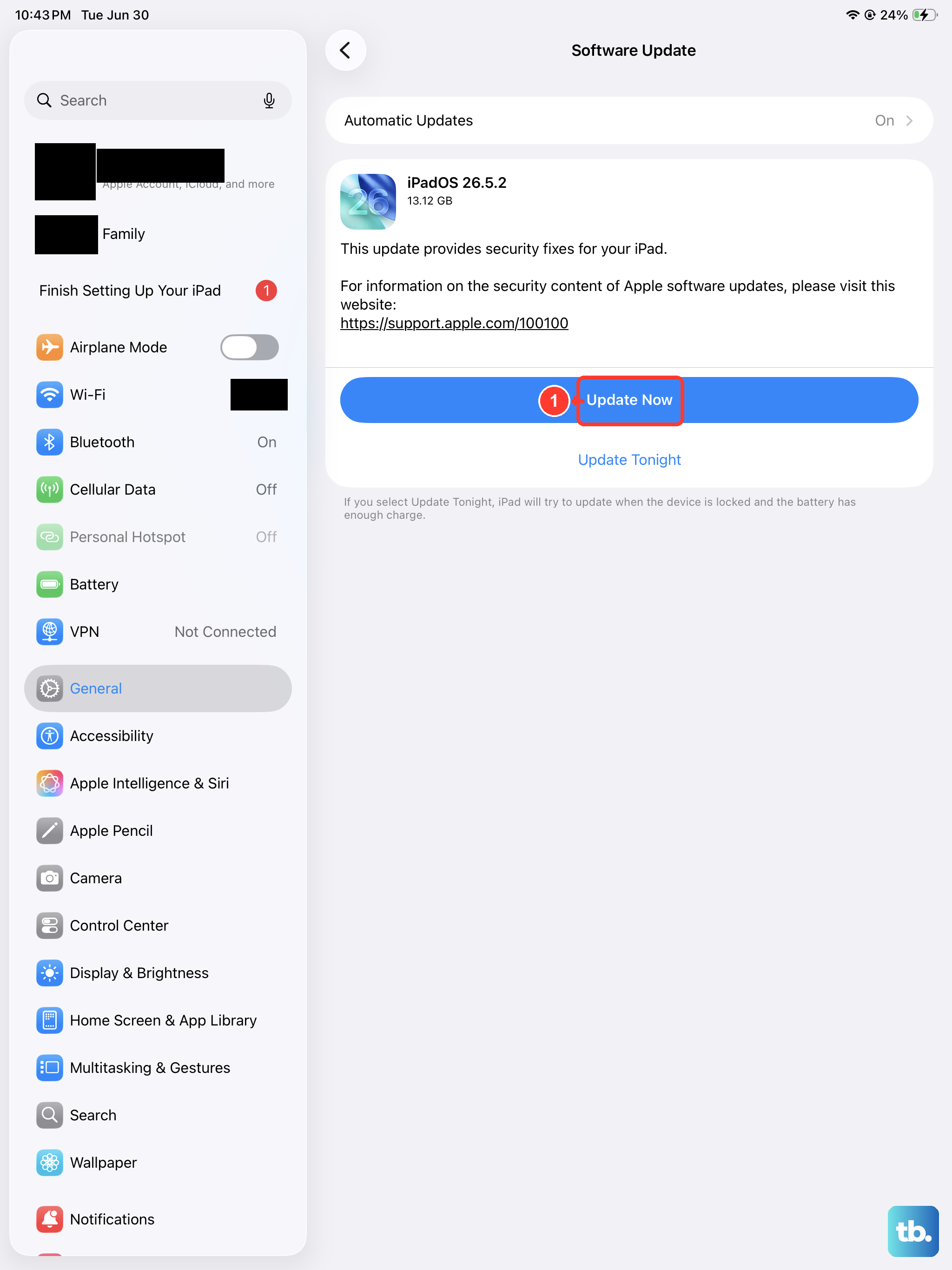
Apple regularly releases software updates that include camera improvements and bug fixes. If the blurry photos started after a specific event or just randomly, there might be a known software bug at play. Go to Settings > General > Software Update to check for the latest iPadOS 18 updates.
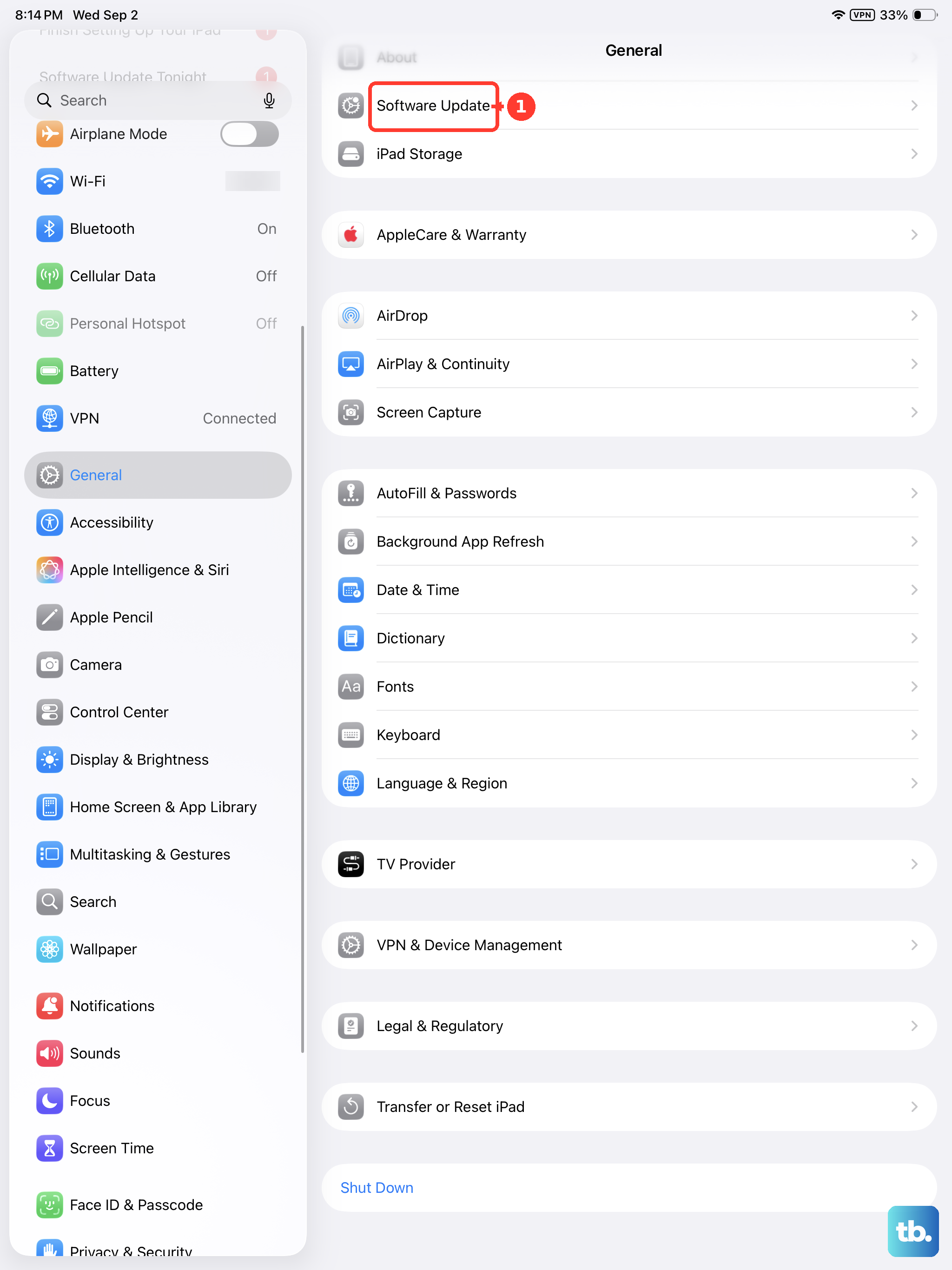
Install any pending updates. Camera processing, autofocus tuning, and image quality improvements are common in these patches. It's one of the easiest things to check, so knock it out early in the process.
Reset Camera Settings to Default
If you've been digging around in the camera settings and tweaking things, a stray configuration could be causing the blur. Go to Settings > Camera > Preserve Settings and toggle everything off. This ensures the Camera app starts fresh every time you open it, without carrying over custom modes or filters.
You can also go back to the main Camera settings screen and check that Grid, Mirror Front Camera, and View Outside the Frame are set to your preferences. Resetting these to their defaults removes any weird configurations that might be interfering with normal image capture.