
Bluetooth problems on the iPad Pro M5 can pop up out of nowhere, one minute you're connected to your AirPods, the next they won't pair. The good news is that most Bluetooth issues on iPadOS 18 are fixable without a trip to the Apple Store. These fixes apply to both the 11-inch and 13-inch models, and they start with the quickest things to try.
Start With the Obvious Stuff
Before diving into any deep settings, check the basics. Make sure Bluetooth is actually turned on, swipe down from the top-right corner to open Control Center and look for the Bluetooth icon. If it's gray, tap it to turn it blue.
Also confirm that the device you're trying to connect to is in pairing mode and has enough battery. Keep the iPad and the other device within about 30 feet, and away from other electronics that might cause interference.
If you can, test your iPad Pro M5 with a different Bluetooth device. If it connects fine to something else, the problem is likely with the original accessory, not the iPad.
Toggle Bluetooth Off and Back On
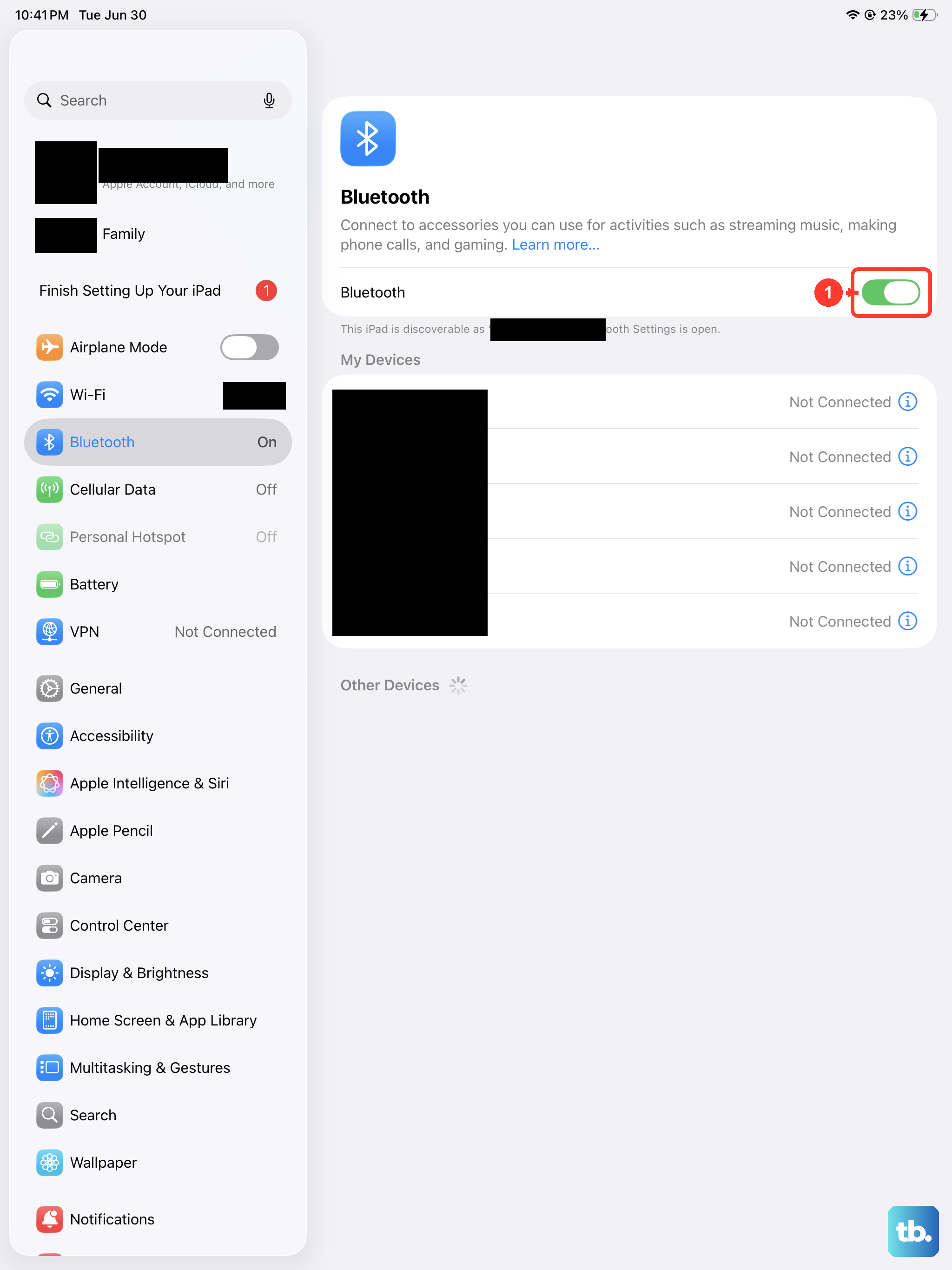
It sounds too simple, but turning Bluetooth off and then on again often clears temporary glitches. Open Control Center, tap the Bluetooth icon to turn it off, wait about 10 seconds, then tap it again. Try pairing your device fresh.
If that doesn't work, go into Settings > Bluetooth and make sure the toggle there is also on. Sometimes Control Center doesn't fully reflect the status if there's a minor software hiccup.
Force Restart the iPad Pro M5
A standard restart can fix a lot, but if the iPad is acting stuck or Bluetooth still isn't cooperating, force restart it. This doesn't erase any data, it just forces the hardware to reset. On the iPad Pro M5, press and quickly release the Volume button closest to the Top button, then press and quickly release the volume button farthest from the Top button, then press and hold the Top button until the Apple logo appears.
Let the iPad boot up completely, then check Bluetooth again. This clears out any temporary software locks that could be blocking the Bluetooth radio.
Forget the Problem Device and Start Fresh
Sometimes a bad pairing profile gets stuck. Go to Settings > Bluetooth, tap the blue info icon (i) next to the device that's not working, then select Forget This Device. Confirm, then restart both the iPad and the accessory.
After both devices have restarted, put the accessory back into pairing mode and reconnect from scratch. This forces a clean negotiation between the two devices and solves most software-level pairing conflicts.
Reset Network Settings
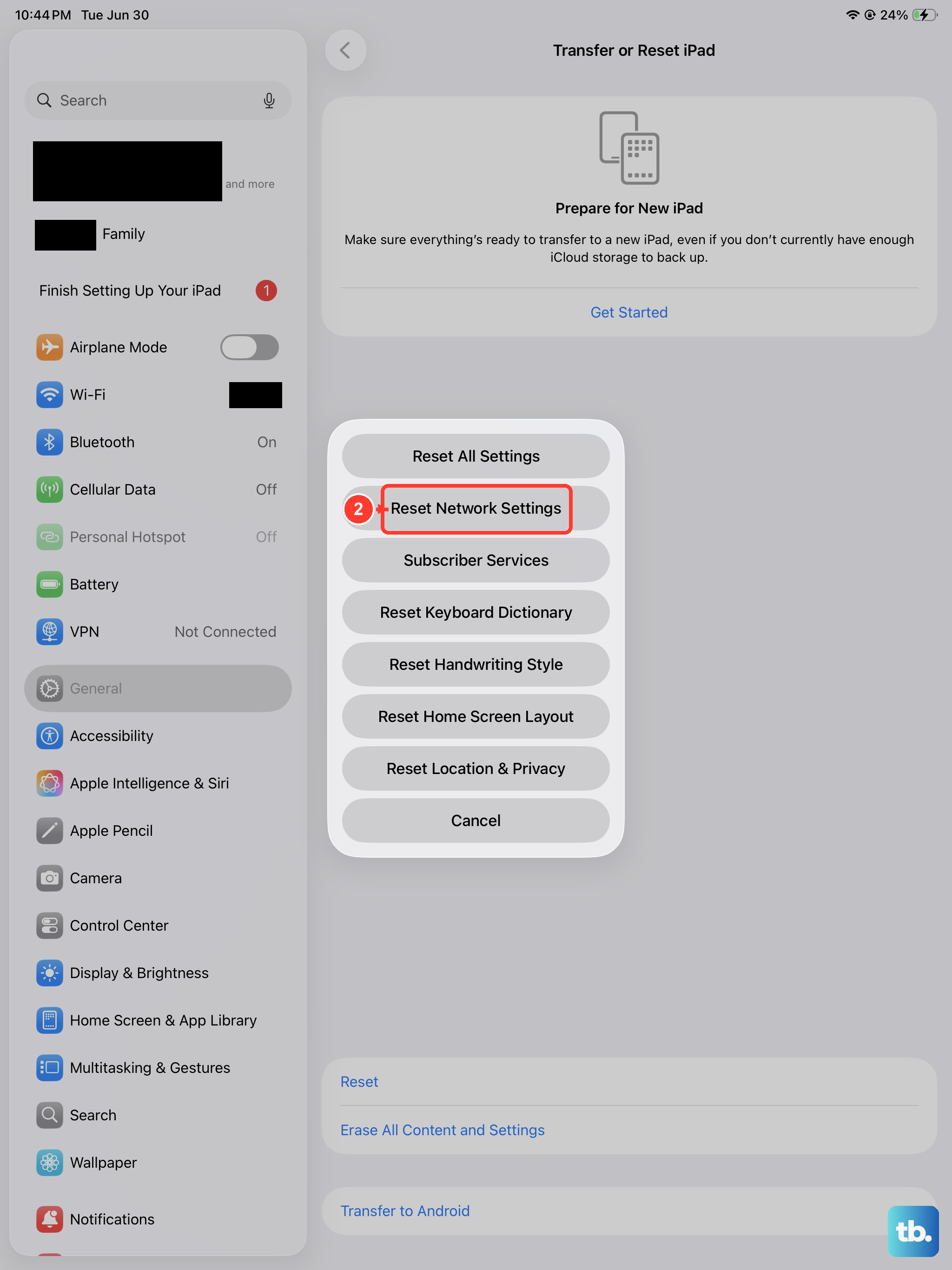
This is a bigger step, it wipes all saved Wi-Fi networks, VPN configurations, and Bluetooth pairings, but it doesn't erase your apps or personal data. Go to Settings > General > Transfer or Reset iPad > Reset > Reset Network Settings. Enter your passcode if prompted, then confirm.
The iPad will restart and you'll need to reconnect to Wi-Fi and pair your Bluetooth devices again. This often resolves deeper software issues that normal toggling can't touch.
Update to the Latest iPadOS
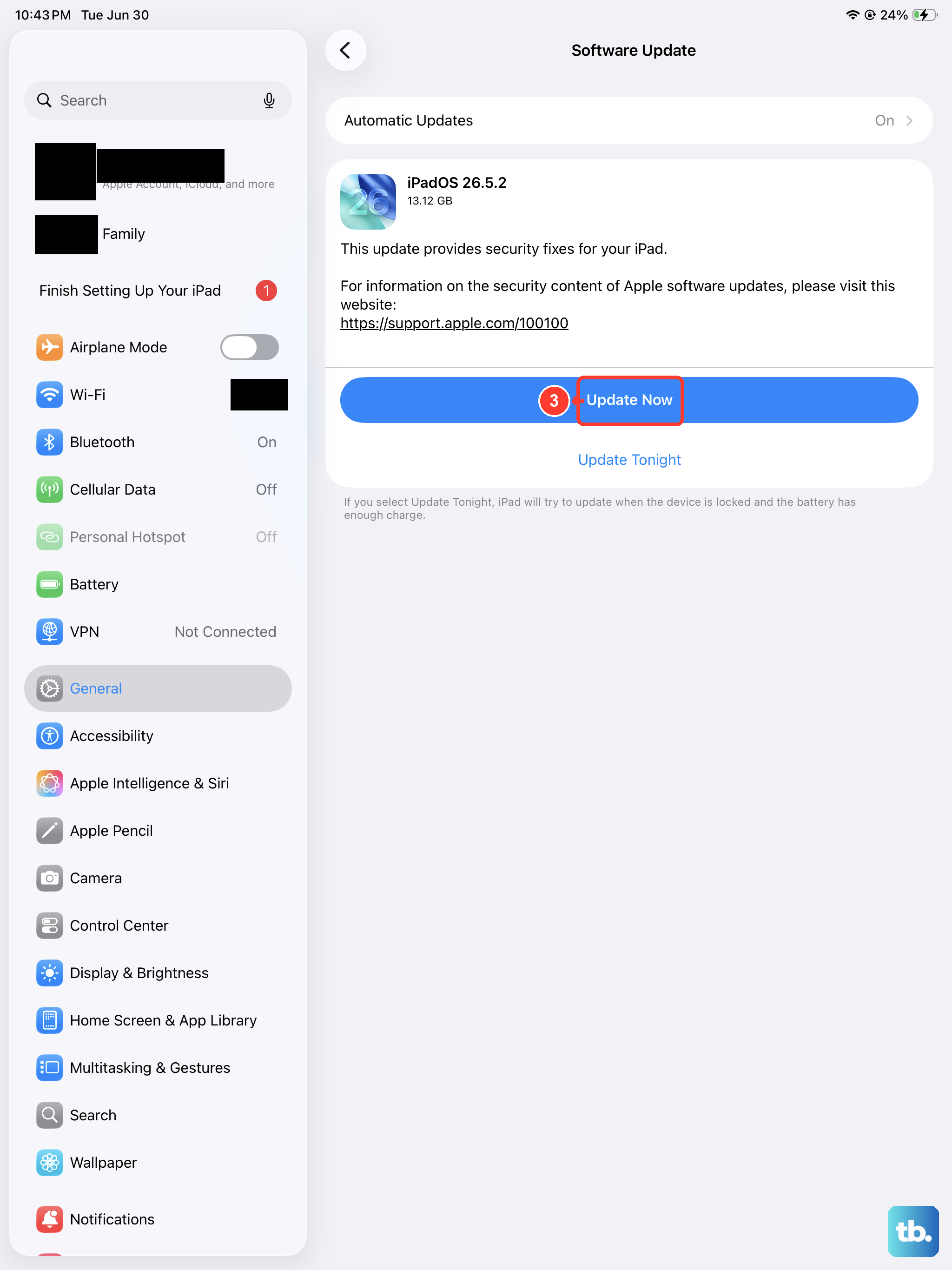
Bluetooth compatibility bugs are sometimes fixed in software updates. Go to Settings > General > Software Update and check for any available update. If there's one, download and install it, your iPad will restart during the process.
Also check whether your Bluetooth accessory has a firmware update. For AirPods, they update automatically when connected to an iPhone or iPad, but you can verify the firmware version in Settings > Bluetooth > tap the info icon next to the AirPods. For third-party accessories, check the manufacturer's companion app.
Check Bluetooth Privacy Settings
iPadOS gives apps permission to use Bluetooth, and sometimes that permission gets revoked accidentally. Go to Settings > Privacy & Security > Bluetooth. Look at the list of apps that have requested Bluetooth access. If an app you rely on for connecting a device (like a car's companion app or a headphone utility) is toggled off, turn it on.
While you're there, also check Settings > Bluetooth and make sure nothing is interfering in the background. Some users have found that disabling AirDrop temporarily helps if there's radio congestion.
Reset All Settings (Without Erasing Data)
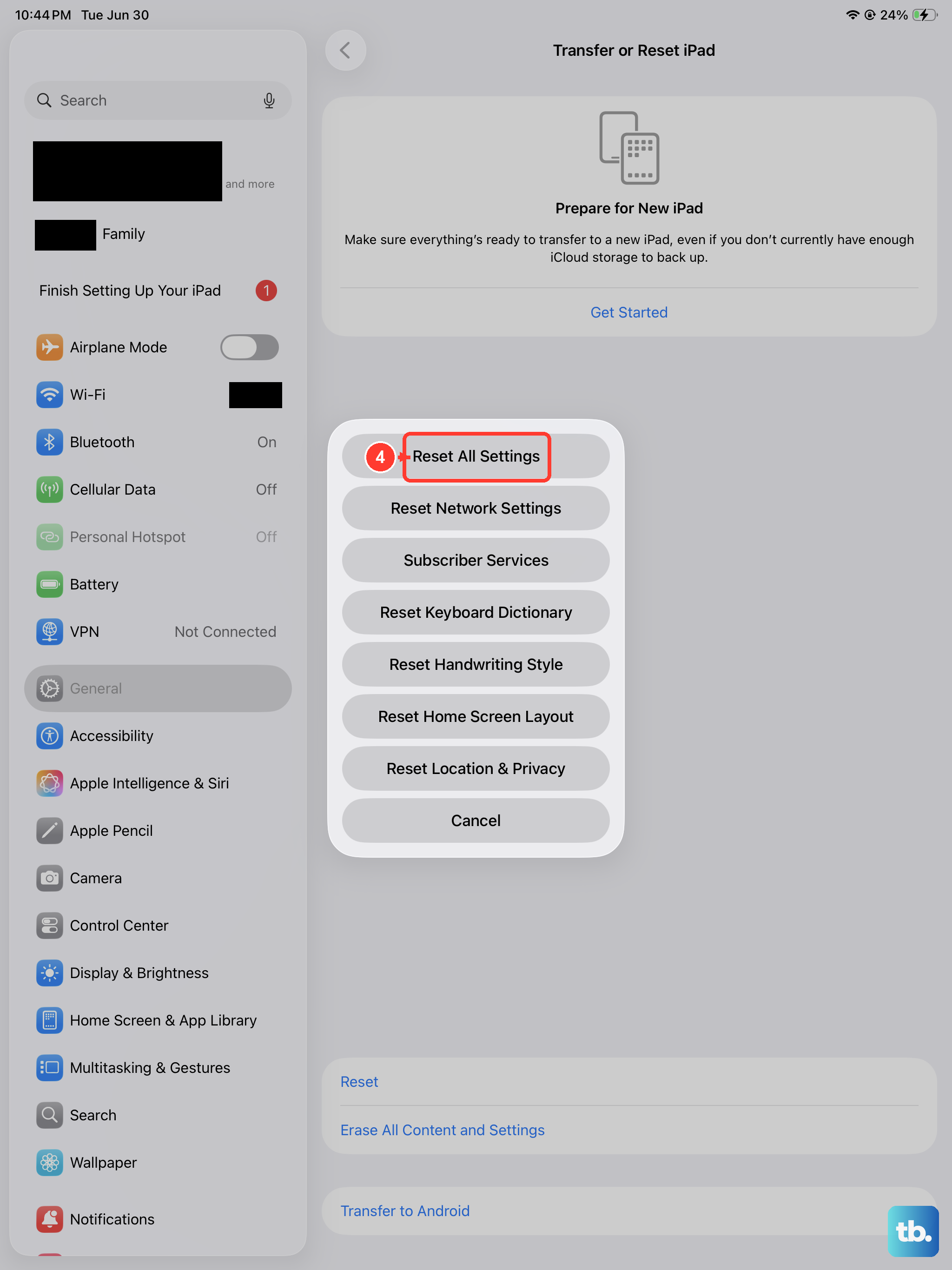
If network reset didn't cut it, try resetting all settings. This goes further, it resets display, home screen layout, and accessibility settings alongside network and Bluetooth, but still keeps your files and apps. Go to Settings > General > Transfer or Reset iPad > Reset > Reset All Settings.
You'll have to reconfigure things like your wallpaper and Wi-Fi passwords, but it's less drastic than a full factory reset. I've seen this fix stubborn Bluetooth issues that nothing else could touch.
Check for Interference From Other Devices
The iPad Pro M5 uses Bluetooth 5.3, which is generally reliable, but other wireless devices can still cause interference. If you have a lot of gadgets nearby, wireless speakers, smart home hubs, or even a microwave, try moving the iPad and the Bluetooth accessory closer together and away from those sources.
Also turn off Wi-Fi on the iPad temporarily to see if the problem is related to radio frequency congestion. You can do that in Control Center or in Settings > Wi-Fi. If Bluetooth starts working with Wi-Fi off, there might be a coexistence issue that an update could fix.
Confirm Hardware Is Still Good
If you've tried everything and Bluetooth still won't work, not with any device, there's a small chance the Bluetooth chip inside the iPad has a problem. Before jumping to conclusions, make sure the issue isn't accessory-related by testing with multiple known-working devices.
If the problem persists, it's worth contacting Apple support or visiting an Apple Store for diagnostic testing. Your iPad Pro M5 is still new enough that any hardware defects should be covered under warranty.