When your iPad Pro (M4) stops listening to "Hey Siri," it can feel like you've lost a helpful assistant. The voice commands that usually make tasks quicker suddenly get no response. Here's how to get Siri working again on your iPad.
Confirm Siri is Enabled on Your iPad
Start with the basics and make sure Siri is turned on. Open the Settings app, tap Siri (or Apple Intelligence & Siri), then tap Talk to Siri or Talk & Type to Siri.
Set Talk to Siri to an available voice option, such as "Siri" or "Hey Siri" where supported, or "Hey Siri." Turn on "Press Top Button for Siri" if you want to activate Siri with the top button, and leave "Allow Siri When Locked" on only if you want Siri available from the Lock Screen.
Check for iPad-Specific Interference
If you use Sound Recognition, rule it out while testing Siri. Go to Settings > Accessibility > Sound & Name Recognition > Sound Recognition, then turn Sound Recognition off temporarily.
To check, go to Settings > Accessibility > Sound Recognition and make sure it's switched off. Also, if you're using a Magic Keyboard or have a case that covers the iPad's top edge, it might be physically blocking the microphones.
Bluetooth accessories can sometimes cause issues too. If you have AirPods or other headphones connected, try disconnecting them and see if Siri responds directly from the iPad's speakers.
Adjust Audio and Response Settings
If Siri can hear you but you can't hear responses, check Siri Responses. Go to Settings > Apple Intelligence & Siri, tap Siri Responses, then choose "Prefer Spoken Responses" to hear Siri speak responses even when Silent mode is turned on.
Retrain Siri to Recognize Your Voice
Over time, or if you've recently changed your environment, Siri might need a refresher on your voice. Retraining it is straightforward and can significantly improve accuracy.
Go to Settings, tap Apple Intelligence & Siri or Siri, then tap Talk & Type to Siri. Turn off "Listen for 'Siri' or 'Hey Siri,'" turn it back on, then follow the setup prompts and tap Done.
Restart or Force Restart Your iPad Pro
A simple restart clears out temporary software glitches that can affect Siri. You can do this through the Settings app under General > Shut Down. If your iPad is unresponsive, you'll need to force restart it.
For iPad Pro models without a Home button, press and quickly release the volume button nearest to the top button, press and quickly release the volume button farthest from the top button, then press and hold the top button. When the Apple logo appears, release the top button.
Update iPadOS to the Latest Version
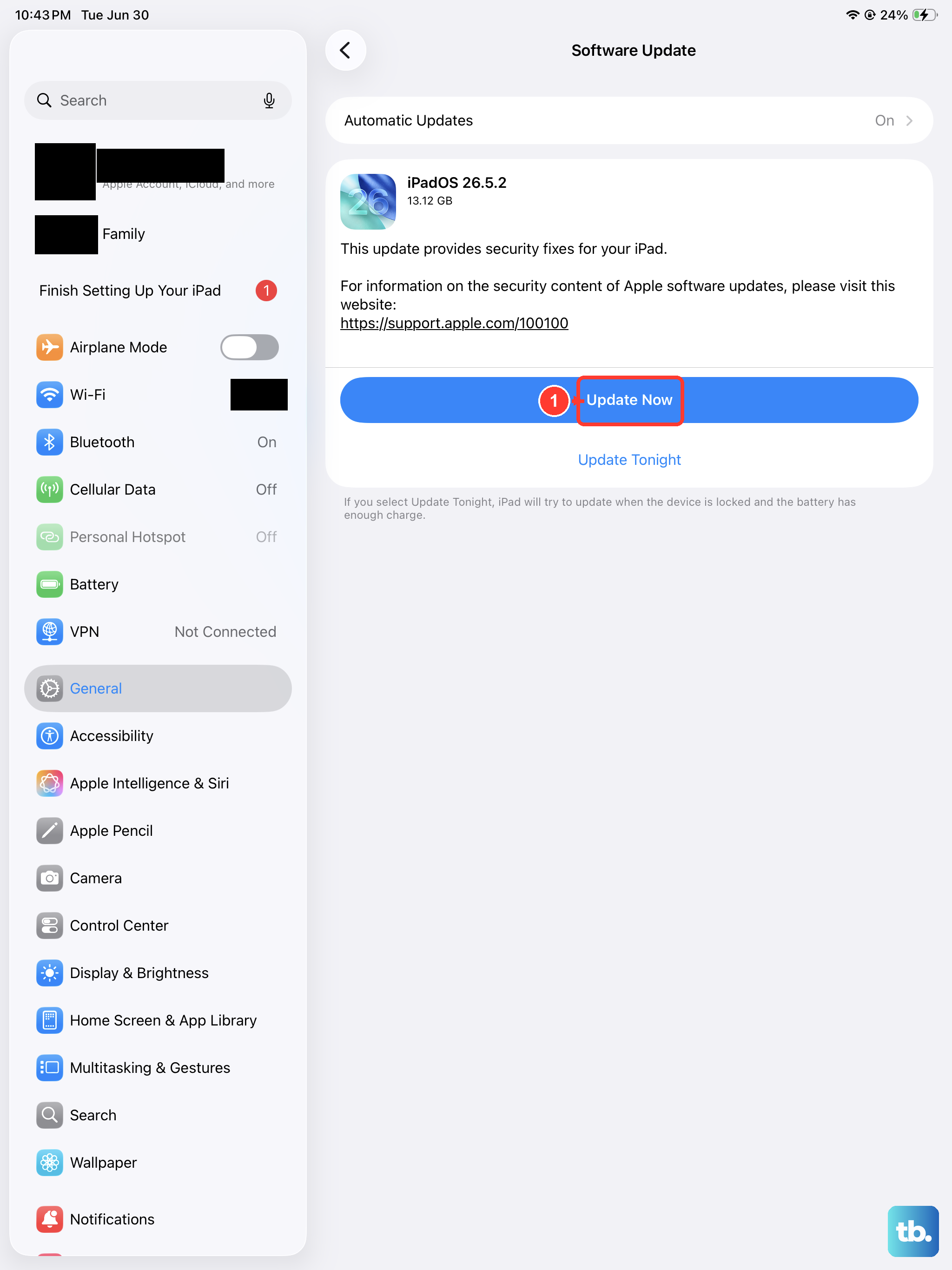
Apple frequently releases updates that fix bugs, including issues with voice recognition and Siri. Making sure you're on the latest iPadOS 26 version is a good step.
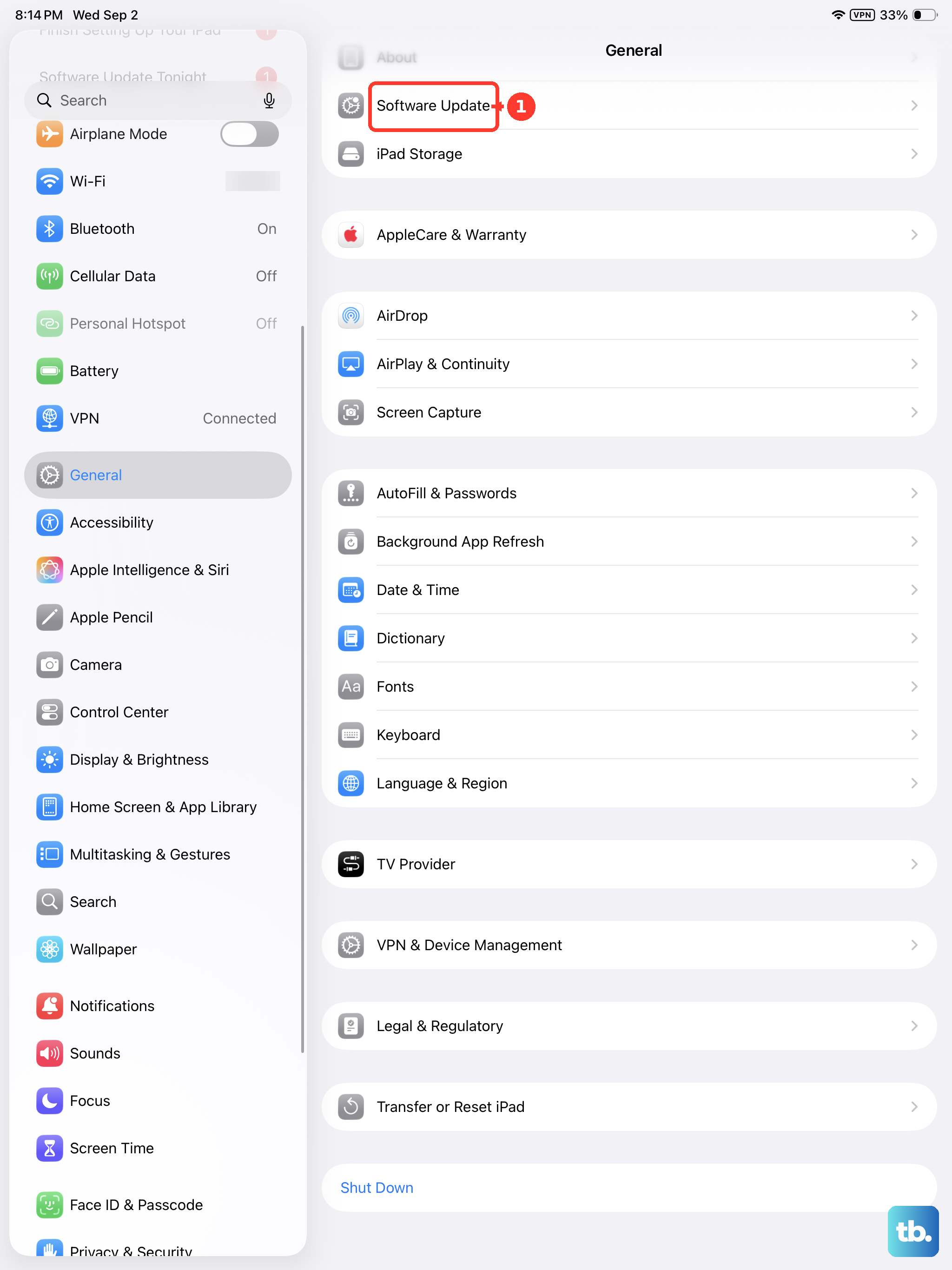
Head to Settings > General > Software Update. If an update is available, tap Download and Install. I'd recommend doing this while your iPad is connected to power and on Wi-Fi.
Check Microphone Access and Position
Your iPad Pro has multiple microphones. Remove any screen protectors, films, or cases that could block them, clear debris from the iPad openings, and make sure your hands or case are not covering a microphone while you test Siri.
You can gently clean the microphone ports with a soft, dry brush. Also, be aware that Siri is designed not to respond when the iPad is face down, unless you change a specific setting in Settings > Accessibility > Siri.
Reset All Settings on Your iPad
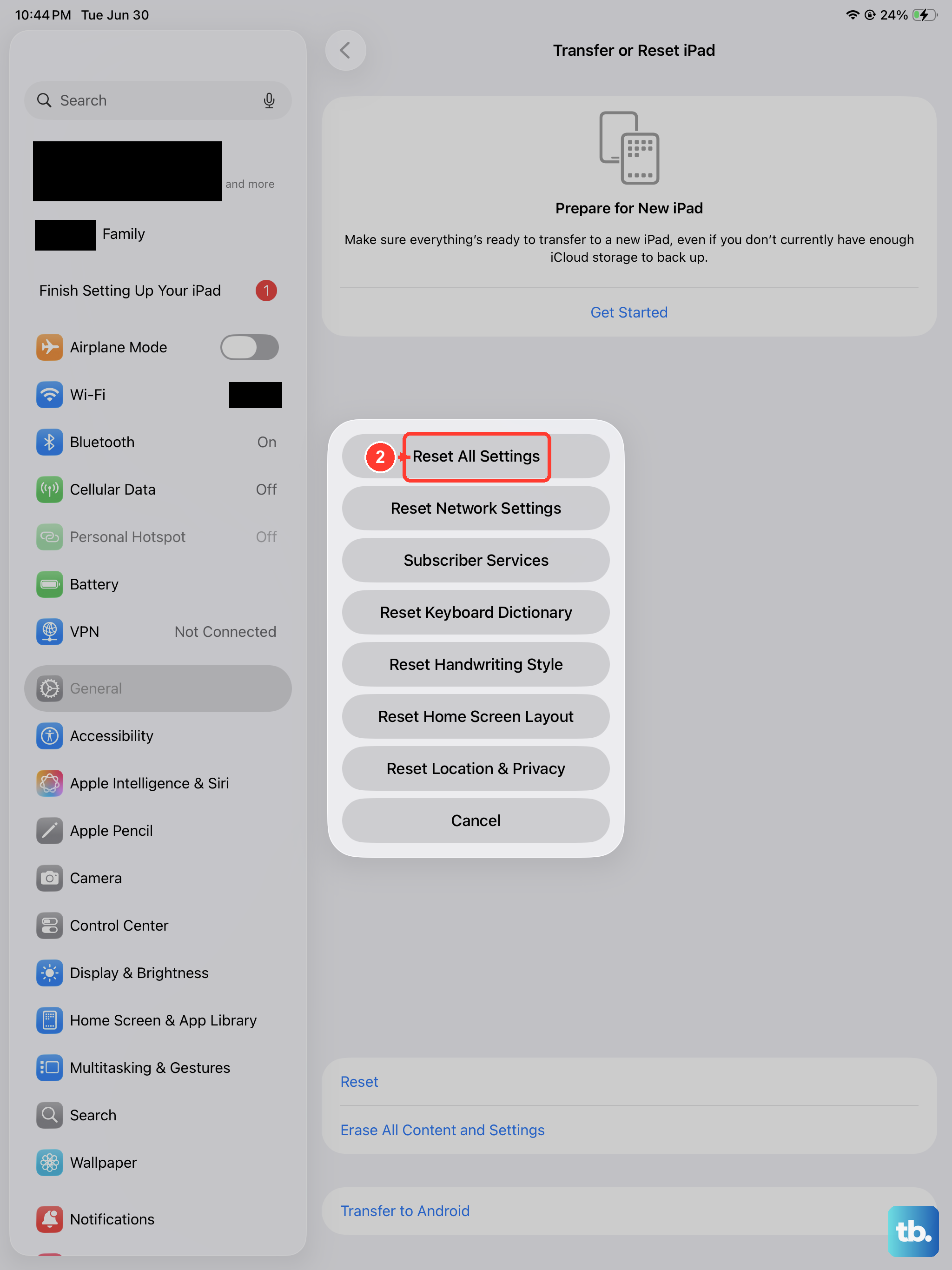
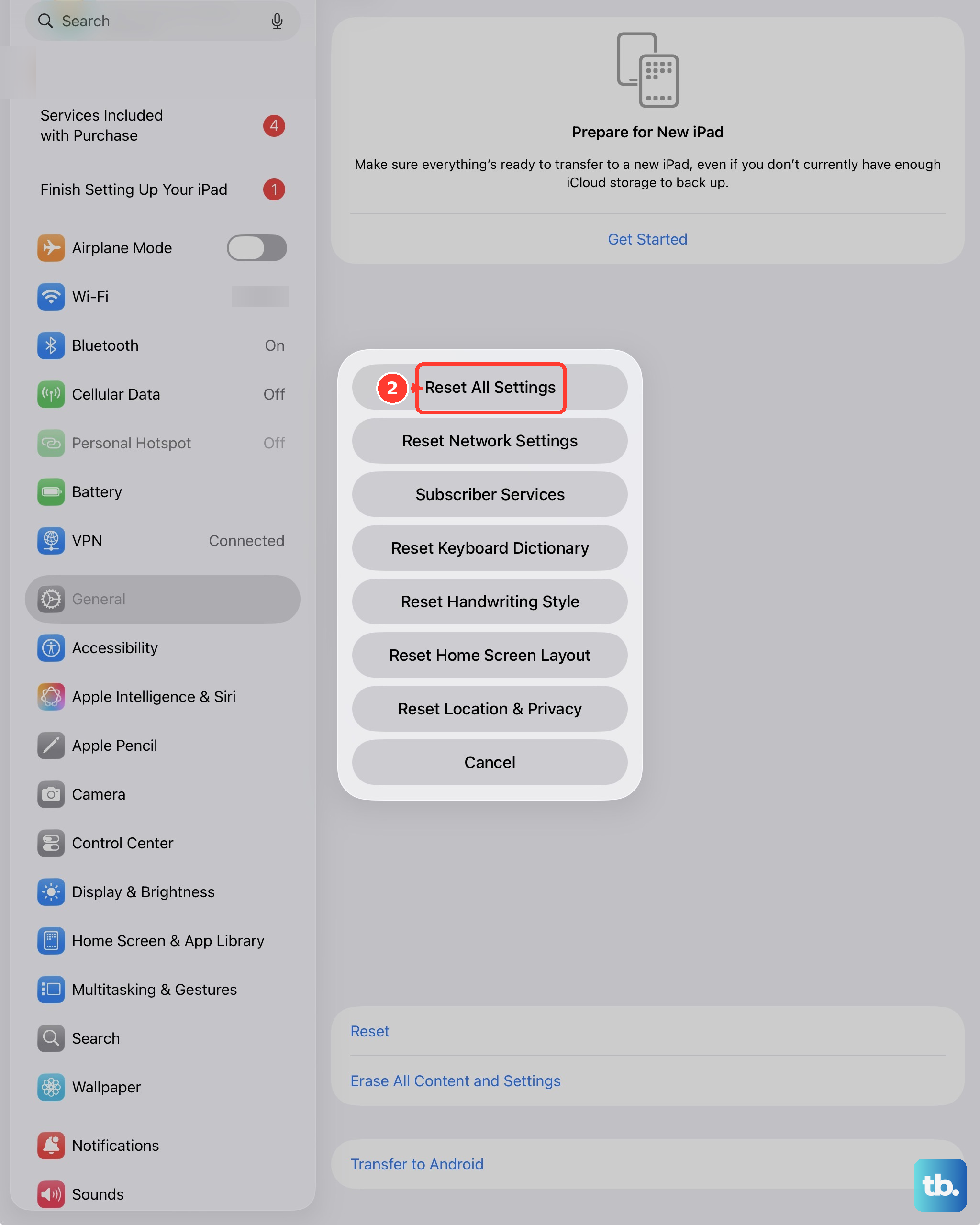
If you've tried everything else and Siri is still unresponsive, resetting all settings can help. This won't delete your personal data like photos or apps, but it will reset all your preferences back to default.
Go to Settings > General > Transfer or Reset iPad. Tap Reset, and then choose Reset All Settings. You'll need to enter your passcode to confirm. After the iPad restarts, you'll need to reconfigure things like Wi-Fi passwords and wallpaper, but it often resolves deeper software conflicts.