
If videos on your iPad mini are stuttering, buffering, or playing back with a frustrating choppiness, it can really ruin the experience on that otherwise perfect screen. The good news is that this is almost always a software or settings issue you can fix yourself.
Free Up Storage Space on Your iPad
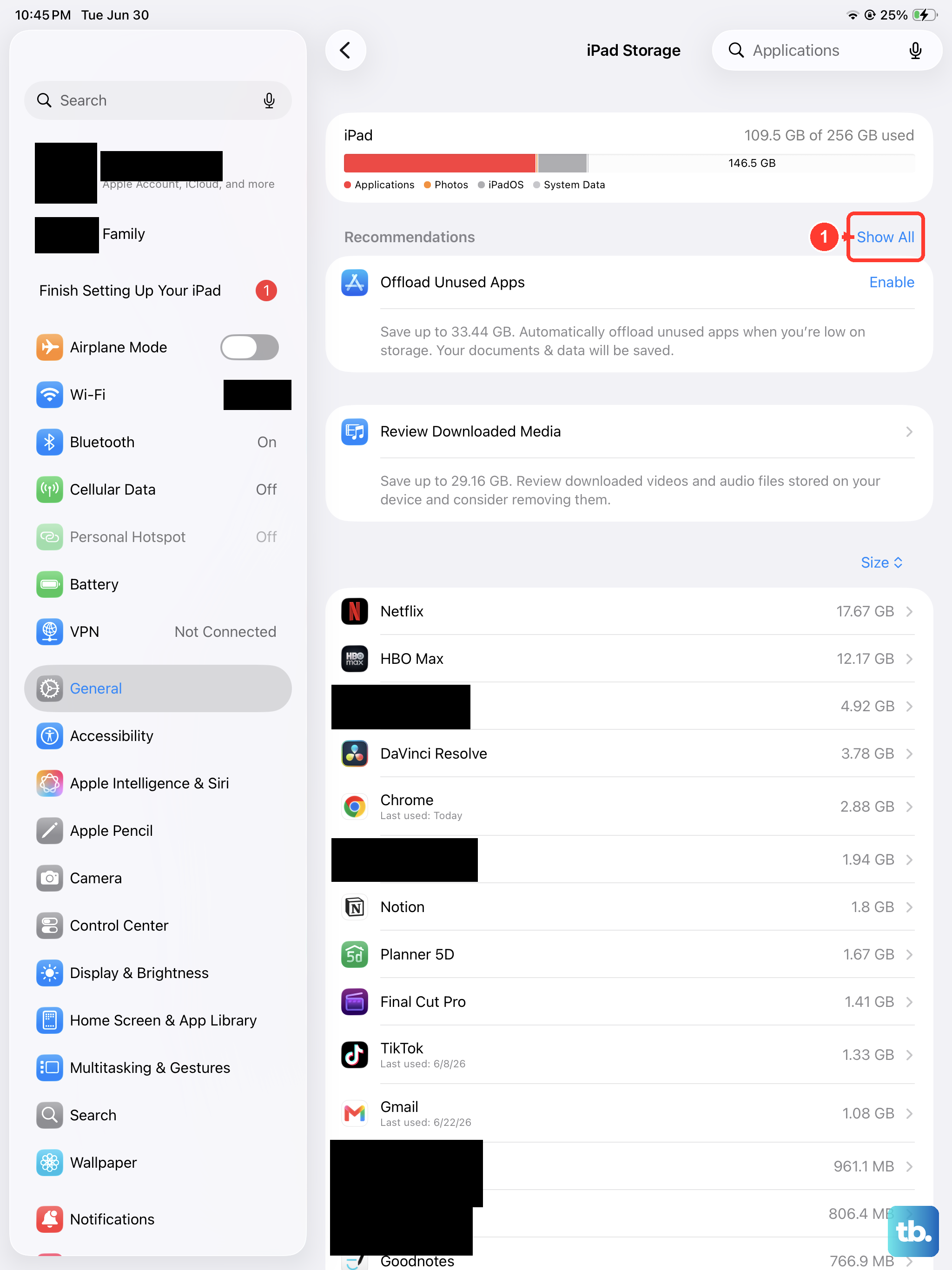
Your iPad mini needs breathing room to work smoothly. When storage gets critically low, the system struggles to cache video data properly, which leads directly to lag and dropped frames. I'd check this first.
Head to Settings > General > iPad Storage. If you see less than 2-3GB of free space, it's time for a cleanup. You can offload unused apps, review large video files, or enable Optimize Storage for Photos to keep things running smoothly.
Check Your Internet Connection for Streaming
For videos on YouTube, Netflix, or any streaming service, a weak Wi-Fi signal is the most common culprit. The iPad mini's compact size doesn't mean it's immune to spotty connections.
Try running a speed test right from Safari. If the results are poor, try moving closer to your router or restarting the router itself. As a test, you can also try downloading a video for offline playback to see if the lag disappears, which would confirm it's a network issue.
Update iPadOS to the Latest Version
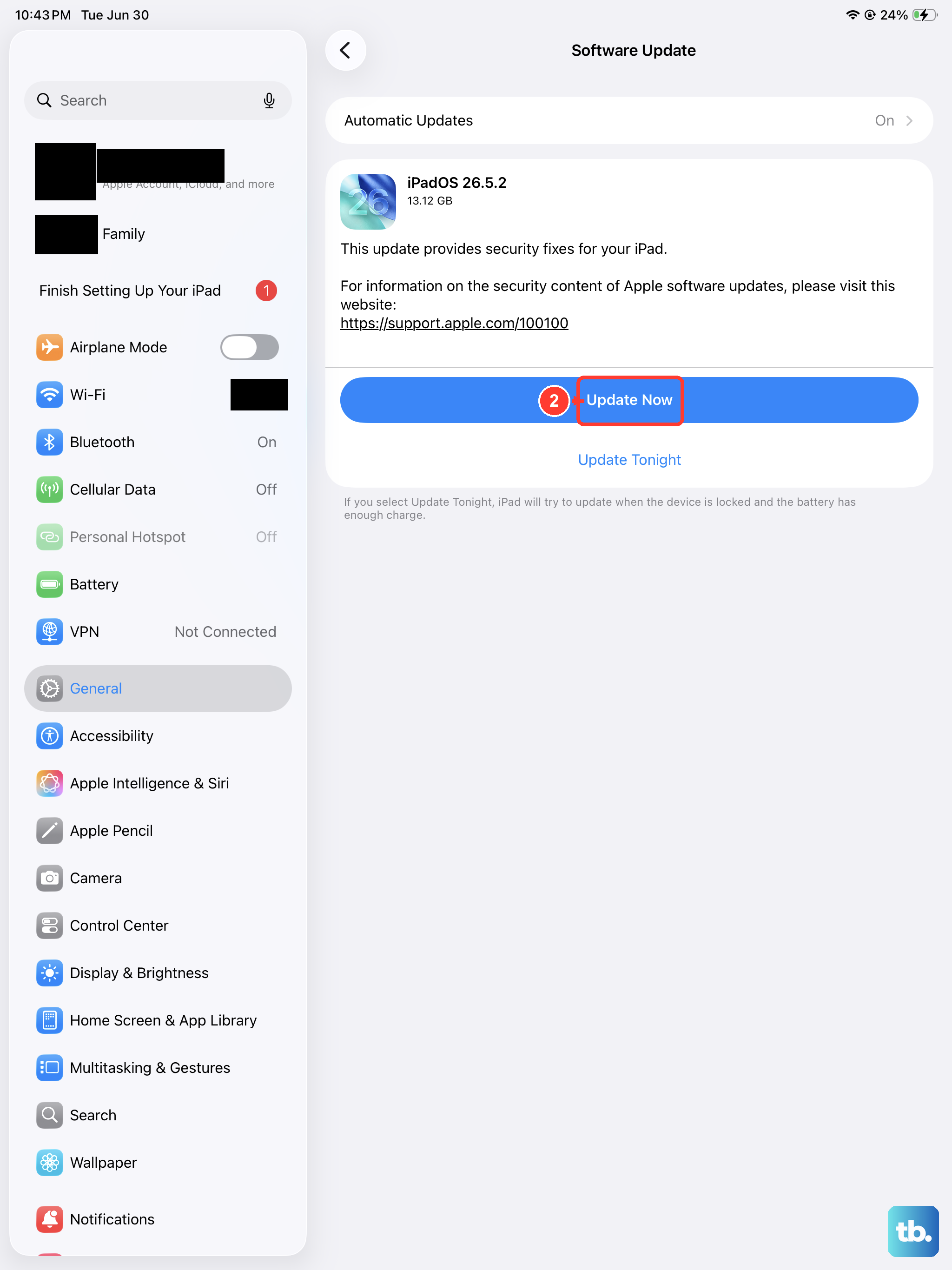
Apple is constantly refining video playback and codec support through software updates. An outdated version of iPadOS can have bugs that affect specific apps or video formats.
Go to Settings > General > Software Update. If an update is waiting, install it. This single step has resolved video playback issues for many users after a major OS upgrade.
Force Close and Reopen the Problem App
Sometimes the issue is isolated to a single app that's gotten stuck. To fully close it, swipe up from the bottom of the screen and pause in the middle to enter the app switcher.
Find the video app in question and swipe it all the way up and off the top of the screen to close it. Wait a few seconds, then tap the app icon again to relaunch it. This clears its temporary memory and can stop immediate lag.
Perform a Force Restart
This is different from just turning your iPad off and on. A force restart clears the device's active memory and can fix temporary system glitches affecting performance.
On your iPad mini, quickly press and release the Volume Up button, then quickly press and release the Volume Down button. Finally, press and hold the Top button until you see the Apple logo appear, then release.
Check for Overheating
While powerful, the compact design of the iPad mini means it can get warm during extended, high-quality video playback. To protect the components, the system will automatically throttle performance if it gets too hot, causing lag.
If your iPad feels very warm to the touch, give it a break. Turn off the screen for a few minutes and let it cool down on a hard, flat surface, not on a blanket or pillow which can trap heat.
Reset All Settings
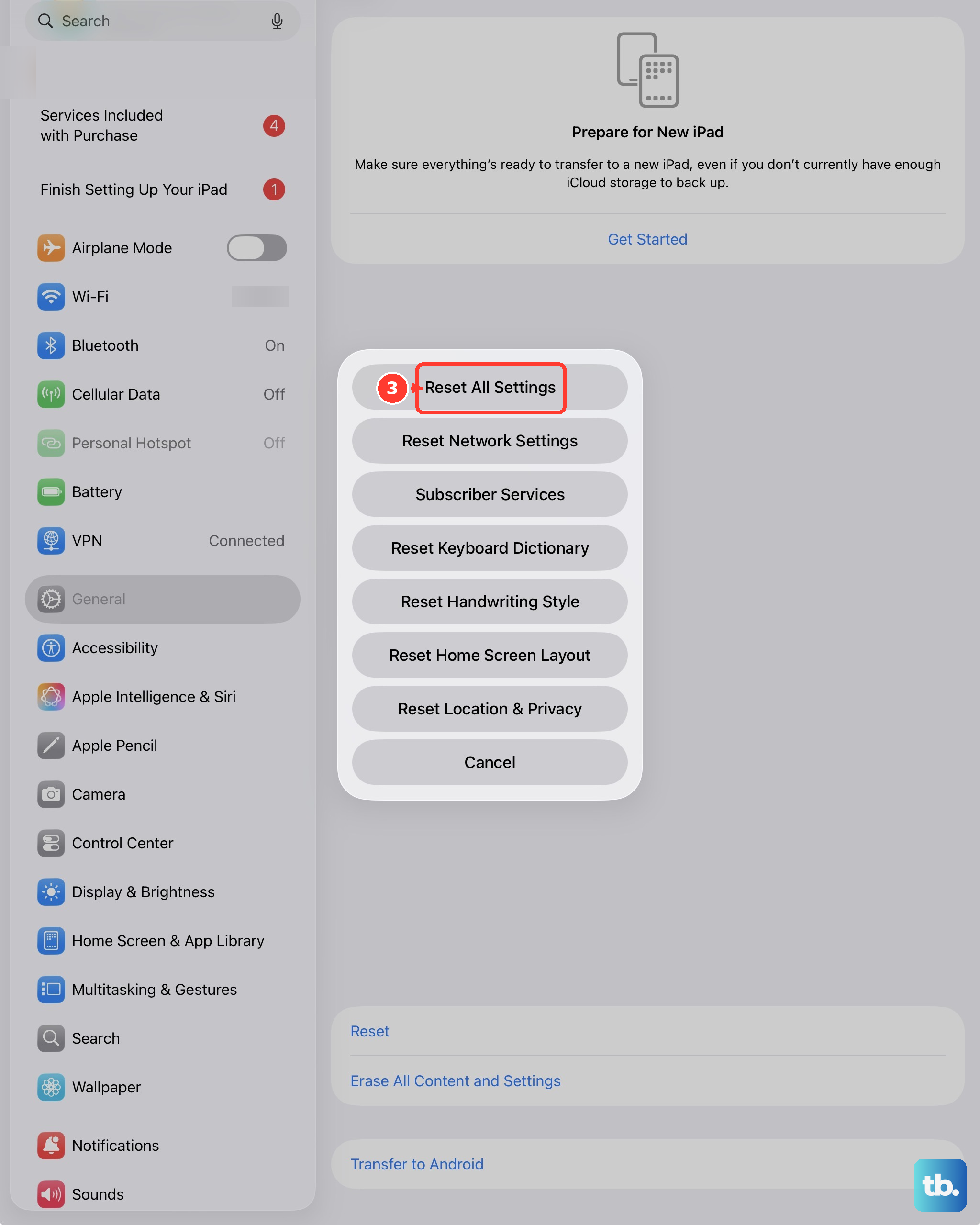
If the lag persists across multiple apps, a deeper software reset might help. This will revert all your preferences, like Wi-Fi passwords, wallpaper, and privacy settings, back to default without deleting your personal data, photos, or apps.
Go to Settings > General > Transfer or Reset iPad. Tap Reset and then choose Reset All Settings. You'll need to re-enter your passcode and reconfigure things like Face ID, but it often resolves persistent performance hiccups.
Review Background App Refresh
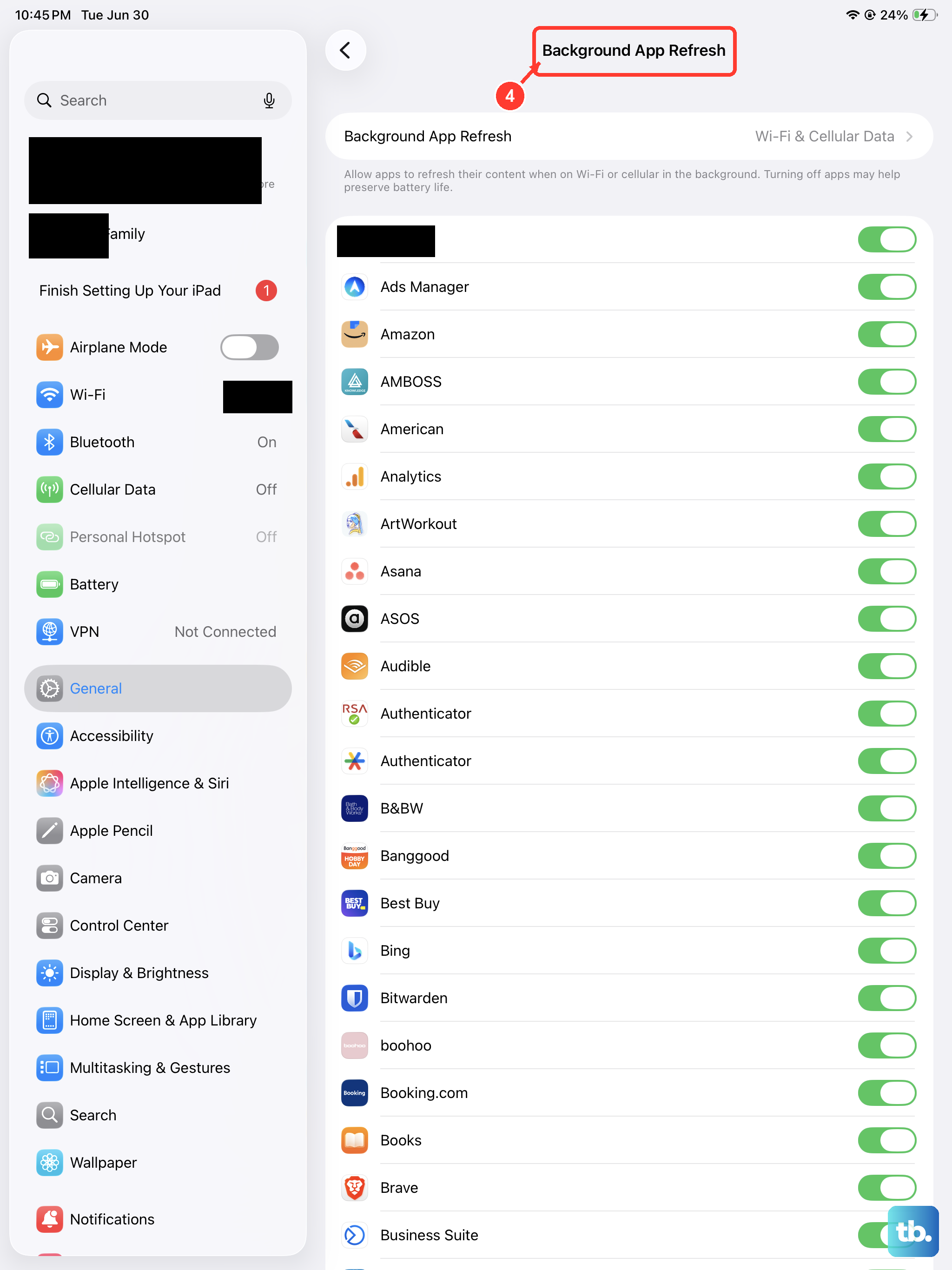
Having too many apps updating content in the background can consume system resources needed for smooth video playback. You can manage this to give your video app priority.
Navigate to Settings > General > Background App Refresh. You can turn it off entirely, or just for non-essential apps you don't need updating constantly while you're watching something.
Test with a Different Video Source
To rule out a problem with a specific file or service, try playing a video from a different source. If a YouTube video lags, try one from the TV app or a video you've recorded yourself and saved in Photos.
If the lag only happens in one app or with one type of file, the issue is likely with that app or the video's encoding. If it happens everywhere, the problem is with the iPad system itself.