
Running out of storage on your iPad mini is a real buzzkill, especially when you can't download a new app, update a game, or save a document. That little device holds a lot, but it fills up fast. The good news is you can almost always claw back several gigabytes of space with a few targeted cleanups.
Start With the Storage Breakdown
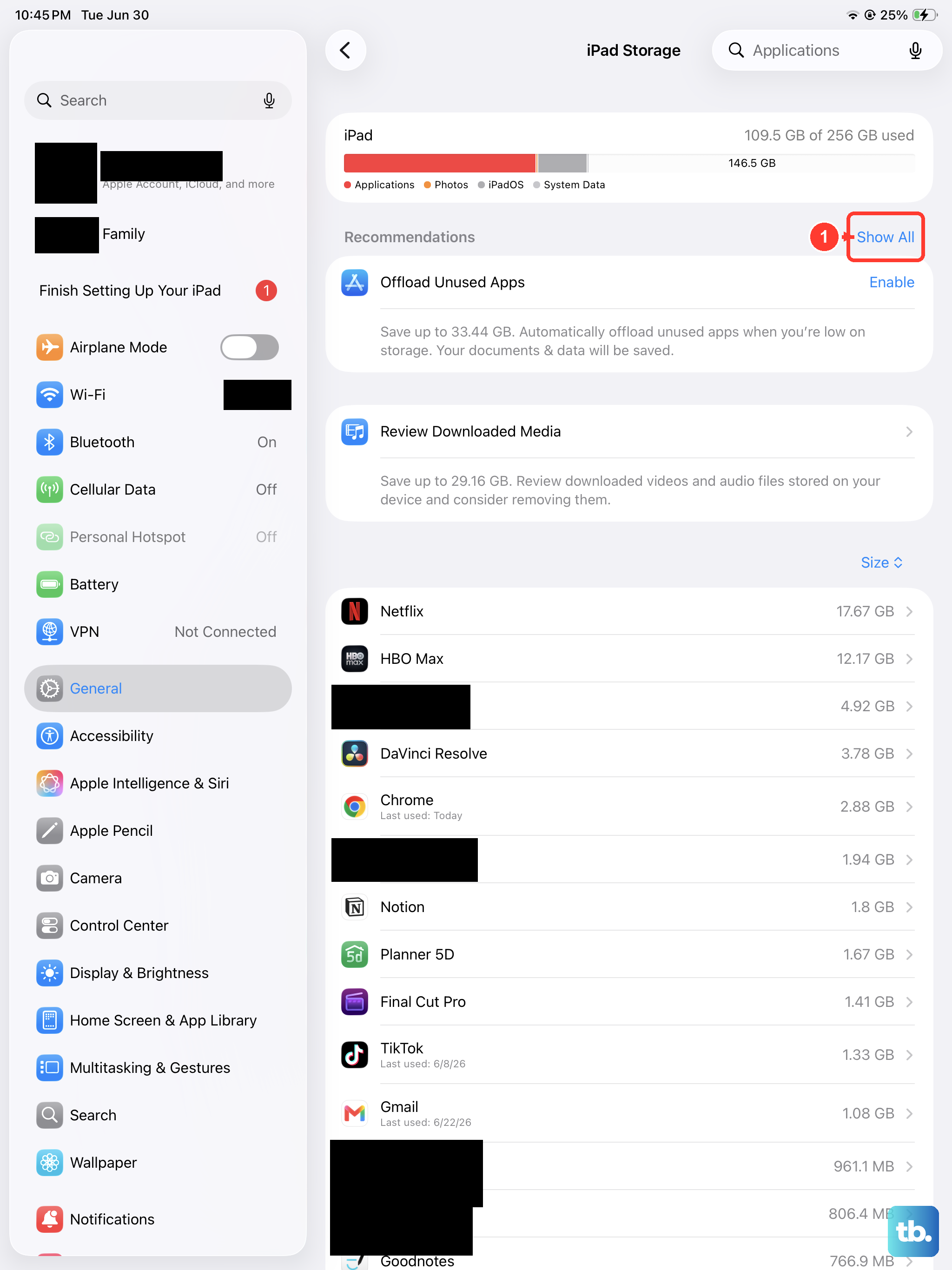
Head to Settings > General > iPad Storage. Give it a moment to fully load and calculate. This screen is your roadmap, showing you exactly which apps and files are taking up the most room. On the iPad mini, you'll often find Photos, large games, and streaming apps like Netflix or Spotify at the top of the list.
Offload Apps You Don't Use
Right on that same iPad Storage screen, look for the Offload Unused Apps option. Turn it on. This is a fantastic feature for the iPad mini because it removes the app itself but keeps all your documents and data saved. The app icon stays on your Home Screen with a little cloud next to it, and tapping it downloads it again instantly. You can also offload apps manually by tapping any app in the list and choosing Offload App.
Tackle Your Photo Library
Photos and videos are almost always the biggest space-eater. Go to Settings > Apps > Photos and make sure Optimize iPad Storage is enabled. This keeps smaller, device-sized versions on your iPad while the full-resolution originals live safely in iCloud. Next, open the Photos app and be ruthless with old screenshots, blurry shots, and duplicate photos. Don't forget to then go into the Recently Deleted album and empty it, or those photos will stick around for 30 more days.
Clear Out Message Attachments
Texts and iMessages on your iPad can hide a massive cache of photos, videos, and GIFs. To find them, go to Settings > General > iPad Storage > Messages. You'll see a breakdown by attachment type. Tap into categories like Photos or Videos to review and delete in bulk. For a more permanent solution, you can set messages to auto-delete after a year or 30 days by going to Settings > Apps > Messages > Keep Messages.
Delete and Reinstall Problem Apps
Look at the apps in your storage list. Social media apps like Instagram, TikTok, and Facebook are notorious for building up huge caches labeled as "Documents & Data." If that data size is several gigabytes, the fastest fix is to delete the app entirely and reinstall it from the App Store. You'll log back into your account, and all that accumulated junk will be gone, freeing up the space immediately.
Review Downloaded Media
This is a big one for the iPad mini, which is perfect for watching and listening on the go. Open your streaming apps and clear out finished downloads. In Netflix, go to My Downloads. In Spotify or Apple Music, check your Downloads playlist or library section. Podcast apps also store old episodes. Removing downloads you've already consumed can recover multiple gigabytes with just a few taps.
Clear Safari Website Data
Over months of browsing, Safari saves a lot of cached files to load pages faster. To wipe this data, go to Settings > Apps > Safari > Clear History and Website Data. This removes your history, cookies, and browsing data. If Safari is showing more than a few hundred megabytes of usage in your storage list, this cleanup will make a noticeable difference.
Check for System Data Issues
After a major update to iPadOS 26, some iPads show a bloated "System Data" category in the storage breakdown. If you see this taking up 20GB or more, it's often temporary cache. A simple restart can sometimes clear it. If that doesn't work, try connecting to power and Wi-Fi overnight, as the system may need time to clean up and reindex files.
Manage Your iCloud Storage
If you're constantly playing storage whack-a-mole, it might be time to upgrade your iCloud+ plan. A larger plan lets you rely more on the cloud for photos, messages, and device backups, which keeps your iPad mini's local storage free. You can check your current plan and upgrade by going to Settings > [Your Name] > iCloud.