
When the Settings app on your iPad mini keeps crashing, it can lock you out of making important changes. This usually happens because of a temporary software glitch or a corrupted file. The good news is you can almost always fix it yourself without losing any data.
I'd start with a simple restart. It sounds basic, but it clears out the device's temporary memory and stops any background processes that might be causing the conflict. Just press and hold the top button and either volume button until the power off slider appears. Slide to power off, wait about thirty seconds, then press the top button again to turn it back on.
Update iPadOS
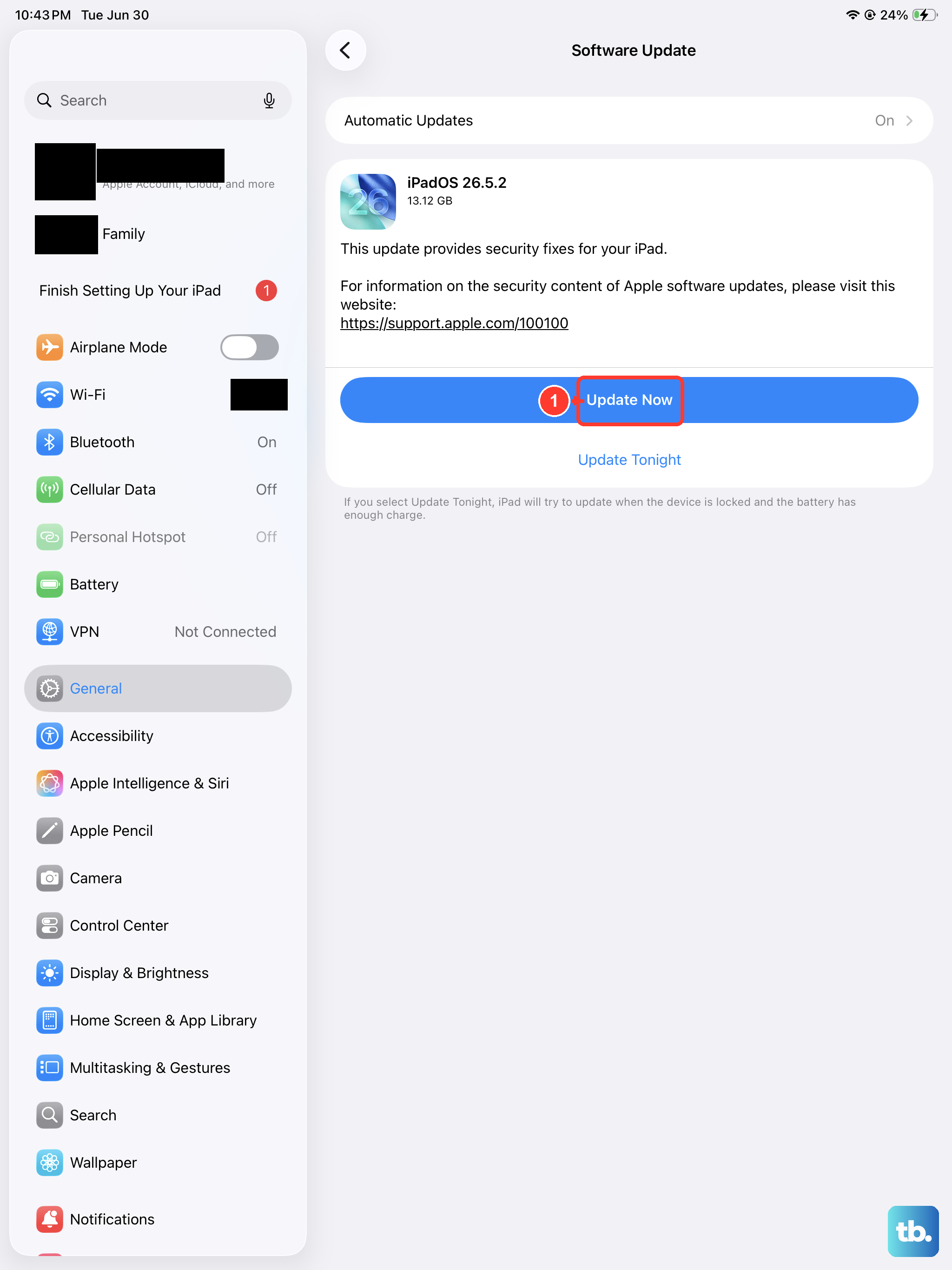
If a restart doesn't help, your next move should be checking for a software update. Apple frequently releases iPadOS updates that include bug fixes for exactly this kind of system app instability. You'll need to get to the Settings app to do this, so if it crashes immediately, try opening it and quickly tapping your Apple ID banner at the top, then navigating to General > Software Update before it has a chance to close.
Make sure your iPad mini is connected to Wi-Fi and has at least 50% battery or is plugged in. If an update is available, tap "Download and Install." After it completes, your iPad will restart. This has resolved Settings crashes for many users, especially after a major OS update like iPadOS 26.
Close All Apps and Force Restart
Sometimes, an app running in the background can interfere with system processes. Start by closing everything. Swipe up from the bottom of the screen and pause in the middle to enter the app switcher. Swipe up on every app preview to close it.
If that doesn't work, perform a force restart. This is different from a normal restart and can clear deeper system hiccups. On your iPad mini (7th generation), quickly press and release the Volume Up button, then quickly press and release the Volume Down button. Immediately after, press and hold the Top button. Keep holding it until you see the Apple logo appear, then let go.
Reset All Settings
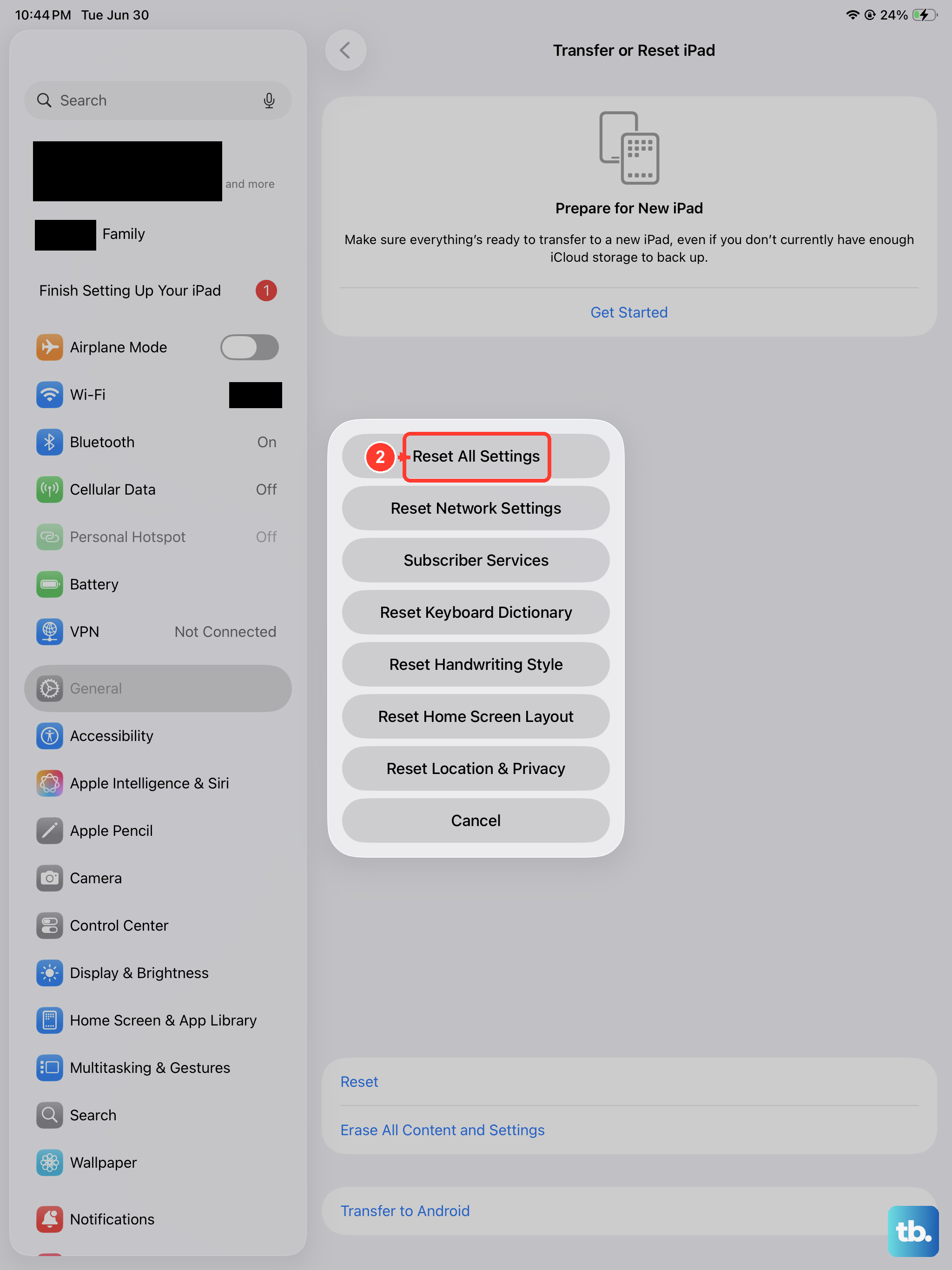
This is a more thorough step that won't delete your personal data like photos or messages, but it will reset every system setting back to factory defaults. You'll lose your Wi-Fi passwords, wallpaper choices, and privacy permissions, so you'll have to set those up again.
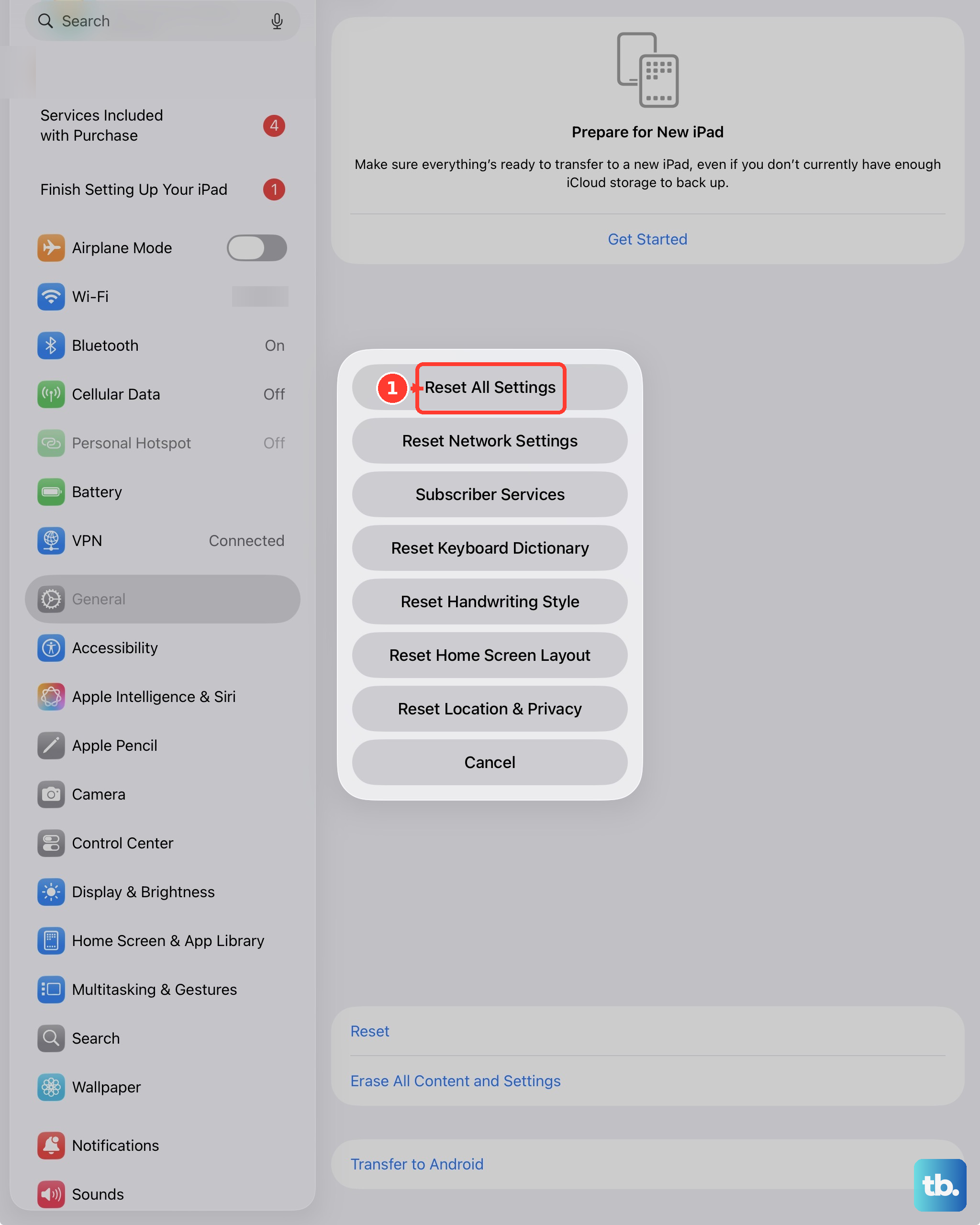
To do this, go to Settings > General > Transfer or Reset iPad. Tap "Reset" at the bottom, and then choose "Reset All Settings." You'll need to enter your passcode to confirm. Your iPad will restart, and the Settings app should be stable. This is a reliable fix for persistent crashes caused by a corrupted preference file.
Check for Profile Conflicts
If you have any configuration profiles installed, perhaps for work or school, they can sometimes cause system app instability. Go to Settings and look for a "Profiles" or "Profiles & Device Management" option near the top. If you see one, tap into it.
Review any installed profiles. If you have the option to remove a profile you no longer need, that might solve the problem. For essential work profiles, you may need to contact your IT department for an updated version that's compatible with iPadOS 26.
Free Up Storage Space
Your iPad mini needs free space to operate smoothly. If your storage is completely full, system apps like Settings can start to malfunction. Open Settings and tap General > iPad Storage. Take a look at the graph at the top.
If you're critically low, the system will usually warn you. Try offloading unused apps or moving photos and videos to iCloud. Aim to keep at least 5-10GB of free space. This gives the operating system the room it needs to manage cache and temporary files properly.
Restore via a Computer
If the Settings app is still crashing after all other steps, the last software fix is to restore your iPad using a Mac or PC. This will install a fresh, clean copy of iPadOS. You have two options: restore from a backup, or set up as new.
First, make sure you have a recent iCloud or computer backup. Connect your iPad to your computer using a USB-C cable. On a Mac with macOS Catalina or later, open Finder. On a PC or older Mac, open iTunes. Select your iPad, and choose "Restore iPad." This will erase the device and install the latest version of iPadOS.
Once the restore is complete, you can choose to set it up as a new iPad to test if the problem is gone. If it is, you know it was a software issue. You can then choose to restore from your backup, though there's a small chance the corrupted data was in the backup. If the problem returns after restoring your backup, you may need to set up as new and manually reinstall your apps.