
When your iPad mini isn't making a sound for alerts, it's easy to miss important messages or calls. This usually comes down to a simple setting that got changed or a temporary software hiccup. I'd start by checking the basics, as that fixes the issue most of the time.
It is worth confirming the basics with a quick online speaker test. If neither channel plays a tone, you are looking at a hardware or connection problem rather than a settings issue.
First, check the physical switch on the top-left edge of your iPad mini. If you see an orange stripe, the Ring/Silent switch is set to silent mode. Slide it toward the screen to turn silent mode off. Also, quickly press the Volume Up button on the side to make sure your volume isn't turned all the way down.
Check Focus Modes and Do Not Disturb
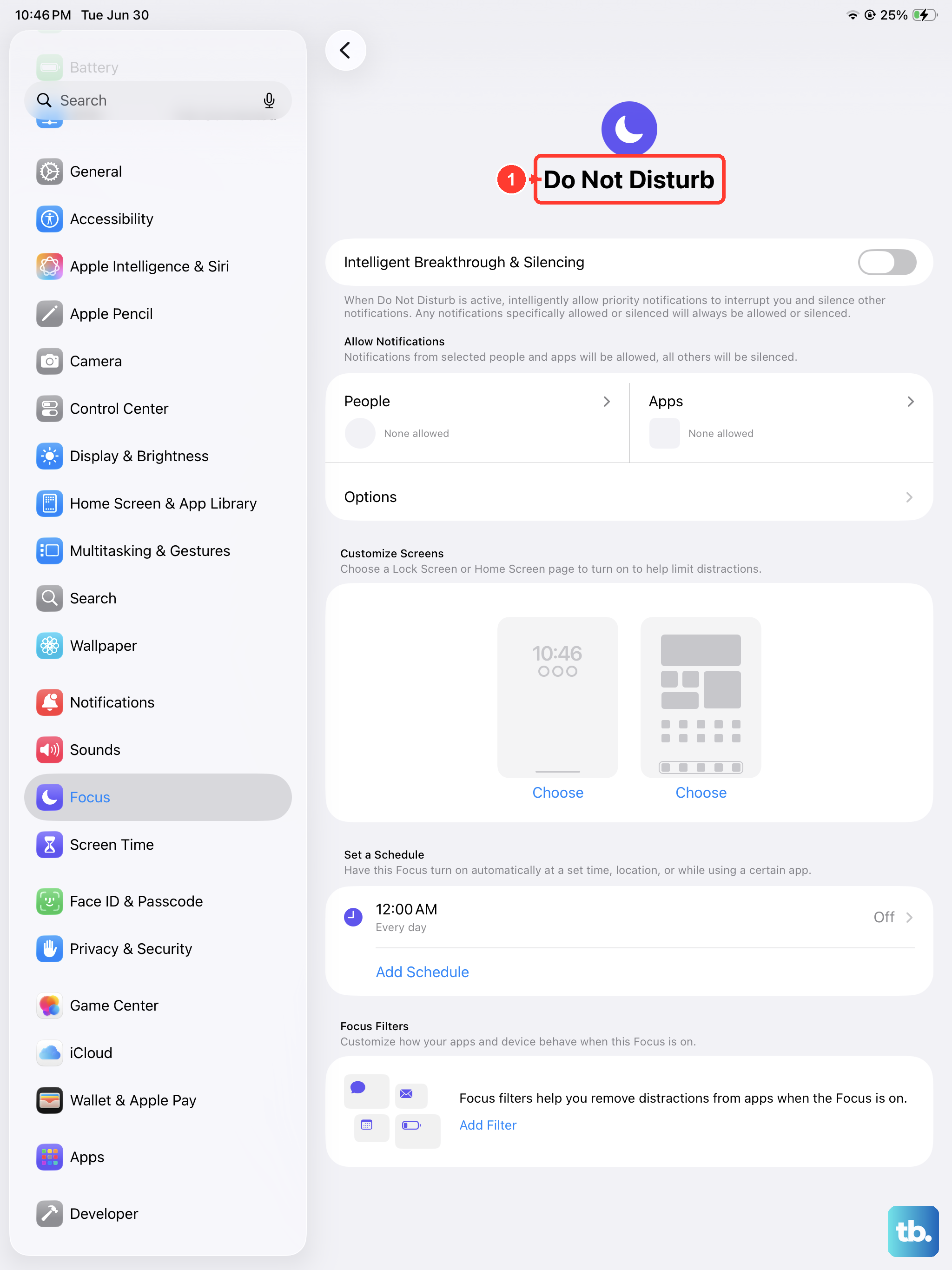
Focus modes in iPadOS 26, like Do Not Disturb or Sleep, can silence all notifications. Swipe down from the top-right corner of the screen to open Control Center. Look at the Focus tile, if it says anything other than "Focus Off," tap it to turn the active mode off. You can also go into Settings > Focus to see which modes are enabled and adjust their notification allowances.
Adjust Notification Settings for Specific Apps
Sometimes, the problem is with a single app like Messages or Mail. The notification sound might be disabled just for that app. Open Settings > Notifications and tap on the app that's not making sound. Make sure "Allow Notifications" is on. Then, tap "Sounds" and choose an alert tone other than "None."
For some apps, you might need to check their in-app notification settings as well. Open the app, go to its settings menu, and look for sound or notification options there.
Restart Your iPad mini
A quick restart can clear out temporary glitches in iPadOS that might be affecting the sound system. Press and hold the Top button and either volume button until the power off slider appears. Drag the slider, wait about 30 seconds for the device to turn off, then press and hold the Top button again until you see the Apple logo.
If the screen is unresponsive, you can perform a force restart. Quickly press and release the Volume Up button, then quickly press and release the Volume Down button. Finally, press and hold the Top button until the Apple logo appears, then release it.
Check the Sound Settings
Head to Settings > Sounds & Haptics. Here, you can adjust several key options. Drag the "Ringer and Alerts" slider to the right to increase volume. Make sure "Change with Buttons" is toggled on if you want to use the physical volume buttons to control alert volume.
Also, tap on "Text Tone" or "New Mail" (or other alert types) and select a sound to ensure one is actively chosen. Sometimes an update can reset these to a silent default.
Update iPadOS
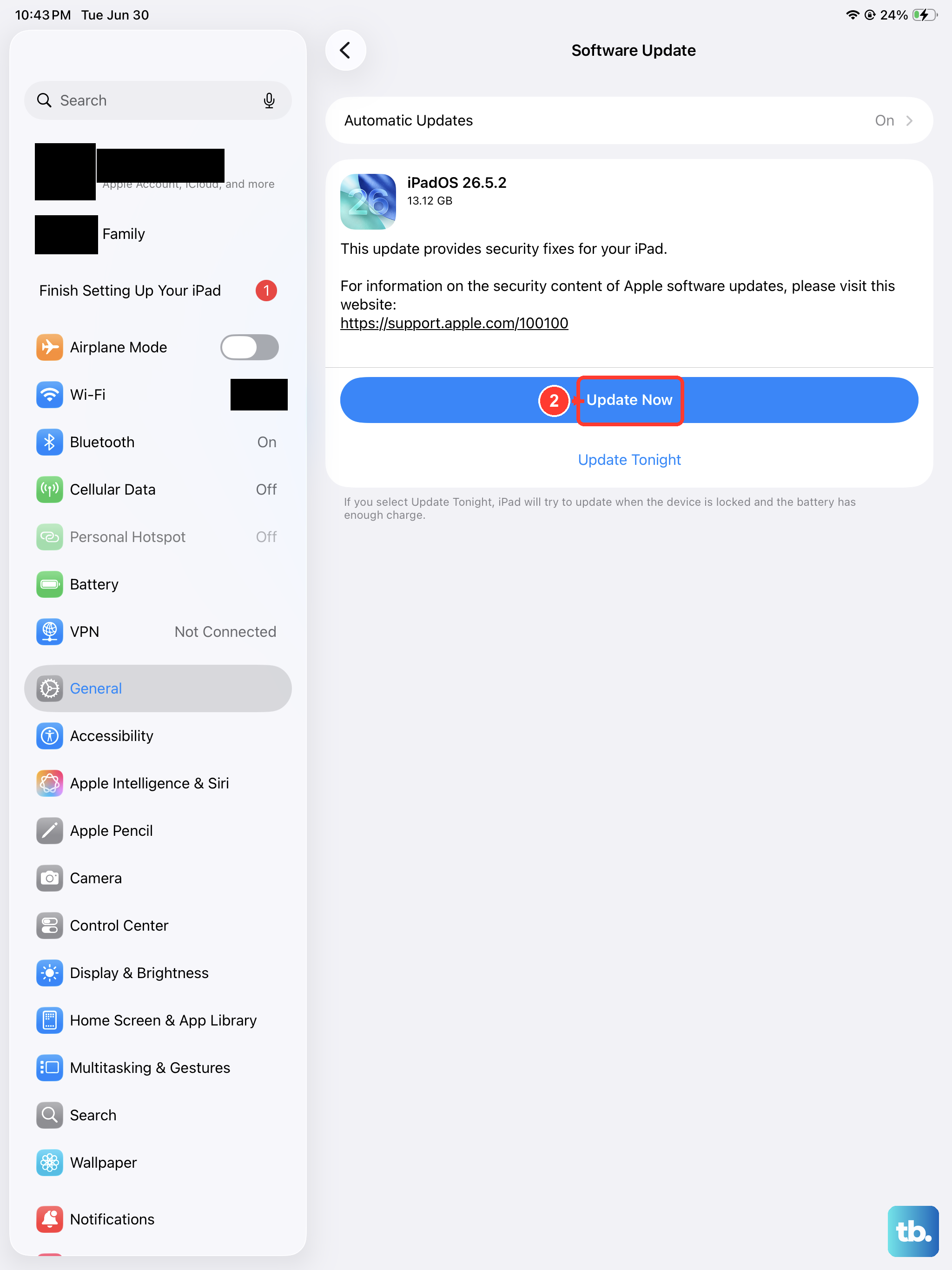
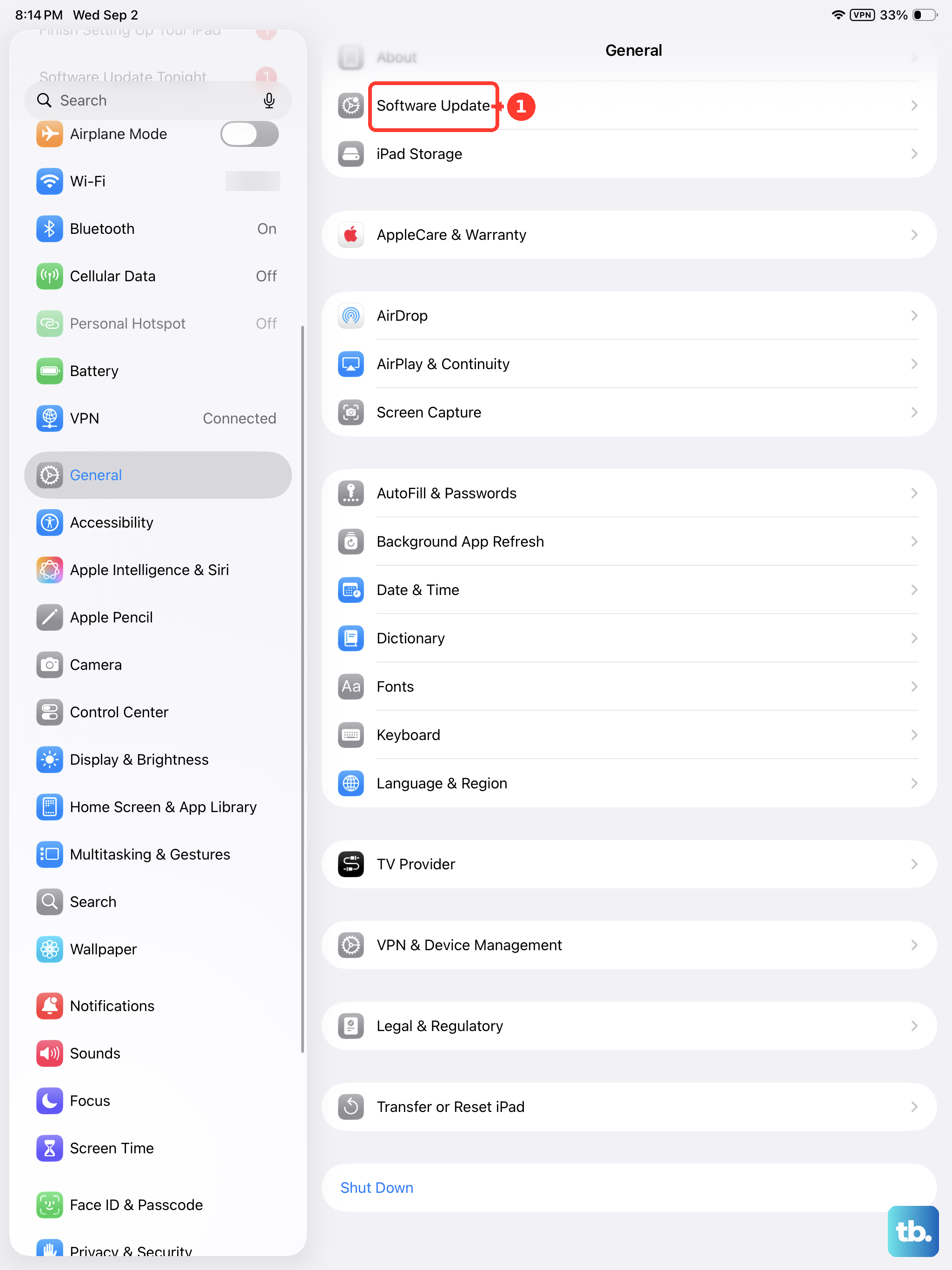
Software bugs can occasionally cause sound issues, and Apple releases fixes in updates. Connect your iPad mini to Wi-Fi and plug it into power with an official Apple 20W or higher USB-C charger. Go to Settings > General > Software Update. If an update is available, tap "Download and Install." Keeping iPadOS 26 up to date is a good habit for overall performance and stability.
Reset All Settings
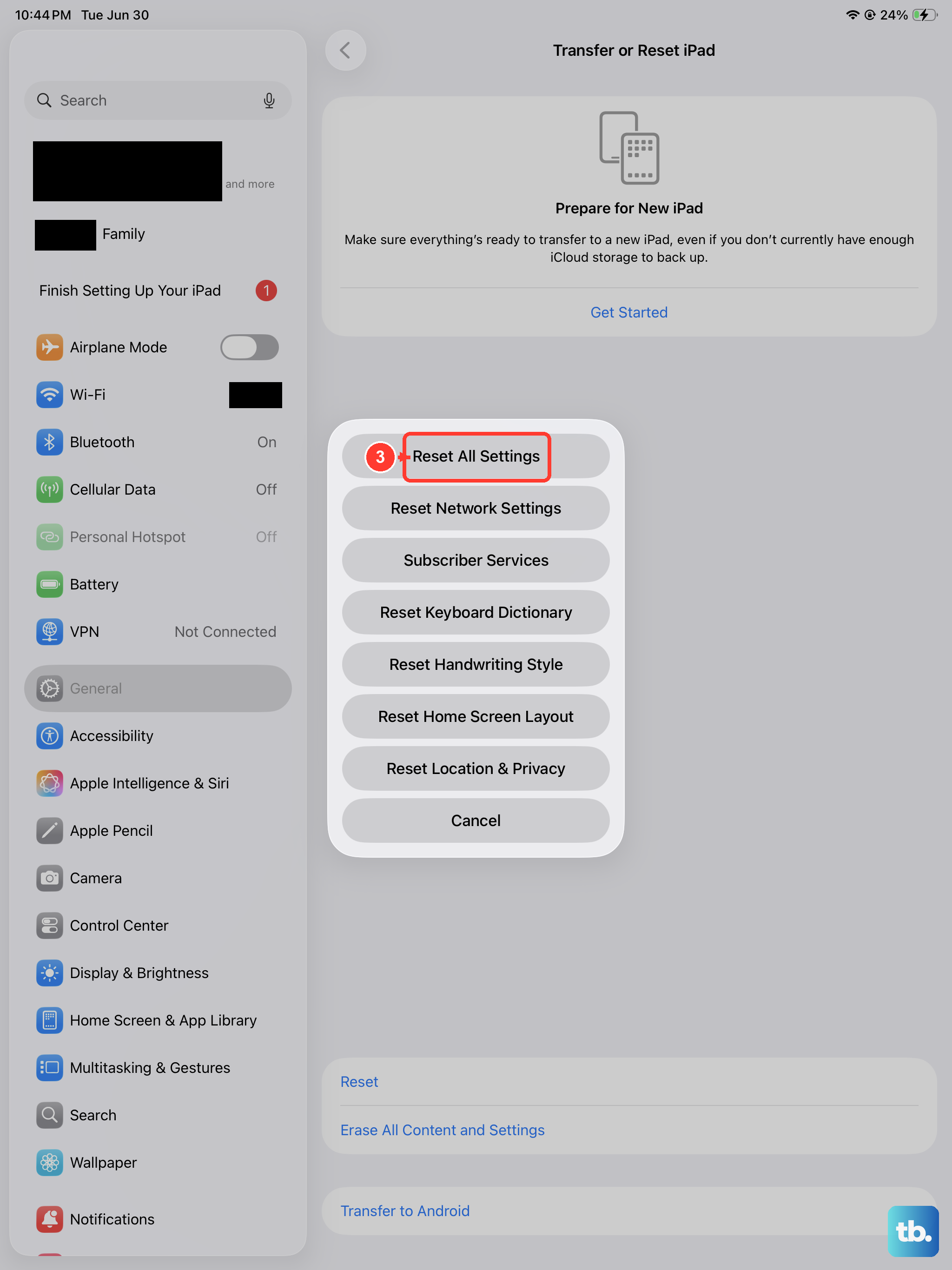
If you're still not hearing sounds, this step can help without erasing your data. It will reset all your preferences, like network settings, wallpaper, and privacy permissions, back to their defaults. Go to Settings > General > Transfer or Reset iPad. Tap "Reset" and then choose "Reset All Settings." You'll need to enter your passcode and confirm.
After the iPad restarts, you'll need to reconnect to Wi-Fi and adjust any custom settings again, but your apps and personal files will remain untouched. This often resolves deeper software conflicts affecting notifications.