You type out a reply on your iPad mini, tap the send arrow, and the message just sits there, or it bounces back with a red "Not Delivered" warning. On a device this capable it is tempting to assume something is broken, but the cause is almost always a setting or a quirk in how this particular tablet handles texting, not a hardware fault. Before you start changing anything, it helps to understand exactly what your iPad mini can and cannot send on its own, because that single detail explains most texting failures on this device.
Why your iPad mini handles blue and green texts differently
Apple sells this tablet as the iPad mini (A17 Pro), introduced in 2024. There is no separate "2026" seventh-generation iPad mini in Apple's own documentation, so treat the year in the title as informal shorthand rather than an official model name. The device runs iPadOS and appears on Apple's iPadOS 26 compatibility list, with the current public release being iPadOS 26.x (for example 26.5).
Here is the nuance that matters most. Your iPad mini can send iMessages, the blue bubbles, over Wi-Fi or cellular data, but it cannot send standard SMS or MMS green-bubble texts on its own. Apple's tech specs list the cellular models as "Data only," which means the iPad's own cellular connection carries no voice or SMS.
Green-bubble SMS, MMS, and RCS messages only reach the iPad when they are relayed from a paired iPhone signed in to the same Apple Account, using Text Message Forwarding. Keep that split in mind, because several fixes below depend on which color bubble is failing.
Confirm the iPad is actually online first
Messages can fail for the simple reason that the iPad has no usable connection. To send an iMessage, RCS, or MMS message you need a Wi-Fi or cellular data connection, and a standard SMS needs a cellular network. Because the iPad mini's cellular is data only, your blue iMessages travel over Wi-Fi or cellular data, while green texts always route through your paired iPhone's network.
Open Control Center or the Settings app and confirm that Wi-Fi is connected, or that cellular data is switched on and working.
Then try sending again. If a fix in the rest of this list does not stick, come back and recheck this, since a dropped connection can quietly undo everything else.
Re-register iMessage by switching it off and on
One of the most reliable fixes is also one of the quickest. Toggling iMessage forces the iPad to re-register with Apple's service and clears a surprising number of send failures.
Open Settings > Apps > Messages.
Turn iMessage off.
Wait a few seconds, then turn iMessage back on.
Give it a moment to activate after it switches back on, then send a test message to confirm blue bubbles are going through again.
Check which address your messages are sent from
If iMessages send from the wrong account or number, replies can scatter or fail outright. Go to Settings > Apps > Messages > Send & Receive and choose the phone number or email address you want to use. Make sure the Apple Account shown here matches the one on your iPhone.
If your phone number is not listed, link your iPhone number to your Apple Account so you can send and receive iMessages from your phone number. Matching the address across both devices is what keeps your conversations in sync.
Push a stuck Not Delivered message through
When a single message shows a red exclamation point with a "Not Delivered" alert, you can often resend it without any deeper troubleshooting.
Tap the red exclamation point, then tap Try Again.
If it still will not send, tap the red exclamation point, then tap Send as Text Message (messaging rates may apply).
On the iPhone side you can also turn on automatic fallback, so blue messages drop to text when iMessage is unavailable. Open Settings > Apps > Messages and turn on Send as Text Message.
Turn on Text Message Forwarding so green texts reach the iPad
This is the key step when the problem is green-bubble SMS or MMS, because the iPad cannot send those on its own. First make sure both devices are signed in with the same Apple Account and that the iPhone is connected to Wi-Fi or cellular.
On the iPhone, open Settings > Apps > Messages > Text Message Forwarding.
Turn on your iPad in the list.
If Text Message Forwarding is not shown, turn iMessage off and back on, then tap Send & Receive and sign in again.
Enter the verification code if one appears.
Once forwarding is active, the green texts that arrive on your iPhone can be sent and received from the iPad mini too.
Make sure Continuity is linking both devices
To send and receive both iMessage and SMS, RCS, or MMS messages on the iPad through your iPhone, both devices must be signed in to the same Apple Account and have Wi-Fi turned on. If those conditions are not met, the link between the two devices quietly breaks and the iPad loses its path to green texts.
If you use a VPN or other network restrictions, try turning them off briefly to test, since they can sometimes interfere with the connection between your devices. It is an easy detail to miss when forwarding suddenly stops working.
Install the latest iPadOS
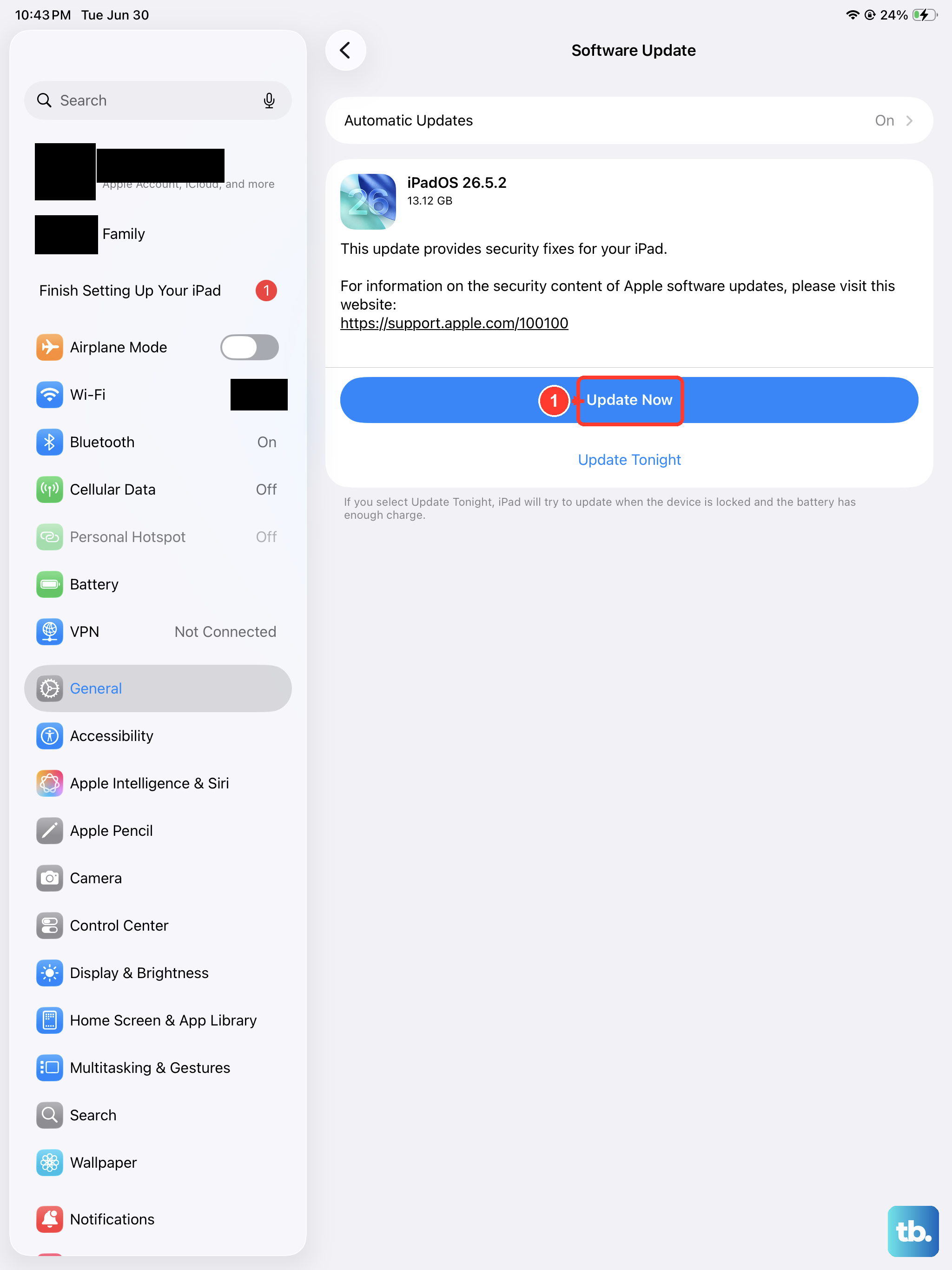
Software bugs that affect Messages are often resolved in updates, and the iPad mini (A17 Pro) is supported by iPadOS 26. Back up the iPad first, then check for an available update.
Open Settings > General > Software Update.
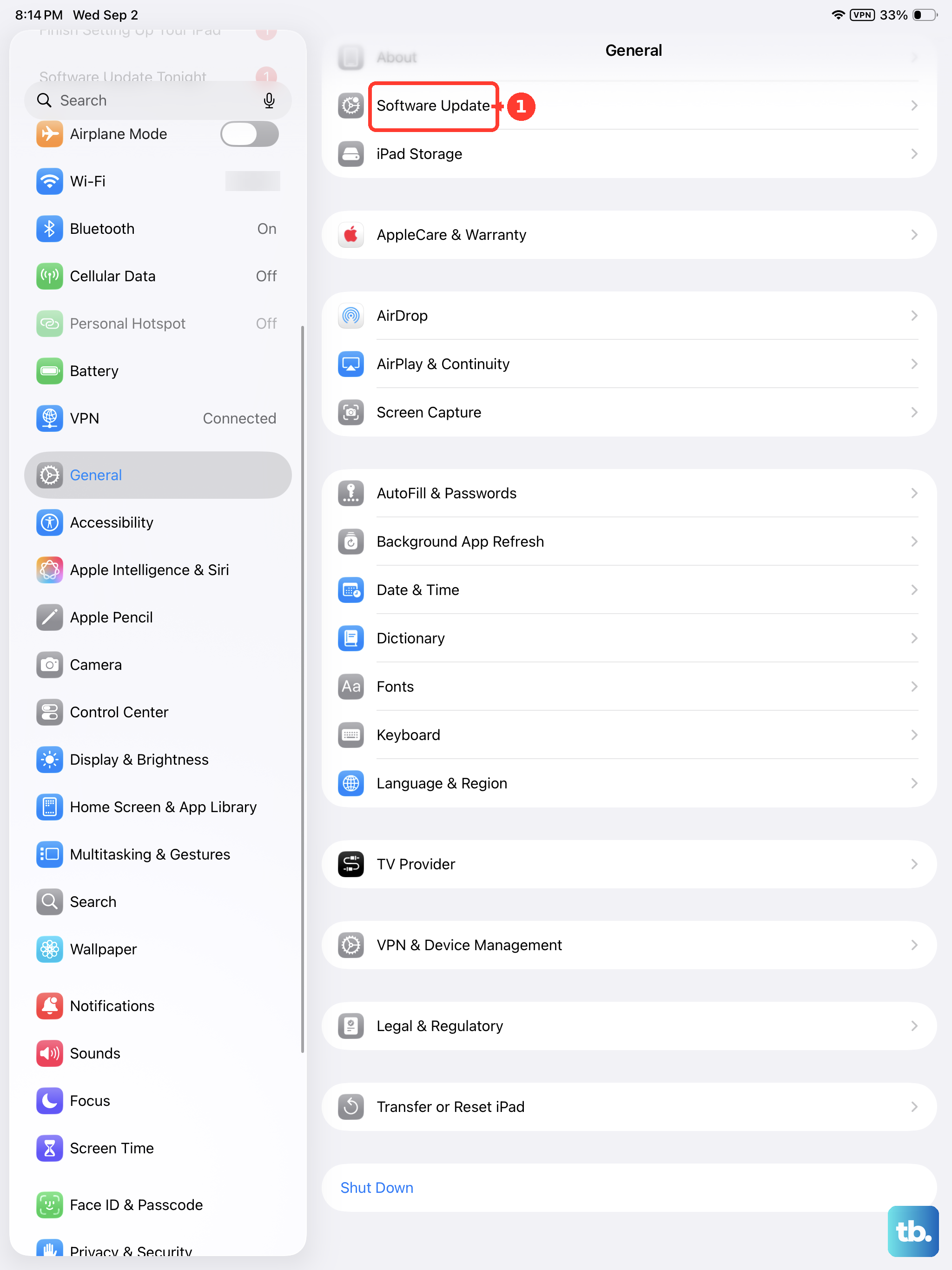
If an update is available, tap Download and Install and follow the onscreen instructions.
Keeping the iPad current also keeps the Messages and Continuity features in step with whatever version your iPhone is running.
Restart the iPad before anything drastic
Restarting your iPhone or iPad is one of the steps Apple suggests when messages will not send. Turn the iPad off, wait a few seconds, then turn it back on and try sending again. A normal restart clears temporary glitches without touching any of your data, which makes it a safe step to try before the heavier fixes below.
Force restart when Messages is frozen
If the Messages app is unresponsive or the screen is stuck, a force restart can recover it. The iPad mini has no Home button, so use the volume-and-top-button sequence exactly as Apple describes it.
- 1.Press and quickly release the volume button closest to the top button.
- 2.Press and quickly release the volume button farthest from the top button.
- 3.Press and hold the top button until you see the Apple logo.
This does not erase your content. It simply forces the iPad to power down and start fresh when a normal restart is not possible.
Erase the iPad as a last resort, then get official help
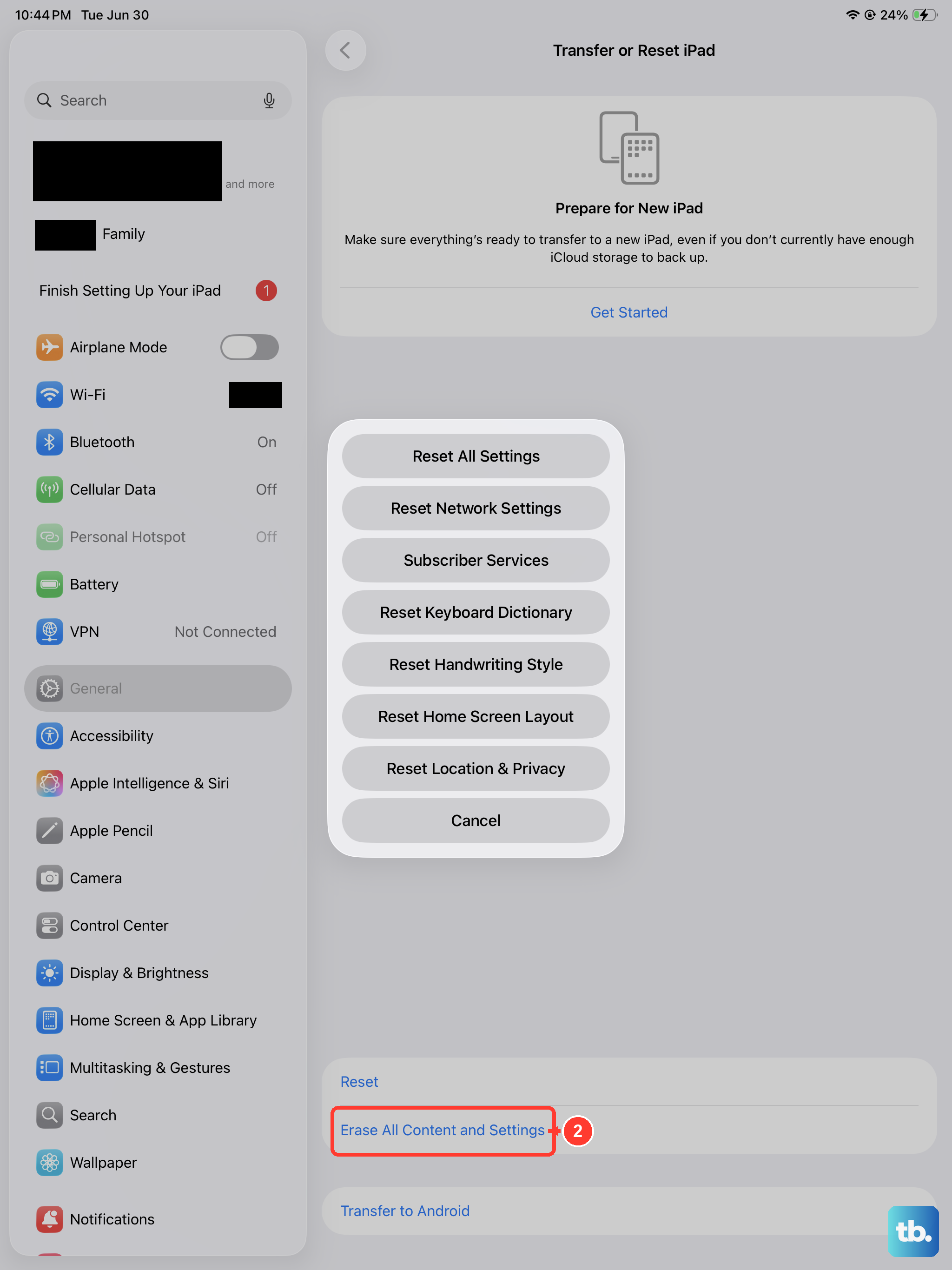
If nothing above works, you can erase the iPad and set it up fresh, but treat this as your final move. Back up first, because this erases all information on the device.
Open Settings > General > Transfer or Reset [device].
Tap Erase All Content and Settings, then Continue.
Choose to keep or delete your eSIM.
Enter your device passcode.
Enter your Apple Account password.
If you would rather use a computer, you can also restore the iPad with the Finder on a Mac or with the Apple Devices app on a Windows PC. If texting still fails afterward, contact Apple Support for iMessage problems, or contact your carrier if you still cannot send or receive SMS, MMS, or RCS.
Frequently Asked Questions
Can the iPad mini send text messages without an iPhone?
It can send iMessages, the blue bubbles, over Wi-Fi or cellular data entirely on its own. It cannot send standard SMS or MMS green-bubble texts by itself, because the cellular models are data only, so those green texts must be relayed from a paired iPhone using Text Message Forwarding.
Is there really a 2026 iPad mini?
Apple lists this device as iPad mini (A17 Pro) with a year introduced of 2024. There is no separate 2026 seventh-generation model in Apple's documentation, so the 2026 label is informal rather than an official Apple designation.
Why do my green texts work on my iPhone but not on the iPad?
The iPad relies on your iPhone to handle SMS and MMS. If Text Message Forwarding is turned off, or the two devices are not signed in to the same Apple Account, the iPad simply has no way to send or receive those green messages.
Will erasing the iPad delete my eSIM?
During Erase All Content and Settings you are asked whether to keep or delete your eSIM, so you can choose to keep it. Back up the iPad first, because the erase removes all information stored on the device.