
Your iPad Air M3 runs on iPadOS 18, and the Settings app should be one of the most reliable things on it. But sometimes you tap the icon and nothing happens, or it crashes right after opening. This is usually a software glitch that you can fix in a few minutes.
Force Restart the iPad
The fastest fix is a force restart. It clears temporary system hiccups without deleting anything.
Press and quickly release the Volume Up button, then the Volume Down button, then press and hold the Top button until the Apple logo appears. That whole sequence takes about 10 seconds. Once the iPad boots back up, try opening Settings again.
Check for an iPadOS Update
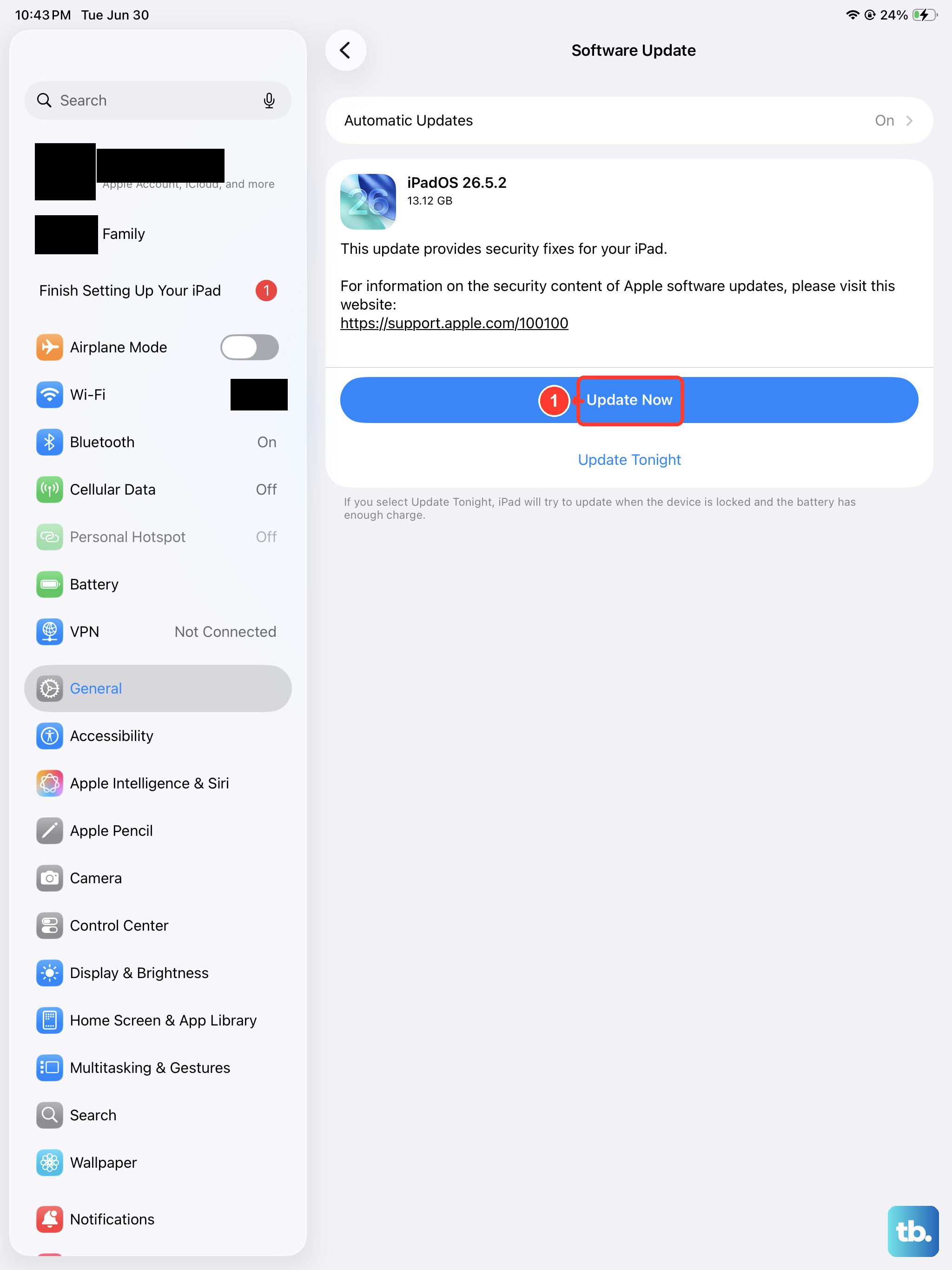
If the force restart didn't help, the next likely culprit is a software bug that Apple has already fixed in a newer version of iPadOS.
Open the Settings app if it'll cooperate, or go to Settings > General > Software Update through the search (if the app launches briefly). If Settings won't open at all, plug the iPad into a computer with Finder (macOS) or iTunes (Windows) and check for updates there. Install any available update. I’ve seen this resolve the issue on the M3 model after the 18.0.1 update.
Reset All Settings
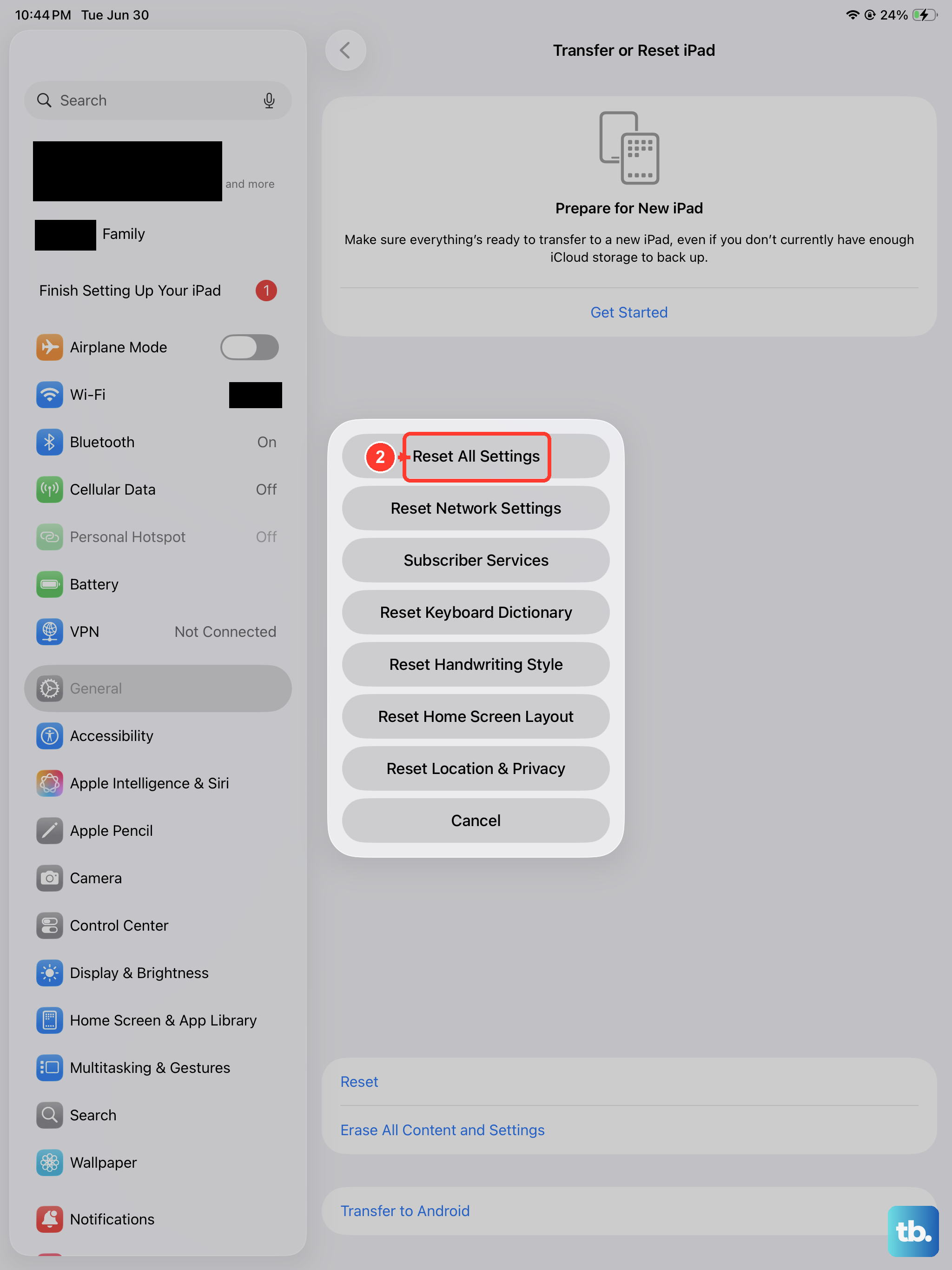
This is the iPad equivalent of clearing the Settings app cache on Android. It doesn't erase your photos, messages, or apps, but it resets things like Wi‑Fi passwords, wallpaper, and privacy settings.
Go to Settings > General > Transfer or Reset iPad > Reset > Reset All Settings. Confirm the action and enter your passcode. The iPad will restart and you'll need to reconnect to Wi‑Fi, but the Settings app should start working normally again.
Offload and Reinstall the Settings App
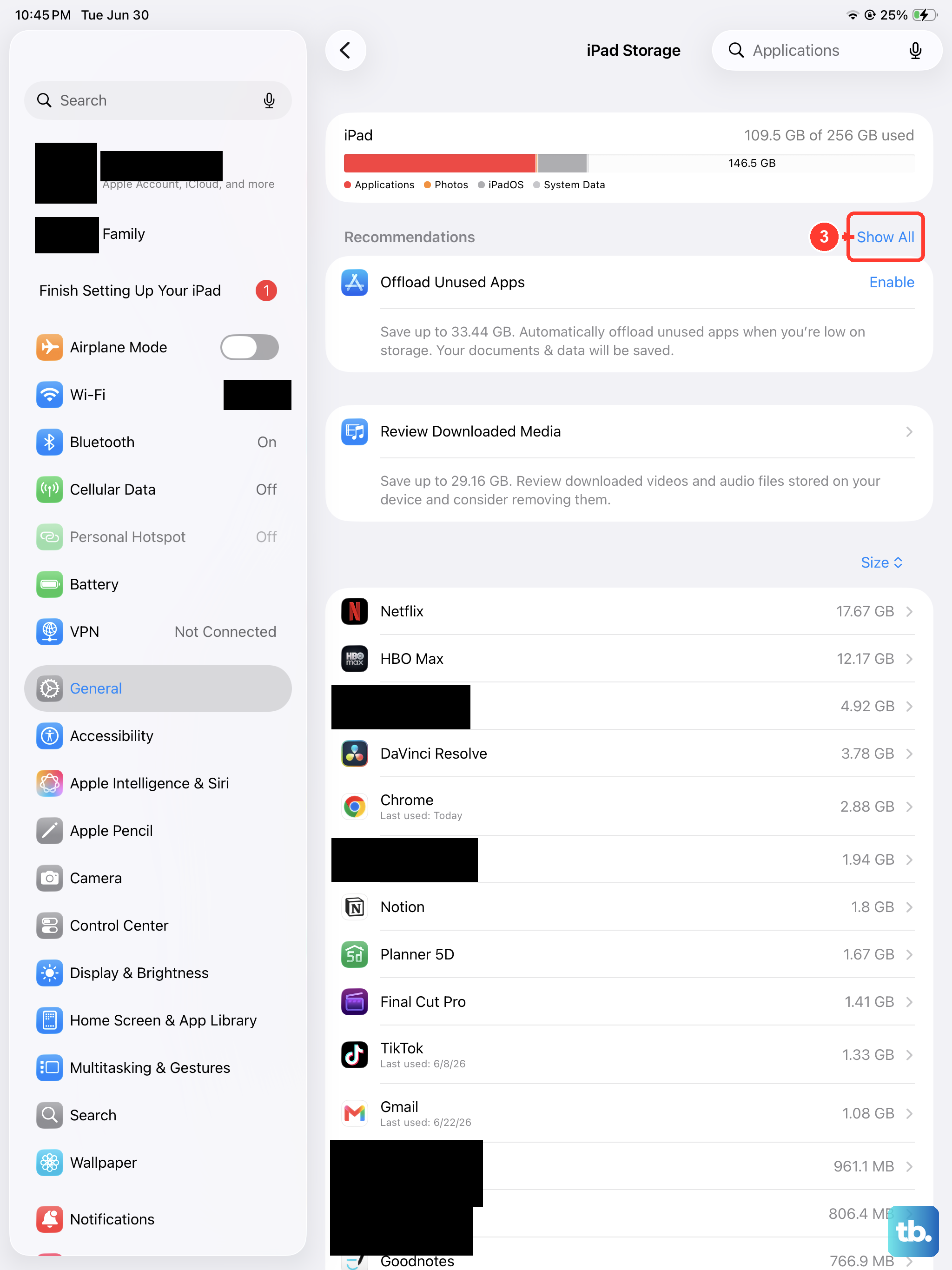
You can't delete the Settings app, but you can offload it. Offloading removes the app's data while keeping its icon and any saved preferences. When you tap it again, it reinstalls fresh from scratch.
Go to Settings > General > iPad Storage and scroll down to find Settings. Tap it, then tap Offload App. Wait a few seconds, then tap Reinstall App. This clears any corrupted data that might be preventing the app from launching.
Check for Conflicting Profiles or VPNs
Sometimes a misconfigured configuration profile or a VPN can interfere with system apps. If you've installed any profiles for work, school, or a specific service, try removing them.
Go to Settings > General > VPN & Device Management. Tap any configuration profile and choose Remove Profile. Also turn off any VPN you've enabled. Restart the iPad and test Settings.
Charge with the Right Adapter
The iPad Air M3 won't charge well with low‑power adapters. If your battery is extremely low (which can cause system instability including Settings crashing), use a 20W or higher USB‑C PD adapter. Plug the iPad directly into a wall outlet, not a computer or hub. Let it charge for at least 20 minutes before trying to open Settings again.
If you see a Not Charging message on the lock screen, swap the cable and adapter. Non‑certified USB‑C cables are a common cause of this odd behavior.
Last Resort: Erase All Content and Settings
This is the nuclear option. It wipes everything on the iPad back to factory state. Back up your data first via iCloud or a computer.
Go to Settings > General > Transfer or Reset iPad > Erase All Content and Settings. Follow the prompts. After the iPad restarts, set it up as new or restore from a backup. If the problem was a deep software corruption, this almost always fixes it.