
Even the M3 chip can feel sluggish sometimes. If your iPad Air M3 is lagging, stuttering, or just not as snappy as it used to be, a few quick changes usually fix it. Let's jump straight into the solutions that actually work.
Most slowdowns come from the same suspects: a nearly full drive, too many background processes, or an outdated iPadOS. The good news is you don't need to erase everything to get things moving again.
Force Restart Your iPad Air M3
Before trying anything else, reset the system memory with a force restart. It clears temporary glitches without deleting any data.
Press and quickly release the volume button closest to the Top button, then the one farthest from it, then press and hold the Top button until the Apple logo appears. The whole thing takes about 15 seconds.
Free Up Storage Space
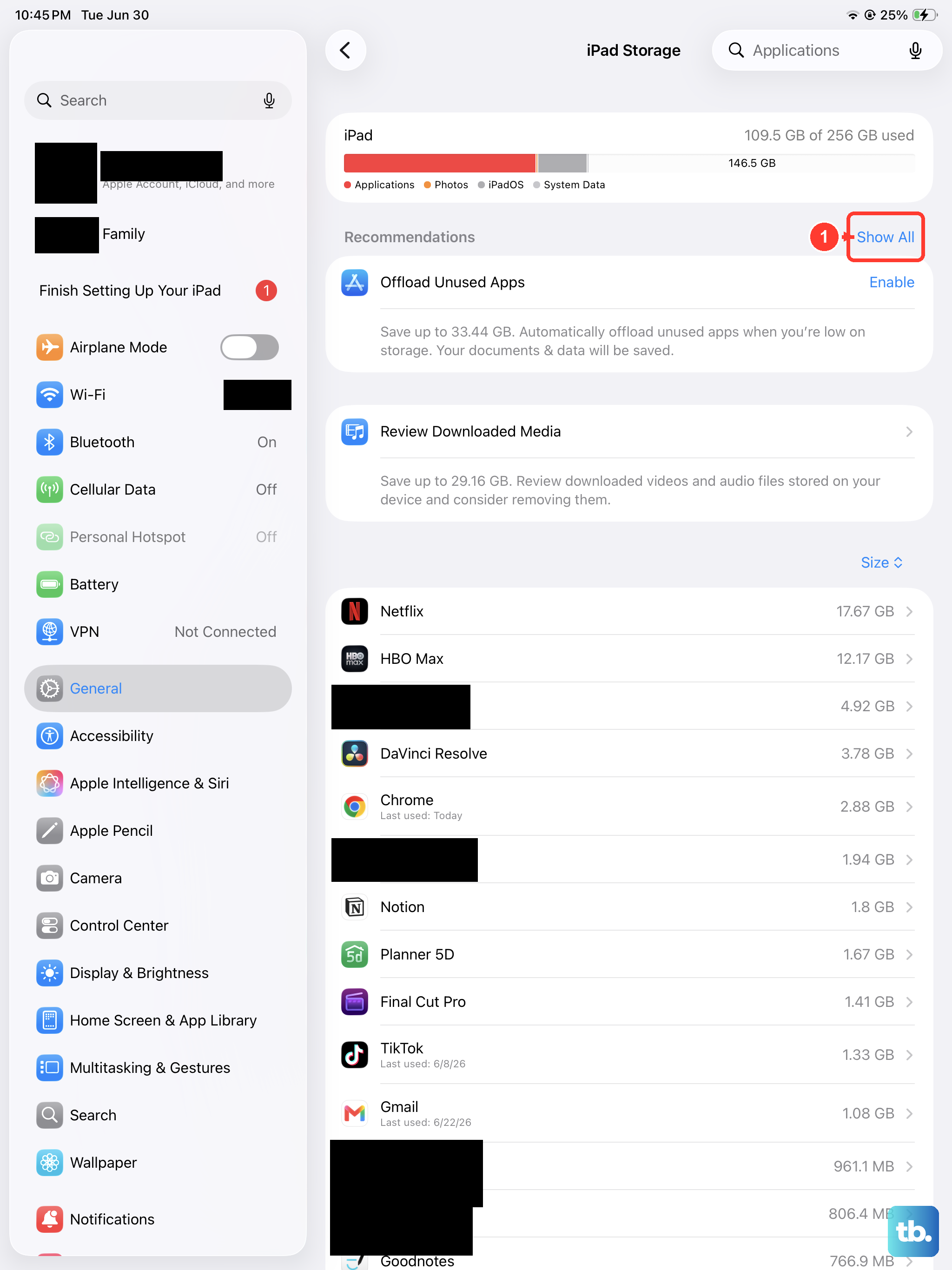
When your iPad's storage is over 80% full, performance starts to suffer. iPadOS needs free space for virtual memory and system caches.
Go to Settings > General > iPad Storage. You'll see a bar showing what's taking up space. Tap Offload Unused Apps to automatically remove apps you haven't used but keep their documents. You can also delete large video files or old podcasts right from this screen.
Check iPadOS and App Updates
Outdated software can cause all kinds of lag. Apple regularly releases performance improvements in iPadOS updates.
Open Settings > General > Software Update. If a new version of iPadOS 18 is available, download and install it. Similarly, update your apps by opening the App Store, tapping your profile icon, and hitting Update All.
Turn Off Background App Refresh
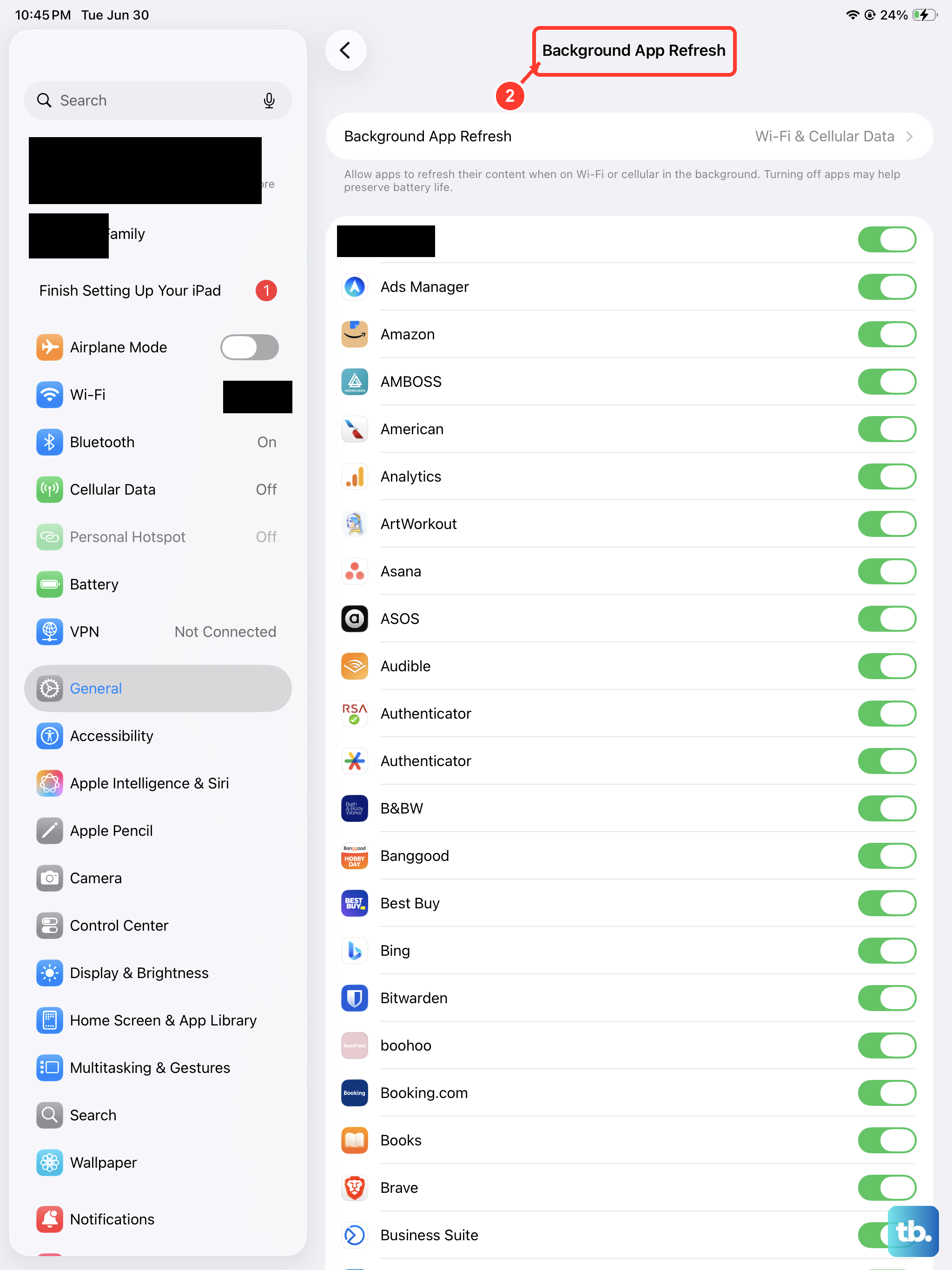
Background App Refresh lets apps fetch new content even when you're not using them. That's handy, but it drains both battery and processing power.
Go to Settings > General > Background App Refresh. You can turn it off entirely, or disable it for individual apps that you don't need updating constantly, like news apps or social media feeds.
Reduce Visual Effects
Smooth animations look nice, but they can make the iPad feel slower if the system is under load. iPadOS lets you dial them back.
Open Settings > Accessibility > Motion and toggle on Reduce Motion. This turns off parallax effects and app launching animations. While you're there, go to Display & Text Size and enable Reduce Transparency. The interface will look flatter, but scrolling and multitasking will feel smoother.
Clear Safari Cache and History
Safari stores website data, cookies, and cached images that pile up over time. Clearing this out can speed up browsing and free a bit of storage.
Go to Settings > Apps > Safari and tap Clear History and Website Data. Confirm, and you're done. You won't lose saved bookmarks, but you'll have to sign back into some websites.
Remove Unused Widgets and Siri Suggestions
Widgets constantly update in the background, and Siri Suggestions run searches to predict what you'll need next. Both use CPU cycles.
Long-press any widget on your Home Screen and tap Remove Widget. Keep only the ones you actually check daily, like Weather or Calendar. For Siri Suggestions, go to Settings > Siri & Search and turn off Show in Look Up, Show in Spotlight, and Show in Share Sheet.
Check Battery Health
When your iPad's battery health drops below 80%, iPadOS may throttle performance to prevent unexpected shutdowns. It's more common on older devices, but worth checking on any iPad.
Open Settings > Battery > Battery Health. If Maximum Capacity is below 80%, consider scheduling a battery replacement with Apple. You'll likely notice a speed improvement right after.
Use Low Power Mode
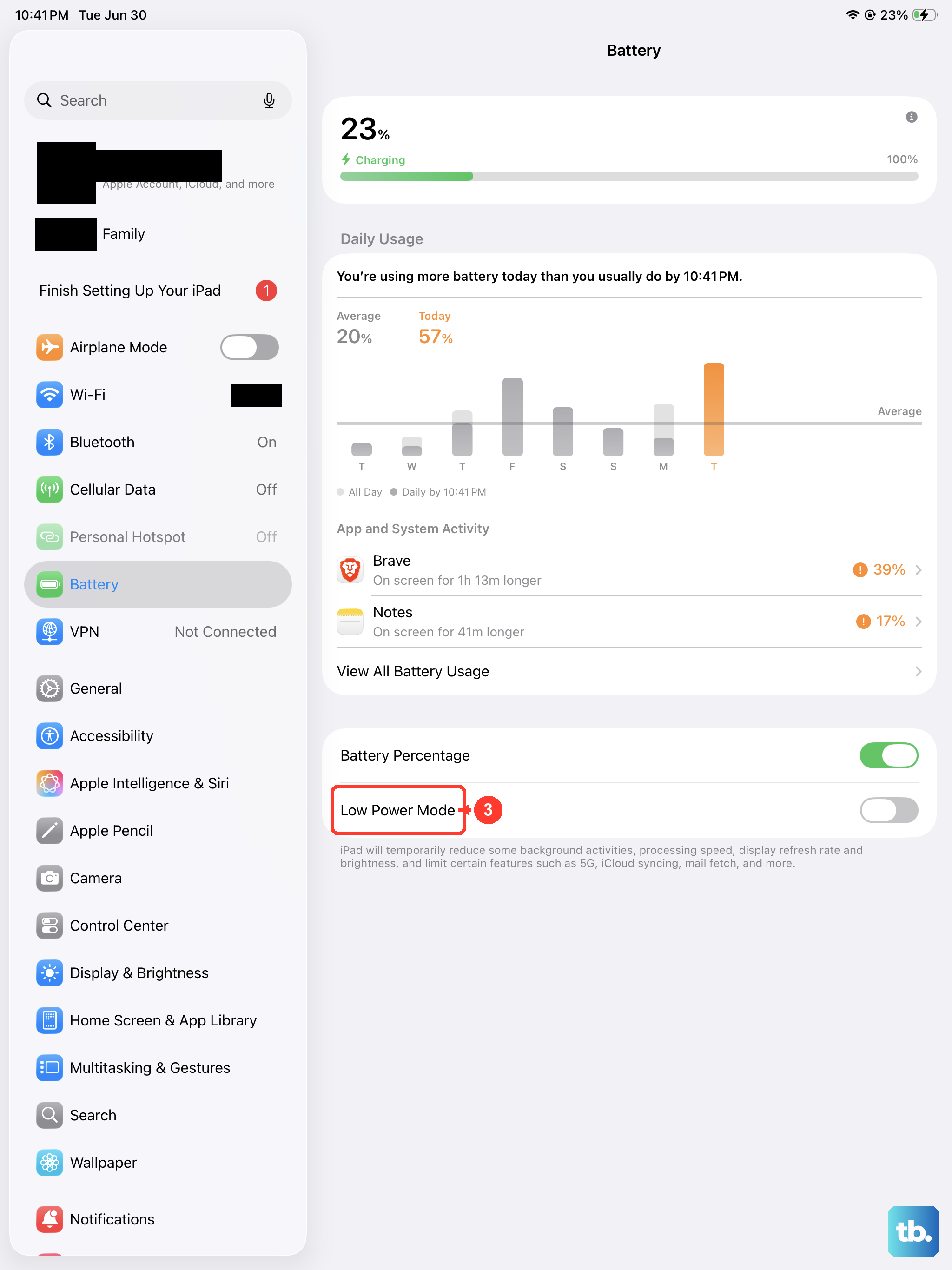
Low Power Mode reduces background activities like mail fetch and visual effects. It's designed for saving battery, but it can also make the iPad feel snappier when resources are tight.
Toggle it on from Settings > Battery, or ask Siri to "Turn on Low Power Mode." It stays on until your iPad is charged to 80% or higher.
Reset All Settings
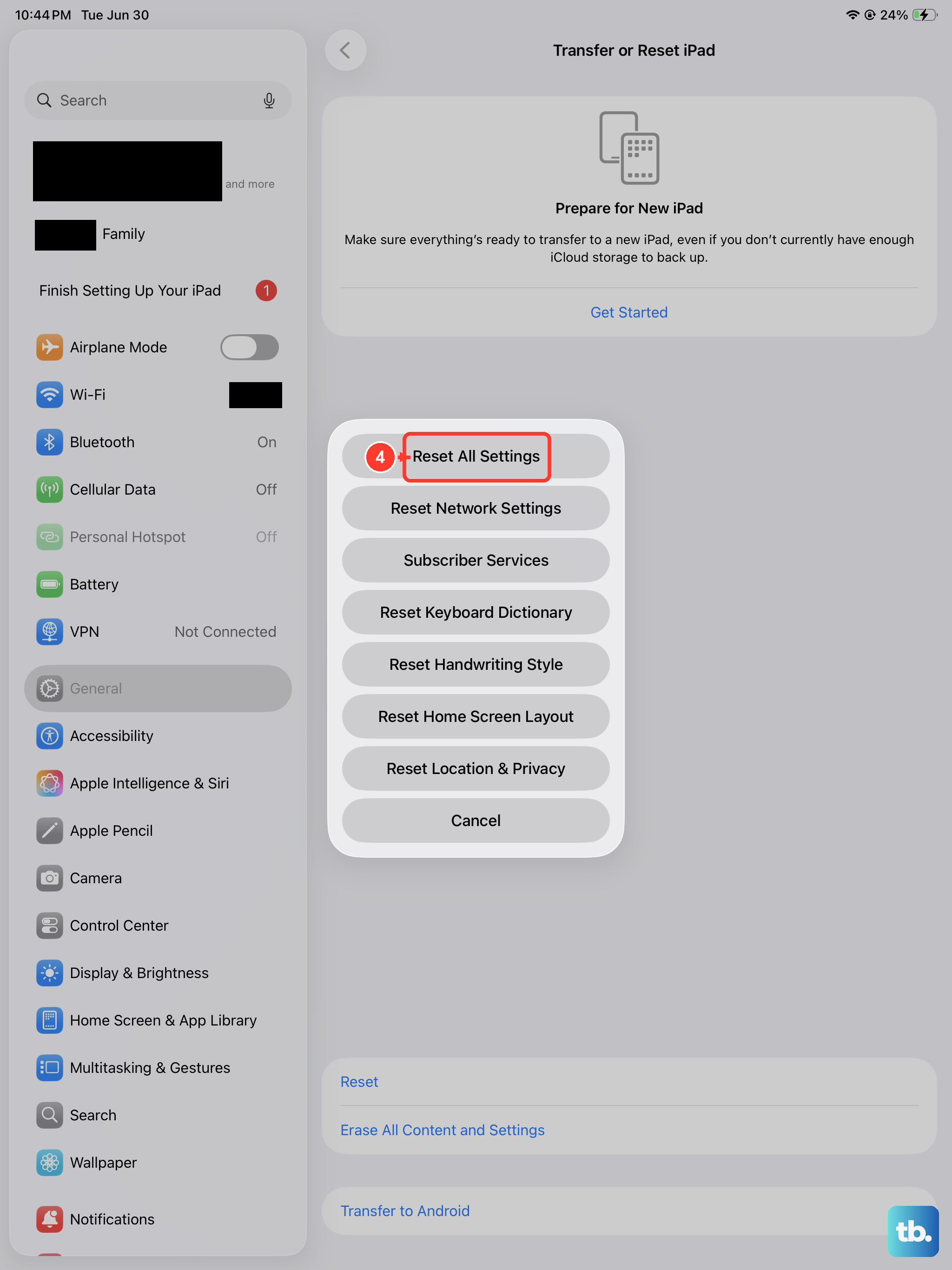
If you've tried everything and the iPad is still slow, resetting all settings often uncovers a hidden conflict. This won't erase your photos, apps, or data, just returns system preferences like Wi-Fi passwords and wallpapers to default.
Go to Settings > General > Transfer or Reset iPad > Reset > Reset All Settings. Enter your passcode to confirm. After the iPad restarts, you'll need to set up Face ID, Apple Pay, and network settings again, but your content stays intact.