
A camera that won't focus on your iPad Air M3 turns every scan, video call, or quick photo into a fuzzy mess. The built-in autofocus should snap to attention instantly. When it doesn't, a few straightforward checks usually get it working again.
Clean the Camera Lens
Start here, because it's the most common culprit. Fingerprints, dust, and pocket lint on the lens surface make the camera struggle to lock focus. Use a soft, dry microfiber cloth and gently wipe the rear camera lens. A small smudge you can barely see is enough to confuse the autofocus sensor. Avoid using paper towels or rough fabrics that can leave micro-scratches.
If the lens looks clean but the image is still hazy or won't focus, move on to the next check.
Remove Your Case or Folio
Some iPad cases have a camera cutout that doesn't sit flush. A raised lip or thick edge can cast a shadow over the lens or physically block the autofocus mechanism. Pop the iPad out of its case and test the camera. If the autofocus works now, the case is interfering. Also peel off any plastic camera protector film you might have left on from the factory.
Check for Condensation or Moisture
Moving from a cold room to a warm one can cause condensation to form inside or on the camera lens. This shows up as a foggy, unresponsive autofocus. Let the iPad sit at room temperature for 20 to 30 minutes. Don't use a hair dryer or heat gun directly on the lens, as that can damage the internal sensor.
Close and Reopen the Camera App
The Camera app itself can glitch. Swipe up from the bottom until the App Switcher appears, then swipe the Camera preview up and off the screen. Wait a couple of seconds, then tap the Camera icon again. This clears any software hickey that might be keeping the autofocus motor from engaging.
Force Restart the iPad Air M3
A force restart clears the camera's software stack without erasing any data. On the iPad Air M3, press and quickly release Volume Up, then Volume Down, then press and hold the Top button until the Apple logo appears. Let the iPad finish booting, then open the Camera app and check the autofocus. This resolves most temporary software-related focus issues.
Update iPadOS to the Latest Version
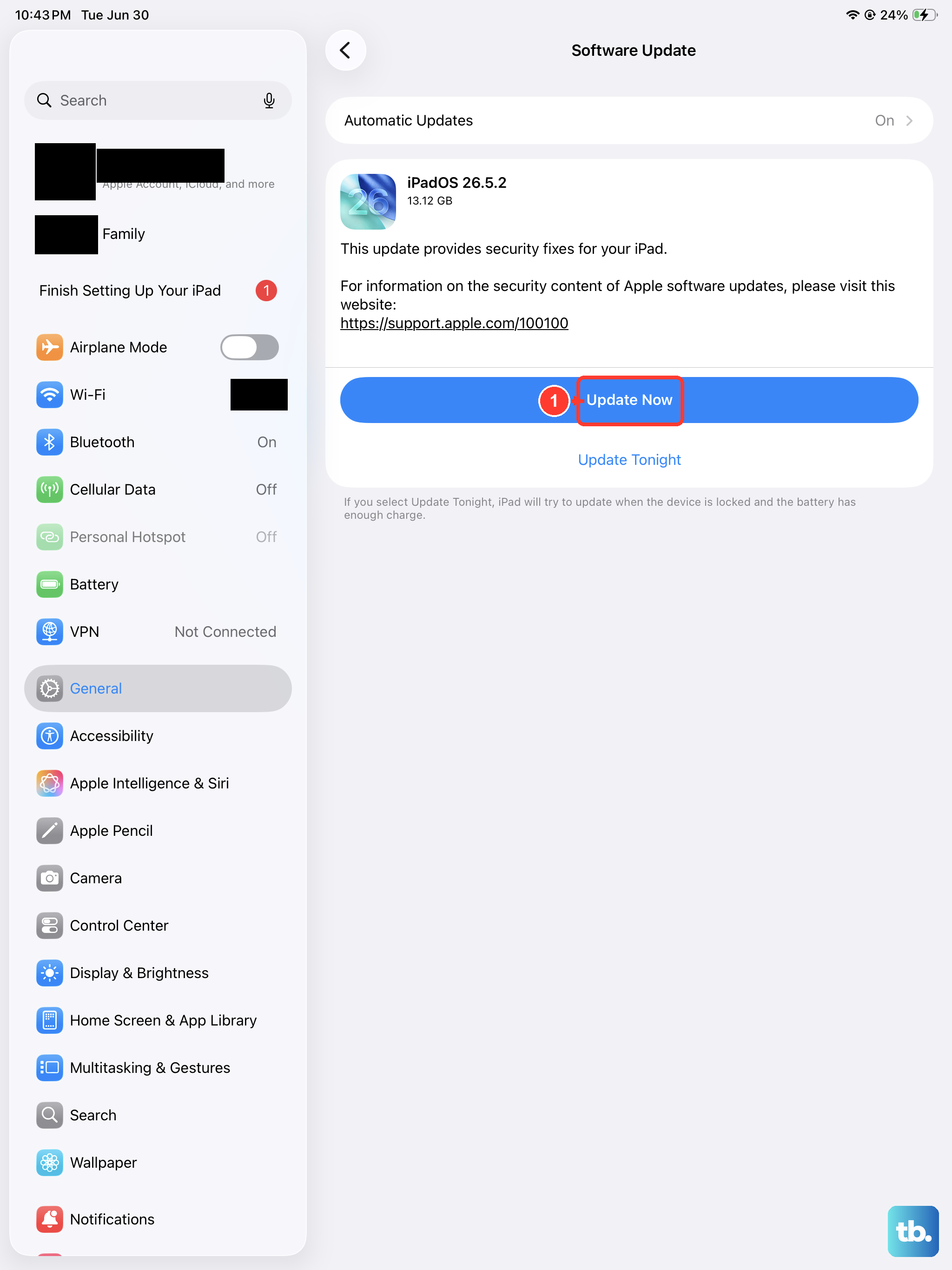
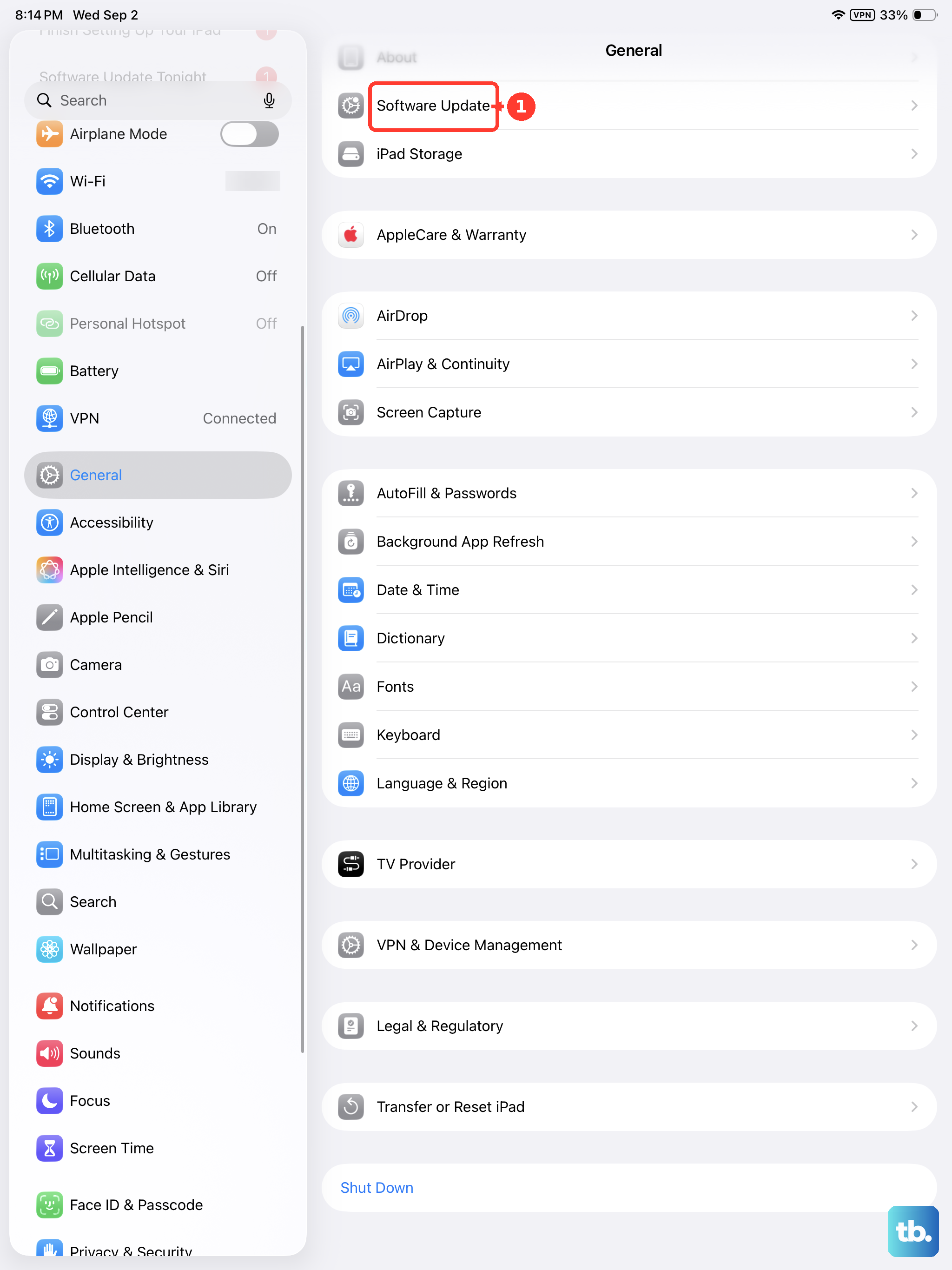
Camera bugs and autofocus algorithm tweaks are included in regular iPadOS updates. Go to Settings > General > Software Update. If an update is available, plug your iPad into power and install it. A known autofocus quirk in an earlier version of iPadOS 18 could be causing your problem, and the latest update might have patched it.
Reset Camera Settings to Default
Custom camera settings sometimes interfere with autofocus behavior. Go to Settings > Camera > Preserve Settings and turn off each toggle. This makes the Camera app return to its factory defaults every time you open it. After doing this, close and reopen the Camera app to see if focus snaps back to normal.
Check for Third-Party Lens Attachments
If you use any magnetic clip-on lens accessories (wide-angle, telephoto, or macro), remove them completely. These attachments can block the autofocus mechanism or throw off the focus distance calculations. Even high-quality clip-on lenses can cause focus issues on iPads without built-in lens correction profiles.
Turn Off Stage Manager (If Using External Display)
Stage Manager on iPadOS 18, especially when connected to an external monitor, can sometimes cause the Camera app to behave unpredictably. The autofocus may lag or freeze entirely. Open Control Center, tap Stage Manager to turn it off, and test the camera again. This is a niche fix but has helped several users with external display setups.
Test the Camera in Another App
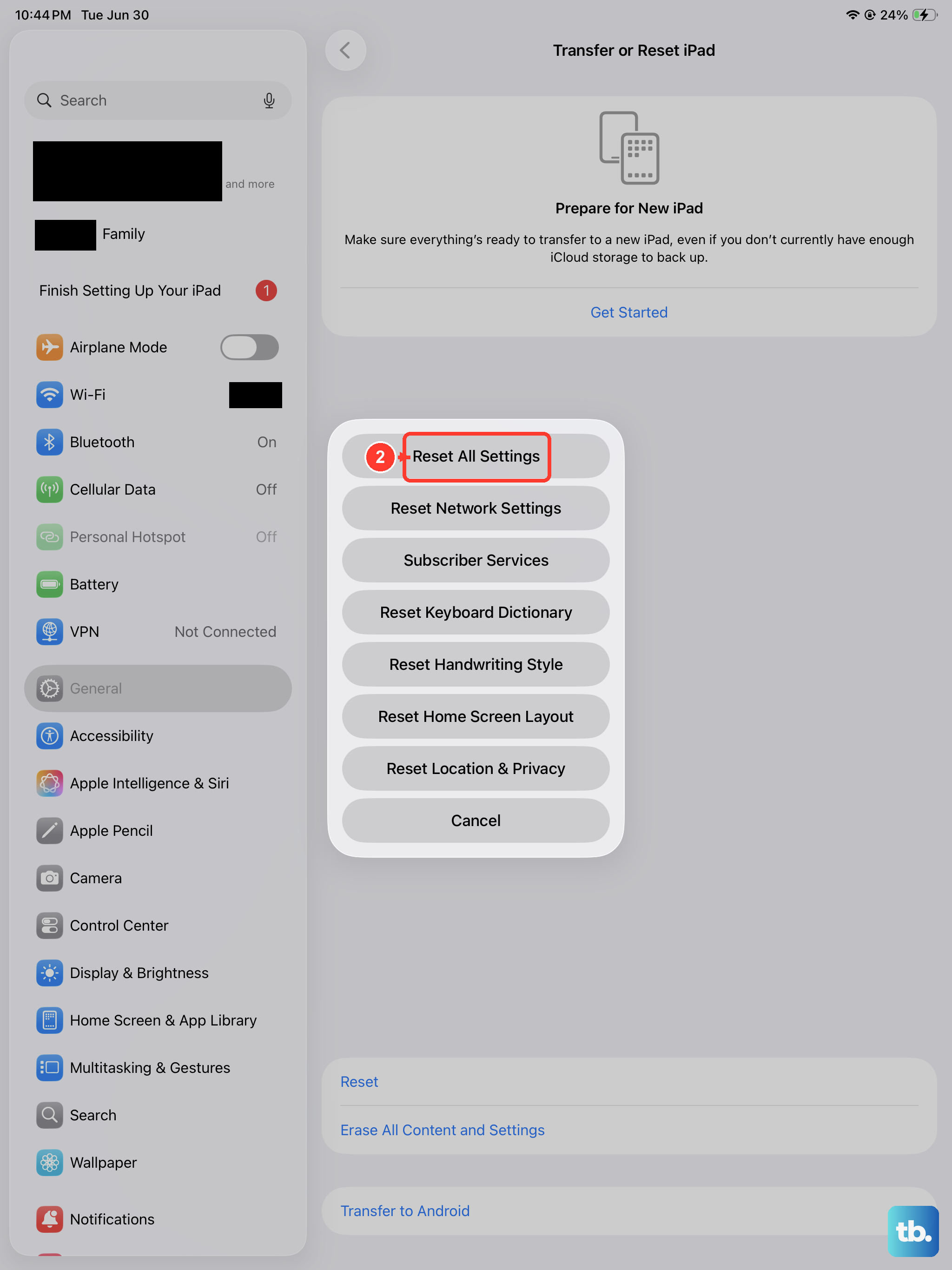
Open FaceTime, Zoom, or any app that uses the rear camera. If the autofocus works in another app, the problem is isolated to the Camera app itself. Try reinstalling any third-party camera app or, for the built-in Camera app, go to Settings > General > Transfer or Reset iPad > Reset > Reset All Settings. This won't delete your data but will restore system settings to defaults.