
App downloads stuck on your iPad Air M3 can be incredibly annoying. You tap "Get" and nothing happens, or the progress circle just sits there. The good news is there are several quick fixes you can try before giving up.
Check Your Internet Connection First
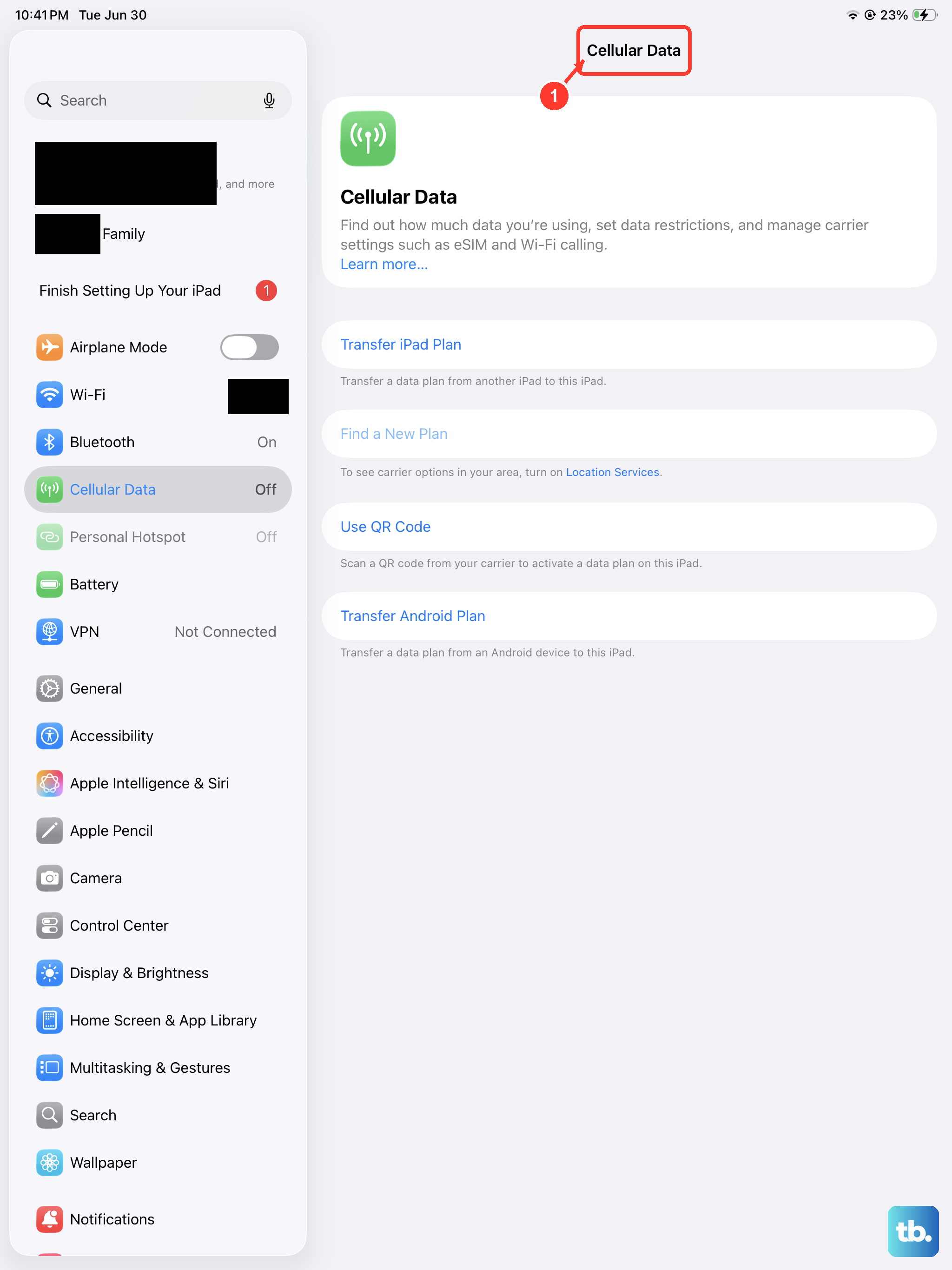
Before blaming the iPad itself, make sure you're actually connected to the internet. Pull down the Control Center and verify that Wi-Fi or cellular data is turned on and has a steady connection.
If you're on Wi-Fi, try toggling it off and back on. Sometimes the iPad just needs to refresh the connection. You can also forget the network and reconnect: go to Settings > Wi-Fi, tap the little "i" next to your network, then tap Forget This Network. Re-enter the password and try downloading again.
Force Restart Your iPad Air M3
A force restart clears out temporary software glitches without deleting any data. On the iPad Air M3, the sequence is specific: press and quickly release Volume Up, then Volume Down, then press and hold the Top button until the Apple logo appears.
Hold the Top button even after you see the power-off slider, keep holding until you see the Apple logo, then release. This can resolve stuck processes that might be blocking downloads.
Make Sure the Date and Time Are Correct
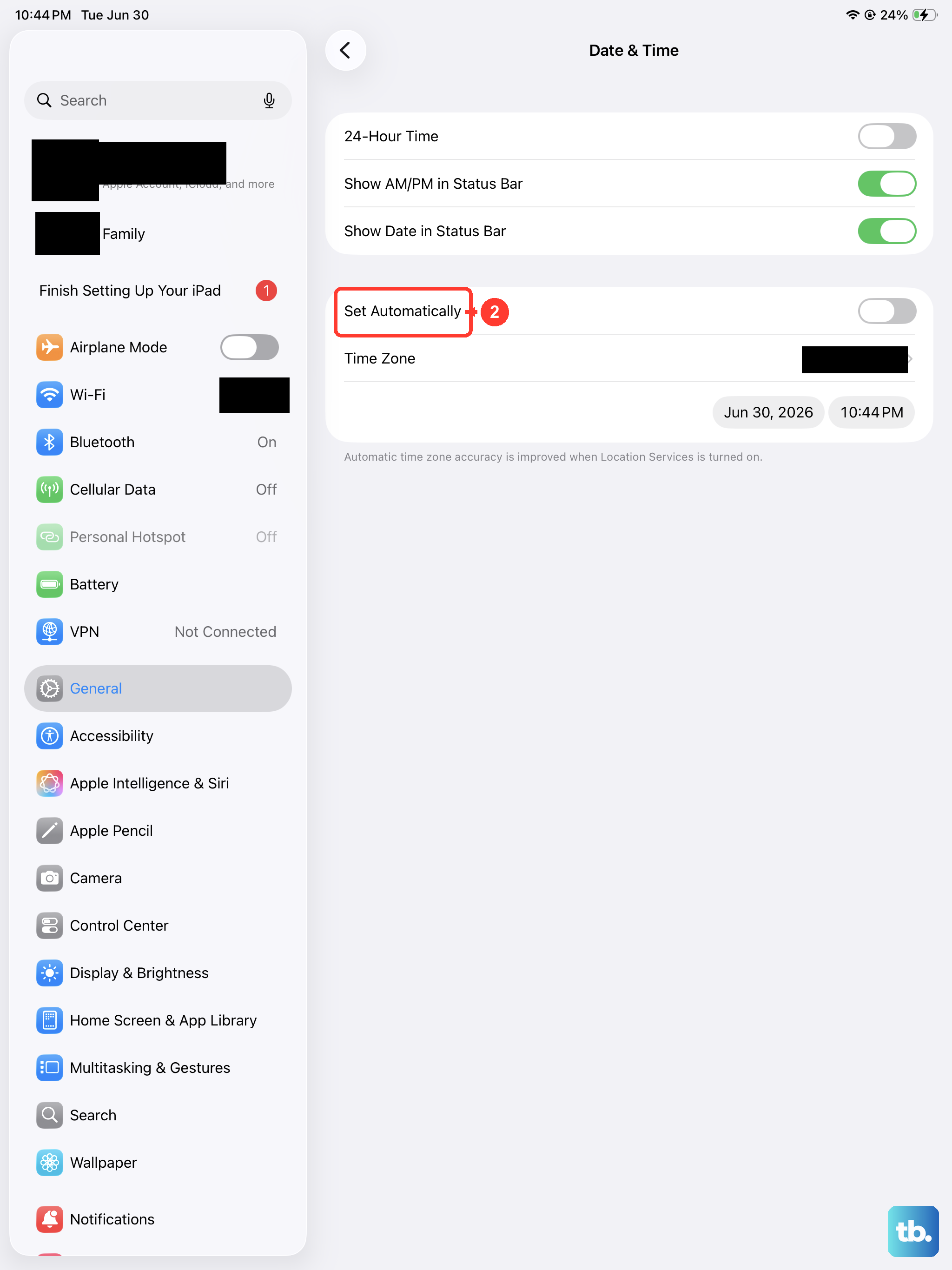
The App Store checks your iPad's date and time against Apple's servers. If they're off, downloads can fail or hang.
Go to Settings > General > Date & Time and make sure Set Automatically is turned on. If it's already on but downloads are still stuck, toggle it off, set the time manually to the correct local time, then toggle it back on. Then try downloading again.
Sign Out and Back Into the App Store
An authentication hiccup with your Apple ID can cause downloads to stall. Signing out and back in refreshes your connection to the App Store.
Open Settings, tap your name at the top, then scroll down to Media & Purchases. Tap Sign Out. Wait about 30 seconds, then go back to the App Store and sign in again with your Apple ID. This often clears up stubborn download issues.
Check Your iPad's Storage Space
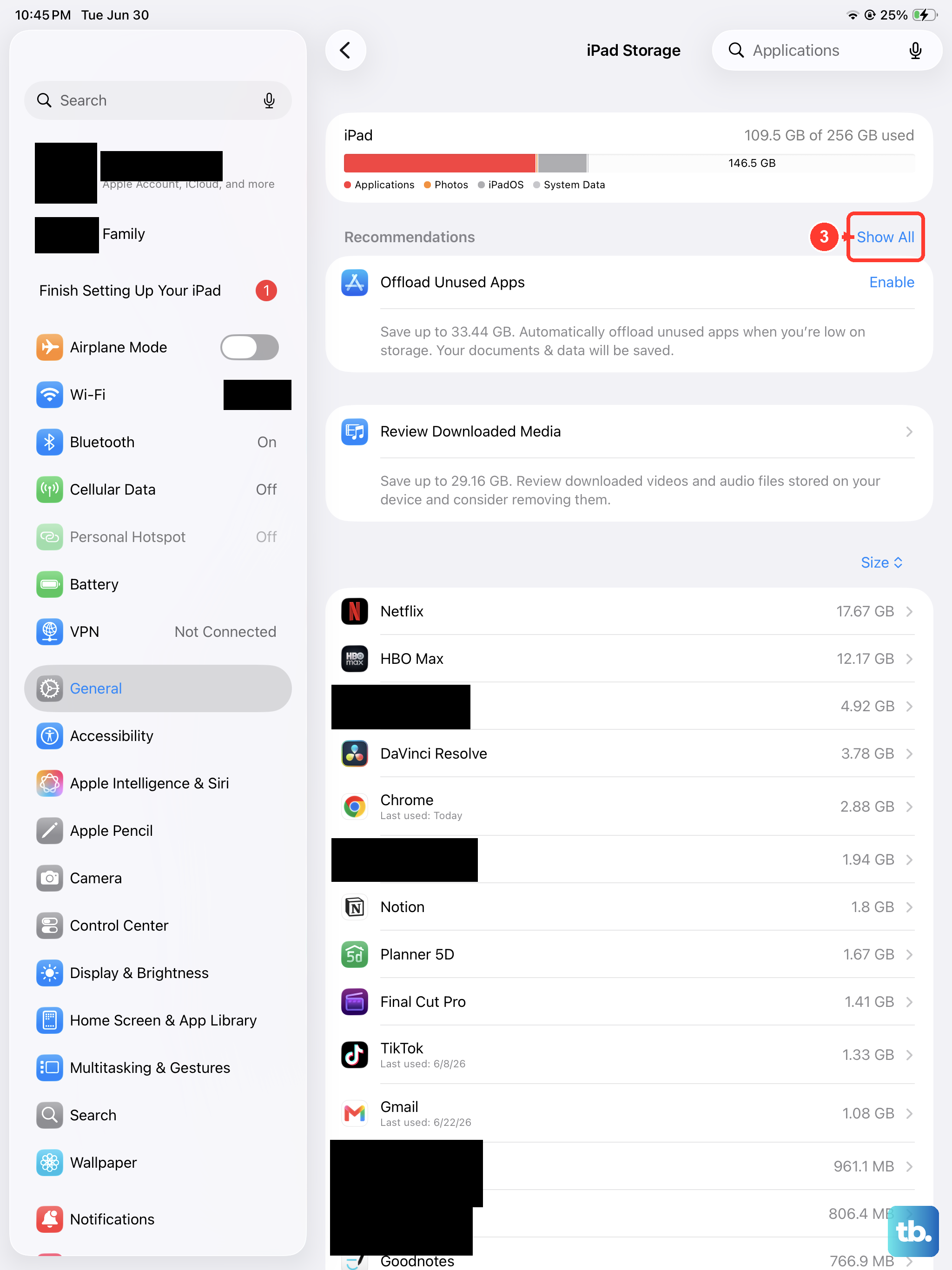
If your iPad is running low on storage, the App Store won't be able to download new apps. Go to Settings > General > iPad Storage and see how much free space you have.
You need at least a few gigabytes free for app downloads. If you're low, offload some unused apps (Settings > General > iPad Storage > Offload Unused Apps) or delete old photos, videos, and large files. iCloud Photos can help free up local space without losing your pictures.
Update iPadOS
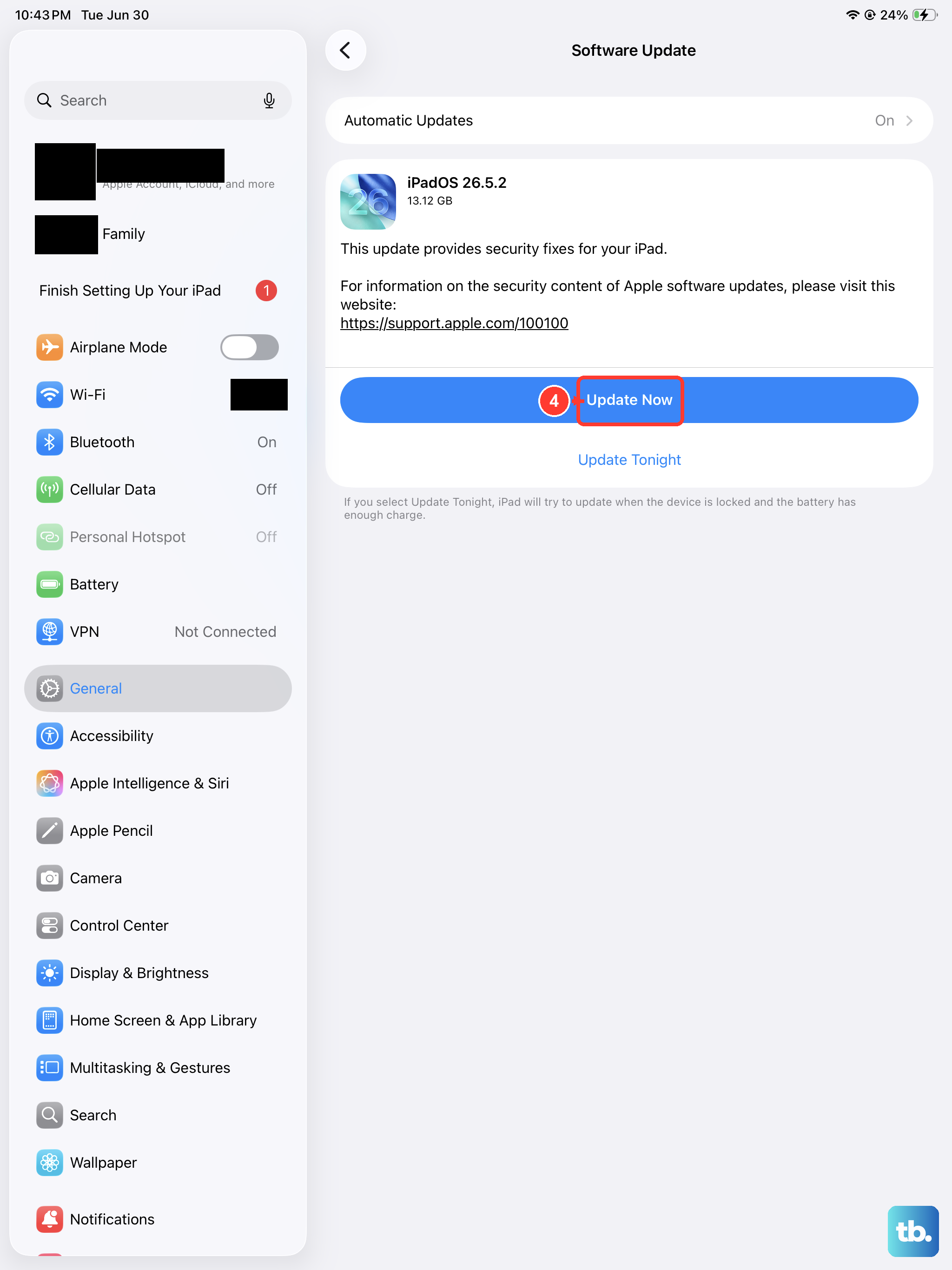
Outdated software can cause compatibility issues with the App Store. Apple regularly releases updates that fix bugs related to downloads and networking.
Go to Settings > General > Software Update. If an update is available, download and install it. Your iPad will restart during the process, so save any work first. After the update, check if app downloads work normally.
Check Apple's System Status
Sometimes the problem isn't on your end. Apple's App Store servers can experience outages that prevent downloads.
You can check the current status by visiting Apple's System Status page in a browser. If you see a red indicator next to App Store or Apple ID, the issue is on Apple's side. Wait a while and try again later.
Reset Network Settings
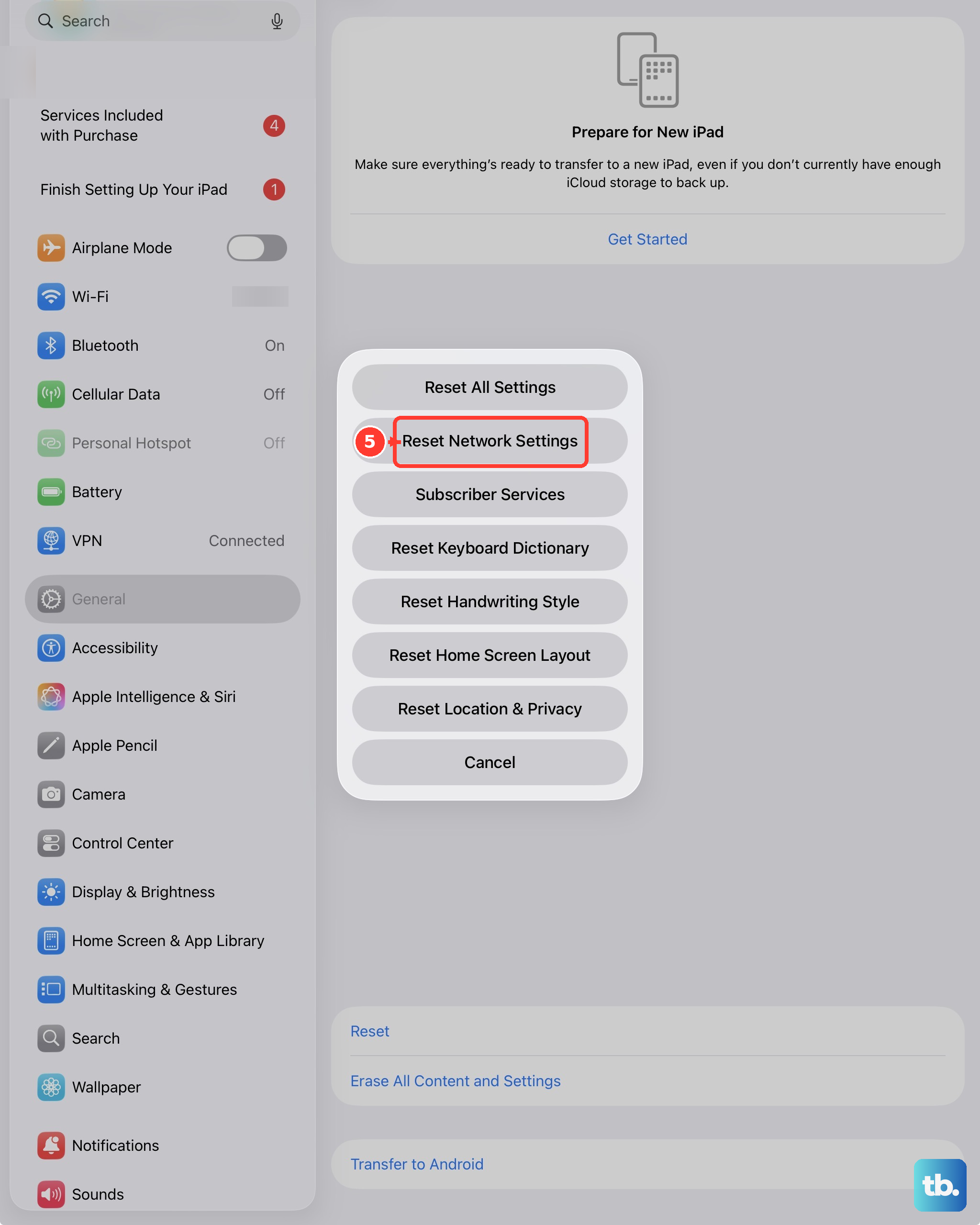
If your Wi-Fi or cellular connection seems fine but downloads still hang, resetting network settings can clear out corrupted configurations.
Go to Settings > General > Transfer or Reset iPad > Reset > Reset Network Settings. This will wipe saved Wi-Fi networks and passwords, VPN configurations, and Bluetooth pairings, so you'll need to reconnect to Wi-Fi afterward. It won't erase your apps or data.
Disable VPN and Content Filters
VPNs and ad blockers can interfere with the App Store's ability to connect properly. If you have a VPN or a content-blocking app turned on, try disabling it temporarily.
If the download starts working after you turn off the VPN, you know that's the culprit. You can either keep it off for downloads or configure it to allow App Store traffic.
Last Resort: Erase All Content and Settings
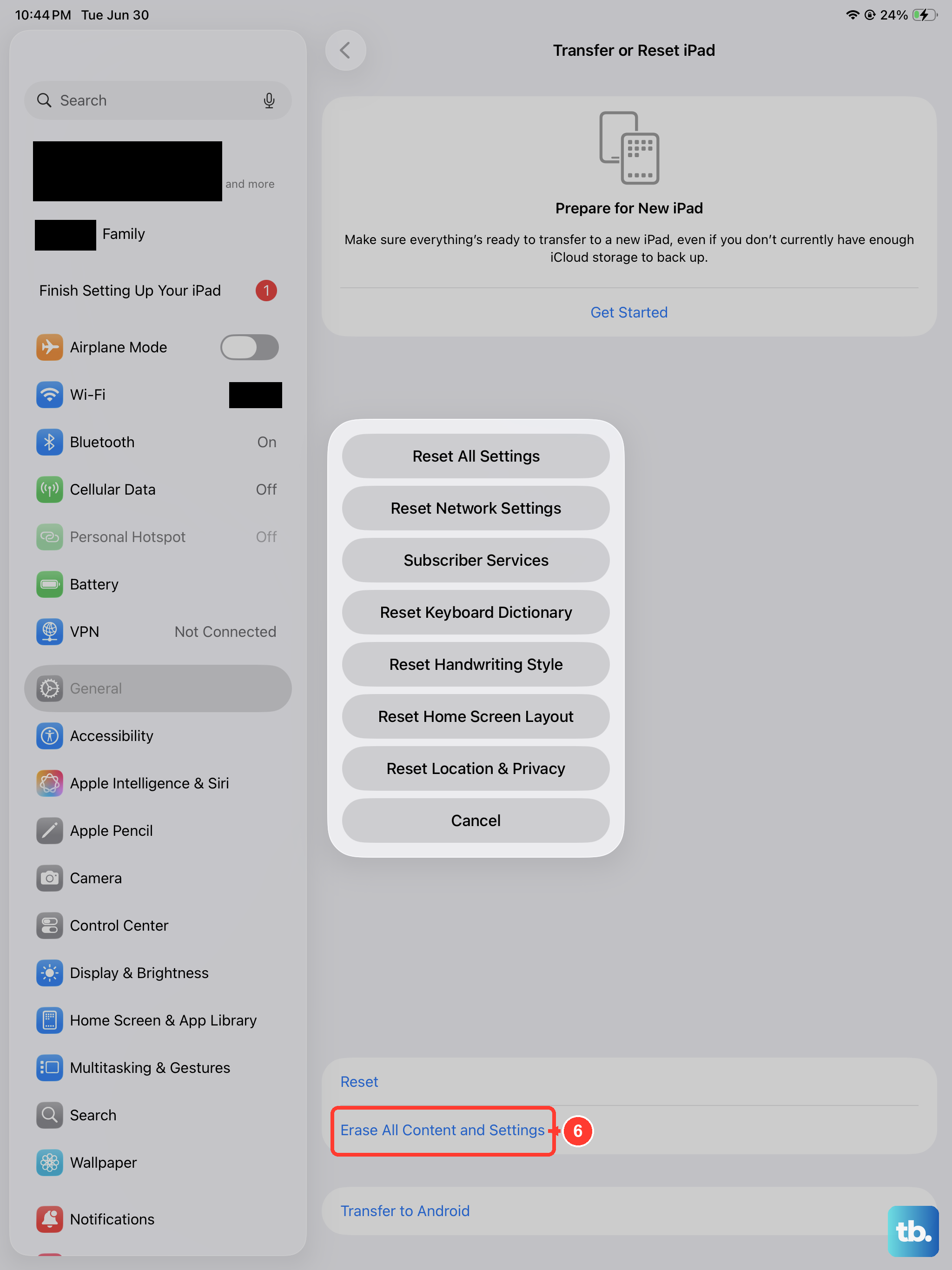
If nothing else has worked, a full reset can wipe whatever is stuck in the system. This is a big step, so make sure you have a recent iCloud or computer backup first.
Go to Settings > General > Transfer or Reset iPad > Erase All Content and Settings. After the reset, set up your iPad as new or restore from a backup. Then try downloading an app from the App Store, it should work now.