
When the predictive text on your iPad (11th generation) stops working, it can really slow you down. You might notice word suggestions disappearing, autocorrect making bizarre changes, or the whole keyboard feeling less intelligent. The good news is this is almost always a software hiccup you can fix yourself.
I'd start with a simple restart, as it clears out temporary glitches. To force restart your iPad, press and quickly release the Volume Up button, then quickly press and release the Volume Down button. Finally, press and hold the Top button until you see the Apple logo appear on the screen.
Toggle Predictive Text Off and On
Sometimes the feature just needs a quick refresh. Open any app that uses the keyboard, like Notes or Messages. Tap and hold the emoji or globe icon in the bottom-left corner of the on-screen keyboard.
Slide your finger up to select "Keyboard Settings." On the next screen, simply toggle the switch for "Predictive" off, wait a moment, and then toggle it back on. This resets the feature without affecting your personal dictionary.
Check Your Text Replacement and Keyboard Settings
Incorrect settings can sometimes interfere. Head to Settings > General > Keyboard. Here, make sure "Predictive" is enabled.
Also, scroll down to "Text Replacement." If you have any very short or odd entries here, they can confuse the prediction engine. You might want to review or temporarily disable them to see if that's the cause.
Reset All Keyboard Dictionary Data
If predictions are wildly off or based on old, incorrect data, a reset can help. This will erase all words you've added to the dictionary that aren't in the standard lexicon.
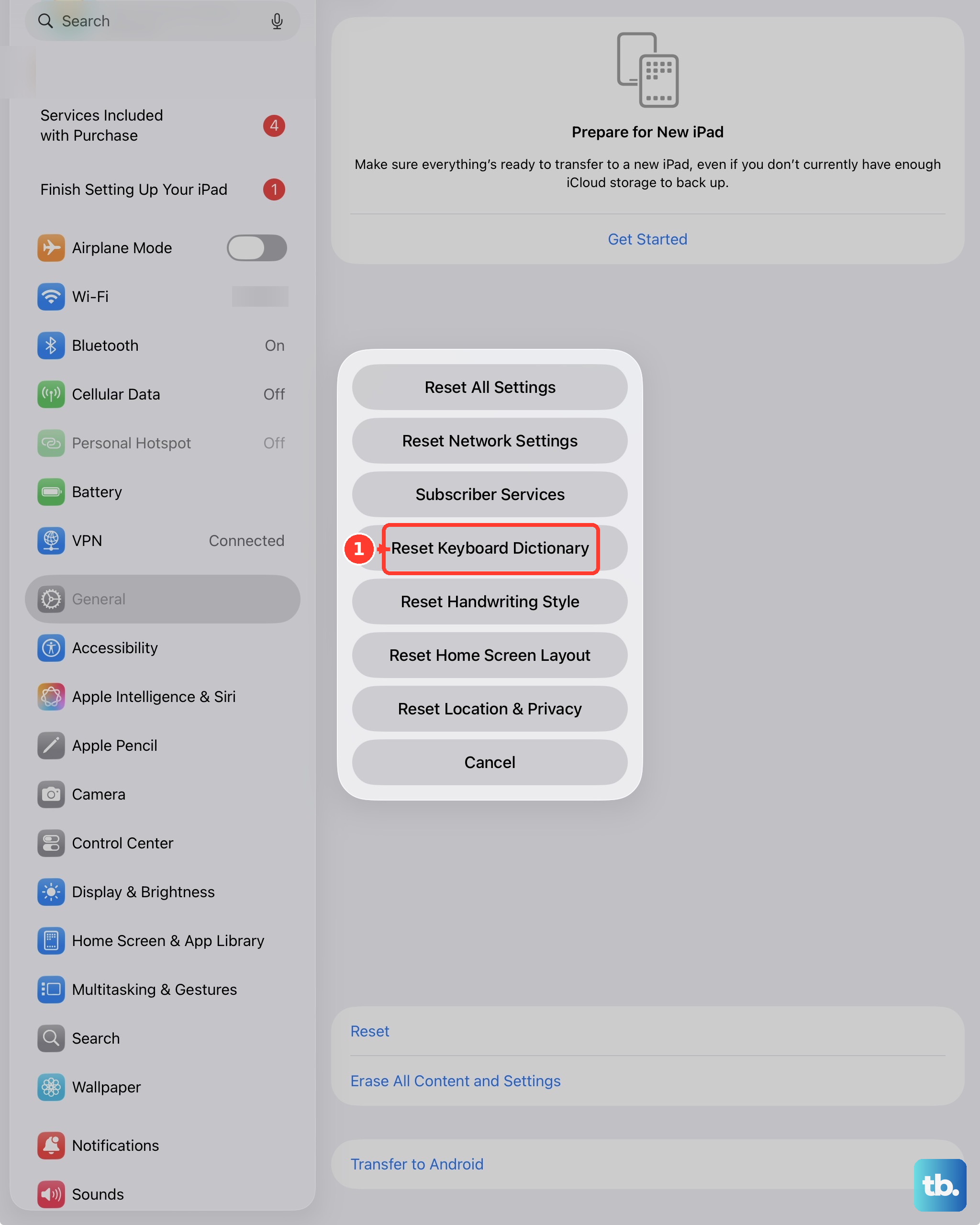
Go to Settings > General > Transfer or Reset iPad. Tap "Reset" at the bottom, and then choose "Reset Keyboard Dictionary." You'll need to enter your passcode to confirm.
Update iPadOS to the Latest Version
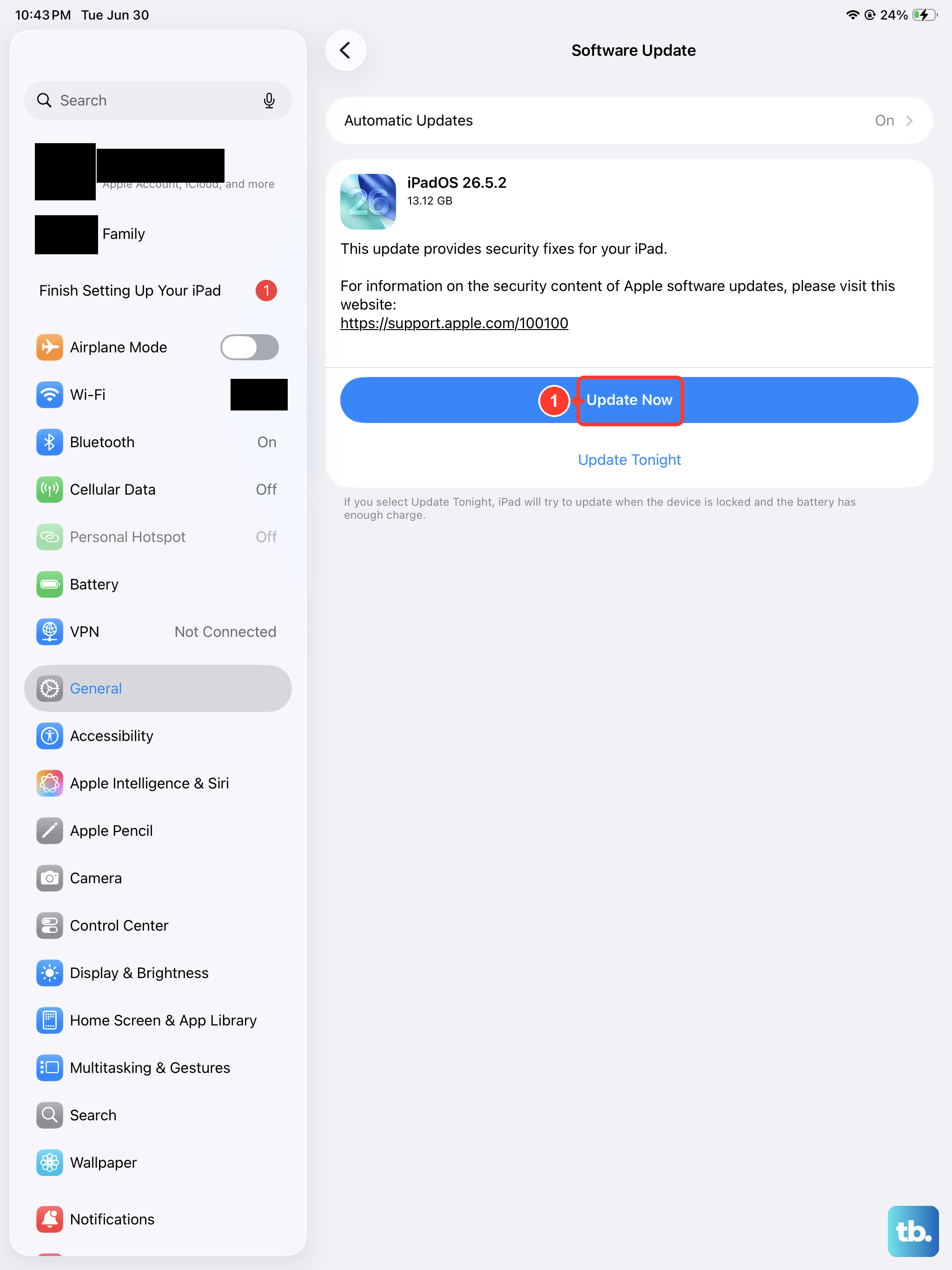
Apple frequently releases updates that include fixes for system apps, including the keyboard. Keeping your iPad (11th generation) on the latest iPadOS version is one of the best ways to ensure stability.
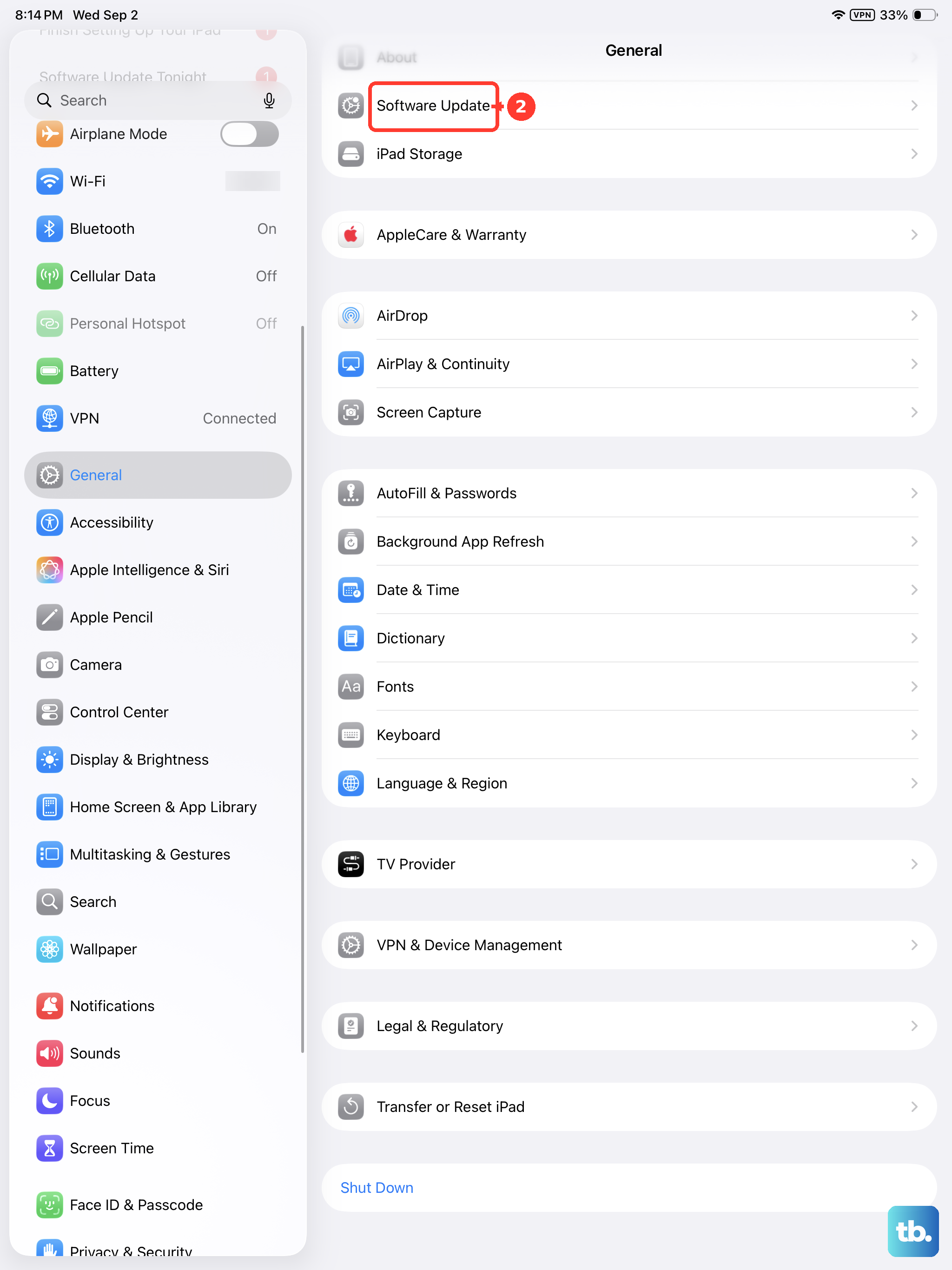
Connect to Wi-Fi and plug in your iPad using a 20W USB-C charger to ensure the update doesn't get interrupted. Then, go to Settings > General > Software Update and install any available update.
Check for App-Specific Issues
Is the problem happening in every app, or just one like Safari or a third-party note-taking app? If it's app-specific, the issue might be with that app's compatibility.
Try force-closing the problematic app. Swipe up from the bottom of the screen and pause in the middle to enter the app switcher. Find the app's preview and swipe it up off the top of the screen to close it. Then reopen it.
If that doesn't work, check the App Store for an update to that specific application. Developers often patch bugs that affect keyboard interaction.