You open Settings on your iPad (10th generation), tap Software Update, and the screen either spins endlessly, stalls partway through a download, or stubbornly tells you the software is up to date when you know a newer iPadOS exists. It is a frustrating wall to hit, but it is almost always a software hiccup rather than a hardware limit.
The iPad (10th generation), built around the A14 Bionic chip, sits on Apple's official list of models compatible with iPadOS 26, so it can run the current iPadOS 26.x. A stuck update is something you can usually clear yourself.
Before you start, connect the iPad to Wi-Fi and to a power source, since a steady connection and a charged battery are standard requirements for any iPadOS update. Then work through the steps below in order, starting with the quickest and safest, and only reach for the factory-level fixes if the simple ones do not solve it.
Start in Settings and confirm an update is really waiting
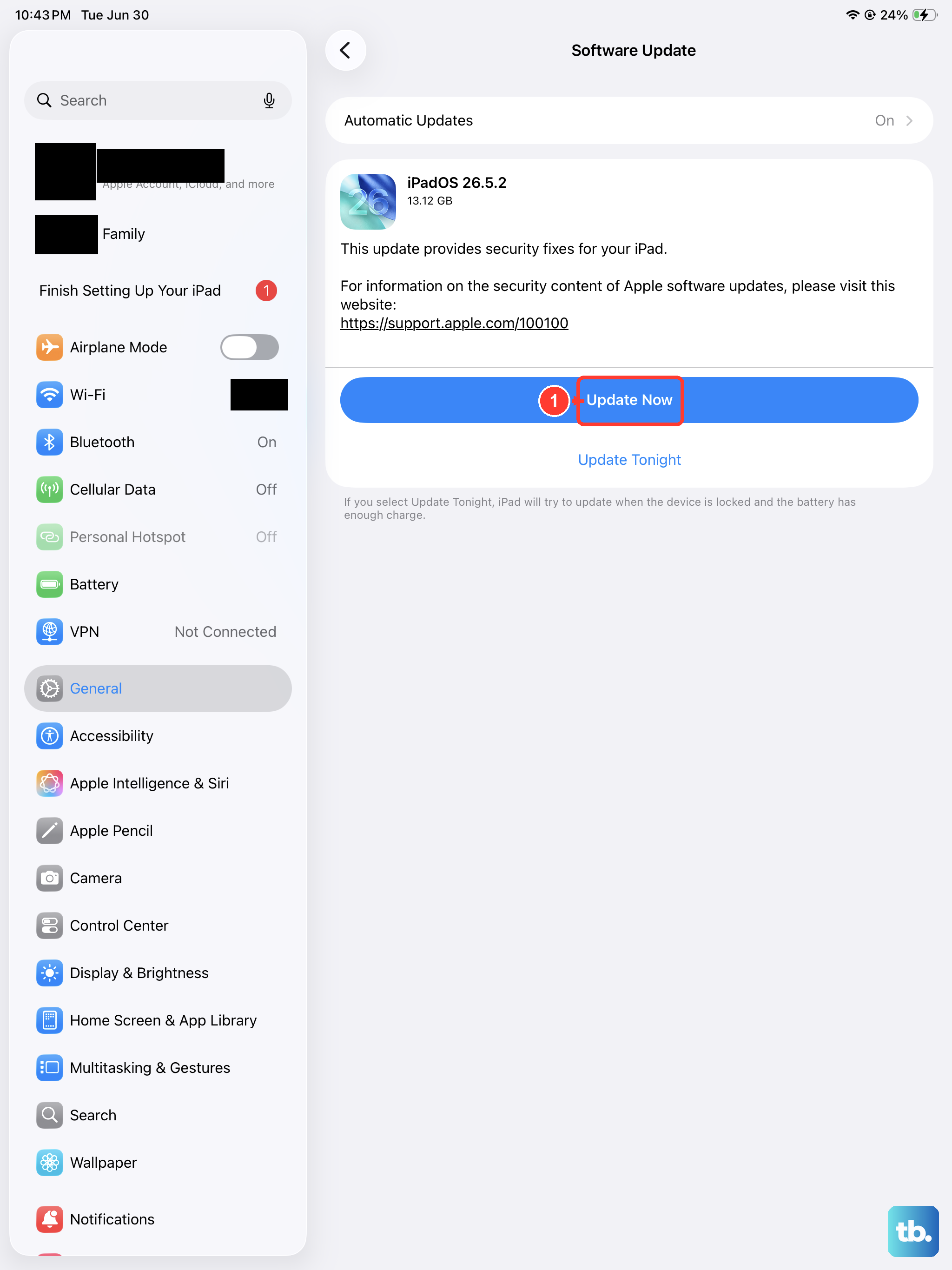
The most reliable place to update this iPad is the iPad itself. Before troubleshooting anything else, check exactly which iPadOS version is installed and whether an update is actually being offered.
Sometimes the message that your software is up to date is correct, and sometimes an update is waiting but has not finished preparing. Keep the iPad on Wi-Fi the entire time so the download does not stall.
Open Settings, tap General, then tap Software Update.
Look at the installed iPadOS version and any update listed on that screen.
If an update is available, tap Download and Install, then follow the onscreen instructions.
Stay connected to Wi-Fi and to power while the update downloads.
Power the iPad off and on to clear a temporary glitch
A simple restart clears many of the temporary glitches that quietly block an update. Because the iPad (10th generation) has no Home button, the shutdown sequence relies on the volume and top buttons rather than a single button.
Give the iPad a full 30 seconds off before you power it back on so the system fully resets.
Press and hold either volume button and the top button until the power-off slider appears.
Drag the slider, then wait 30 seconds for the iPad to turn off.
Press and hold the top button until the Apple logo appears.
Return to Settings > General > Software Update and try the update again.
Make room for the download
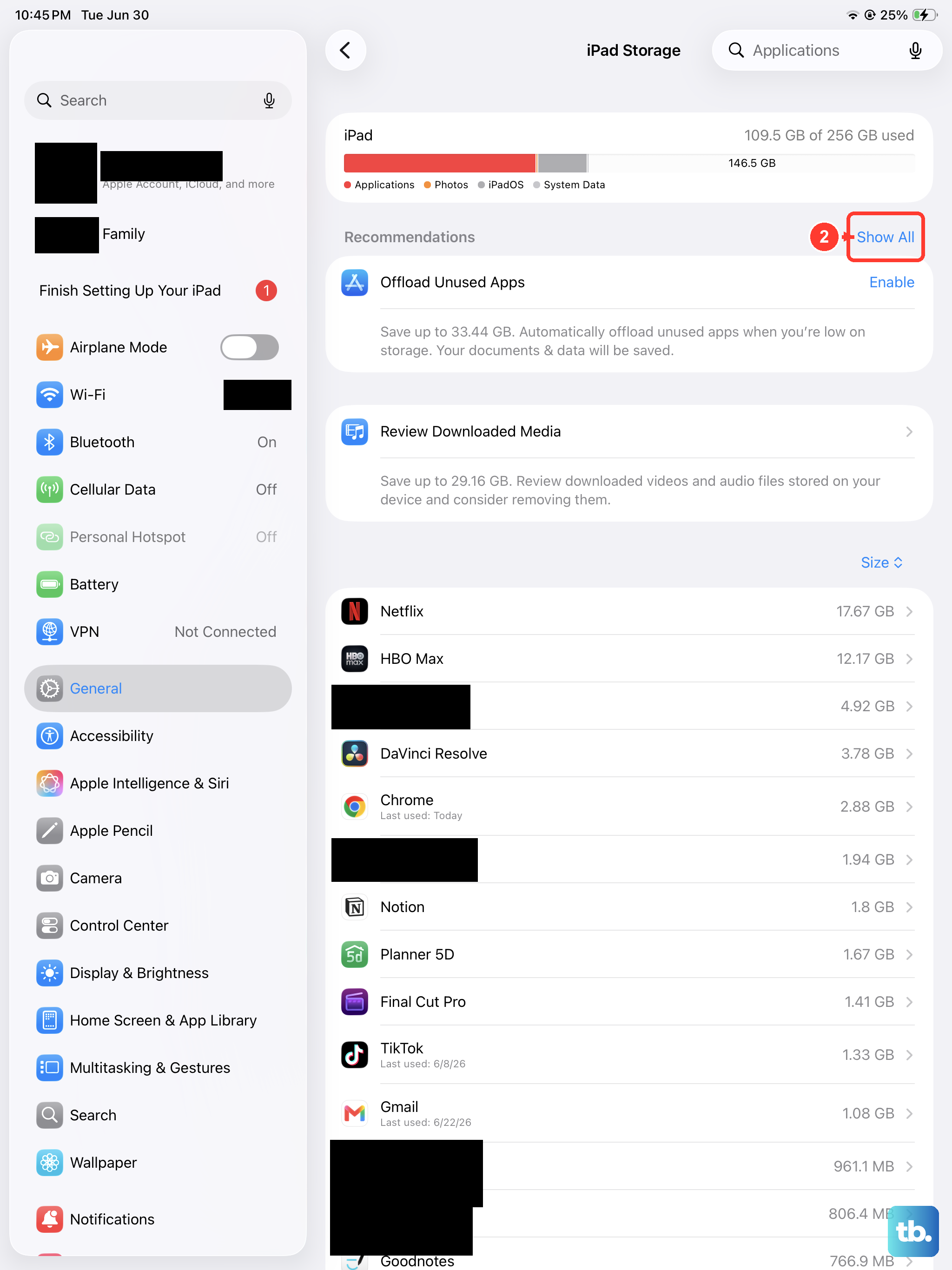
An update will not install if the iPad lacks enough free space to hold it. You can let iPadOS offload apps you rarely open, which keeps their documents and data while removing the app itself, or you can delete a few apps manually.
Either approach frees the room the download needs.
Go to Settings, tap General, then tap iPad Storage.
Tap Enable next to Offload Unused Apps, or manually delete apps you do not need.
Return to Settings > General > Software Update and try the update again.
Remove a corrupted update file and download a fresh copy
If the download arrived damaged or stalled partway, the half-finished file itself can be what blocks you. Deleting that file and pulling a clean copy often unsticks the process.
You will find the stuck update sitting in your storage list alongside your apps.
Go to Settings, tap General, then tap iPad Storage.
Find the update in the list of apps, tap it, then tap Delete Update.
Go to Settings, tap General, then tap Software Update.
Download the latest update again.
Steady the Wi-Fi the download depends on
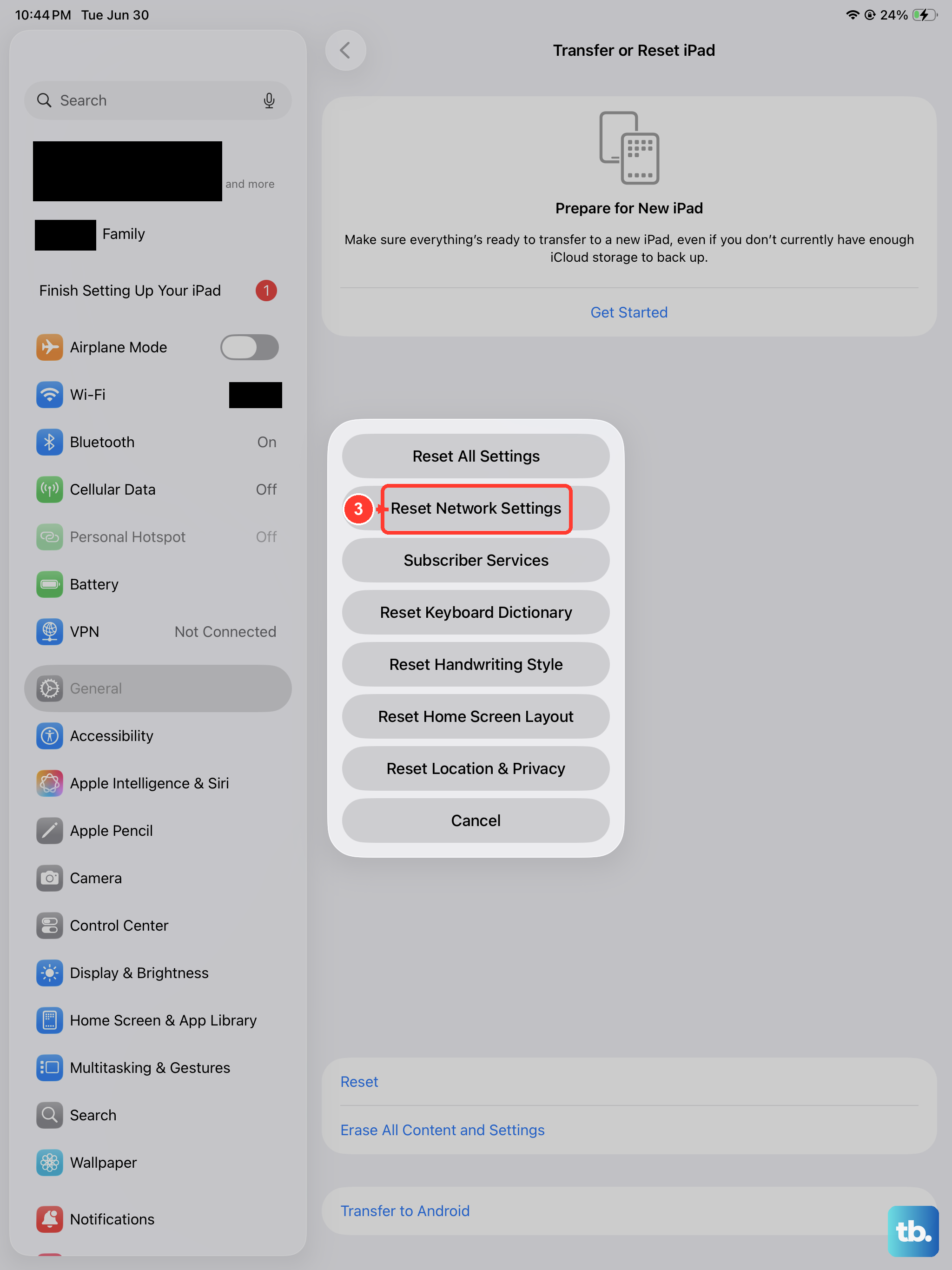
Updates need a stable Wi-Fi connection from the first byte to the last. Start by confirming Wi-Fi is on and Airplane Mode is off, then retry.
If the connection still fails, resetting the network settings gives the iPad a clean slate to reconnect from.
Make sure Wi-Fi is on and Airplane Mode is off, then retry the update.
If Wi-Fi still fails, go to Settings > General > Transfer or Reset iPad > Reset > Reset Network Settings.
Reconnect to your Wi-Fi network, then open Software Update and try again.
Reset Network Settings, available on iPadOS 15 or later, removes all saved Wi-Fi networks and passwords plus cellular, VPN and APN settings, so have your Wi-Fi password ready before you begin. Your photos, apps and personal files are not touched by this reset.
Force restart an iPad that is frozen on the Apple logo
Sometimes an update leaves the iPad unresponsive or stuck on the Apple logo. A force restart is safe and does not erase your data; it simply forces the hardware to reboot.
The button order matters, so follow it exactly as written.
- 1.Press and quickly release the volume button nearest to the top button.
- 2.Press and quickly release the volume button farthest from the top button.
- 3.Press and hold the top button until the Apple logo appears.
Update through a Mac or Windows computer instead
If wireless updating keeps failing, a computer can push the update over a cable. The route differs slightly depending on whether you use a Mac or a Windows PC, but either one can finish what the iPad could not do on its own.
Keep the iPad connected until the update is fully installed.
On a Mac with macOS Catalina or later
Open Finder and connect the iPad with a USB cable.
Select the iPad in the sidebar, then click General.
Click Check for Update, then click Download and Update.
On Windows
Install the latest Apple Devices app, or iTunes if your PC still uses it.
Connect the iPad with a USB cable.
Open the app and check for an update there.
Erase the iPad after making a backup
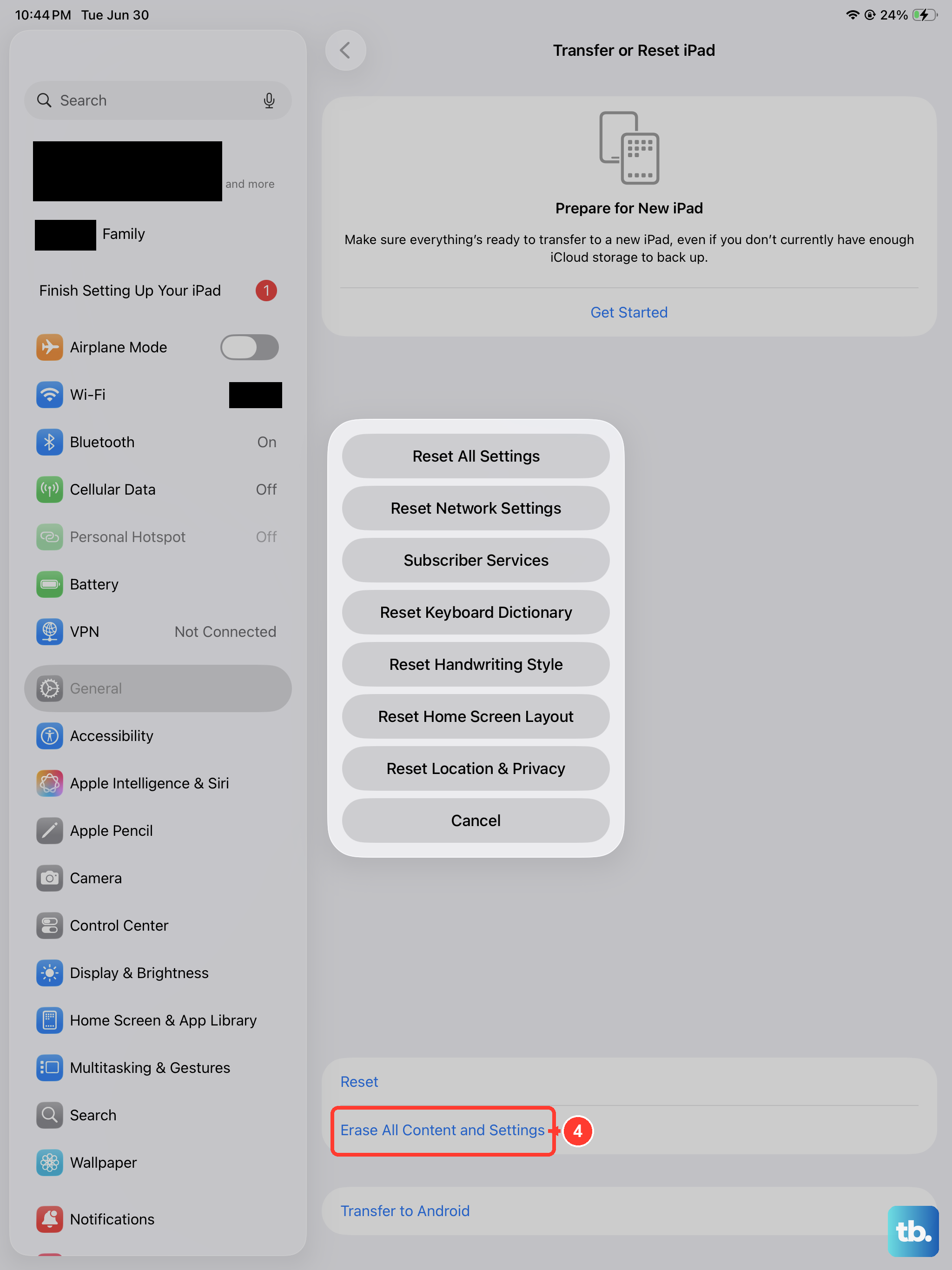
This is a deeper fix, and it wipes everything on the iPad, so a current backup is essential before you start. Erase All Content and Settings restores the iPad to factory settings and removes your data, which is exactly why you should only run it once you are certain your backup is complete.
Do not skip the backup step.
Back up the iPad first, to iCloud or to a computer.
Go to Settings > General > Transfer or Reset iPad > Erase All Content and Settings.
If asked, enter your iPad passcode or Apple Account password, then tap Continue.
Recovery mode and Apple Support as the last resort
If the iPad still will not update or restore after everything above, the final option is recovery mode with a computer. Connect the iPad to a computer and put it into recovery mode, following Apple's official instructions for your iPad, then choose what to do next.
Updating reinstalls iPadOS without erasing your data, while restoring erases the iPad completely, so try the update option first and only restore if you have a current backup. If recovery mode does not resolve the problem, contact Apple Support, since at that point the issue may need hands-on assistance.
Frequently Asked Questions
Can the iPad (10th generation) run the latest iPadOS?
Yes. The iPad (10th generation) is on Apple's official list of models compatible with iPadOS 26, so it can update to the current iPadOS 26.x. A "won't update" message points to a software or connection issue, not a hardware limit.
Will Reset Network Settings delete my photos and apps?
No. Reset Network Settings only clears saved Wi-Fi networks and passwords along with cellular, VPN and APN settings. Your photos, apps and other data stay in place, though you will need to reconnect to Wi-Fi afterward.
Do I need a computer to update my iPad?
Not usually. Most updates install on-device through Settings > General > Software Update. Updating through Finder on a Mac or the Apple Devices app on Windows is a backup route for when wireless updating keeps failing.
How do I force restart the iPad (10th generation)?
Press and quickly release the volume button nearest to the top button, then press and quickly release the volume button farthest from the top button, then press and hold the top button until the Apple logo appears.
Does Erase All Content and Settings delete everything on the iPad?
Yes. It restores the iPad to factory settings and erases your data, so make a current backup before you use it.